How to install CumulusClips on CentOS Web Panel
How to install CumulusClips on CentOS Web Panel
CumulusClips is a free and open source video hosting platform allow us to upload and download video and share with anyone similar to youtube. It allows the user to upload videos, rate videos, comment and much more. It also contains many plugins for the user to easuly start your own website. This tutorial explains the installation procedure of CumulusClips on CentOS web panel.
Installation procedure
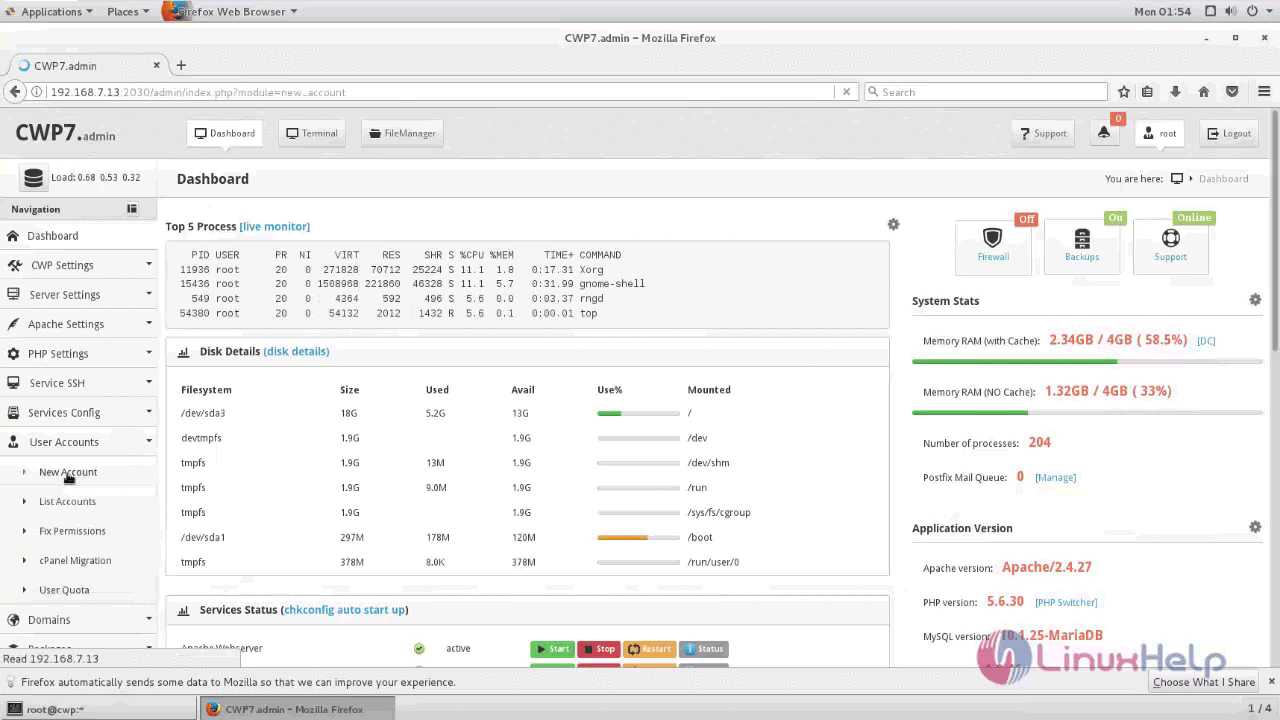
Before installing Cumulusclips we need to perform some steps on CentOS web panel. First create user account go to User Account --> New Account option in the dashboard.
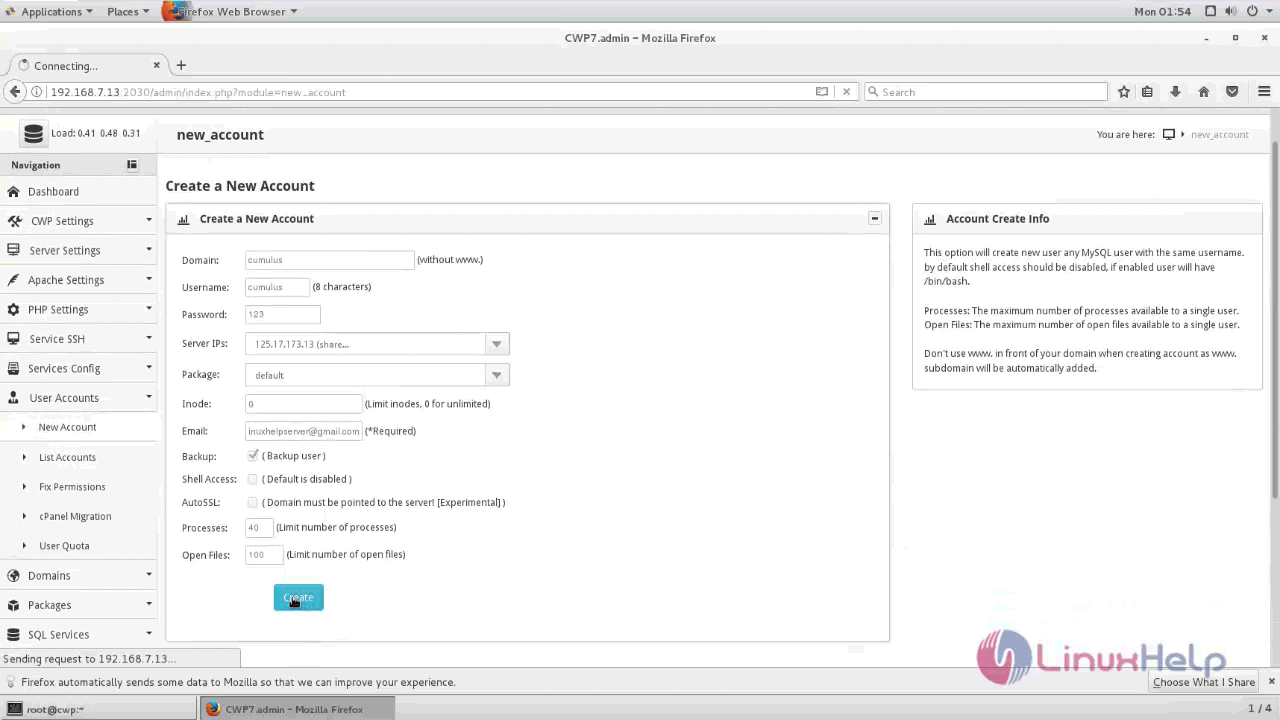
Fill the required information about new user account and click create option to create a new account.
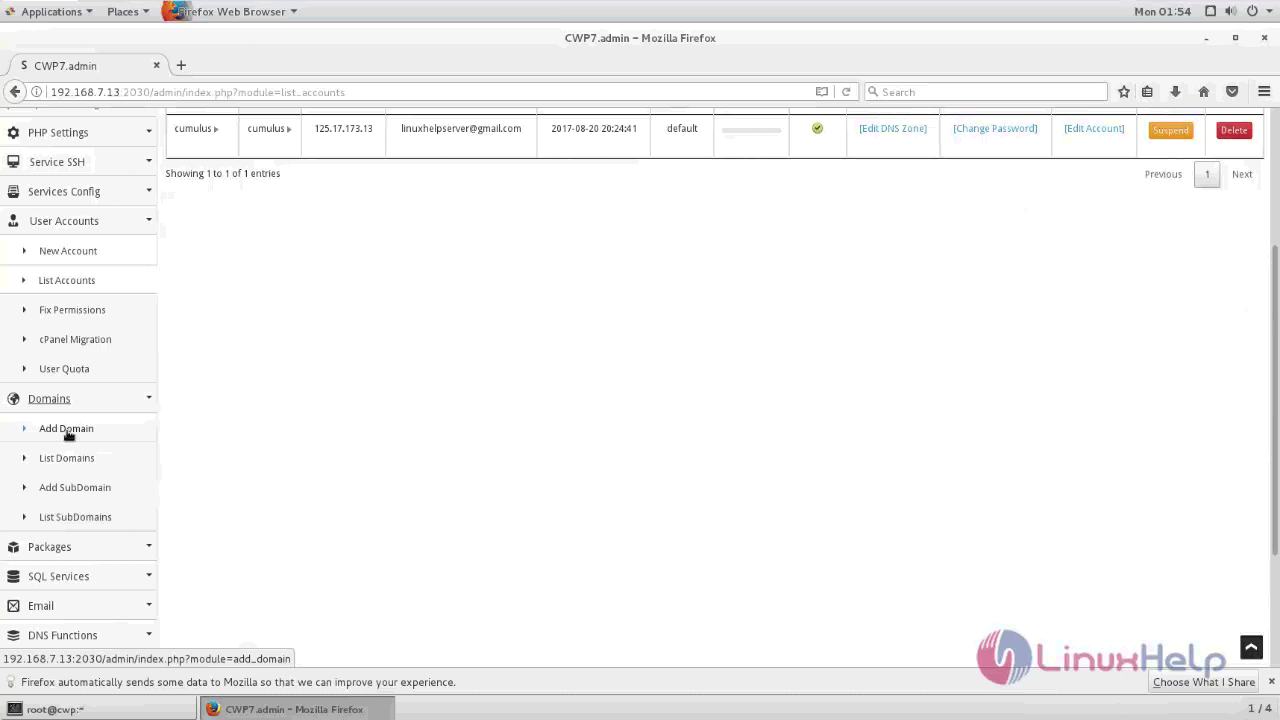
Next to create a New domain, go to Domains --> Add Domain option.
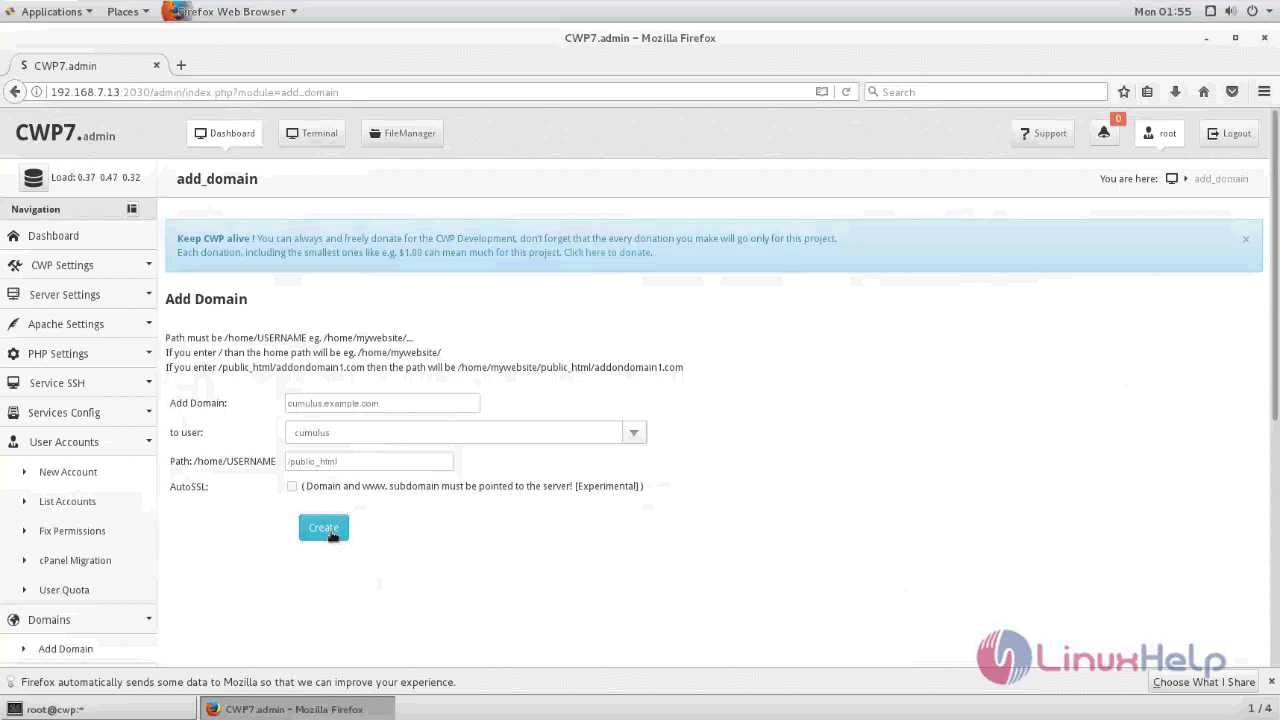
Enter your Fully Qualified Domain with it’ s user and public html directory and click create option.
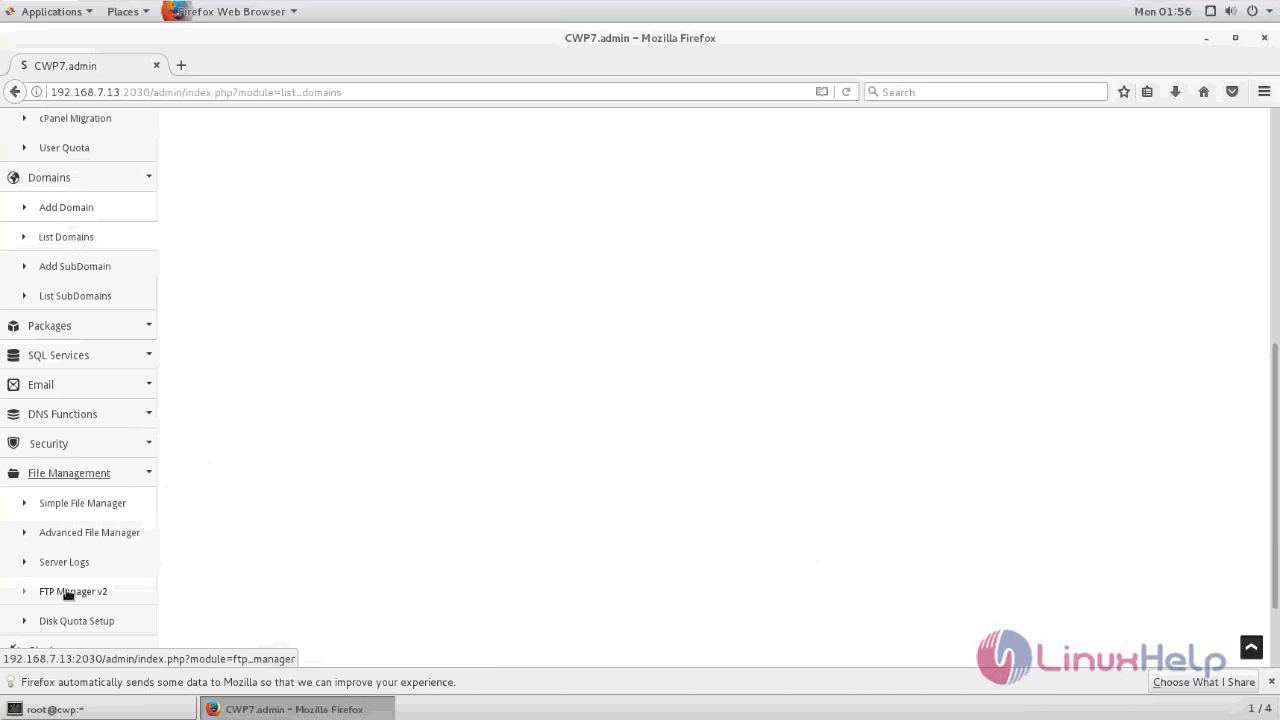
To create a new FTP user for CumulusClips, go to File Management --> FTP Manager file menu.
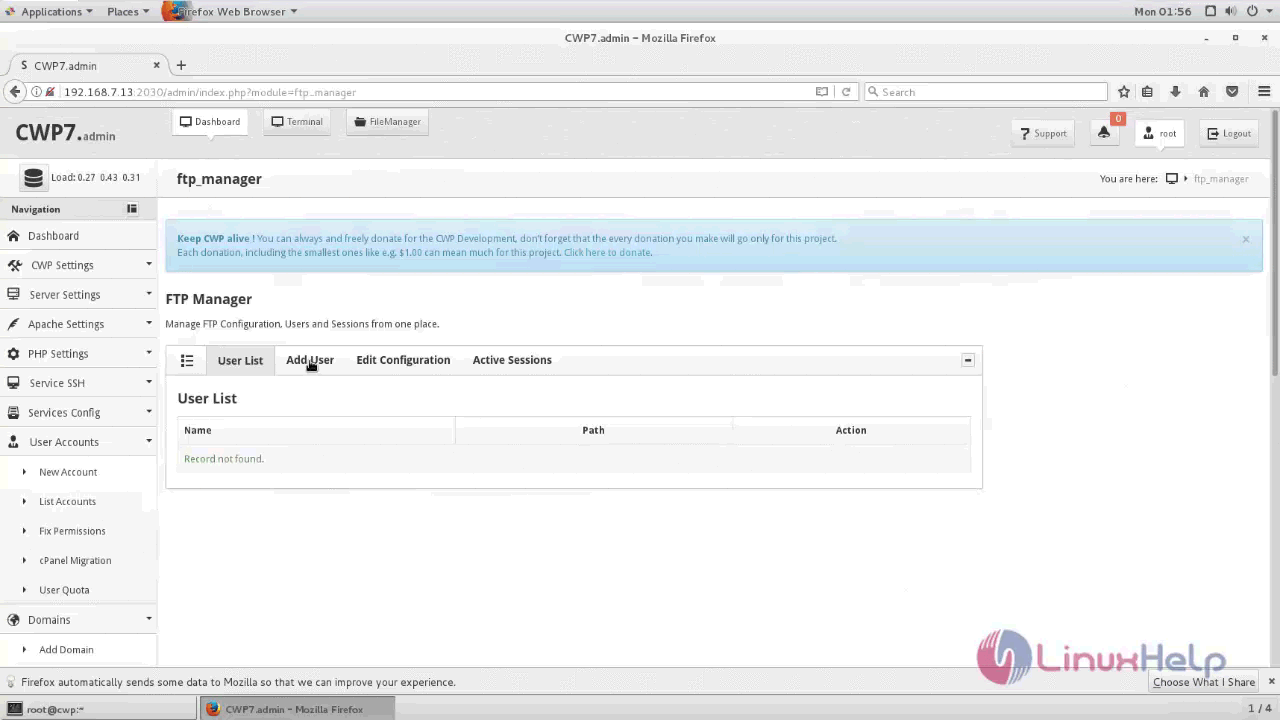
Add the new FTP user by clicking the add user option.
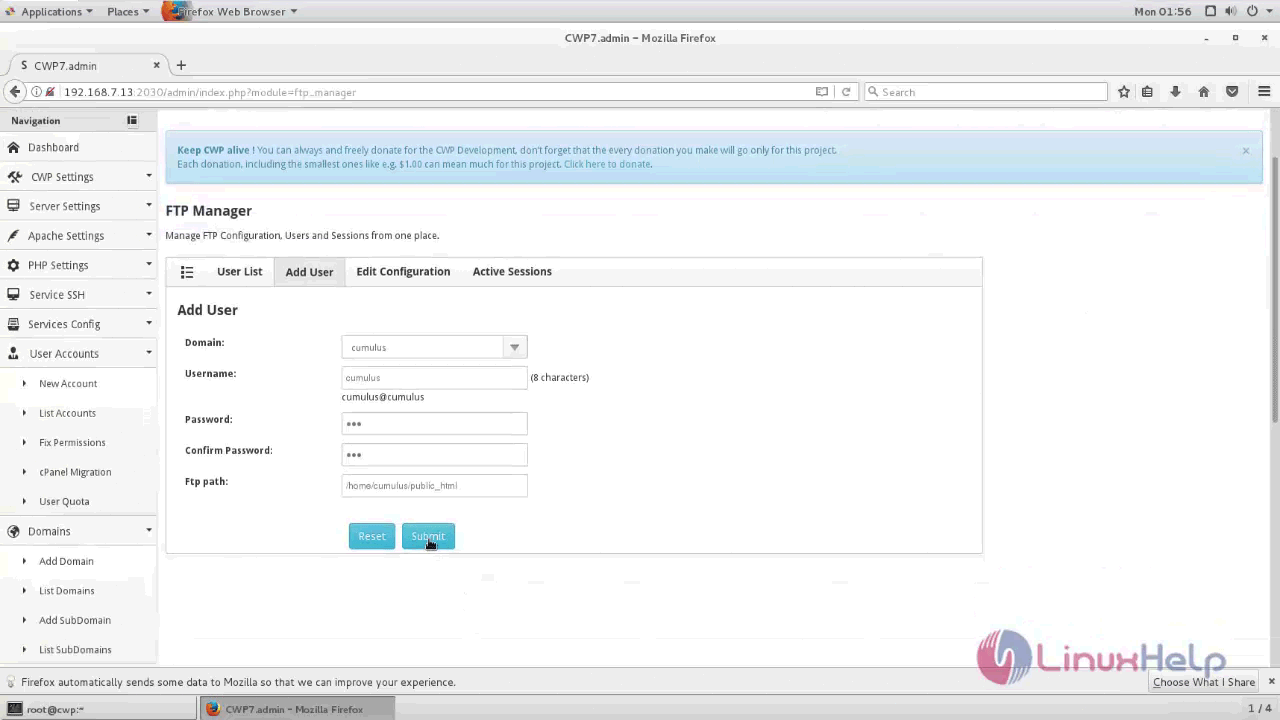
Enter the username, password and domain name and then click submit.
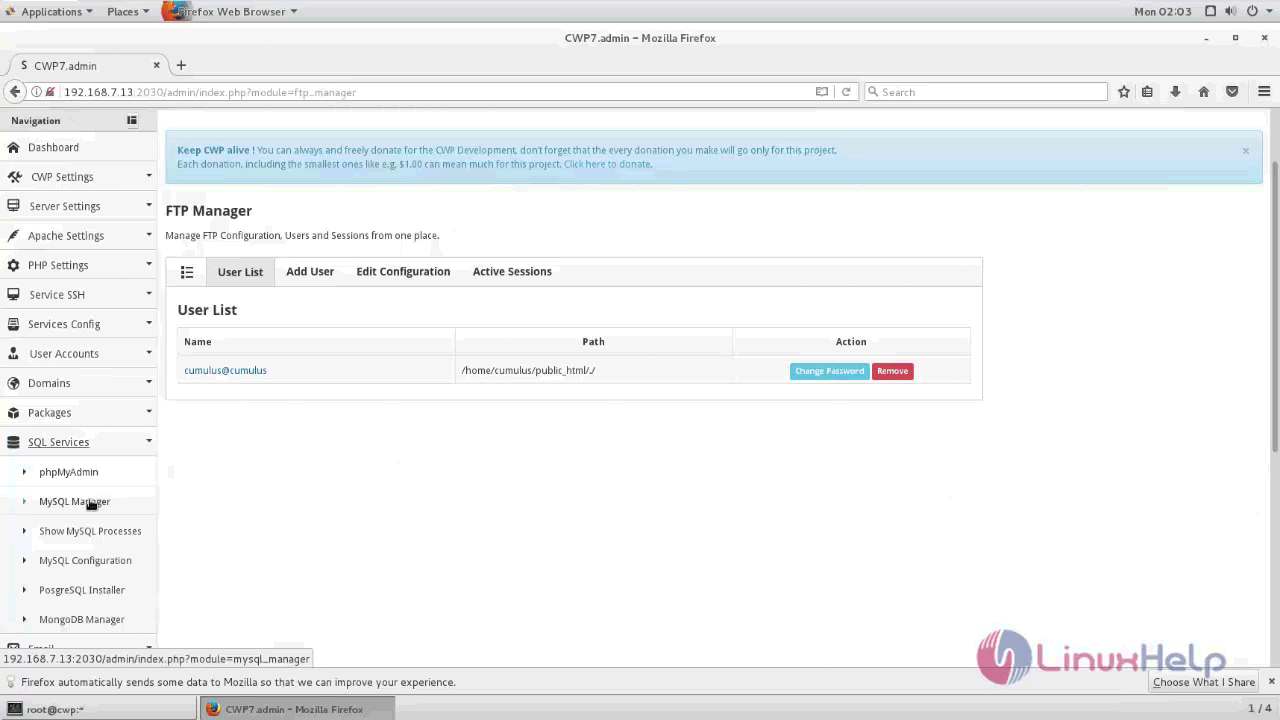
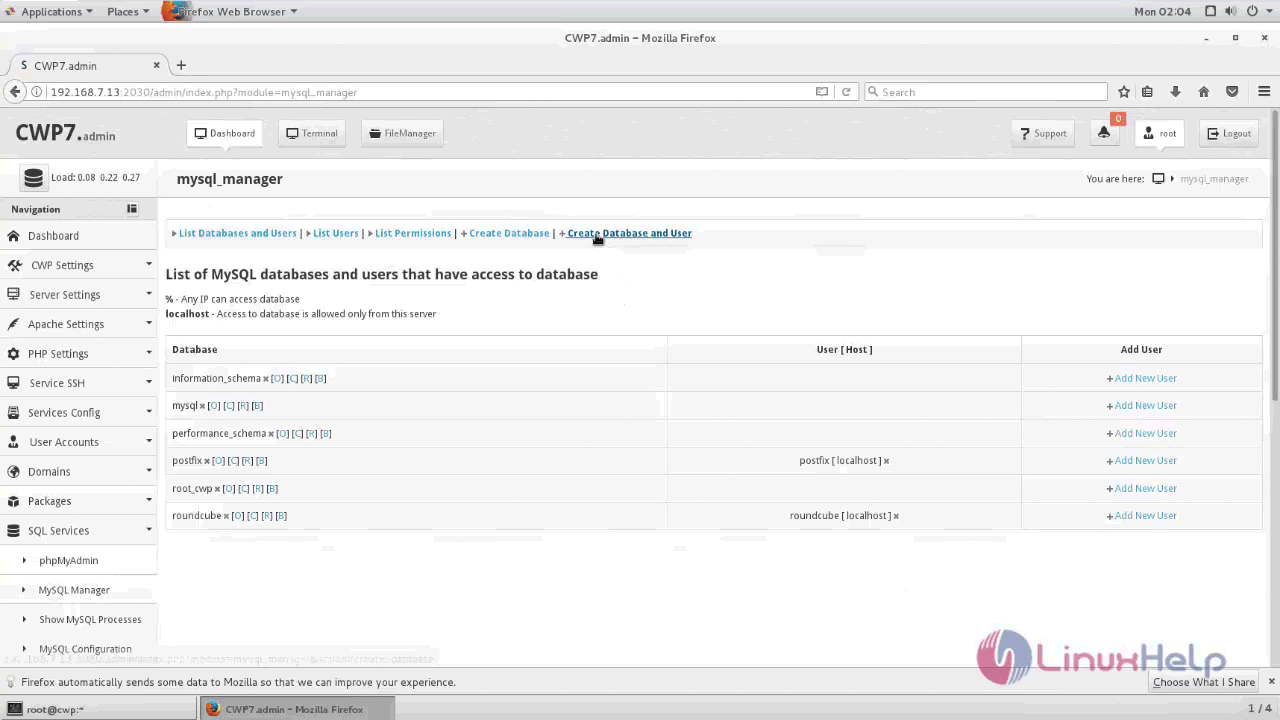
Next we need to create MySQL Database and user for CumulusClips, go to SQL Services --> MySQL Manager option.
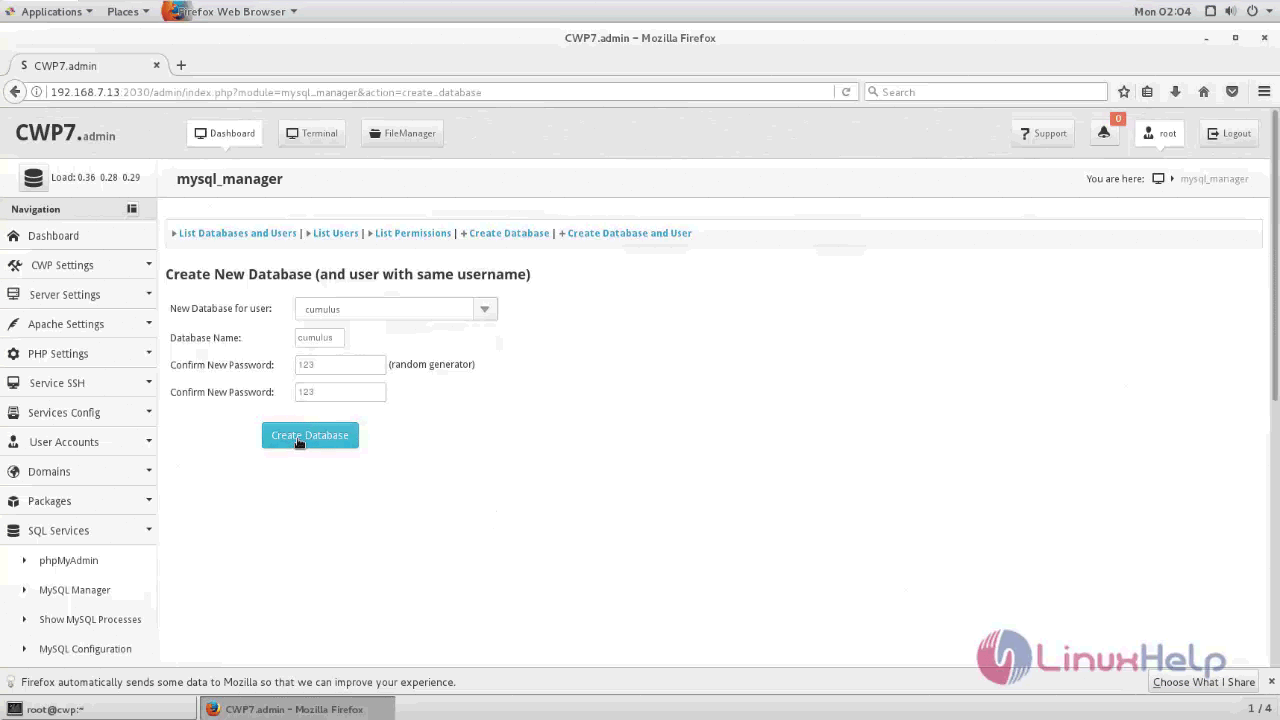
Create a new database and user in MySQL manager.
Fill the required information and click Create Database option.
Now go to terminal and download CumulusClips package using wget command.
[root@cwp ~]# wget http://cumulusclips.org/cumulusclips.zip
--2017-08-21 02:06:13--  http://cumulusclips.org/cumulusclips.zip
Resolving cumulusclips.org (cumulusclips.org)... 52.4.159.126
Connecting to cumulusclips.org (cumulusclips.org)|52.4.159.126|:80... connected.
HTTP request sent, awaiting response... 200 OK
Length: 34586975 (33M) [application/zip]
Saving to: ‘ cumulusclips.zip’

100%[===================================================================================================================================================> ] 3,45,86,975 1.11MB/s   in 52s
2017-08-21 02:07:05 (655 KB/s) - ‘ cumulusclips.zip’  saved [34586975/34586975]
Move the downloaded CumulusClips package into default document root of particular domain and extract it, and also make sure you have remove the default index.html file for the domain before extracting it.
[root@cwp ~]# mv cumulusclips.zip /home/cumulus/public_html/
[root@cwp ~]# cd /home/cumulus/public_html/
[root@cwp public_html]# ls
cumulusclips.zip  index.html
[root@cwp public_html]# rm -rf index.html
[root@cwp public_html]# unzip cumulusclips.zip
Archive:  cumulusclips.zip
   creating: cumulusclips/
   creating: cumulusclips/cc-core/
   creating: cumulusclips/cc-core/services/
  inflating: cumulusclips/cc-core/services/PrivacyService.php
  inflating: cumulusclips/cc-core/services/UserService.php
  inflating: cumulusclips/cc-core/services/TextService.php
  inflating: cumulusclips/cc-core/services/ServiceAbstract.php
  inflating: cumulusclips/cc-core/services/FileService.php
  inflating: cumulusclips/cc-core/services/PlaylistService.php
  inflating: cumulusclips/cc-core/services/RatingService.php
  inflating: cumulusclips/cc-core/services/PageService.php
  inflating: cumulusclips/cc-core/services/SubscriptionService.php
  inflating: cumulusclips/cc-core/services/MessageService.php
.
.
.
  inflating: cumulusclips/cc-content/emails/new_video.tpl
  inflating: cumulusclips/cc-content/emails/new_message.tpl
  inflating: cumulusclips/cc-content/emails/welcome.tpl
  inflating: cumulusclips/cc-content/emails/video_comment.tpl
  inflating: cumulusclips/.htaccess
  inflating: cumulusclips/index.php
  inflating: cumulusclips/favicon.ico
Move all the extracted package into the exact document root path for domain (/home/cumulus/public_html).
[root@cwp public_html]# ls
cumulusclips  cumulusclips.zip
[root@cwp public_html]# cd cumulusclips/
[root@cwp cumulusclips]# ls
cc-admin  cc-content  cc-core  cc-install  favicon.ico  index.php  LICENSE.txt  README.txt
[root@cwp cumulusclips]# mv * ../
Next remove the cumulusclips empty directory and also the zip file from public_html directory by executing the following command.
[root@cwp cumulusclips]# cd ..
[root@cwp public_html]# ls
cc-admin  cc-content  cc-core  cc-install  cumulusclips  cumulusclips.zip  favicon.ico  index.php  LICENSE.txt  README.txt
[root@cwp public_html]# rm -rf cumulusclips/ cumulusclips.zip
Change the Ownership and file permissions as follows.
[root@cwp ~]# chown -R cumulus:cumulus /home/cumulus/
[root@cwp ~]# chmod -R 755 /home/cumulus/
Next open the apache configuration from /usr/local/apache/conf/httpd.conf and enter the following contents as follows.
[root@cwp ~]# vim /usr/local/apache/conf/httpd.conf

< VirtualHost *:80>
Servername cumulus.example.com
DocumentRoot /home/cumulus/public_html
< /VirtualHost>
< Directory /home/cumulus/public_html>
AllowOverride All
suPHP_UserGroup cumulus cumulus
< /Directory>
Restart the apache service by running the following command.
[root@cwp ~]# systemctl restart httpd
Edit php.ini file locate from /usr/local/php/php.ini and edit values of following parameters.
[root@cwp ~]# vim /usr/local/php/php.ini
post_max_size = 110M
upload_max_filesize = 110M
max_execution_time = 3600
Again the restart the apache service by running the service.
[root@cwp ~]# systemctl restart httpd
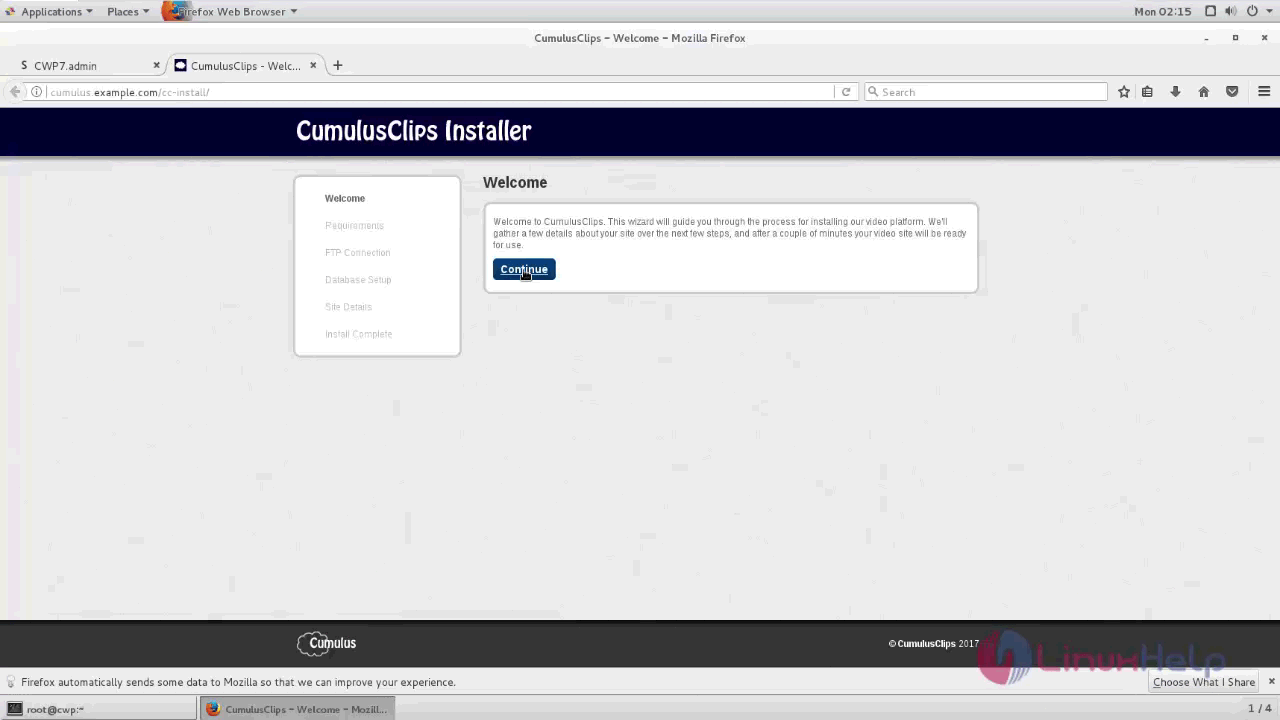
Now open the browser and call your domain cumuls.example.com and you will see installation wizard for CumulusClips as shown below.
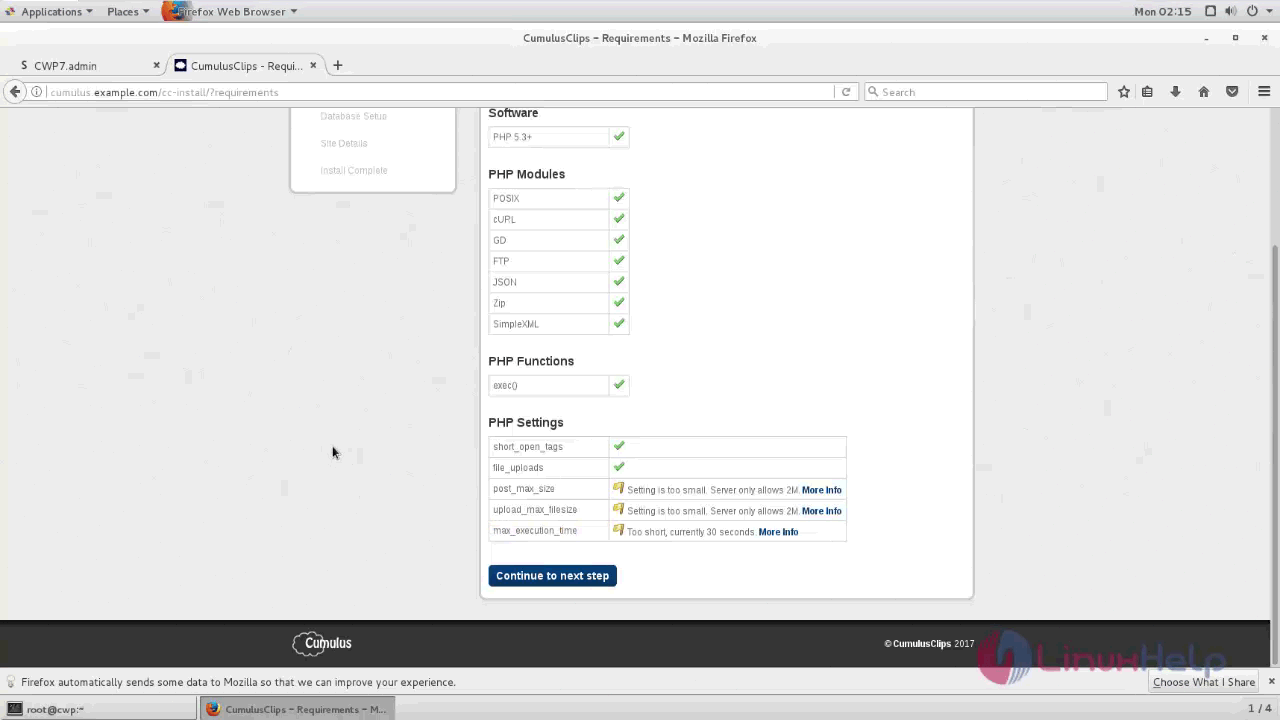
It shows the list of PHP modules and PHP functions to be installed successfully.
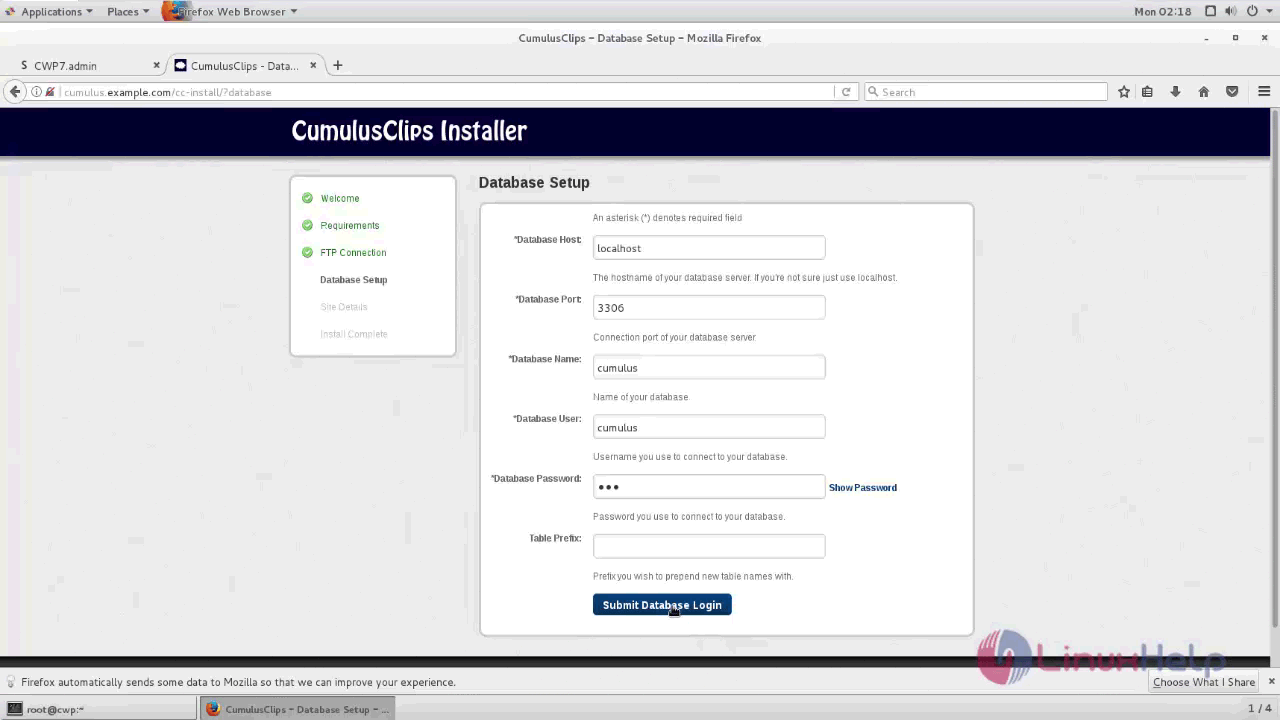
Enter the Database details with the required information as follows.
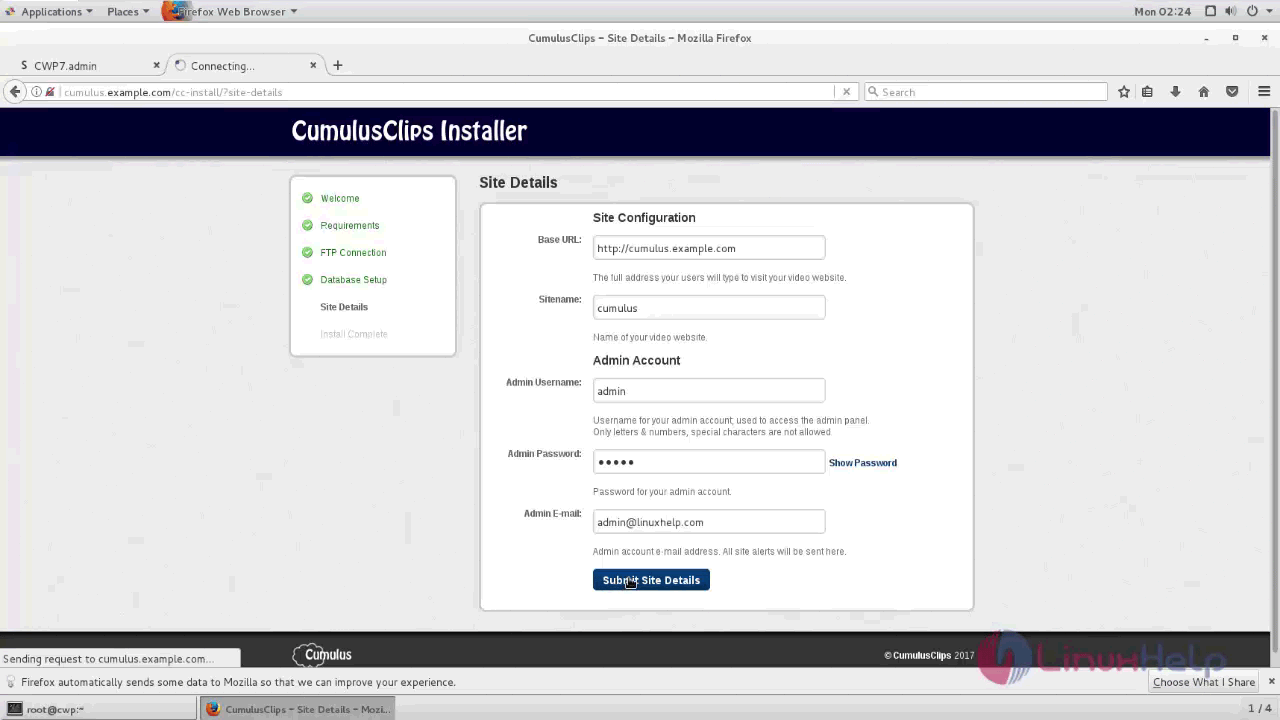
Enter the Site Details and configure the same with admin username and password.
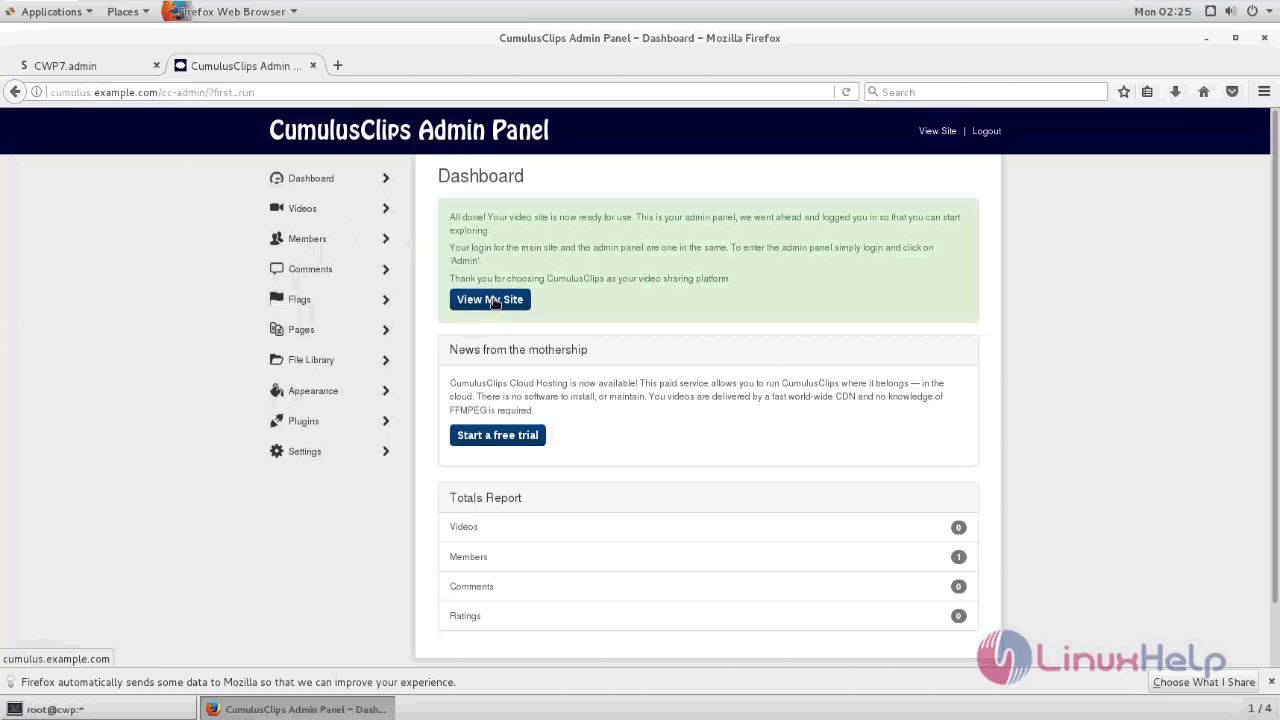
The configuration settings are done successfully and shown to the user.
Now you can upload your videos and browse the videos from CumulusClips application.
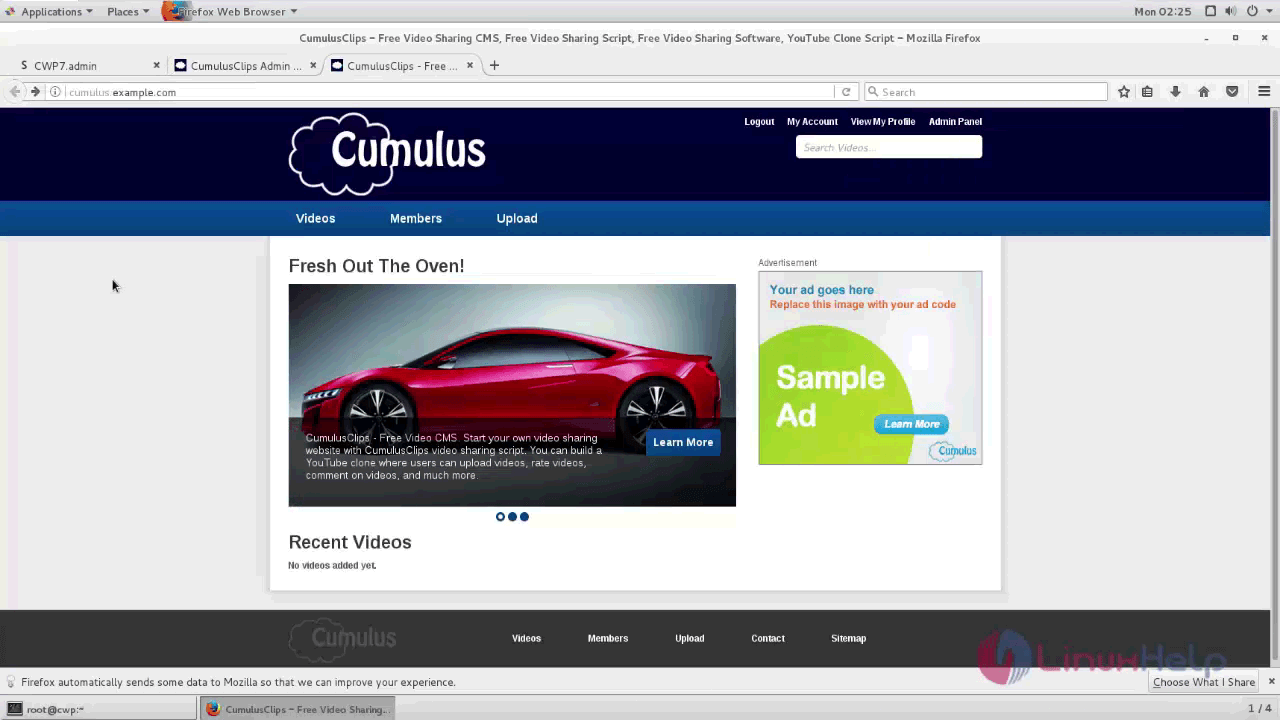
The installation of CumulusClip is complete. CumulusClips is compatible with all the major browsers.
Comments ( 0 )
No comments available