Cache Control Headers in nginx Part 4
Cache-Control Headers in nginx - Part 4 (no-cache and must-revalidate headers )
Cache-Control Header types
- Cache-control : no-store
- Cache-control: no-cache
- Cache-control : max-age=0
- Cache-control : s-maxage=0
- Cache-control : must-revalidate
- Pragma: no-cache
No-cache Header
No-cache header is not similar too no-store wheres in no-store it will never store cache in public and private cache. In no-cache, the cache gets stored in both the caches (private and public), but every time when the client refreshes or requests it will revalidate with the application server whether the data is fresh or not. Next if when application server goes down completely at that time what no-cache directive will do? At that time no-cache directive will add age header along with it contains a label with a warning states that the document is not latest (older version) but in the Practical scenario it is not advisable to server document that time the must-revalidate header comes into the picture.
Next, open your configuration file
[root@linuxhelp ~]# cd /etc/nginx/conf.d/
 [root@linuxhelp conf.d]# vim vir.conf

server {

   server_name www.linuxhelp1.com

   location / {
    root /usr/share/nginx/html
    index index.html index.htm
         }
}
Check the syntax and restart your nginx service as shown
[root@linuxhelp conf.d]# nginx -t
nginx: the configuration file /etc/nginx/nginx.conf syntax is ok
nginx: configuration file /etc/nginx/nginx.conf test is successful

[root@linuxhelp conf.d]# systemctl restart nginx
And then execute curl command as follows
[root@linuxhelp conf.d]# curl -I http://www.linuxhelp1.com/web1.html
HTTP/1.1 200 OK
Server: nginx/1.12.2
Date: Tue, 20 Feb 2018 10:24:49 GMT
Content-Type: text/html
Content-Length: 31
Last-Modified: Tue, 20 Feb 2018 10:14:59 GMT
Connection: keep-alive
ETag: " 5a8bf523-1f"
Accept-Ranges: bytes
Now provide cache control headers in your configuration file
[root@linuxhelp ~]# cd /etc/nginx/conf.d/
 [root@linuxhelp conf.d]# vim vir.conf

server {

   server_name www.linuxhelp1.com

   location / {
    root /usr/share/nginx/html
    index index.html index.htm
   #add_header Cache-Control max-age=120
    add_header Cache-Control no-cache
    add_header Cache-Control must-revalidate
         }
}
Now Check the syntax and restart your nginx service.
[root@linuxhelp conf.d]# nginx -t
nginx: the configuration file /etc/nginx/nginx.conf syntax is ok
nginx: configuration file /etc/nginx/nginx.conf test is successful

[root@linuxhelp conf.d]# systemctl restart nginx
Execute the following Curl command
[root@linuxhelp conf.d]# curl -I http://www.linuxhelp1.com/web1.html
HTTP/1.1 200 OK
Server: nginx/1.12.2
Date: Tue, 20 Feb 2018 10:26:28 GMT
Content-Type: text/html
Content-Length: 31
Last-Modified: Tue, 20 Feb 2018 10:14:59 GMT
Connection: keep-alive
ETag: " 5a8bf523-1f"
Cache-Control: no-cache
Cache-Control: must-revalidate
Accept-Ranges: bytes
To perform verification open it in the web browser and also open access logs in one terminal
[root@linuxhelp conf.d]# tailf /var/log/nginx/access.log
Navigate the following URL in the browser http://www.linuxhelp1.com/web1.html
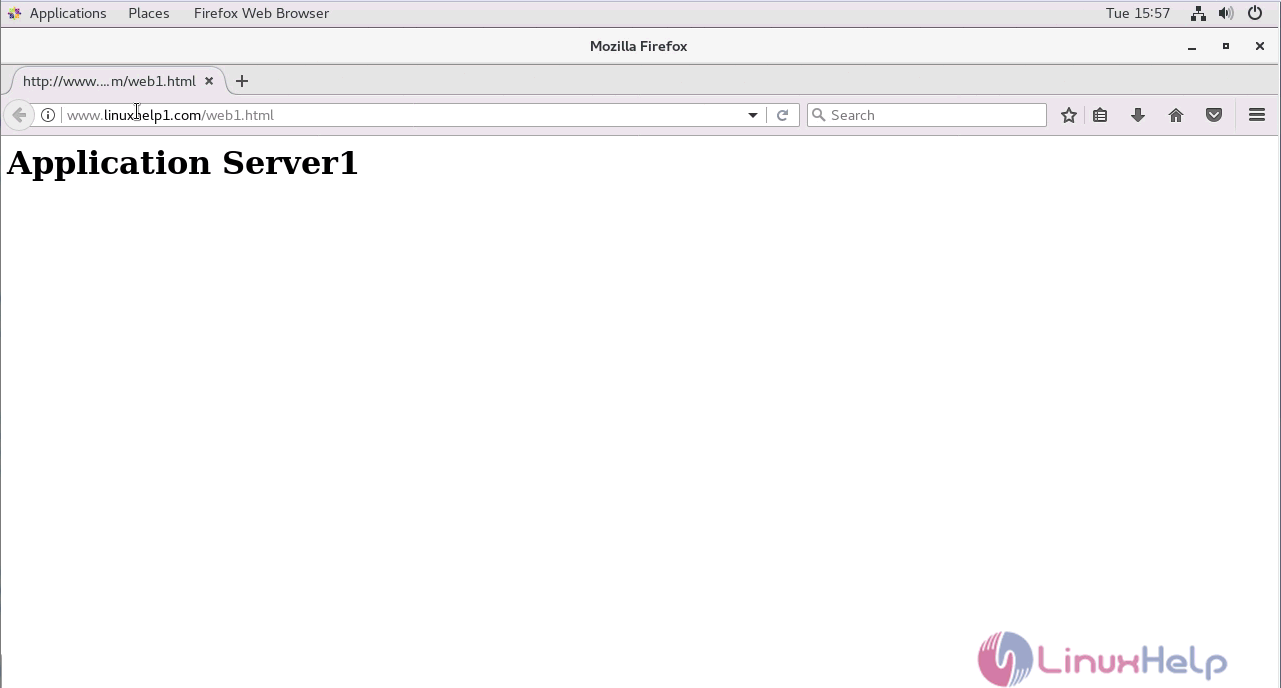
Next switch to your access logs again and verify

Http status code is 200 for the first request towards http://www.linuxhelp1.com/web1.html When a client refreshes in his/her browser and if there is no modification in the original data on the application it returns 304 status code which states that “ no modifications”
Refreshing the browser

Now if you verify access logs, you will see 304 http status code

Now modifying the file (web1.html)
[root@linuxhelp conf.d]# cd /usr/share/nginx/html

[root@linuxhelp html]# vim web1.html
< h1>
Application 2 // modify changes
< /h1>
Let' s Restart the nginx service
[root@linuxhelp html]# systemctl nginx restart
Now the content has been modified so you will be able to see access log with 200 status
Firrefreshrsh the in browser


If the client browser refreshes the data again which shows 304 not modified status code again.

with this, the method to Cache-Control Headers in nginx - Part 4 (no-cache and must-revalidate headers ) comes to an end.
Comments ( 0 )
No comments available