How to add Bootstrap & jQuery - Mobile Friendly Application
To add Bootstrap and jQuery to Write a Mobile-Friendly and Responsive Web Application
In this article we are going to discuss about jQuery and Bootstrap. By adding this jQuery and Bootstrap to our html coding will allows us to create a Mobile-Friendly and Responsive Web Sites.
Adding jQuery and Bootstrap into our project
To download jQuery
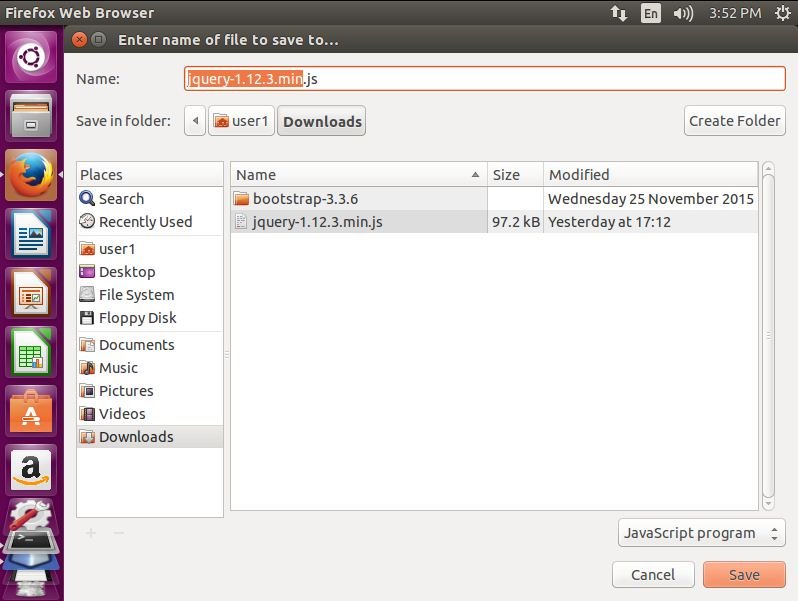
Go to the jQuery official site for downloading stable and latest version. Go to the official link http://jquery.com and download the compressed (.min.js) version of jQuery.
To download Bootstrap
Go to the official linkhttp://getbootstrap.com to download Bootstrap.
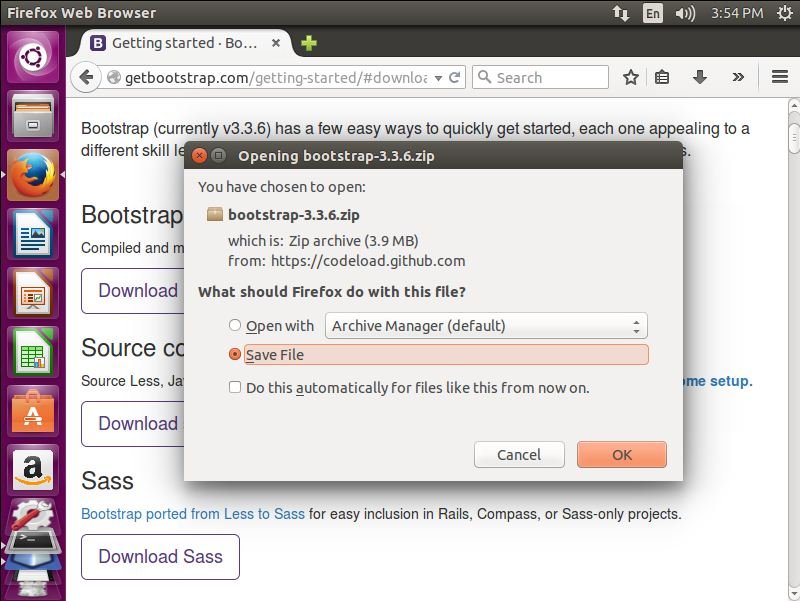
After downloading, Go to your download directory and uncompress the bootstrap zip file using unzip command.
root@linuxhelp:~# cd Downloads/
root@linuxhelp:~/Downloads# ls
bootstrap-3.3.6.zip jquery-1.12.3.min.js
root@linuxhelp:~/Downloads# unzip -a bootstrap-3.3.6.zip
root@linuxhelp:~/Downloads# ls
bootstrap-3.3.6 bootstrap-3.3.6.zip jquery-1.12.3.min.js
Now a new directory will be created. Move to the newly created directory. Then navigate to the dist directory and list the directories (CSS, fonts, js) inside the directory.
root@linuxhelp:~/Downloads# cd bootstrap-3.3.6/
root@linuxhelp:~/Downloads/bootstrap-3.3.6# ls
bower.json _config.yml fonts less package.json
CHANGELOG.md CONTRIBUTING.md grunt LICENSE README.md
CNAME dist Gruntfile.js nuget test-infra
composer.json docs js package.js
root@linuxhelp:~/Downloads/bootstrap-3.3.6# cd dist/
root@linuxhelp:~/Downloads/bootstrap-3.3.6/dist# ls
css fonts js
root@linuxhelp:~/Downloads/bootstrap-3.3.6/dist# ls css/
bootstrap.css bootstrap.min.css.map bootstrap-theme.min.css
bootstrap.css.map bootstrap-theme.css bootstrap-theme.min.css.map
bootstrap.min.css bootstrap-theme.css.map
root@linuxhelp:~/Downloads/bootstrap-3.3.6/dist# ls fonts/
glyphicons-halflings-regular.eot glyphicons-halflings-regular.woff
glyphicons-halflings-regular.svg glyphicons-halflings-regular.woff2
glyphicons-halflings-regular.ttf
root@linuxhelp:~/Downloads/bootstrap-3.3.6/dist# ls js/
bootstrap.js bootstrap.min.js npm.js
Now copy some files inside the three directories css, fonts and js to our " NetBeansProjects" directory using the following command. Copy the jQuery file that we have downloaded, early to the NetBeansProject directory.
root@linuxhelp:~/Downloads/bootstrap-3.3.6/dist# cp css/bootstrap.min.css /home/user1/NetBeansProjects/linuxhelp/public_html/styles
root@linuxhelp:~/Downloads/bootstrap-3.3.6/dist# cp fonts/* /home/user1/NetBeansProjects/linuxhelp/public_html/fonts
root@linuxhelp:~/Downloads/bootstrap-3.3.6/dist# cp js/bootstrap.min.js /home/user1/NetBeansProjects/linuxhelp/public_html/scripts
root@linuxhelp:~/Downloads/bootstrap-3.3.6/dist# cp /home/user1/Downloads/jquery-1.12.3.min.js /home/user1/NetBeansProjects/linuxhelp/public_html/scripts
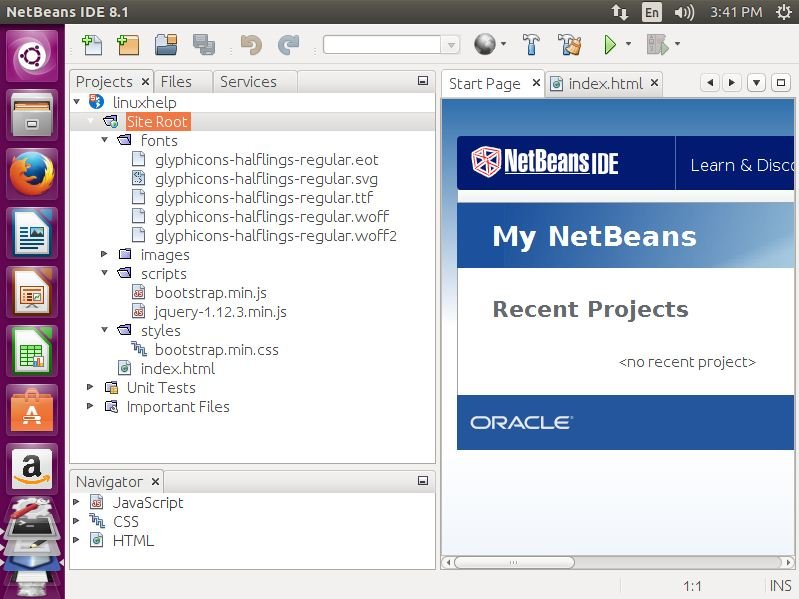
The structure of your site in Netbeans look like this, after copying the above mentioned files.
To write Responsive mobile friendly web application
Write your own html coding to develop a mobile friendly web application or else you can use our sample code given below for testing purpose.
Example HTML code for Responsive web design
Execute the code below, by copy and pasting the code into the index.html file under the site root of your project.
< !DOCTYPE html>
< html>
< head>
< meta charset=" utf-8" >
< title> jQuery and Bootstrap< /title>
< /head>
< body>
< div class=" container" >
< nav class=" navbar navbar-default" >
< div class=" container-fluid" >
< div class=" navbar-header" >
< button type=" button"  class=" navbar-toggle collapsed"  data-toggle=" collapse"  data-target=" #navbar"  aria-expanded=" false"  aria-controls=" navbar" >
< span class=" sr-only" > Toggle navigation< /span>
< span class=" icon-bar" > < /span>
< span class=" icon-bar" > < /span>
< span class=" icon-bar" > < /span>
< /button>
< a class=" navbar-brand"  href=" #" > Linux Help< /a>
< /div>
< div id=" navbar"  class=" navbar-collapse collapse" >
< ul class=" nav navbar-nav" >
< li class=" active" > < a href=" #" > Home< /a> < /li>
< li> < a href=" #" > About Us< /a> < /li>
< li> < a href=" #" > Contact Us< /a> < /li>
< li class=" dropdown" >
< a href=" #"  class=" dropdown-toggle"  data-toggle=" dropdown"  role=" button"  aria-haspopup=" true"  aria-expanded=" false" > Dropdown < span class=" caret" > < /span> < /a>
< ul class=" dropdown-menu" >
< li> < a href=" #" > Databases< /a> < /li>
< li> < a href=" #" > File Systems< /a> < /li>
< li> < a href=" #" > Advanced Commands< /a> < /li>
< li role=" separator"  class=" divider" > < /li>
< li class=" dropdown-header" > Security and Firewall< /li>
< li> < a href=" #" > Security< /a> < /li>
< li> < a href=" #" > Firewall< /a> < /li>
< /ul>
< /li>
< /ul>
< /div> < !--/.nav-collapse -->
< /div> < !--/.container-fluid -->
< /nav>
< /div>
< /body>
< /html>
After copying the sample html code into index.html file just drag and drop below mentioned files from the project navigator section to the html code, in between the and tags
Files to drag and drop into html code
Filename Location
jquery-1.12.3.min.js located under scripts folder under site root of your project.
bootstrap.min.js located under scripts folder under site root of your project.
bootstrap.min.css located under styles folder under site root of your project.
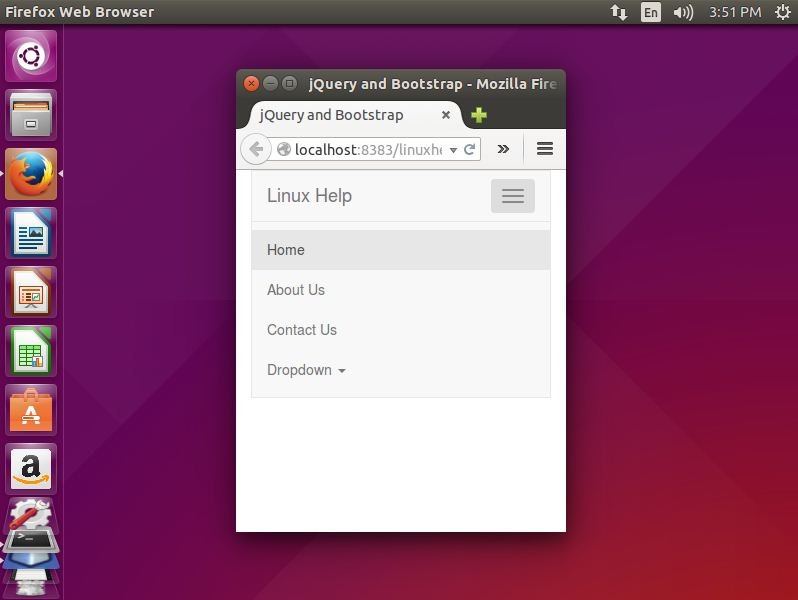
After adding jquery and bootstrap file into your html coding choose your default browser and click the play button to open and see your output in a selected web browser.
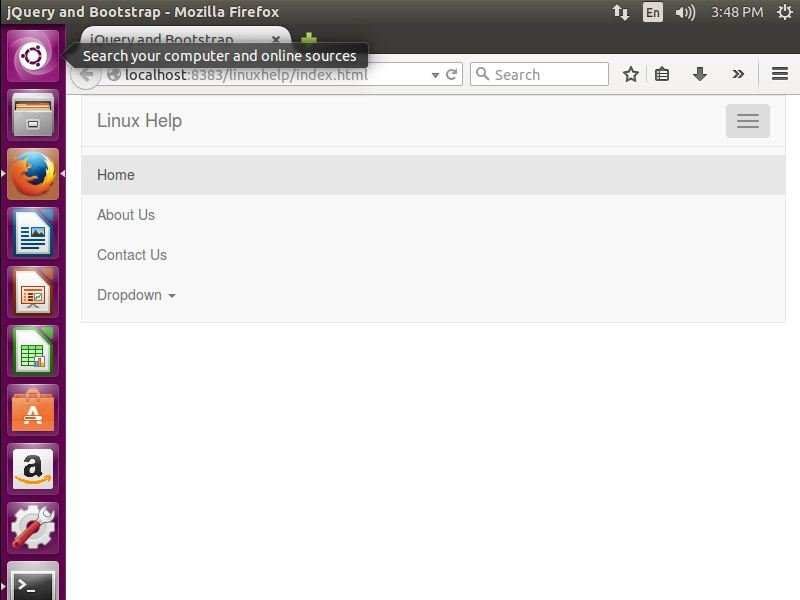
According to the screen size of a device, the page will be automatically resized to view the full content of the webpage within that screen size of the device.
Comments ( 0 )
No comments available