• Categories
    Category
    {{ postCtrl.tags }}
    • {{ category.tag_type }}

      • {{tag.tag_name}}
      • View more
  • Categories
    Category
    {{ postCtrl.tags }}
    • {{ category.tag_type }}

      • {{tag.tag_name}}
      • View more
  • News
  • Tutorials
  • Forums
  • Tags
  • Users
Tutorial News Comments FAQ Related Articles

How to add Time groups and Time conditions in Elastix

{{postValue.id}}

To add Time groups and Time conditions modules in Elastix

Time Groups and Time Conditions are modules available in Elastix. The Time Group module enables a list of times against which incoming or outgoing calls are checked. Time groups are always associated with time conditions, another module that controls the destination of a call based on the time. This article covers the method to add the Time groups and Time conditions modules in Elastix.

To add Time Groups module

Open your Elastix dashboard and Select PBX ---> PBX configuration. Select the Time Groups option from the available list of options.
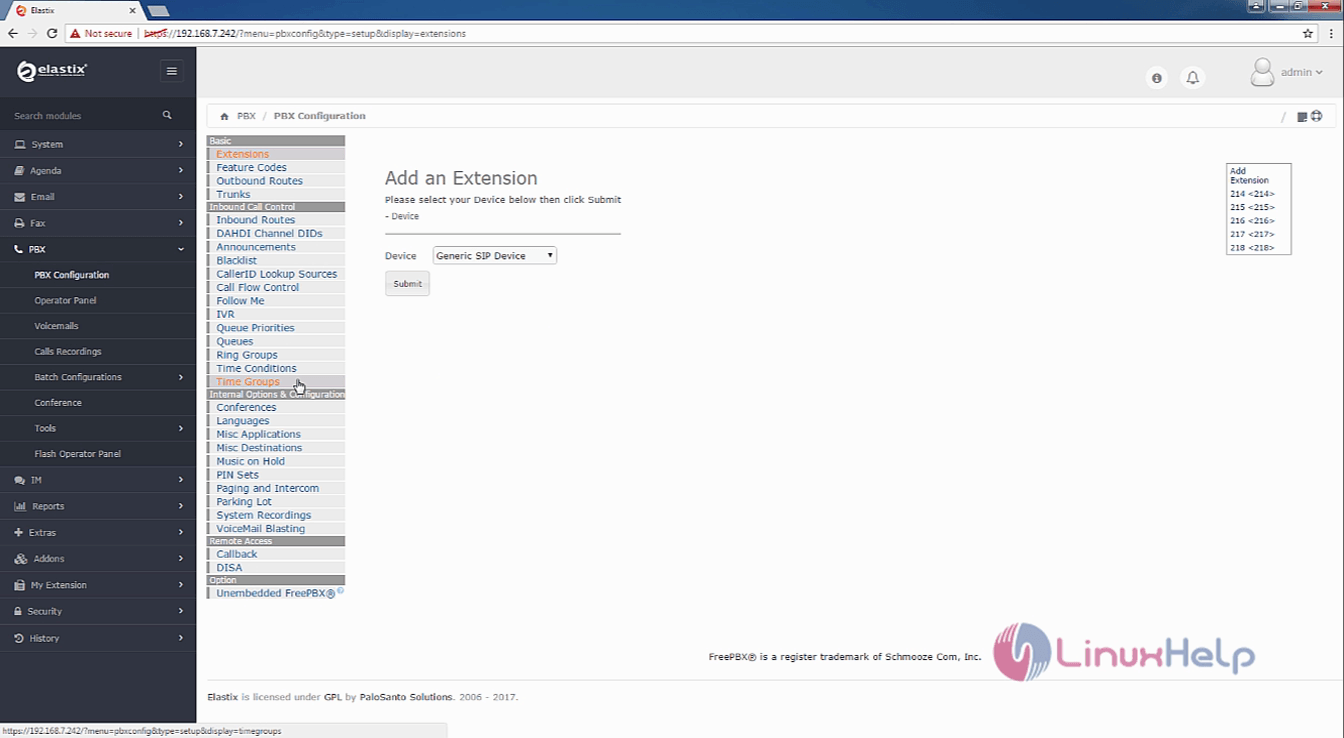
Elastix_PBX

Enter the description for the time group and all the information in the required fields. Click on the Submit button and choose Apply Config.
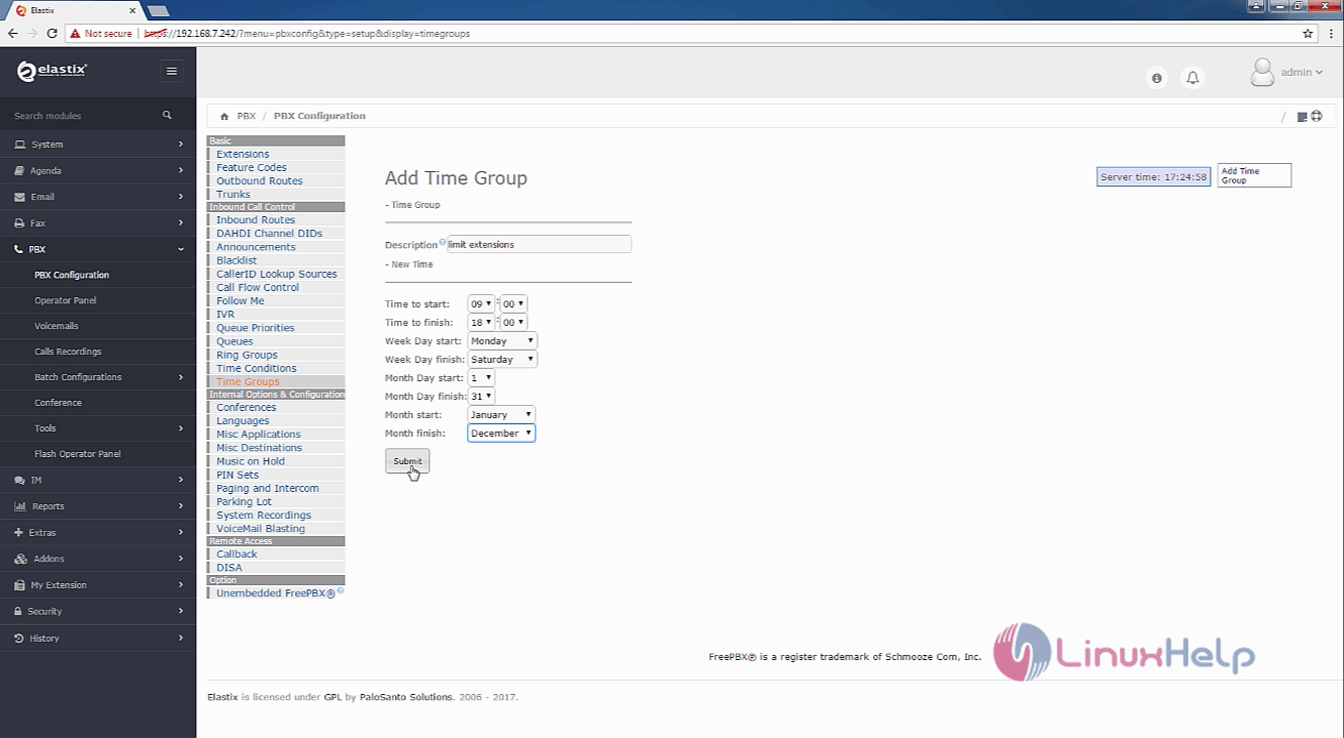
Add_time_group
The Time Group module has been added.
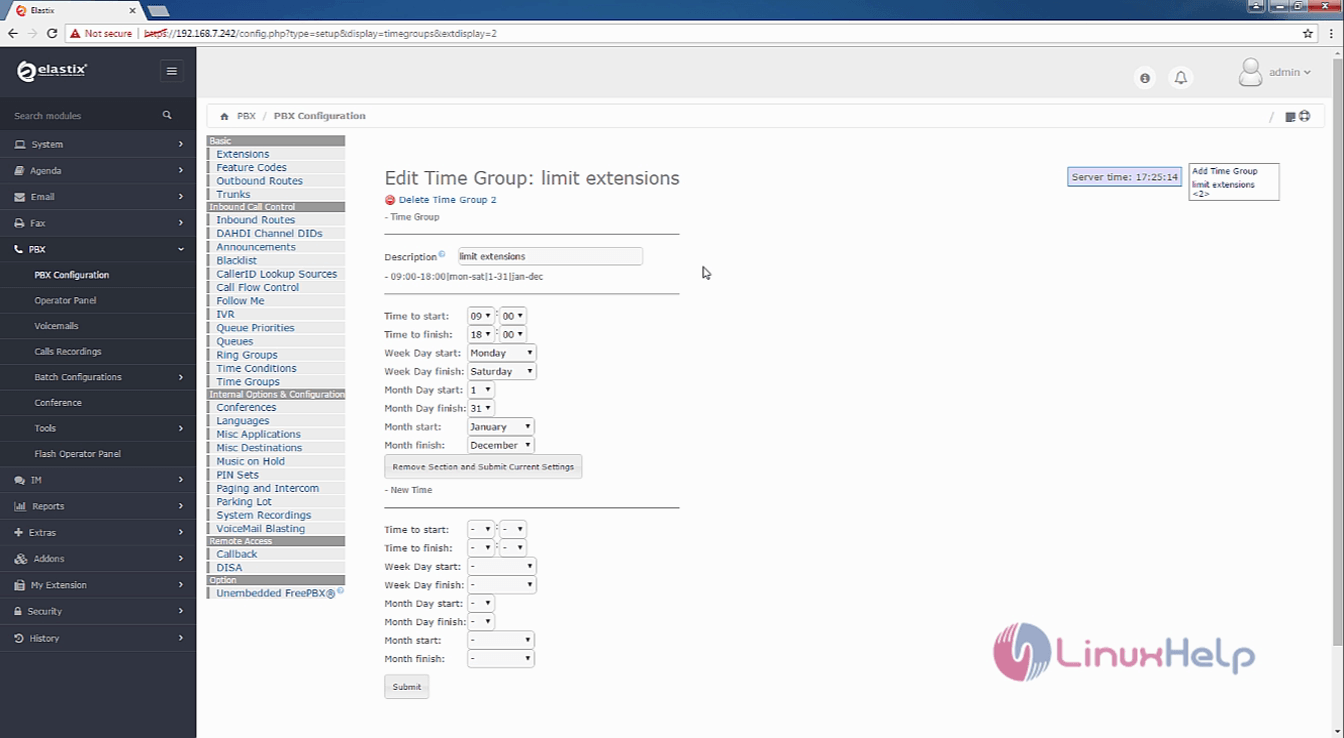
time_group_created

To add Time Condition

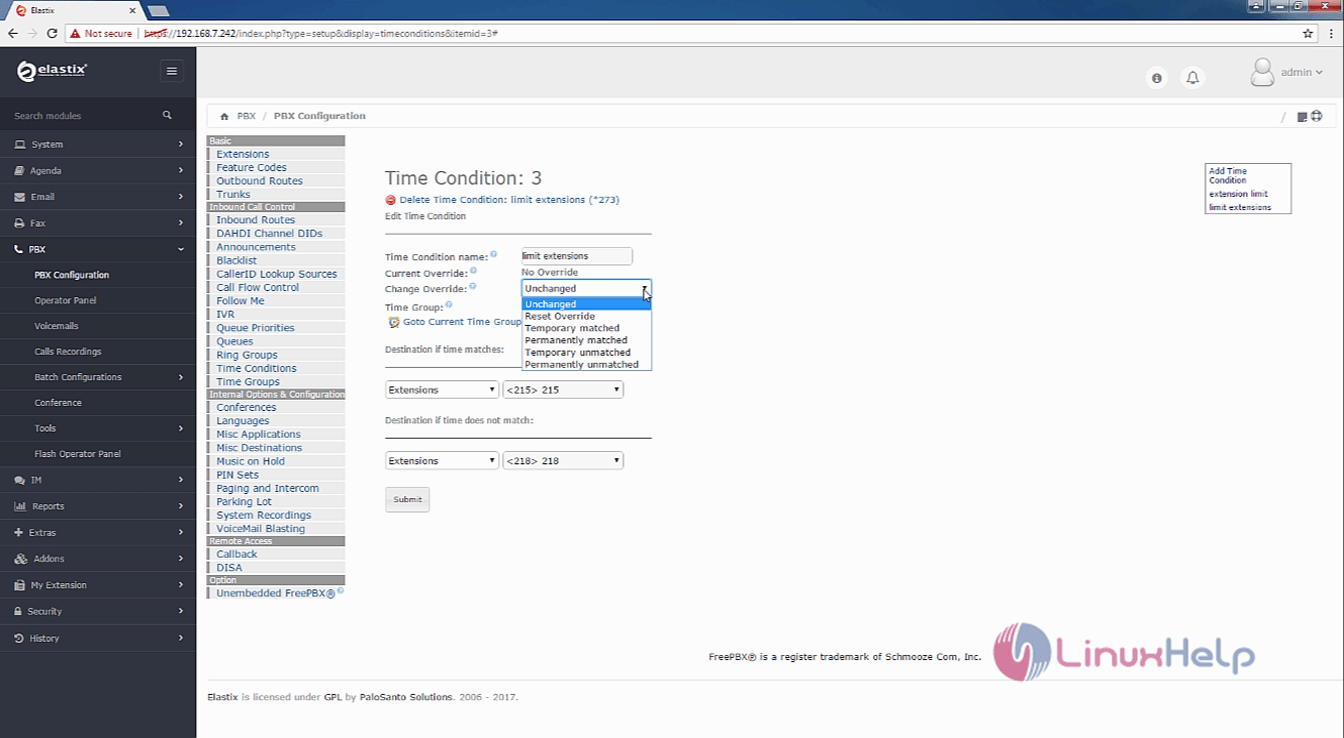
Choose the Time Condition option. In the Add Time Condition page, enter time condition name. Select Time Group and the Destination. Once you have entered the necessary details, click on submit to add the time condition.
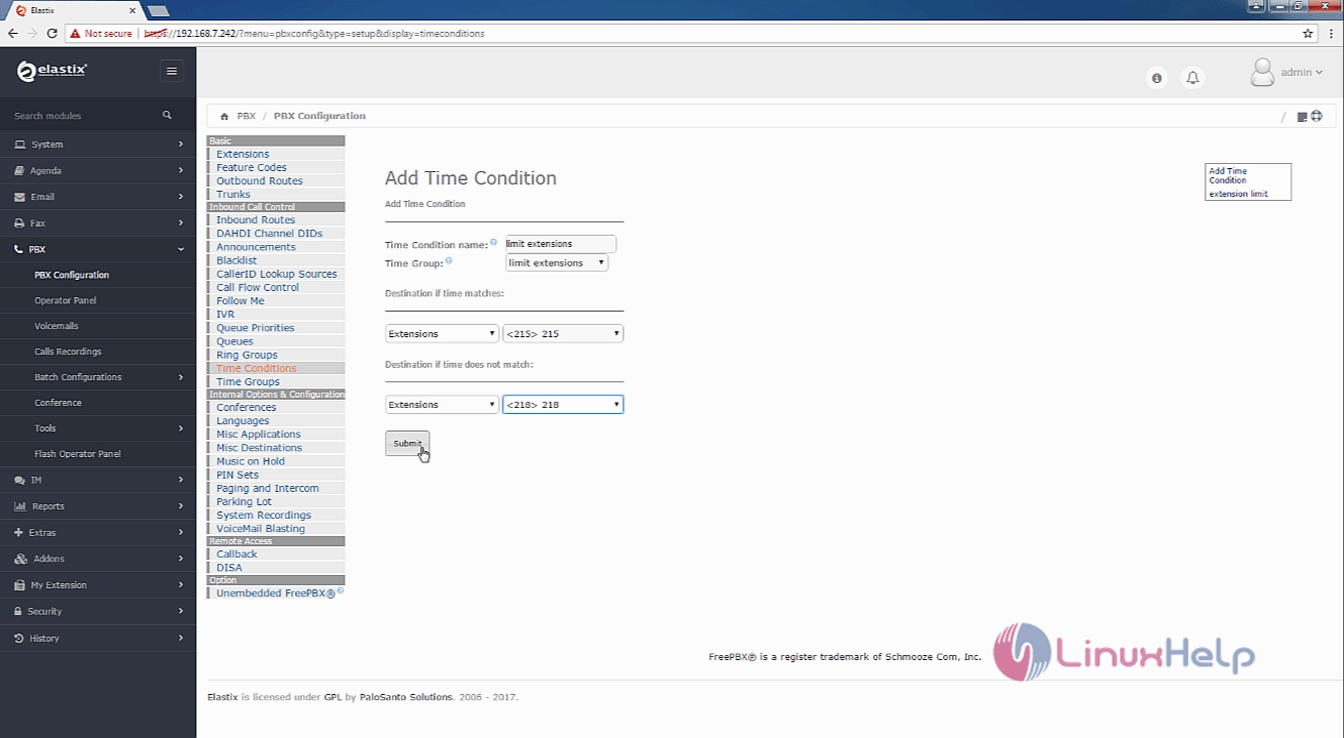
Add_time_condition

Select current override option
Unchanged
Time condition module is now added to your Elastix service.
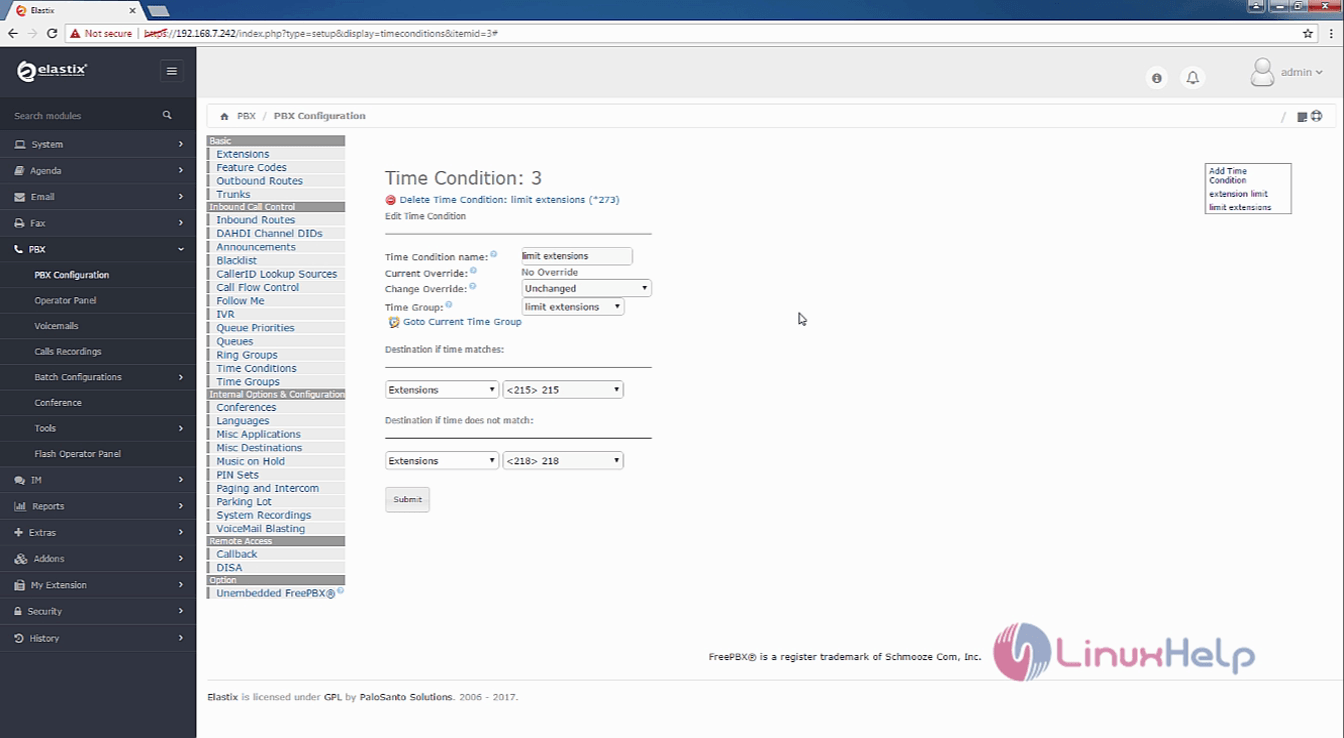
Time-condition-created

Tags:
sebastian
Author: 

Comments ( 0 )

No comments available

Add a comment
{{postCtrl.cmtErrMsg}}

Frequently asked questions ( 5 )

Q

What are time groups?

A

Rules that allow users and administrators of your phone system to accept calls (i.e. not after 5 pm, not on holidays, not during lunch, etc).

Q

What are Time Conditions?

A

Based on you're the rules for your time groups, users and administrators of your phone system can sequence for the calls to obey. (i.e. send calls after 5 pm to an alternate phone number, send calls that happen on holidays to a special voicemail, calls that come in during lunch directly to a voicemail, etc).

Q

How to add Time Groups module?

A

Use the Following instruction:
1. Open your Elastix dashboard and Select PBX ---> PBX configuration. Select the Time Groups option from the available list of options.
2. Enter the description for the time group and all the information in the required fields. Click on the Submit button and choose Apply Config.
3. The Time Group module has been added.

Q

Who can create groups?

A

G Suite administrators can create groups for your entire organization using the Groups control in the Admin console. With Groups for Business, you can optionally allow users to create groups.

Q

Can I add members outside my G Suite account to a group?

A

Yes. You can add external vendors, clients, or customers to a group.

Back To Top!
Rank
User
Points

Top Contributers

userNamenaveelansari
135850

Top Contributers

userNameayanbhatti
92510

Top Contributers

userNamehamzaahmed
32150

Top Contributers

1
userNamelinuxhelp
31040

Top Contributers

userNamemuhammadali
24500
Can you help Lucas ?
Various options in Top command

Am using Top command only to view the load average, what are the various options in Top command..??

Networking
  • Routing
  • trunk
  • Netmask
  • Packet Capture
  • domain
  • HTTP Proxy
Server Setup
  • NFS
  • KVM
  • Memory
  • Sendmail
  • WebDAV
  • LXC
Shell Commands
  • Cloud commander
  • Command line archive tools
  • last command
  • Shell
  • terminal
  • Throttle
Desktop Application
  • Linux app
  • Pithos
  • Retrospect
  • Scribe
  • TortoiseHg
  • 4Images
Monitoring Tool
  • Monit
  • Apache Server Monitoring
  • EtherApe 
  • Arpwatch Tool
  • Auditd
  • Barman
Web Application
  • Nutch
  • Amazon VPC
  • FarmWarDeployer
  • Rukovoditel
  • Mirror site
  • Chef
Contact Us | Terms of Use| Privacy Policy| Disclaimer
© 2025 LinuxHelp.com All rights reserved. Linux™ is the registered trademark of Linus Torvalds. This site is not affiliated with linus torvalds in any way.