How to add windows host in nagios 4.3.40 on OpenSUSE leap 42.3
To add Windows host in Nagios(4.3.4) on OpenSUSE leap 42.3
Nagios is an open source monitoring tool, with Nagios, you can monitor your remote hosts and their services remotely on a single window. It shows warnings and indicates if something goes wrong or not in its usual way.
Procedure
Open your Nagios server
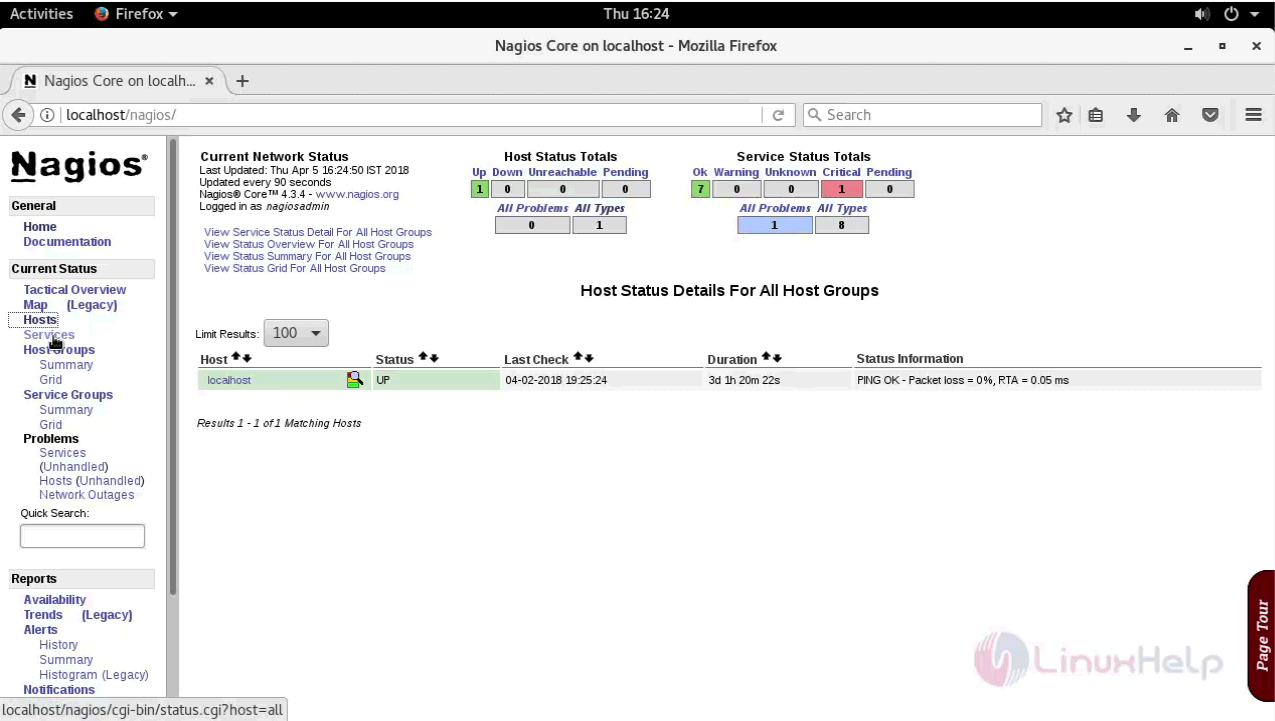
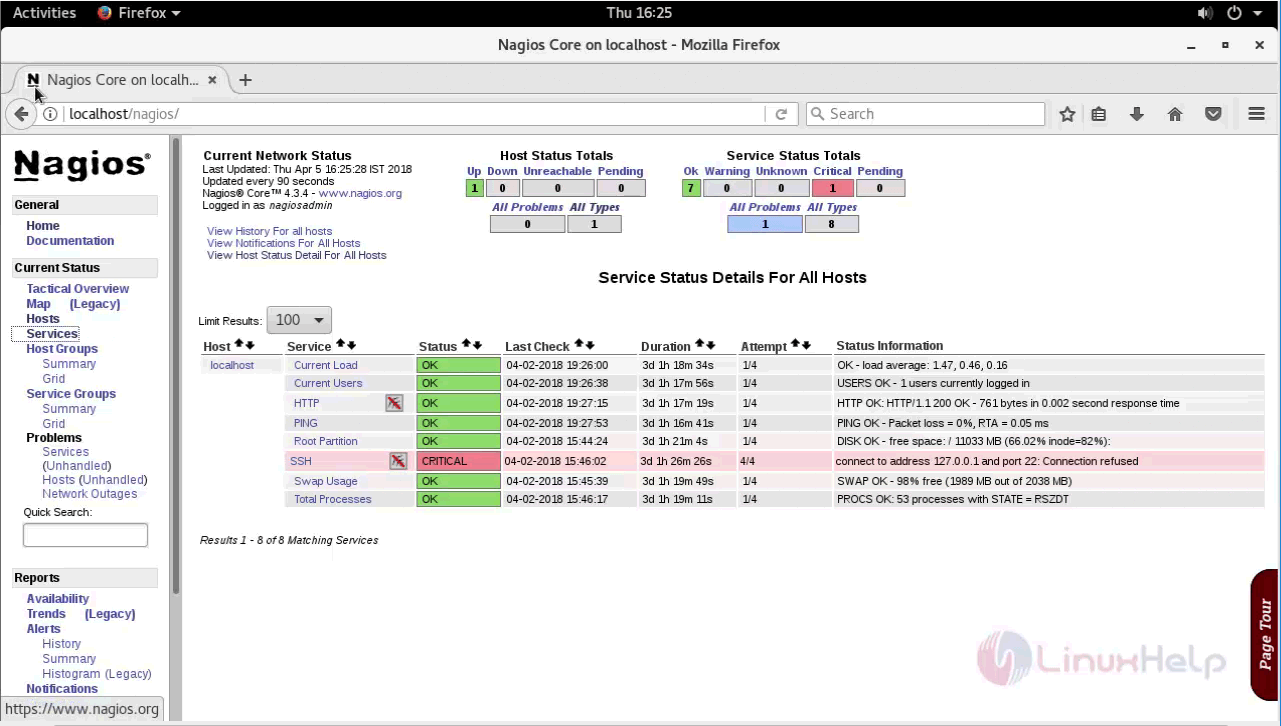
To add Windows host in Nagios server install NCPA plugin(Nagios Cross Platform Agent) you can download and install ncpa in any archive format as follows
linuxhelp:~ # wget https://assets.nagios.com/downloads/ncpa/check_ncpa.tar.gz
--2018-04-06 16:35:54--  https://assets.nagios.com/downloads/ncpa/check_ncpa.tar.gz
Resolving assets.nagios.com (assets.nagios.com)... 72.14.181.71, 2600:3c00::f03c:91ff:fedf:b821
Connecting to assets.nagios.com (assets.nagios.com)|72.14.181.71|:443... connected.
HTTP request sent, awaiting response... 200 OK
Length: 4129 (4.0K) [application/x-gzip]
Saving to: ‘ check_ncpa.tar.gz’

100%[=============================================> ] 4,129       --.-K/s   in 0.008s

2018-04-06 16:35:55 (523 KB/s) - ‘ check_ncpa.tar.gz’  saved [4129/4129]
After downloading extract the downloaded package
linuxhelp:~ # tar -zxf check_ncpa.tar.gz
linuxhelp:~ # mv check_ncpa.py /usr/local/nagios/libexec/
linuxhelp:~ # chown nagios:nagios /usr/local/nagios/libexec/check_ncpa.py
linuxhelp:~ # chmod 775 /usr/local/nagios/libexec/check_ncpa.py

Next add your command (ncpa into commands.cfg)
linuxhelp:~ # vim /usr/local/nagios/etc/objects/commands.cfg
Define your command as

define command {
    command_name    check_ncpa
    command_line    $USER1$/check_ncpa.py -H $HOSTADDRESS$ $ARG1$
}
assign a appropriate permission to the added script
linuxhelp:/usr/local/nagios/ext  # chown &ndash R nagios.nagios  /usr/local/nagios/
linuxhelp:/usr/local/nagios/ext  # chmod &ndash R 775 /usr/local/nagios/
And then Save and exit the configuration and restart both the Apache and Nagios
linuxhelp:~ # systemctl restart nagios
linuxhelp:~ # systemctl restart apache2
Now move to your windows machine and download the ncpa plugin for windows from Nagios official website

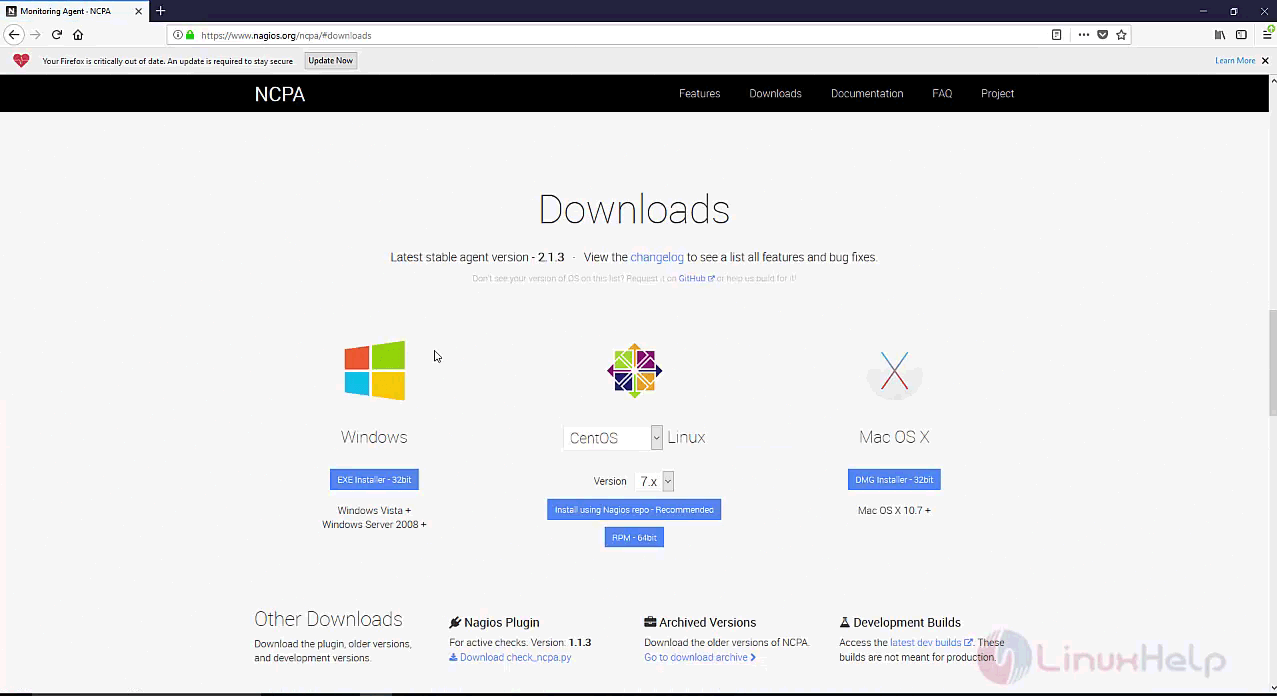

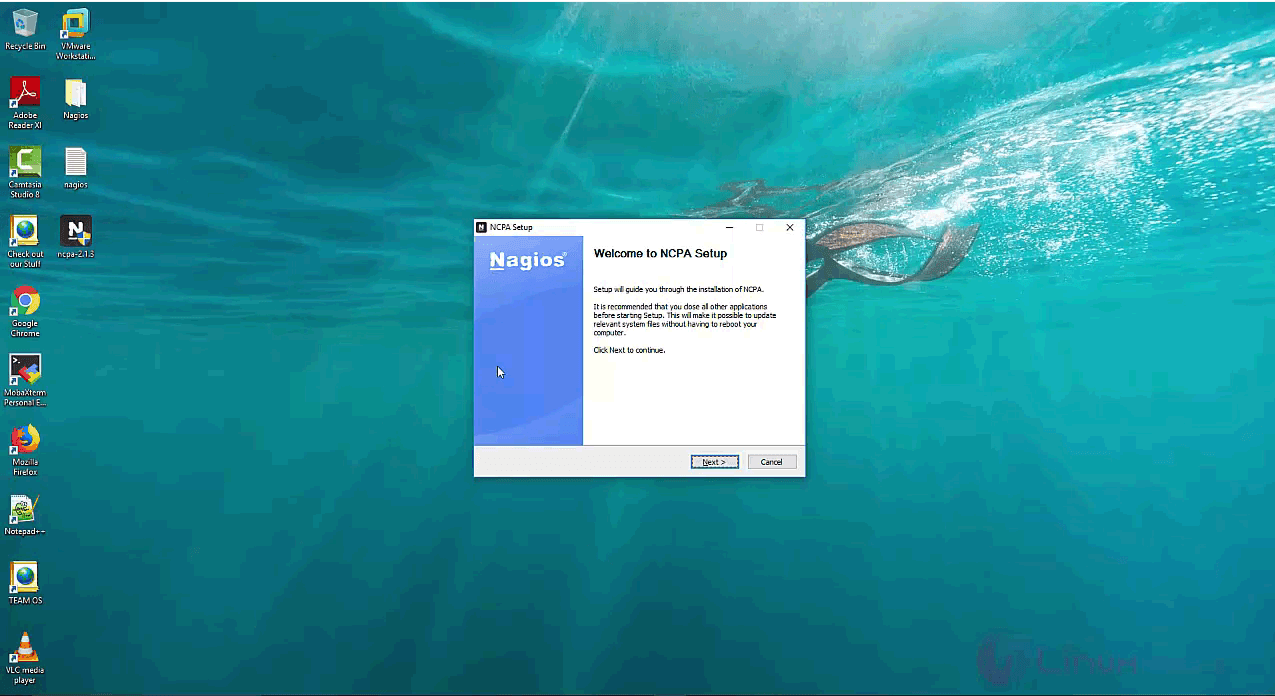


Next move to Nagios server and go to /usr/local/nagios/etc path location
linuxhelp:~ # cd /usr/local/nagios/etc
linuxhelp: /usr/local/nagios/etc # vim nagios.cfg
add

cfg_dir=/usr/local/nagios/etc/servers
Save and exit the file. Then create and move inside the directory
linuxhelp:~ # cd /usr/local/nagios/etc
linuxhelp: /usr/local/nagios/etc/ # mkdir servers
linuxhelp: /usr/local/nagios/etc/servers # vim windows.cfg
define host {
    host_name               Windows Host
    address                 192.168.7.102
    check_command           check_ncpa!-t ' Nagios'  -P 5693 -M system/agent_version
    max_check_attempts      5
    check_interval          5
    retry_interval          1
    check_period            24x7
    contacts                nagiosadmin
    notification_interval   60
    notification_period     24x7
    notifications_enabled   1
    icon_image              ncpa.png
    statusmap_image         ncpa.png
    register                1
}

define service {
    host_name               Windows Host
    service_description     CPU Usage
    check_command           check_ncpa!-t ' Nagios'  -P 5693 -M cpu/percent -w 20 -c 40 -q ' aggregate=avg'
    max_check_attempts      5
    check_interval          5
    retry_interval          1
    check_period            24x7
    notification_interval   60
    notification_period     24x7
    contacts                nagiosadmin
    register                1
}

define service {
    host_name               Windows Host
    service_description     Memory Usage
    check_command           check_ncpa!-t ' Nagios'  -P 5693 -M memory/virtual -w 50 -c 80 -u G
    max_check_attempts      5
    check_interval          5
    retry_interval          1
    check_period            24x7
    notification_interval   60
    notification_period     24x7
    contacts                nagiosadmin
    register                1
}

define service {
    host_name               Windows Host
    service_description     Process Count
    check_command           check_ncpa!-t ' Nagios'  -P 5693 -M processes -w 150 -c 200
    max_check_attempts      5
    check_interval          5
    retry_interval          1
    check_period            24x7
    notification_interval   60
    notification_period     24x7
    contacts                nagiosadmin
    register                1
}
After providing your configuration save and exit from the file
Now restart your Nagios and Apache service
linuxhelp: /usr/local/nagios/etc/servers # systemctl restart apache2
linuxhelp: /usr/local/nagios/etc/servers # systemctl restart nagios
Next, navigate to the browser and open Nagios interface


with this, the method to add Windows host in Nagios(4.3.4) on OpenSUSE leap 42.3 comes to an end.
Comments ( 0 )
No comments available