How To Configure Apache to Use Custom Error Pages and URL Redirection on centos 7.5
Configuring Apache to Use Custom Error Pages and URL Redirection on centos 7.5
Apache is the most popular web server in the world. It is well-supported, feature-rich, and flexible. When designing your web pages, it is often helpful to customize every piece of content that your users will see. This tutorial covers the installation procedure of Apache to Custom Error Pages and URL Redirection on centos 7.5.
Installation
Let' s install apache web server package by using yum command.
[root@linuxhlep ~]# yum install httpd -y
Loaded plugins: fastestmirror, langpacks
Loading mirror speeds from cached hostfile
 * base: mirror.nbrc.ac.in
 * extras: mirror.nbrc.ac.in
 * updates: mirror.nbrc.ac.in
Resolving Dependencies
--> Running transaction check
---> Package httpd.x86_64 0:2.4.6-88.el7.centos will be installed
--> Finished Dependency Resolution

Dependencies Resolved

=============================================================================================================
 Package               Arch                   Version                             Repository            Size
=============================================================================================================
Installing:
 httpd                 x86_64                 2.4.6-88.el7.centos                 base                 2.7 M
.
.
.
Running transaction test
Transaction test succeeded
Running transaction
  Installing : httpd-2.4.6-88.el7.centos.x86_64                                                          1/1
  Verifying  : httpd-2.4.6-88.el7.centos.x86_64                                                          1/1

Installed:
  httpd.x86_64 0:2.4.6-88.el7.centos

Complete!
Start and enable the apache service by using following command.
[root@linuxhlep ~]# systemctl start httpd
[root@linuxhlep ~]# systemctl enable httpd.service
Created symlink from /etc/systemd/system/multi-user.target.wants/httpd.service to /usr/lib/systemd/system/httpd.service.
Create html file for document root in .html format
[root@linuxhlep ~]# cd /var/www/html/
[root@linuxhlep html]# vim index.html
<h1> Welcome to linuxhelp user’s </h1>
Change ownership and give Execute permission for this file.
[root@linuxhlep html]# chown -R apache.apache index.html
[root@linuxhlep html]# chmod -R 775 index.html
Create the name based virtual host like this.so, go to the confguration location and create test.conf file.
[root@linuxhlep html]# cd /etc/httpd/conf.d/
[root@linuxhlep conf.d]# vim test.conf
<virtualhost *:80>
servername linuxhelp1.com
Documentroot /var/www/html/
</virtualhost>
Once restart the service for changes
[root@linuxhlep conf.d]# systemctl restart httpd
After restarting the service Open your web browser and navigate to the URLs Domain name or IP address. You should see the sample demo pages which we created earlier.

How To Configure Apache URL redirection
Create a following apache redirect rules on configureation file,
 [root@linuxhlep conf.d]# vim test.conf
<virtualhost *:80>
servername linuxhelp1.com
Documentroot /var/www/html/
Redirect / "https://www.linuxhelp.com/"
</virtualhost>
Once restart the service for changes
[root@linuxhlep conf.d]# systemctl restart httpd
After restaring the service Open your web browser and navigate to the URLs Domain name or IP address .
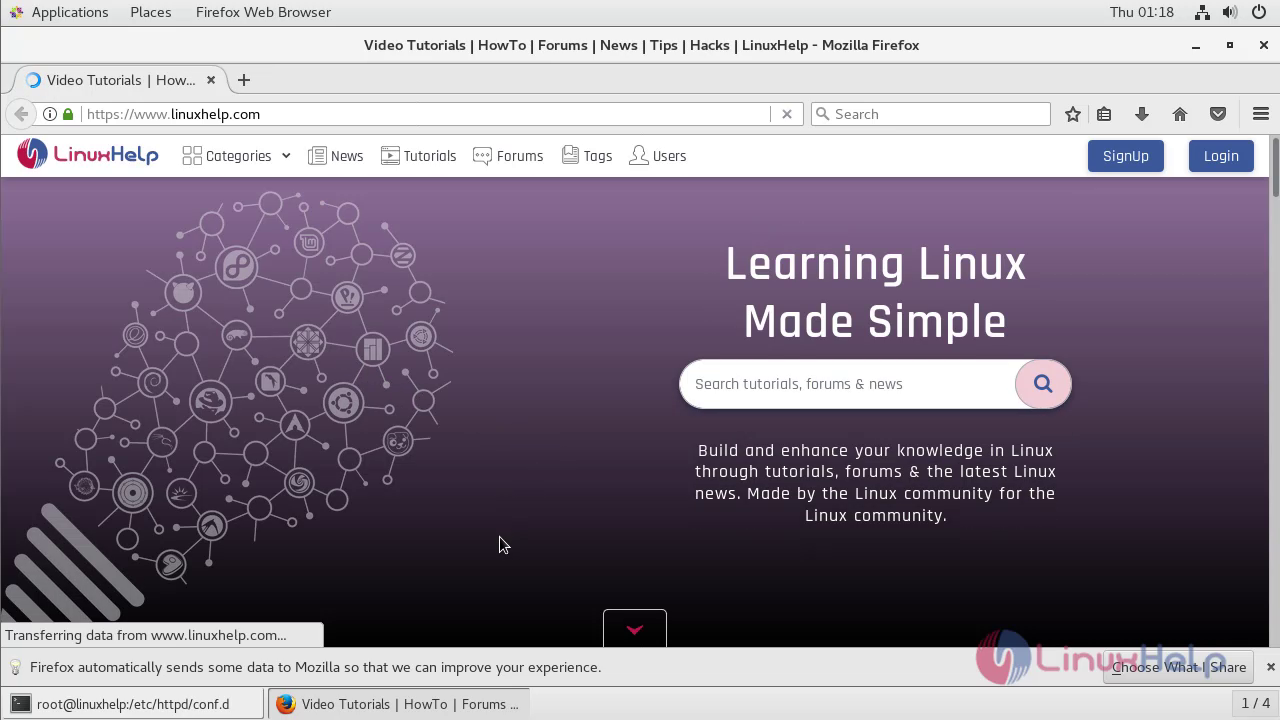 Now url redirection successfully configured.
How to Configure Apache to Use Custom 404 Error Page
Go to the Document root, already download 403 and 404 error image download to the following location,
[root@linuxhelp conf.d]# cd /var/www/html/
 [root@linuxhelp html]# ll
-rwxrwxr-x 1 apache apache 5606 Apr  3 01:15 403.jpg
-rwxrwxr-x 1 apache apache 9812 Apr  3 01:15 404.png
-rwxrwxr-x 1 apache apache   31 Apr  3 01:07 index.html
Edit the configuration file,
[root@linuxhlep conf.d]# vim test.conf
<virtualhost *:80>
servername linuxhelp1.com
Documentroot /var/www/html/
#Redirect / "http://www.google.com"
ErrorDocument 404 "http://linuxhelp1.com/404.jpg"
</virtualhost>
Once restart the service for changes
[root@linuxhlep conf.d]# systemctl restart httpd
After restaring the service Open your web browser and navigate to the rong URLs Domanin name/somthing or Ip address/somthing.
 Now 404 Error Pages successfully customized.
How To Configure Apache to Use Custom 403 Error Page
Go to html location create an one directoy
[root@linuxhlep conf.d]# cd /var/www/html/
[root@linuxhlep html]# mkdir test
Open the configuration file. Here, give the permission to access the directory my local machine only.
[root@linuxhlep html]# vim /etc/httpd/conf.d/test.conf
<virtualhost *:80>
servername linuxhelp1.com
Documentroot /var/www/html/
#Redirect / "http://www.google.com"
ErrorDocument 404 "http://linuxhelp1.com/404.jpg"
ErrorDocument 403 "http://linuxhelp1.com/403.jpg"
<Directory /var/www/html/pirai>
AllowOverride None
Require ip 127.0.0.1
</Directory>
</virtualhost>
Once restart the service for changes
[root@linuxhlep conf.d]# systemctl restart httpd
After restaring the service Open your other machine web browser and navigate to the URLs Domain name/test or IP address/test.
 Now 403 Error Pages successfully Customized.
With this, the method to Configure Apache to Custom Error Pages and URL Redirection on centos 7.5 comes to an end
Comments ( 0 )
No comments available