• Categories
    Category
    {{ postCtrl.tags }}
    • {{ category.tag_type }}

      • {{tag.tag_name}}
      • View more
  • Categories
    Category
    {{ postCtrl.tags }}
    • {{ category.tag_type }}

      • {{tag.tag_name}}
      • View more
  • News
  • Tutorials
  • Forums
  • Tags
  • Users
Tutorial News Comments FAQ Related Articles

How to Create Documents Module in SuiteCRM

{{postValue.id}}

How To create Documents in SuiteCRM

Procedure:

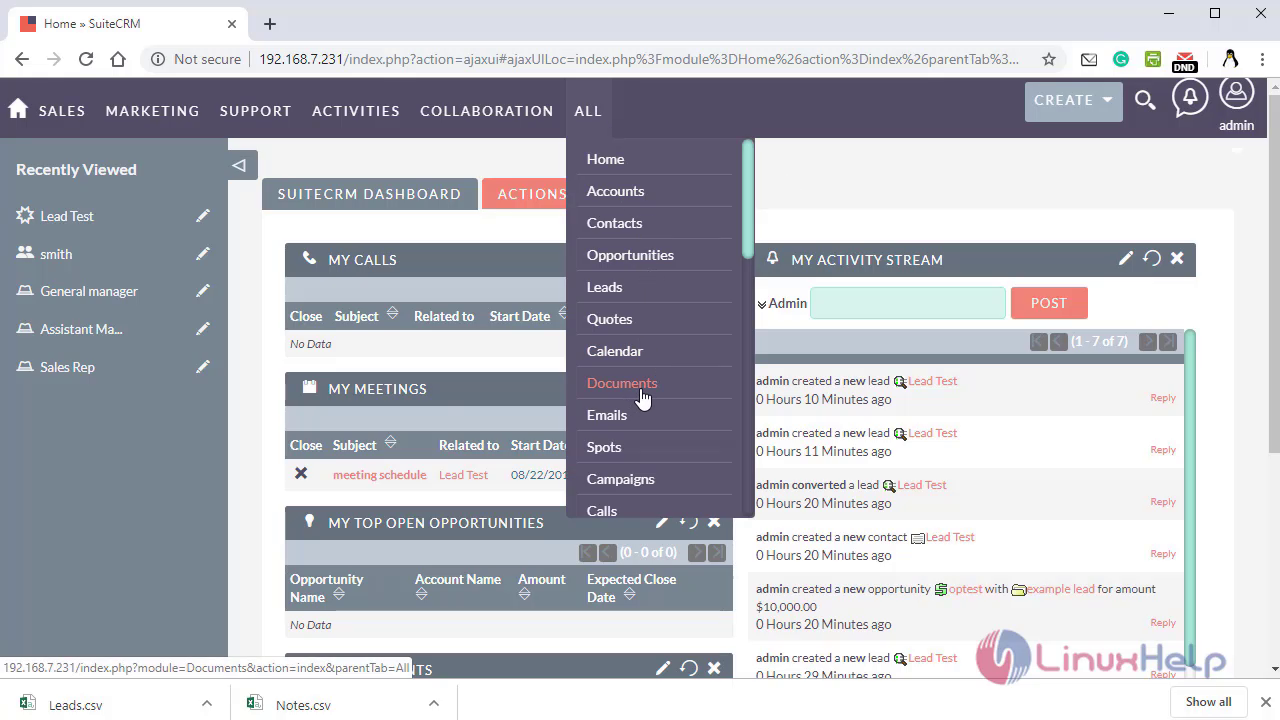
To open Document Module in SuiteCRM click on " ALL " where select " Documents " 1
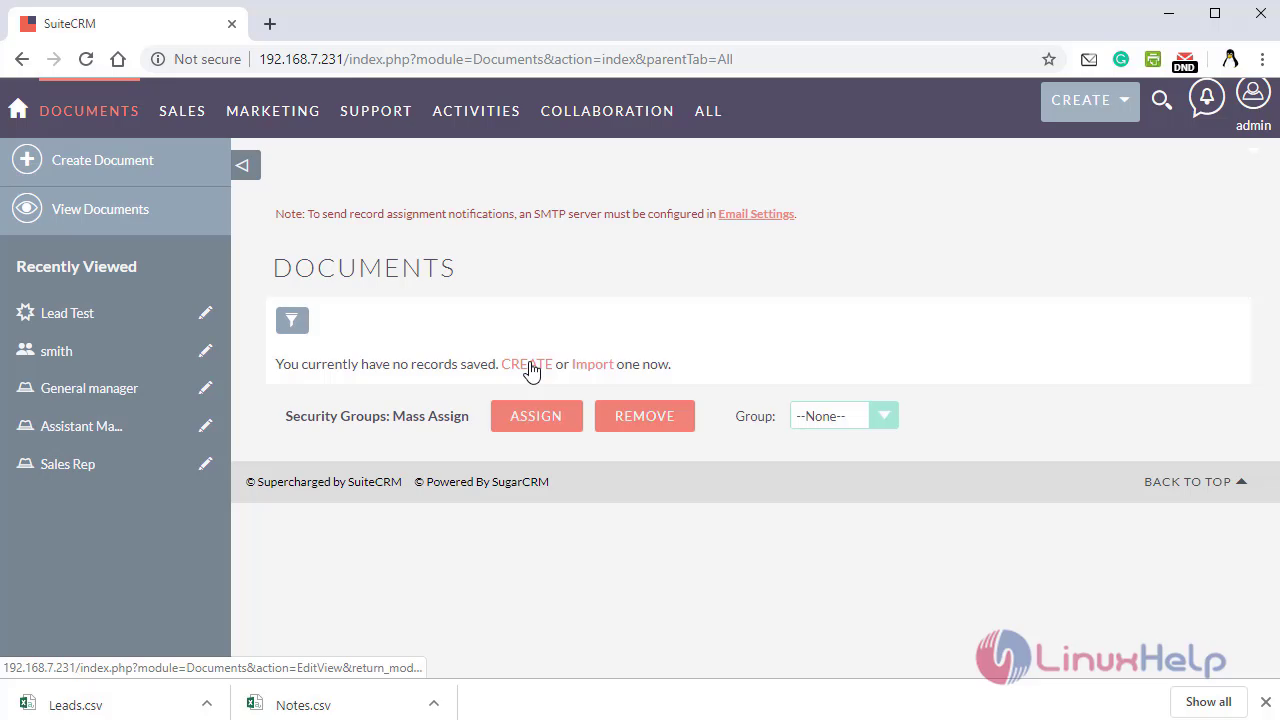
To create New Document click on " Create " option 2
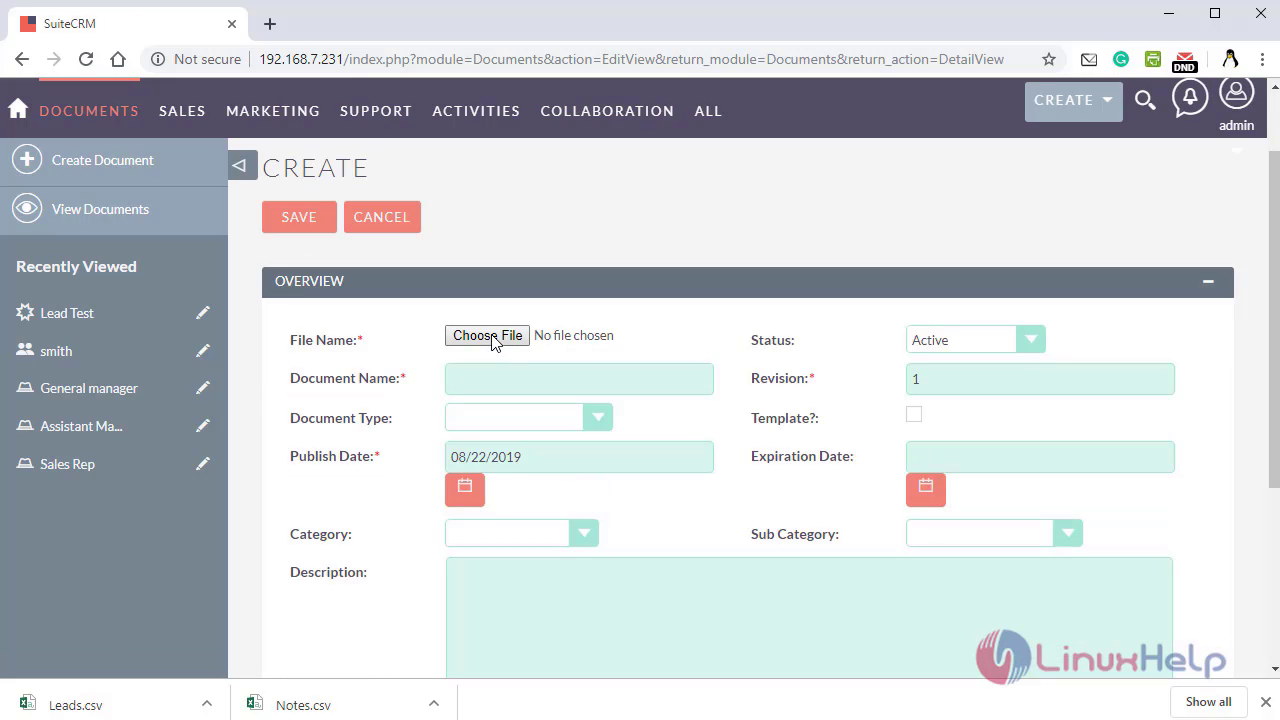
Click on " choose file " option to attach the file for the document module 3
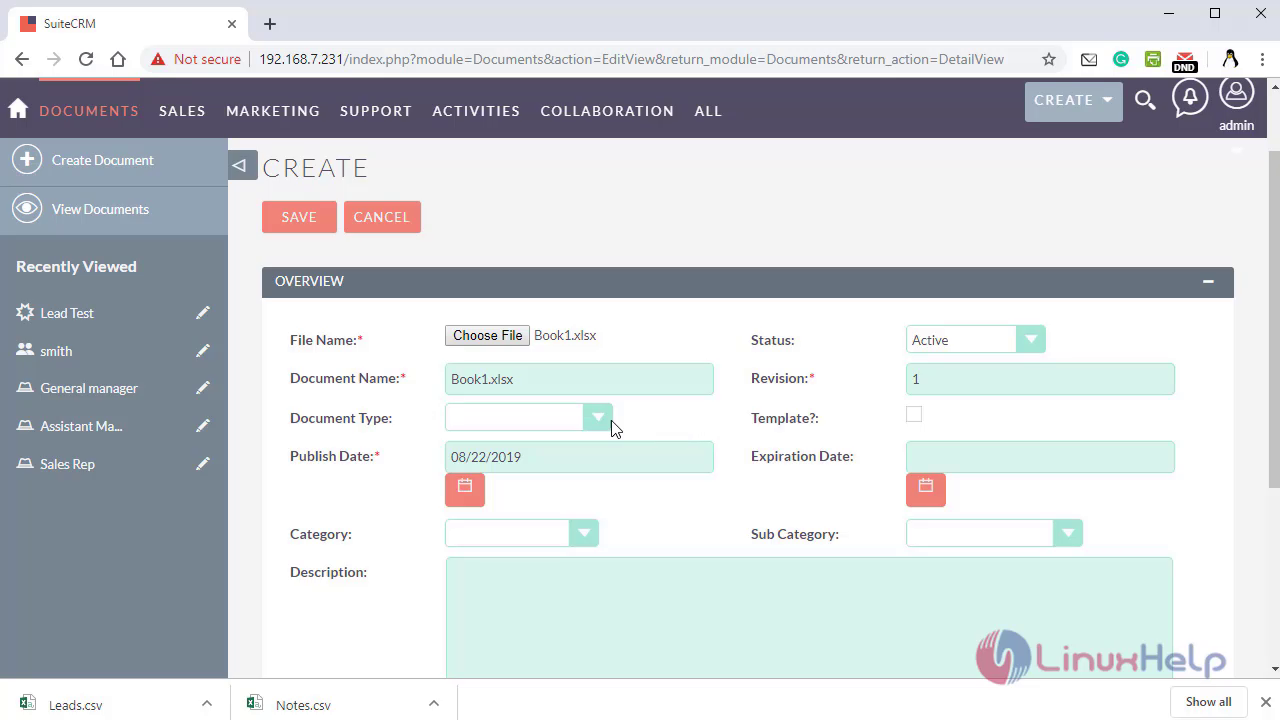
Fill the Required Fields 4

Click on the " Arrow symbol " to change assignee for the document 5
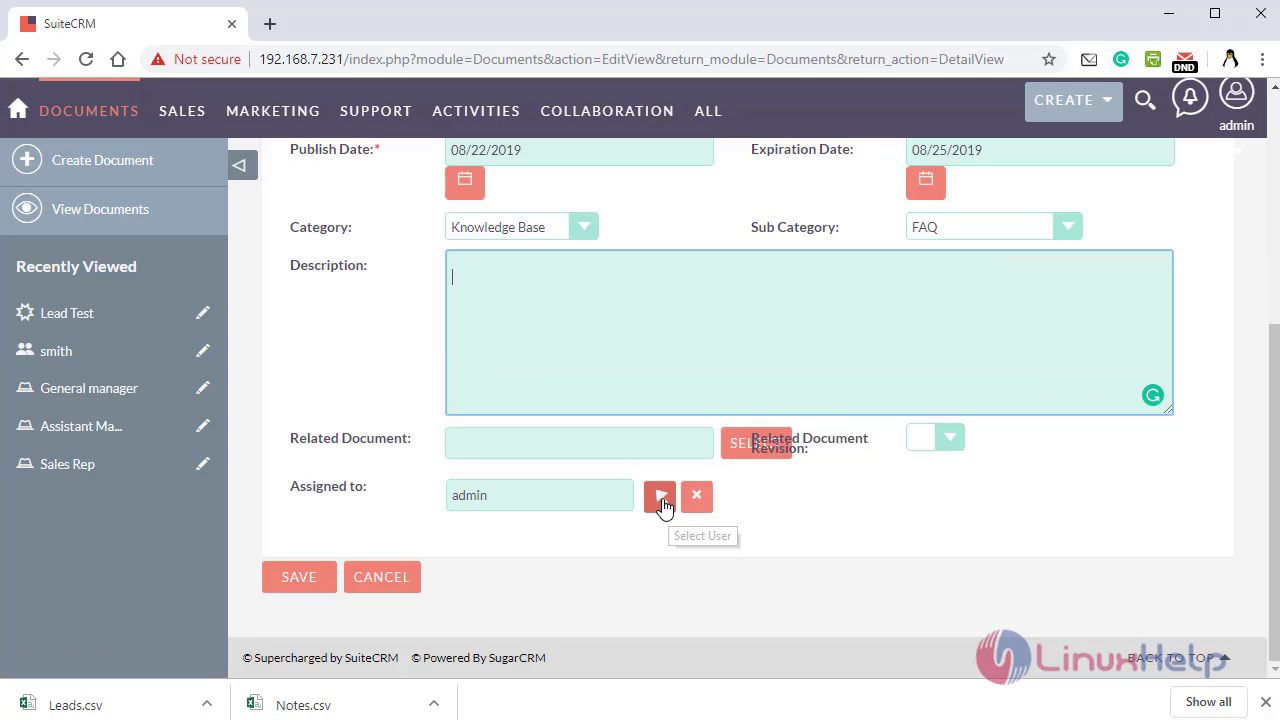
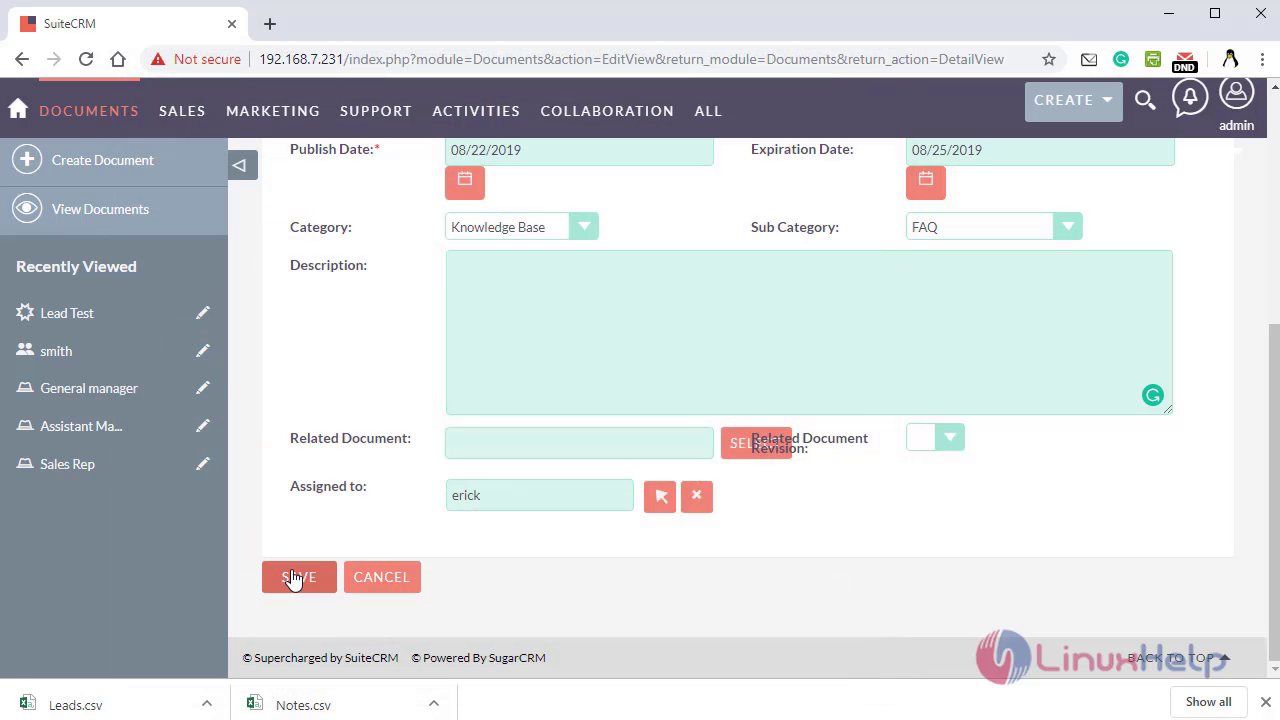
Click on the " save " option to update the changes 6
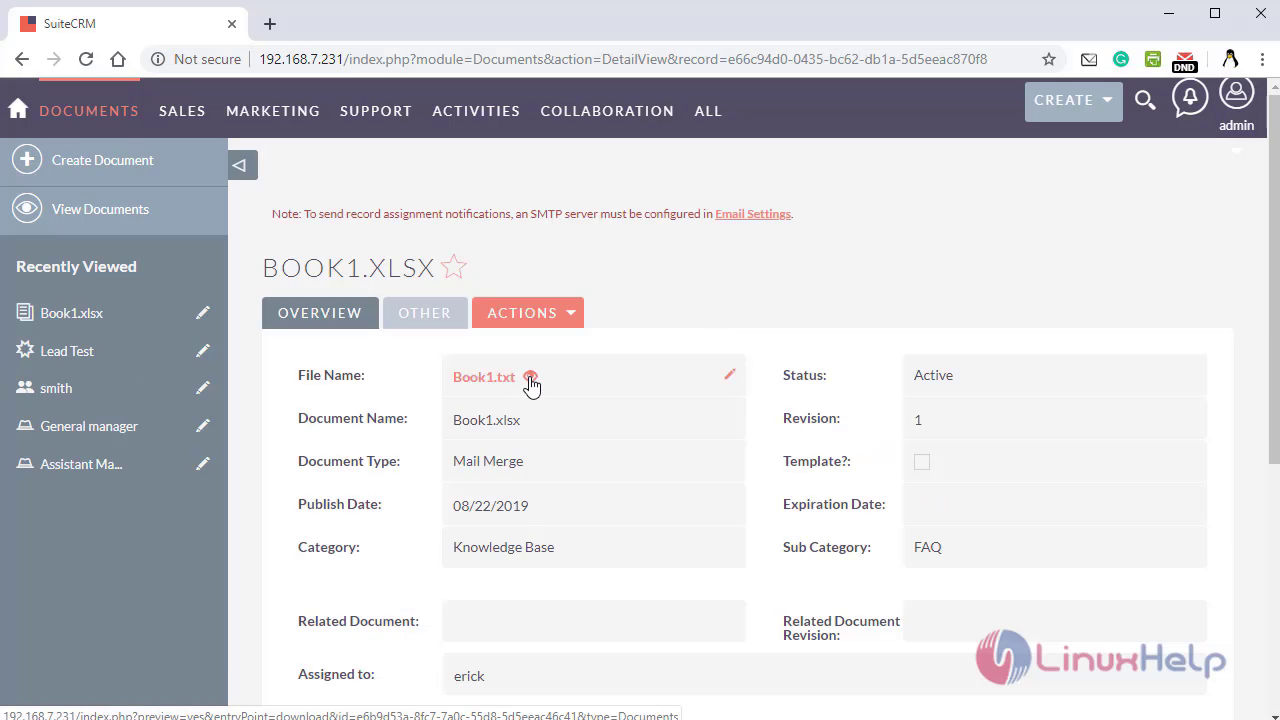
Click here to view the attached document’s file 7
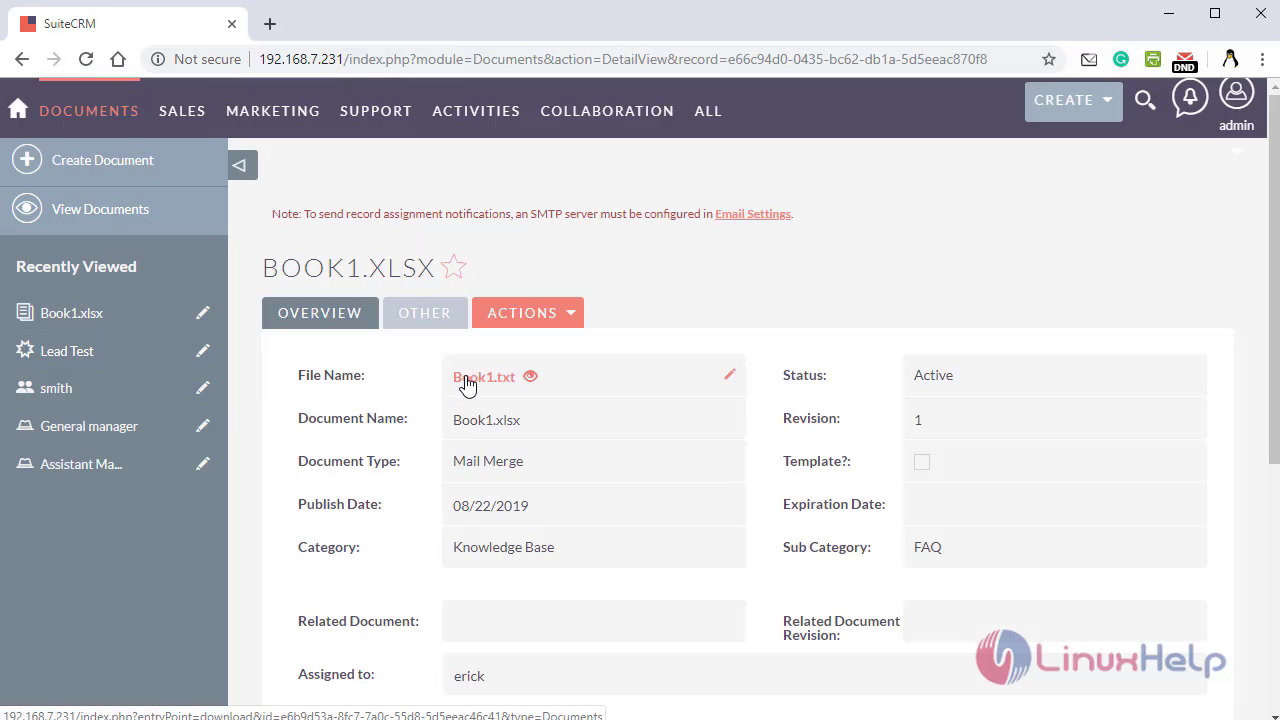
Click here to downloads Document’s attachment file 8
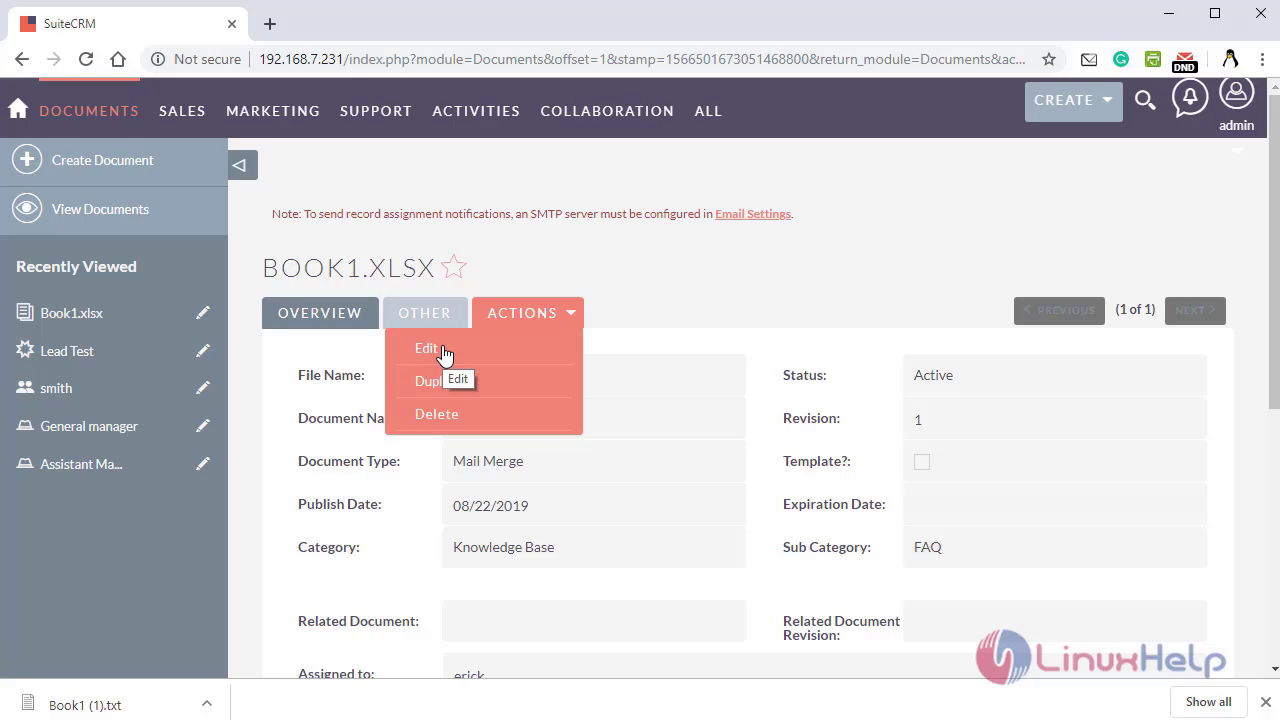
To Edit the Document, click on the " Document " then click on " Actions " Options where select " Edit " 09
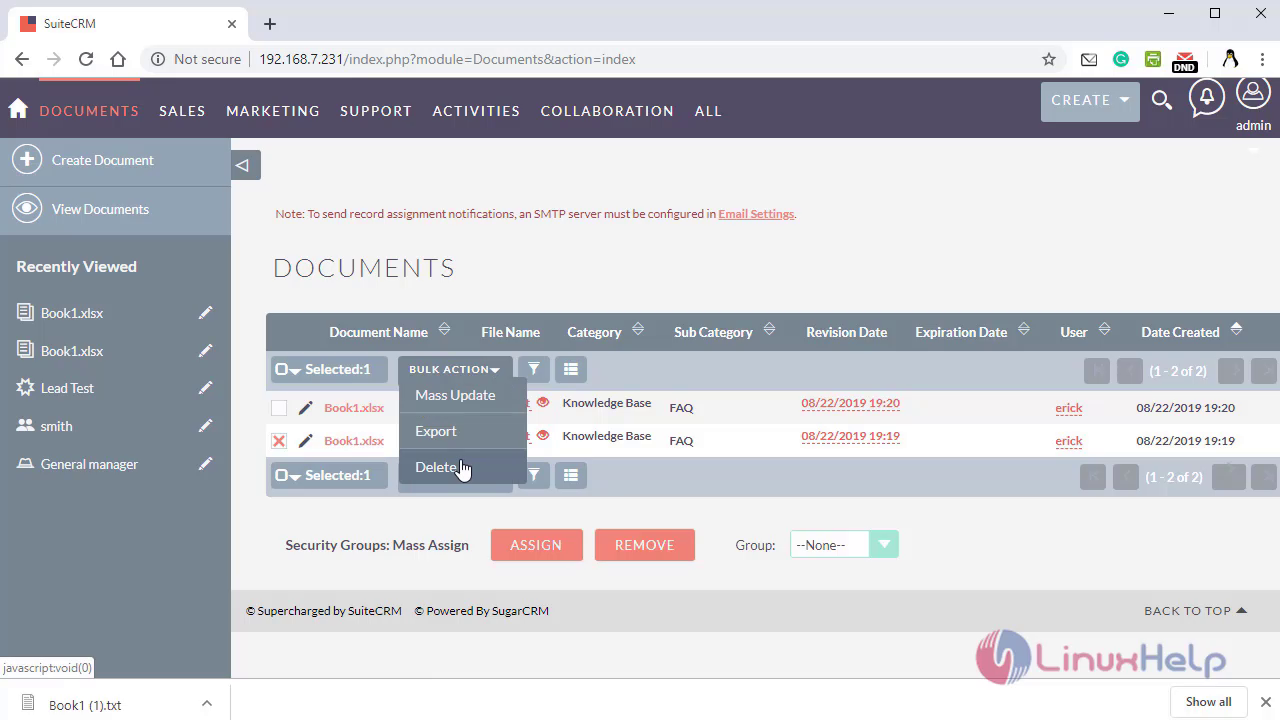
To delete an Documents

Select the document then click on " Bulk Action " where select " Delete " option 10
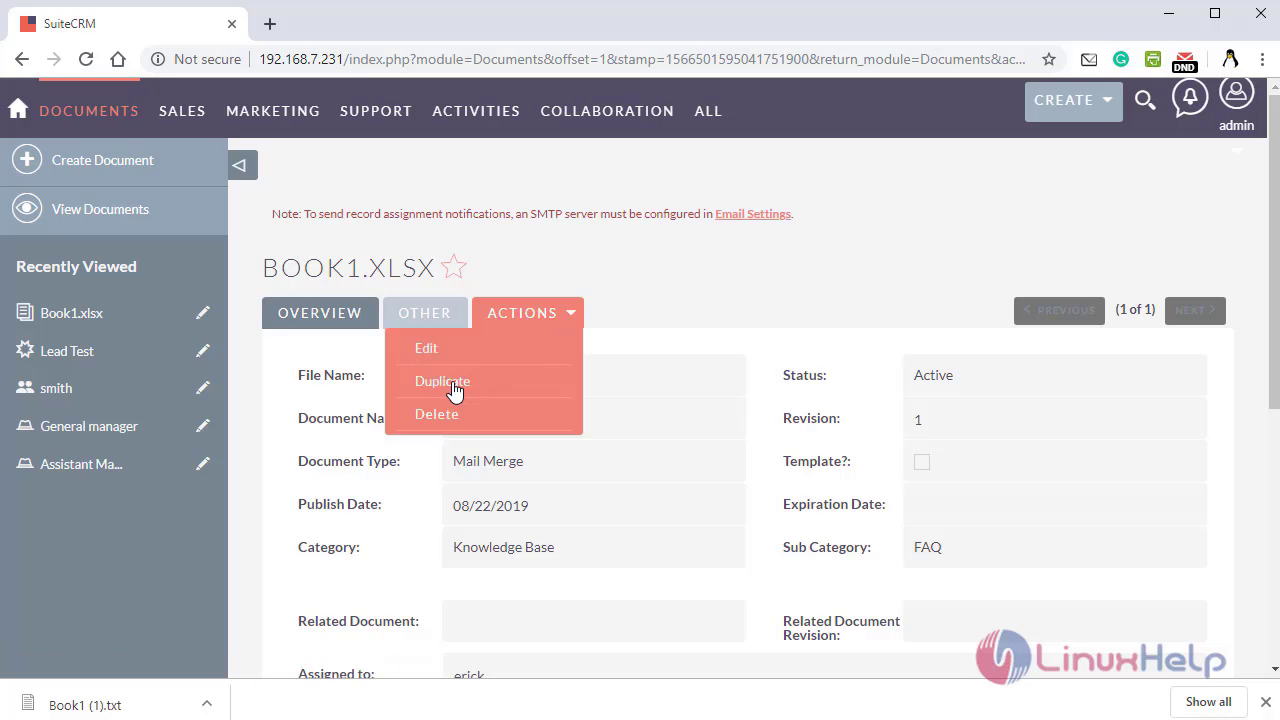
To duplicate the Documents, click on " Documents " then click on " Actions " where select " Duplicate " 11
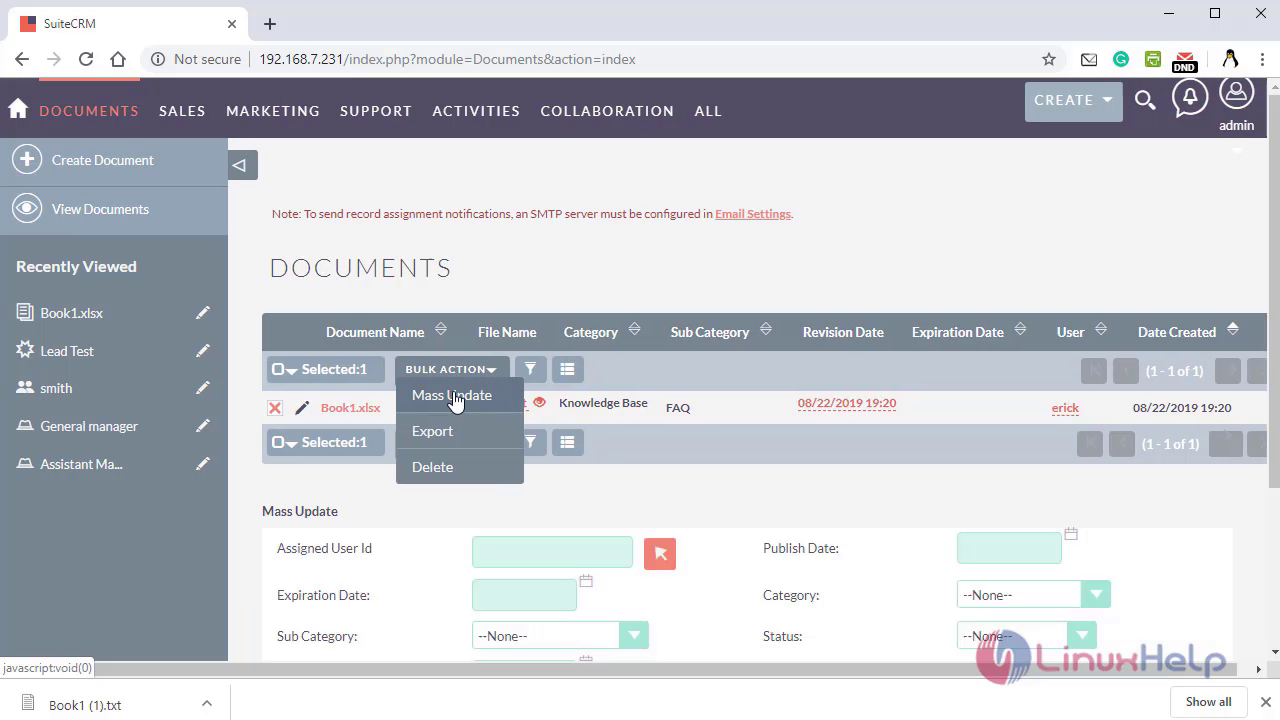
To perform Mass updating , select the " document " and click on the " Bulk Action " where select " Mass Update " 12
With this, the method to the Create Documents Module on SuiteCRM comes to an end.

Tags:
mason
Author: 

Comments ( 0 )

No comments available

Add a comment
{{postCtrl.cmtErrMsg}}

Frequently asked questions ( 5 )

Q

What is the Document Module in SuiteCRM?

A

The Documents module can be used as a repository for Customer issued or internal files. This content can be uploaded, revised and viewed in addition to relating to individual records within SuiteCRM.

Q

Is it possible to upload a number of files at a time?

A

Yes, it is possible to upload a number of files at a time by using " Bulk uploader"

Q

What are the difference between Notes and Documents in SuiteCRM?

A

Notes:
* It can be just text without file
* It can also have an attached file
* Notes are created automatically when you attach something to an Email, Case or Campaign
* It shows in History subpanel when viewing Contacts, Accounts, etc.

Documents:
* It supports more fields like category, sub-category, expiration date, etc.
* It always must include a file
* It shows in their own Documents subpanel when viewing Contacts, Accounts, etc.

Q

Is it possible to Export/Import the Documents?

A

Yes, It is possible to Export/Import the Documents

Q

Does Documents Supports Media files attachment?

A

Yes, Documents will support media attachments

Back To Top!
Rank
User
Points

Top Contributers

userNamenaveelansari
135850

Top Contributers

userNameayanbhatti
92510

Top Contributers

userNamehamzaahmed
32150

Top Contributers

1
userNamelinuxhelp
31040

Top Contributers

userNamemuhammadali
24500
Can you help Lucas ?
Various options in Top command

Am using Top command only to view the load average, what are the various options in Top command..??

Networking
  • Routing
  • trunk
  • Netmask
  • Packet Capture
  • domain
  • HTTP Proxy
Server Setup
  • NFS
  • KVM
  • Memory
  • Sendmail
  • WebDAV
  • LXC
Shell Commands
  • Cloud commander
  • Command line archive tools
  • last command
  • Shell
  • terminal
  • Throttle
Desktop Application
  • Linux app
  • Pithos
  • Retrospect
  • Scribe
  • TortoiseHg
  • 4Images
Monitoring Tool
  • Monit
  • Apache Server Monitoring
  • EtherApe 
  • Arpwatch Tool
  • Auditd
  • Barman
Web Application
  • Nutch
  • Amazon VPC
  • FarmWarDeployer
  • Rukovoditel
  • Mirror site
  • Chef
Contact Us | Terms of Use| Privacy Policy| Disclaimer
© 2025 LinuxHelp.com All rights reserved. Linux™ is the registered trademark of Linus Torvalds. This site is not affiliated with linus torvalds in any way.