How to Create Permission-based Configuration in Samba on Oracle Linux 8.5
To Create Permission based configuration in samba on Oracle linux 8.5
Introduction:
Samba is an open source software. A samba file server enables file sharing across different operating systems over a network. The samba server configuration is for managing samba shares, users, and basic server settings.
Note:
In this Tutorial we are going to create permission based configuration.
Share1
User1 and User3 have Read and Write Permission.
For User2 Read Access only.
Share2
User2 and User3 have Read and Write Permission.
For User1 Read Access only.
Share 3
User 2 and User3 have Read and Write Permission.
User1 have No Access.
Installation Procedures:
Step 1: Check the Oracle Linux version by using the below command.
[root@linuxhelp linuxhelp]# cat /etc/os-release
NAME="Oracle Linux Server"
VERSION="8.5"
ID="ol"
Step 2: Install Samba by using the below command
[root@linuxhelp linuxhelp]# yum install samba* -y
Installing:
 samba                        x86_64   4.15.5-5.el8        ol8_baseos_latest   867 k
 samba-client                 x86_64   4.15.5-5.el8        ol8_baseos_latest   716 k
 samba-common-tools           x86_64   4.15.5-5.el8        ol8_baseos_latest   522 k
 samba-krb5-printing          x86_64   4.15.5-5.el8        ol8_baseos_latest   101 k
 samba-libs                   x86_64   4.15.5-5.el8        ol8_baseos_latest   175 k
Upgraded:
Installed:
samba-winbind-krb5-locator-4.15.5-5.el8.x86_64
  samba-winbind-modules-4.15.5-5.el8.x86_64
  samba-winexe-4.15.5-5.el8.x86_64
  tdb-tools-1.4.3-1.el8.x86_64

Complete!
Step3: Start, enable and check the status of smb by using the below command
[root@linuxhelp linuxhelp]# systemctl start smb
[root@linuxhelp linuxhelp]# systemctl enable smb
Created symlink /etc/systemd/system/multi-user.target.wants/smb.service → /usr/lib/systemd/system/smb.service.

[root@linuxhelp linuxhelp]# systemctl status smb
● smb.service - Samba SMB Daemon
   Loaded: loaded (/usr/lib/systemd/system/smb.service; enabled; vendor preset: disa>
   Active: active (running) since Tue 2022-06-07 05:40:42 IST; 18s ago
Step4: Create Directory in Root by using the below command
  [root@linuxhelp linuxhelp]# mkdir /share1
  [root@linuxhelp linuxhelp]#mkdir /share2
  [root@linuxhelp linuxhelp]#mkdir /share3
Step5: Create Users by using the below command
[root@linuxhelp linuxhelp]# adduser --system user1
[root@linuxhelp linuxhelp]#  adduser --system user2
[root@linuxhelp linuxhelp]#  adduser --system user3
Step 6: Create Groups by using the below command
[root@linuxhelp linuxhelp]# groupadd sambagroup1
[root@linuxhelp linuxhelp]# groupadd sambagroup2
Step 7: Add the Users in their Respective Groups by using the below command
[root@linuxhelp linuxhelp]#usermod -a -G sambagroup1 user1
[root@linuxhelp linuxhelp]#usermod -a -G sambagroup1 user3
[root@linuxhelp linuxhelp]#usermod -a -G sambagroup2 user2
[root@linuxhelp linuxhelp]#usermod -a -G sambagroup2 user3
Step 8: Add the user to samba and create password by using the below command
[root@linuxhelp linuxhelp]# smbpasswd -a user1
New SMB password:
Retype new SMB password:
[root@linuxhelp linuxhelp]# smbpasswd -a user2
New SMB password:
Retype new SMB password:
[root@linuxhelp linuxhelp]#  smbpasswd -a user3
New SMB password:
Retype new SMB password:
Step 9: Enable the sambausers by using the below command
[root@linuxhelp linuxhelp]#  smbpasswd -e user1
 [root@linuxhelp linuxhelp]# smbpasswd -e user2
[root@linuxhelp linuxhelp]#  smbpasswd -e user3
Step 10: Set Ownership by using the below command
[root@linuxhelp linuxhelp]# chown -R user2:sambagroup1 /share1
[root@linuxhelp linuxhelp]#  chown -R user1:sambagroup2 /share2
[root@linuxhelp linuxhelp]#  chown -R user2:user3 /share3
Step 11: Change the SELinux context for files by using the below command
[root@linuxhelp linuxhelp]#  chcon -Rt samba_share_t /share1
[root@linuxhelp linuxhelp]#  chcon -Rt samba_share_t /share2
[root@linuxhelp linuxhelp]#  chcon -Rt samba_share_t /share3
Step 12: Stop and Disable Firewall by using the below command
[root@linuxhelp linuxhelp]# systemctl stop firewalld
[root@linuxhelp linuxhelp]# systemctl disable firewalld
Step 13: Grant Permission by using the below command
[root@linuxhelp linuxhelp]#  chmod  -R 777 /share1
[root@linuxhelp linuxhelp]#  chmod –R 777 /share2
[root@linuxhelp linuxhelp]#  chmod –R 777 /share3
Step 14: Create files inside the Directory by using the below command
[root@linuxhelp linuxhelp]#  touch /share1/file1
[root@linuxhelp linuxhelp]#  touch /share2/file2
[root@linuxhelp linuxhelp]#  touch /share3/file3
Step 15: Edit and make insert the configuration by using the below command
[root@linuxhelp linuxhelp]# vim /etc/samba/smb.conf
[share1]
path = /share1
valid users = user2, @sambagroup1
read list = user2
write list = @sambagroup1
browsable = yes

[share2]
path = /share2
valid users = user1, @sambagroup2
read list = user1
write list = @sambagroup2
browsable = yes

[share3]
path = /share3
valid users = user2, user3
read list = user2,user3
write list = user3
browsable = yes
invalid users = user1
Step 16: Restart the services by using the below command
[root@linuxhelp linuxhelp]# systemctl restart smb nmb
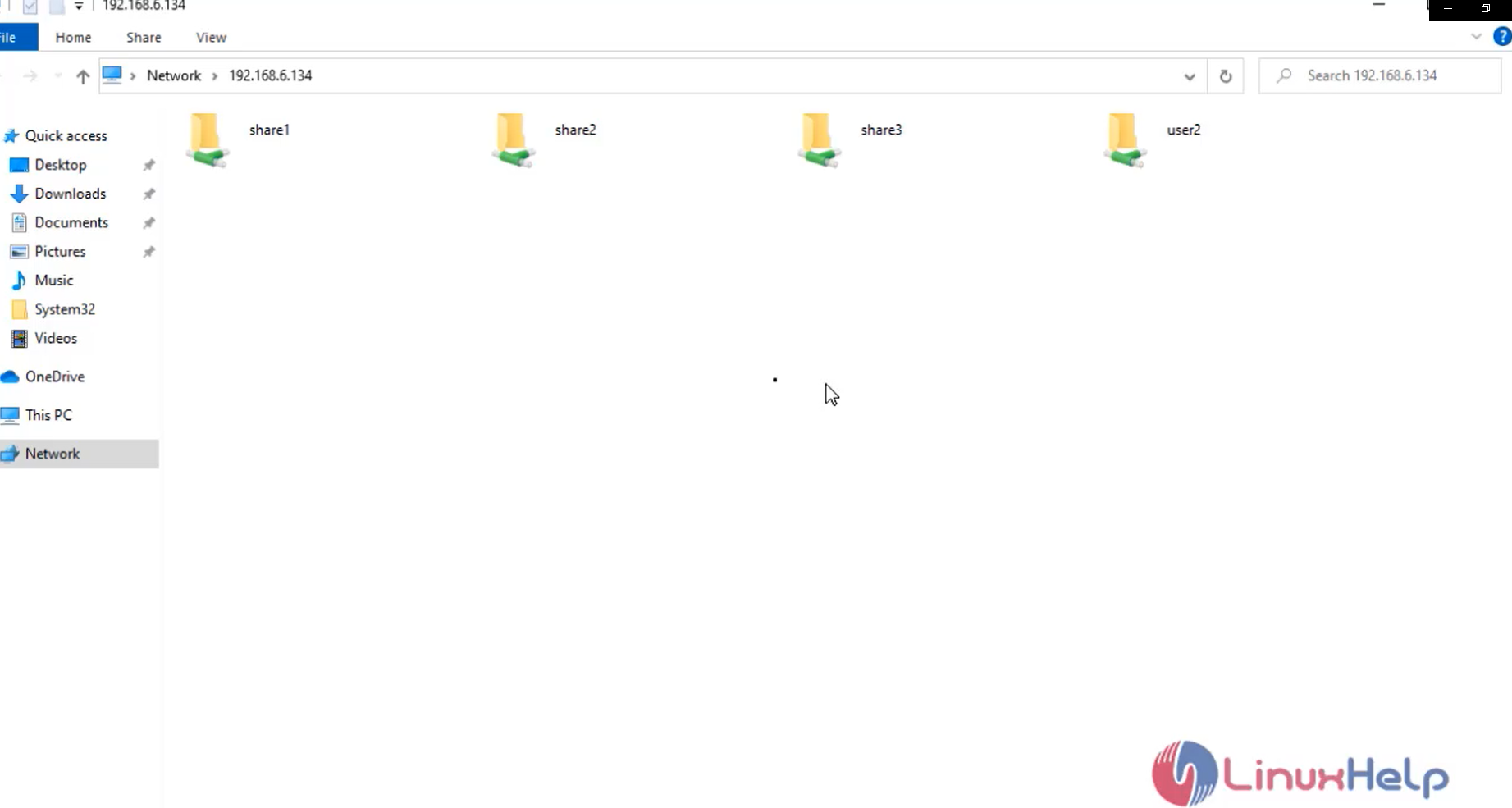
Step 17: Go to Windows Machine and Login with user credentials as shown in the below image
Conclusion:
We have reached the end of this article. In this guide, we have walked you through the Permission-based Configuration in Samba on Oracle Linux 8.5 .Your feedback is much welcome.
Comments ( 0 )
No comments available