• Categories
    Category
    {{ postCtrl.tags }}
    • {{ category.tag_type }}

      • {{tag.tag_name}}
      • View more
  • Categories
    Category
    {{ postCtrl.tags }}
    • {{ category.tag_type }}

      • {{tag.tag_name}}
      • View more
  • News
  • Tutorials
  • Forums
  • Tags
  • Users
Tutorial News Comments FAQ Related Articles

How to create Quote on Invoice Ninja

{{postValue.id}}

How to create Quote on Invoice Ninja

The previous article we have been briefed on how to use Credit module in Invoice Ninja. Today you will be explained about how to create Quotes on Invoice Ninja. Invoice Ninja is a free, open-source solution for invoicing and billing customers. The concerned clients can print the invoices, download them as PDF files, and even pay the vendor from online from within the system. It also supports 45 integrated payment gateways to send invoices to customers within seconds.

Quotes Module Procedure

To start with the creation of Quotes, log in to Invoice Ninja application with your credentials. The dashboard appears on the screen with all the required options.
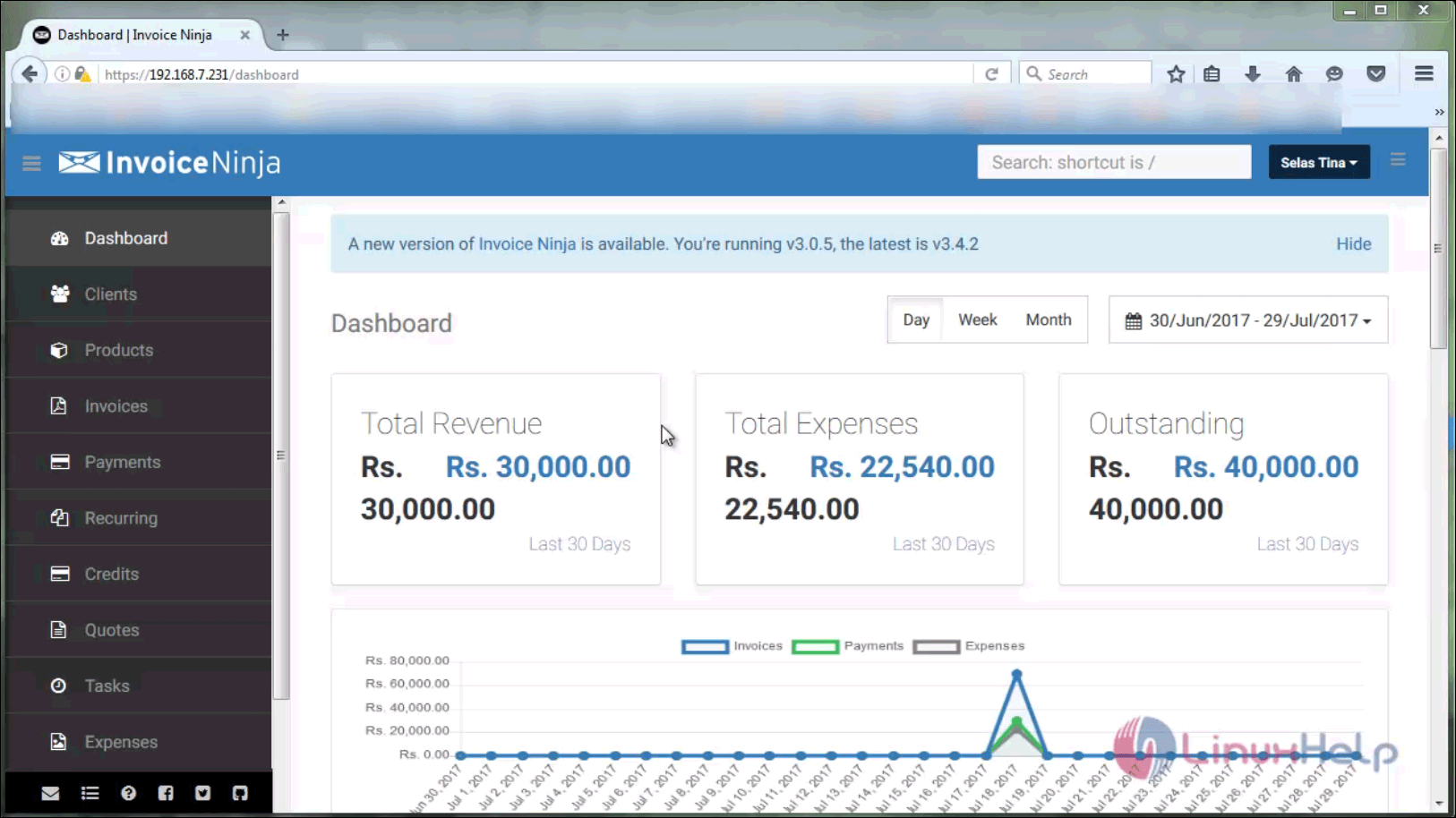
dashboard

Go to the Quotes menu on the left pane of menu and click New Quote option.
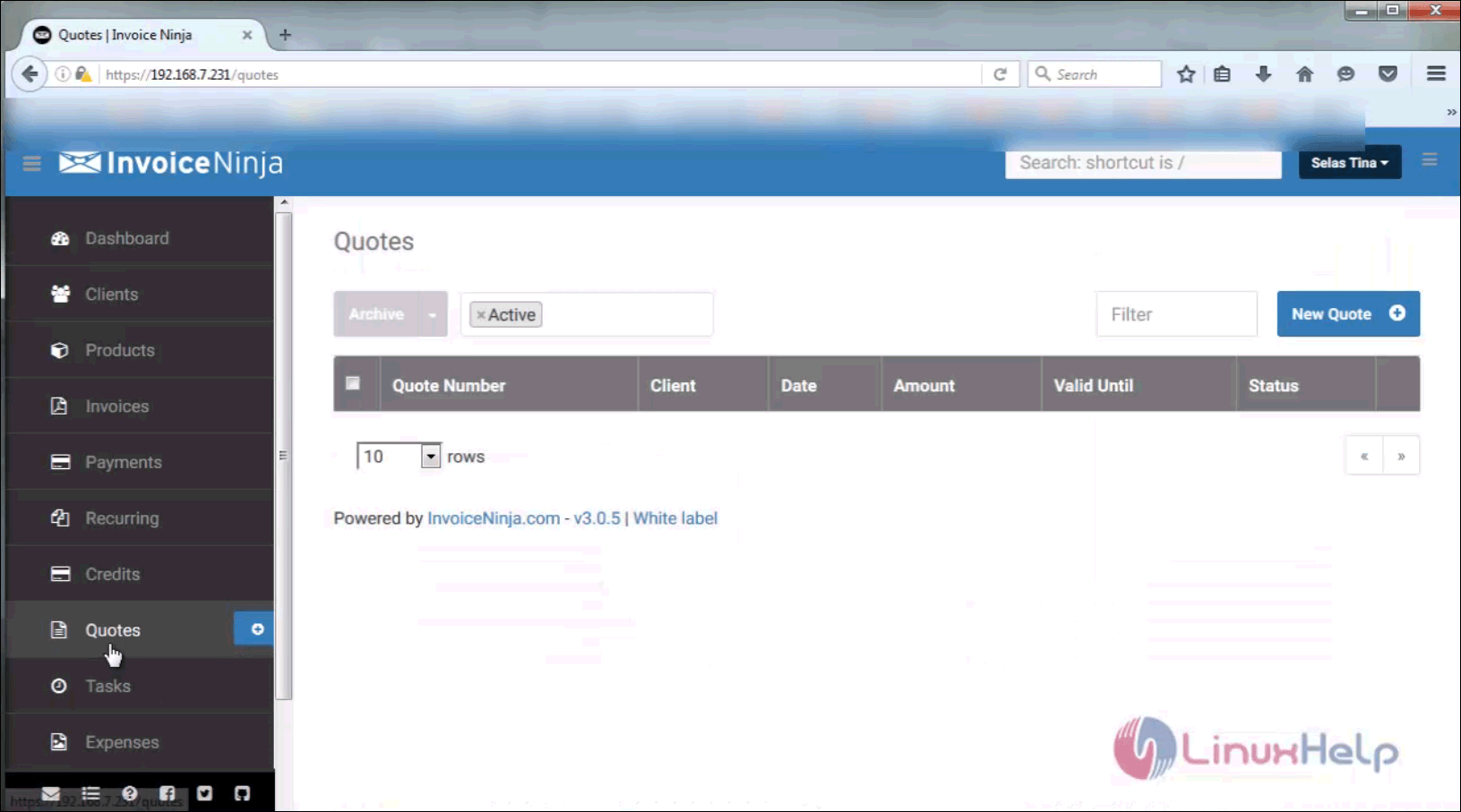
quotes table

A list of quotes will appear on the table format.
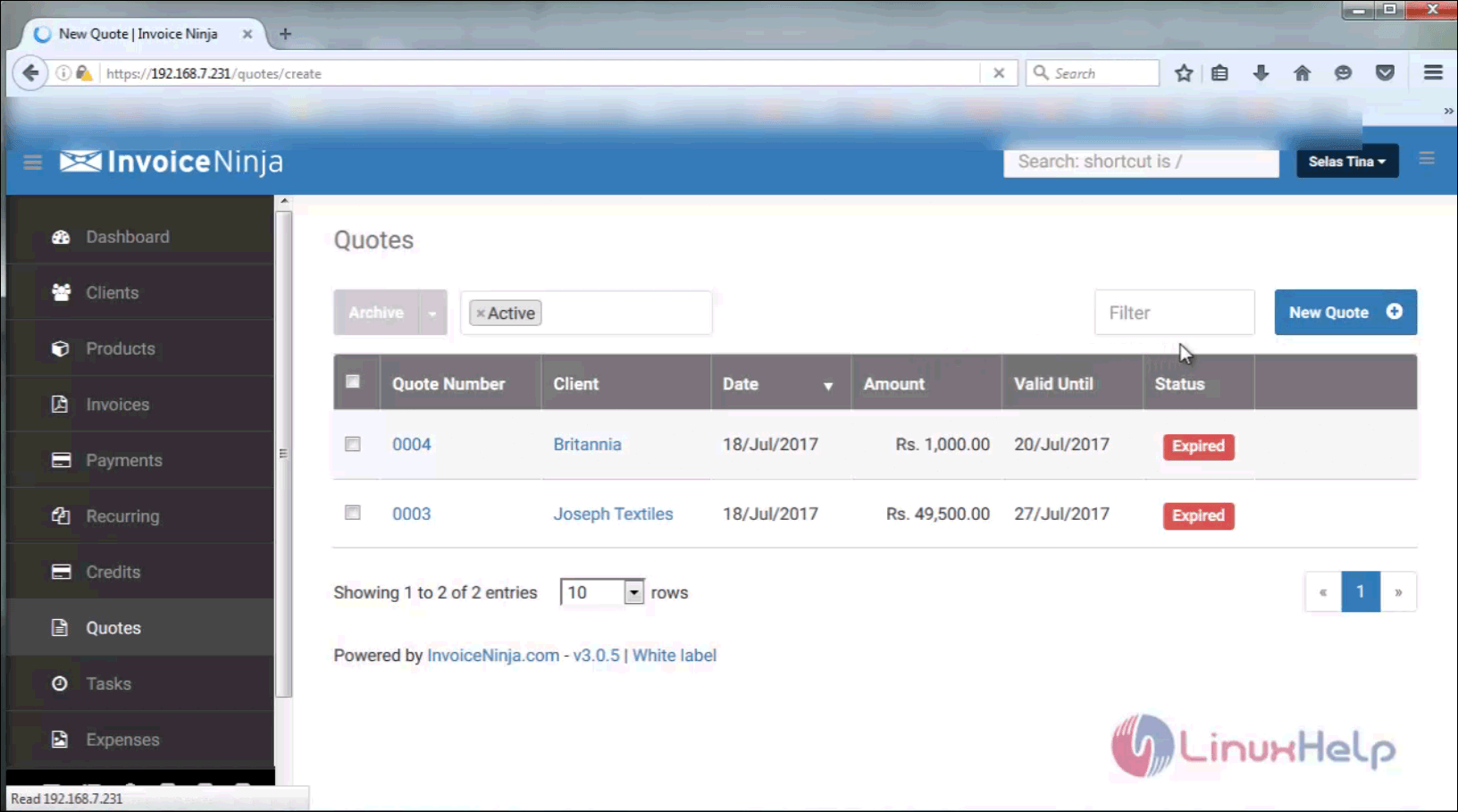
new quote

Then provide all the relevant details ( i.e ) vendor name, Quote name, quote number and description details.
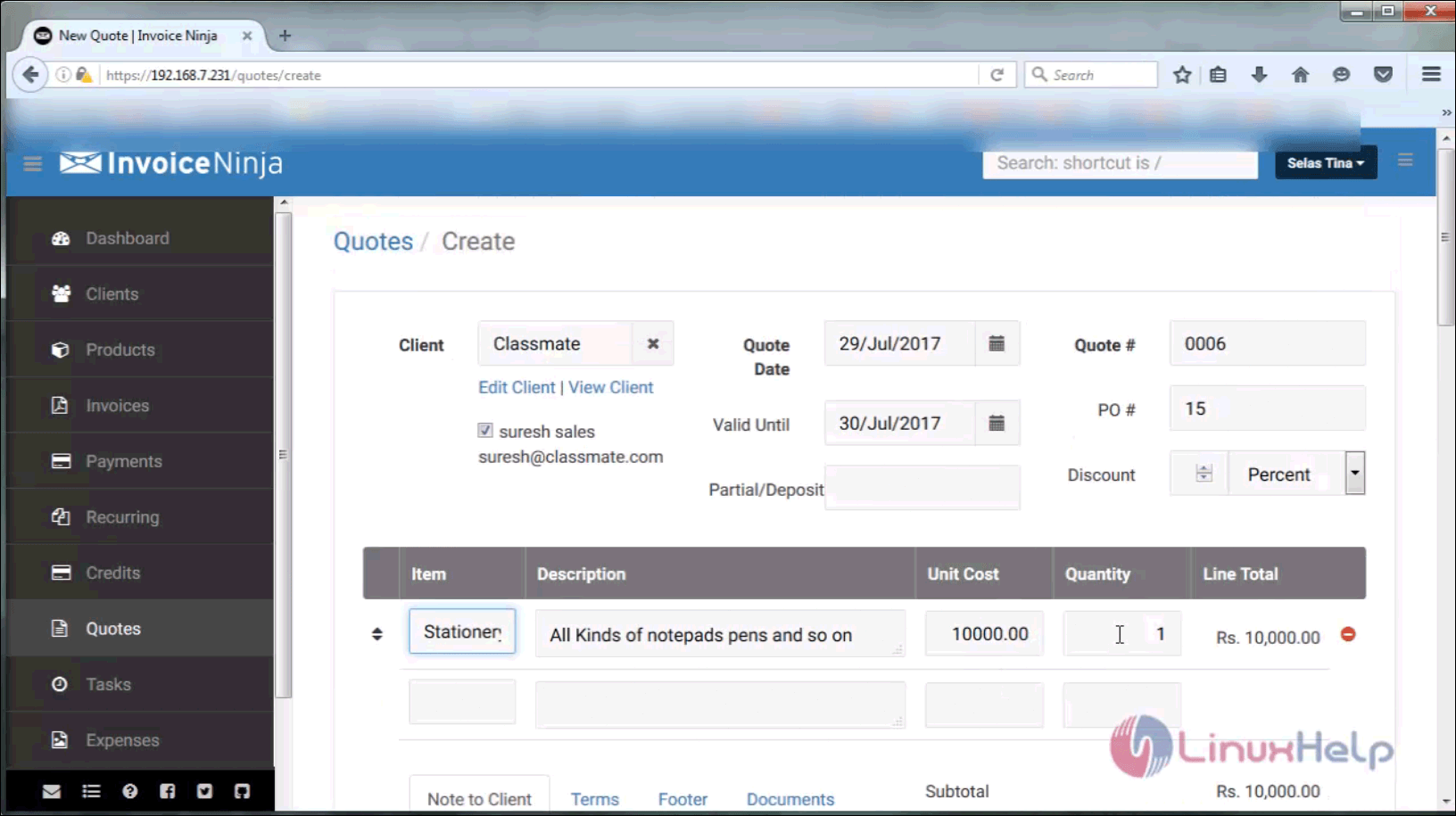
quote details

You can also save the quote as draft, mark as sent to customer or even email the quote directly to the vendor.
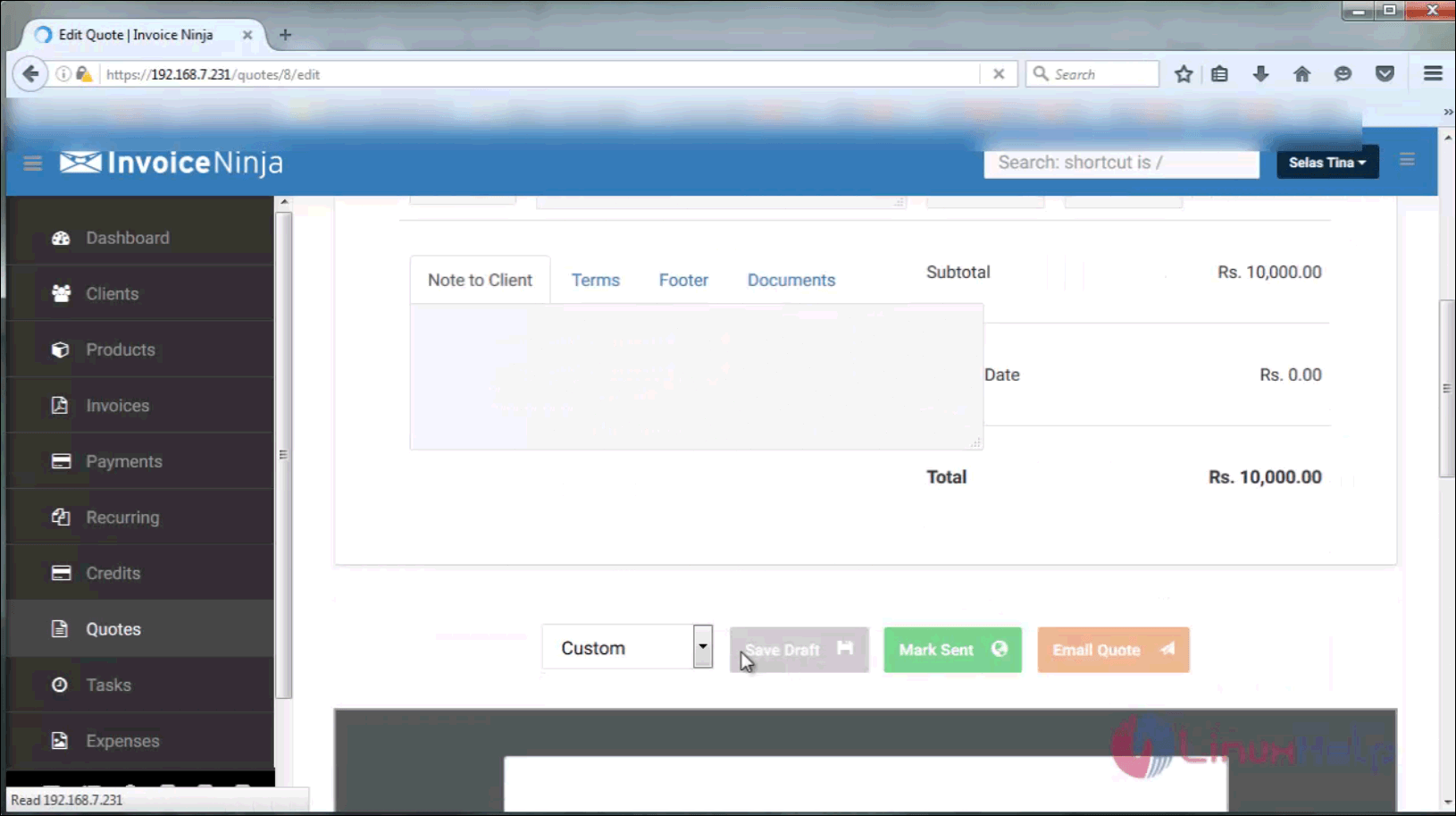
saving options

Now you have created a new quote on Invoice Ninja.
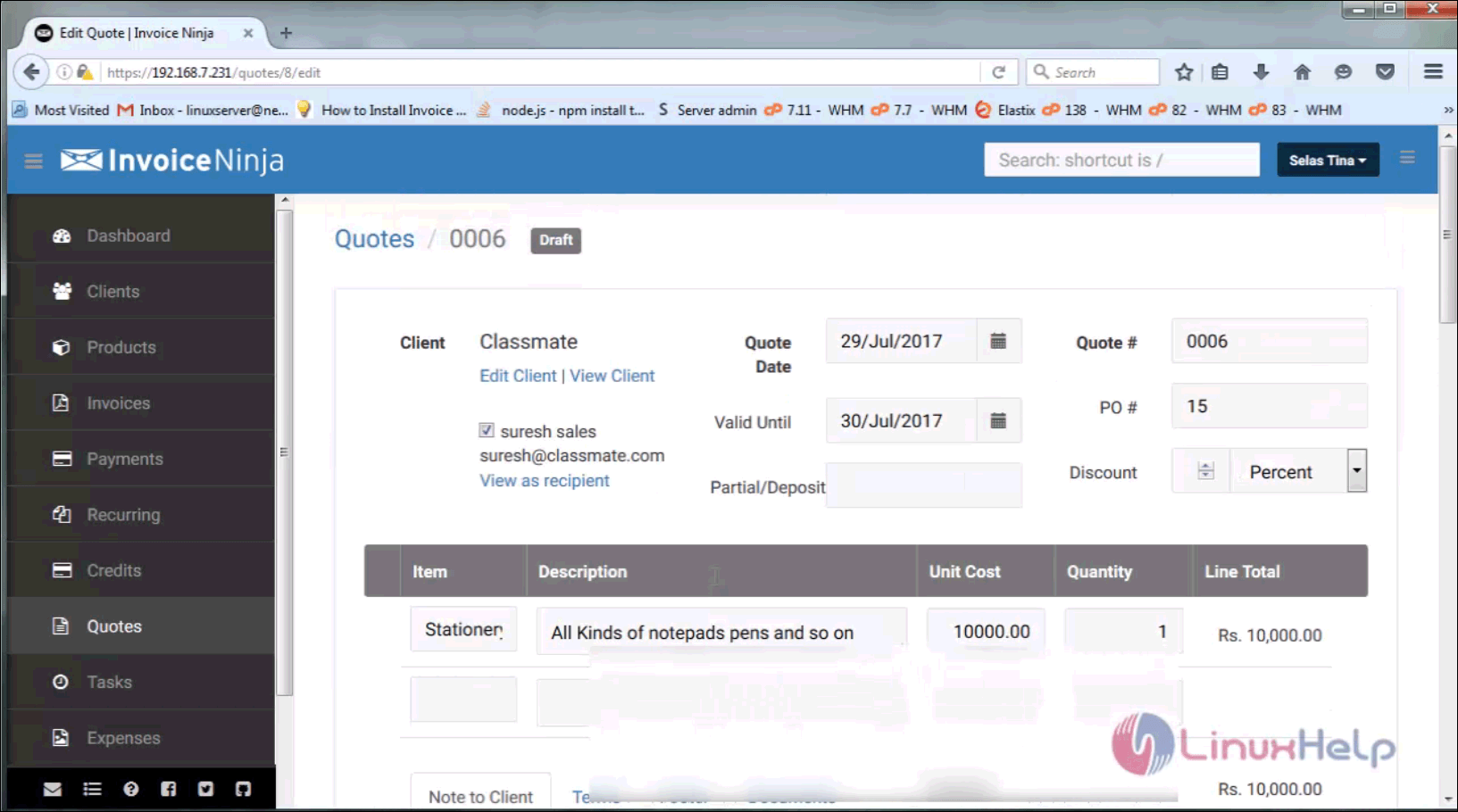
quotes

A new Quote is added successfully on Invoice Ninja. Stay tuned to know about how to use Expense record module in Invoice Ninja in our upcoming articles.

Tags:
gabriel
Author: 

Comments ( 0 )

No comments available

Add a comment
{{postCtrl.cmtErrMsg}}

Frequently asked questions ( 5 )

Q

Does archiving a client affect the client’s balance?

A

Archiving a client does not affect the client’s balance. Deleting a client will remove all client details.

Q

How do I know my API key?

A

Your API Key is generally found in the Account Settings or personal details section of your payment gateway account.

Q

What are the main differences between Invoice Ninja and Ninja Pro?

A

Some of the main differences include an upgrade to 10 professional invoice template designs, removal of Invoice Ninja branding, and highly personalized advanced settings.

Q

What are partial payments?

A

Partial payments allow your clients to partially pay their bill at different times, as opposed to requiring full invoice payment in a one-time transaction. You can locate the “Partial” box at the top of an existing or new invoice. Simply enter the partial payment amount, and the live PDF will adjust immediately. After a client pays the partial amount, the invoice will update itself to reflect the remaining balance due.

Q

What is token billing?

A

Token billing enables credit card storage within a gateway so your card can be charged at a later date.

Back To Top!
Rank
User
Points

Top Contributers

userNamenaveelansari
135850

Top Contributers

userNameayanbhatti
92510

Top Contributers

userNamehamzaahmed
32150

Top Contributers

1
userNamelinuxhelp
31040

Top Contributers

userNamemuhammadali
24500
Can you help Ganesh Konka ?
Zentya 6.1 http proxy configuration

please send link for creating zentyal 6.1 for http proxy and firewall as gateway.

Networking
  • Routing
  • trunk
  • Netmask
  • Packet Capture
  • domain
  • HTTP Proxy
Server Setup
  • NFS
  • KVM
  • Memory
  • Sendmail
  • WebDAV
  • LXC
Shell Commands
  • Cloud commander
  • Command line archive tools
  • last command
  • Shell
  • terminal
  • Throttle
Desktop Application
  • Linux app
  • Pithos
  • Retrospect
  • Scribe
  • TortoiseHg
  • 4Images
Monitoring Tool
  • Monit
  • Apache Server Monitoring
  • EtherApe 
  • Arpwatch Tool
  • Auditd
  • Barman
Web Application
  • Nutch
  • Amazon VPC
  • FarmWarDeployer
  • Rukovoditel
  • Mirror site
  • Chef
Contact Us | Terms of Use| Privacy Policy| Disclaimer
© 2025 LinuxHelp.com All rights reserved. Linux™ is the registered trademark of Linus Torvalds. This site is not affiliated with linus torvalds in any way.