How to generate system information using ScreenFetch
ScreenFetch- System Information Generator
ScreenFetch is a System Information Tool used for Bash Shell purpose. By using this tool, we can take screen shots and to change colors. System Information shows as an user logs into Bash shell. System Information Generator for Linux by using ScreenFetch is discussed in this Guideline.
These are list of information' s which will be displayed while executing the screenfetch command.
- Packages
- Shell
- OS
- User_name@Host_name
- Kernel
- Uptime
- WM
- DE
- WM Theme
- GTK Theme
- Font
- RAM
- CPU
- Resolution
- Icon Theme
Installation of ScreenFetch in Linux
Download the screenfetch package using wget command.
[root@linuxhelp ~]# wget https://github.com/KittyKatt/screenFetch/archive/master.zip
--2016-04-30 16:08:08--  https://github.com/KittyKatt/screenFetch/archive/master.zip
Resolving github.com (github.com)... 192.30.252.121
Connecting to github.com (github.com)|192.30.252.121|:443... connected.
HTTP request sent, awaiting response... 302 Found
Location: https://codeload.github.com/KittyKatt/screenFetch/zip/master [following]
--2016-04-30 16:08:09--  https://codeload.github.com/KittyKatt/screenFetch/zip/master
Resolving codeload.github.com (codeload.github.com)... 192.30.252.162
Connecting to codeload.github.com (codeload.github.com)|192.30.252.162|:443... connected.
HTTP request sent, awaiting response... 200 OK
Length: unspecified [application/zip]
Saving to: ‘ master.zip’

master.zip              [   < =>                 ]  61.97K  96.1KB/s   in 0.6s

2016-04-30 16:08:11 (96.1 KB/s) - ‘ master.zip’  saved [63459]
Unzip the downloaded zip file.
[root@linuxhelp ~]# ls
anaconda-ks.cfg  master.zip
[root@linuxhelp ~]# unzip master.zip
Archive:  master.zip
22e5bee7647453d45ec82f543f37b8a6a062835d
   creating: screenFetch-master/
  inflating: screenFetch-master/CHANGELOG
  inflating: screenFetch-master/COPYING
  inflating: screenFetch-master/README.mkdn
  inflating: screenFetch-master/TODO
  inflating: screenFetch-master/screenfetch-dev
  inflating: screenFetch-master/screenfetch.1
  inflating: screenFetch-master/update-manpage.sh
Move the folder under /usr/bin and then execute it. Script Installation is not necessary.
[root@linuxhelp ~]# cp screenFetch-master/screenfetch-dev /usr/bin/
[root@linuxhelp ~]# cd /usr/bin
[root@linuxhelp bin]# mv screenfetch-dev screenfetch
[root@linuxhelp bin]# chmod 755 screenfetch
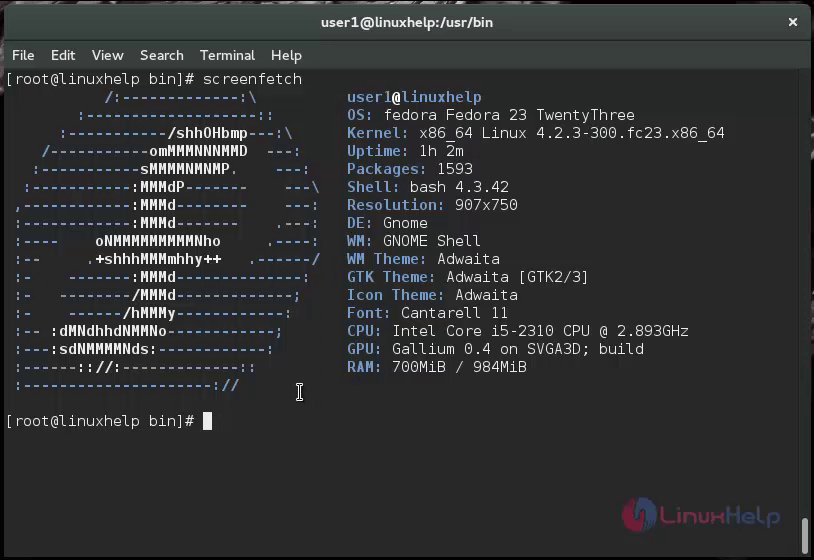
Next step is to test ‘ screenfetch‘ command
[root@linuxhelp bin]# screenfetch
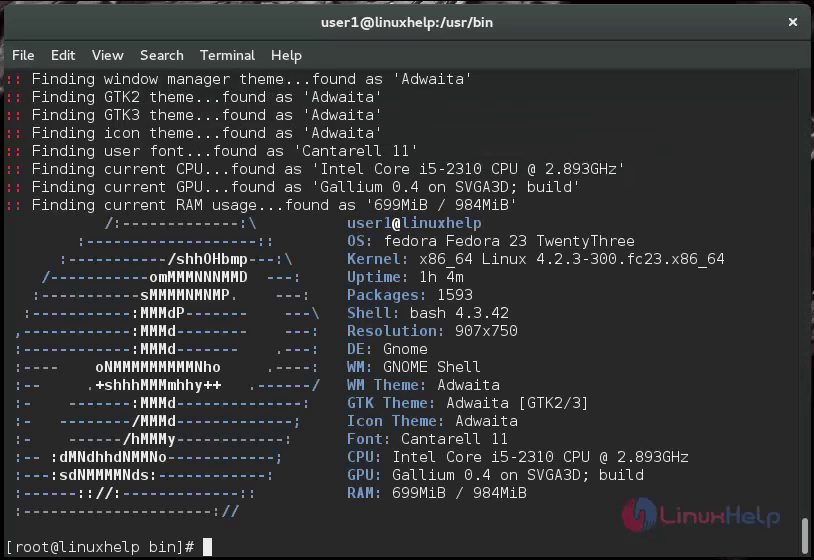
Use ‘ -v‘ (Verbose) option with ScreenFetch command to get detailed system information.
[root@linuxhelp bin]# screenfetch -v
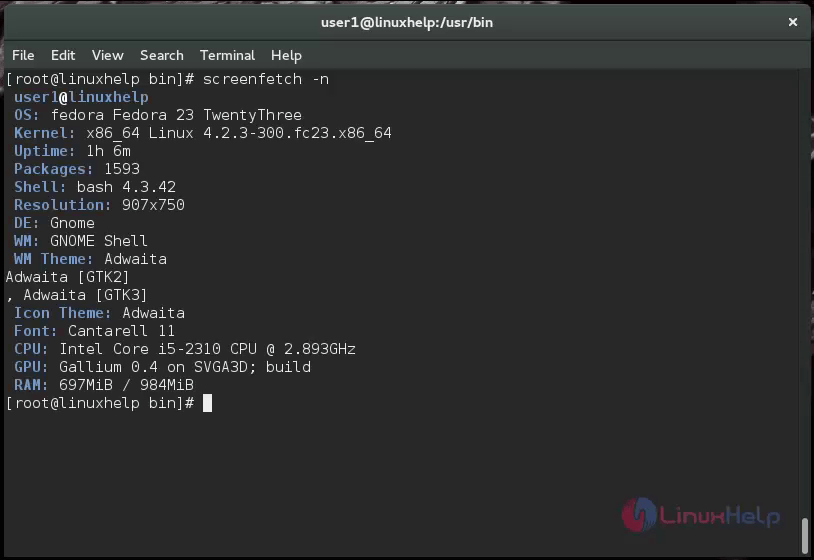
Use -n option to hide ASCII logo of Linux Distribution.
[root@linuxhelp bin]# screenfetch -n
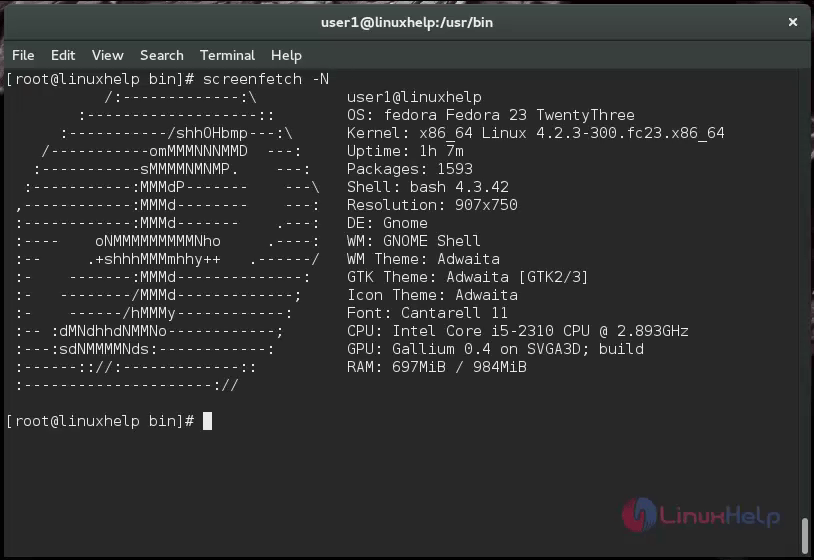
Use ‘ -N‘ option to display without any colors.
[root@linuxhelp bin]# screenfetch -N
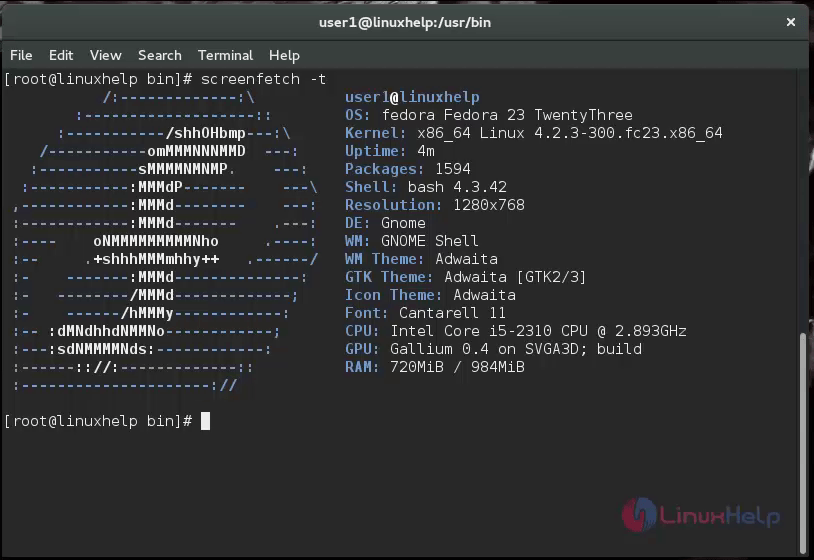
Depending upon the terminal width using option ' -t' truncate the output.
[root@linuxhelp bin]# screenfetch -t
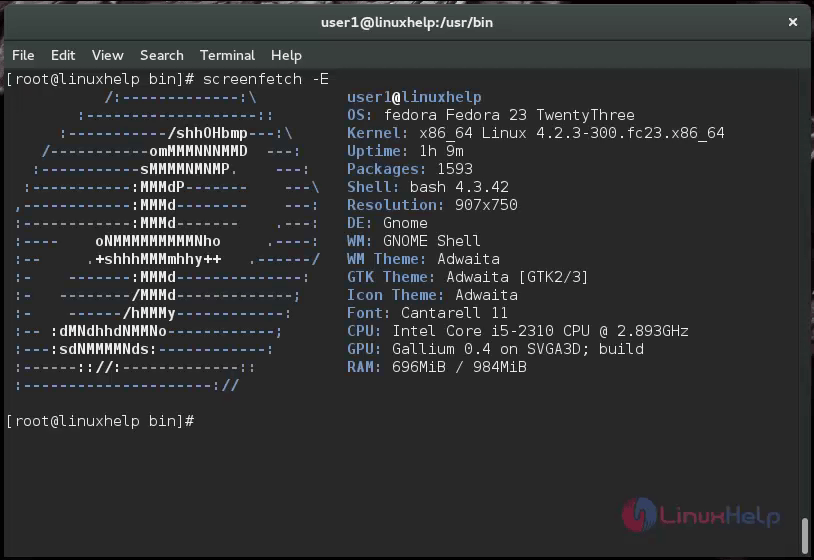
Use ' -E' option to suppress the Error in the output.
[root@linuxhelp bin]# screenfetch -E
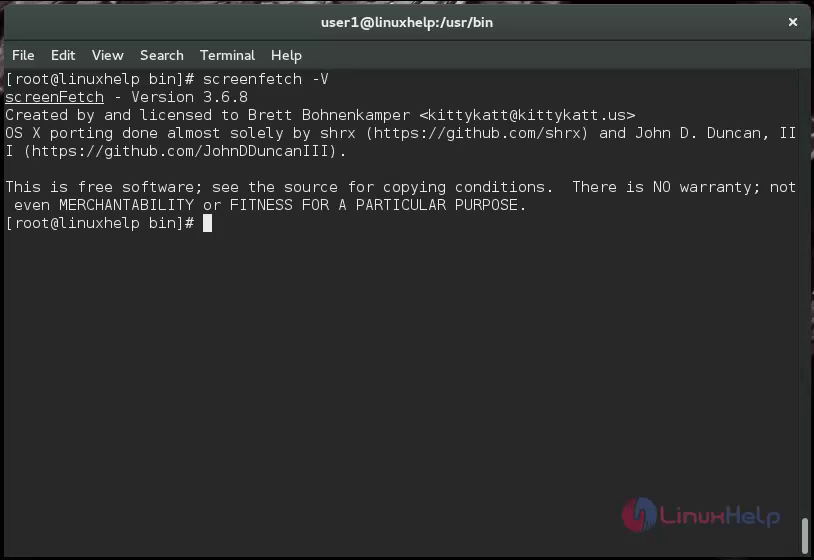
Use ‘ -V‘ option to view the current version.
[root@linuxhelp bin]# screenfetch -V
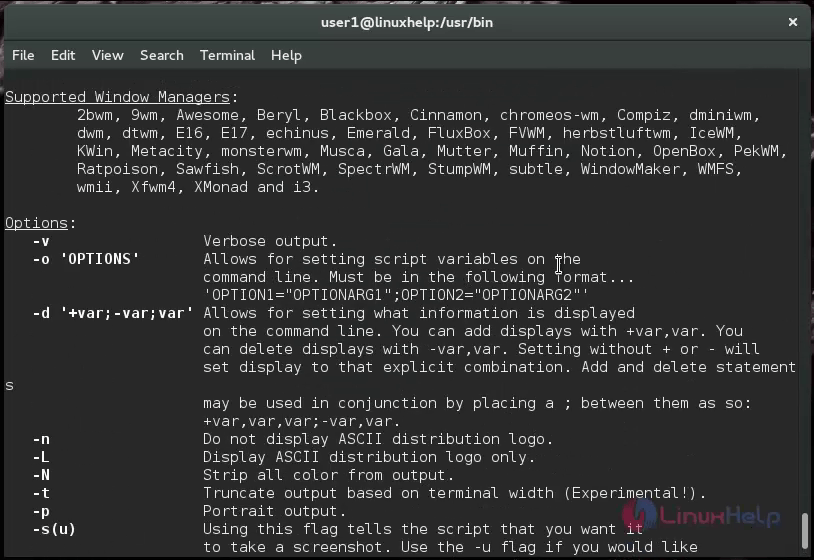
‘ -h‘ option is used to view the help page.
[root@linuxhelp bin]# screenfetch -h
To Use screenfetch at User Login
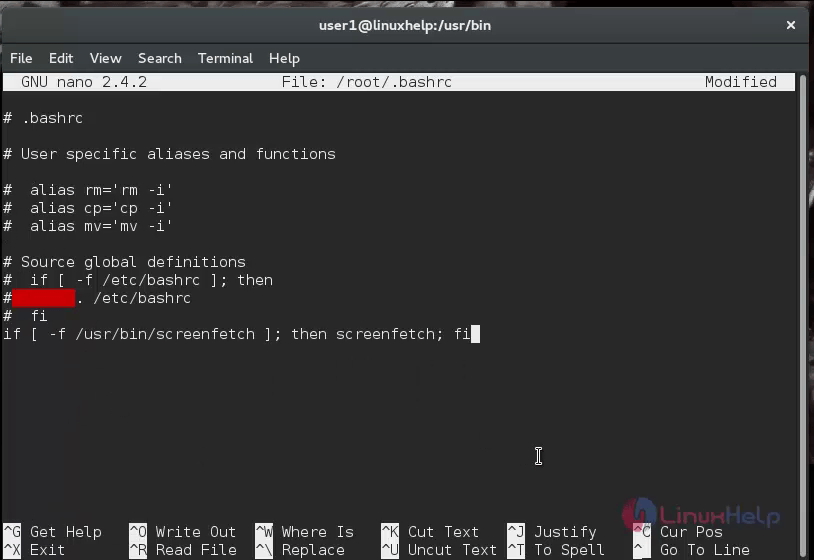
For Displaying Output, you must add the line below, as the end of ~/.bashrc file.
if [ -f /usr/bin/screenfetch ] then screenfetch fi
After adding the above line, the ~/.bashrc file looks
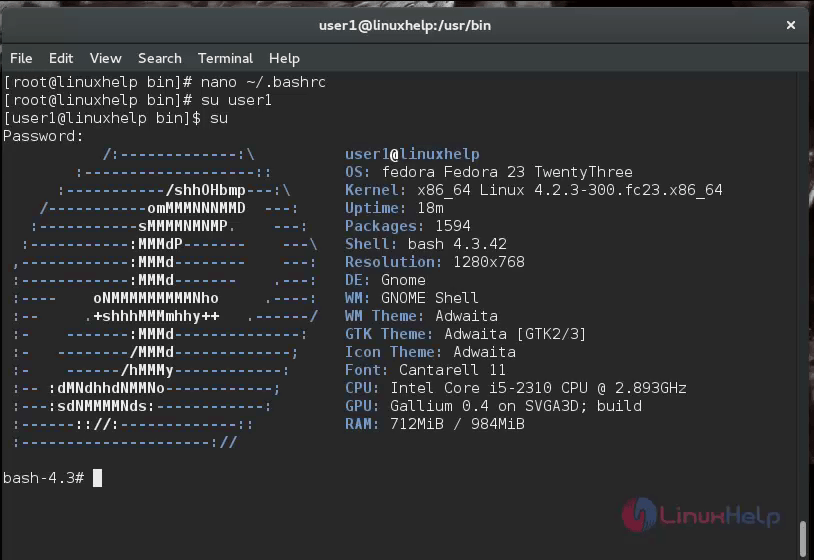
Login and logout to check whether it is effective or not.
Comments ( 0 )
No comments available