How to install and configure Ansible on Oracle Linux 8.5
- 00:30 cat /etc/os-release
- 00:50 sudo dnf makecache
- 01:10 sudo dnf install epel-release
- 01:40 sudo dnf makecache
- 01:45 sudo dnf install ansible
- 02:15 ansible --version
- 03:02 vim /etc/hosts
- 03:40 ssh-keygen
- 04:20 ssh-copy-id root@vm1.linuxhelp.local
- 05:10 ssh root@vm1.linuxhelp.local
- 05:45 echo "$(whoami) ALL=(ALL) NOPASSWD:ALL" | sudo tee /etc/sudoers.d/$(whoami)
- 06:00 exit
- 06:20 mkdir ~/ansible
- 06:22 cd ~/ansible/
- 07:00 vim hosts
- 07:42 ansible -i hosts --list-hosts all
- 07:55 ansible -i hosts -m ping webserver
- 08:20 ansible -i hosts -b --become-method=sudo -m shell -a 'yum install -y httpd' webserver
To Install And Configure Ansible On Oracle Linux 8.5
Introduction:
Ansible is an open-source platform for IT configuration management (CM) and automation developed by Red Hat. It uses human-readable YAML templates to automate repetitive tasks without requiring advanced programming skills.
Installation Procedure:
Step 1: Check the Oracle Linux Version by using the below command
[root@linuxhelp ~]# cat /etc/os-release
NAME="Oracle Linux Server"
VERSION="8.5"
Step 2: Update the DNF Package Repository cache with the below command
[root@linuxhelp ~]# sudo dnf makecache
Oracle Linux 8 BaseOS Latest (x86_64)                                    22 kB/s | 3.6 kB     00:00
Oracle Linux 8 BaseOS Latest (x86_64)                                    10 MB/s |  49 MB     00:04
Oracle Linux 8 Application Stream (x86_64)                               16 kB/s | 3.9 kB     00:00
Oracle Linux 8 Application Stream (x86_64)                              6.6 MB/s |  37 MB     00:05
Latest Unbreakable Enterprise Kernel Release 6 for Oracle Linux 8 (x86_  22 kB/s | 3.0 kB     00:00
Latest Unbreakable Enterprise Kernel Release 6 for Oracle Linux 8 (x86_  11 MB/s |  54 MB     00:05
Last metadata expiration check: 0:00:10 ago on Tue 06 Sep 2022 01:21:59 AM IST.
Metadata cache created.
Step 3: Enable EPEL Repository, Install the epel-release package with the below command
[root@linuxhelp ~]# sudo dnf install epel-release
Last metadata expiration check: 0:00:41 ago on Tue 06 Sep 2022 01:21:59 AM IST.
Dependencies resolved.
========================================================================================================
 Package                        Architecture  Version                    Repository                Size


========================================================================================================
Installing:
 oracle-epel-release-el8        x86_64        1.0-5.el8                  ol8_baseos_latest         15 k
Installing dependencies:
 yum-utils                      noarch        4.0.21-3.0.1.el8           ol8_baseos_latest         72 k

Transaction Summary
========================================================================================================
Install  2 Packages

Total download size: 88 k
Installed size: 41 k
Is this ok [y/N]: y
Downloading Packages:
(1/2): oracle-epel-release-el8-1.0-5.el8.x86_64.rpm                     135 kB/s |  15 kB     00:00
(2/2): yum-utils-4.0.21-3.0.1.el8.noarch.rpm                            575 kB/s |  72 kB     00:00
--------------------------------------------------------------------------------------------------------
Total                                                                   652 kB/s |  88 kB     00:00
Oracle Linux 8 BaseOS Latest (x86_64)                                   1.5 MB/s | 3.1 kB     00:00
Importing GPG key 0xAD986DA3:
 Userid     : "Oracle OSS group (Open Source Software group) <build@oss.oracle.com>"
 Fingerprint: 76FD 3DB1 3AB6 7410 B89D B10E 8256 2EA9 AD98 6DA3
 From       : /etc/pki/rpm-gpg/RPM-GPG-KEY-oracle
Is this ok [y/N]: y
Key imported successfully
Running transaction
  Preparing        :                                                                                1/1
  Installing       : yum-utils-4.0.21-3.0.1.el8.noarch                                              1/2
  Installing       : oracle-epel-release-el8-1.0-5.el8.x86_64                                       2/2


  Running scriptlet: oracle-epel-release-el8-1.0-5.el8.x86_64                                       2/2
  Verifying        : oracle-epel-release-el8-1.0-5.el8.x86_64                                       1/2
  Verifying        : yum-utils-4.0.21-3.0.1.el8.noarch                                              2/2

Installed:
  oracle-epel-release-el8-1.0-5.el8.x86_64               yum-utils-4.0.21-3.0.1.el8.noarch
Complete!
Step 4: Update the DNF package repository cache again with the below command
[root@linuxhelp ~]# sudo dnf makecache
Oracle Linux 8 EPEL Packages for Development (x86_64)                   9.9 MB/s |  34 MB     00:03
Oracle Linux 8 EPEL Modular Packages for Development (x86_64)           1.5 MB/s | 303 kB     00:00
Oracle Linux 8 BaseOS Latest (x86_64)                                    28 kB/s | 3.6 kB     00:00
Oracle Linux 8 Application Stream (x86_64)                               46 kB/s | 3.9 kB     00:00
Latest Unbreakable Enterprise Kernel Release 6 for Oracle Linux 8 (x86_  41 kB/s | 3.0 kB     00:00
Metadata cache created.

[root@linuxhelp ~]# sudo dnf install ansible
Last metadata expiration check: 0:00:22 ago on Tue 06 Sep 2022 01:23:31 AM IST.
Dependencies resolved.
========================================================================================================
 Package                     Architecture    Version                  Repository                   Size
========================================================================================================
Installing:
 ansible                     noarch          2.9.27-1.el8             ol8_developer_EPEL           17 M


Installing dependencies:
 python3-babel               noarch          2.5.1-7.el8              ol8_appstream               4.8 M
 python3-jinja2              noarch          2.10.1-3.el8             ol8_appstream               538 k
 python3-jmespath            noarch          0.9.0-11.el8             ol8_appstream                45 k
 python3-markupsafe          x86_64          0.23-19.el8              ol8_appstream                39 k
 sshpass                     x86_64          1.09-4.el8               ol8_appstream                30 k

Transaction Summary
========================================================================================================
Install  6 Packages

Total download size: 22 M
Installed size: 119 M
Is this ok [y/N]: y
Downloading Packages:
(1/6): python3-jinja2-2.10.1-3.el8.noarch.rpm                           2.4 MB/s | 538 kB     00:00
(2/6): python3-jmespath-0.9.0-11.el8.noarch.rpm                         2.1 MB/s |  45 kB     00:00
(3/6): python3-markupsafe-0.23-19.el8.x86_64.rpm                        2.7 MB/s |  39 kB     00:00
(4/6): sshpass-1.09-4.el8.x86_64.rpm                                    2.6 MB/s |  30 kB     00:00
(5/6): python3-babel-2.5.1-7.el8.noarch.rpm                             3.4 MB/s | 4.8 MB     00:01
(6/6): ansible-2.9.27-1.el8.noarch.rpm                                  7.8 MB/s |  17 MB     00:02
--------------------------------------------------------------------------------------------------------
Total                                                                    10 MB/s |  22 MB     00:02
Running transaction check
Transaction check succeeded.
Running transaction test
Transaction test succeeded.

Running transaction
  Preparing        :                                                                                1/1
  Installing       : python3-jmespath-0.9.0-11.el8.noarch                                           1/6
  Installing       : sshpass-1.09-4.el8.x86_64                                                      2/6
  Installing       : python3-markupsafe-0.23-19.el8.x86_64                                          3/6
  Installing       : python3-babel-2.5.1-7.el8.noarch                                               4/6
  Installing       : python3-jinja2-2.10.1-3.el8.noarch                                             5/6
  Installing       : ansible-2.9.27-1.el8.noarch                                                    6/6
  Running scriptlet: ansible-2.9.27-1.el8.noarch                                                    6/6
  Verifying        : ansible-2.9.27-1.el8.noarch                                                    1/6
  Verifying        : python3-babel-2.5.1-7.el8.noarch                                               2/6
  Verifying        : python3-jinja2-2.10.1-3.el8.noarch                                             3/6
  Verifying        : python3-jmespath-0.9.0-11.el8.noarch                                           4/6
  Verifying        : python3-markupsafe-0.23-19.el8.x86_64                                          5/6
  Verifying        : sshpass-1.09-4.el8.x86_64                                                      6/6

Installed:
  ansible-2.9.27-1.el8.noarch                         python3-babel-2.5.1-7.el8.noarch
  python3-jinja2-2.10.1-3.el8.noarch                  python3-jmespath-0.9.0-11.el8.noarch
  python3-markupsafe-0.23-19.el8.x86_64               sshpass-1.09-4.el8.x86_64

Complete!
Step 5: Check the Ansible version by using the below command
[root@linuxhelp ~]# ansible --version
ansible 2.9.27
  config file = /etc/ansible/ansible.cfg
  configured module search path = ['/root/.ansible/plugins/modules', '/usr/share/ansible/plugins/modules']
  ansible python module location = /usr/lib/python3.6/site-packages/ansible
  executable location = /usr/bin/ansible
  python version = 3.6.8 (default, Nov 10 2021, 06:50:23) [GCC 8.5.0 20210514 (Red Hat 8.5.0-3.0.2)]
Step 6: Open your /etc/hosts file and add the following using the below command
[root@linuxhelp ~]# vim /etc/hosts
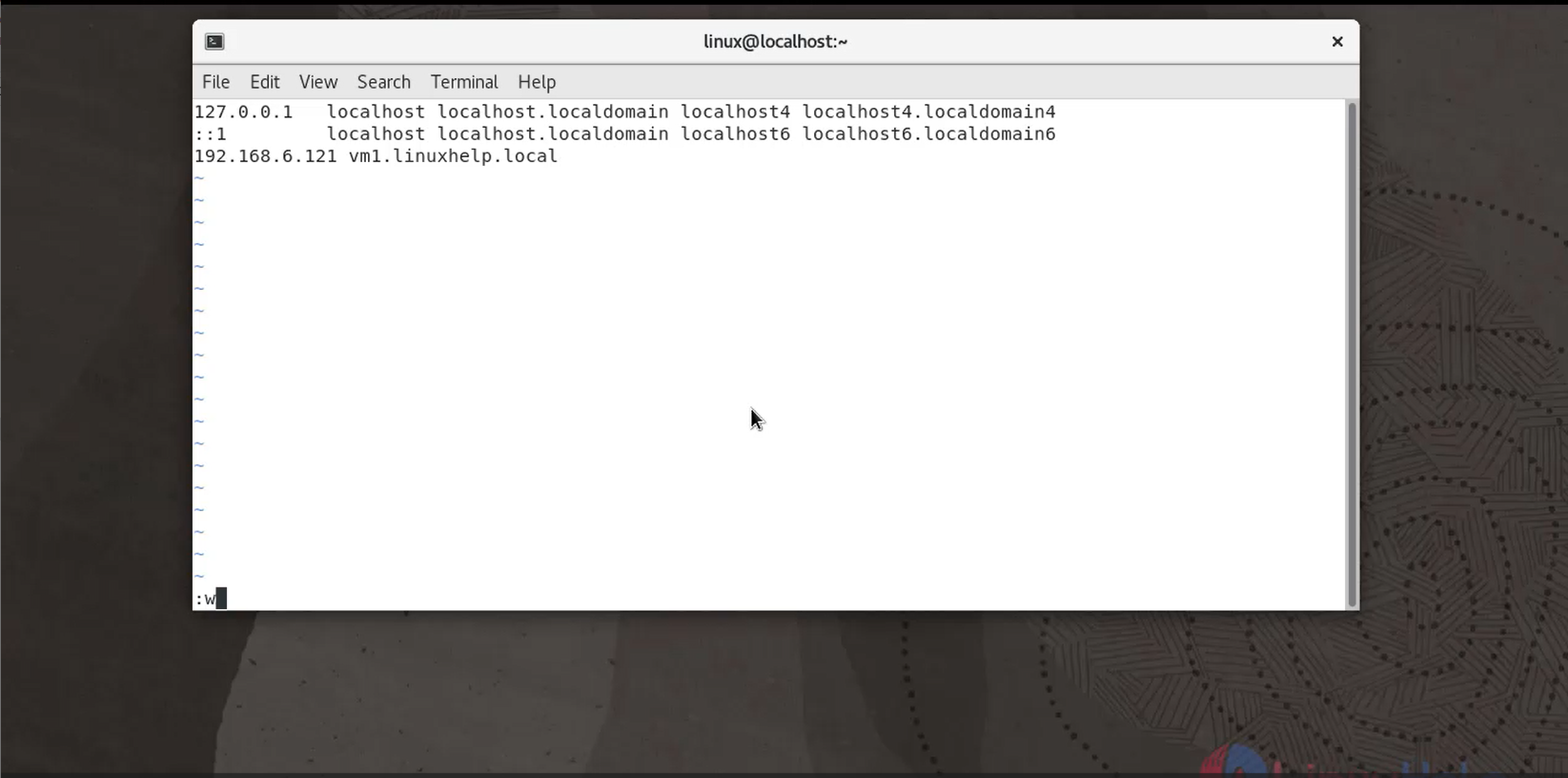
Step 7: Now generate SSH Key.copy, this created ssh key for another remote server
[root@linuxhelp ~]# ssh-keygen
Generating public/private rsa key pair.
Enter file in which to save the key (/root/.ssh/id_rsa):
Created directory '/root/.ssh'.
Enter passphrase (empty for no passphrase):
Enter same passphrase again:
Your identification has been saved in /root/.ssh/id_rsa.
Your public key has been saved in /root/.ssh/id_rsa.pub.
The key fingerprint is:
SHA256:1td2AGrQNdM3MOrrEcrhbiLA33B0EHkg0O2OTVDGyws root@linuxhelp
The key's randomart image is:
+---[RSA 3072]----+
|   .o.+==. .=+.  |
|     oo= o...+o..|
|      + + o.  ...|
|     E * +.  . . |
|  .   B S..o. o .|
|   o o *o o.o. . |
|    o +  + o     |
|     o o... .    |
|      . o. .     |
+----[SHA256]-----+

[root@linuxhelp ~]# ssh-copy-id root@vm1.linuxhelp.local
/usr/bin/ssh-copy-id: INFO: Source of key(s) to be installed: "/root/.ssh/id_rsa.pub"
The authenticity of host 'vm1.linuxhelp.local (192.168.6.121)' can't be established.


ECDSA key fingerprint is SHA256:b52vwlrAIYgldH0BCe0RRtFJZJWoqiTZzL5XusRcpVg.
Are you sure you want to continue connecting (yes/no/[fingerprint])? yes
/usr/bin/ssh-copy-id: INFO: attempting to log in with the new key(s), to filter out any that are already installed
/usr/bin/ssh-copy-id: INFO: 1 key(s) remain to be installed -- if you are prompted now it is to install the new keys
root@vm1.linuxhelp.local's password:

Number of key(s) added: 1

Now try logging into the machine, with:   "ssh 'root@vm1.linuxhelp.local'"
and check to make sure that only the key(s) you wanted were added.
Step 8: After added the ssh key without any ssh password you can able to access for remote server
[root@linuxhelp ~]# ssh root@vm1.linuxhelp.local
Activate the web console with: systemctl enable --now cockpit.socket

Last login: Mon Sep  5 16:01:18 2022 from 192.168.6.134

[root@linuxhelp ~]# ip a
1: lo: <LOOPBACK,UP,LOWER_UP> mtu 65536 qdisc noqueue state UNKNOWN group default qlen 1000
    link/loopback 00:00:00:00:00:00 brd 00:00:00:00:00:00
    inet 127.0.0.1/8 scope host lo
       valid_lft forever preferred_lft forever
    inet6 ::1/128 scope host
       valid_lft forever preferred_lft forever
2: ens33: <BROADCAST,MULTICAST,UP,LOWER_UP> mtu 1500 qdisc fq_codel state UP group default qlen 1000
    link/ether 00:0c:29:20:63:bc brd ff:ff:ff:ff:ff:ff
    inet 192.168.6.121/23 brd 192.168.7.255 scope global noprefixroute ens33
       valid_lft forever preferred_lft forever
    inet6 fe80::20c:29ff:fe20:63bc/64 scope link noprefixroute
       valid_lft forever preferred_lft forever


3: virbr0: <NO-CARRIER,BROADCAST,MULTICAST,UP> mtu 1500 qdisc noqueue state DOWN group default qlen 1000
    link/ether 52:54:00:f0:07:57 brd ff:ff:ff:ff:ff:ff
    inet 192.168.122.1/24 brd 192.168.122.255 scope global virbr0
       valid_lft forever preferred_lft forever
Step 9: Next run the below commands without password for login user.
[root@linuxhelp ~]# echo "$(whoami) ALL=(ALL) NOPASSWD:ALL" | sudo tee /etc/sudoers.d/$(whoami)
root ALL=(ALL) NOPASSWD:ALL
Step 10: Exit from Remote Server
[root@linuxhelp ~]# exit
logout
Connection to vm1.linuxhelp.local closed.
Step 11: Create new ansible project directory and Navigate to Ansible directory
[root@linuxhelp ~]# mkdir ~/ansible

[root@linuxhelp ~]# cd ~/ansible/
Step 12: Next You can add the Group servers by using the below command
[root@linuxhelp ansible]# vim hosts
[webserver]
Vm1.linuxhelp.local ansible_user=root
Step 13: Also list and ping the host single group as well.by using the below commands.
[root@linuxhelp ~]# ansible – I hosts –list-hosts all
  hosts (1):
    vm1.linuxhelp.local

[root@linuxhelp ansible]# ansible -i hosts -m ping webserver
vm1.linuxhelp.local | SUCCESS => {
    "ansible_facts": {
        "discovered_interpreter_python": "/usr/libexec/platform-python"
    },
    "changed": false,
Step 14: Next install Apache webserver on the webserver group by using the below command
[root@linuxhelp ansible]# ansible -i hosts -b --become-method=sudo -m shell -a 'yum install -y httpd' webserver
[WARNING]: Consider using the yum module rather than running 'yum'.  If you need to use command because yum is
insufficient you can add 'warn: false' to this command task or set 'command_warnings=False' in ansible.cfg to
get rid of this message.
vm1.linuxhelp.local | CHANGED | rc=0 >>
Last metadata expiration check: 0:52:35 ago on Mon 05 Sep 2022 03:29:38 PM EDT.
Package httpd-2.4.37-47.module+el8.6.0+985+b8ff6398.2.x86_64 is already installed.
Dependencies resolved.
Nothing to do.
Complete!
Conclusion:
We have reached the end of this article. In this guide, we have walked you through the steps required to Install And Configure Ansible On Oracle Linux 8.5. Your feedback is much welcome.
Comments ( 1 )