How to Install and configure Flatpress CMS on Fedora 34
- 07:33 ldconfig
- 07:43 groupadd asterisk
- 08:01 useradd -r -d /var/lib/asterisk -g asterisk asterisk
- 08:32 usermod -aG audio,dialout asterisk
- 09:13 chown -R asterisk.asterisk /etc/asterisk
- 09:20 chown -R asterisk.asterisk /var/{lib,log,spool}/asterisk
- 09:24 chown -R asterisk.asterisk /usr/lib/asterisk
- 10:07 vim /etc/default/asterisk
- 10:45 vim /etc/asterisk/asterisk.conf
- 11:23 systemctl restart asterisk
- 11:35 systemctl enable asterisk
- 11:55 systemctl status asterisk
- 12:07 asterisk -rvv
To Install and configure Flatpress CMS on Fedora 34.
Introduction:
FlatPress is an open-source, multi-language extensible blogging engine that does not require a database management system. All content is stored in text files. Additionally, it includes features such as plugin support, widget support, and customizable themes. Here is a tutorial explaining the installation of FlatPress CMS on Fedora 34.
Installation Procedure:
Step 1: Check the OS version by using the below command.
[root@linuxhelp ~]# cat /etc/os-release
NAME=Fedora
VERSION="34 (Workstation Edition)"
ID=fedora
VERSION_ID=34
VERSION_CODENAME=""
PLATFORM_ID="platform:f34"
PRETTY_NAME="Fedora 34 (Workstation Edition)"
ANSI_COLOR="0;38;2;60;110;180"
LOGO=fedora-logo-icon
CPE_NAME="cpe:/o:fedoraproject:fedora:34"
HOME_URL="https://fedoraproject.org/"
DOCUMENTATION_URL="https://docs.fedoraproject.org/en-US/fedora/34/system-administrators-guide/"
SUPPORT_URL="https://fedoraproject.org/wiki/Communicating_and_getting_help"
BUG_REPORT_URL="https://bugzilla.redhat.com/"
REDHAT_BUGZILLA_PRODUCT="Fedora"
REDHAT_BUGZILLA_PRODUCT_VERSION=34
REDHAT_SUPPORT_PRODUCT="Fedora"
Step 2: Install the Flatpress CMS package by using the below command.
 [root@linuxhelp ~]# wget https://github.com/flatpressblog/flatpress/archive/1.1.zip
--2021-12-02 06:45:42--  https://github.com/flatpressblog/flatpress/archive/1.1.zip
Resolving github.com (github.com)... 13.234.210.38
Connecting to github.com (github.com)|13.234.210.38|:443... connected.
HTTP request sent, awaiting response... 302 Found
Location: https://codeload.github.com/flatpressblog/flatpress/zip/1.1 [following]
--2021-12-02 06:45:42--  https://codeload.github.com/flatpressblog/flatpress/zip/1.1
Resolving codeload.github.com (codeload.github.com)... 13.127.152.42
Connecting to codeload.github.com (codeload.github.com)|13.127.152.42|:443... connected.
HTTP request sent, awaiting response... 200 OK
Length: unspecified [application/zip]
Saving to: ‘1.1.zip’

1.1.zip                                 [     <=>                                                           ]   1021K   962KB/s    in 1.1s

2021-12-02 06:45:44 (962 KB/s) - ‘1.1.zip’ saved [1045826]
Step 3: Unzip the downloaded package by using the below command.
 [root@linuxhelp ~]# unzip 1.1.zip
Archive:  1.1.zip
0b3fdc7d4e583f8be840b7130a9e4320a3f85200
   creating: flatpress-1.1/
  inflating: flatpress-1.1/.gitignore
  inflating: flatpress-1.1/CHANGELOG.md
  inflating: flatpress-1.1/LICENSE.md
  inflating: flatpress-1.1/README.md
  inflating: flatpress-1.1/admin.php
   creating: flatpress-1.1/admin/
  inflating: flatpress-1.1/admin/panels/entry/admin.entry.commedit.php
  inflating: flatpress-1.1/admin/panels/entry/admin.entry.commedit.tpl
  inflating: flatpress-1.1/admin/panels/entry/admin.entry.commentlist.php
  inflating: flatpress-1.1/admin/panels/entry/admin.entry.commentlist.tpl
  inflating: flatpress-1.1/admin/panels/entry/admin.entry.conf.php
  inflating: flatpress-1.1/admin/panels/entry/admin.entry.delete.php
  inflating: flatpress-1.1/admin/panels/entry/admin.entry.delete.tpl
  inflating: flatpress-1.1/admin/panels/entry/admin.entry.list.php
  extracting: flatpress-1.1/setup/imgs/shade.png
 extracting: flatpress-1.1/setup/imgs/tile.png
  inflating: flatpress-1.1/setup/index.php
   creating: flatpress-1.1/setup/lang/
  inflating: flatpress-1.1/setup/lang/lang.en-us.php
   creating: flatpress-1.1/setup/lib/
  inflating: flatpress-1.1/setup/lib/main.lib.php
  inflating: flatpress-1.1/setup/lib/step1.lib.php
  inflating: flatpress-1.1/setup/lib/step2.lib.php
  inflating: flatpress-1.1/setup/main.php
   creating: flatpress-1.1/setup/res/
  inflating: flatpress-1.1/setup/res/setup.css
   creating: flatpress-1.1/setup/tpls/
  inflating: flatpress-1.1/setup/tpls/footer.tpl.php
  inflating: flatpress-1.1/setup/tpls/header.tpl.php
  inflating: flatpress-1.1/setup/tpls/locked.tpl.php
  inflating: flatpress-1.1/setup/tpls/step1.tpl.php
  inflating: flatpress-1.1/setup/tpls/step2.tpl.php
  inflating: flatpress-1.1/setup/tpls/step3.tpl.php
Step 4: Move the downloaded package to this location by using the below command.
[root@linuxhelp ~]# mv flatpress-1.1/ /var/www/flatpress
Step 5: Give the owner and group name for this directory by using the below command.
[root@linuxhelp ~]# chown -R apache:apache /var/www/flatpress
Step 6: Give the permission to this directory by using the below command..
[root@linuxhelp ~]# chmod -R 775 /var/www/flatpress
Step 7: To open the apache configuration file and make this configuration by using the below command.
 [root@linuxhelp ~]# vim /etc/httpd/conf.d/flatpress.conf
<virtualhost *:80>
servername linuxhelp1.com
documentroot /var/www/flatpress
<directory /var/www/flatpress
allowoverride all
allow from all
</directory>
</virtualhost>
Step 8: Open the hosts entry file and enter your ip and domain name by using the below command.
[root@linuxhelp ~]# vim /etc/hosts
Step 9: To restart the httpd service by using the below command.
[root@linuxhelp ~]# systemctl restart httpd
Step 10: Then go to the browser and search your domain there
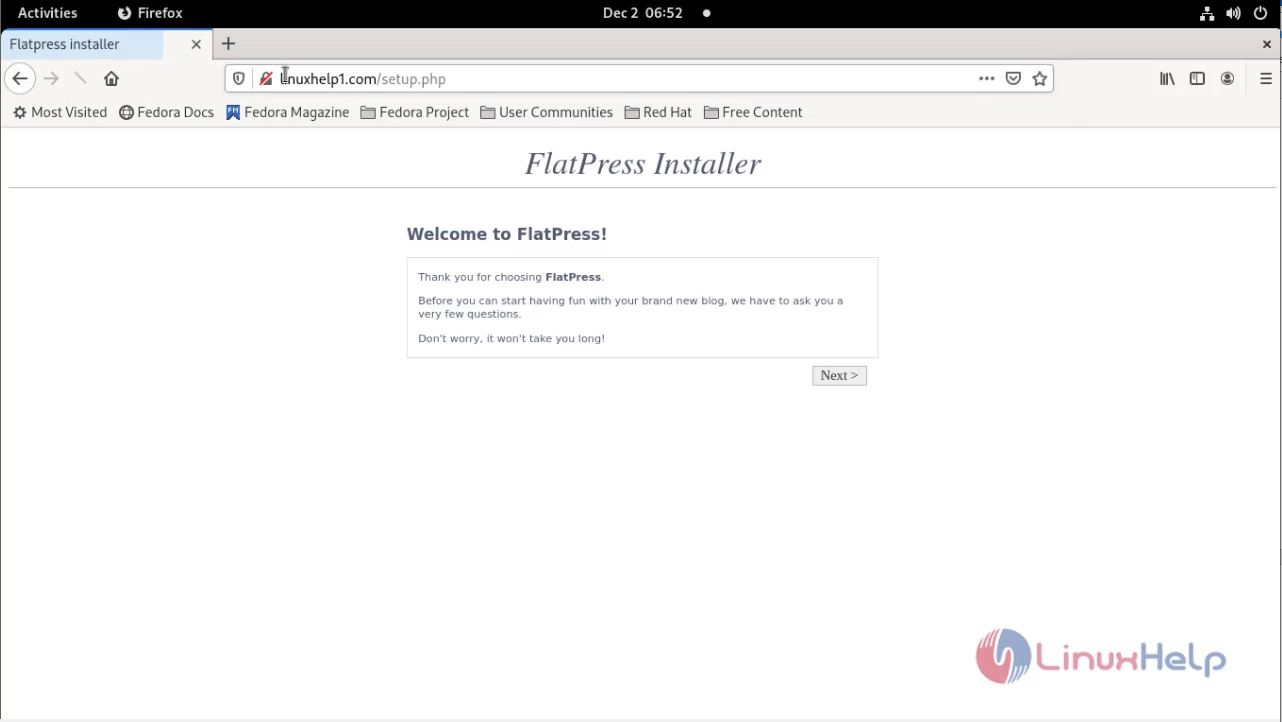
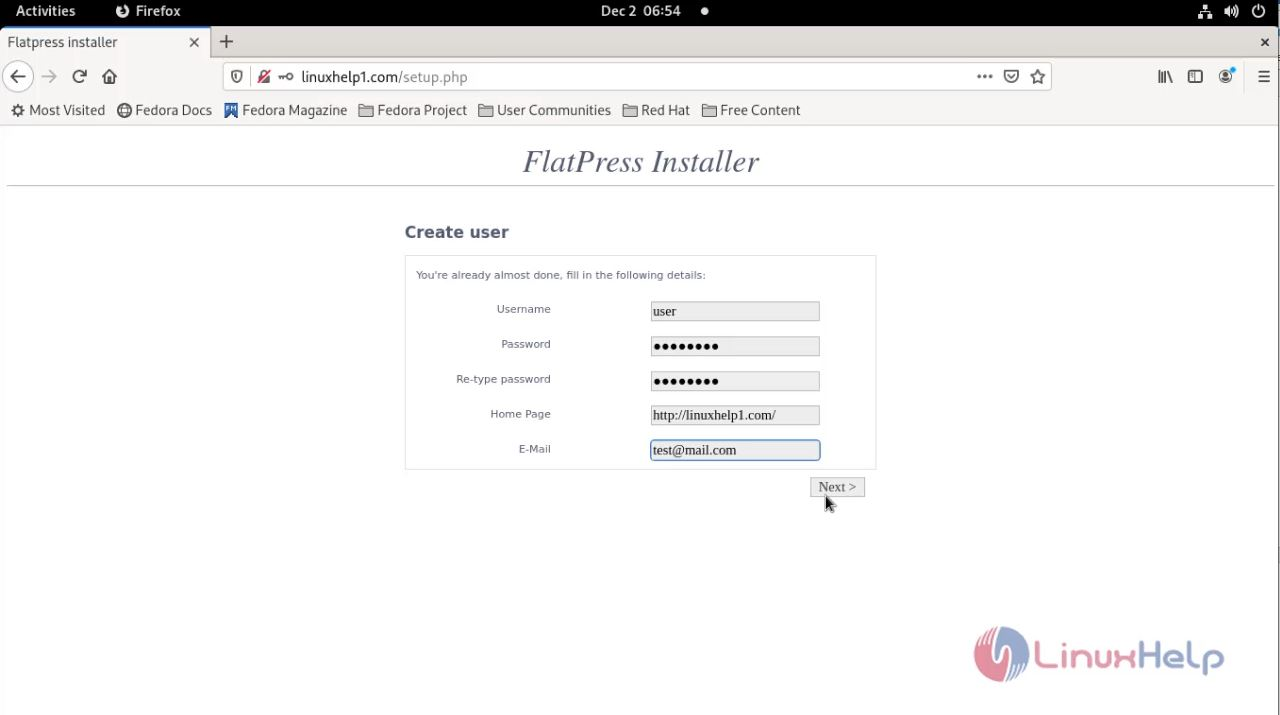
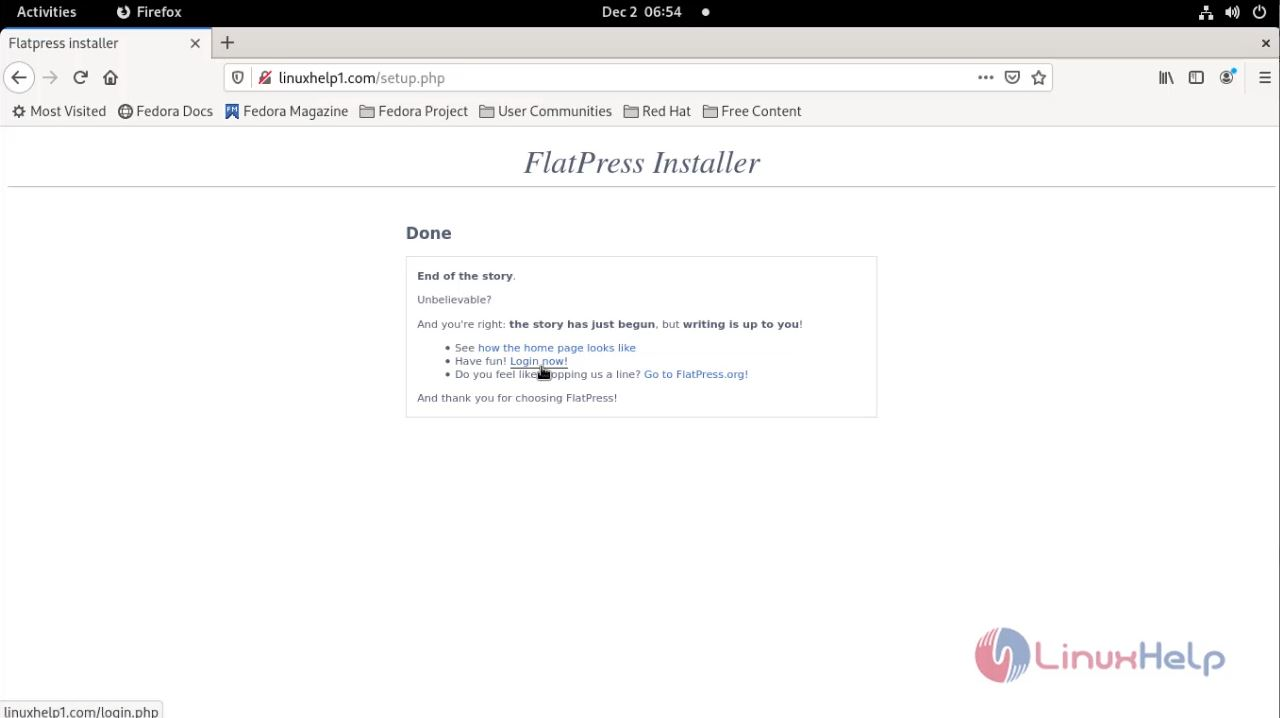
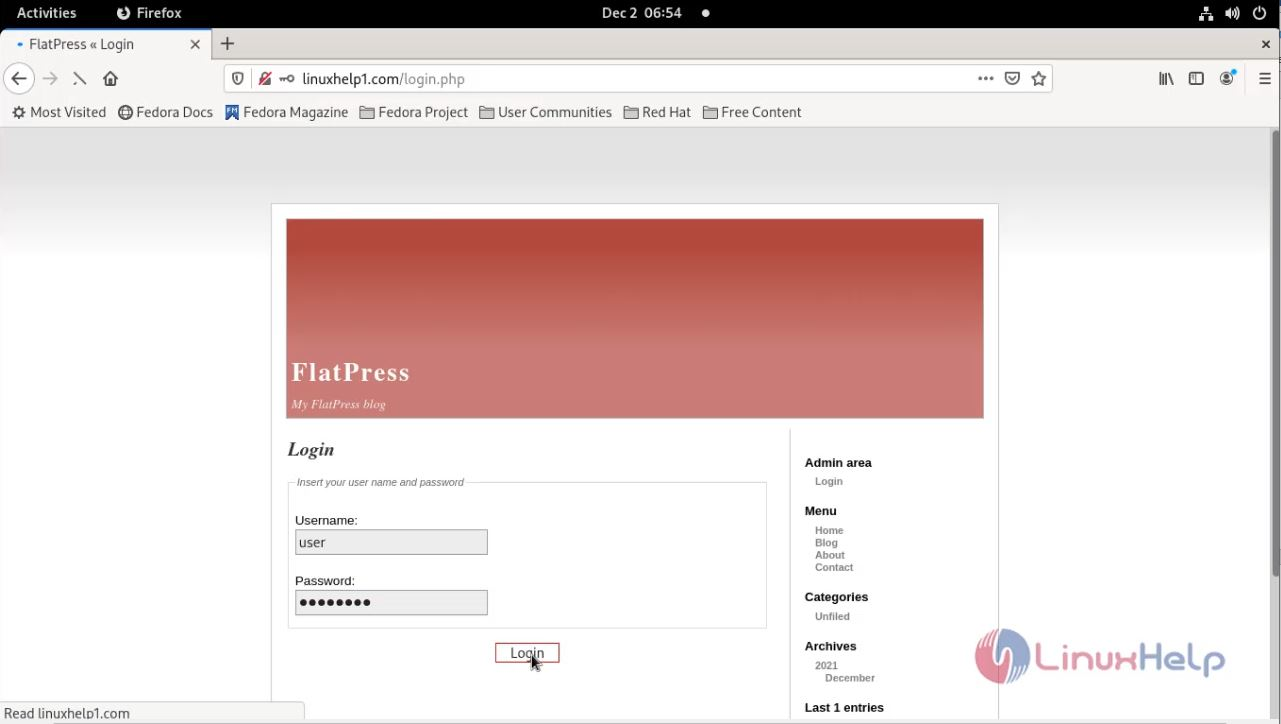
With this the installation of Flatpress CMS on Fedora 34 comes to an end
Comments ( 0 )
No comments available