How to install and configure Joomla CMS on Fedora 34
- 00:34 cat /etc/os-release
- 00:49 wget https://downloads.joomla.org/cms/joomla4/4-0-4/Joomla_4-0-4-Stable-Full_Package.zip?format=zip
- 01:07 unzip (package) -d /var/www/joomla
- 01:38 chown -R apache:apache /var/www/joomla
- 01:55 chmod -R 755 /var/www/joomla
- 02:17 vim /etc/httpd/conf.d/joomla.conf
- 03:49 systemctl restart httpd
- 04:08 vim /etc/hosts
- 04:49 mysql -u root -p
- 05:04 create database joomla;
- 05:18 use joomla;
- 05:35 create user 'joomlauser'@localhost identified by 'Linuxc#4';
- 05:59 grant all privileges on joomla.* to 'joomlauser'@localhost;
- 06:20 flush privileges;
- 06:37 exit
- 06:42 systemctl restart httpd
To Install and configure Joomla CMS on Fedora 34.
Introduction:
Joomla is a free and open-source content management system (cms) for publishing web content. A model-view-controller framework that is independent of a cms enables you to build powerful online applications using this software.
Step 1: Check the OS version by using the below command.
[root@linuxhelp ~]# cat /etc/os-release
NAME=Fedora
VERSION="34 (Workstation Edition)"
ID=fedora
VERSION_ID=34
VERSION_CODENAME=""
PLATFORM_ID="platform:f34"
PRETTY_NAME="Fedora 34 (Workstation Edition)"
ANSI_COLOR="0;38;2;60;110;180"
LOGO=fedora-logo-icon
CPE_NAME="cpe:/o:fedoraproject:fedora:34"
HOME_URL="https://fedoraproject.org/"
VARIANT_ID=workstation
Step 2: Install the Joomla CMS package by using the below command.
[root@linuxhelp ~]# wget https://downloads.joomla.org/cms/joomla4/4-0-4/Joomla_4-0-4-Stable-Full_Package.zip?format=zip
--2021-11-25 10:07:20--  https://downloads.joomla.org/cms/joomla4/4-0-4/Joomla_4-0-4-Stable-Full_Package.zip?format=zip
Resolving downloads.joomla.org (downloads.joomla.org)... 104.26.14.15, 172.67.74.86, 104.26.15.15, ...
Connecting to downloads.joomla.org (downloads.joomla.org)|104.26.14.15|:443... connected.
HTTP request sent, awaiting response... 303 See Other
Location: https://s3-us-west-2.amazonaws.com/joomla-official-downloads/joomladownloads/joomla4/Joomla_4.0.4-Stable-Full_Package.zip?X-Amz-Algorithm=AWS4-HMAC-SHA256&X-Amz-Credential=AKIA6LXDJLNUINX2AVMH%2F20211125%2Fus-west-2%2Fs3%2Faws4_request&X-Amz-Date=20211125T043721Z&X-Amz-Expires=60&X-Amz-SignedHeaders=host&X-Amz-Signature=580256a40ec7f1275a48160f968c41b4a4feb672bae73687b737445d57489377 [following]
--2021-11-25 10:07:21--  https://s3-us-west-2.amazonaws.com/joomla-official-downloads/joomladownloads/joomla4/Joomla_4.0.4-Stable-Full_Package.zip?X-Amz-Algorithm=AWS4-HMAC-SHA256&X-Amz-Credential=AKIA6LXDJLNUINX2AVMH%2F20211125%2Fus-west-2%2Fs3%2Faws4_request&X-Amz-Date=20211125T043721Z&X-Amz-Expires=60&X-Amz-SignedHeaders=host&X-Amz-Signature=580256a40ec7f1275a48160f968c41b4a4feb672bae73687b737445d57489377
Resolving s3-us-west-2.amazonaws.com (s3-us-west-2.amazonaws.com)... 52.218.128.148
Connecting to s3-us-west-2.amazonaws.com (s3-us-west-2.amazonaws.com)|52.218.128.148|:443... connected.
HTTP request sent, awaiting response... 200 OK
Length: 26627743 (25M) [application/zip]
Saving to: ‘Joomla_4-0-4-Stable-Full_Package.zip?format=zip’

Joomla_4-0-4-Stable-Full_Packag 100%[=======================================================>]  25.39M  4.02MB/s    in 12s

2021-11-25 10:07:34 (2.11 MB/s) - ‘Joomla_4-0-4-Stable-Full_Package.zip?format=zip’ saved [26627743/26627743]
Step 3: Unzip the downloaded Joomla package into the directory by using the below command.
[root@linuxhelp ~]# unzip Joomla_4-0-4-Stable-Full_Package.zip?format=zip -d /var/www/joomla
  creating: /var/www/joomla/templates/system/
  inflating: /var/www/joomla/templates/system/build_incomplete.html
  inflating: /var/www/joomla/templates/system/index.php
   creating: /var/www/joomla/templates/system/css/
 extracting: /var/www/joomla/templates/system/css/general.min.css.gz
  inflating: /var/www/joomla/templates/system/css/error.min.css
 extracting: /var/www/joomla/templates/system/css/editor.min.css.gz
  inflating: /var/www/joomla/templates/system/css/offline.min.css
  inflating: /var/www/joomla/templates/system/css/offline.css
 ext
racting: /var/www/joomla/templates/system/css/offline.min.css.gz
  inflating: /var/www/joomla/templates/system/css/editor.css
  inflating: /var/www/joomla/templates/system/css/offline_rtl.css
  inflating: /var/www/joomla/templates/system/css/offline_rtl.min.css
  inflating: /var/www/joomla/templates/system/css/general.min.css
  inflating: /var/www/joomla/templates/system/css/error_rtl.css
  inflating: /var/www/joomla/templates/system/css/error_rtl.min.css
  inflating: /var/www/joomla/templates/system/css/editor.min.css
  inflating: /var/www/joomla/templates/system/css/general.css
 extracting: /var/www/joomla/templates/system/css/error_rtl.min.css.gz
 extracting: /var/www/joomla/templates/system/css/offline_rtl.min.css.gz
  inflating: /var/www/joomla/templates/system/css/error.css
 extracting: /var/www/joomla/templates/system/css/error.min.css.gz
  inflating: /var/www/joomla/templates/system/fatal.php
  inflating: /var/www/joomla/templates/system/fatal-error.html
   creating: /var/www/joomla/templates/system/scss/
  inflating: /var/www/joomla/templates/system/scss/error_rtl.scss
  inflating: /var/www/joomla/templates/system/scss/offline.scss
  inflating: /var/www/joomla/templates/system/scss/editor.scss
  inflating: /var/www/joomla/templates/system/scss/offline_rtl.scss
  inflating: /var/www/joomla/templates/system/scss/general.scss
  inflating: /var/www/joomla/templates/system/scss/error.scss
  inflating: /var/www/joomla/templates/system/offline.php
  inflating: /var/www/joomla/templates/system/incompatible.html
  inflating: /var/www/joomla/templates/system/component.php
  inflating: /var/www/joomla/templates/system/error.php
   creating: /var/www/joomla/tmp/
  inflating: /var/www/joomla/tmp/index.html
  inflating: /var/www/joomla/web.config.txt
Step 4: Give the owner and group name in the directory by using the below command.
[root@linuxhelp ~]# chown -R apache:apache /var/www/joomla
Step 5: Give permission to the directory by using the below command.
[root@linuxhelp ~]# chmod -R 755 /var/www/joomla
Step 6: Open the apache configuration file and create the virtualhost by using the below command.
 [root@linuxhelp ~]# vim /etc/httpd/conf.d/joomla.conf
<Virtualhost *:80>
  Servername www.linuxhelp1.com
	documentroot /var/www/joomla
<directory /var/www/joomla>
allowoverride all
allow from all
</directory>
</Virtualhost>
Step 7: To open the hosts entry file and enter your ip address and domain name by using the below command.
 [root@linuxhelp ~]# vim /etc/hosts
127.0.0.1 linuxhelp123.com
Step 8: Then restart the httpd by using the below command
[root@linuxhelp ~]# systemctl restart httpd
Step 9: Create the database by using the below command.
 [root@linuxhelp ~]# mysql -u root -p
Enter password:
Welcome to the MySQL monitor.  Commands end with ; or \g.
Your MySQL connection id is 8
Server version: 8.0.27 MySQL Community Server - GPL

Copyright (c) 2000, 2021, Oracle and/or its affiliates.

Oracle is a registered trademark of Oracle Corporation and/or its
affiliates. Other names may be trademarks of their respective
owners.

Type 'help;' or '\h' for help. Type '\c' to clear the current input statement.

mysql> create database joomla;
Query OK, 1 row affected (0.05 sec)

mysql> use joomla;
Database changed
mysql> create user 'joomlauser'@localhost identified by 'Linuxc#4';
Query OK, 0 rows affected (0.03 sec)

mysql> grant all privileges on joomla.* to 'joomlauser'@localhost;
Query OK, 0 rows affected (0.02 sec)

mysql> flush privileges;
Query OK, 0 rows affected (0.00 sec)

mysql> exit
Bye
Step 10: Restart the httpd by using the below command
[root@linuxhelp ~]# systemctl restart httpd
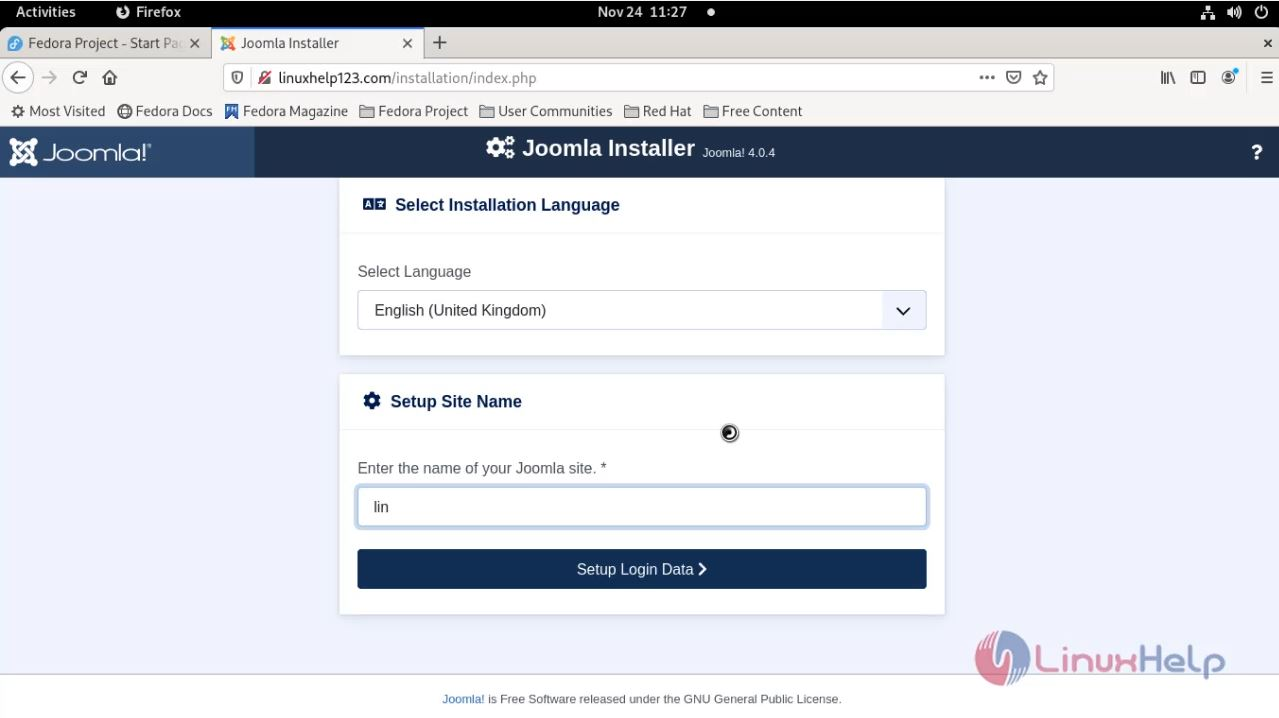
Need to mention the domain name in the Joomla installer page as shown in the below image This is the Login page of the Joomla
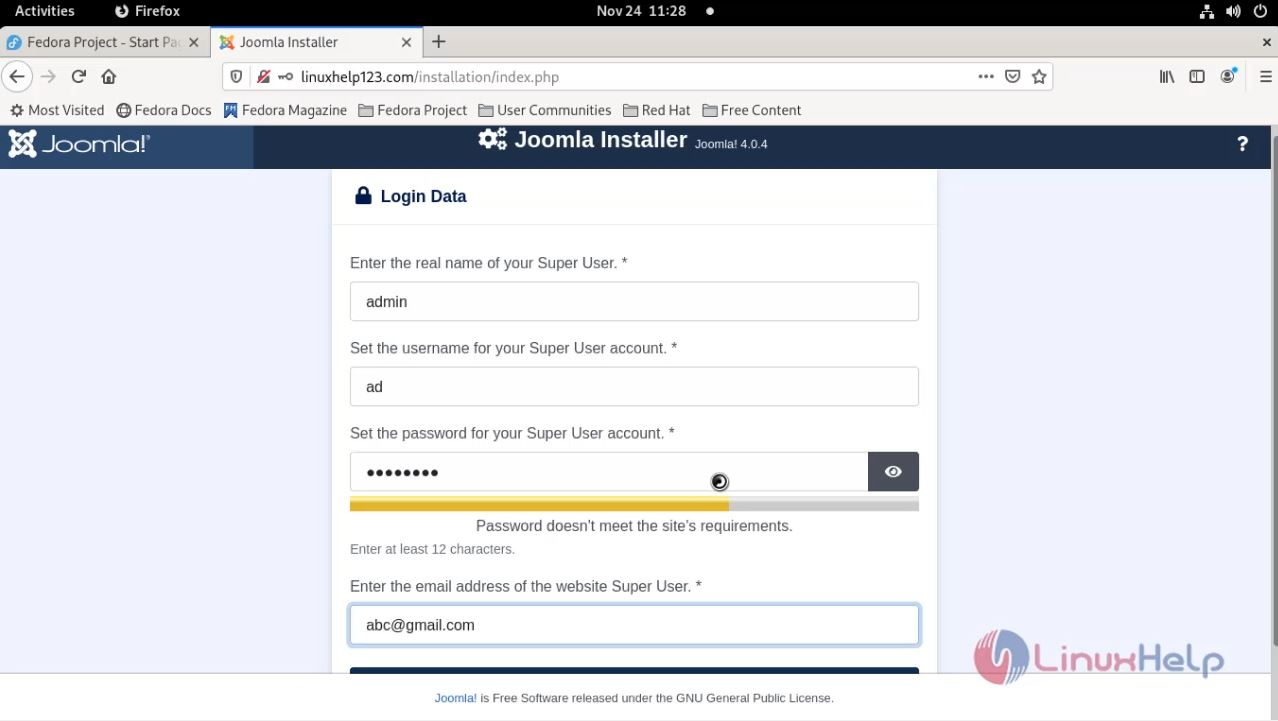
Create Admin Credentials as shown in the below image
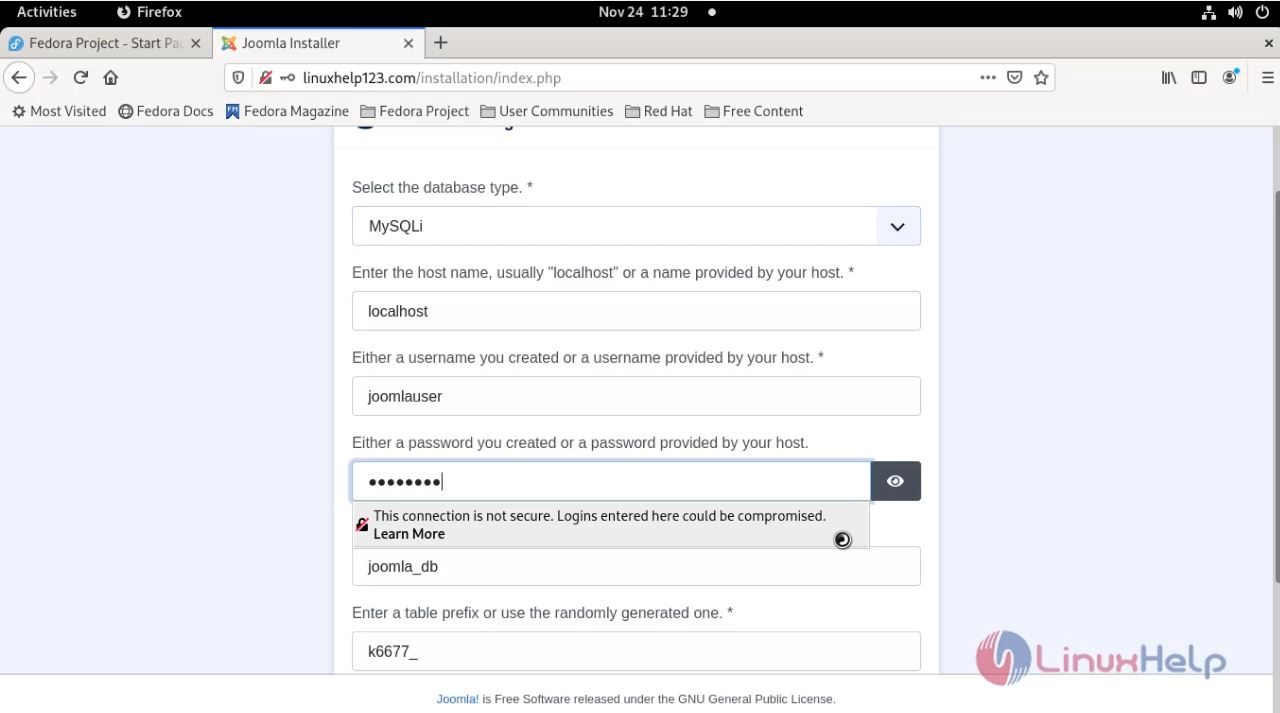
Give the Data Base Credentials as shown in the below image
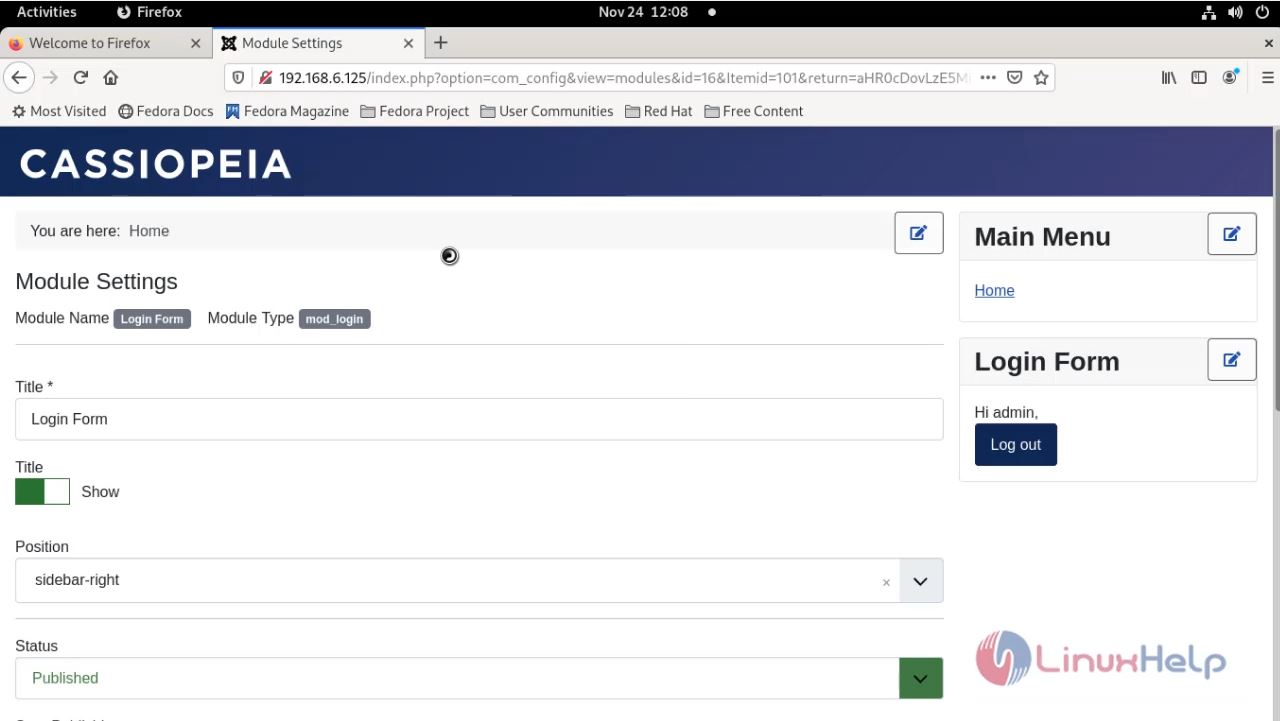
This is the Dashboard page of Joomla CMS.
With this the process of installing and configuring Joomla CMS on Fedora 34 comes to an end
Comments ( 0 )
No comments available