• Categories
    Category
    {{ postCtrl.tags }}
    • {{ category.tag_type }}

      • {{tag.tag_name}}
      • View more
  • Categories
    Category
    {{ postCtrl.tags }}
    • {{ category.tag_type }}

      • {{tag.tag_name}}
      • View more
  • News
  • Tutorials
  • Forums
  • Tags
  • Users
Tutorial News Comments FAQ Related Articles

How to install and configure Nessus Vulnerability in Ubuntu

{{postValue.id}}

To install and configure Nessus Vulnerability Scanner in Ubuntu

Nessus is a free source remote security scanning tool, that scans a computer. It alerts the system and discovers any vulnerabilities found in the system. It also discovers any malicious hackers who could gain access to any computer you have connected to a network. During the scanning process it does 1200 checks on a given computer. In this article, the installation of Nessus Vulnerability Scanner in Ubuntu is covered.

To install Nessus Vulnerability Scanner

Download the Nessus Vulnerability Scanner installation package.
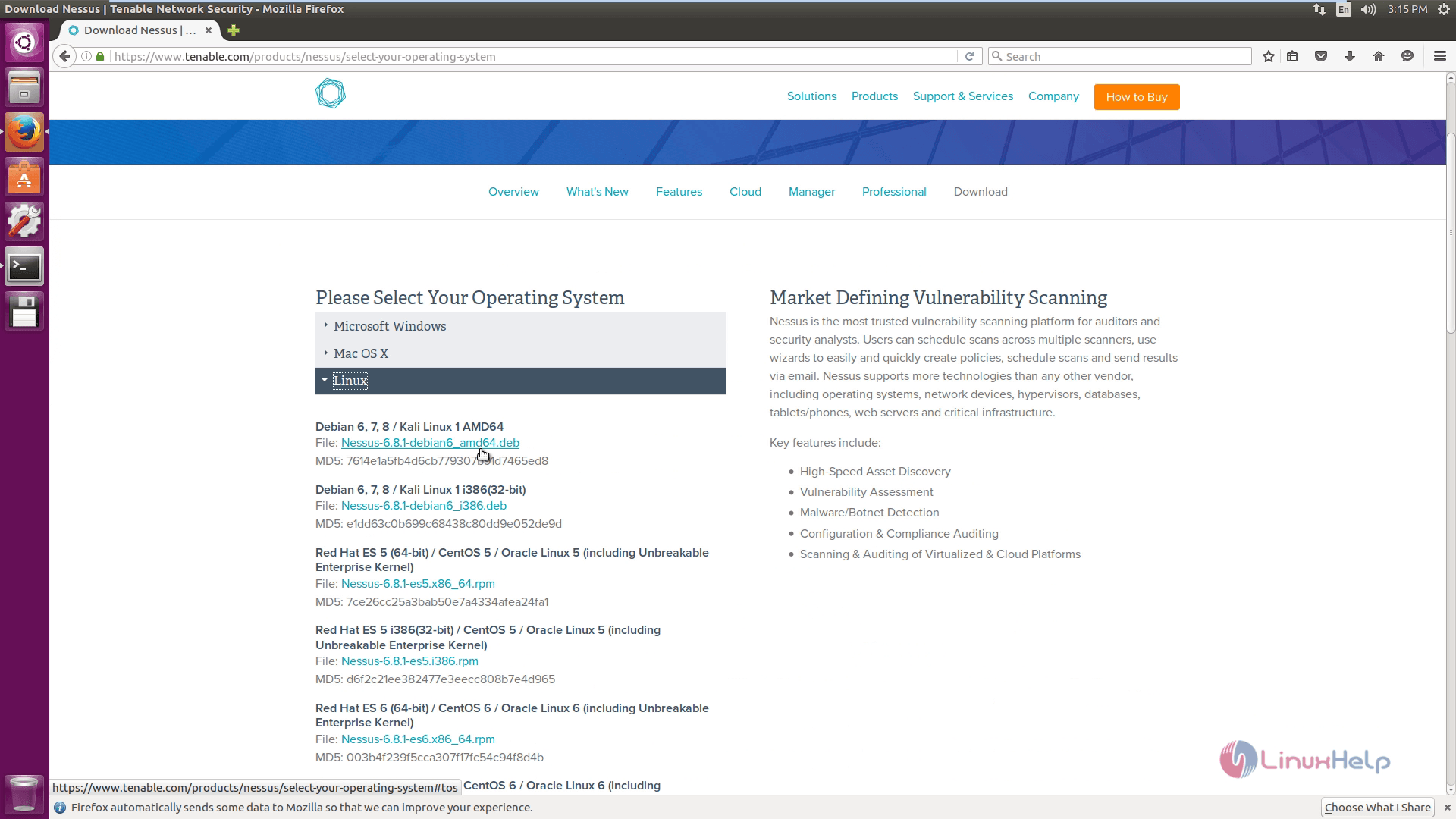
Download_Nessus
Agree the subscription agreement and click save file.
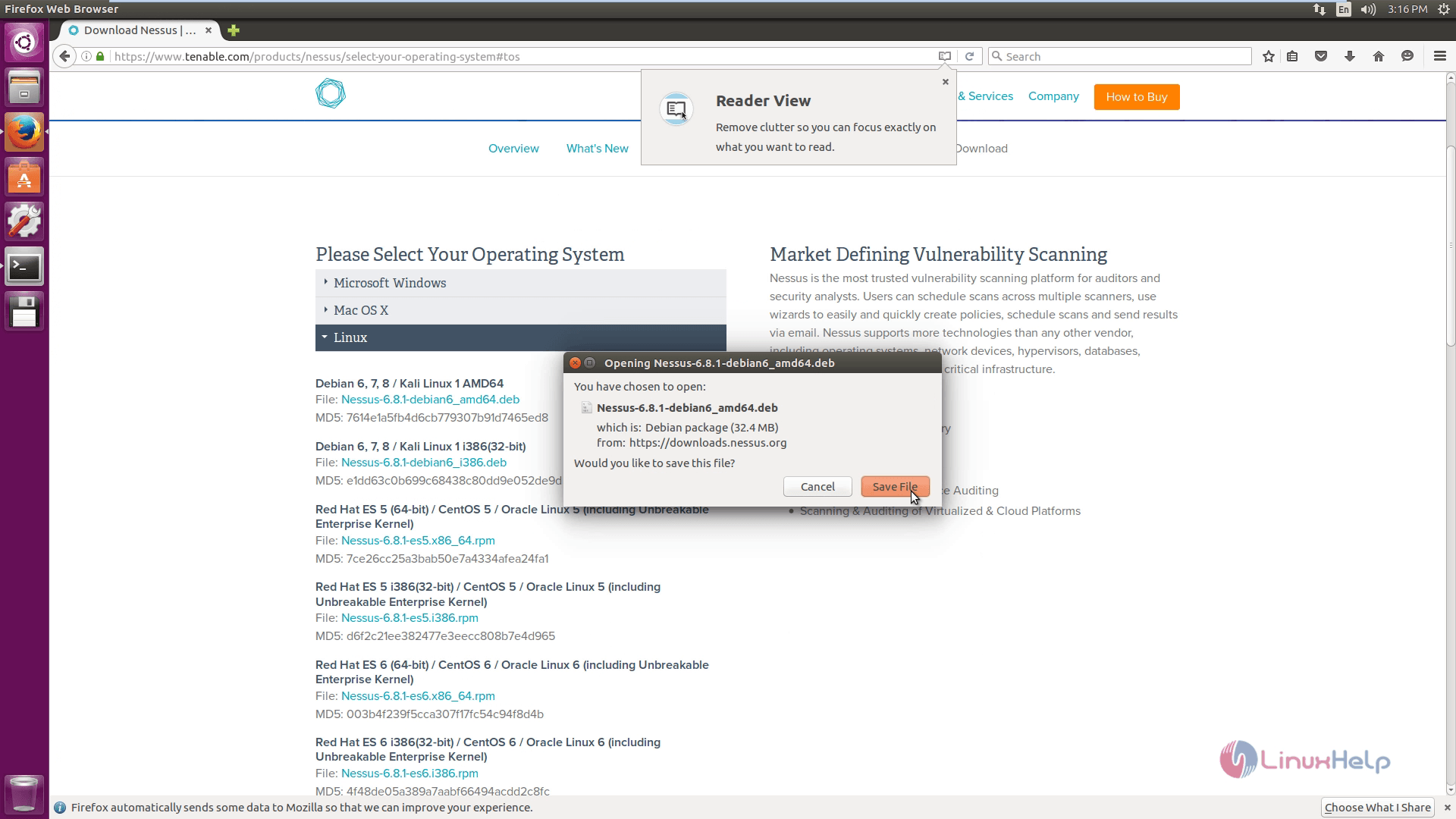
Agree_subscription
While downloading, sign up with tenable network security and click Get an activation code.
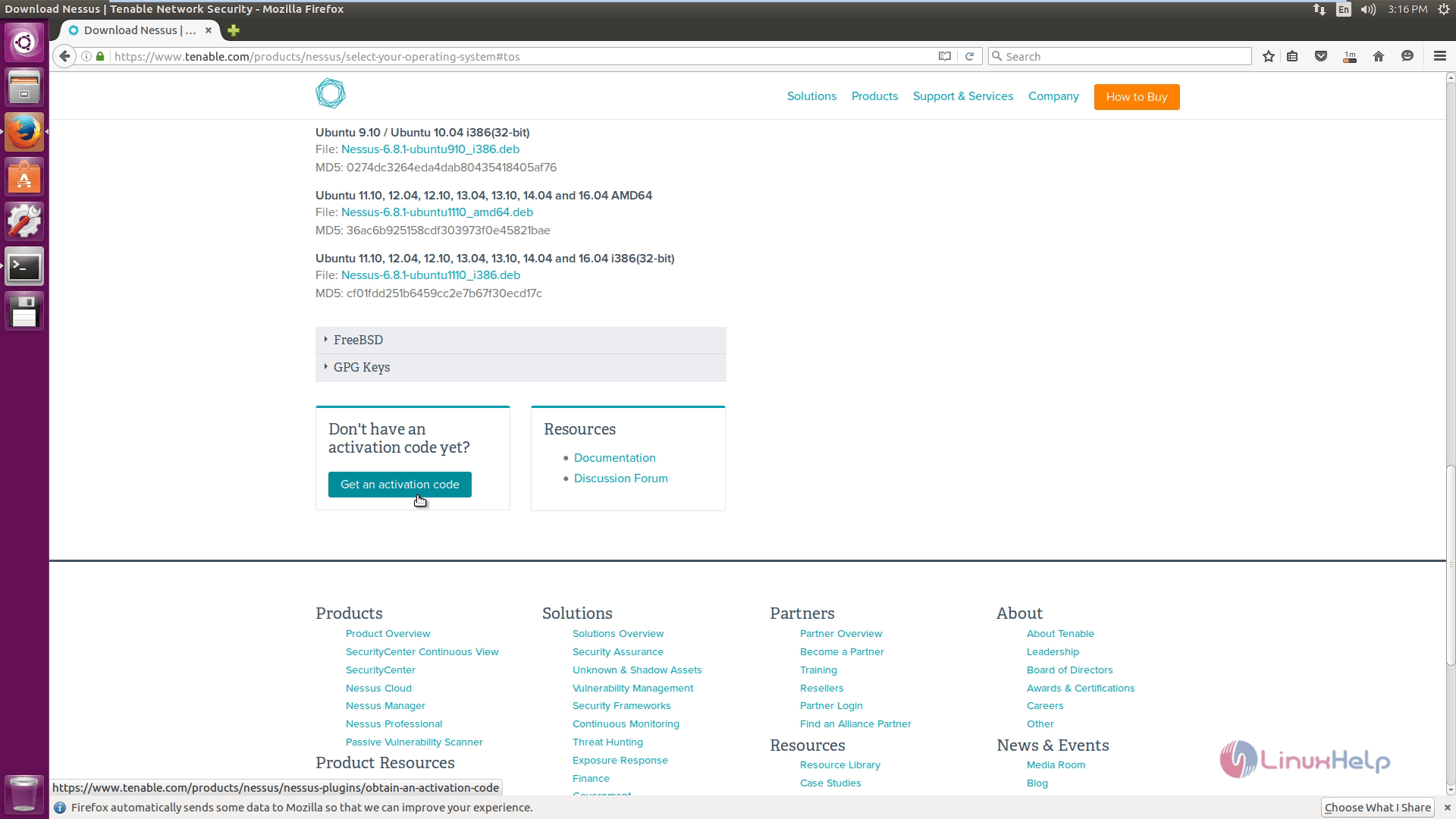
Downloading
Then choose the type of registration you prefer.
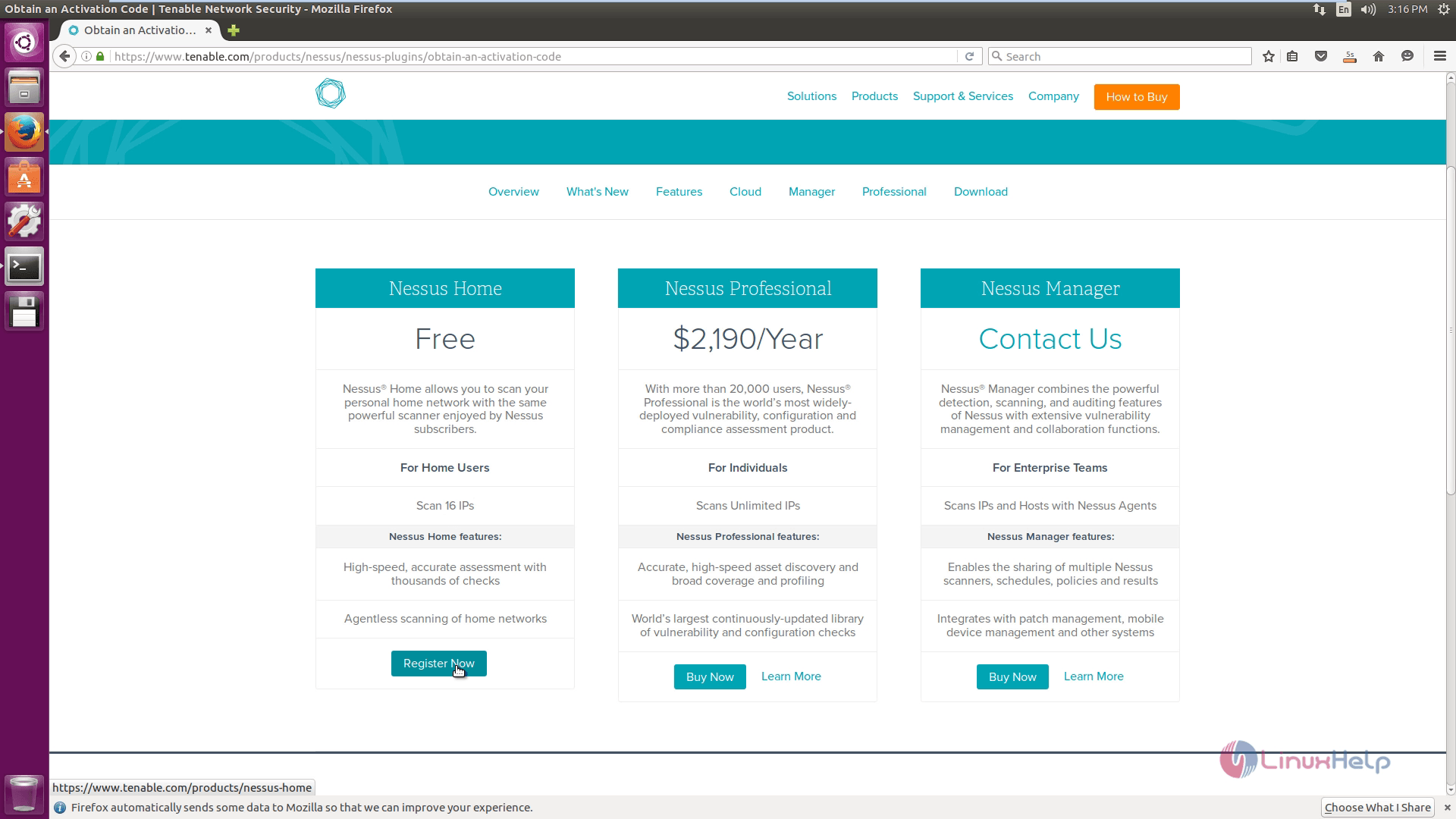
 type of registration
Enter the valid information for an activation code and click Register.
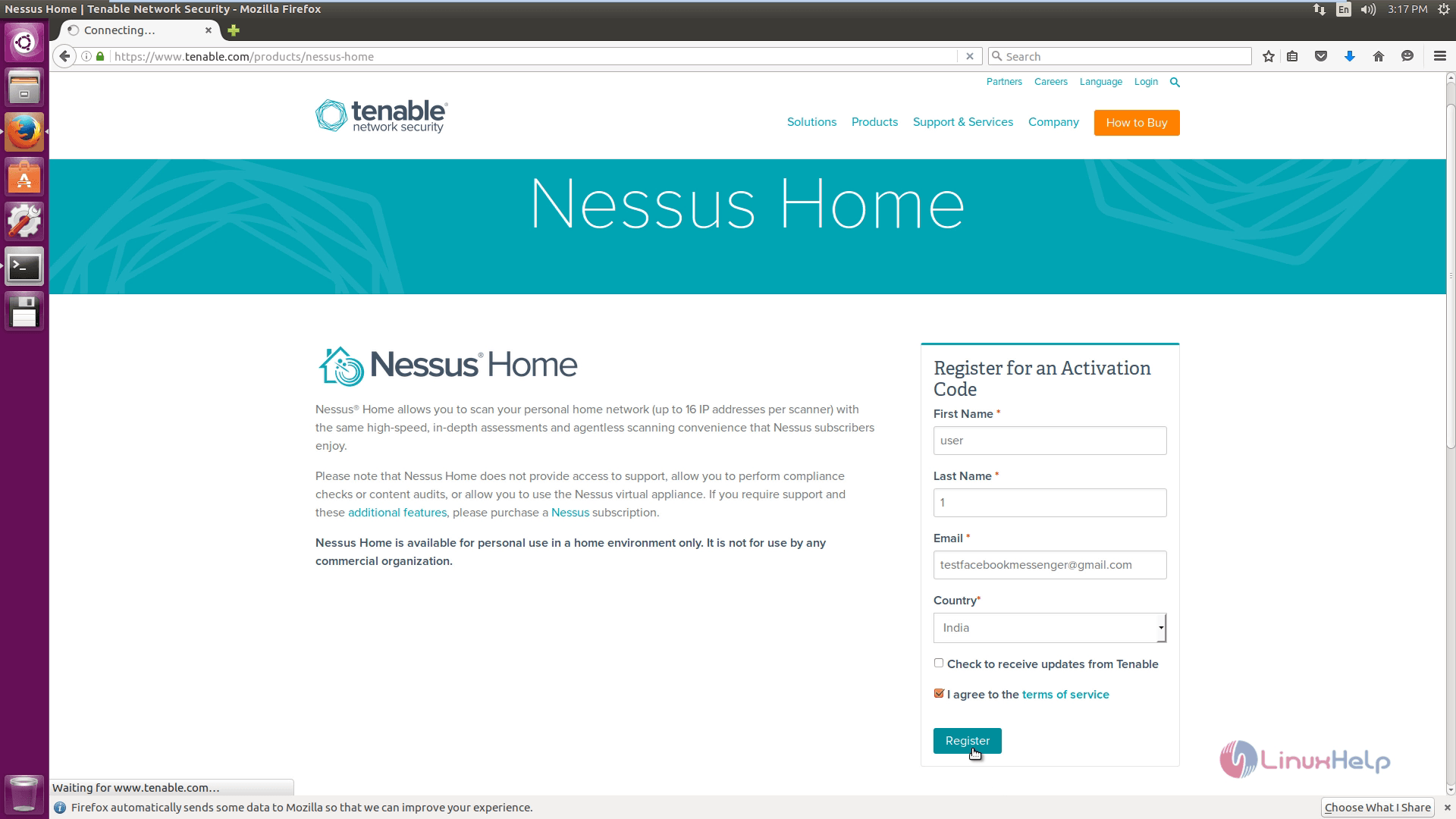
valid information
Login into your email to check for the activation mail.
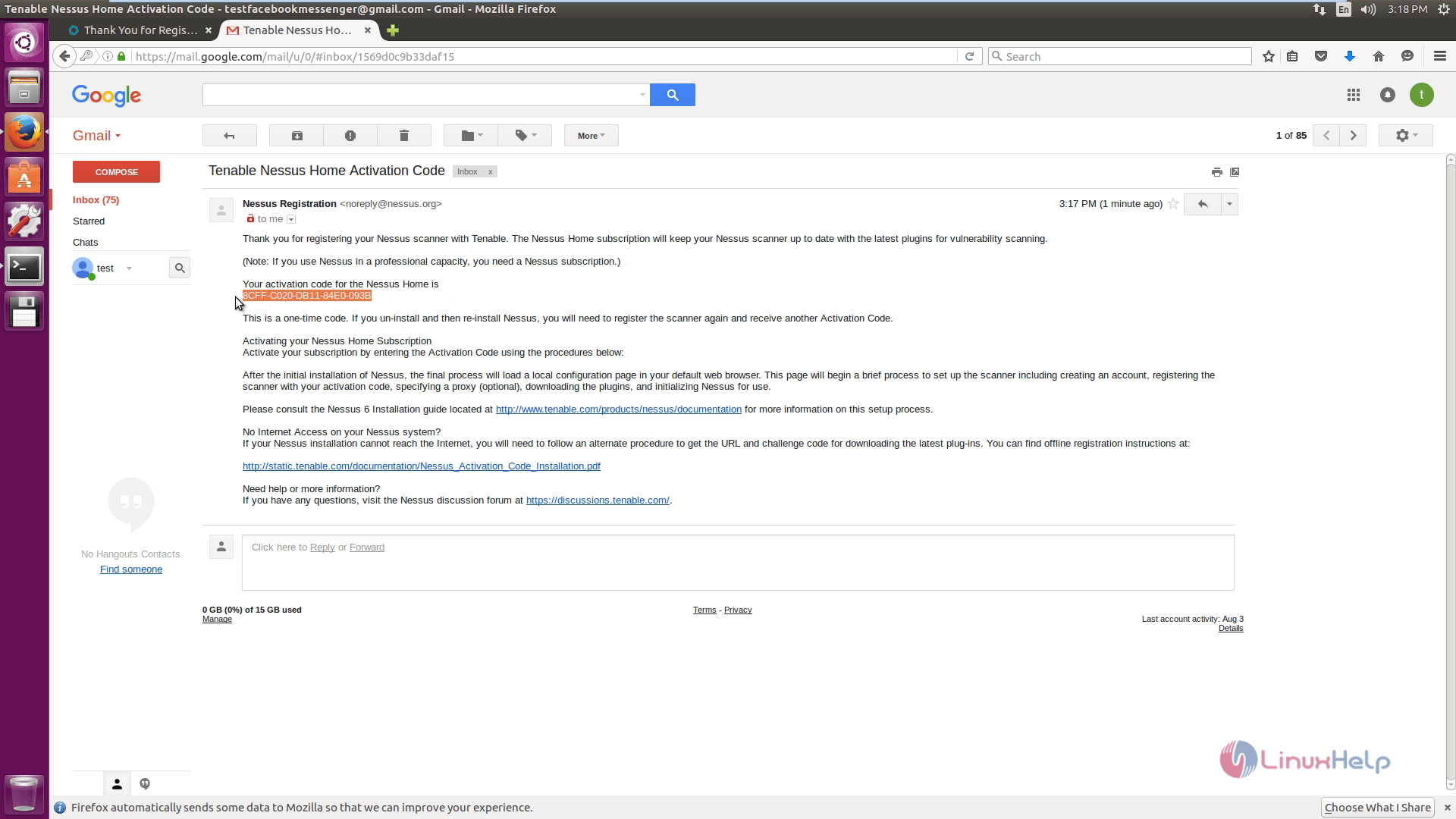
loginto_email

Now open the terminal. Change directory to Downloads and then list all the files by running the following command.

root@linuxhelp:/home/user1# cd Downloads/
root@linuxhelp:/home/user1/Downloads# ls -l 
total 33204
drwxr-xr-x 2 user1 user1 4096 Aug 18 10:57 ./
drwxr-xr-x 16 user1 user1 4096 Aug 18 10:44 ../
-rw-rw-r-- 1 user1 user1 33990680 Aug 18 10:57 Nessus-6.8.1-debian6_amd64.deb


To install Nessus, use the following command.

root@linuxhelp:/home/user1/Downloads# dpkg -i Nessus-6.8.1-debian6_amd64.deb 
Selecting previously unselected package nessus.
(Reading database ... 172193 files and directories currently installed.)
Preparing to unpack Nessus-6.8.1-debian6_amd64.deb ...
Unpacking nessus (6.8.1) ...
Setting up nessus (6.8.1) ...
Unpacking Nessus Core Components...
nessusd (Nessus) 6.8.1 [build M20062] for Linux
Copyright (C) 1998 - 2016 Tenable Network Security, Inc
Processing the Nessus plugins...
[##################################################]
All plugins loaded (1sec)
- You can start Nessus by typing /etc/init.d/nessusd start
- Then go to https://linuxhelp:8834/ to configure your scanner
Processing triggers for ureadahead (0.100.0-19) ...
Processing triggers for systemd (229-4ubuntu4) ...

Now start and check the status of the Nessus services.
root@linuxhelp:/home/user1/Downloads# systemctl start nessusd.service
root@linuxhelp:/home/user1/Downloads# systemctl status nessusd.service  
nessusd.service - LSB: Starts and stops the Nessus
Loaded: loaded (/etc/init.d/nessusd  bad  vendor preset: enabled)
Active: active (running) since Thu 2016-08-18 10:59:49 IST  5s ago
Docs: man:systemd-sysv-generator(8)
Process: 4015 ExecStart=/etc/init.d/nessusd start (code=exited, status=0/SUCCE
Tasks: 25 (limit: 512)
CGroup: /system.slice/nessusd.service
??4018 /opt/nessus/sbin/nessus-service -D -q
??4019 nessusd -q
Aug 18 10:59:48 linuxhelp systemd[1]: Starting LSB: Starts and stops the Nessus.
Aug 18 10:59:49 linuxhelp nessusd[4015]: Starting Nessus : .
Aug 18 10:59:49 linuxhelp systemd[1]: Started LSB: Starts and stops the Nessus.

Now permit the default HTTPS web port for Nessus.

root@linuxhelp:/home/user1/Downloads# ufw allow 8834/tcp 
Rules updated
Rules updated (v6)
Open the browser and type your ip address or the hostname of the system
https://linuxhelp:8834

Nessus setup home screen appears.
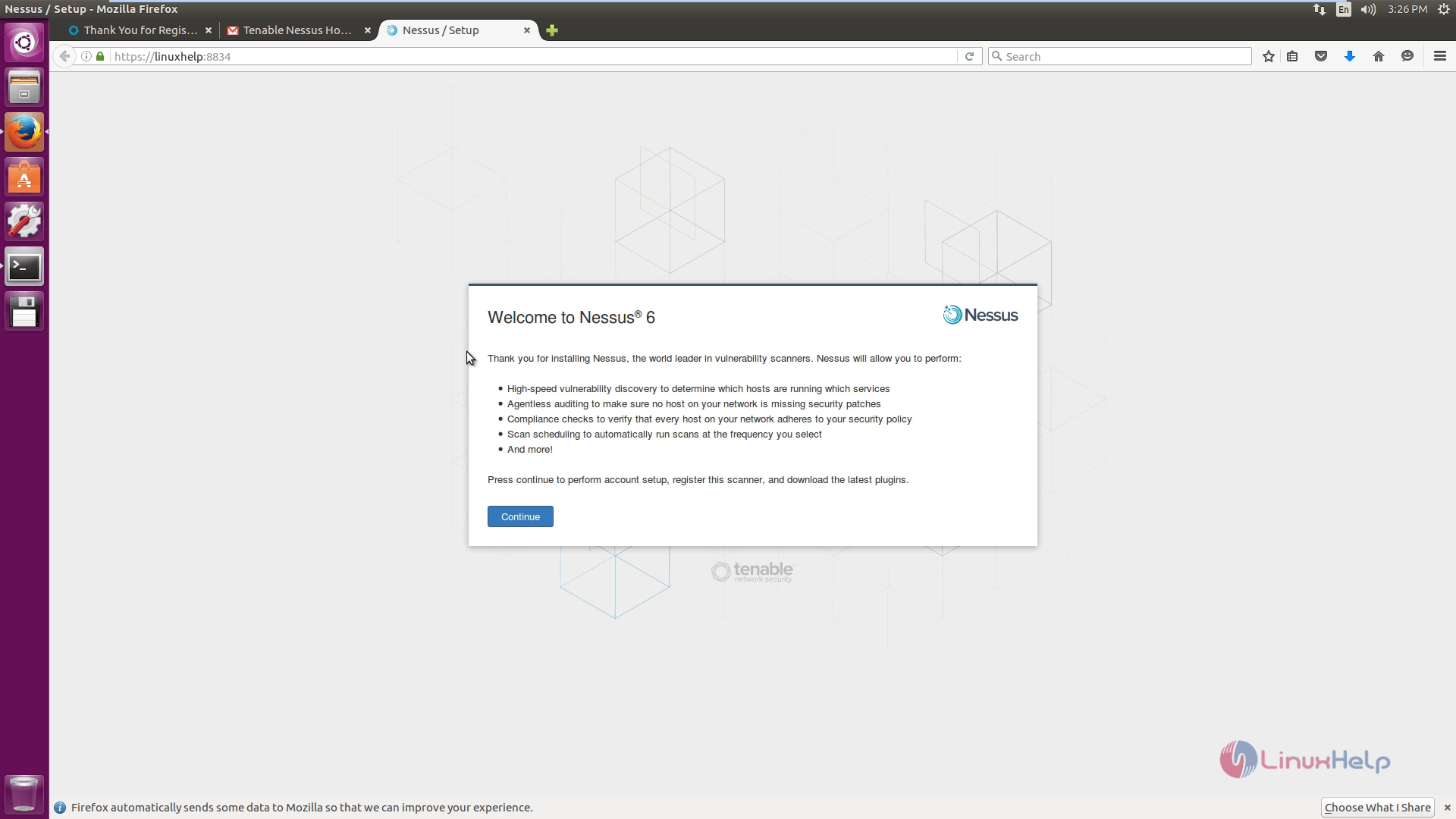
Nessus_home_screen
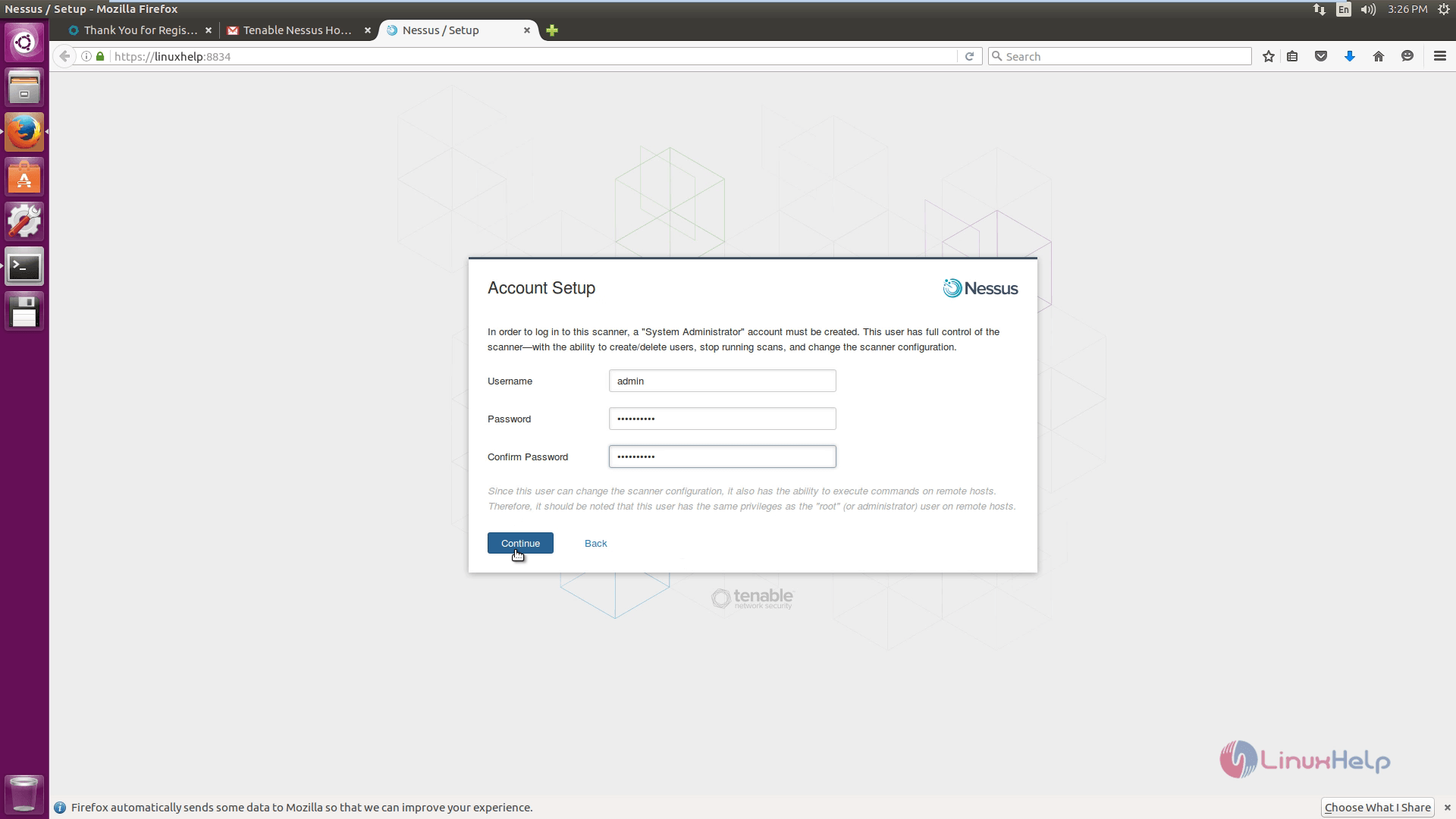
Create an account for the Nessus.
Nessus_create_account
Enter the activation code and click continue to proceed further.
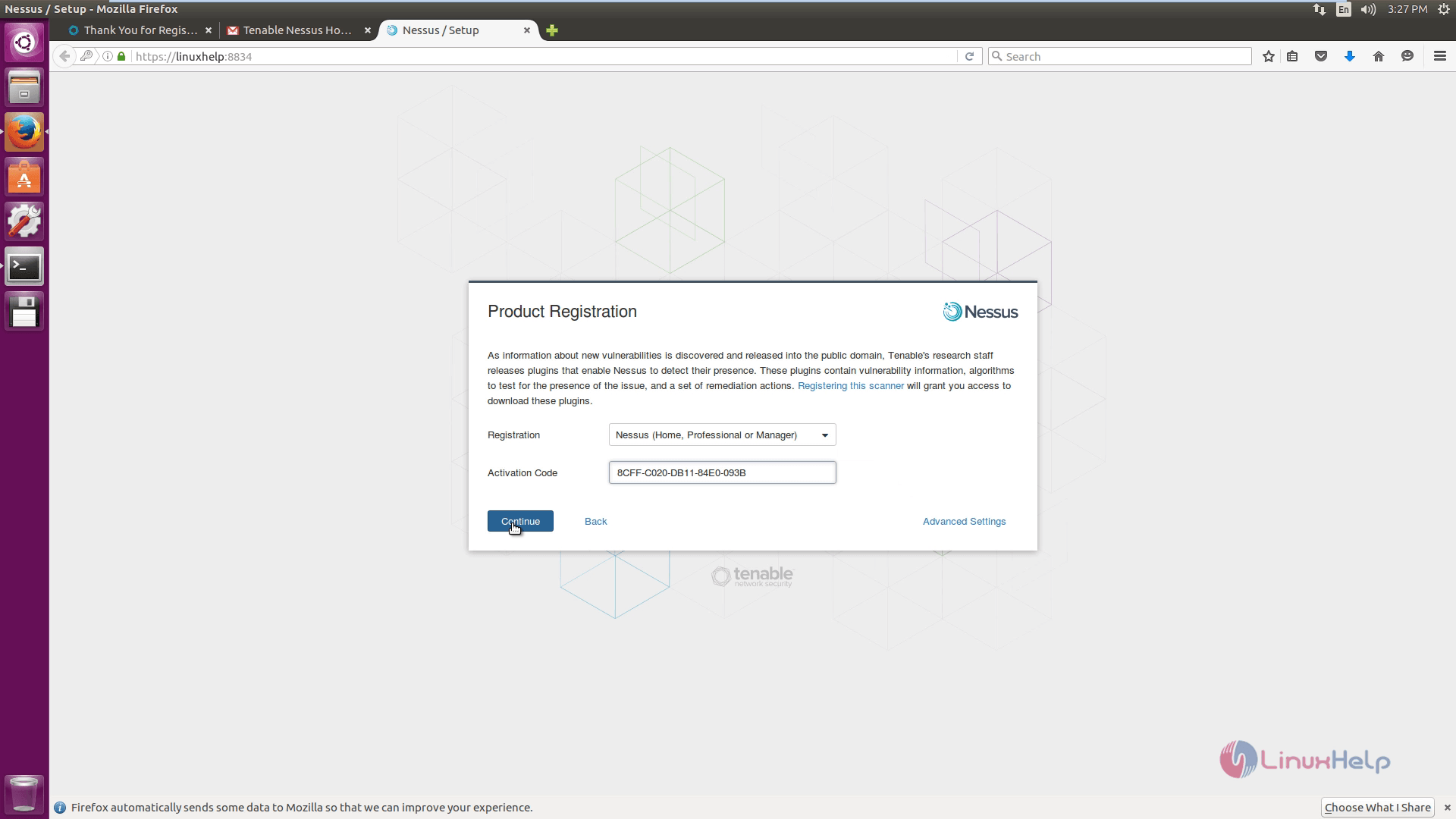
activation code
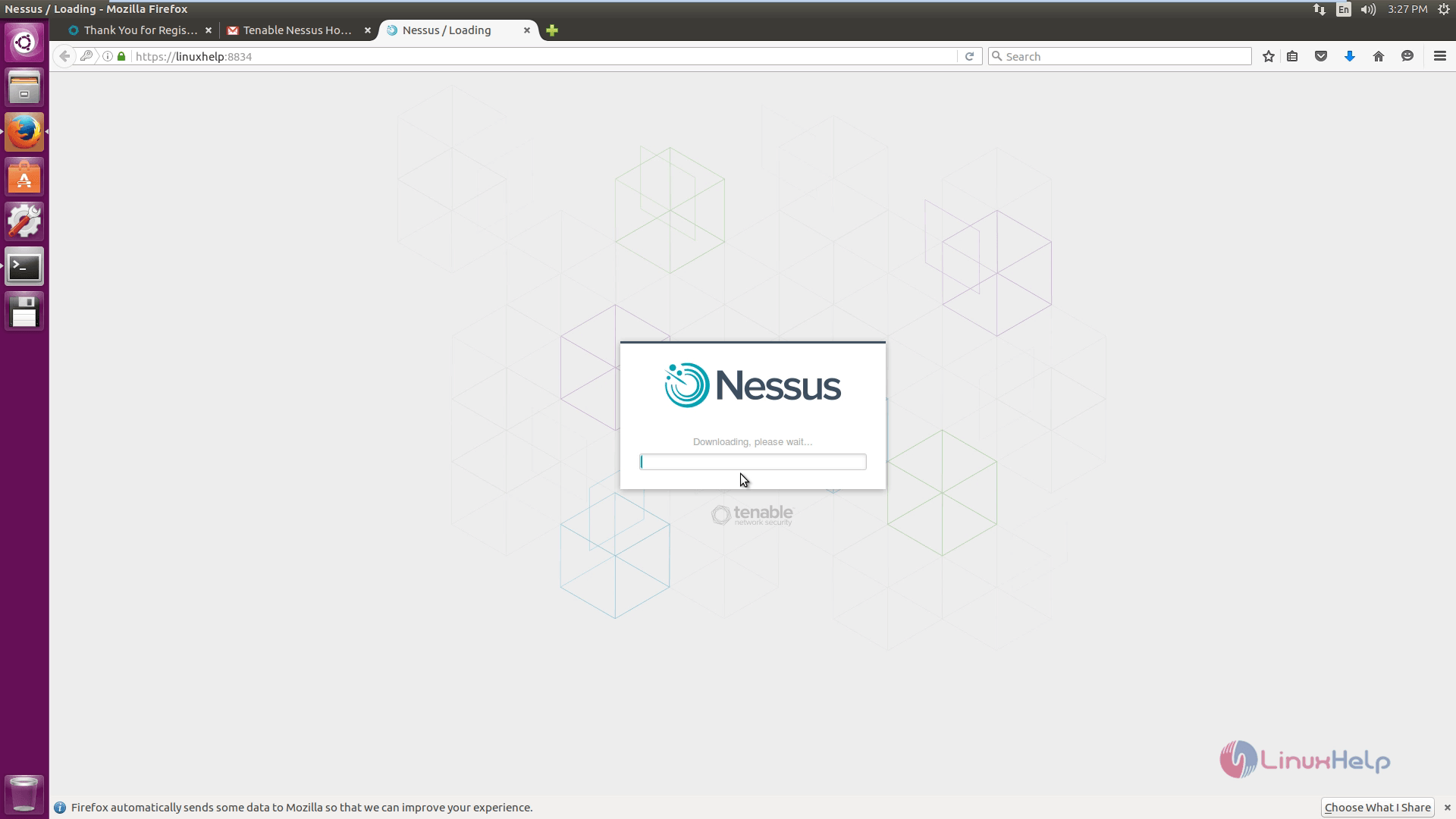
Downloading process starts.
NESSUS_DOWNLOAD

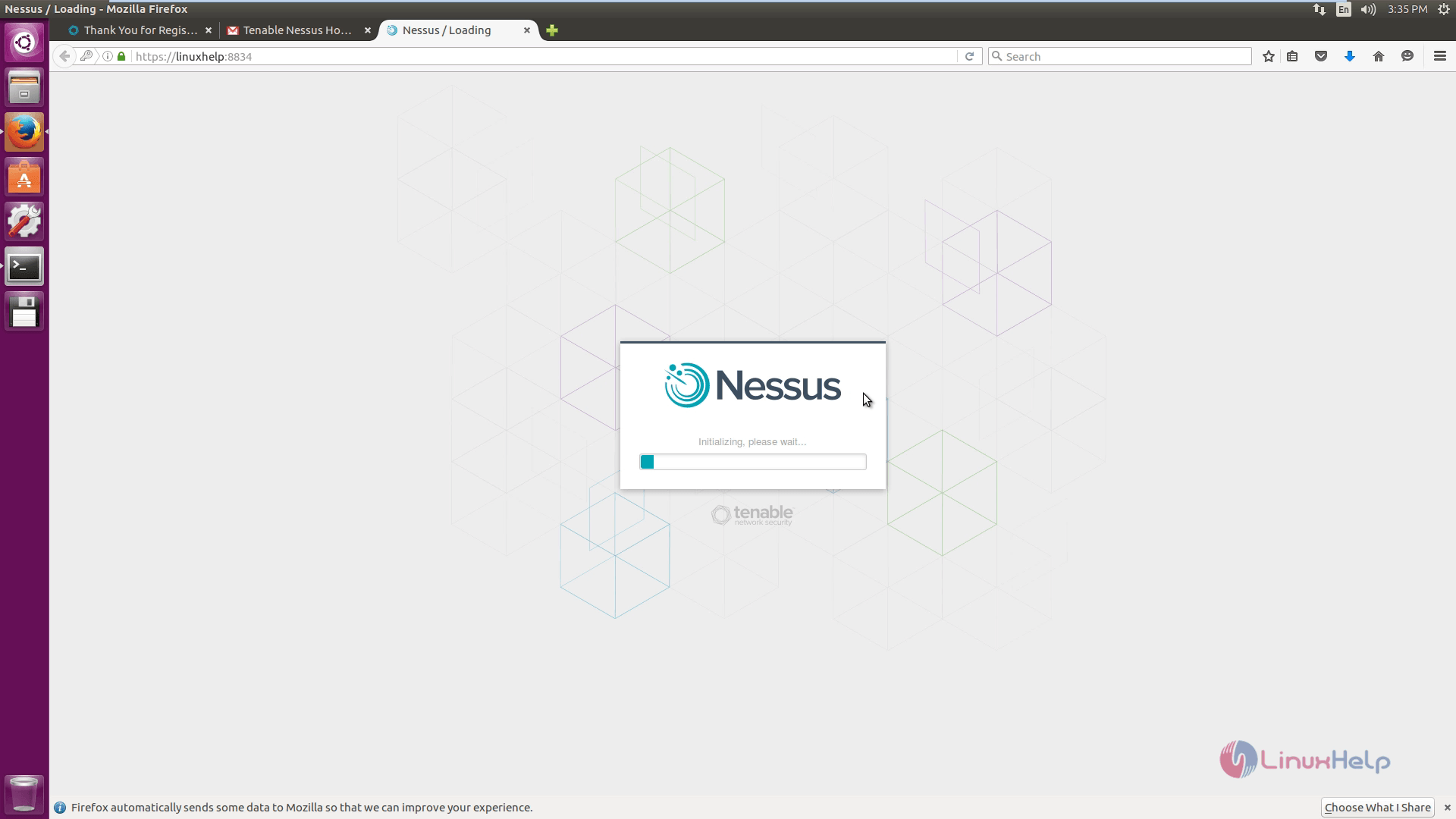
Intializing Nessus.
Intializing_Nessus
Enter the admin credentials to enter into the Nessus.
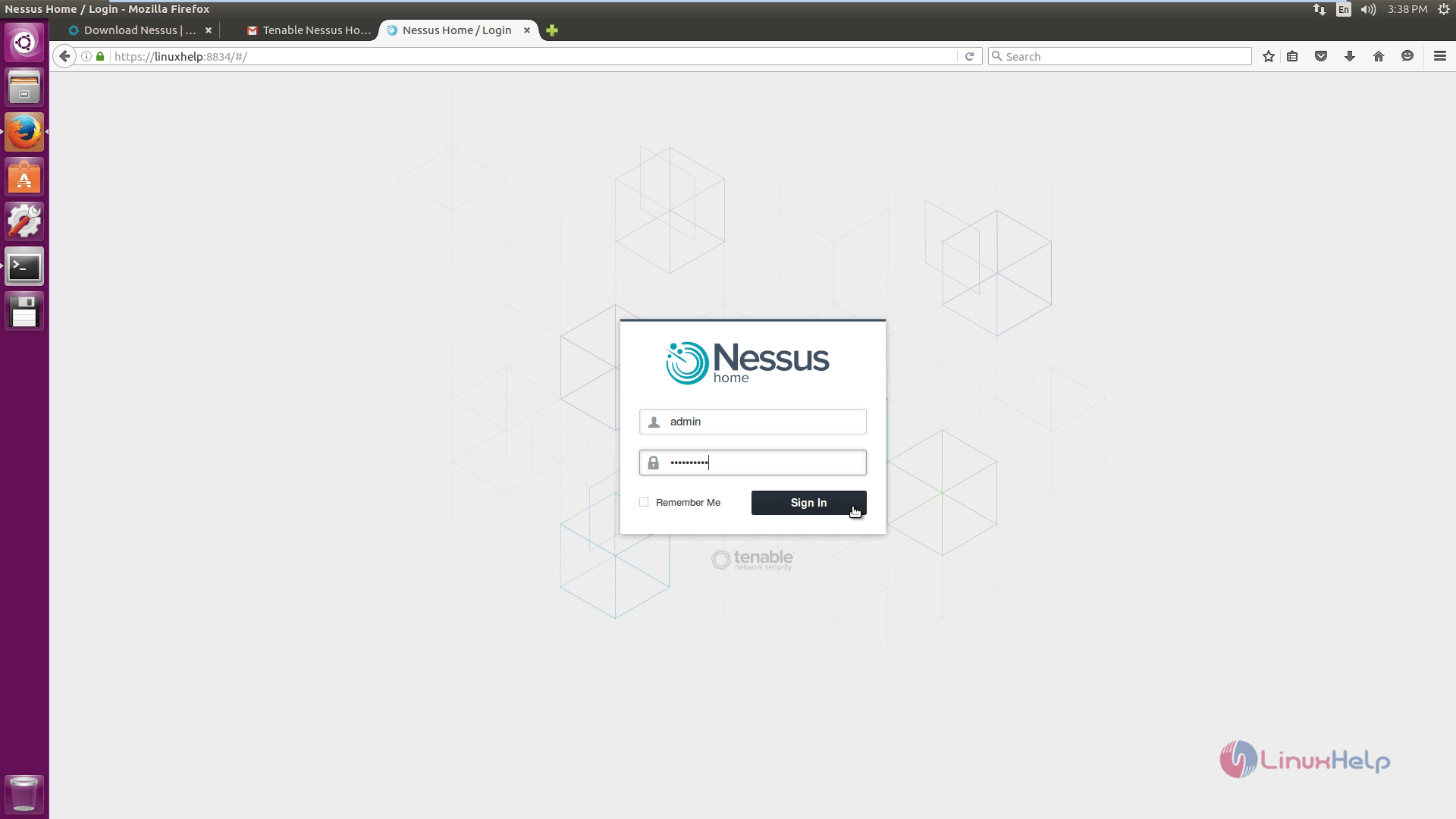
Nessus_admin_credentials
To create a new scan, click New Scan icon.
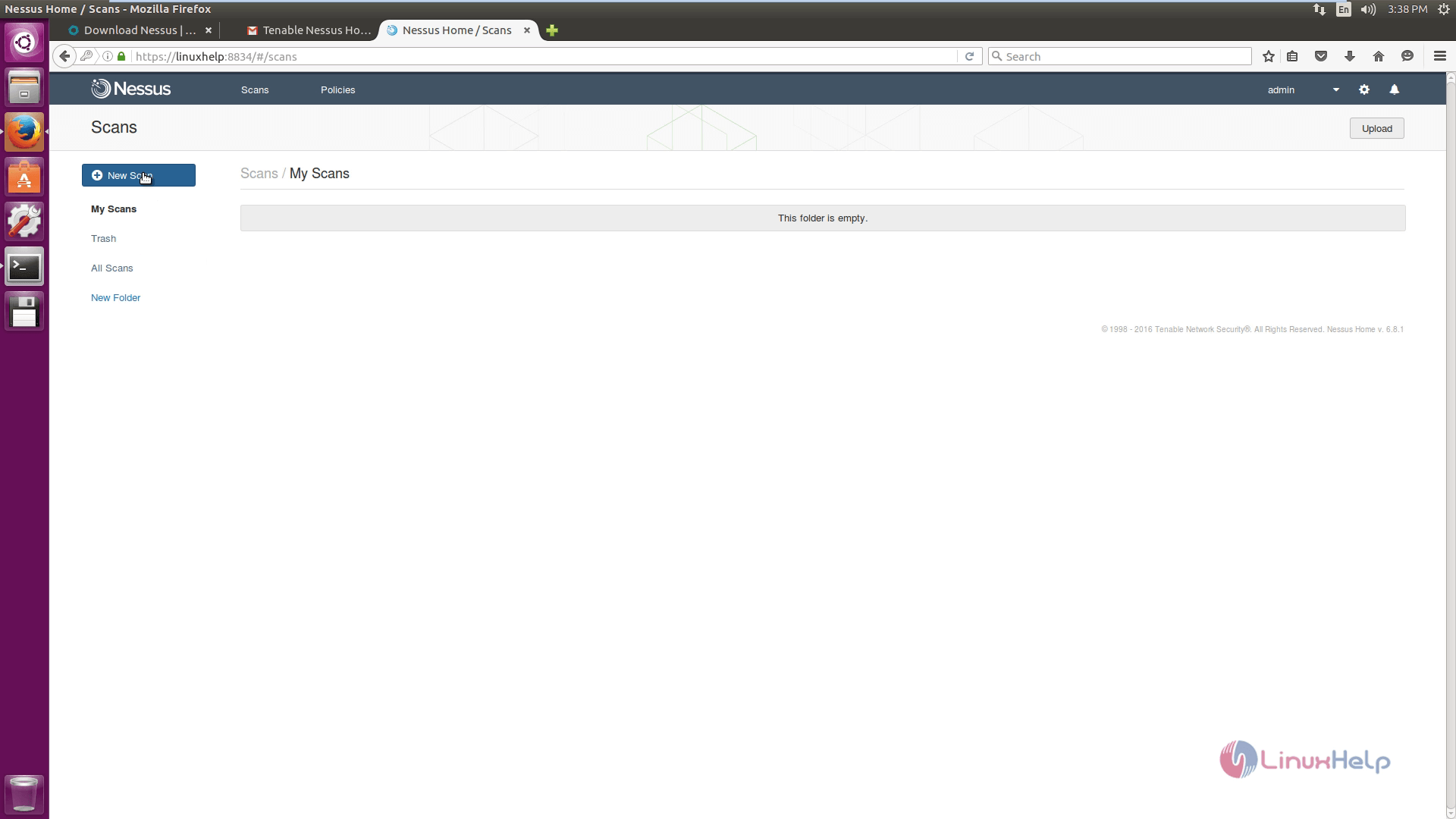
New_Scan_icon

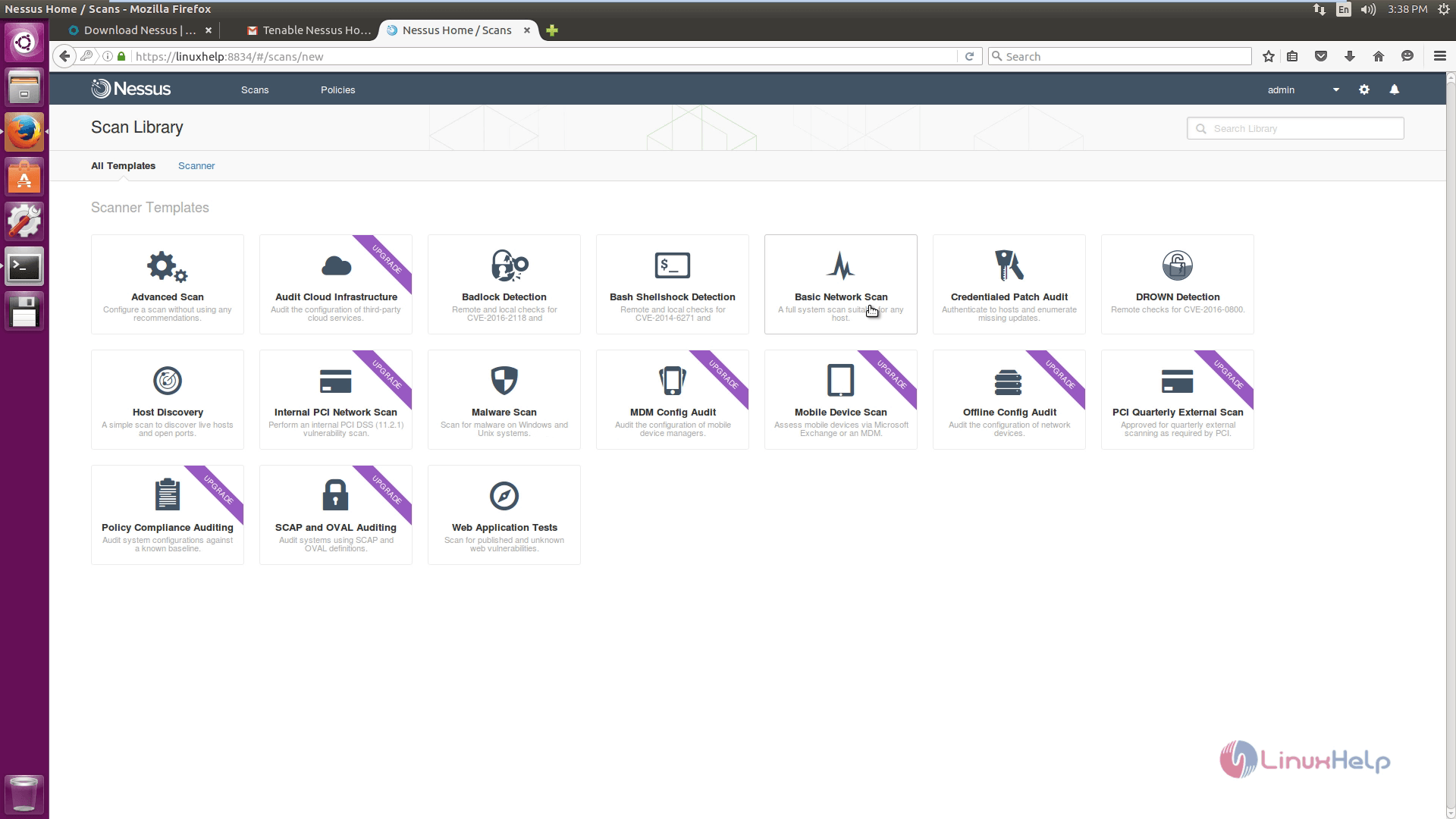
Select the type of scan.
type_of_scan
Enter the details of the system where the scan is to be performed.
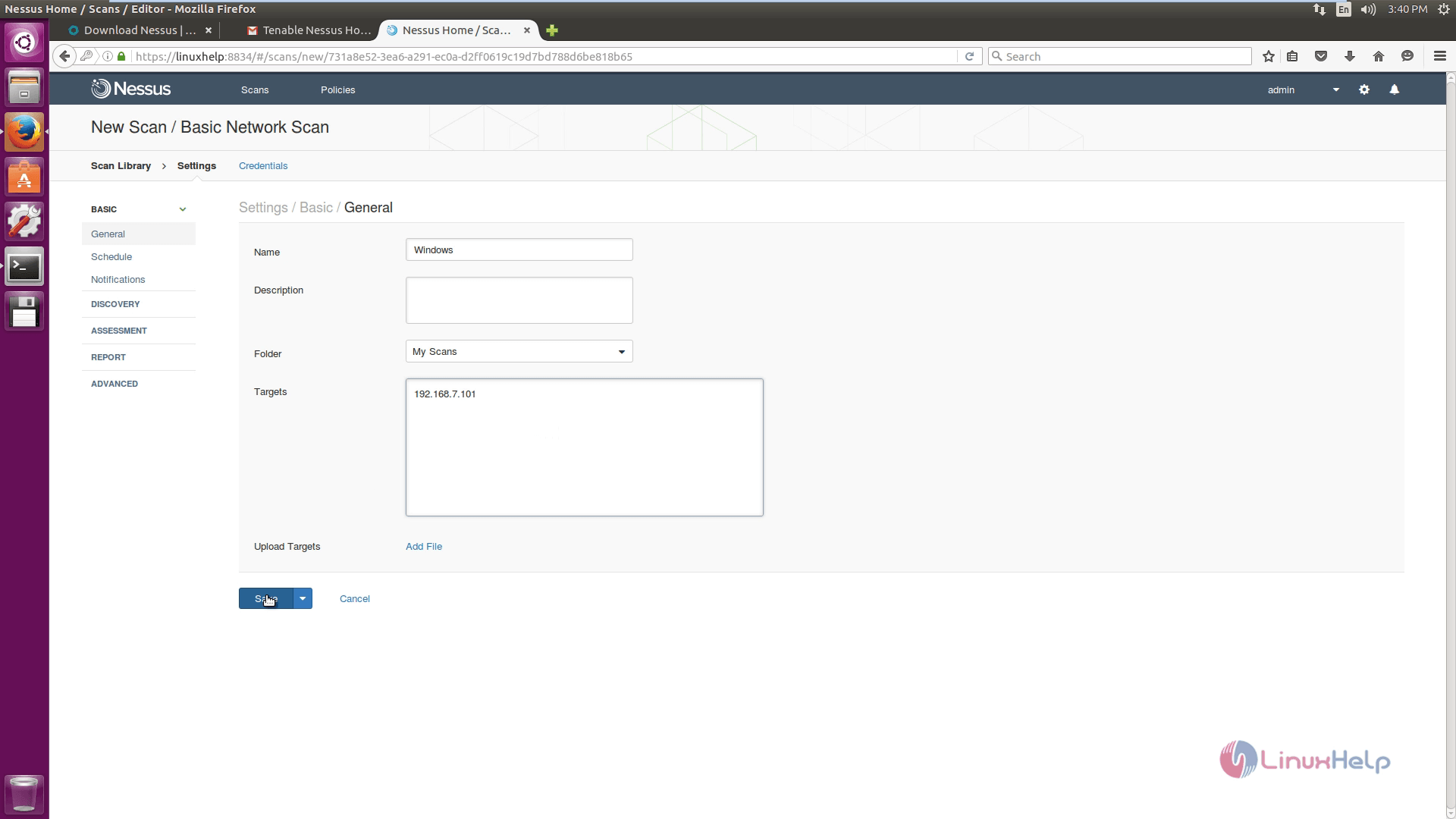
new_scan
Select the scan and click the drop-down more and then launch the scan.
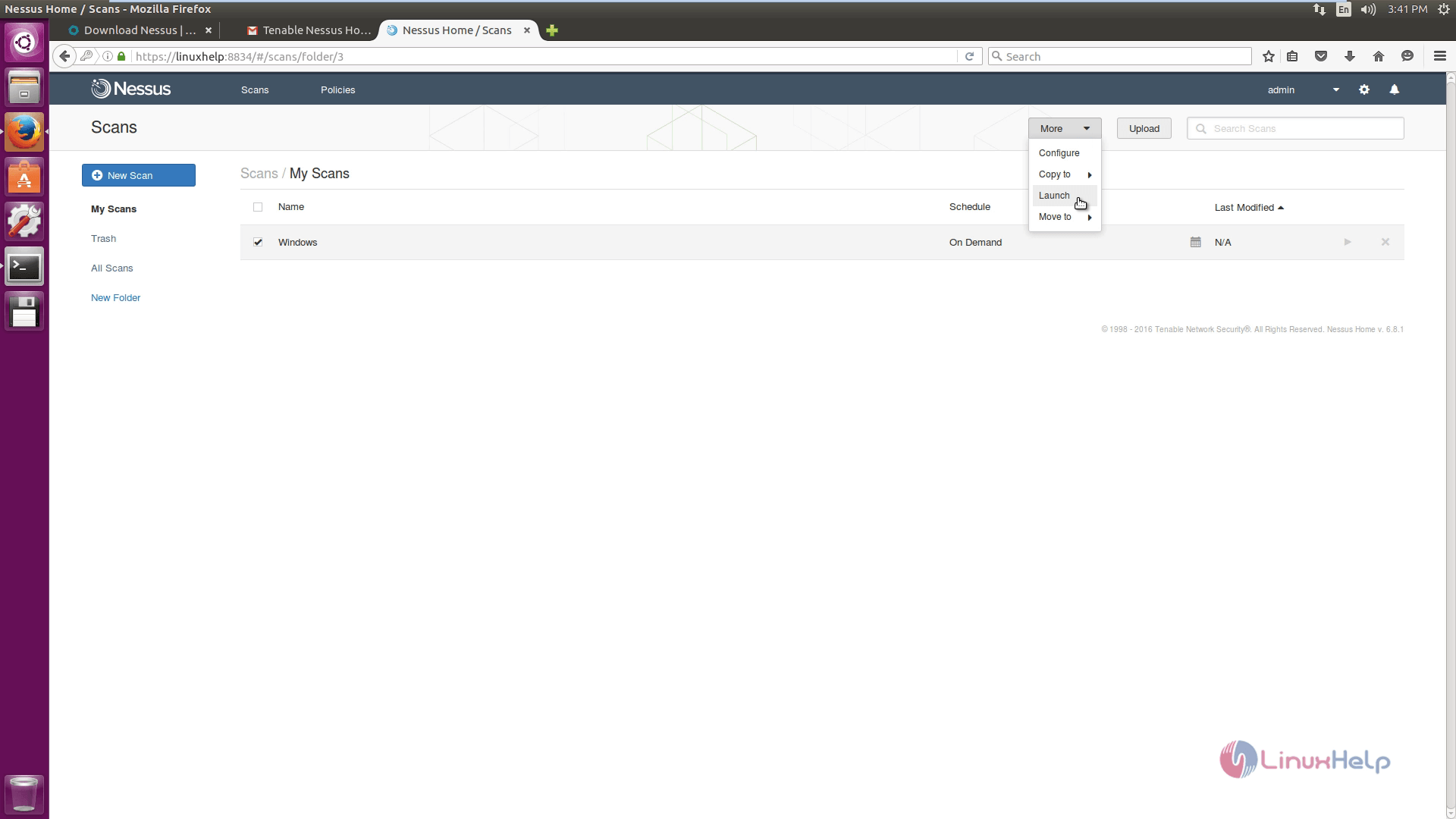
Drop_down
Select the scan to see the vulnerabilities in the target system.
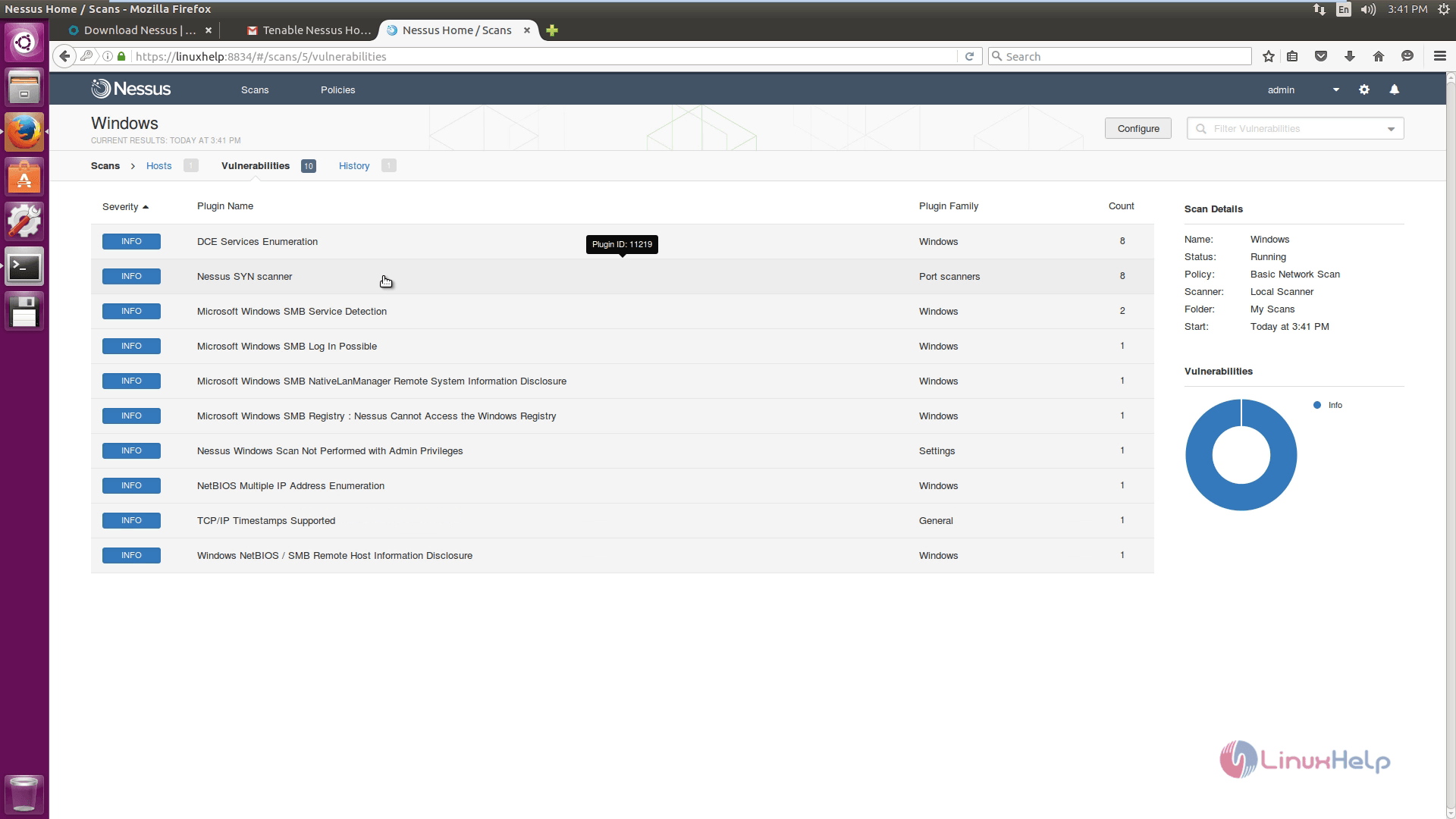
vulnerabilities
Click the vulnerability to see the description and solution for the vulnerabilities.
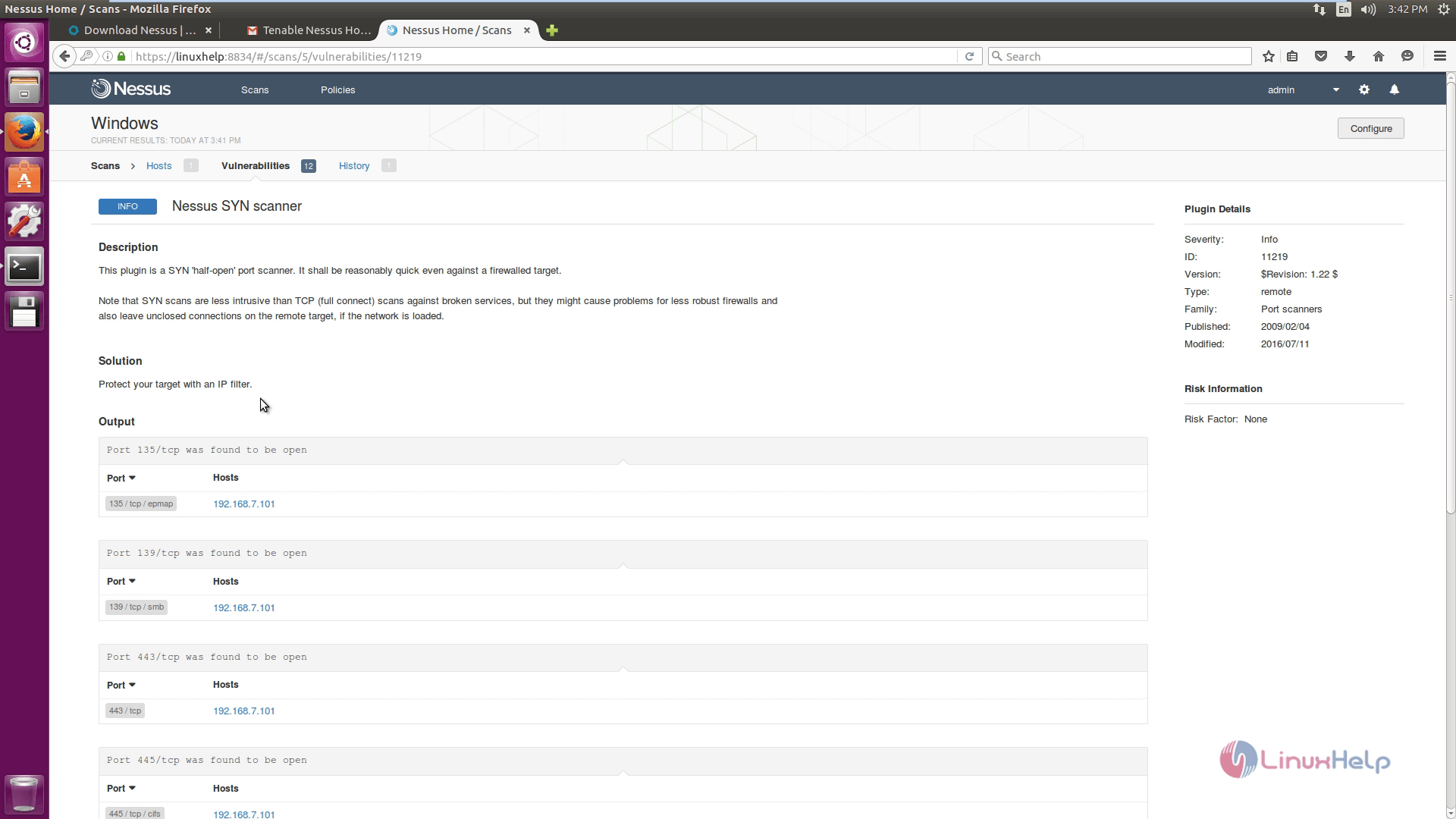
description_and_solution
Go to Settings and then click Account Settings to view the account details.
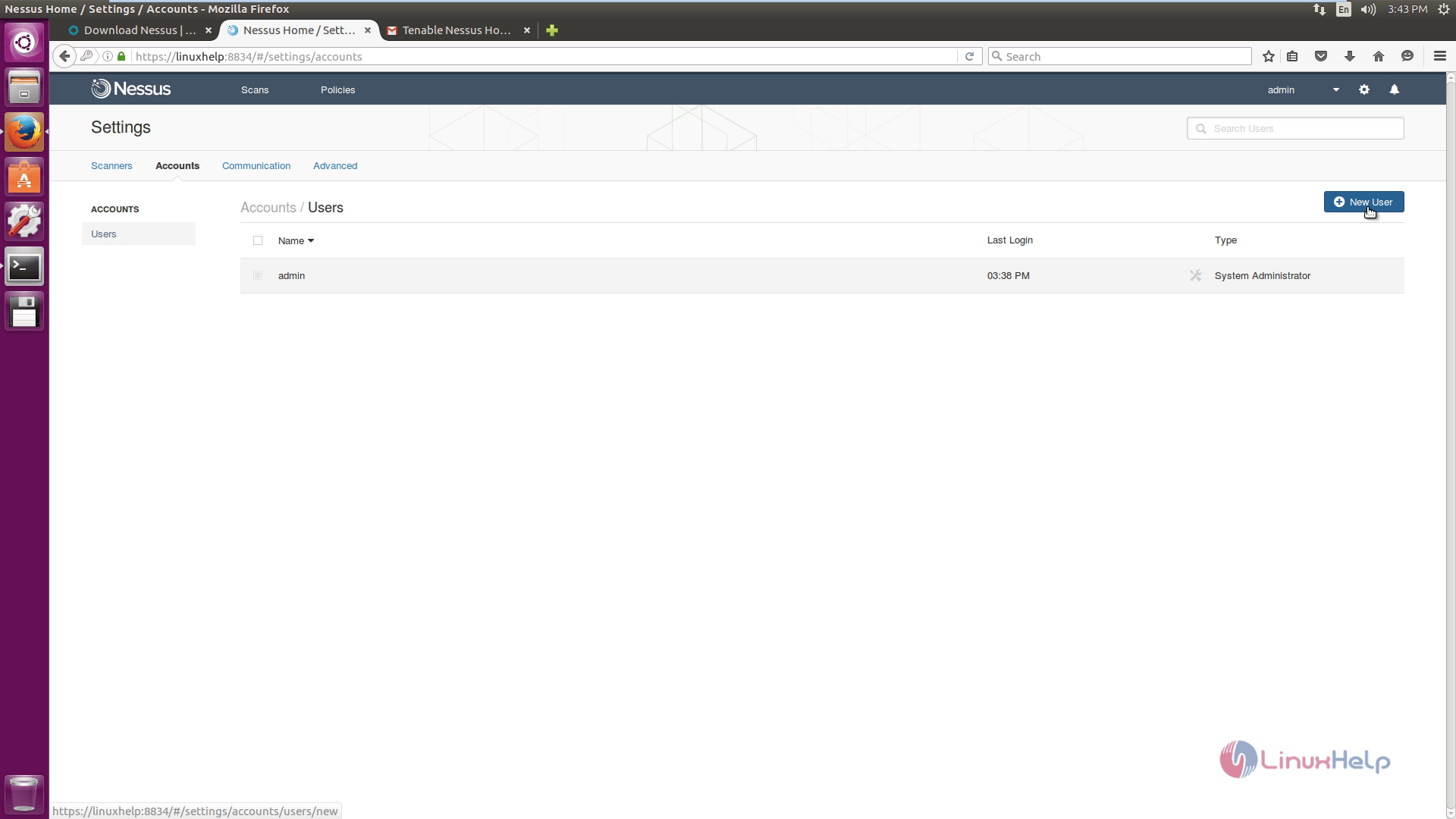
Account Settings
To view the Network settings, click Communications tab.
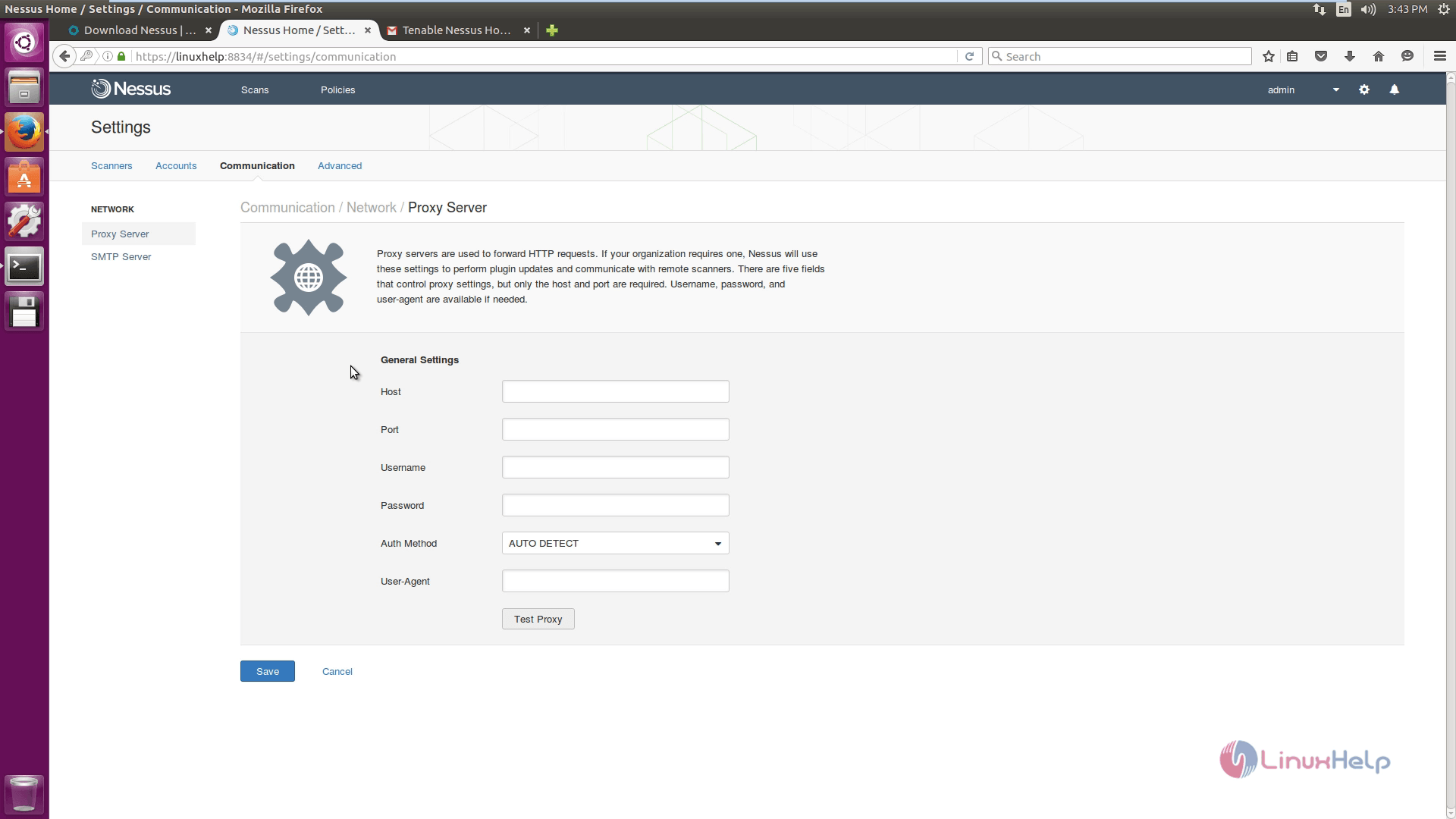
Network settings

To know about the advanced settings, click advanced option.
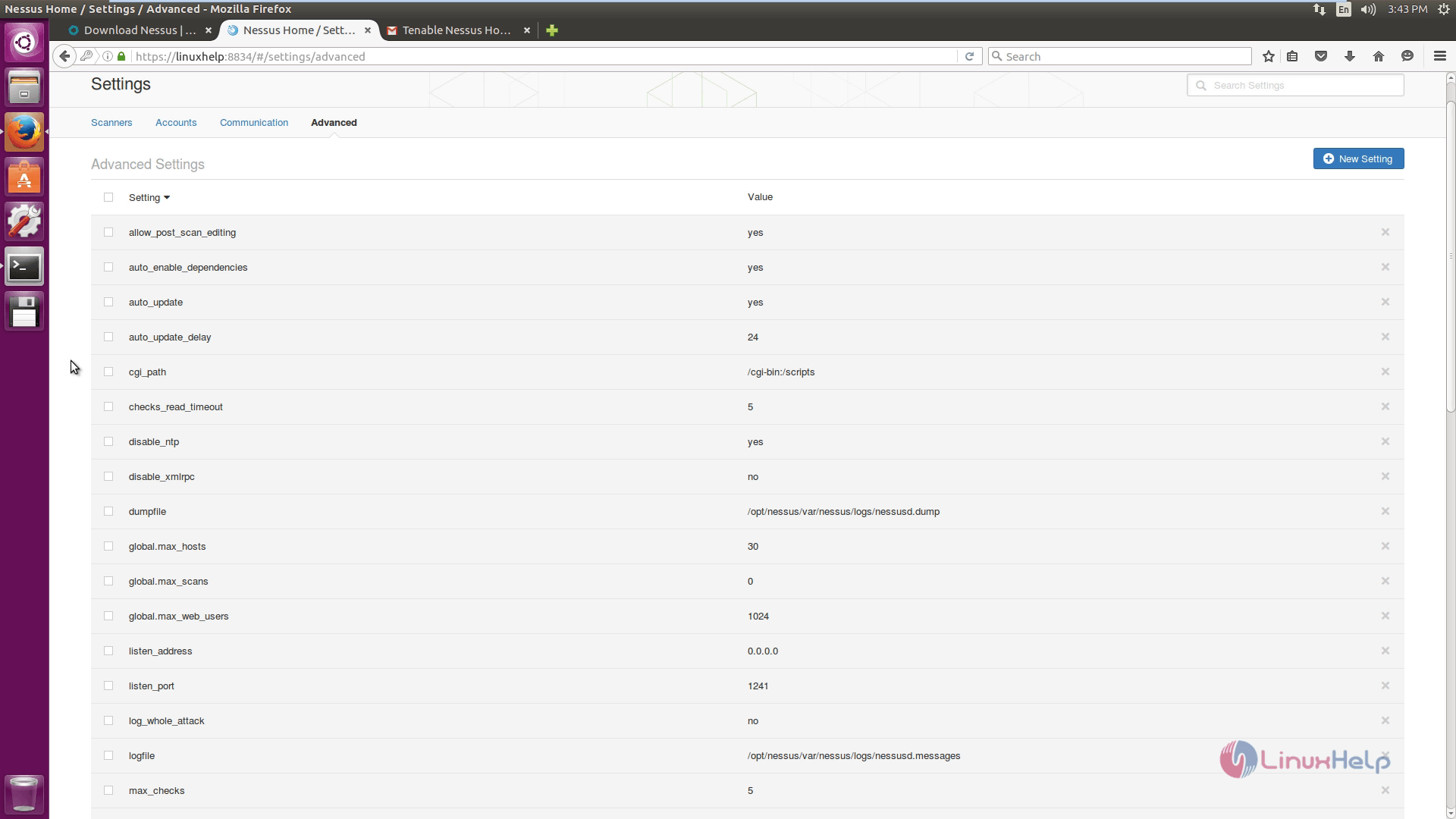
advanced settings

Tags:
elijah
Author: 

Comments ( 0 )

No comments available

Add a comment
{{postCtrl.cmtErrMsg}}

Frequently asked questions ( 5 )

Q

What is a default port number for the Nessus Vulnerability?

A

The default port number for Nessus Vulnerability, 8843".

Q

How to resolve the Dpkg error lock occurred while the installation of Nessus Vulnerability?

A

For resolve, the dpkg error occurred while the installation, use the following command as given below,
"rm /var/lib/dpkg/lock"
"rm /var/lib/apt/list/lock"
"rm /var/cache/apt/archive/lock"

Q

How do I run a credentialed Nessus scan of a Windows computer?

A

The Windows Management Instrumentation (WMI) service must be enabled on the target.
The Remote Registry service must be enabled on the target or the credentials used by Nessus must have the permissions necessary to start the remote registry service and be configured appropriately.
File & Printer Sharing must be enabled on the system to be scanned.
An SMB account must be used that has local administrator rights on the target. A non-administrator account can do some limited scanning; however, a large number of checks will not run without these rights. According to Tenable, the company behind Nessus, in Windows 7 it is necessary to use the Administrator account, not just an account in the Administrators group. ISP is currently in the process of testing this and looking for potential workarounds.
Ports 139 (TCP) and 445 (TCP) must be open between the Nessus scanner and the computer to be scanned. Information on the what IP block to open in the firewalls can be found here: What is the source network for security scans conducted by Information Security and Policy?
Ensure that no Windows security policies are in place that block access to these services. Two common problems are the SEP configurations that block off the scanners even after the scanners is authenticated and a network access model that sets network access to "Guest only" permissions (see below for information on changing this).
The default administrative shares (i.e. IPC$, ADMIN$, C$) must be enabled (AutoShareServer = 1). Since these are enabled by default and can cause other issues if disabled, this is rarely a problem

Q

What OS platforms does Nessus have builds for?

A

Nessus is supported on a variety of operating systems and platforms, including:

Debian / Kali Linux
Fedora
FreeBSD
Mac OS X
Red Hat / CentOS / Oracle Linux
SUSE Linux
Ubuntu
Windows Server 2008 and Windows Server 2012
Windows 7, 8 and 10

Q

What are the system/hardware requirements for using Nessus?

A

For the latest system and hardware requirements, see the Nessus Installation and Configuration Guide on the Nessus Documentation area of our website. "https://docs.tenable.com/nessus/Content/GettingStarted.htm"

Back To Top!
Rank
User
Points

Top Contributers

userNamenaveelansari
135850

Top Contributers

userNameayanbhatti
92510

Top Contributers

userNamehamzaahmed
32150

Top Contributers

1
userNamelinuxhelp
31040

Top Contributers

userNamemuhammadali
24500
Can you help keel johnston ?
Unhide the folders on windows Explorer

Give any solutions to unhide folder using command prompt?

forum3

Networking
  • Routing
  • trunk
  • Netmask
  • Packet Capture
  • domain
  • HTTP Proxy
Server Setup
  • NFS
  • KVM
  • Memory
  • Sendmail
  • WebDAV
  • LXC
Shell Commands
  • Cloud commander
  • Command line archive tools
  • last command
  • Shell
  • terminal
  • Throttle
Desktop Application
  • Linux app
  • Pithos
  • Retrospect
  • Scribe
  • TortoiseHg
  • 4Images
Monitoring Tool
  • Monit
  • Apache Server Monitoring
  • EtherApe 
  • Arpwatch Tool
  • Auditd
  • Barman
Web Application
  • Nutch
  • Amazon VPC
  • FarmWarDeployer
  • Rukovoditel
  • Mirror site
  • Chef
Contact Us | Terms of Use| Privacy Policy| Disclaimer
© 2025 LinuxHelp.com All rights reserved. Linux™ is the registered trademark of Linus Torvalds. This site is not affiliated with linus torvalds in any way.