• Categories
    Category
    {{ postCtrl.tags }}
    • {{ category.tag_type }}

      • {{tag.tag_name}}
      • View more
  • Categories
    Category
    {{ postCtrl.tags }}
    • {{ category.tag_type }}

      • {{tag.tag_name}}
      • View more
  • News
  • Tutorials
  • Forums
  • Tags
  • Users
Tutorial News Comments FAQ Related Articles

How to Install and Configure pfSense

{{postValue.id}}

Installation and Configuration of pfSense 2.3.1 for Your Office/Home Network

pfSense is an open source firewall or router distribution based on FreeBSD. It is installed on a physical/virtual machine to make a dedicated firewall or router for a network. It can be configured and upgraded through a web-based interface. Configuration and installation process of pfSense 2.3.1 is discussed in this article.

Environment Setup

Hostname pfSense.llinuxhelp.com
WAN IP Address 192.168.7.138
LAN IP Address 192.168.7.133
HDD Size 5 GB
pSense Version 2.3.1


To Install and Configure pfSense

Visit the following link and download pfSense,
https://nyifiles.pfsense.org/mirror/downloads/pfSense-CE-2.3.1-RELEASE-amd64.iso.gz

Burn the image to DVD/CD media or else go to pfSense download page and grab the " Live CD with installer" . Choose USB console type before downloading.

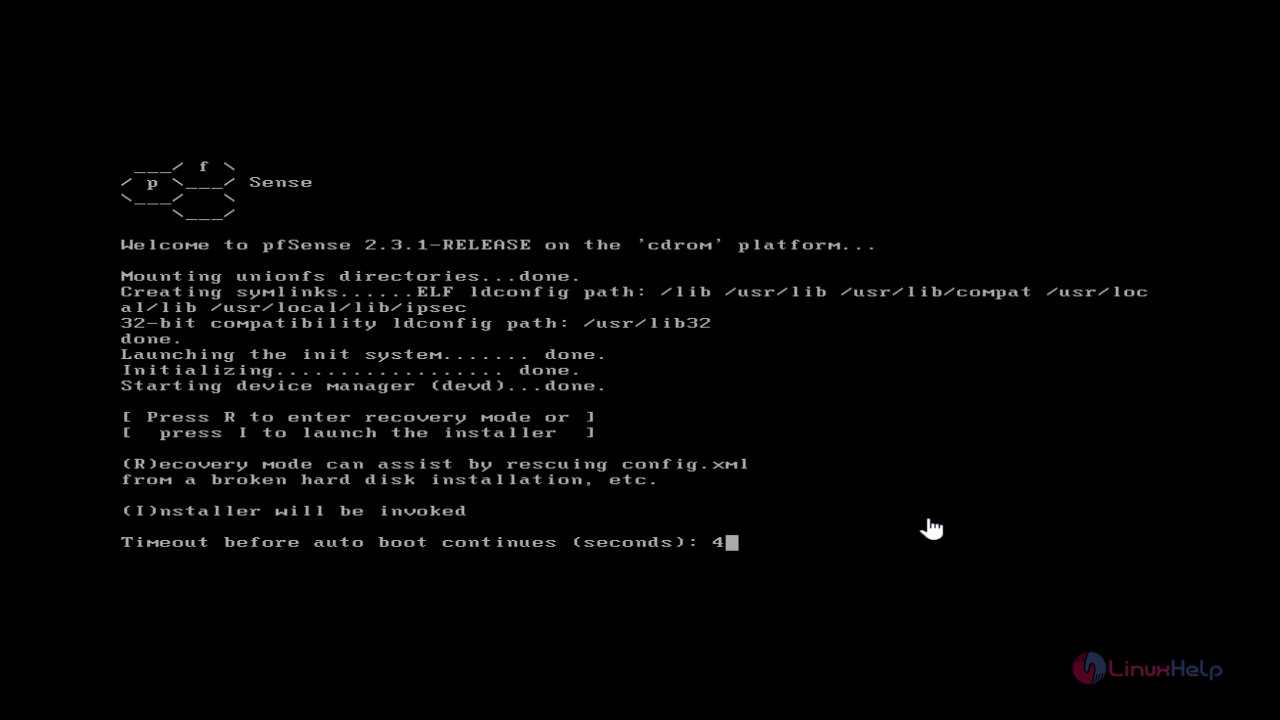
To install pfsense press 1.
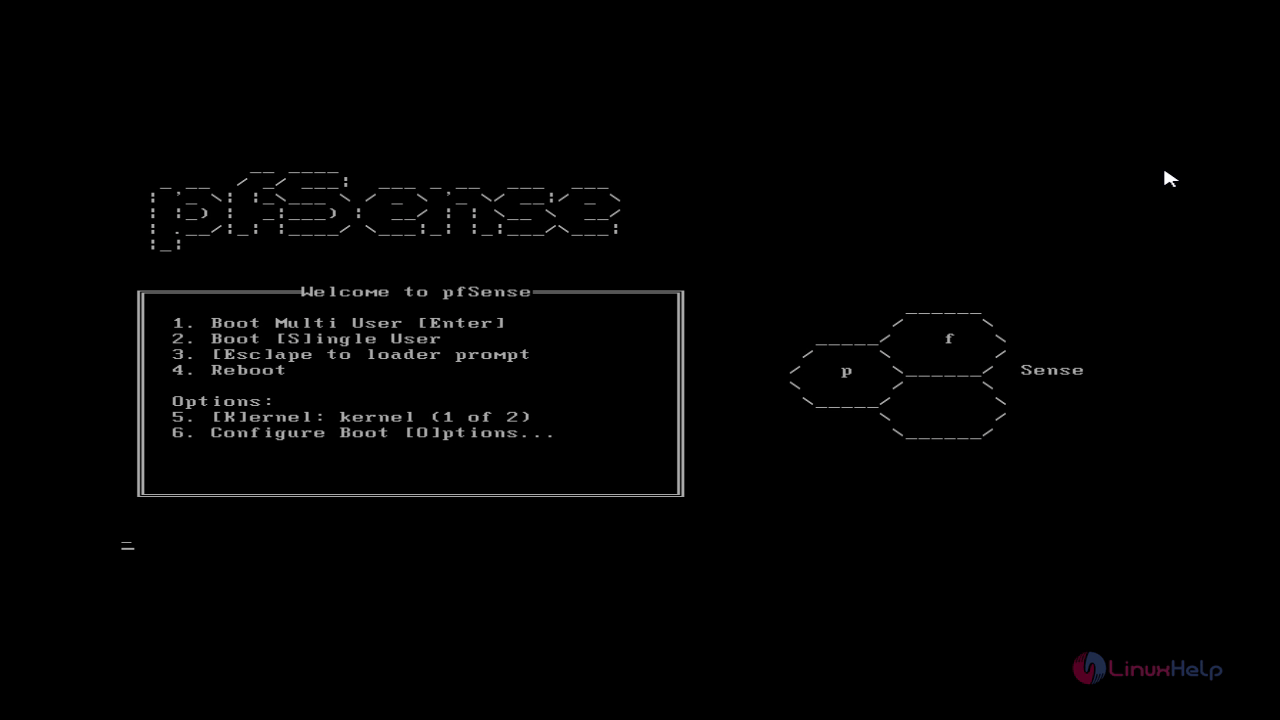
pfsense

Press " I" to install pfsense.
welcome page

To Configure, click " Accept these settings" to proceed with the installation process.
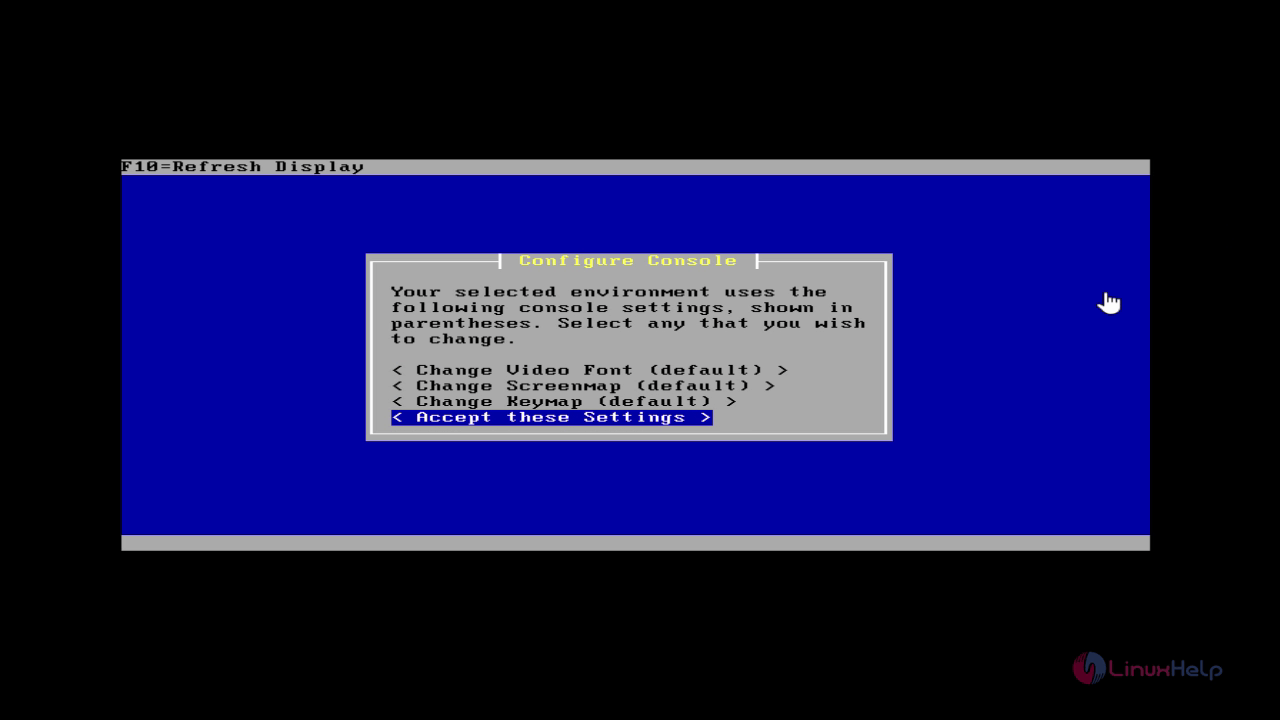
Pfsense configuration

Select " Custom Install" to get advance options in installation.
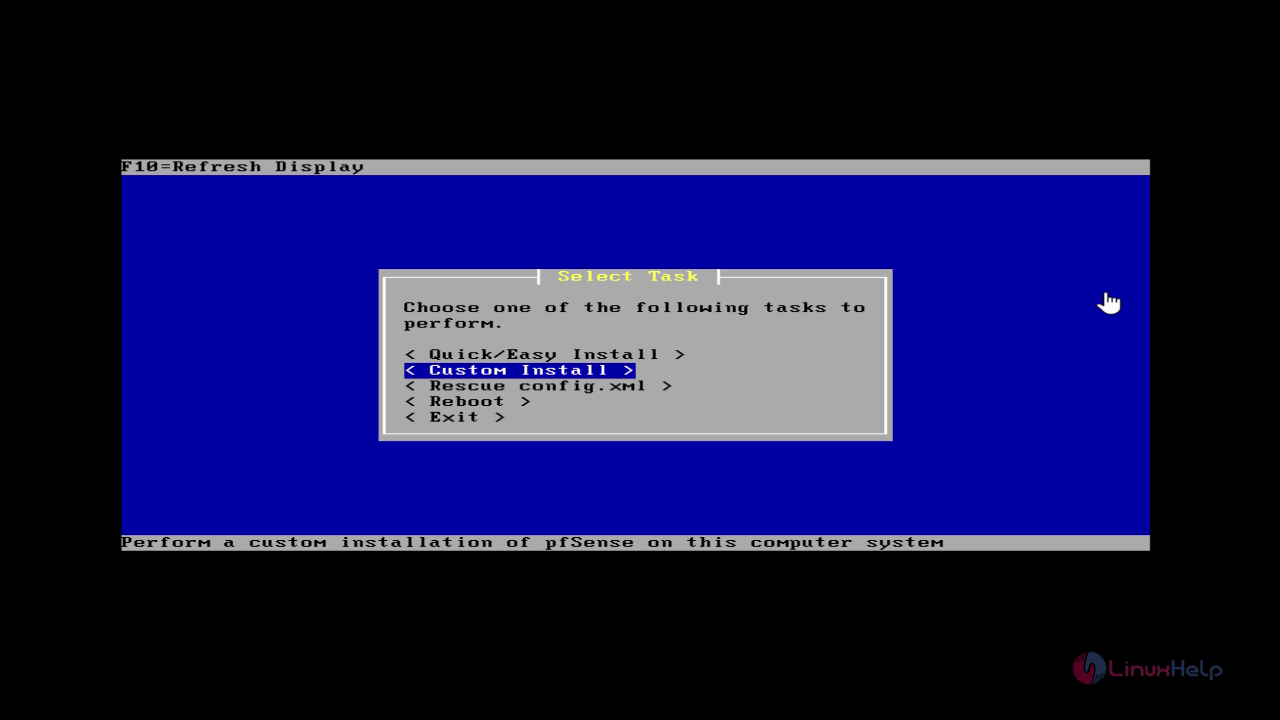
Custom install

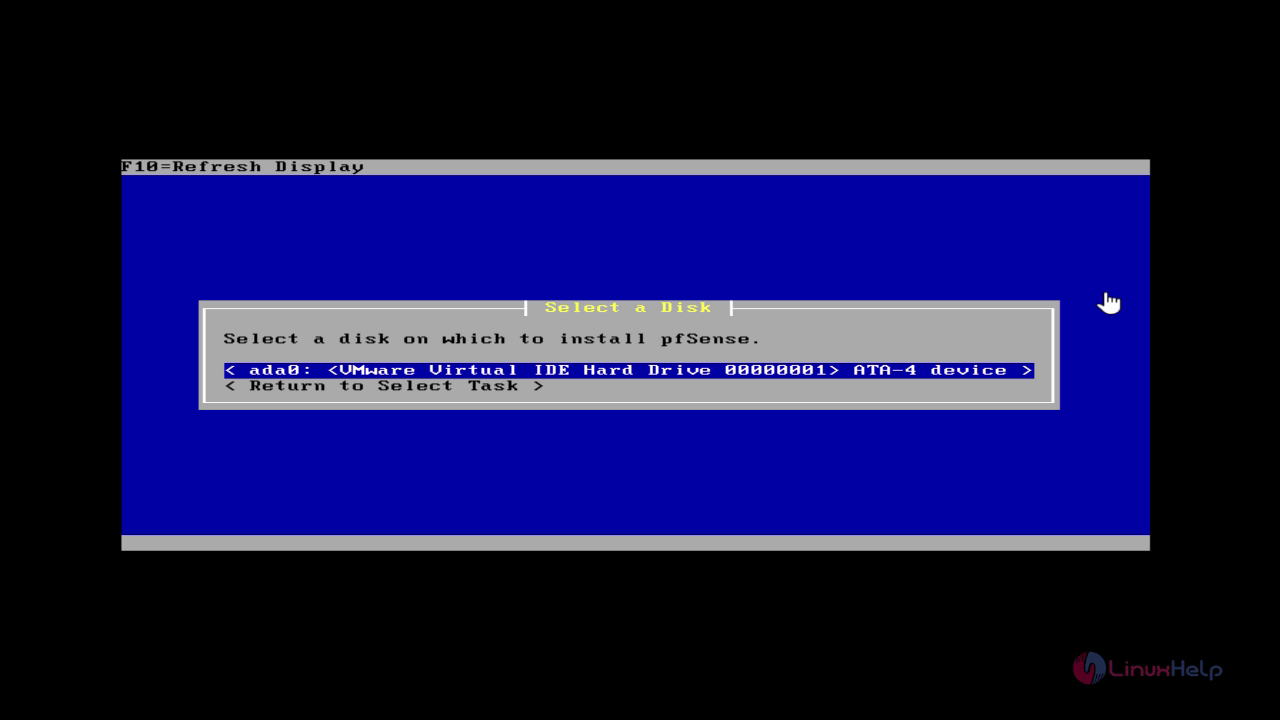
Select a disk to install pfsense.

disk to install

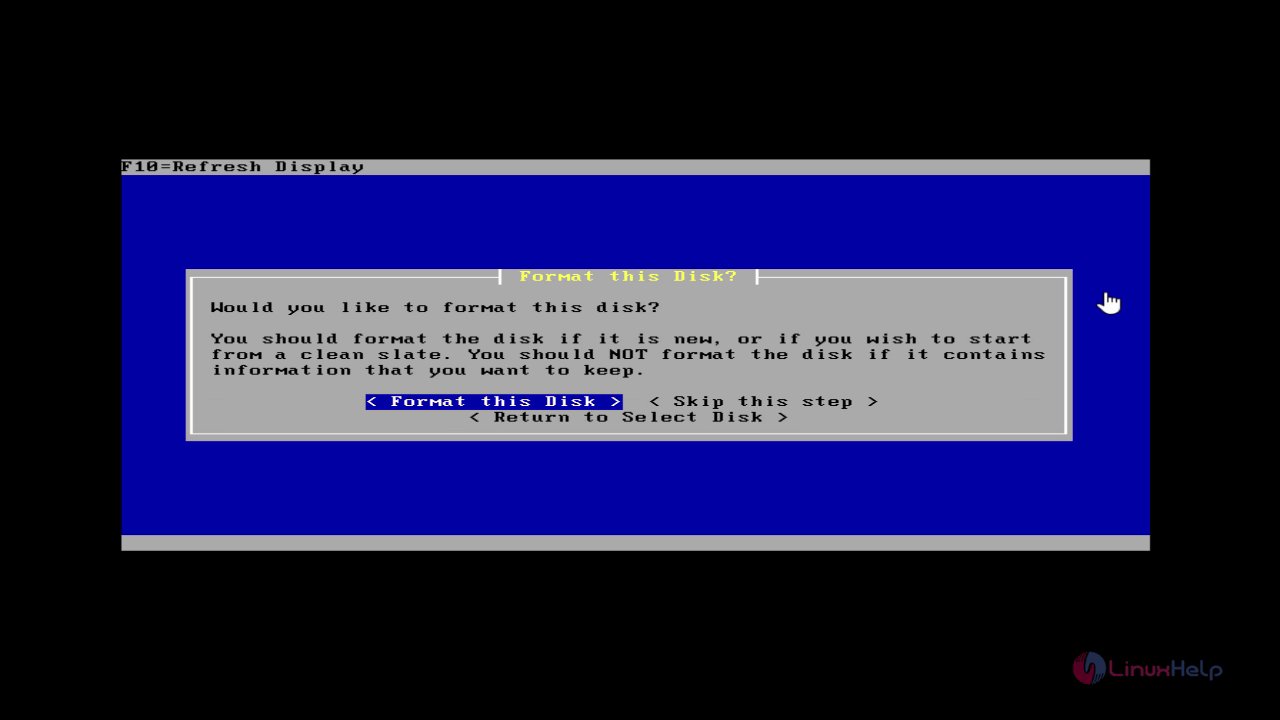
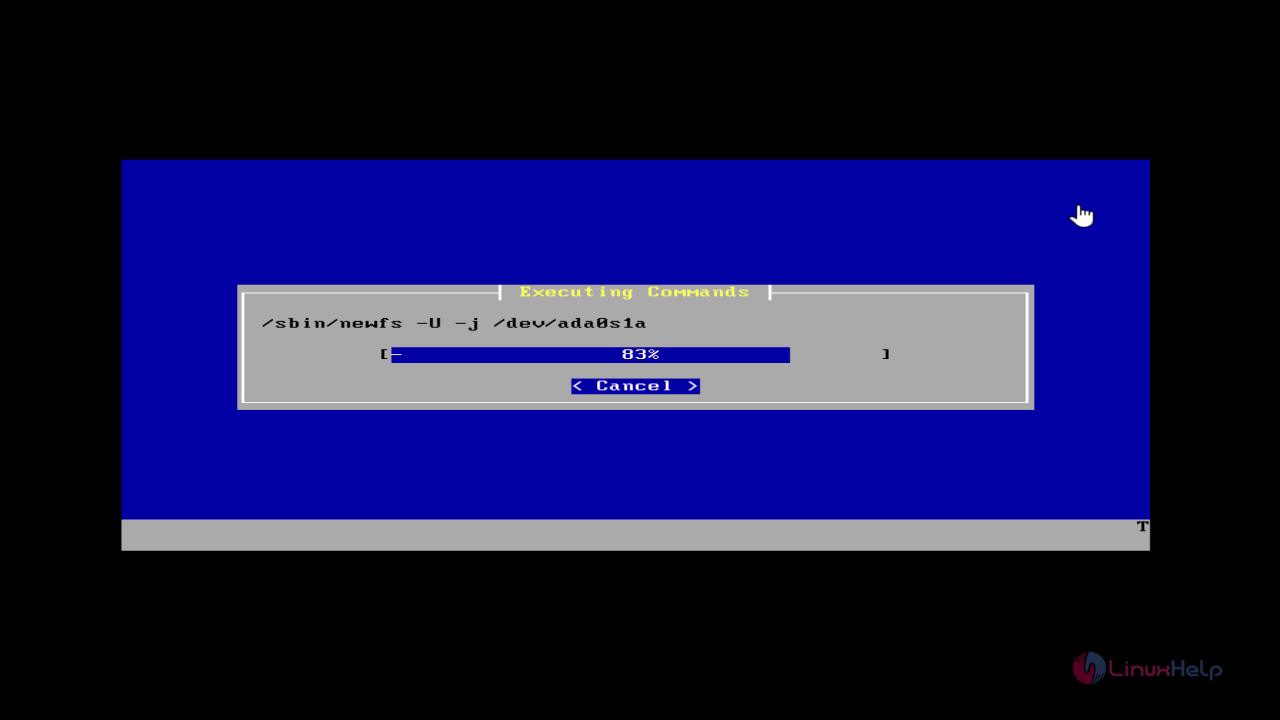
Format the selected disk.

formatting

Select " Use this Geometry" option to proceed further.
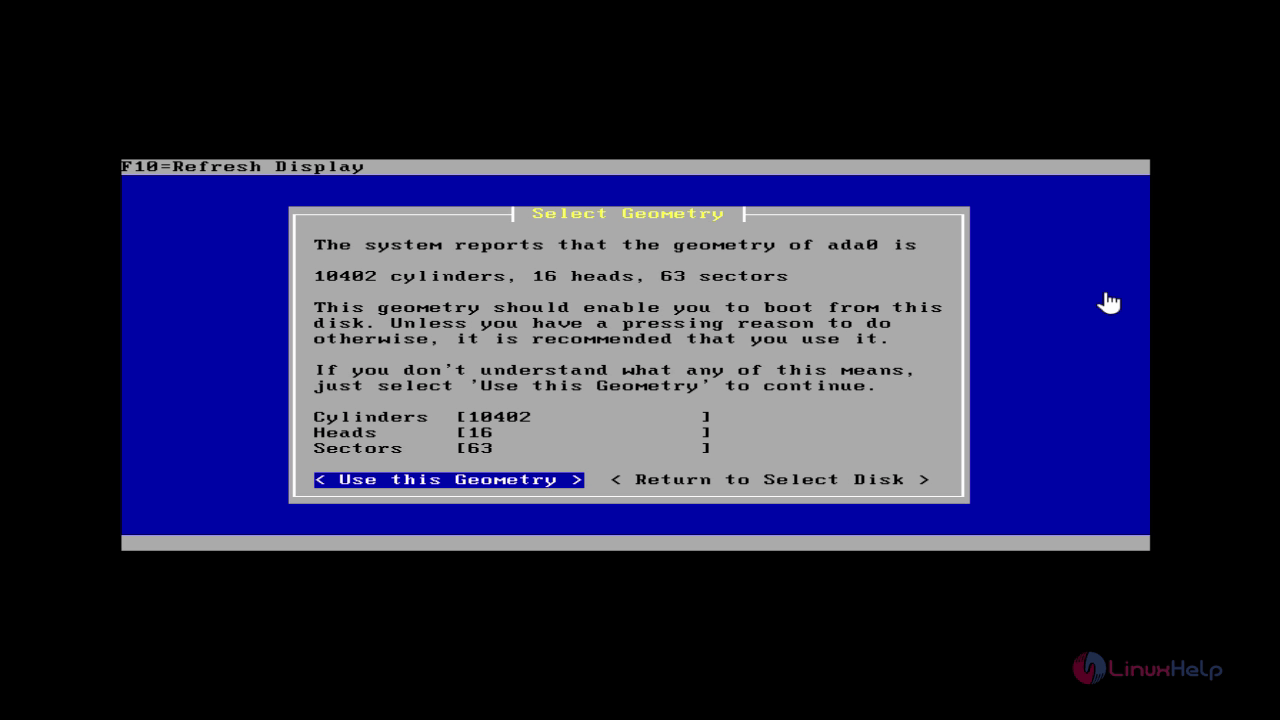
Use this geometry

It shows you a warning about disk format, if there is no data proceed with the Format option.
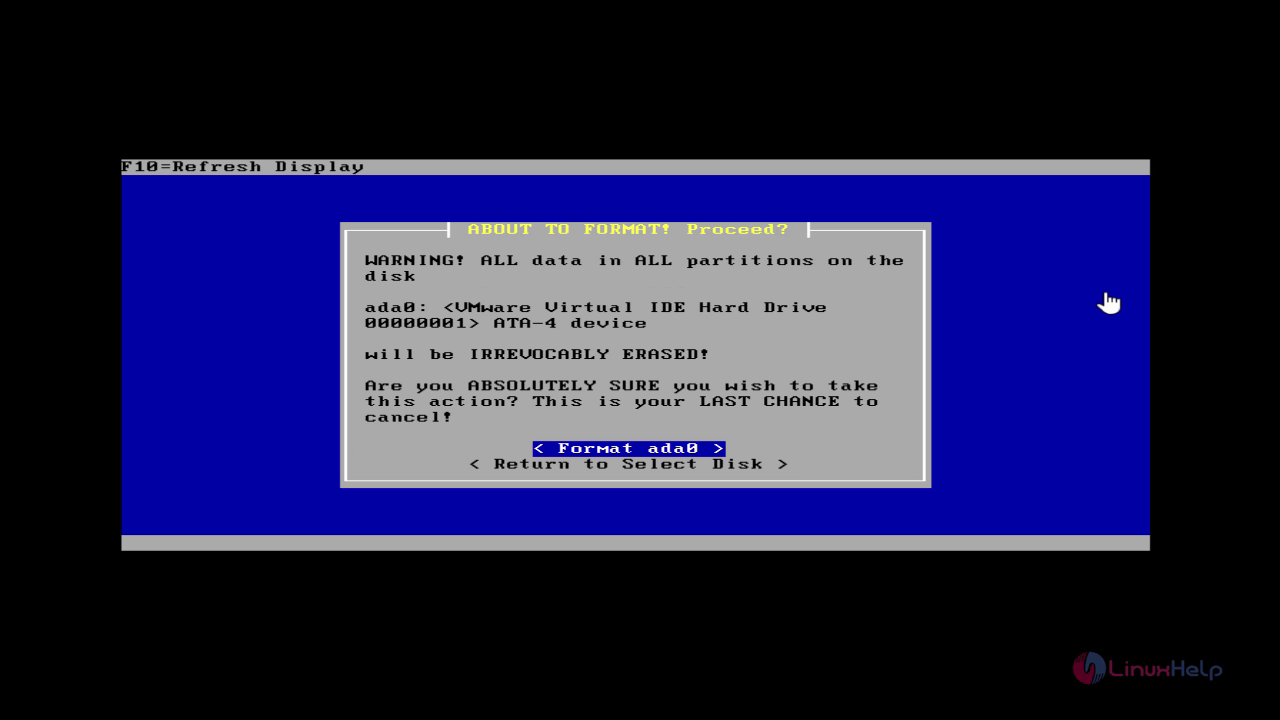
warning message

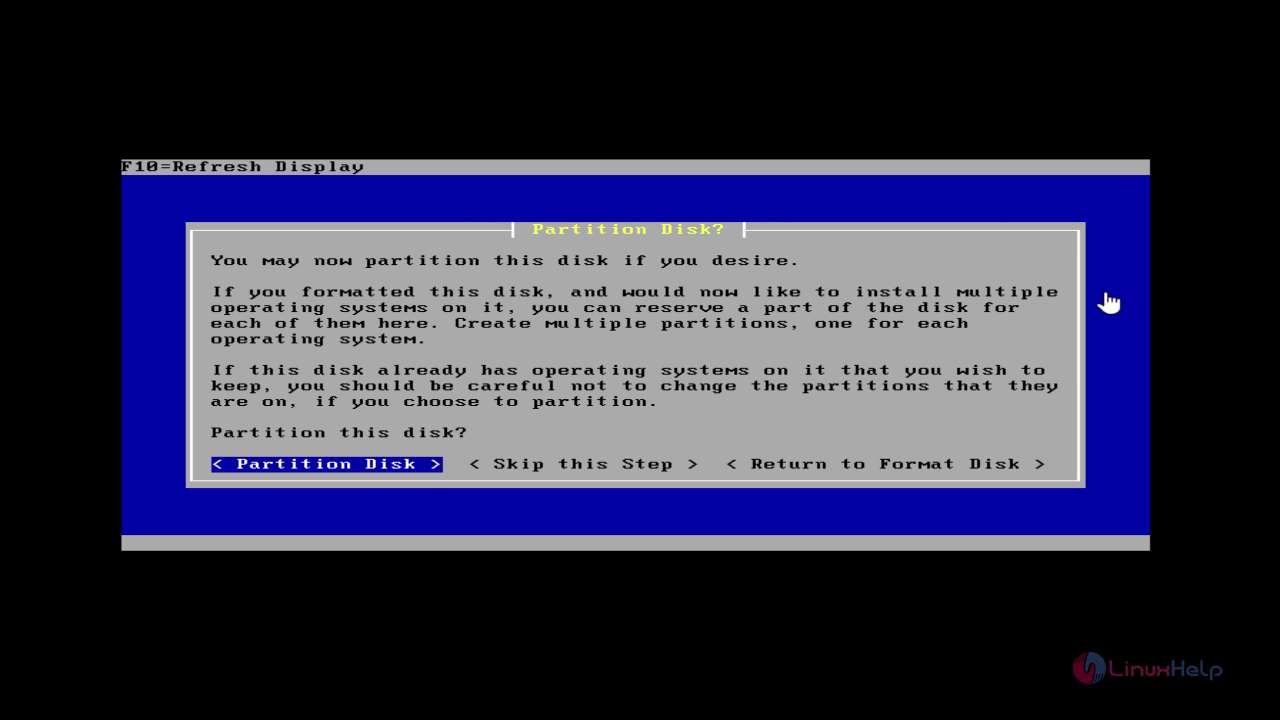
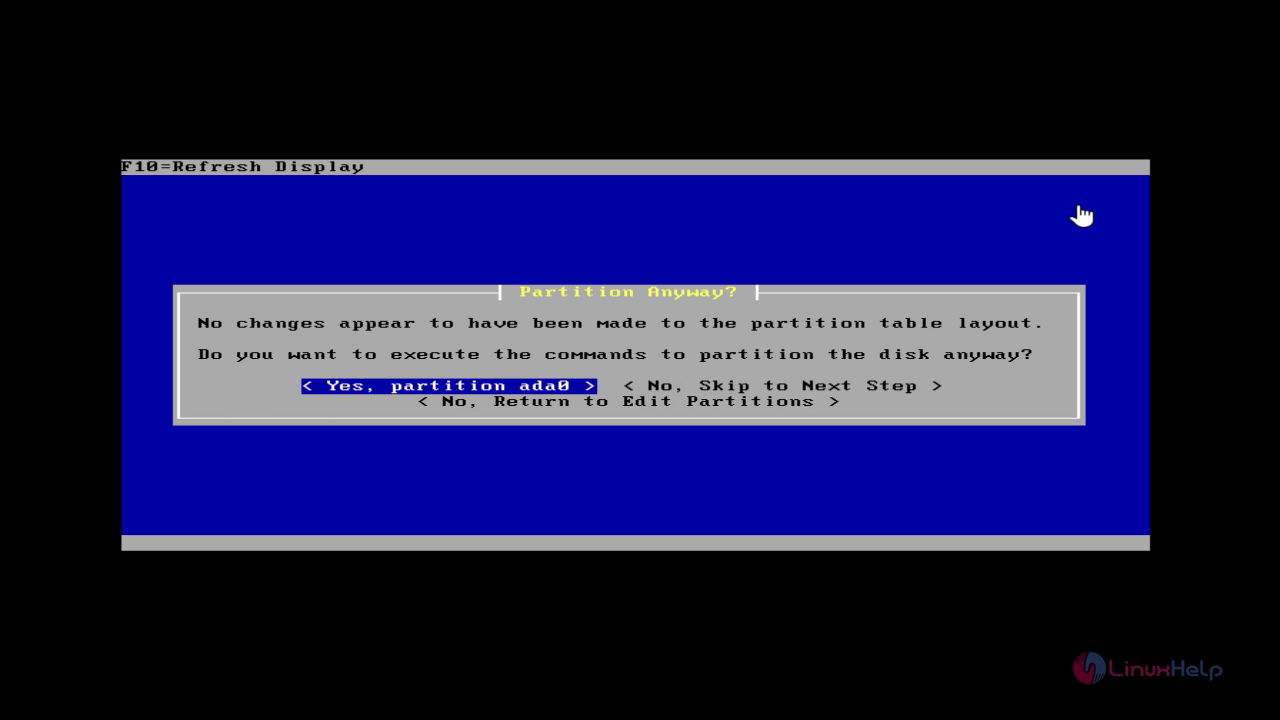
Now start partition the disk.

disk partitioning

Select partitions, size and partition type. Then click enter to partition the disk.
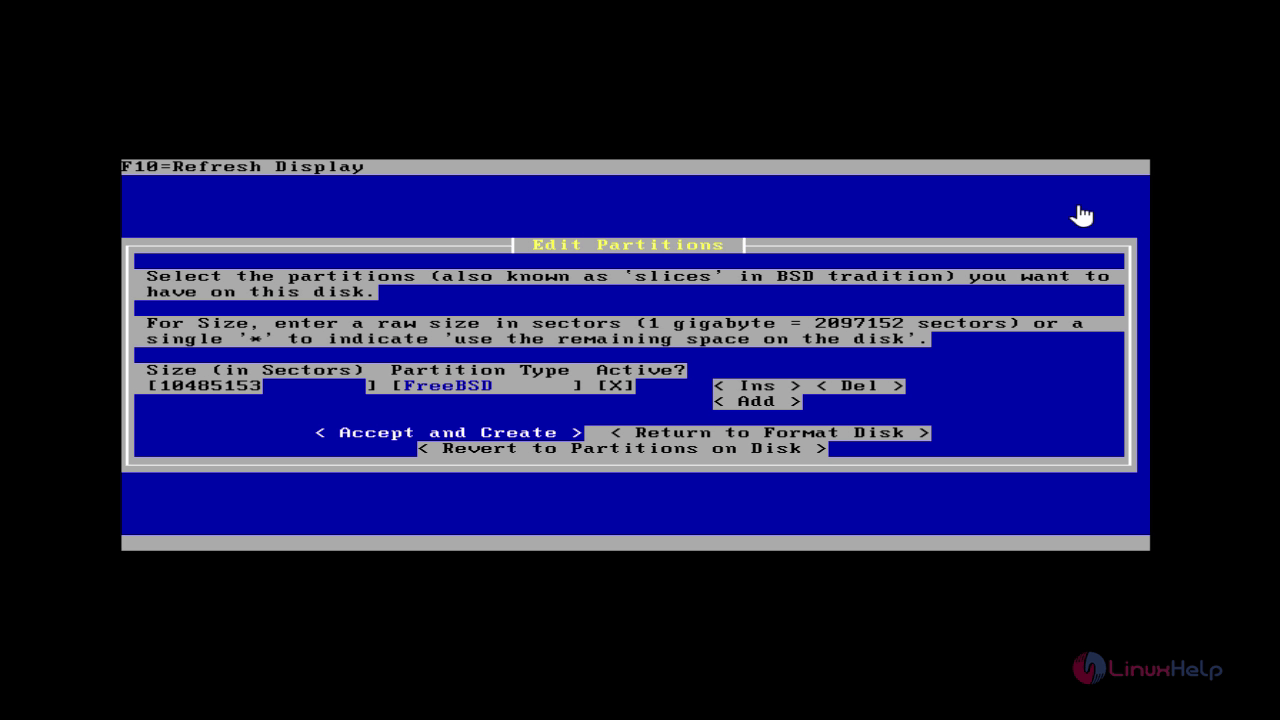
manage partioning
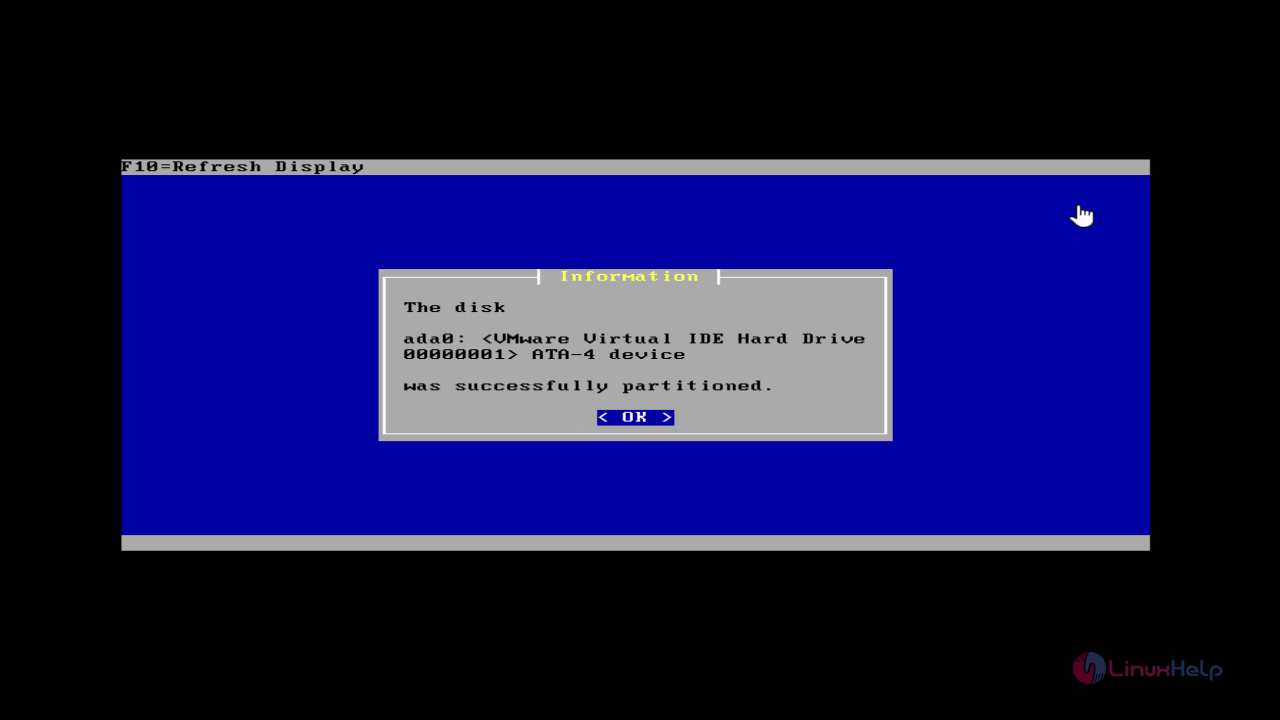
partioning process

partitioning process

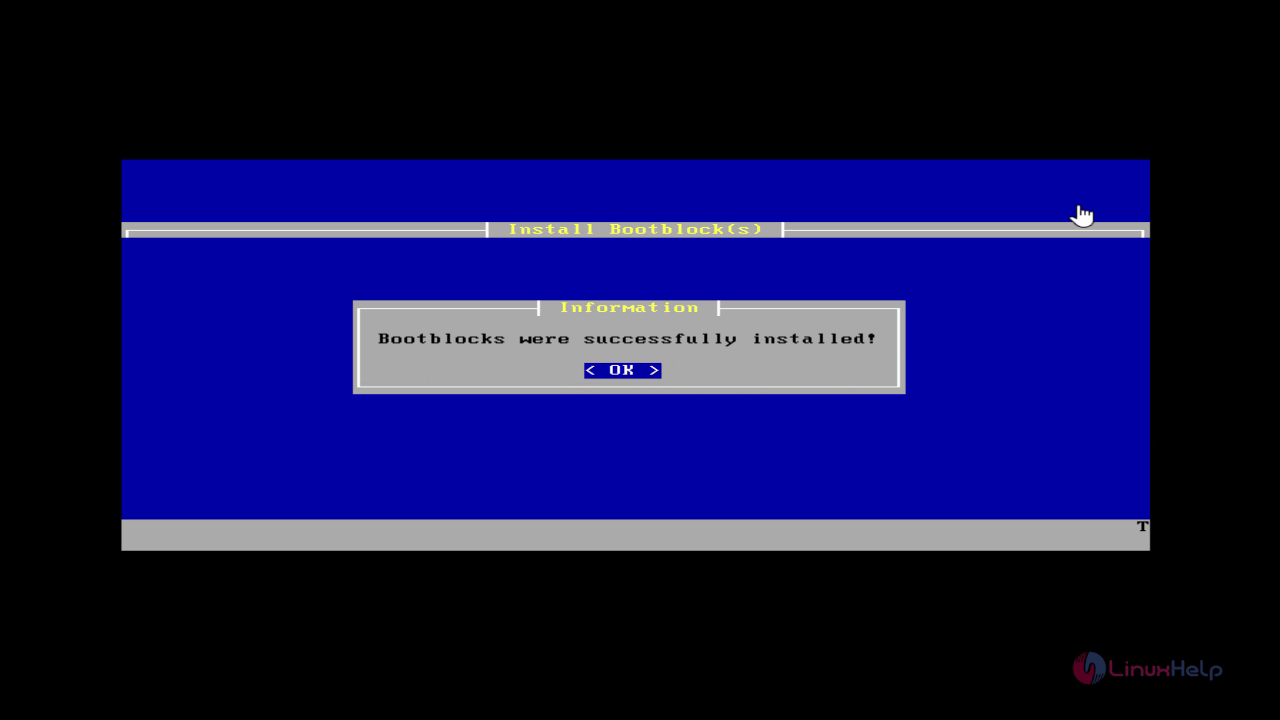
Next select " Accept and install Bootblocks" option to install the boot loader.
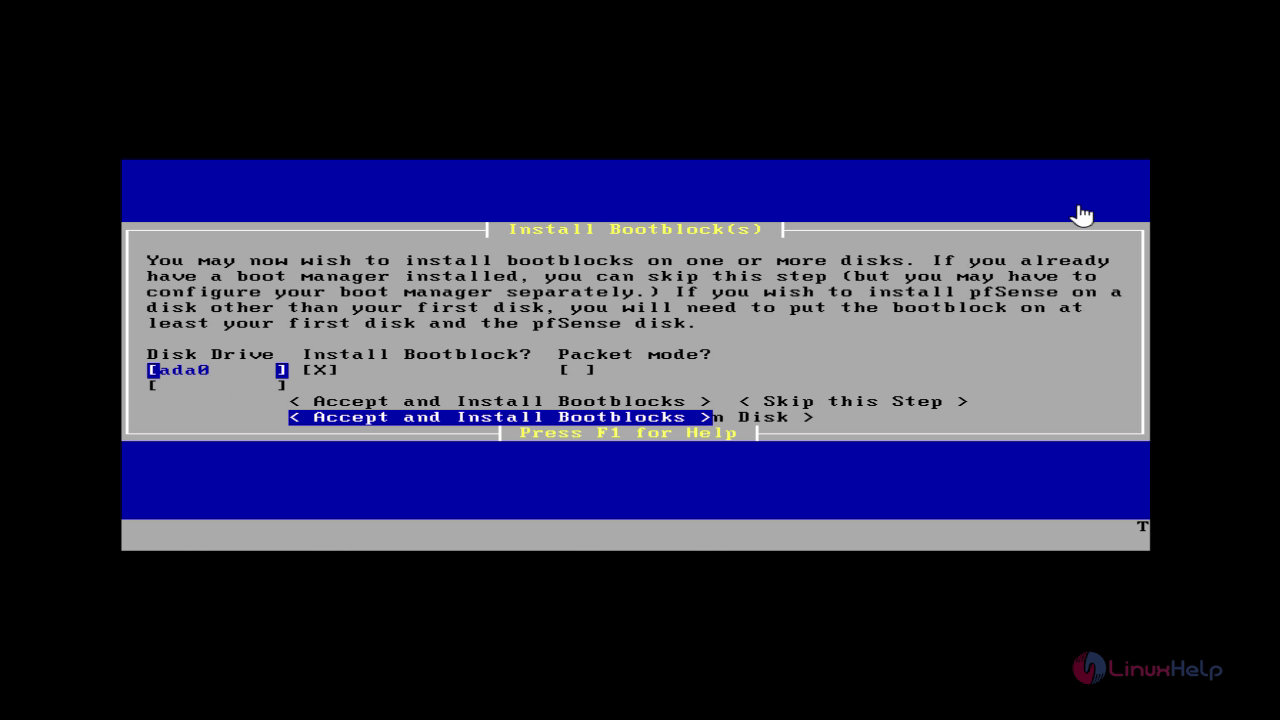
boot loader installation
installation completed

Select the partitioned hard disk and click Enter.
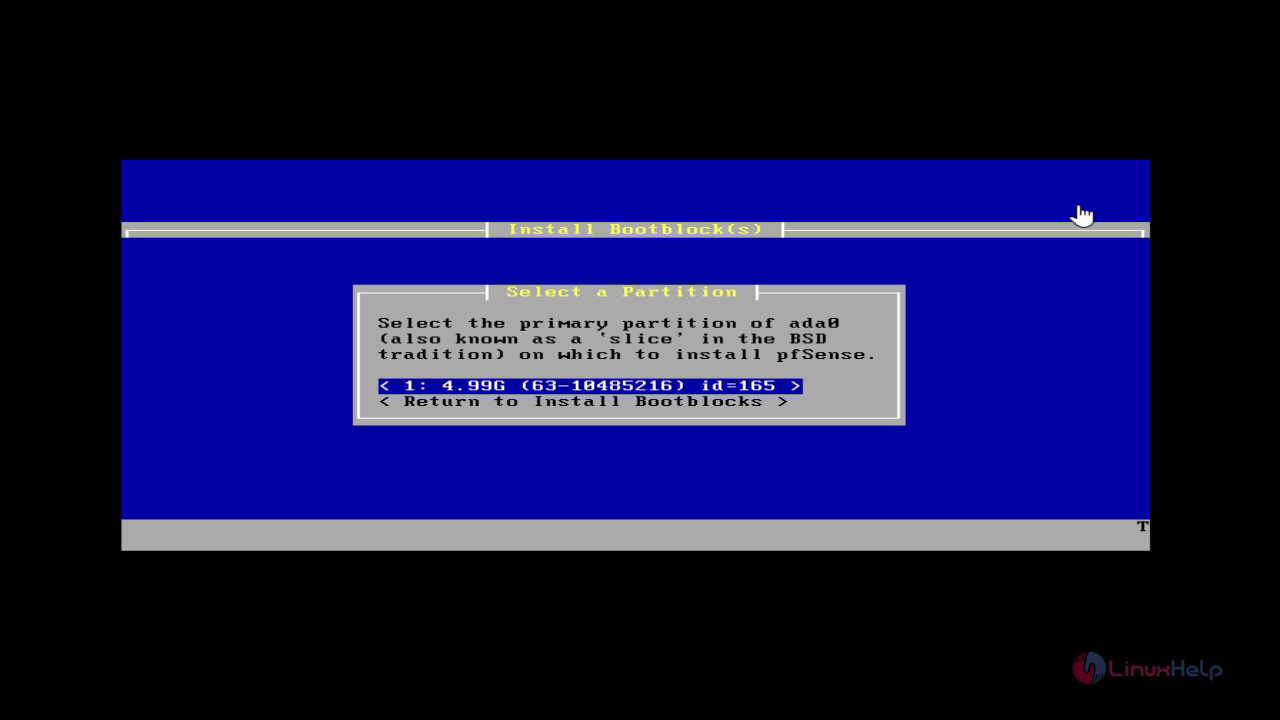
partitioned hard disk

A warning message will be displayed, Hit on" Ok" to continue.
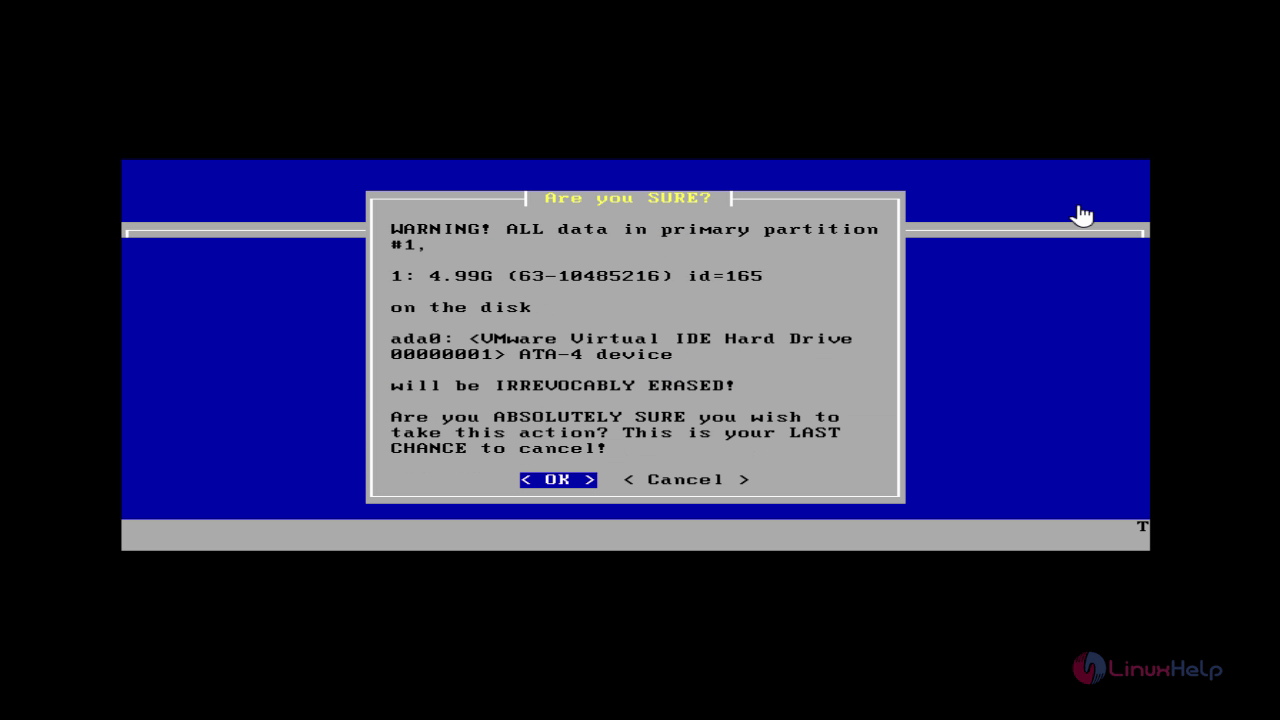
warning message
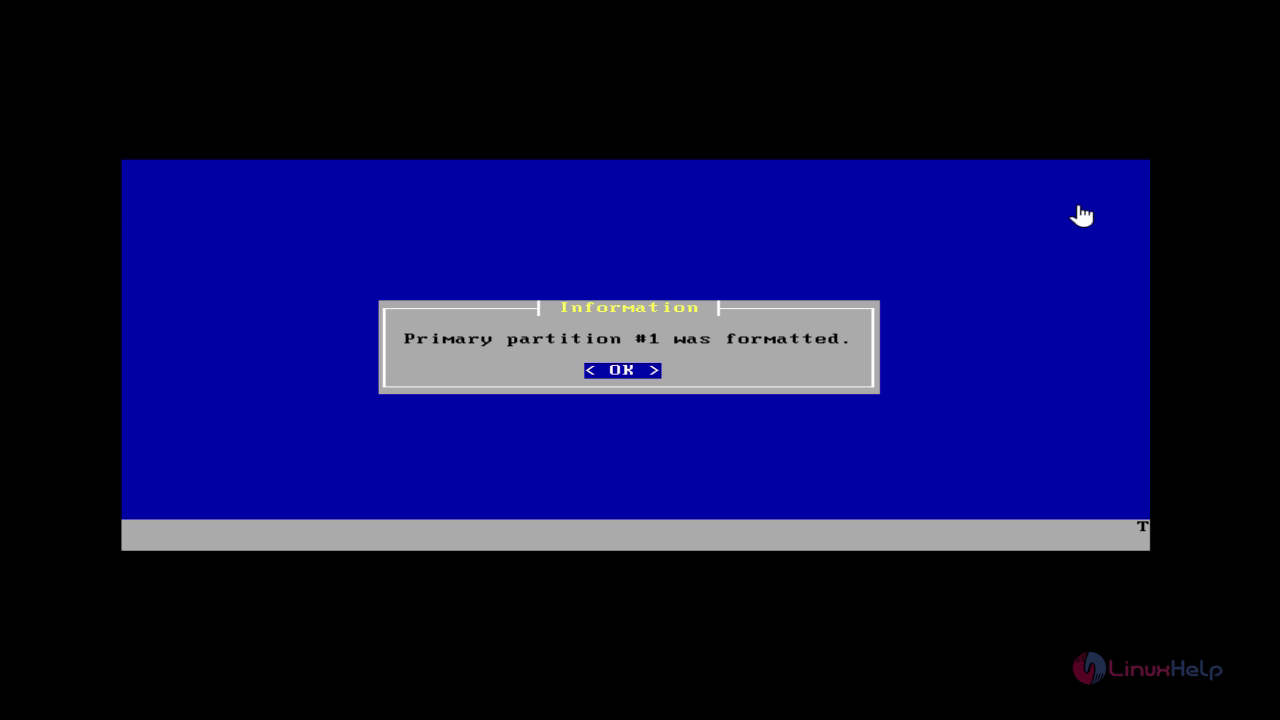
formatting primary partition
Create subpartition, select " Accept and Create" to create swap memory.
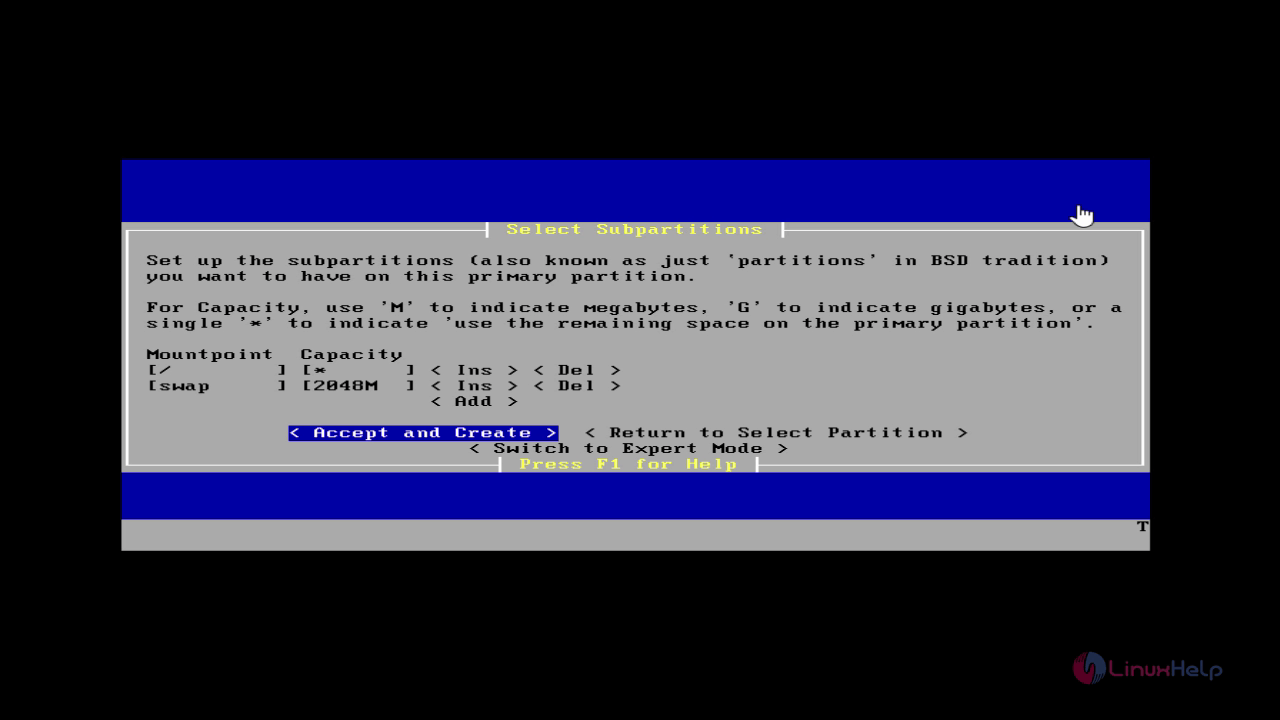
creating subpartition

Now the installation process begins.

installation started

Select the option as non-vga or symetmetric multiprocessing kernel.
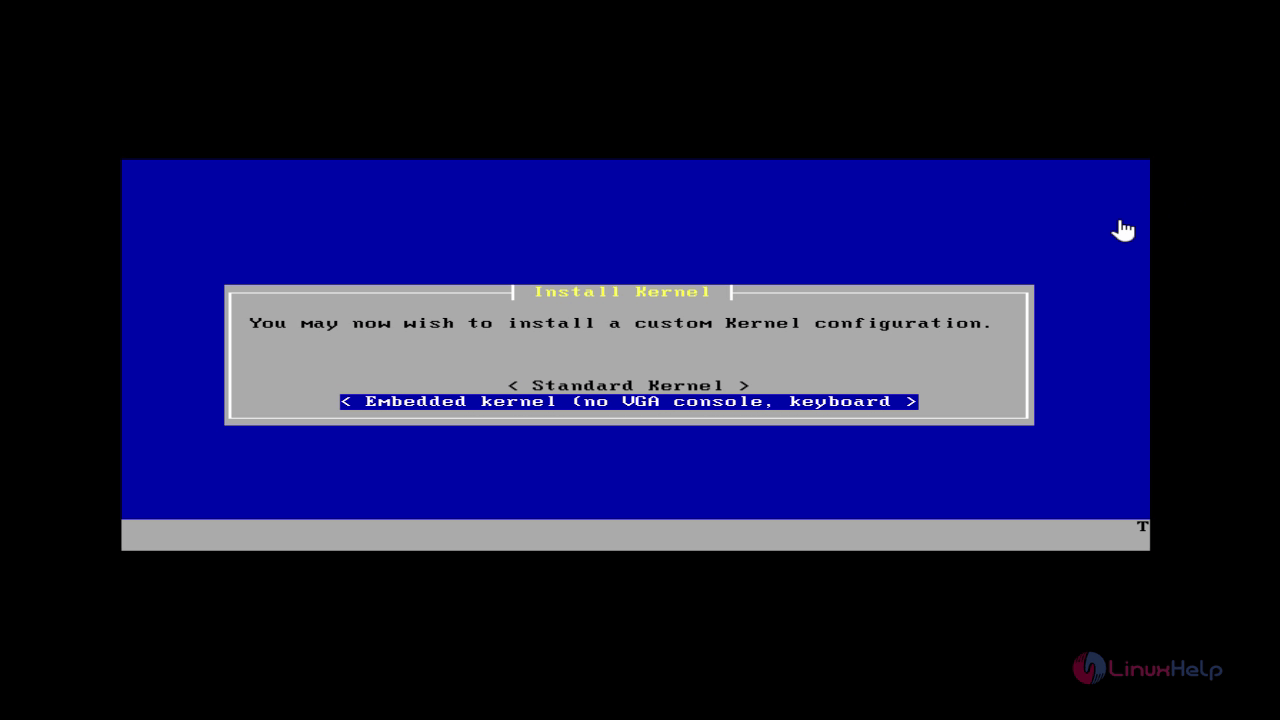
symetmetric multiprocessing kernel

After the installation is completed, reboot the system.
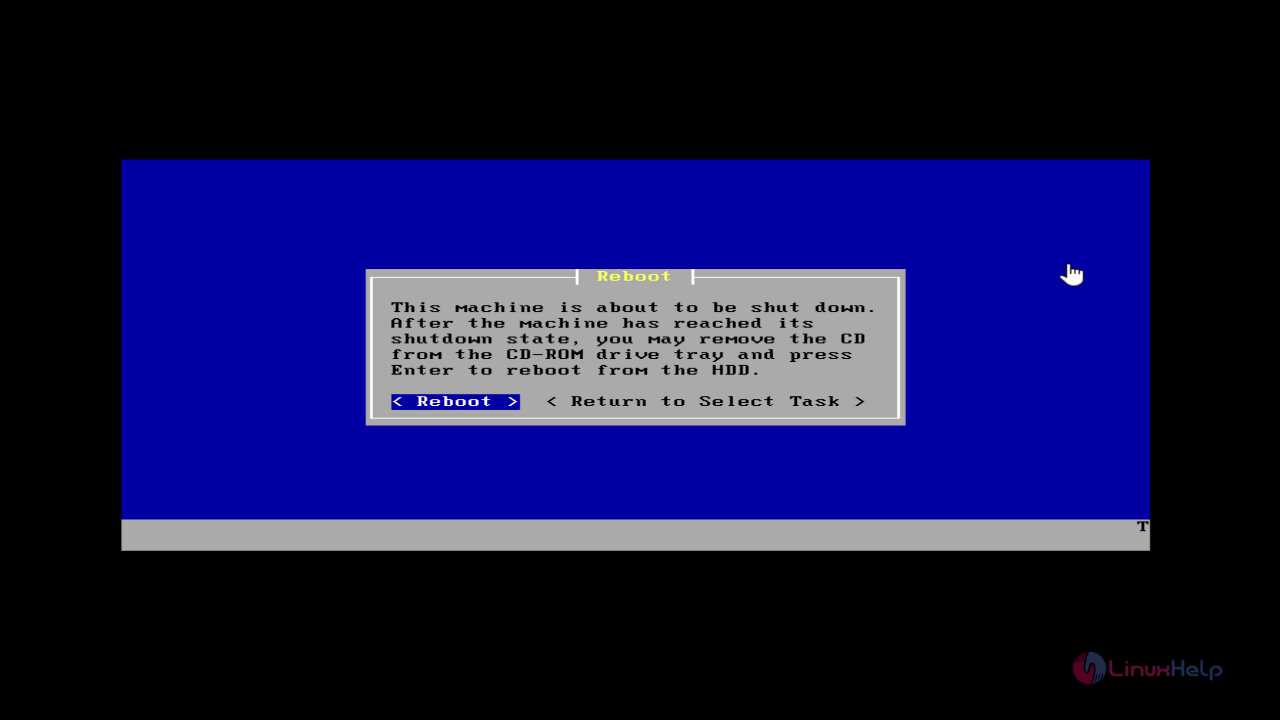
Rebooting

To configure the network

Select " No" to setup VLAN later.
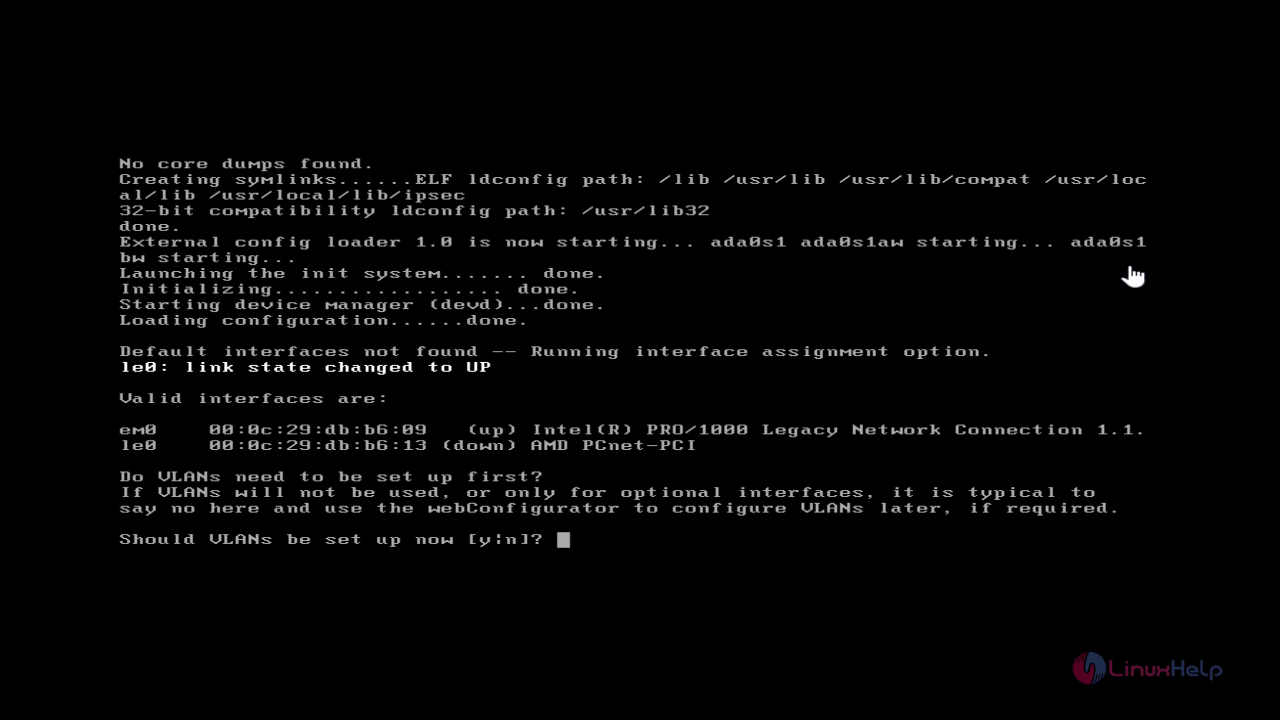
VLAN setup

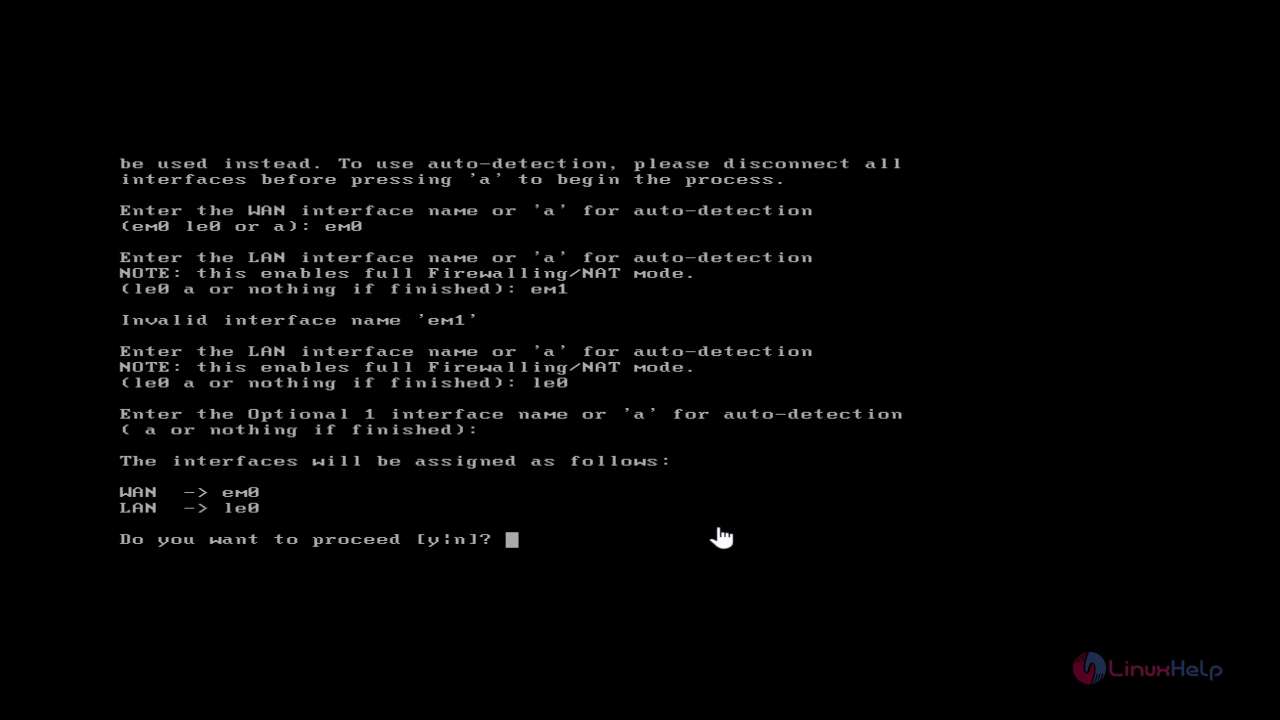
There are two interface' s em0 and le0. Here, we have assigned em0 as LAN for internal interface and le0 as WAN for external interface with firewall enabled.
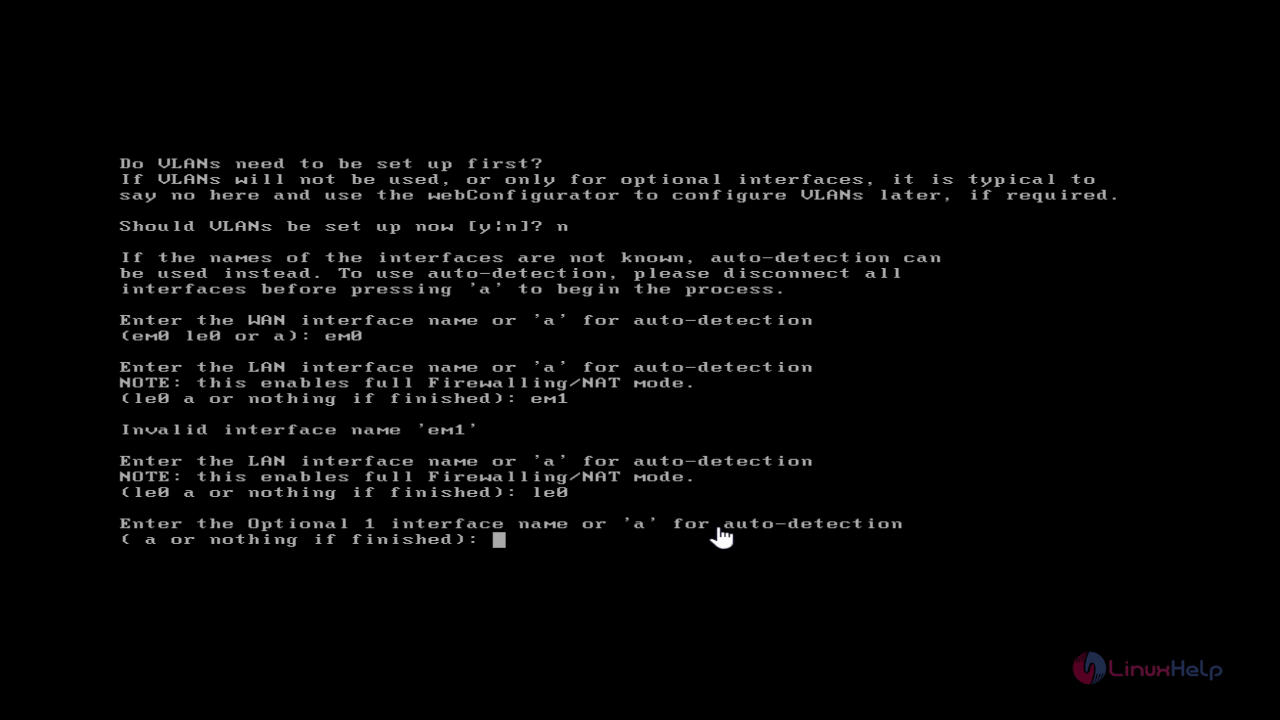
Enabling firewall

Type Y and click enter to continue.

Type Y

The pfsense menu appears as shown below.
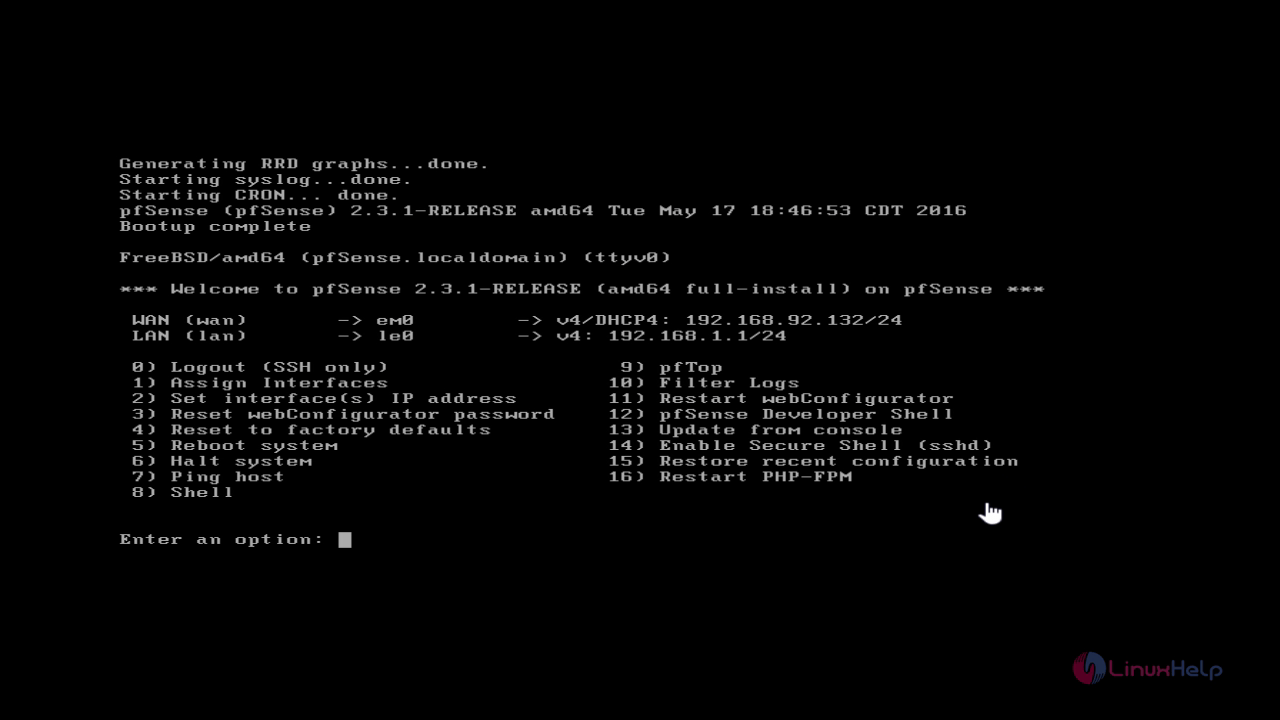
pfsense

Enter 2 to set interface ip address. Set LAN IP as 192.168.7.133(default IP), Subnet mask.
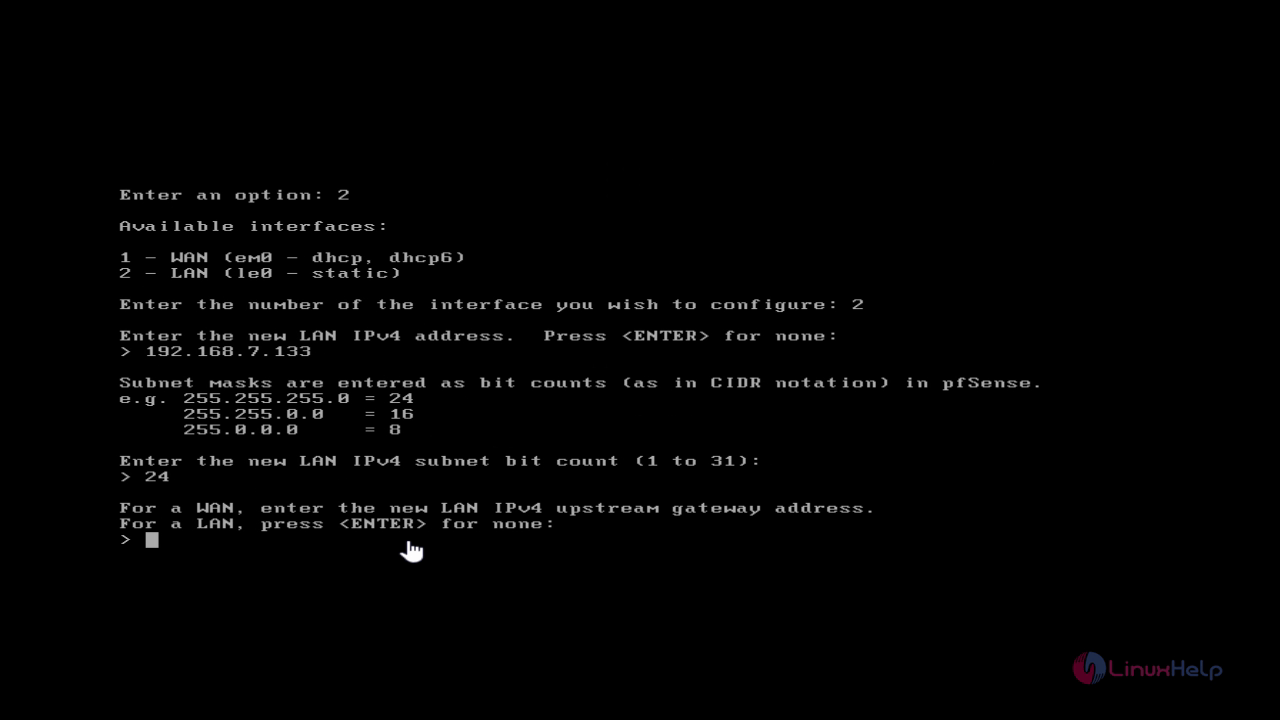
LAN IP setup

Disable DHCP and forward by selecting N. Finally press enter to continue.
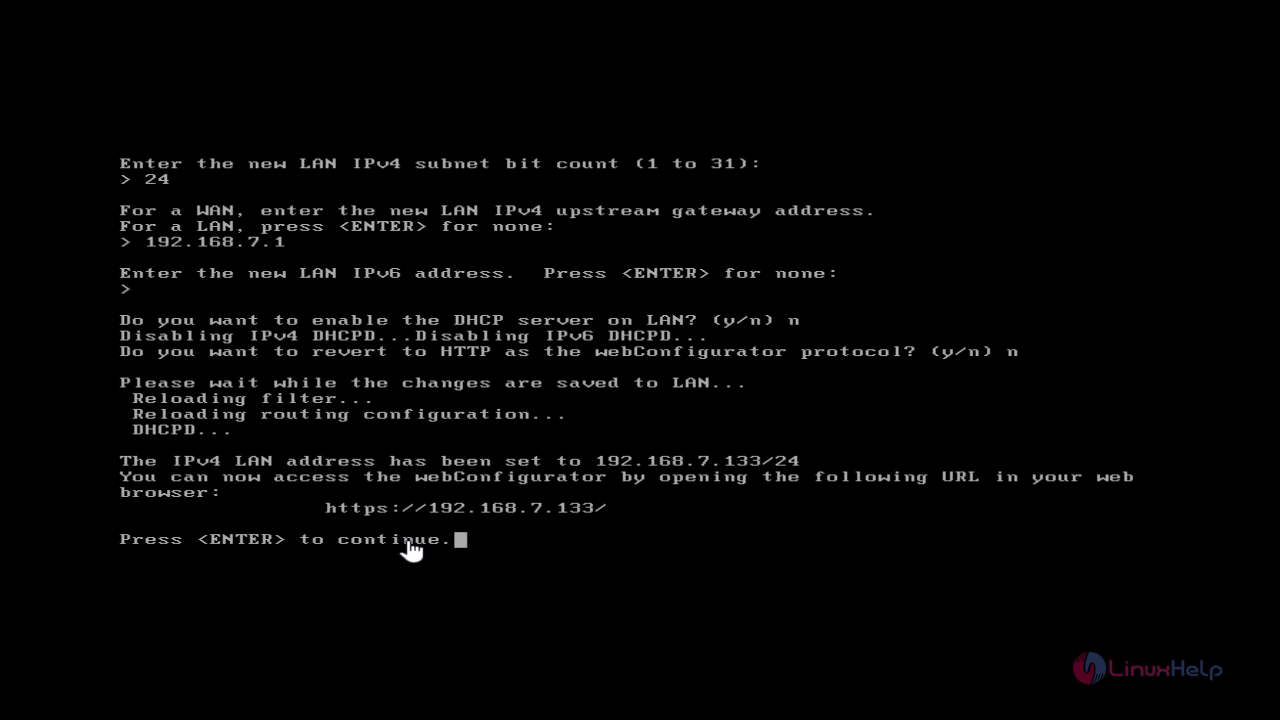
Disable DHCP

It redirects to the main configuration page.
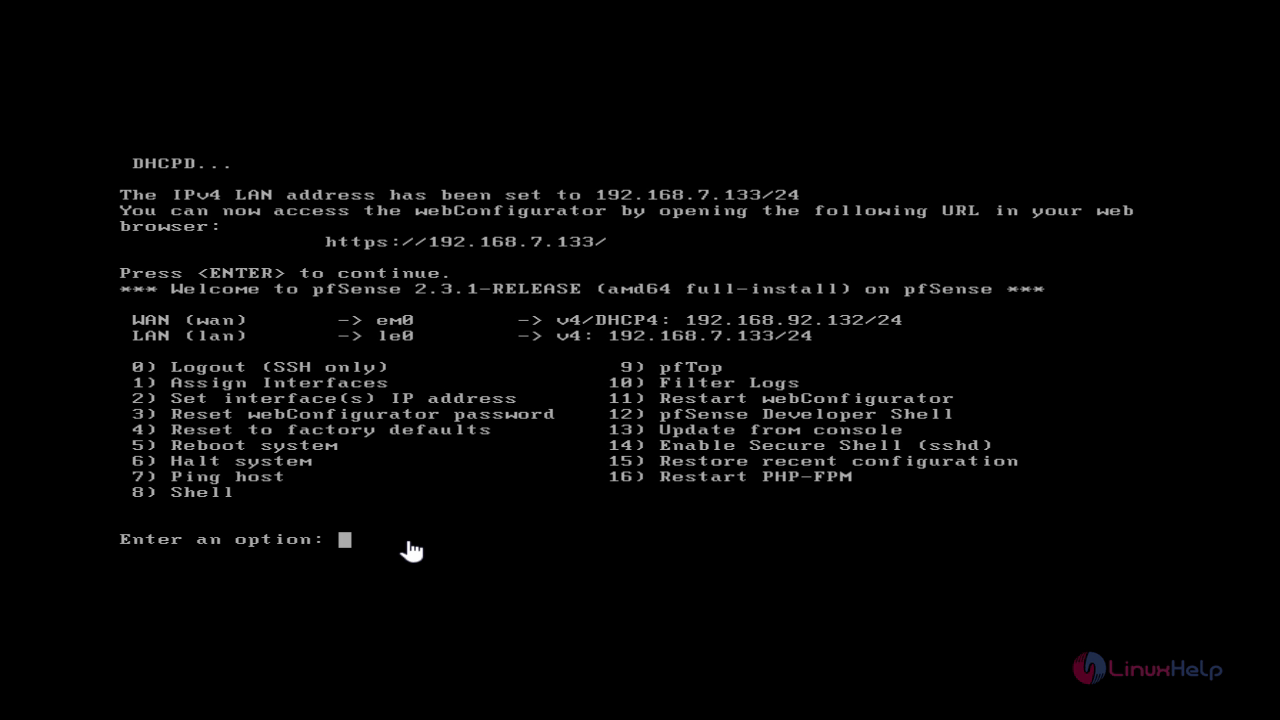
Main configuration page

Navigate to the browser, type https://< IP_address> and enter the username and password as " admin" and " pfsense" respectively.
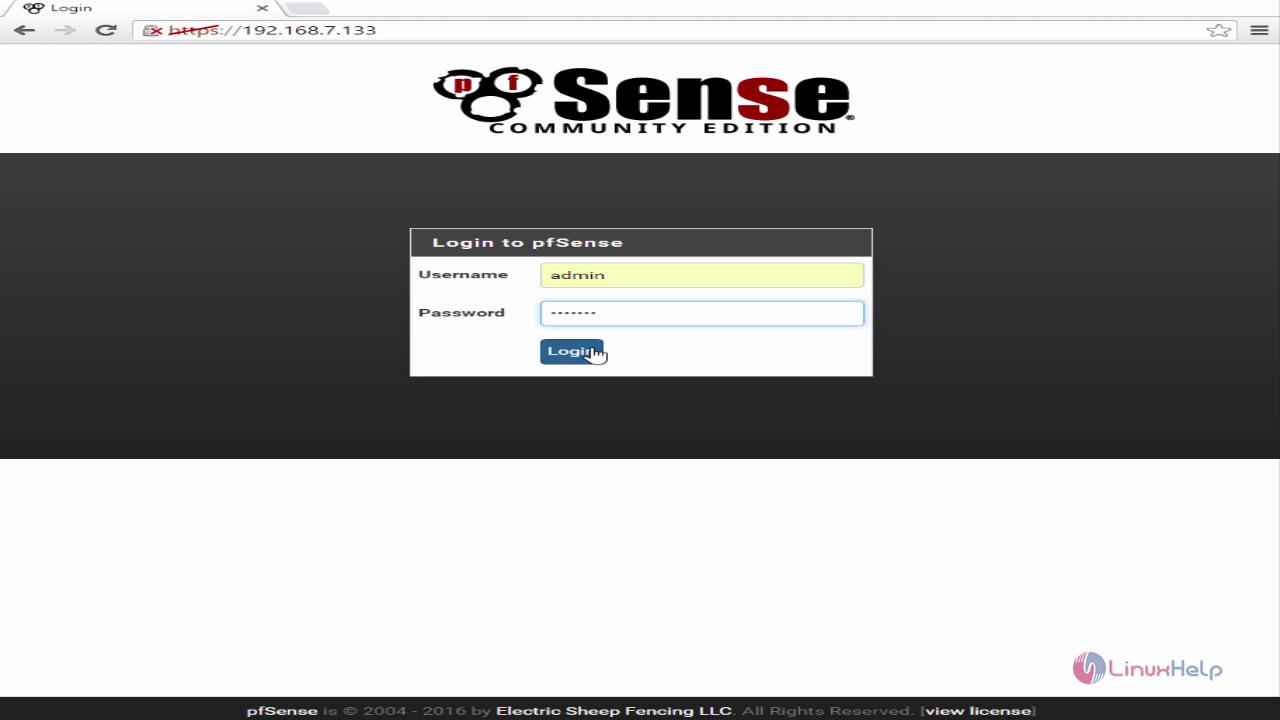
pfsense login page

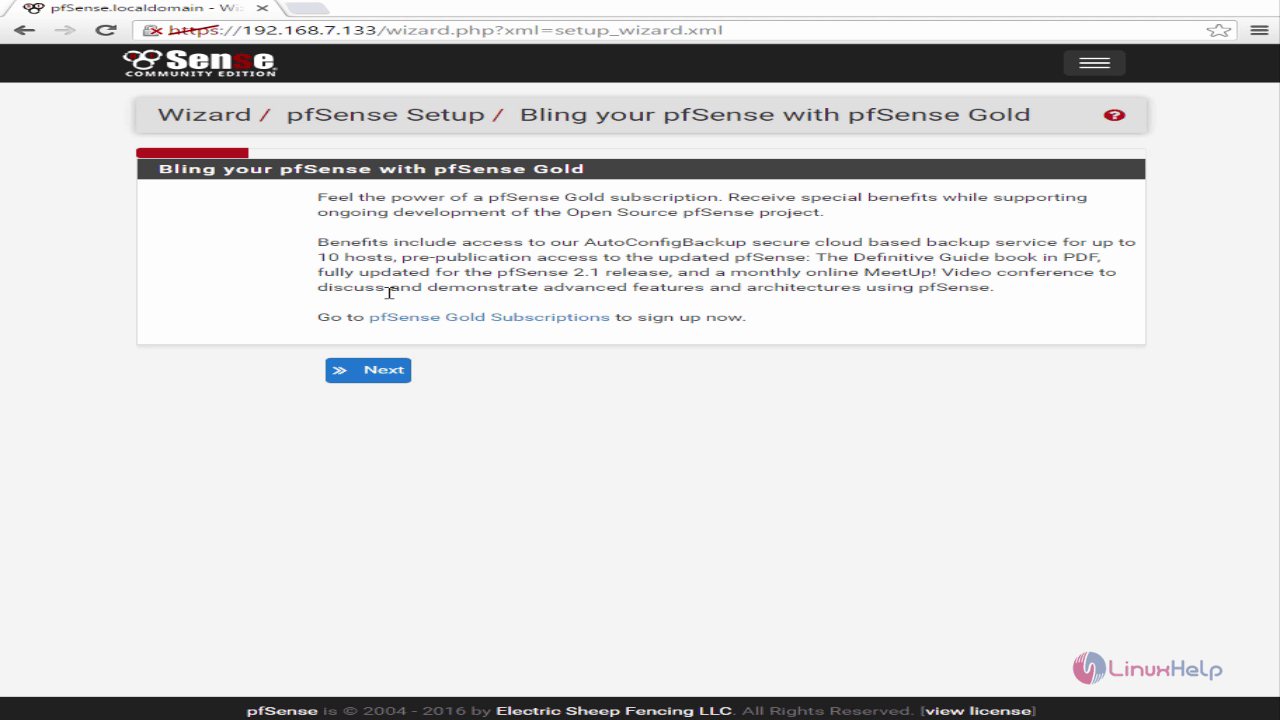
A setup wizard window appears, click Next to continue.
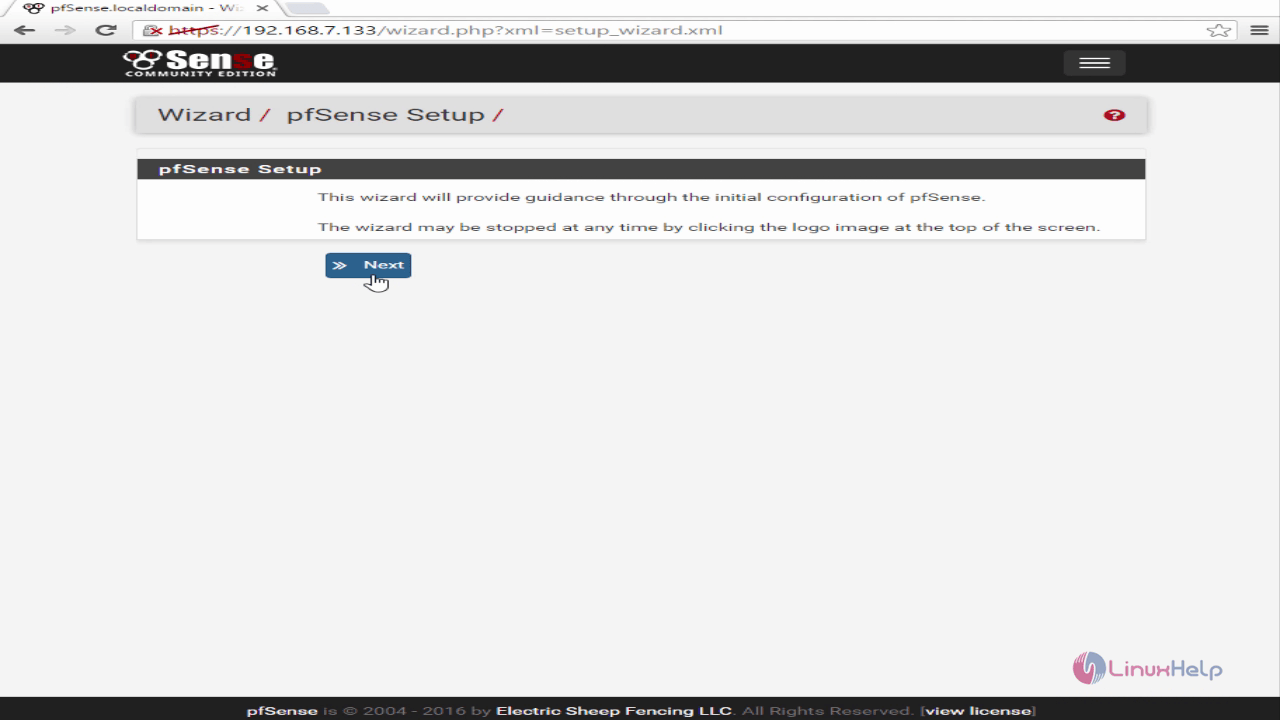
Setup wizard

pfsense setup

Enter the hostname , domain, Primary DNS server, secondary DNS and then hit Next.
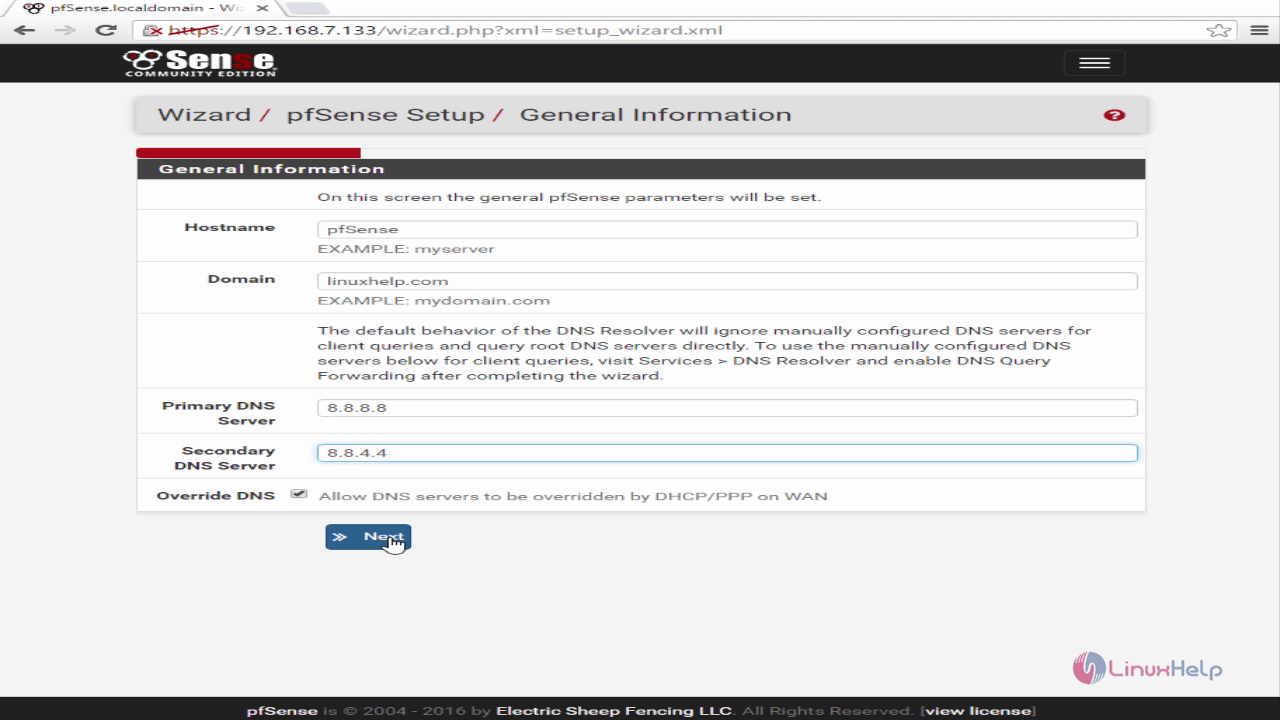
General information

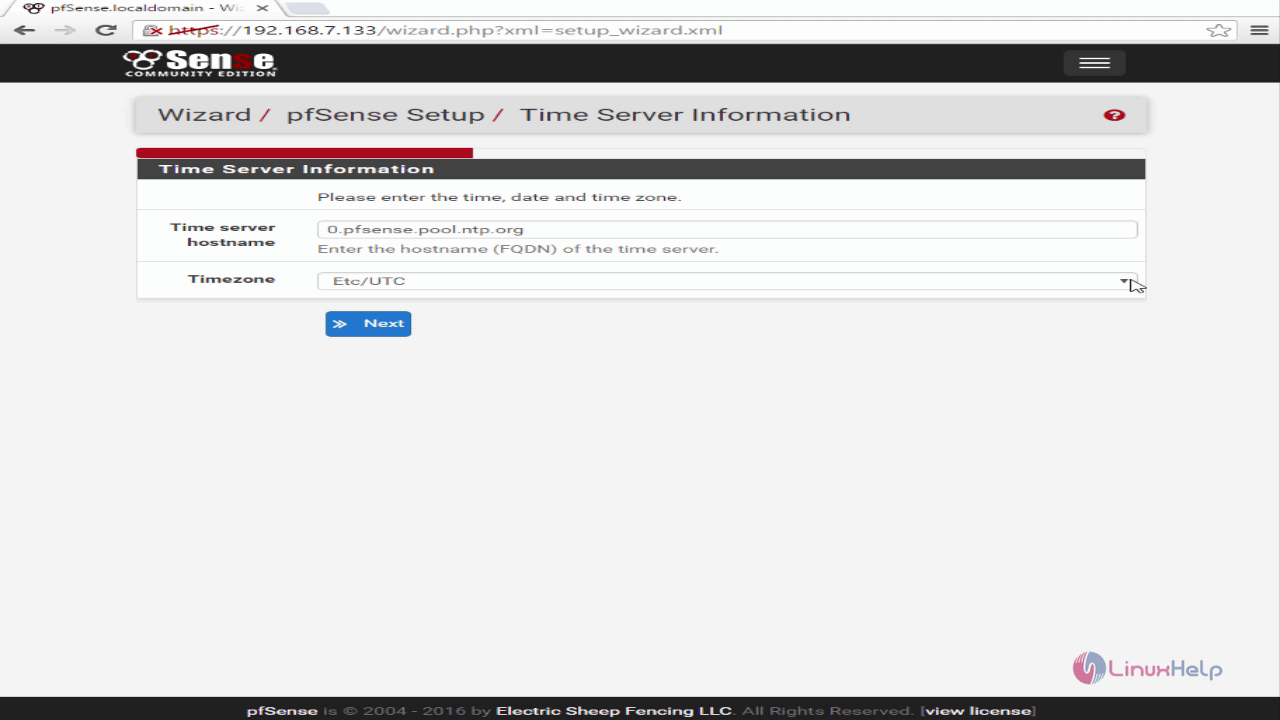
Set the timezone and hit Next.

timezone setup

Configure WAN interface, choose " DHCP" or “ static” and hit " Next" to move forward.
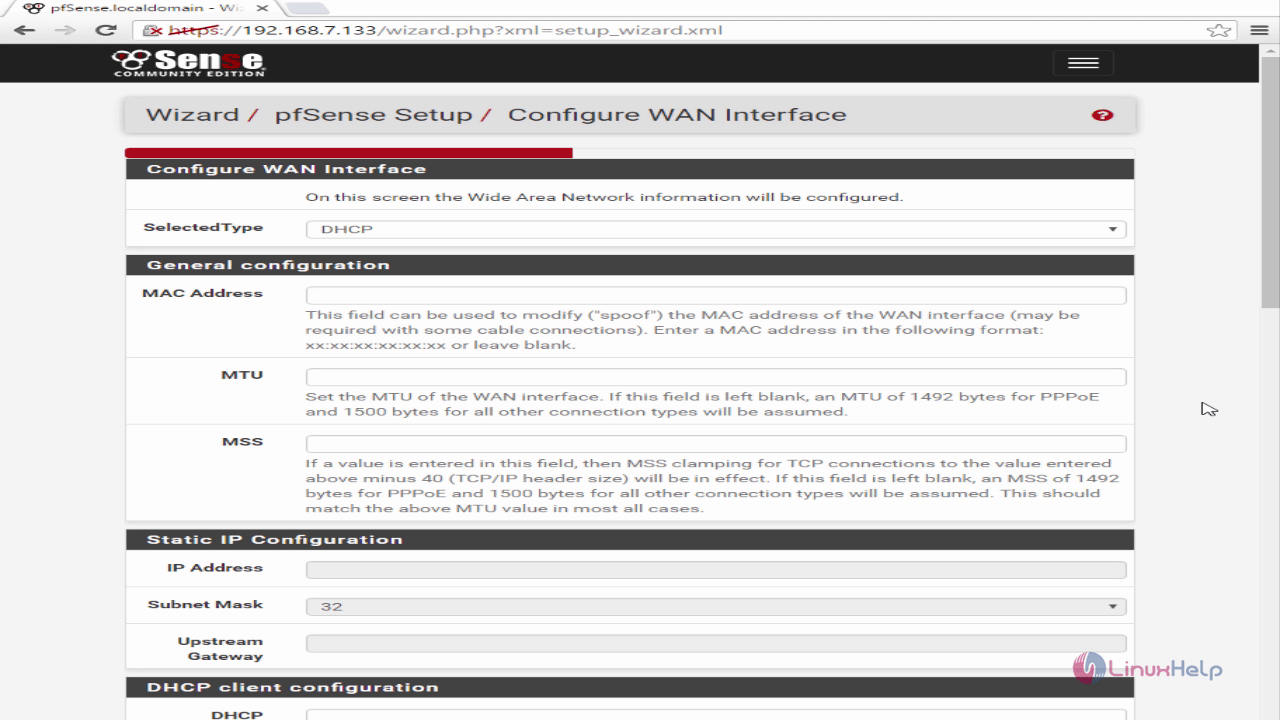
WAN interface configuration

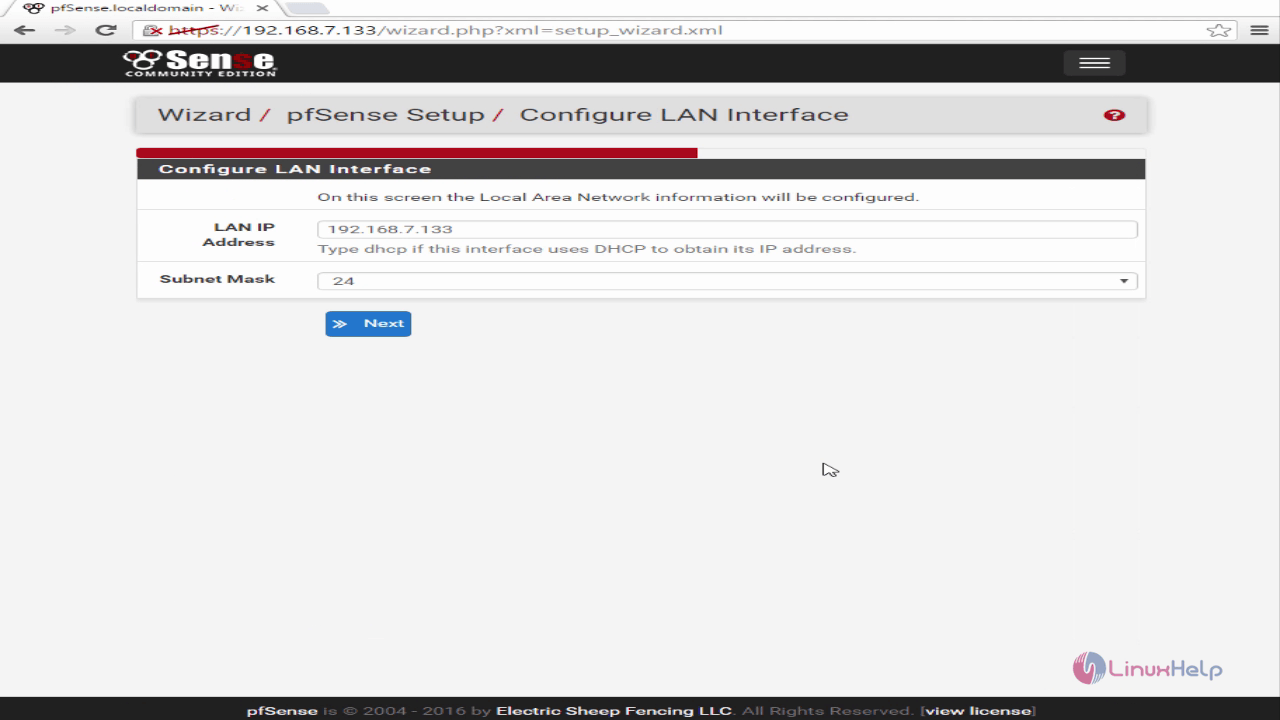
Configure LAN and click " Next" .

LAN configuration

Set the Admin password, to access the SSH and Web GUI.
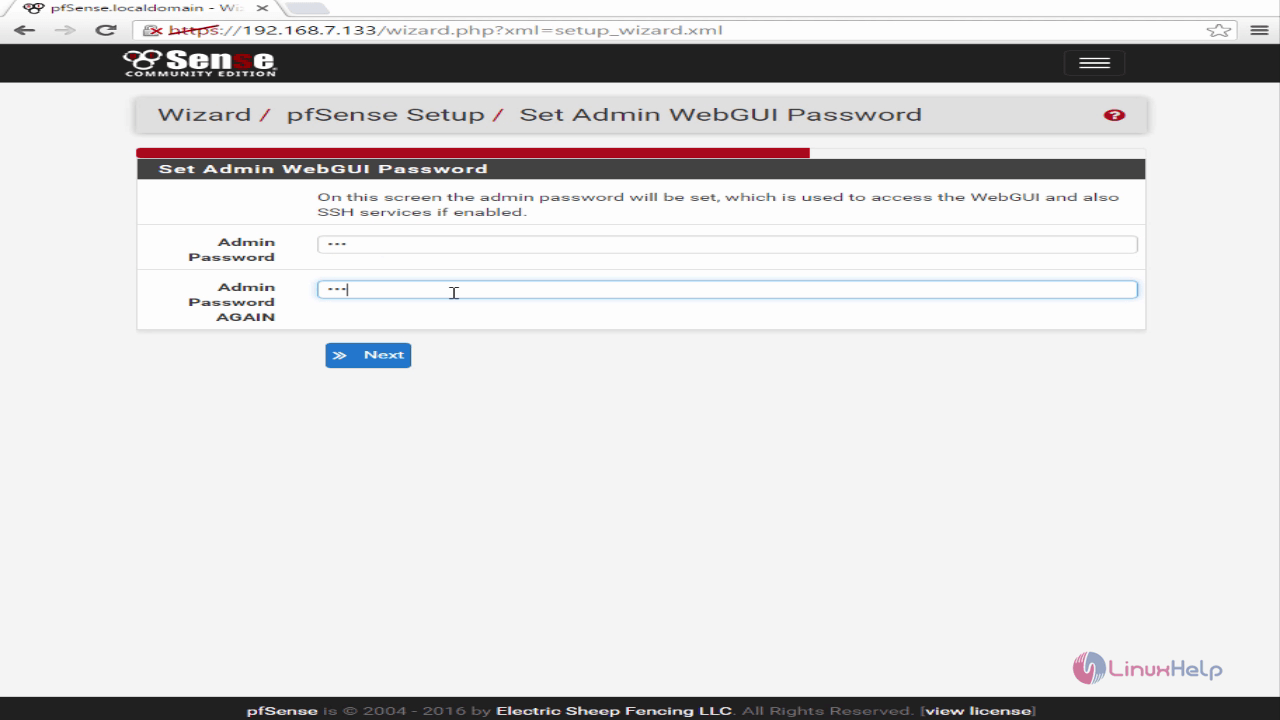
Credential setup

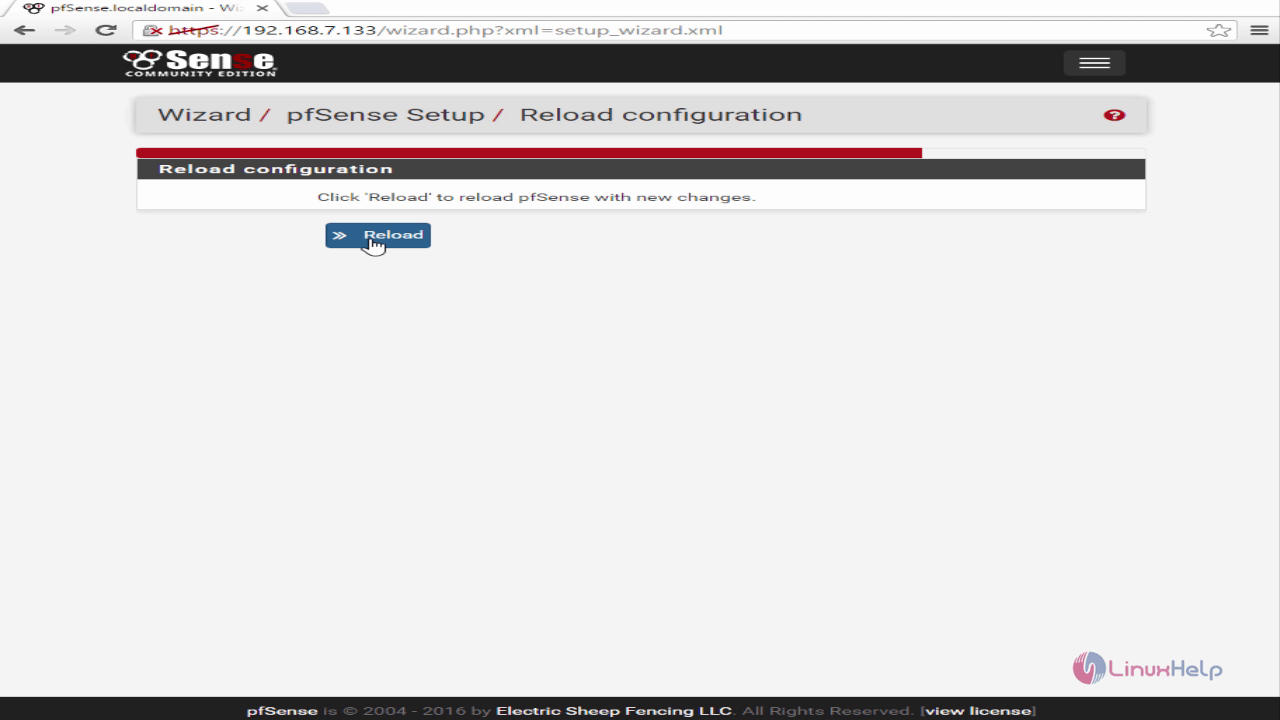
Now click Reload to make changes.

Reloading

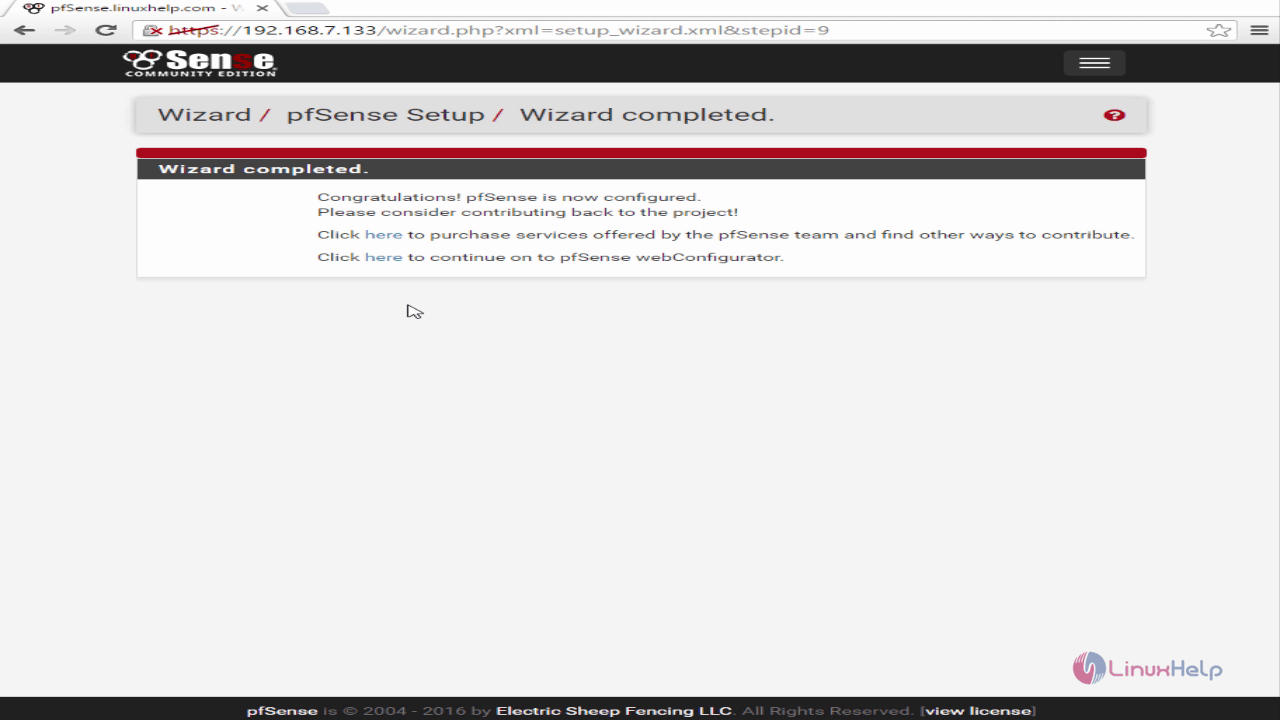
Click the pfSense webconfigurator
Webconfigurator

The pfsense webconfigurator GUI Dashboard appears as shown below.
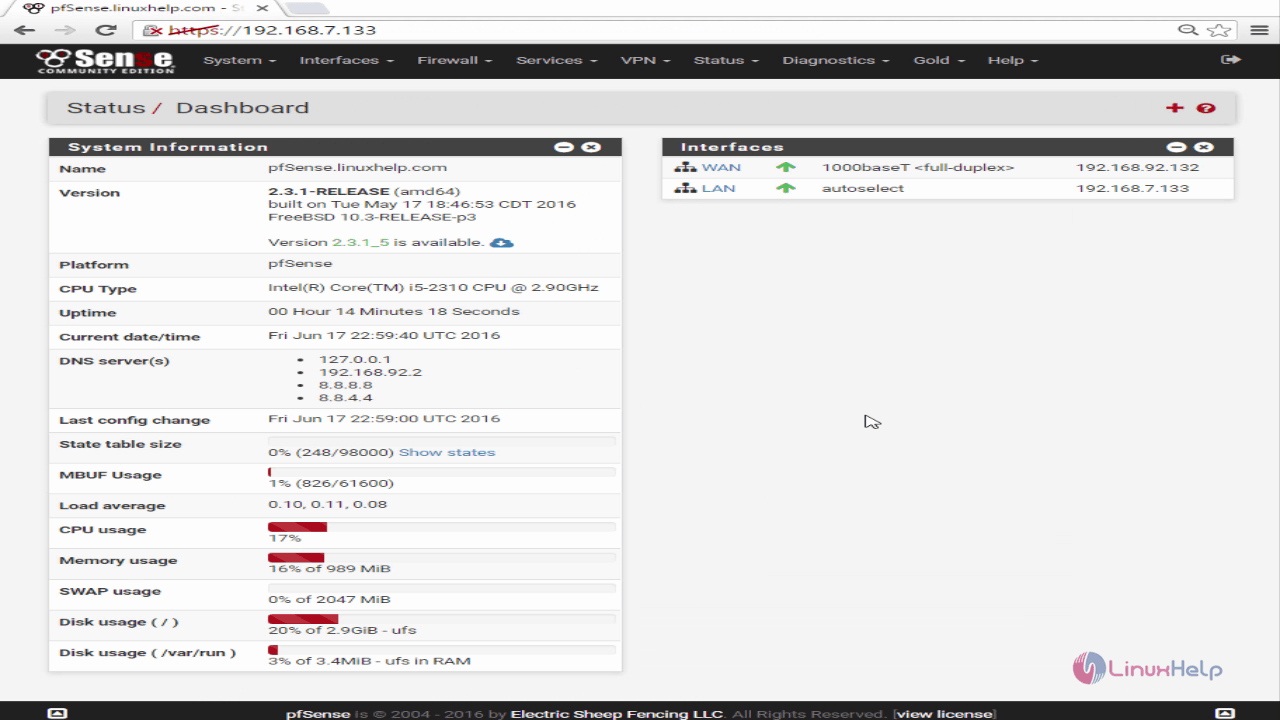
Dashboard

Tags:
dylan
Author: 

Comments ( 0 )

No comments available

Add a comment
{{postCtrl.cmtErrMsg}}

Frequently asked questions ( 5 )

Q

Whether the "pfSense" available for a free trial on Amazon?

A

The "pfSense" is available for free trial on Amazon with 30 days time period.

Q

Can you give me the official download link to get the "pfSense" package?

A

For download, the "pfSense" package in officially, use that the below link as "https://www.pfsense.org/download/".

Q

What are the minimum hardware requirements for pfSense?

A

Here you can see the minimum requirement for "pfSense",
1. CPU 600 MHz or faster
2. RAM 512 MB or more
3. 4 GB or larger disk drive (SSD, HDD, etc)
4. One or more compatible network interface cards
5. Bootable USB drive or CD/DVD-ROM for initial installation

Q

What is the alternative tool available for the "pfSense"?

A

Here I have to mention some of the alternatives for the "pfSense",
1. DD-WRT
2. OpenWrt
3. OPNsense
4. IPFire

Q

What's the difference between "BSDRP" and "OPNsense" or "pfSense"?

A

The main goal of BSDRP is not firewalling but routing. If you are looking for a firewall, or for sharing your Internet access, don't use BSDRP but use pfSense, OPNsense, SmallWall or t1n1wall, instead.
BSDRP doesn't have a Web GUI: It's to be configured from a CLI only (like Cisco/Juniper), or by an API (like netconf) [planned feature]
BSDRP is not intended for home use but for company use (small ISP as example)

Back To Top!
Rank
User
Points

Top Contributers

userNamenaveelansari
135850

Top Contributers

userNameayanbhatti
92510

Top Contributers

userNamehamzaahmed
32150

Top Contributers

1
userNamelinuxhelp
31040

Top Contributers

userNamemuhammadali
24500
Can you help Sebastian ?
How to change non required to required field in SuiteCRM Custom/Default Modules

How to change not required to the required field in SuiteCRM Custom/Default Modules?

Networking
  • Routing
  • trunk
  • Netmask
  • Packet Capture
  • domain
  • HTTP Proxy
Server Setup
  • NFS
  • KVM
  • Memory
  • Sendmail
  • WebDAV
  • LXC
Shell Commands
  • Cloud commander
  • Command line archive tools
  • last command
  • Shell
  • terminal
  • Throttle
Desktop Application
  • Linux app
  • Pithos
  • Retrospect
  • Scribe
  • TortoiseHg
  • 4Images
Monitoring Tool
  • Monit
  • Apache Server Monitoring
  • EtherApe 
  • Arpwatch Tool
  • Auditd
  • Barman
Web Application
  • Nutch
  • Amazon VPC
  • FarmWarDeployer
  • Rukovoditel
  • Mirror site
  • Chef
Contact Us | Terms of Use| Privacy Policy| Disclaimer
© 2025 LinuxHelp.com All rights reserved. Linux™ is the registered trademark of Linus Torvalds. This site is not affiliated with linus torvalds in any way.