How to install and configure Pluck CMS on Rocky Linux 8.5
- 00:25 cat /etc/os-release
- 00:49 mysql -u root -p
- 01:05 create database pluckdb;
- 01:21 create user pluckuser@localhost identified by 'Linuxc#4';
- 01:55 grant all privileges on pluckdb.* to pluckuser@localhost;
- 02:35 flush privileges;
- 02:43 \q
- 02:56 wget https://github.com/pluck-cms/pluck/archive/master.zip
- 03:05 unzip master.zip
- 03:14 mv pluck-master/ /var/www/html
- 03:25 cd /var/www/html/
- 03:33 chown -R apache:apache pluck-master/
- 03:51 chmod -R 777 pluck-master/
- 04:05 vim /etc/httpd/conf.d/pluck.conf
- 06:32 systemctl restart httpd
To Install And Configure Pluck CMS On Rocky Linux 8.5
Introduction:
Pluck is a PHP-based open-source content management system that is used for creating web pages by people without advanced programming skills.
Installation Procedure:
Step 1: Check the installed version of OS by using the below command
[root@linuxhelp ~]# cat /etc/os-release
NAME="Rocky Linux"
VERSION="8.6 (Green Obsidian)"
ID="rocky"
ID_LIKE="rhel centos fedora"
VERSION_ID="8.6"
Step 2: Login to the MySQL by using the below command
mysql -u root -p
Step 3: Create the database by using the below command
mysql> create database pluckdb;
Query OK, 1 row affected (0.03 sec)
Step 4: Create the user by using the below command
mysql> create user pluckuser@localhost identified by 'Linuxc#4';
Query OK, 0 rows affected (0.01 sec)
Step 5: Give the grant privileges to the user for the database by using the below command
mysql> grant all privileges on pluckdb.* to pluckuser@localhost;
Query OK, 0 rows affected (0.01 sec)
Step 6: Flush the privileges by using the below command
mysql> flush privileges;
Query OK, 0 rows affected (0.01 sec)
Step 7: Quit the MySQL
mysql> \q
Bye
Step 8: Download the pluck CMS by using the below link
[root@linuxhelp mnt]# wget https://github.com/pluck-cms/pluck/archive/master.zip
--2022-06-27 06:13:15--  https://github.com/pluck-cms/pluck/archive/master.zip
Resolving github.com (github.com)... 13.234.210.38
Connecting to github.com (github.com)|13.234.210.38|:443... connected.
Step 9: Then unzip the downloaded file by using the below command
[root@linuxhelp mnt]# unzip master.zip
Archive:  master.zip
1d345ae8575835031fc09f237716b48521df06fa
   creating: pluck-master/
  inflating: pluck-master/README.md
  inflating: pluck-master/SECURITY.md
  inflating: pluck-master/admin.php
   creating: pluck-master/data/
Step 10: Now move to the following directory by using the below command
[root@linuxhelp mnt]# mv pluck-master/ /var/www/html
Step 11: Now change directory to html by using the below command
[root@linuxhelp mnt]# cd /var/www/html/
Step 12: Configure ownership and permission for directory by using the below command
[root@linuxhelp html]# chown -R apache:apache pluck-master/
[root@linuxhelp html]# chmod -R 777 pluck-master/
Step 13: Configure the virtual host for Pluck CMS by using the below command
[root@linuxhelp html]# vim /etc/httpd/conf.d/pluck.conf
<Virtualhost *:80>
Servername www.linuxhelp1.com
documentroot /var/www/html/pluck-master
<directory /var/www/html/pluck-master>
allowoverride all
allow from all
</directory>
</Virtualhost>
Step 14: put the host entry
127.0.0.1 www.linuxhelp1.com
Step 15: Once all configuration done, restart the Apache by using the below command
[root@linuxhelp html]# systemctl restart httpd
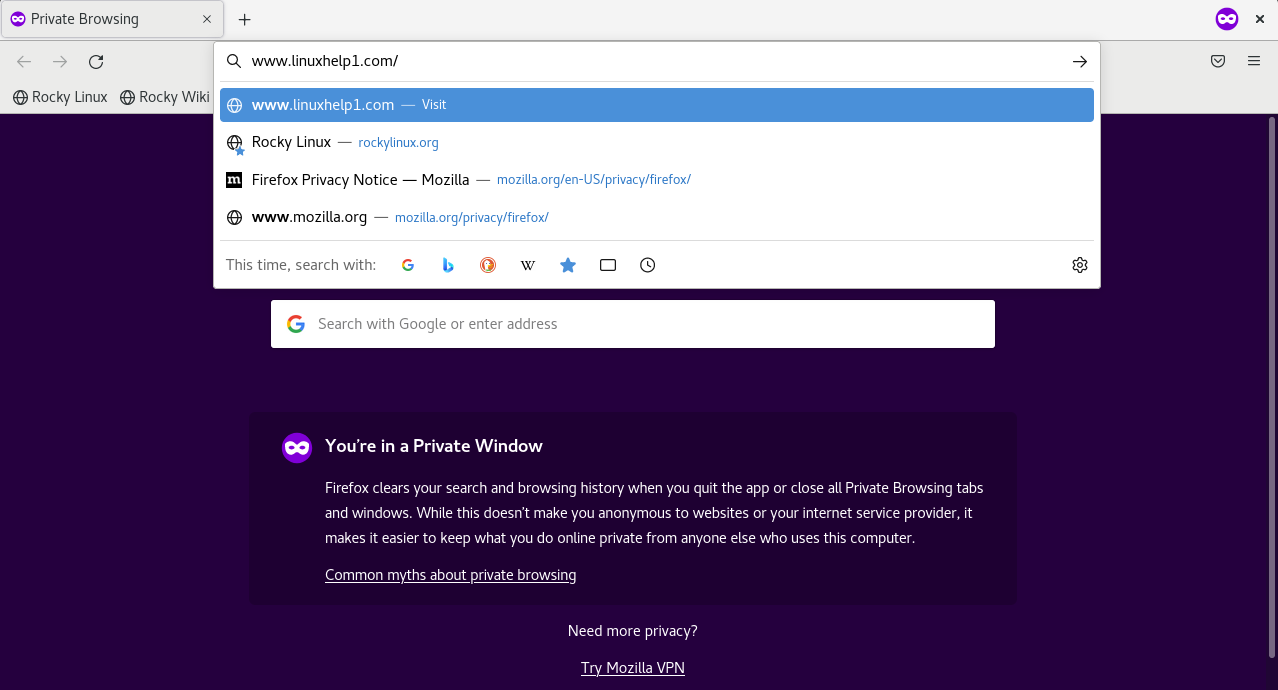
Step 16: Go to browser then provide your ip address as shown in the below image
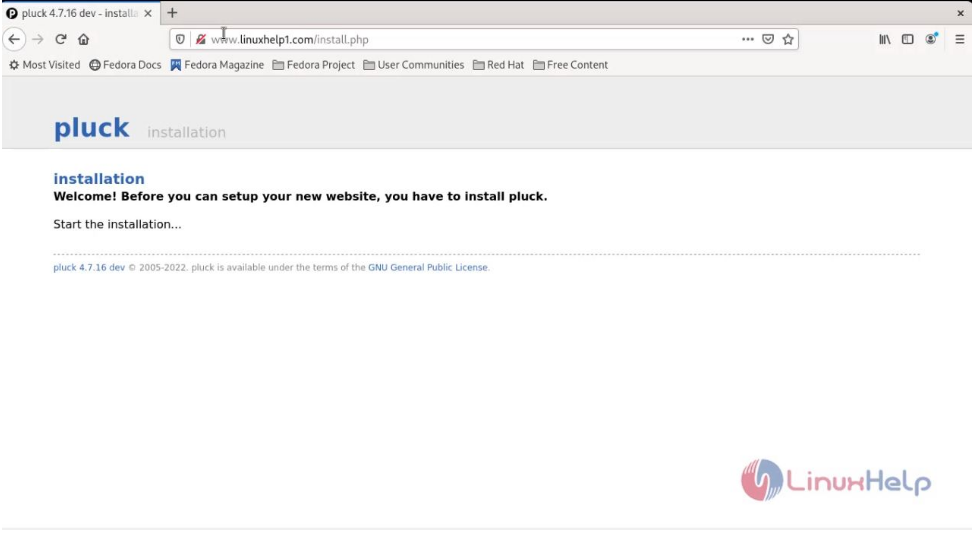
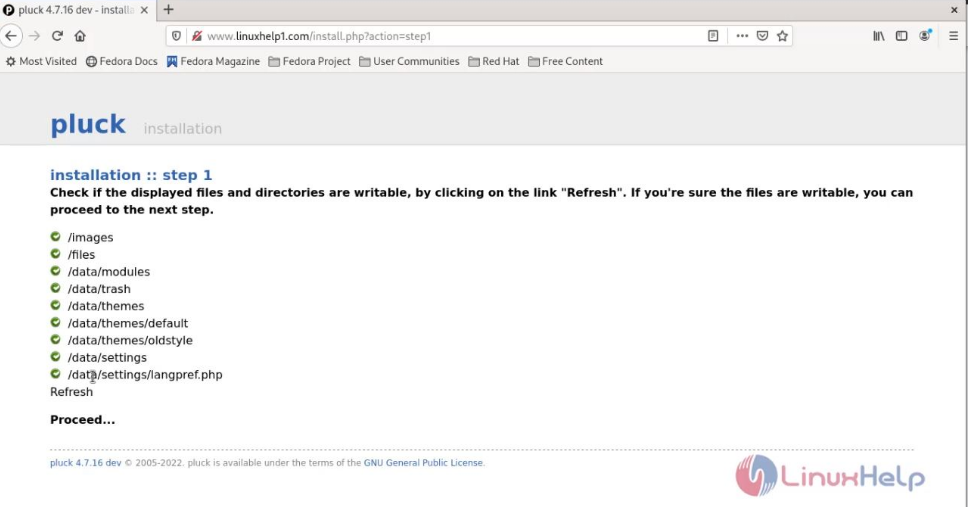
Step 17: Click on the option to start installation as shown in the below image
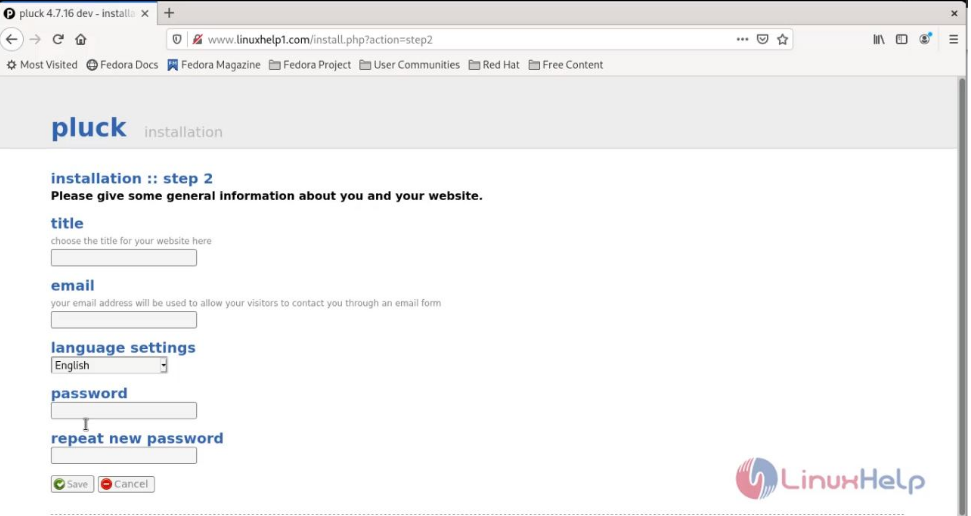
Step 18 Configure general information for your website then click on save as shown in the below image
Step 19: Create homepage content then click on save as shown in the below image
Step 20: Click here to visit login page as shown in the below image
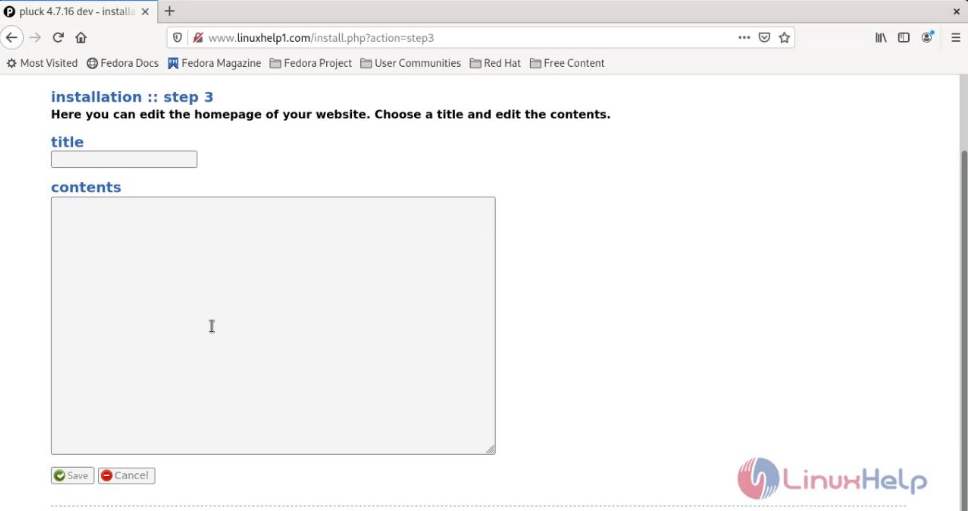
Step 21: Enter admin password as shown in the below image
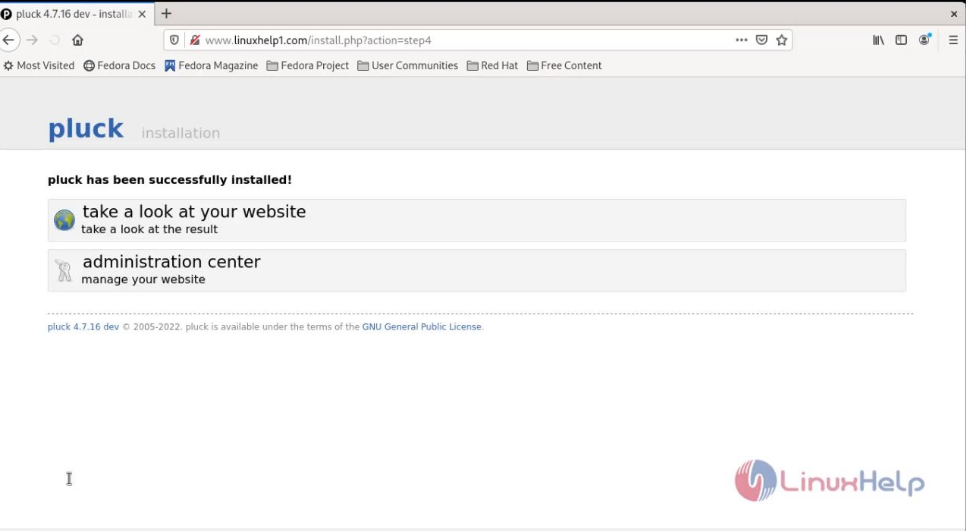
Conclusion:
We have reached the end of this article. In this guide, we have walked you through the steps required to install and configure Pluck CMS on Rocky Linux 8.5. Your feedback is much welcome.
Comments ( 0 )
No comments available