• Categories
    Category
    {{ postCtrl.tags }}
    • {{ category.tag_type }}

      • {{tag.tag_name}}
      • View more
  • Categories
    Category
    {{ postCtrl.tags }}
    • {{ category.tag_type }}

      • {{tag.tag_name}}
      • View more
  • News
  • Tutorials
  • Forums
  • Tags
  • Users
Tutorial News Comments FAQ Related Articles

How to install and highlight VI editor syntax with VIM

{{postValue.id}}

To install and highlight VI editor syntax with VIM

This article explains how to install and enable Syntax Highlighting in VI editor or Vim ( Vi IMproved )on RHEL / CentOS / Fedora.

To Install VIM

Syntax

yum -y install vim-enhanced

Output

[root@linuxhelp Desktop]# yum -y install vim-enhanced
Loaded plugins: fastestmirror, refresh-packagekit, security
Loading mirror speeds from cached hostfile
 * base: ftp.iitm.ac.in
 * extras: ftp.iitm.ac.in
 * updates: ftp.iitm.ac.in
Setting up Install Process
..
..
..
Dependency Installed:
  vim-filesystem.x86_64 2:7.4.629-5.el6                                         

Updated:
  vim-enhanced.x86_64 2:7.4.629-5.el6                                           

Dependency Updated:
  vim-common.x86_64 2:7.4.629-5.el6                                             

Complete!

To Enable Syntax Highlighting in VI

To Enable Syntax Highlighting in VI and VIM and to add alias function to VI by pointing to VIM, just mention as follows
alias vi=vim

Example

[root@linuxhelp Desktop]# vi /etc/profile
# /etc/profile
# System wide environment and startup programs, for login setup
# Functions and aliases go in /etc/bashrc
# It' s NOT a good idea to change this file unless you know what you
# are doing. It' s much better to create a custom.sh shell script in
# /etc/profile.d/ to make custom changes to your environment, as this
# will prevent the need for merging in future updates.
alias vi=vim

pathmunge () {


This given function will set the alias globally.

To set user specific aliases and functions

Example

[root@linuxhelp Desktop]# vi /home/user1/.bashrc
# .bashrc
# Source global definitions
if [ -f /etc/bashrc ]  then
        . /etc/bashrc
fi
# User specific aliases and functions
alias vi=vim

To reset the changes

Execute the following command to reset the changes

[root@linuxhelp Desktop]# source /etc/profile


OR

[root@linuxhelp Desktop]# source /home/user1/.bashrc

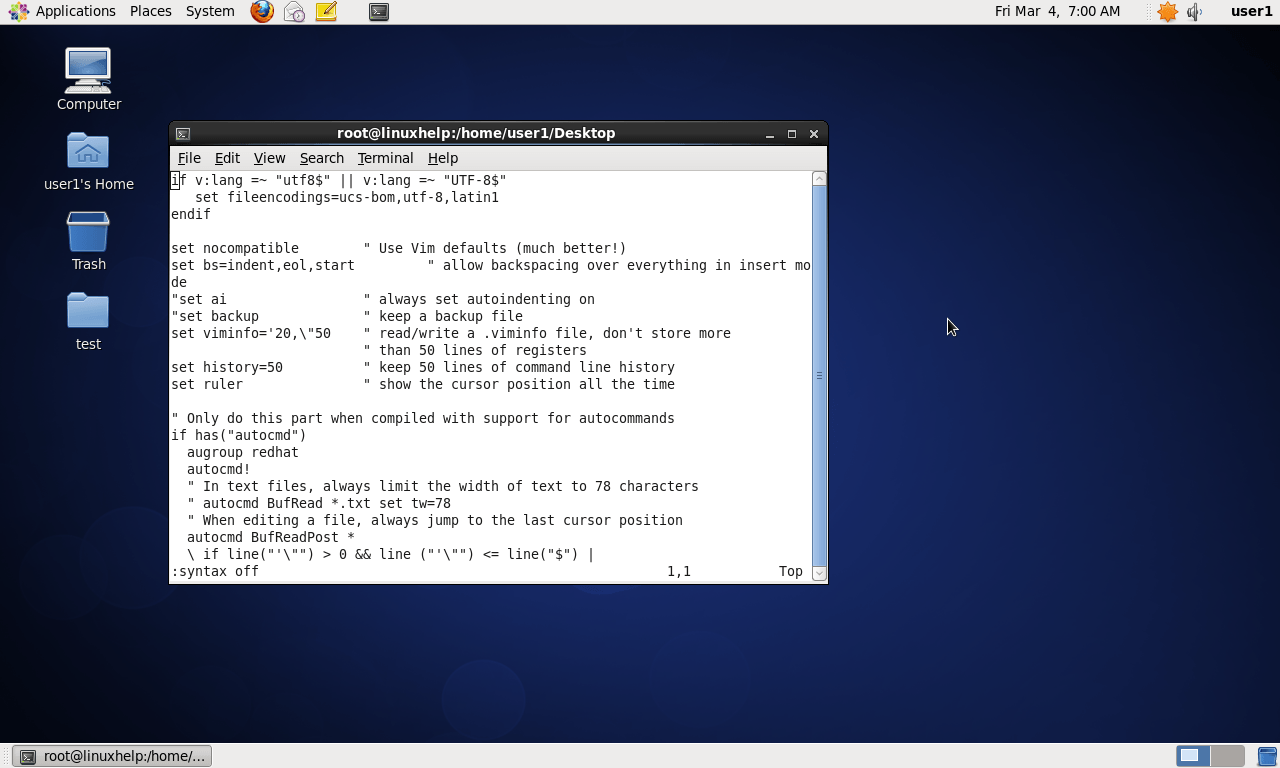
To Test Syntax Highlighting in VI
1

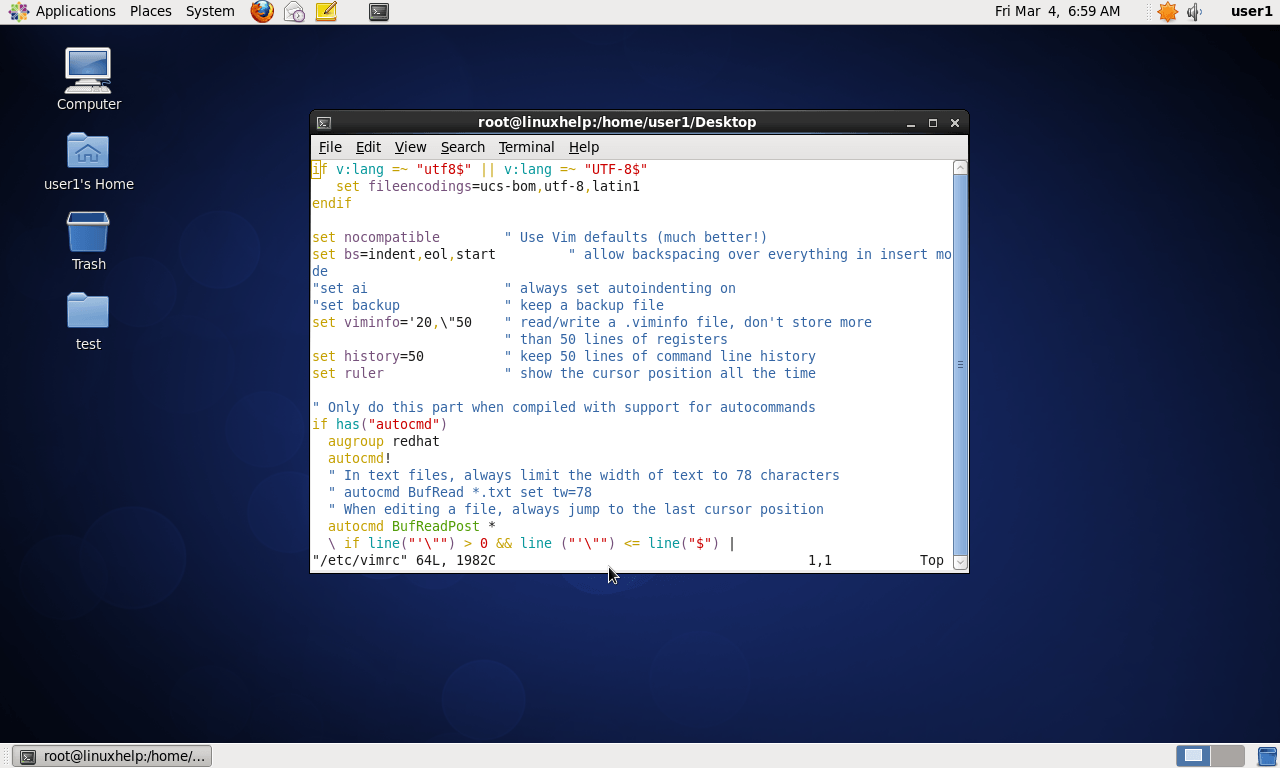
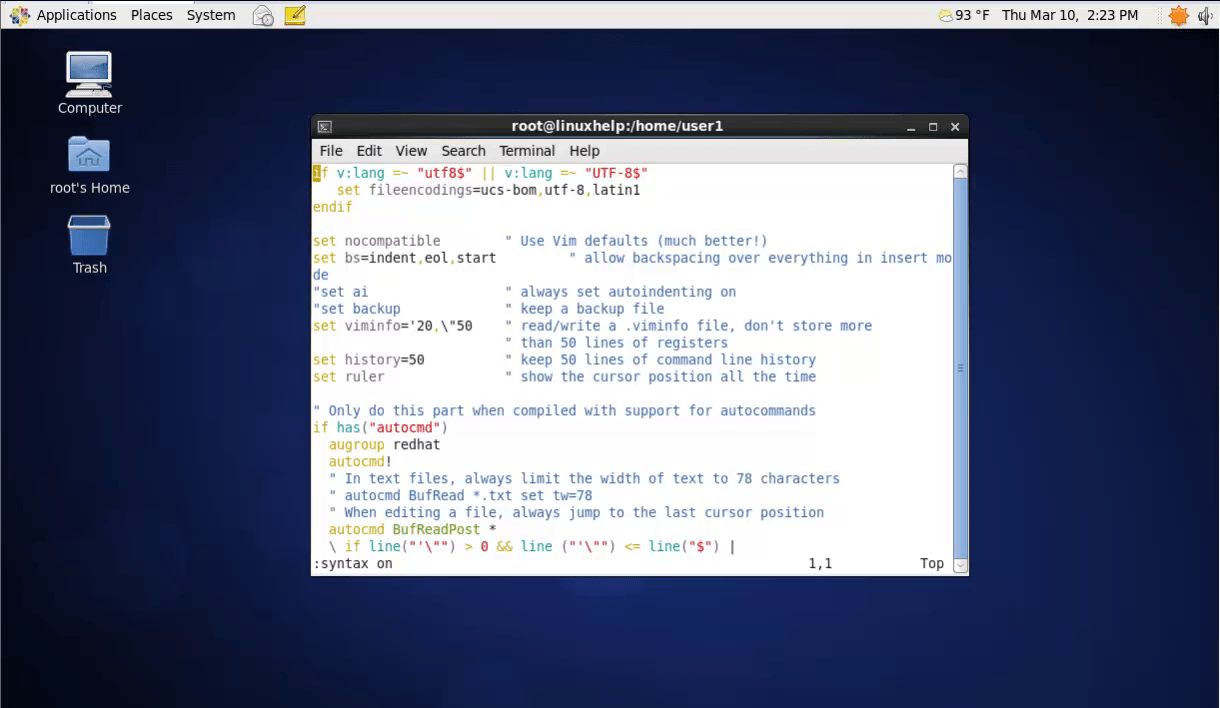
To turn On or turn Off syntax highlighting

[root@linuxhelp Desktop]# vim /etc/vimrc

To turn on
2

To turn off

3

Tags:
elijah
Author: 

Comments ( 0 )

No comments available

Add a comment
{{postCtrl.cmtErrMsg}}

Frequently asked questions ( 5 )

Q

How to install Vi editor in parrot os?

A

You can use the following command
# apt-get install vim-enhanced

Q

Where and how to create the alias for vi to vim?

A

The following step is used to set alias name for vim editor
# vi /etc/profile
alias vi=vim // add this line at the end of the file
# source /etc/profile

Q

Where to set a user-specific alias for vim?

A

For setting user-specific alias, Go to user home path and add the following line in “.bashrc” file

alias vi=vim

Q

Where to disable this highlighting in vim editor?

A

You can Disable the highlighting in "/etc/vimrc" file. Open the file and search for a line "syntax on". In that line change "on" into "off". And then save the file and exit from the file.

Q

How to install vim-enhanced on centos?

A

For install in Red Hat based distro’s:

# yum install vim-enhanced

Back To Top!
Rank
User
Points

Top Contributers

userNamenaveelansari
135850

Top Contributers

userNameayanbhatti
92510

Top Contributers

userNamehamzaahmed
32150

Top Contributers

1
userNamelinuxhelp
31040

Top Contributers

userNamemuhammadali
24500
Can you help Owen ?
How to add SSH key to my Gitlab account

I need to add the SSH key in my gitlab account. How to do so ????

Networking
  • Routing
  • trunk
  • Netmask
  • Packet Capture
  • domain
  • HTTP Proxy
Server Setup
  • NFS
  • KVM
  • Memory
  • Sendmail
  • WebDAV
  • LXC
Shell Commands
  • Cloud commander
  • Command line archive tools
  • last command
  • Shell
  • terminal
  • Throttle
Desktop Application
  • Linux app
  • Pithos
  • Retrospect
  • Scribe
  • TortoiseHg
  • 4Images
Monitoring Tool
  • Monit
  • Apache Server Monitoring
  • EtherApe 
  • Arpwatch Tool
  • Auditd
  • Barman
Web Application
  • Nutch
  • Amazon VPC
  • FarmWarDeployer
  • Rukovoditel
  • Mirror site
  • Chef
Contact Us | Terms of Use| Privacy Policy| Disclaimer
© 2025 LinuxHelp.com All rights reserved. Linux™ is the registered trademark of Linus Torvalds. This site is not affiliated with linus torvalds in any way.