How to install and uninstall Software in Windows by using Ansible Playbook on Oracle Linux 8.5
- 00:39 cat /etc/os-release
- 01:00 yum list ansible
- 01:08 yum list python3
- 01:23 pip3 list | grep pywinrm
- 01:50 vim /etc/ansible/hosts
- 02:12 vim install.yml
- 04:00 ansible-playbook install.yml --syntax-check
- 04:20 ansible-playbook install.yml
- 05:04 vim uninstall.yml
- 06:42 ansible-playbook uninstall.yml --syntax-check
- 07:00 ansible-playbook uninstall.yml
To Install And Uninstall A Software In Windows By Using Ansible On Oracle Linux 8.5
Introduction:
Ansible Playbooks are performed on a set, group, or classification of hosts, which concurrently make up an Ansible inventory.Ansible can be used to handle and execute core functions in Windows environments.Win_package module is used to install or uninstall a package.
Installation Procedure:
Master Server Requirements:
ansible
python3-pip
pywinrm (python package)
Windows Requirements:
powershell 3+
Dot net 4
Installation Procedure:
Step 1: Check the OS version by using the below command
[root@linuxhelp ~]# cat /etc/os-release
NAME="Oracle Linux Server"
VERSION="8.5"
ID="ol"
ID_LIKE="fedora"
Step 2: Check the availability of Ansible package, python3-pip package, pywinrm by using the below command
[root@linuxhelp ~]# yum list ansible
ansible.noarch                        2.9.27-1.el8                         @ol8_developer_EPEL
Available Packages
ansible.src                           2.9.27-1.el8                         ol8_developer_EPEL

[root@linuxhelp ~]# yum list python3
Last metadata expiration check: 1:28:13 ago on Sun 11 Sep 2022 03:22:41 PM IST.
Available Packages
python3.src                         3.6.8-45.0.1.el8                         ol8_baseos_latest
python3.src                         3.6.8-45.0.1.el8                         ol8_appstream

[root@linuxhelp ~]# pip3 list | grep pywinrm
pywinrm (0.4.3)
Step 3: Create inventory for Windows node system by using the below command
[root@linuxhelp ~]# vim /etc/ansible/hosts
[windows]
192.168.6.104

[windows:vars]
ansible_user=Admin
ansible_password=Linuxc#4
ansible_port=5986
ansible_connection=winrm
ansible_winrm_server_cert_validation=ignore
Step 4: You can Install a software with .exe file using the product id of that software. Create a playbook for installing 7-Zip by using the below command
root@linuxhelp:~# vim install.yml
---

- hosts: windows

  tasks:

   - name: Install 7-Zip from the exe

     win_package:

       path: F:\7-Zip.exe

       product_id: 7-Zip

       arguments: /S

       state: present
Step 5: Check the syntax of the install.yml ansible playbook by using the below command
[root@linuxhelp ~]# ansible-playbook install.yml --syntax-check
playbook: install.yml
Step 6: Run the install.yml playbook by using the below command
[root@linuxhelp ~]# ansible-playbook install.yml
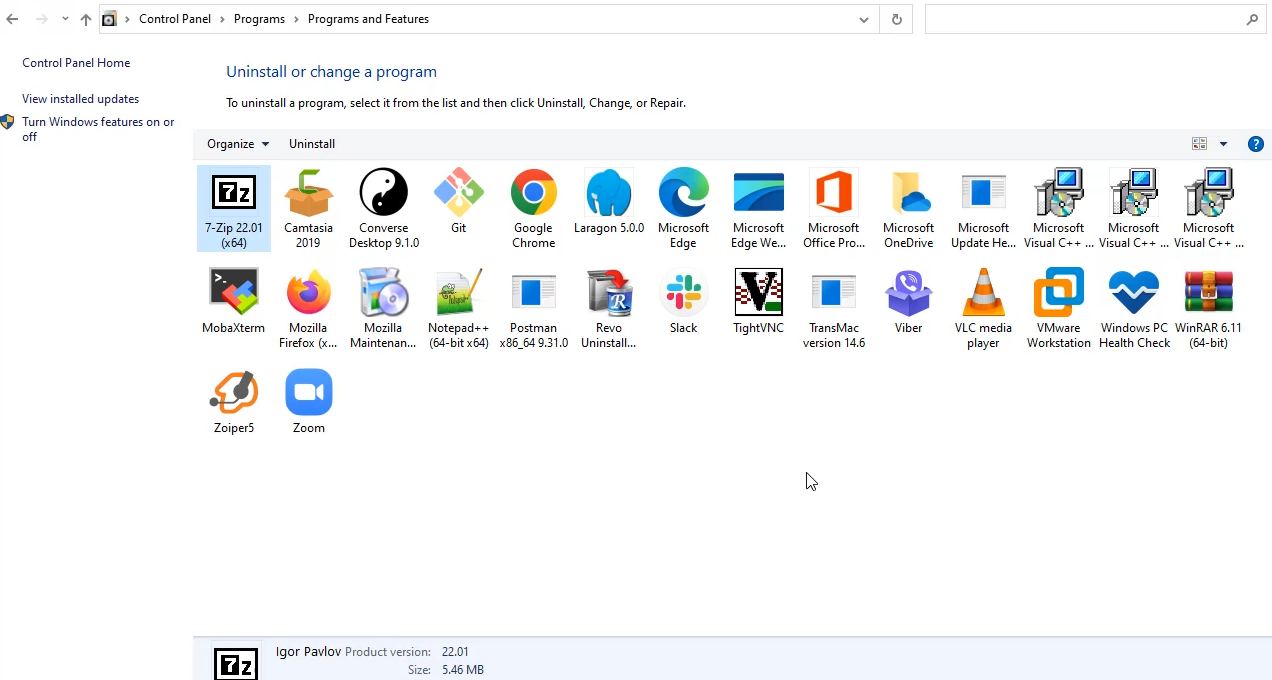
Step 7: Now 7-Zip has been Installed in windows as shown in the below image
Step 8: You can also uninstall software with .exe file using the product id of that software. Create playbook for Uninstalling 7-Zip by using the below command
root@linuxhelp:~# vim  uninstall.yml
---

- hosts: windows

  tasks:

   - name: Uninstall 7-Zip from the exe

     win_package:

       path: C:\Program Files\7-Zip\Uninstall.exe

       product_id: 7-Zip

       arguments: /S

       state: absent
Step 9: Check the syntax of the uninstall.yml ansible playbook by using the below command
root@linuxhelp:~# ansible-playbook uninstall.yml --syntax-check
playbook: uninstall.yml
Step 10: Run the uninstall.yml playbook by using the below command
root@linuxhelp:~# ansible-playbook uninstall.yml
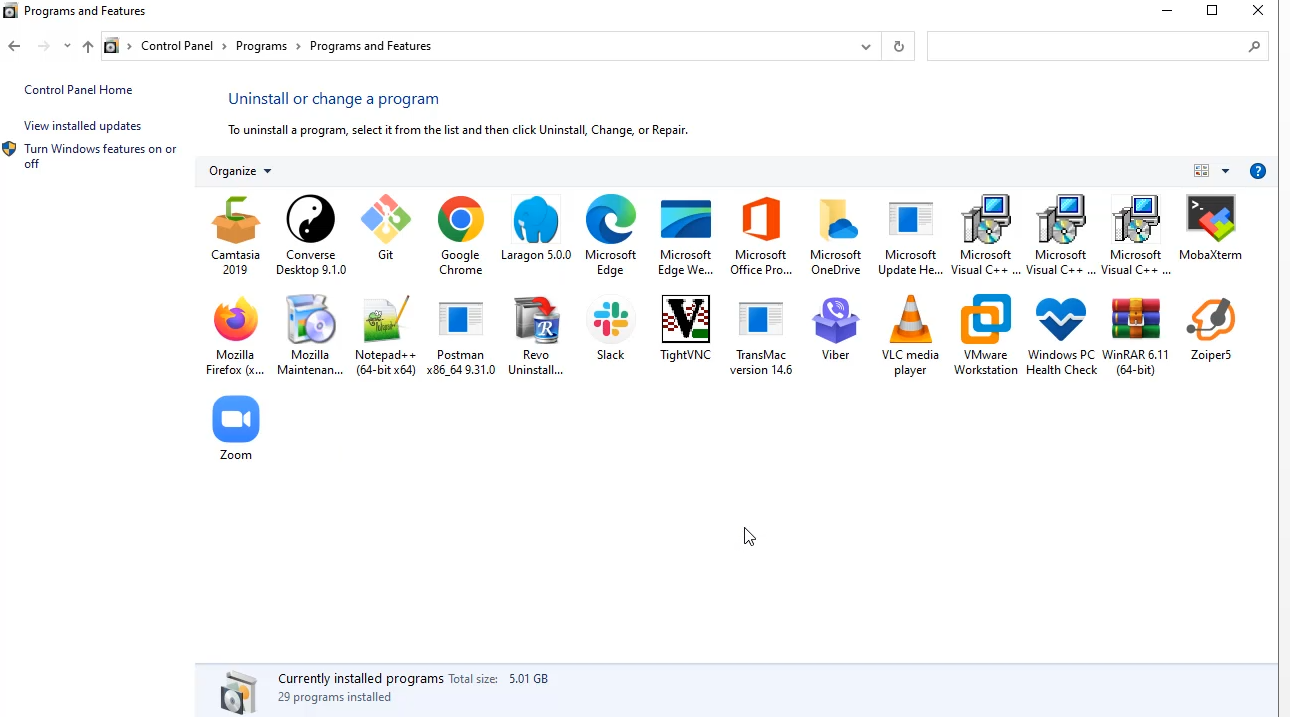
Step 11: Now 7-Zip has been uninstalled in windows as shown in the below image
Conclusion:
We have reached the end of this article. In this guide, we have walked you through the steps required to Install and Uninstall a Software in Windows by using ansible playbook on Oracle linux 8.5. Your feedback is much welcome.
Comments ( 0 )
No comments available