How to install Atom 1.16 latest stable version on Ubuntu 16.04
How to install Atom 1.16 latest stable version on Ubuntu 16.04
Atom is an open-source, multi-platform text editor developed by GitHub, having a simple and intuitive graphical user interface and a bunch of interesting features for writing: CSS, HTML, JavaScript and other web programming languages. Among others, it has support for macros, auto-completion a split screen feature and it integrates with the file manager. This tutorial covers the installation procedure of Atom 1.16 on Ubuntu.
Installation procedure
To begin with the installation, add the repo by executing the following command.
root@linuxhelp1:~# add-apt-repository ppa:webupd8team/atom
 PPA for Atom text editor: https://atom.io
Now available for both 32bit and 64bit!
More info, report packaging bugs, feedback, etc.: http://www.webupd8.org/2014/05/install-atom-text-editor-in-ubuntu-via-ppa.html
Report non-packaging Atom bugs here: https://github.com/atom/atom/issues
 More info: https://launchpad.net/~webupd8team/+archive/ubuntu/atom
Press [ENTER] to continue or ctrl-c to cancel adding it
gpg: keyring `/tmp/tmpownlku3f/secring.gpg'  created
gpg: keyring `/tmp/tmpownlku3f/pubring.gpg'  created
gpg: requesting key EEA14886 from hkp server keyserver.ubuntu.com
gpg: /tmp/tmpownlku3f/trustdb.gpg: trustdb created
gpg: key EEA14886: public key " Launchpad VLC"  imported
gpg: no ultimately trusted keys found
gpg: Total number processed: 1
gpg:               imported: 1  (RSA: 1)
OK
Next update the apt source by running the apt-get update command.
root@linuxhelp1:~# apt-get update
Hit:1 http://in.archive.ubuntu.com/ubuntu xenial InRelease
Get:2 http://security.ubuntu.com/ubuntu xenial-security InRelease [102 kB]
Get:3 http://in.archive.ubuntu.com/ubuntu xenial-updates InRelease [102 kB]
Get:4 http://ppa.launchpad.net/webupd8team/atom/ubuntu xenial InRelease [17.5 kB]
Get:5 http://security.ubuntu.com/ubuntu xenial-security/main amd64 Packages [249 kB]
Get:6 http://in.archive.ubuntu.com/ubuntu xenial-backports InRelease [102 kB]
Get:7 http://ppa.launchpad.net/webupd8team/atom/ubuntu xenial/main amd64 Packages [612 B]
Get:8 http://ppa.launchpad.net/webupd8team/atom/ubuntu xenial/main i386 Packages [612 B]
Get:9 http://ppa.launchpad.net/webupd8team/atom/ubuntu xenial/main Translation-en [332 B]
.
.
.
.
Get:40 http://in.archive.ubuntu.com/ubuntu xenial-updates/multiverse amd64 DEP-11 Metadata [2,520 B]
Get:41 http://in.archive.ubuntu.com/ubuntu xenial-backports/main amd64 Packages [4,684 B]
Get:42 http://in.archive.ubuntu.com/ubuntu xenial-backports/main i386 Packages [4,684 B]
Get:43 http://in.archive.ubuntu.com/ubuntu xenial-backports/main Translation-en [3,216 B]
Get:44 http://in.archive.ubuntu.com/ubuntu xenial-backports/main amd64 DEP-11 Metadata [3,328 B]
Fetched 4,541 kB in 59s (76.1 kB/s)
AppStream cache update completed, but some metadata was ignored due to errors.
Reading package lists... Done
The repositories have been updated in the target system. Then install the atom package and run the following command.
root@linuxhelp1:~# apt-get install atom
Reading package lists... Done
Building dependency tree
Reading state information... Done
The following additional packages will be installed:
  git git-man liberror-perl
Suggested packages:
  git-daemon-run | git-daemon-sysvinit git-doc git-el git-email git-gui gitk gitweb git-arch git-cvs git-mediawiki git-svn
The following NEW packages will be installed:
  atom git git-man liberror-perl
0 upgraded, 4 newly installed, 0 to remove and 475 not upgraded.
Need to get 66.4 MB of archives.
After this operation, 88.2 MB of additional disk space will be used.
Do you want to continue? [Y/n] y
Get:1 http://ppa.launchpad.net/webupd8team/atom/ubuntu xenial/main amd64 atom amd64 1.16.0-1~webupd8~0 [62.7 MB]
Get:2 http://in.archive.ubuntu.com/ubuntu xenial/main amd64 liberror-perl all 0.17-1.2 [19.6 kB]
Get:3 http://in.archive.ubuntu.com/ubuntu xenial/main amd64 git-man all 1:2.7.4-0ubuntu1 [735 kB]
Get:4 http://in.archive.ubuntu.com/ubuntu xenial/main amd64 git amd64 1:2.7.4-0ubuntu1 [3,006 kB]
Fetched 66.4 MB in 24min 34s (45.0 kB/s)
Selecting previously unselected package liberror-perl.
(Reading database ... 176594 files and directories currently installed.)
Preparing to unpack .../liberror-perl_0.17-1.2_all.deb ...
Unpacking liberror-perl (0.17-1.2) ...
Selecting previously unselected package git-man.
Setting up git-man (1:2.7.4-0ubuntu1) ...
Setting up git (1:2.7.4-0ubuntu1) ...
Setting up atom (1.16.0-1~webupd8~0) ...
The package has been successfully installed. To check the version, execute the following command.
root@linuxhelp1:~# atom -v
Atom : 1.16.0
Electron: 1.3.13
Chrome : 52.0.2743.82
Node : 6.5.0
To run the application, type the package in the Ubuntu dashboard and run the application.
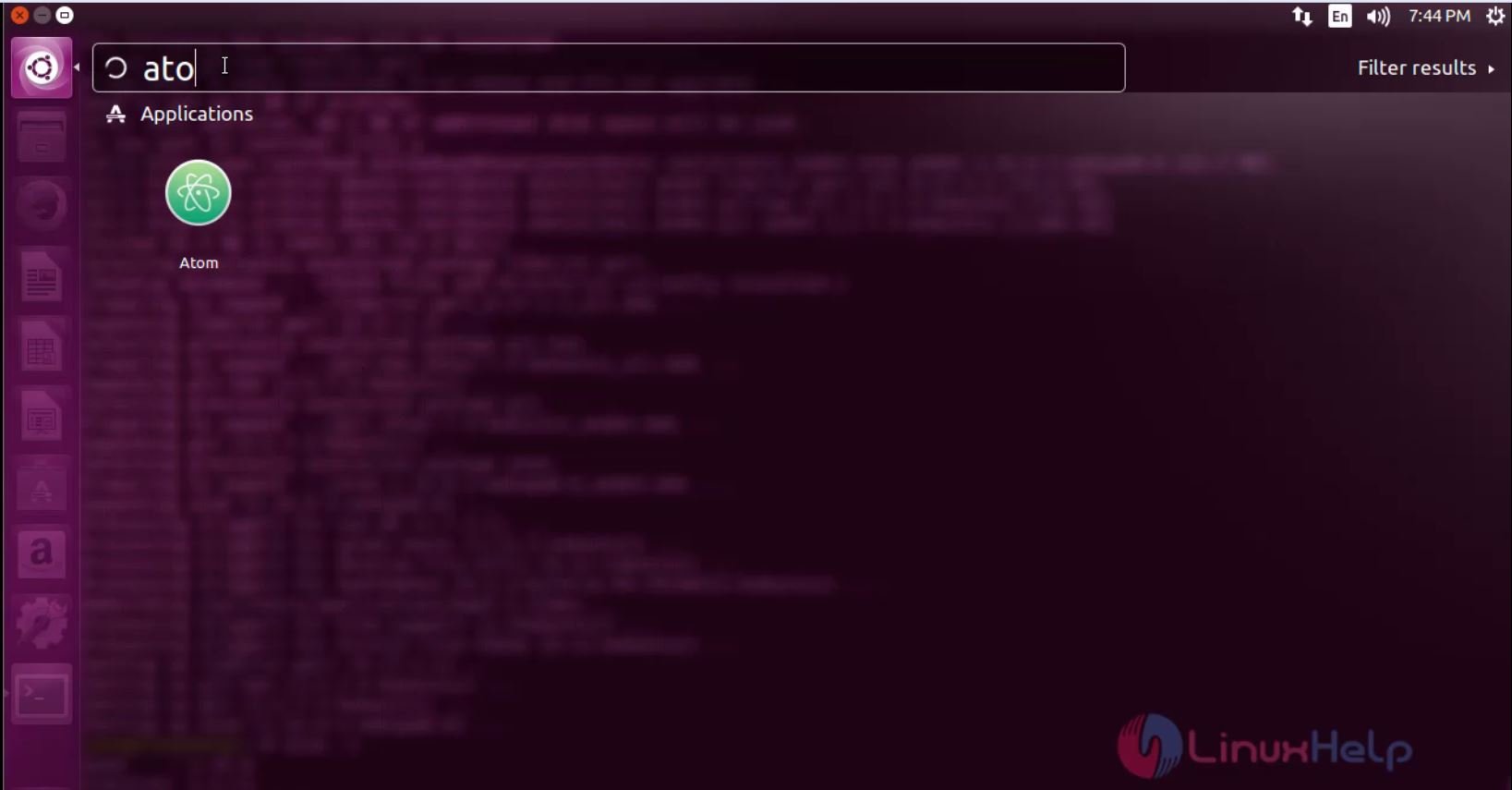
The Atom editor application is running successfully. Use the editor for writing several programs in various languages as desired.
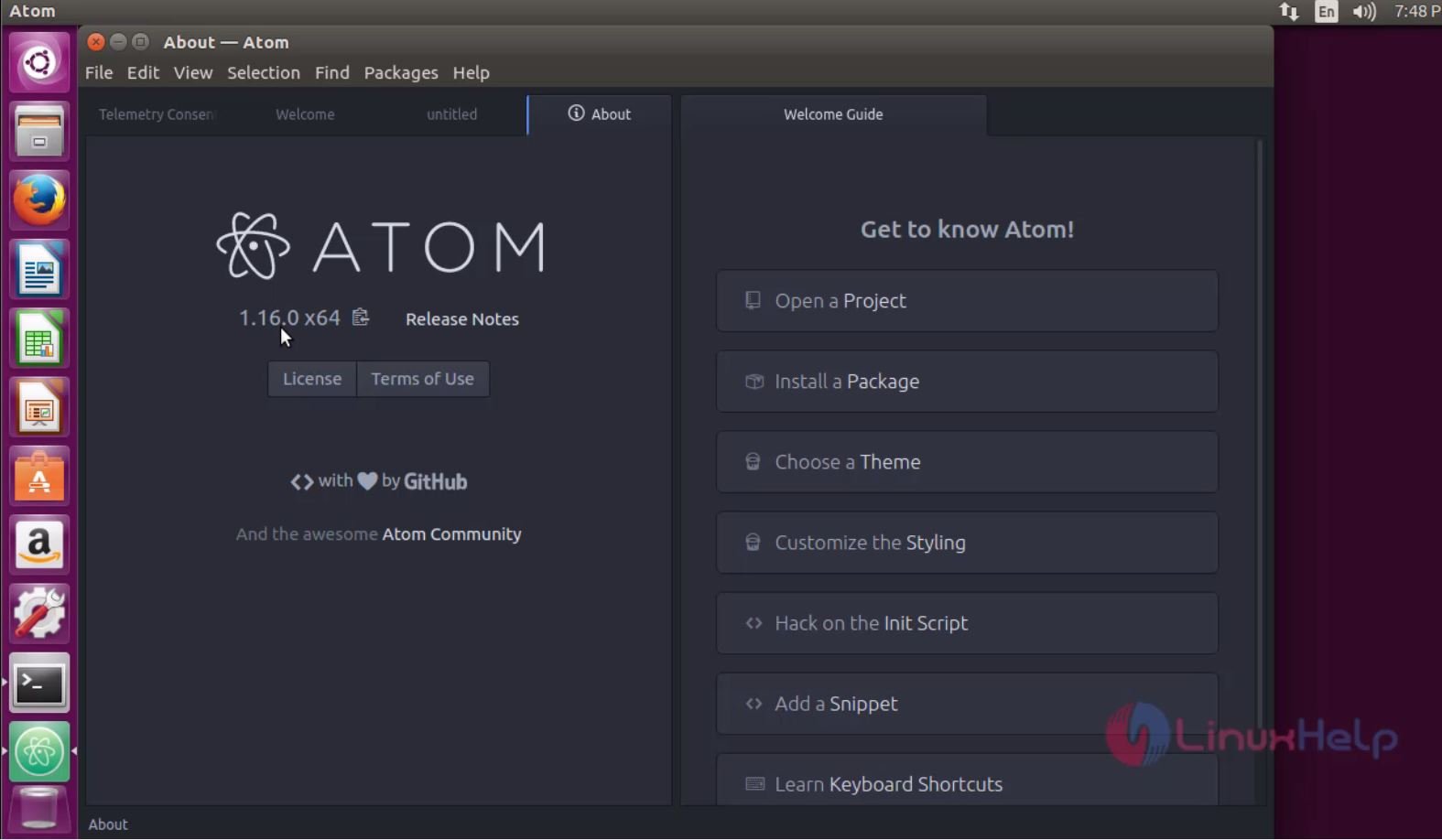
Wasn' t that an easy installation procedure? The Atom editor is built on Electron and also cross check the written codes with the other ones in an easy way.
Comments ( 0 )
No comments available