How to install Atom Text Editor on Debian 11.3
To Install Atom Text Editor On Debian 11.3
Introduction:
Atom is a free and open-source text and source code editor for a desktop application built using web technologies like macOS, Linux, and Microsoft Windows with support for plug-ins written in JavaScript, and embedded Git Control Developed by GitHub.
Installation Procedure:
Step 1: Check the OS Version by using the below command
[root@linuxhelp:~#] lsb_release -a
No LSB modules are available.
Distributor ID:	Debian
Description:	Debian GNU/Linux 11 (bullseye)
Release:	11
Codename:	bullseye
Step 2: Add the signing key so APT will know to trust the repository.
[root@linuxhelp:~#] wget -qO - https://packagecloud.io/AtomEditor/atom/gpgkey | sudo apt-key add -
Warning: apt-key is deprecated. Manage keyring files in trusted.gpg.d instead (see apt-key(8)).
OK
Step 3: Next, Add the repository by using the below command.
[root@linuxhelp:~#] sudo sh -c 'echo "deb [arch=amd64] https://packagecloud.io/AtomEditor/atom/any/ any main" > /etc/apt/sources.list.d/atom.list'
Step 4: Next, update the system package by using the below command.
[root@linuxhelp:~#] sudo apt-get update
Hit:1 http://repo.mysql.com/apt/debian bullseye InRelease
Hit:2 http://deb.debian.org/debian bullseye InRelease
Hit:3 http://security.debian.org/debian-security bullseye-security InRelease
Hit:4 http://deb.debian.org/debian bullseye-updates InRelease
Ign:5 http://ppa.launchpad.net/webupd8team/atom/ubuntu kinetic InRelease
Hit:7 https://packages.sury.org/php bullseye InRelease
Get:8 https://packagecloud.io/AtomEditor/atom/any any InRelease [24.4 kB]
Get:9 https://packagecloud.io/AtomEditor/atom/any any/main amd64 Packages [56.6 kB]
Reading package lists... Done .
Step 5: Next Install the Atom Text Editor by using the below Command.
[root@linuxhelp:~#] apt-get install atom -y
Reading package lists... Done
Building dependency tree... Done
Reading state information... Done
The following additional packages will be installed:
  git git-man liberror-perl
Suggested packages:
  git-daemon-run | git-daemon-sysvinit git-doc git-el git-email git-gui gitk
  gitweb git-cvs git-mediawiki git-svn
The following NEW packages will be installed:
  atom git git-man liberror-perl
0 upgraded, 4 newly installed, 0 to remove and 67 not upgraded.
Need to get 146 MB of archives.
After this operation, 706 MB of additional disk space will be used.
Get:1 http://deb.debian.org/debian bullseye/main amd64 liberror-perl all 0.17029-1 [31.0 kB]
Get:2 http://deb.debian.org/debian bullseye/main amd64 git-man all 1:2.30.2-1 [1,827 kB]
Get:3 http://deb.debian.org/debian bullseye/main amd64 git amd64 1:2.30.2-1 [5,527 kB]

Get:4 https://packagecloud.io/AtomEditor/atom/any any/main amd64 atom amd64 1.60.0 [139 MB]
Fetched 146 MB in 24s (6,038 kB/s)
Selecting previously unselected package liberror-perl.
(Reading database ... 150913 files and directories currently installed.)
Preparing to unpack .../liberror-perl_0.17029-1_all.deb ...
Unpacking liberror-perl (0.17029-1) ...
Selecting previously unselected package git-man.
Preparing to unpack .../git-man_1%3a2.30.2-1_all.deb ...
Unpacking git-man (1:2.30.2-1) ...
Selecting previously unselected package git.
Preparing to unpack .../git_1%3a2.30.2-1_amd64.deb ...
Unpacking git (1:2.30.2-1) ...
Selecting previously unselected package atom.
Preparing to unpack .../archives/atom_1.60.0_amd64.deb ...
Unpacking atom (1.60.0) ...
Setting up liberror-perl (0.17029-1) ...
Setting up git-man (1:2.30.2-1) ...
Setting up git (1:2.30.2-1) ...
Setting up atom (1.60.0) ...
Processing triggers for desktop-file-utils (0.26-1) ...
Processing triggers for gnome-menus (3.36.0-1) ...
Processing triggers for man-db (2.9.4-2) ...
Processing triggers for mailcap (3.69) ...
done.
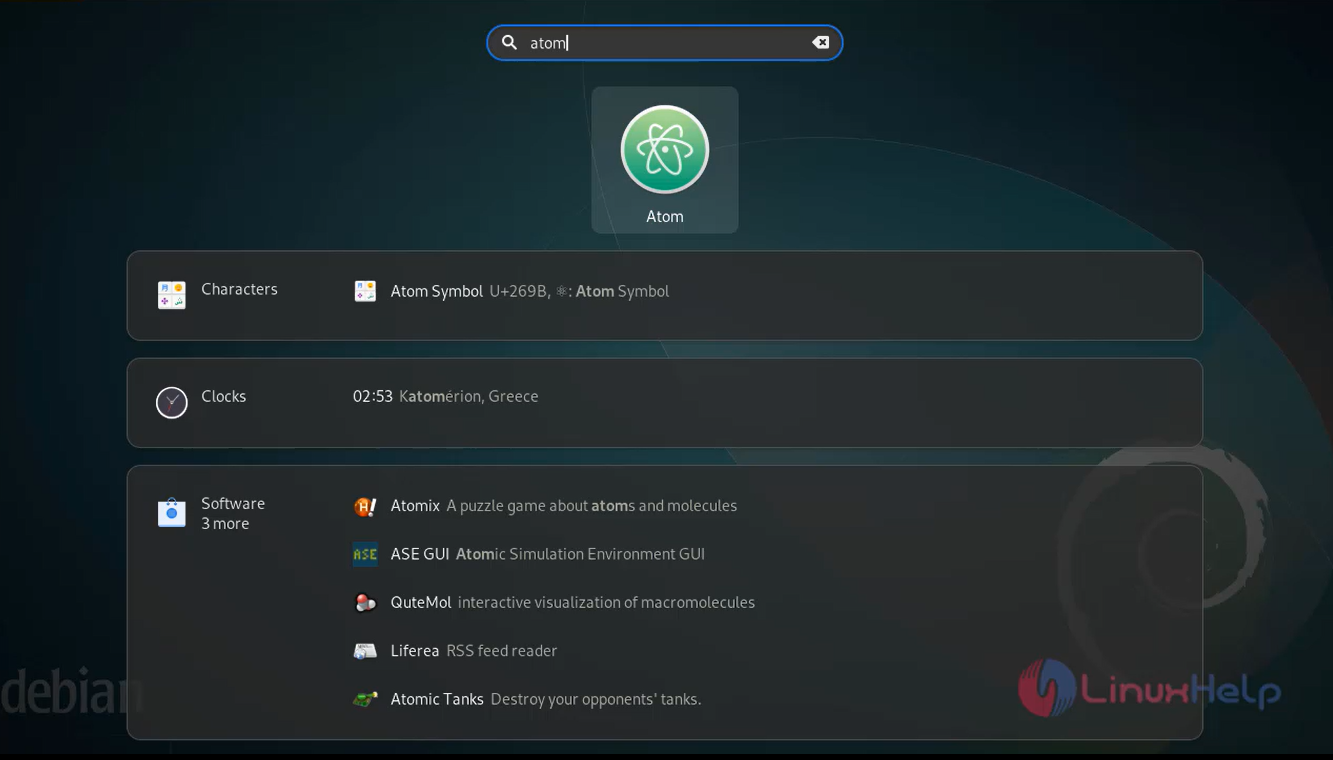
Step 6: Now, find and start Atom from the Application Menu as shown in the below image.
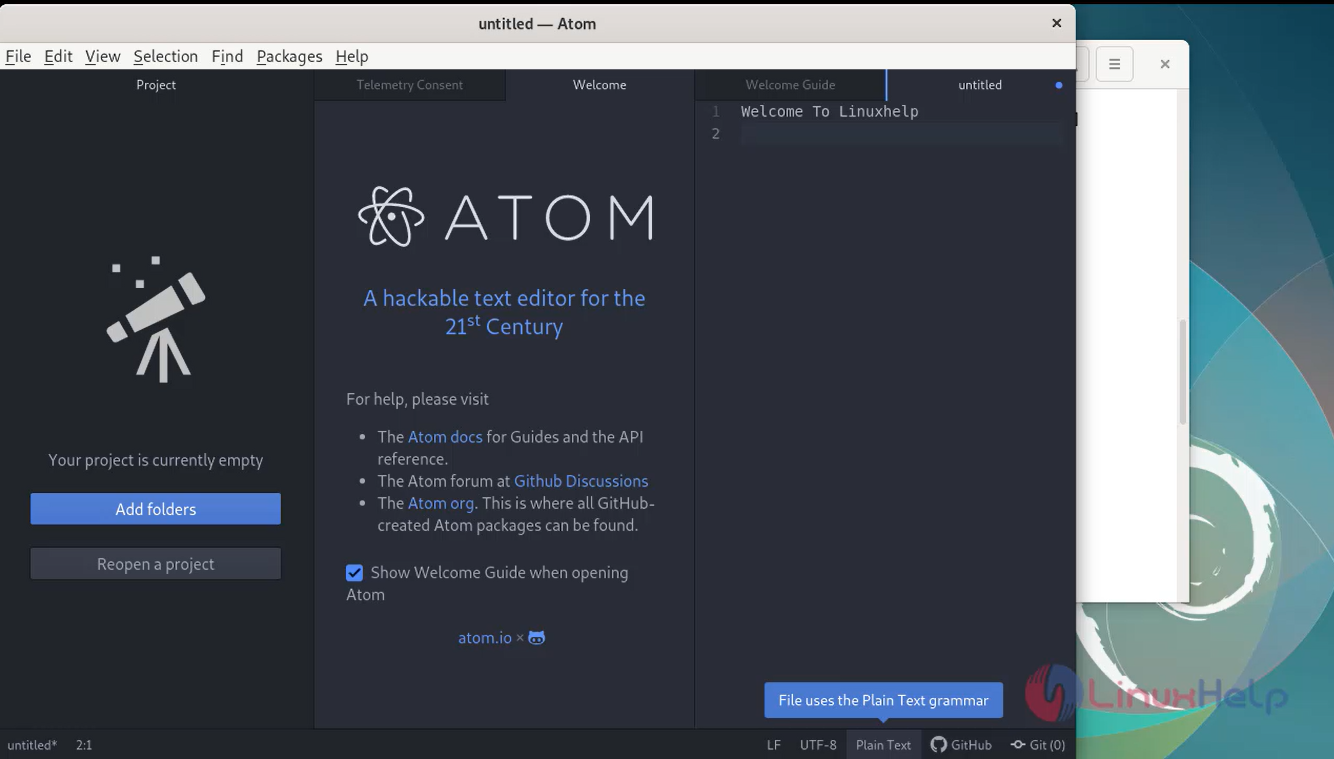
Step 7: This is the Atom Text Editor.
Conclusion:
We have reached the end of this article. In this guide, we have walked you through the steps required to Install Atom Text Editor on Debian 11.3. Your feedback is much welcome.
Comments ( 0 )
No comments available