How to install Audacity 2.1.3 on Ubuntu 16.04
To install Audacity on Ubuntu
Audacity is a free and cross platform multi-track audio editor and recorder. It is a simple to install tool, and this article explains the installation of Audacity on Ubuntu.
Features
- New Distortion effect, Rhythm Track (was called Click Track) and Sample Data Import (thanks to Steve Daulton). Also effects are no longer grayed-out paused.
- New scrub ruler and ‘ pinned’ option so the waveform moves and the recording/playing head stays still. (Paul)
- Additional features to Timer Record
- Multiple recording and playback devices managed by device toolbar.
- Level meters to monitor and compare volume levels. Clipping can be displayed in the waveform or in a label track.
- Record from microphone, line input, USB/Firewire devices and others.
- Record computer playback on Windows Vista and later by choosing “ Windows WASAPI” host in Device Toolbar then a “ loopback” input.
- Timer Record and Sound Activated Recording features.
- Multi-track recordings can be done by dubbing over existing tracks.
Installing Audacity
Before initiating the installation of Audacity, make sure you add its repository by running the following command.
root@linuxhelp1:~# add-apt-repository ppa:ubuntuhandbook1/audacity
 The PPA contains the most recent release of Audacity (2.1.3 so far) since Audacity Team only provides an daily build PPA.
Press [ENTER] to continue or ctrl-c to cancel adding it
.
.
.
gpg: /tmp/tmp6cd34c36/trustdb.gpg: trustdb created
gpg: key 852541CB: public key " Launchpad PPA for Panda Jim"  imported
gpg: Total number processed: 1
gpg:               imported: 1  (RSA: 1)
OK
Once it is done, update the machine as follows.
root@linuxhelp1:~# apt-get update
Hit:1 http://ppa.launchpad.net/atareao/atareao/ubuntu xenial InRelease
Hit:2 http://in.archive.ubuntu.com/ubuntu xenial InRelease
Get:3 http://ppa.launchpad.net/ubuntuhandbook1/audacity/ubuntu xenial InRelease [17.6 kB]
.
.
.
Get:8 http://ppa.launchpad.net/ubuntuhandbook1/audacity/ubuntu xenial/main Translation-en [492 B]
Get:9 http://in.archive.ubuntu.com/ubuntu xenial-backports InRelease [102 kB]
Fetched 327 kB in 2s (141 kB/s)
Reading package lists... Done
Now is the time to install the Audacity package. Use the following command to install it along with its package.
root@linuxhelp1:~# apt-get install audacity
Reading package lists... Done
Building dependency tree
Reading state information... Done
The following additional packages will be installed:
  audacity-data i965-va-driver libaacs0 libavcodec-ffmpeg56 libavformat-ffmpeg56 libavutil-ffmpeg54
.
.
.
Setting up vdpau-va-driver:amd64 (0.7.4-5) ...
Setting up va-driver-all:amd64 (1.7.0-1) ...
Setting up vdpau-driver-all:amd64 (1.1.1-3ubuntu1) ...
Processing triggers for libc-bin (2.23-0ubuntu3) ...
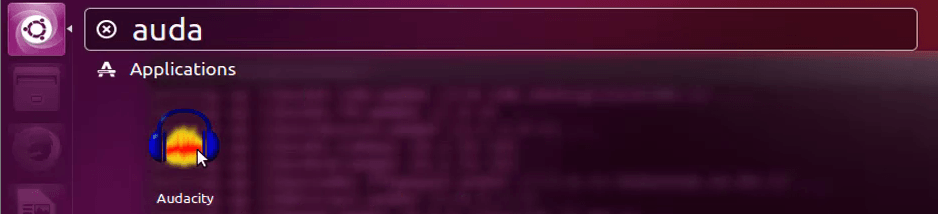
Launch Audacity from Ubuntu dashboard.
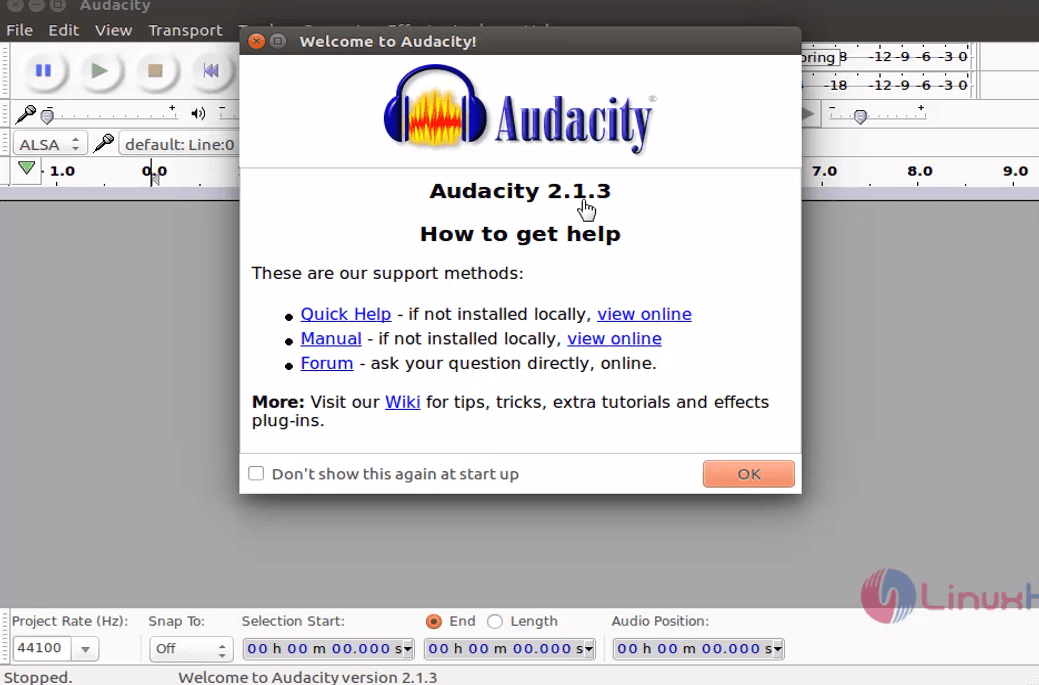
The Audacity application appears on your screen.
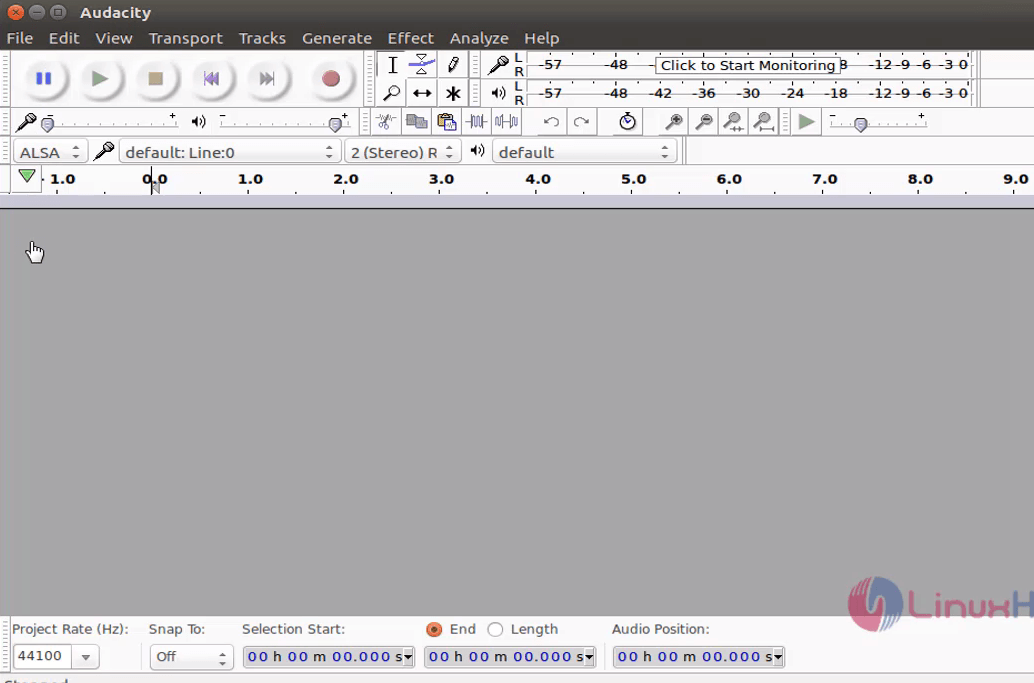
You can edit or record any audio files with the help of Audacity.
Installing Audacity was quite simple, wasn' t it? Also, using Audacity to record audio and to edit audio files is pretty simple. Recording any audio through Audacity is so simple as it can be done through microphone or mixer. Also, you can digitize recordings from other media.To make its usage very simple and easy, its interface is translated into multiple languages. Enjoy recording and editing your files with the help of Audacity.
Comments ( 0 )
No comments available