How to install Audacity latest version in Ubuntu 17.04
How to install Audacity latest version in Ubuntu 17.04
Audacity is an open-source, multi-platform audio editor and recorder. It is used for post-processing for all types of audio, including podcasts by adding effects such as normalization, trimming and fading out. This tutorial explains the installation procedure of Audacity in Ubuntu 17.04.
Features
- Recording (from a microphone or mixer)
- Import/export of WAV, AIFF, AU, FLAC, MP3 (via LAME encoder) Ogg Vorbis files
- Advanced editing (cut, copy, paste, delete commands with unlimited “ Undo” and “ Redo” , multitrack mixing)
- Digital effects (change the pitch, remove background noises, alter frequencies, remove vocals, create voice-overs for podcasts etc.) and plug-ins (support for LADSPA, Nyquist, VST Audio Unit, including VAMP analysis plug-ins
Installation procedure
To start the installation procedure, add the repo to the target system by executing the following command.
root@linuxhelp1:~# add-apt-repository ppa:ubuntuhandbook1/audacity
 The PPA contains the most recent release of Audacity (2.1.3 so far) since Audacity Team only provides an daily build PPA.
No updates for Ubuntu 14.04 due to old libraries (2.1.3 requires GCC > = 4.9).
For help, please use Audacity forum: http://forum.audacityteam.org/
 More info: https://launchpad.net/~ubuntuhandbook1/+archive/ubuntu/audacity
Press [ENTER] to continue or ctrl-c to cancel adding it
gpg: keybox ' /tmp/tmpw29xj2bs/pubring.gpg'  created
gpg: /tmp/tmpw29xj2bs/trustdb.gpg: trustdb created
gpg: key 4C1CBE14852541CB: public key " Launchpad PPA for Panda Jim"  imported
gpg: Total number processed: 1
gpg:               imported: 1
OK
The repositories are added to the system. Update the apt source by running the apt-get update command.
root@linuxhelp1:~# apt-get update
Hit:1 http://security.ubuntu.com/ubuntu zesty-security InRelease
Get:2 http://ppa.launchpad.net/ubuntuhandbook1/audacity/ubuntu zesty InRelease [15.4 kB]
Hit:3 http://in.archive.ubuntu.com/ubuntu zesty InRelease
Hit:4 http://in.archive.ubuntu.com/ubuntu zesty-updates InRelease
Hit:5 http://in.archive.ubuntu.com/ubuntu zesty-backports InRelease
Get:6 http://ppa.launchpad.net/ubuntuhandbook1/audacity/ubuntu zesty/main amd64 Packages [988 B]
Get:7 http://ppa.launchpad.net/ubuntuhandbook1/audacity/ubuntu zesty/main i386 Packages [988 B]
Get:8 http://ppa.launchpad.net/ubuntuhandbook1/audacity/ubuntu zesty/main Translation-en [492 B]
Fetched 17.9 kB in 1s (12.9 kB/s)
Reading package lists... Done
The target system is updated with the repositories. Next install the Audacity package by executing the apt-get install command and press enter to continue with the installation process.
root@linuxhelp1:~# apt-get install audacity
Reading package lists... Done
Building dependency tree
Reading state information... Done
The following additional packages will be installed:
  audacity-data i965-va-driver libaacs0 libavcodec57 libavformat57 libavutil55
  libbdplus0 libbluray2 libchromaprint1 libcrystalhd3 libflac++6v5 libgme0
  libgsm1 libid3tag0 liblilv-0-0 libmad0 libmp3lame0 libmpg123-0 libopenjp2-7
  libopenmpt0 libportaudio2 libportsmf0v5 libserd-0-0 libshine3 libsord-0-0
  libsoundtouch1 libsoxr0 libsratom-0-0 libssh-gcrypt-4 libsuil-0-0
  libswresample2 libtwolame0 libva-drm1 libva-x11-1 libva1 libvamp-hostsdk3v5
  libvdpau1 libwxbase3.0-0v5 libwxgtk3.0-0v5 libx264-148 libx265-110
  libxvidcore4 libzvbi-common libzvbi0 mesa-va-drivers mesa-vdpau-drivers
  va-driver-all vdpau-driver-all
Suggested packages:
  ladspa-plugin libbluray-bdj firmware-crystalhd serdi sordi libfglrx-amdxvba1
  libvdpau-va-gl1 nvidia-vdpau-driver nvidia-legacy-340xx-vdpau-driver
The following NEW packages will be installed:
  audacity audacity-data i965-va-driver libaacs0 libavcodec57 libavformat57
  libavutil55 libbdplus0 libbluray2 libchromaprint1 libcrystalhd3 libflac++6v5
  libgme0 libgsm1 libid3tag0 liblilv-0-0 libmad0 libmp3lame0 libmpg123-0
  libopenjp2-7 libopenmpt0 libportaudio2 libportsmf0v5 libserd-0-0 libshine3
  libsord-0-0 libsoundtouch1 libsoxr0 libsratom-0-0 libssh-gcrypt-4
.
.
.
.
Selecting previously unselected package libva-drm1:amd64.
Preparing to unpack .../03-libva-drm1_1.7.3-2_amd64.deb ...
Unpacking libva-drm1:amd64 (1.7.3-2) ...
Selecting previously unselected package libva1:amd64.
Preparing to unpack .../04-libva1_1.7.3-2_amd64.deb ...
Setting up libswresample2:amd64 (7:3.2.4-1build2) ...
Setting up va-driver-all:amd64 (1.7.3-2) ...
Setting up vdpau-driver-all:amd64 (1.1.1-3ubuntu1) ...
Setting up libsratom-0-0:amd64 (0.6.0~dfsg0-1) ...
Setting up liblilv-0-0 (0.24.2~dfsg0-1) ...
Setting up libavcodec57:amd64 (7:3.2.4-1build2) ...
Setting up libchromaprint1:amd64 (1.4.2-1) ...
Setting up libavformat57:amd64 (7:3.2.4-1build2) ...
Setting up audacity (2.1.3-0build1~ubuntu17.04) ...
Processing triggers for libc-bin (2.24-9ubuntu2) ...
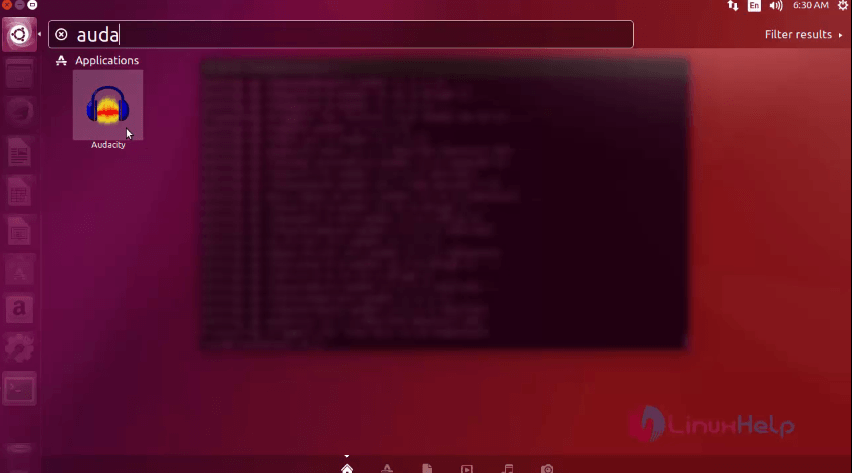
The package has been installed successfully. For the application to run, type the package name in the Ubuntu dashboard and click on th icon for the Audacity application to run.
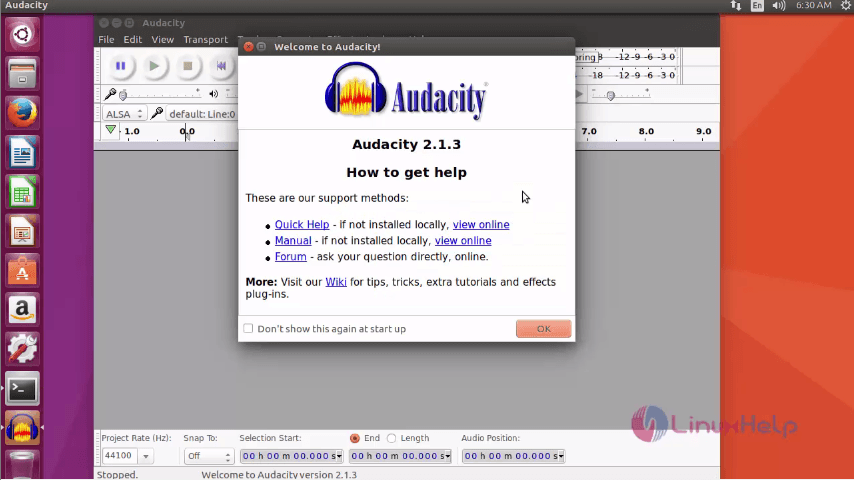
The application is running successfully. Now the user can use the application for various audio editing purposes.
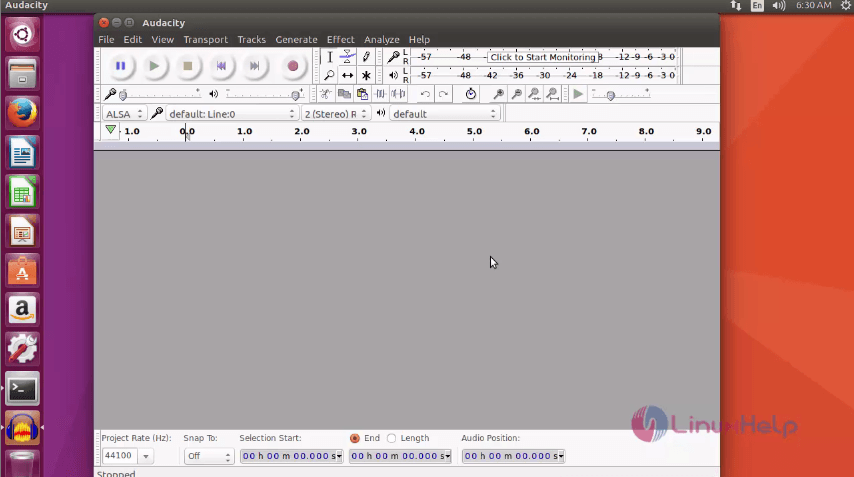
Wasn' t that an easy installation procedure? The Audacity has also been used to record and mix entire album covers.
Comments ( 0 )
No comments available