• Categories
    Category
    {{ postCtrl.tags }}
    • {{ category.tag_type }}

      • {{tag.tag_name}}
      • View more
  • Categories
    Category
    {{ postCtrl.tags }}
    • {{ category.tag_type }}

      • {{tag.tag_name}}
      • View more
  • News
  • Tutorials
  • Forums
  • Tags
  • Users
Tutorial News Comments FAQ Related Articles

How to install Azure CLI and create a virtual machine using Azure CLI commands

{{postValue.id}}

To Install Azure CLI and create a virtual machine using Azure CLI commands.

Installation Procedure:

Step 1: Login to Microsoft Azure portal
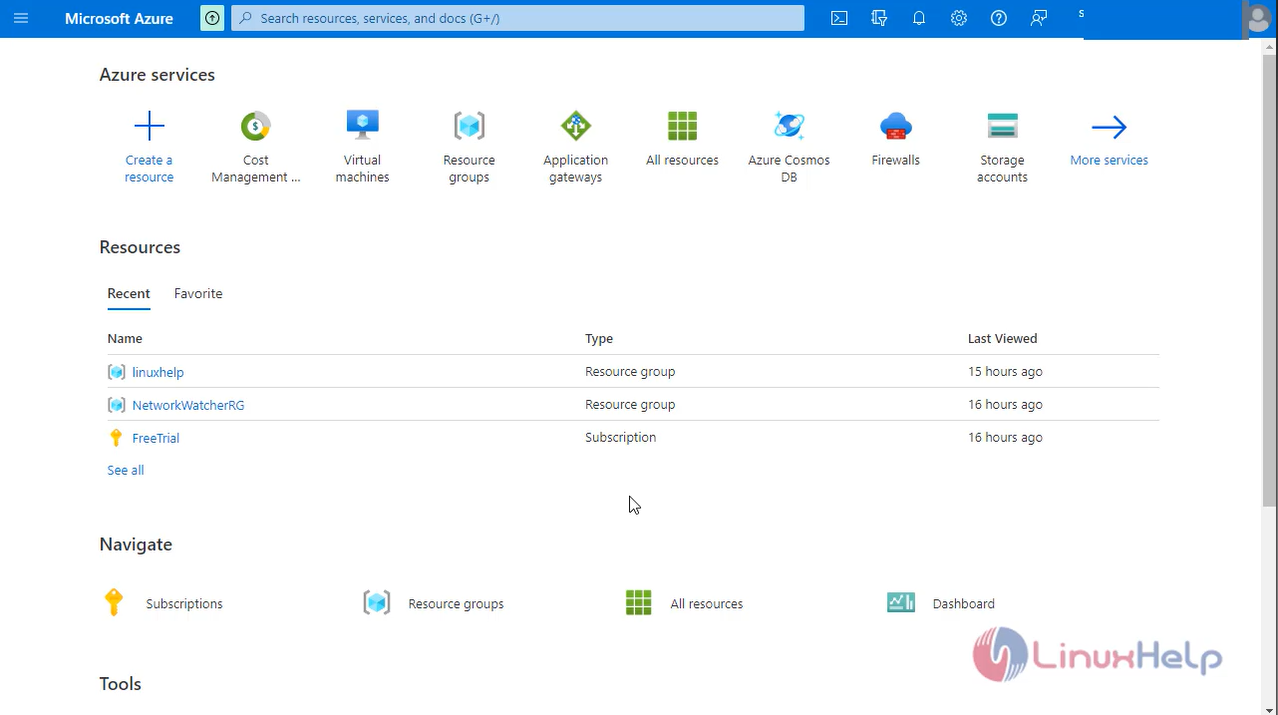
snap 1

Step2: Select virtual machine and click Create
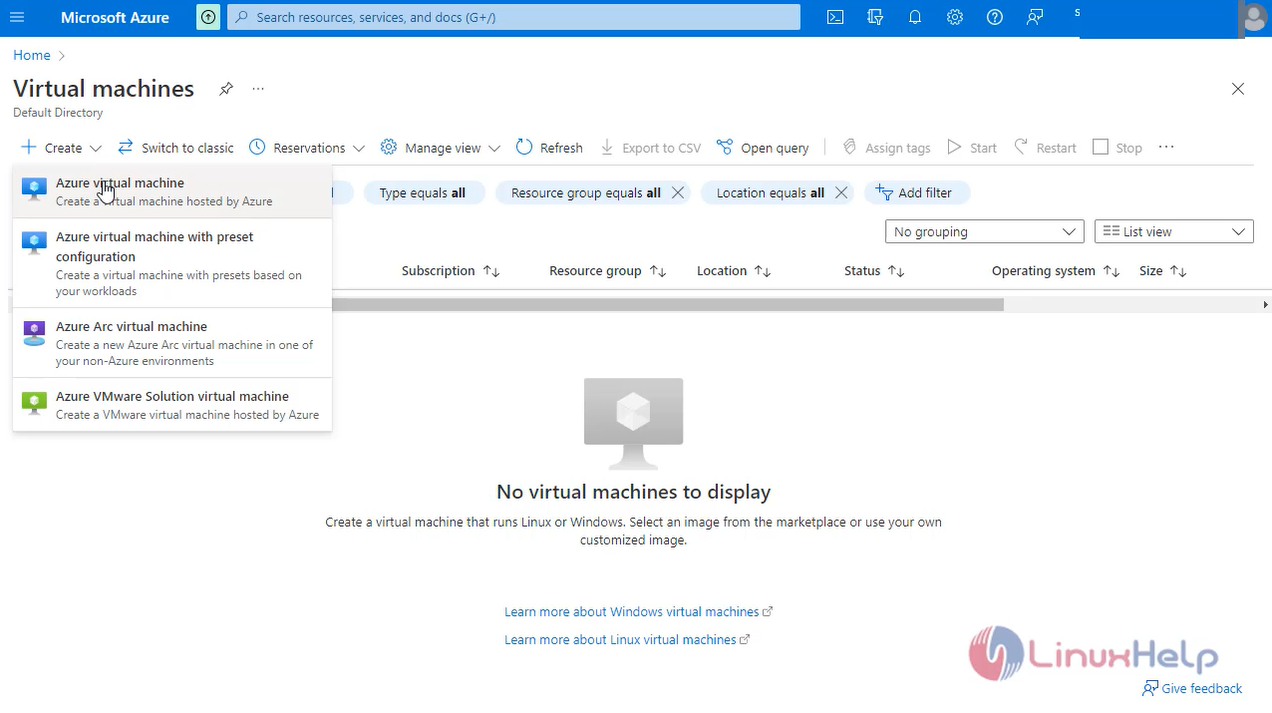
snap 2

Step 3: Enter the Project details Instance Details and Administration account details
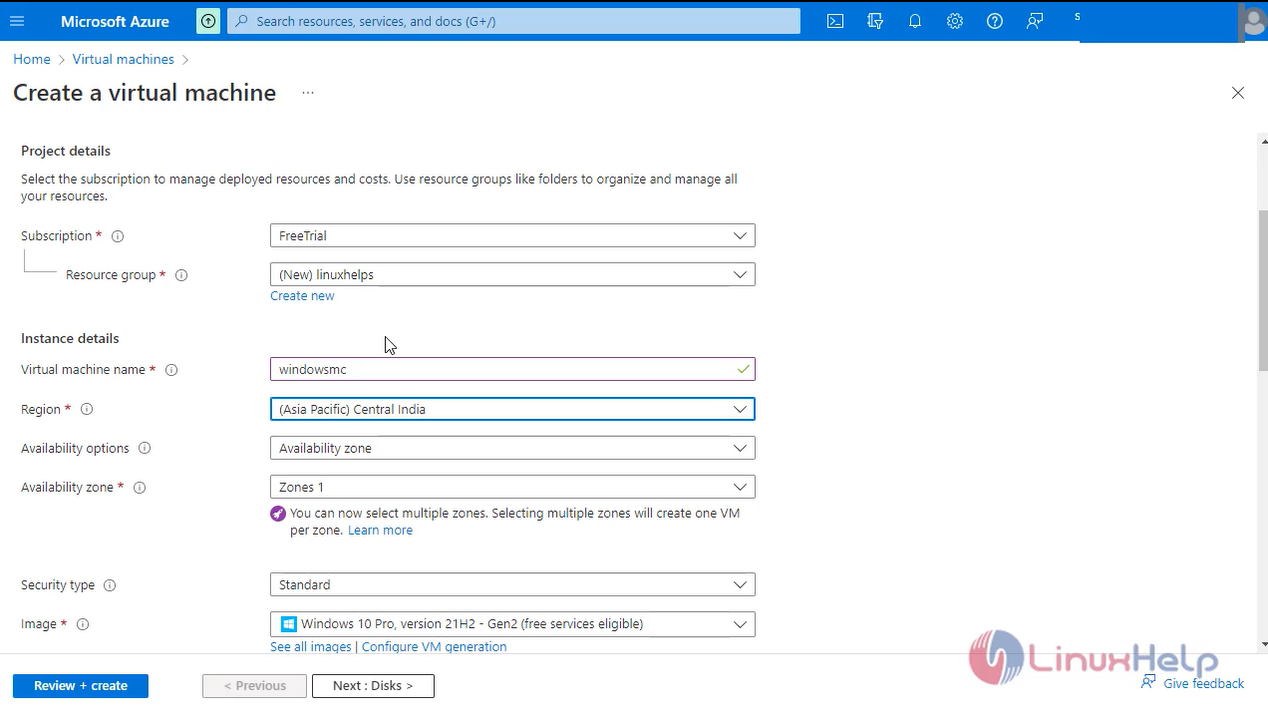
snap 3

Step 4: Enter the Disk Details and click next
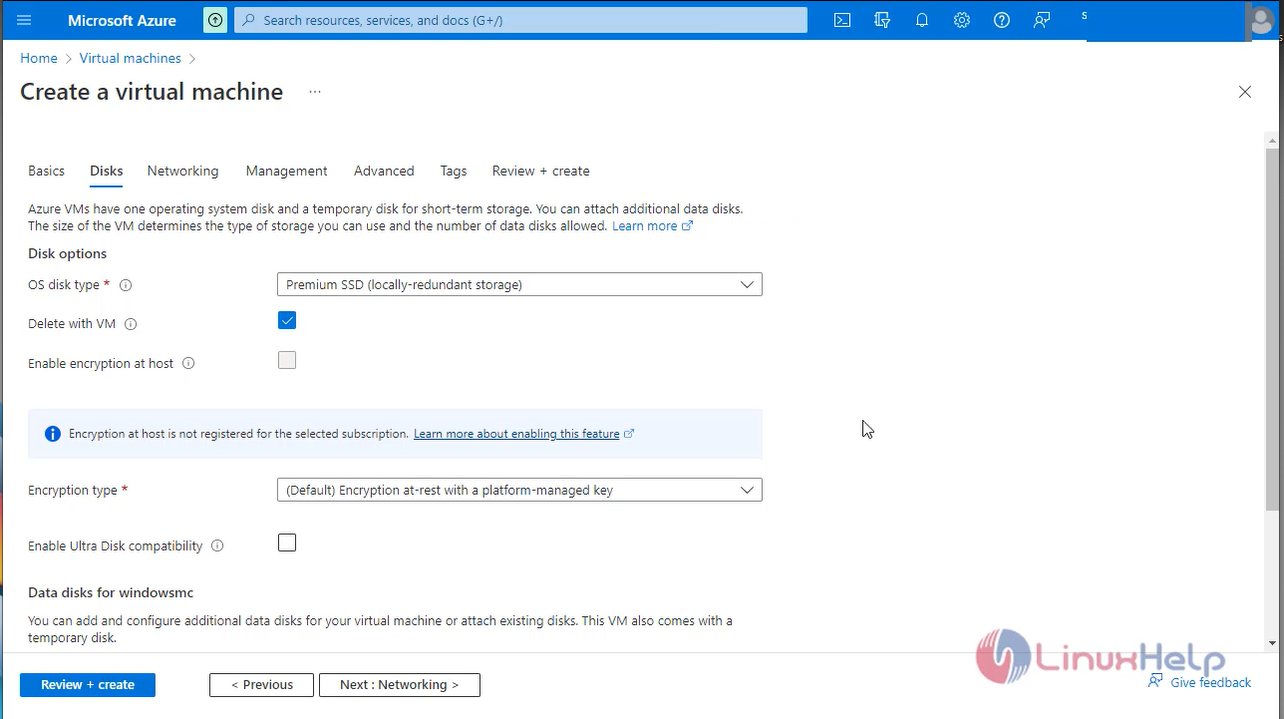
snap 4

Step 5: Enter the Networking Interface Details
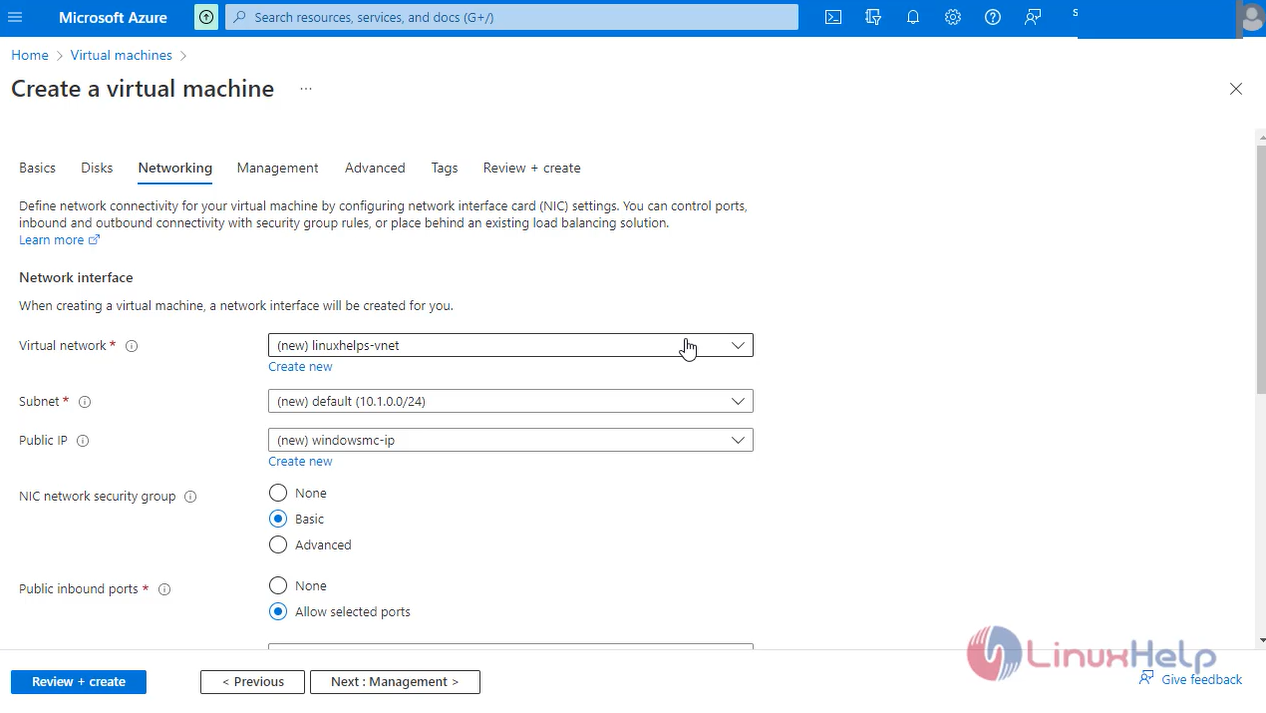
snap 5

Step 6: Set to default configuration in management, advanced and tags tab
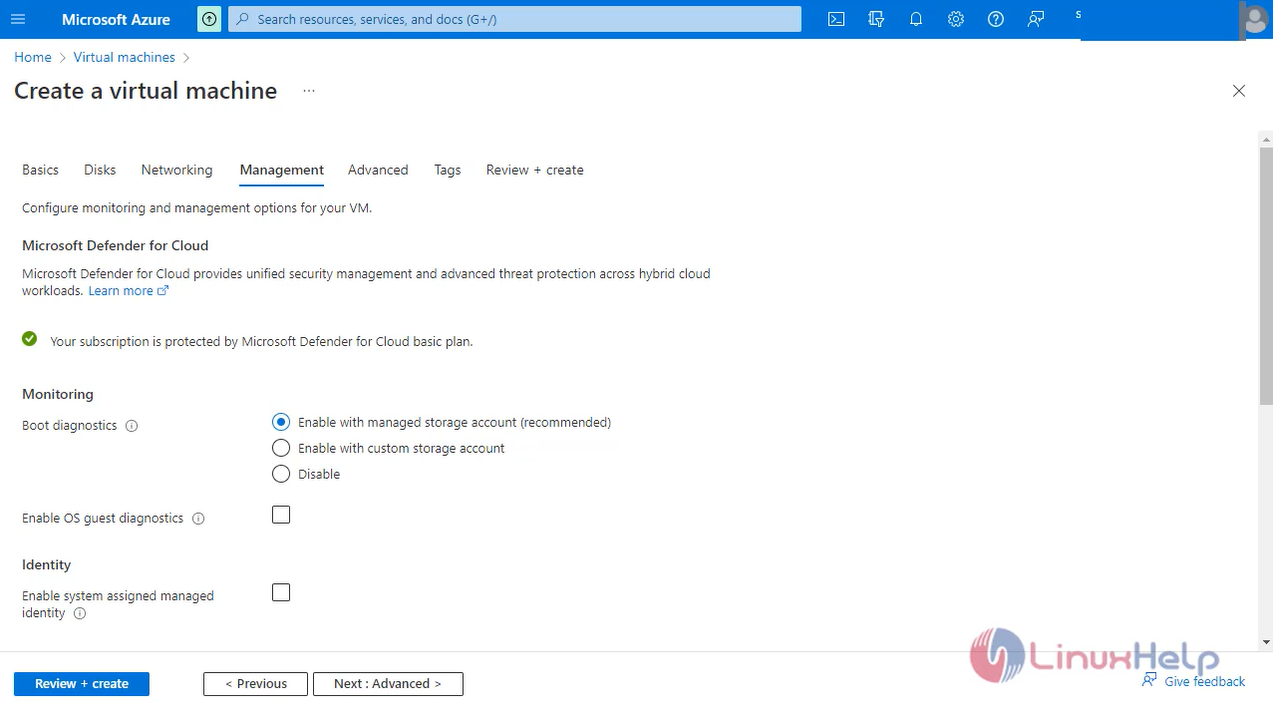
snap 6

Step 7: Review and Click Create to create the virtual machine
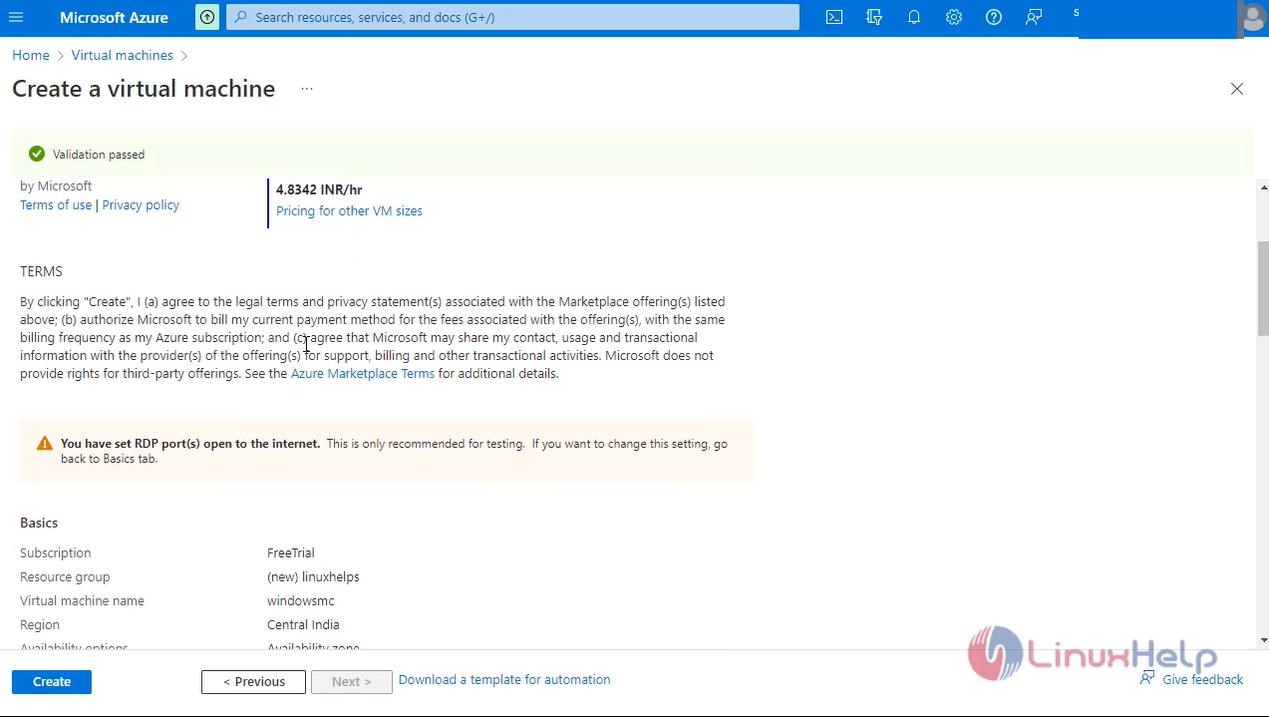
snap 7

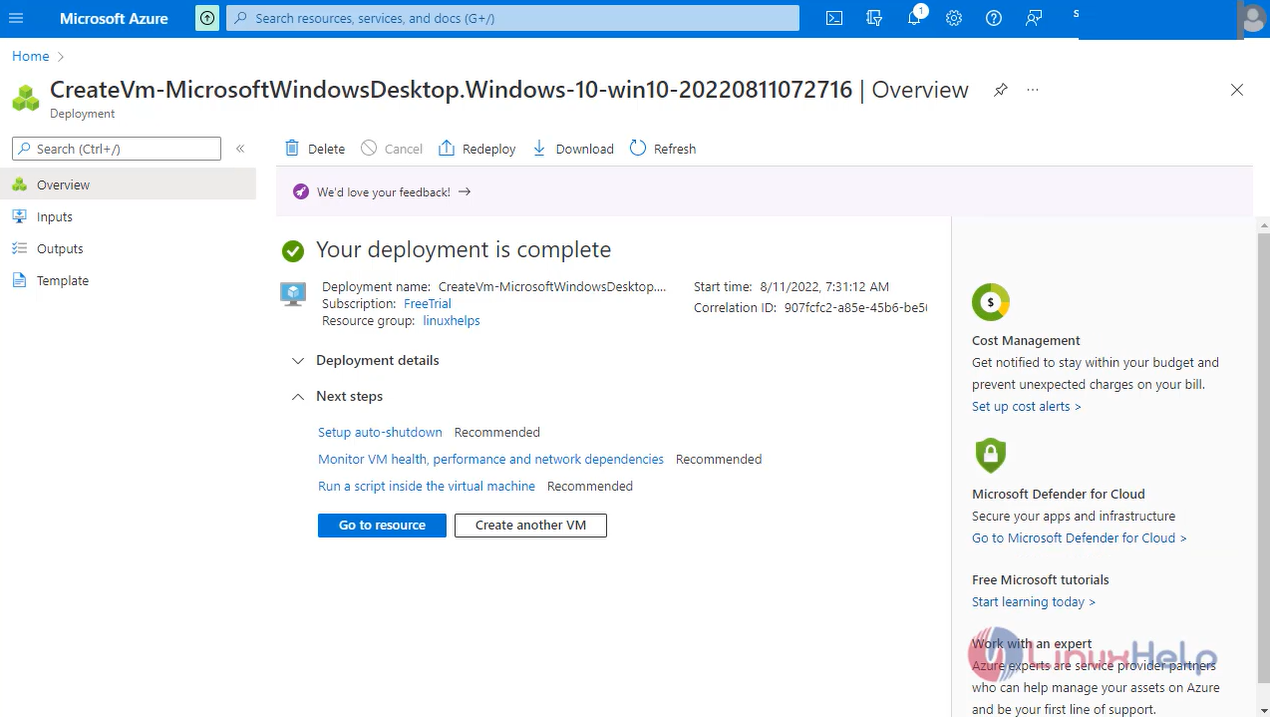
Step 8: The Deployment is successful

snap 8

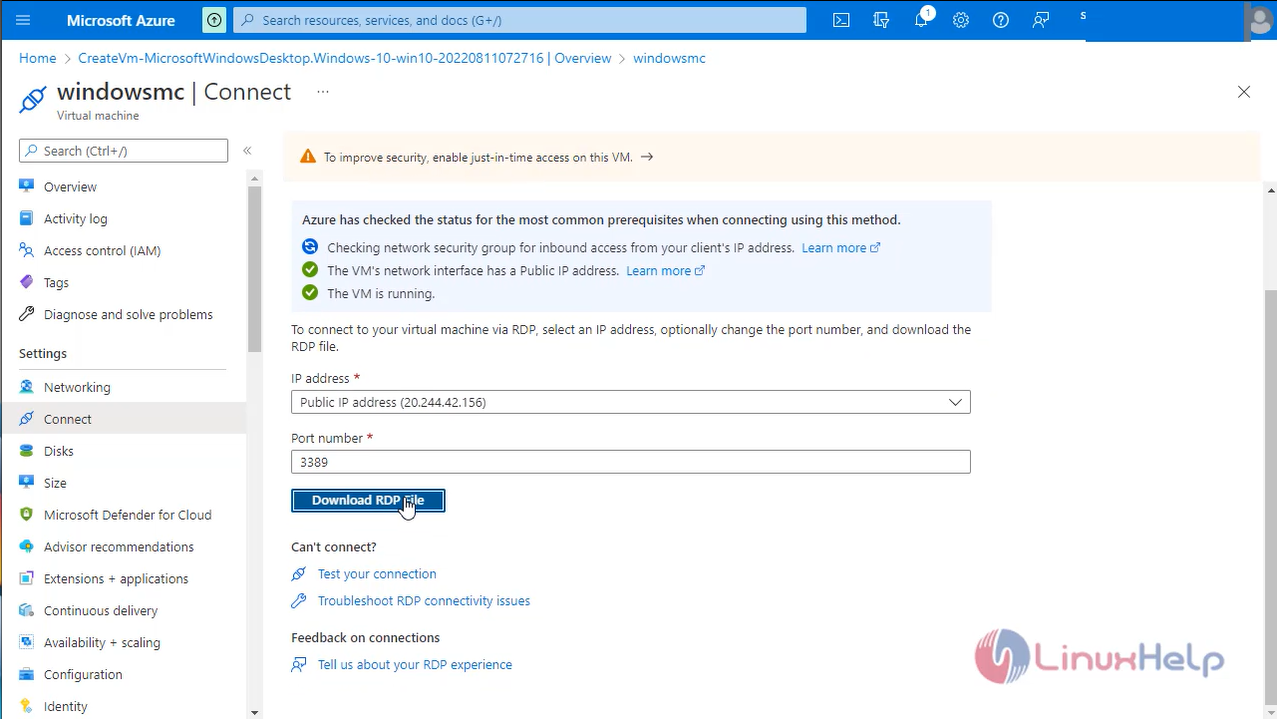
Step9: Click connect, select RDP and Download the RDP file
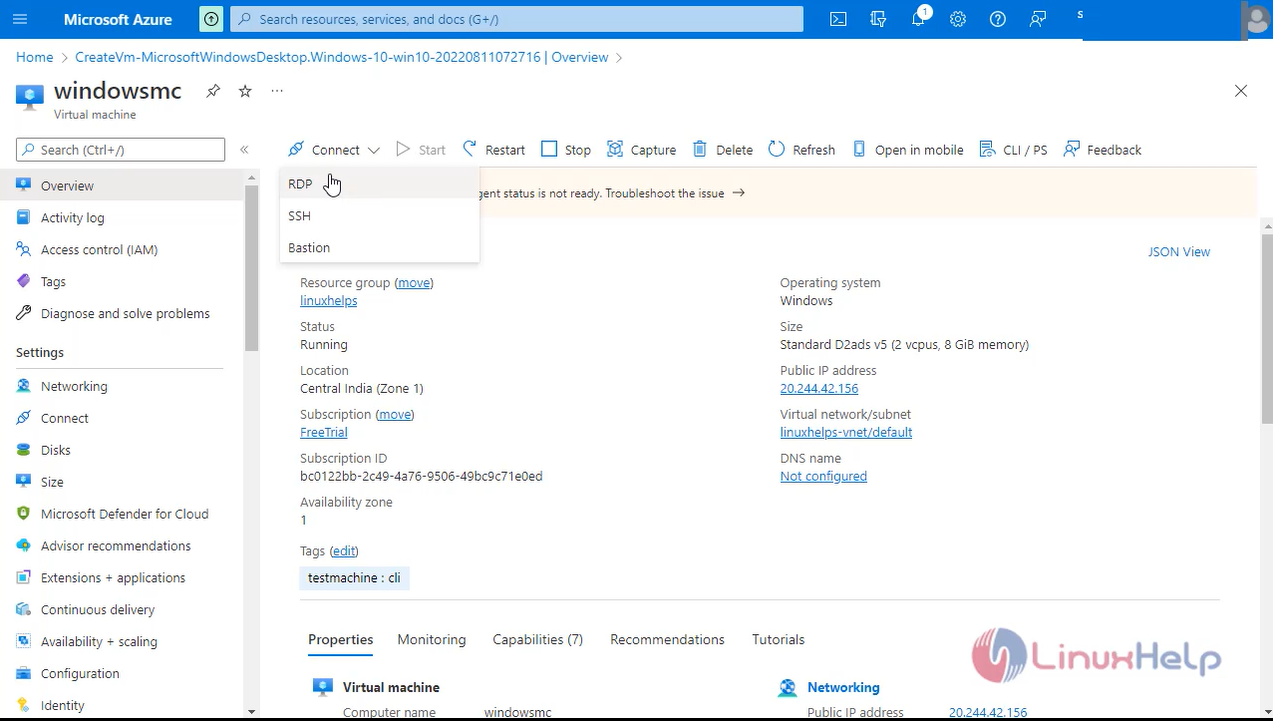
snap 9 snap 10

Step 10: Open the RDP file and Enter the Username and password
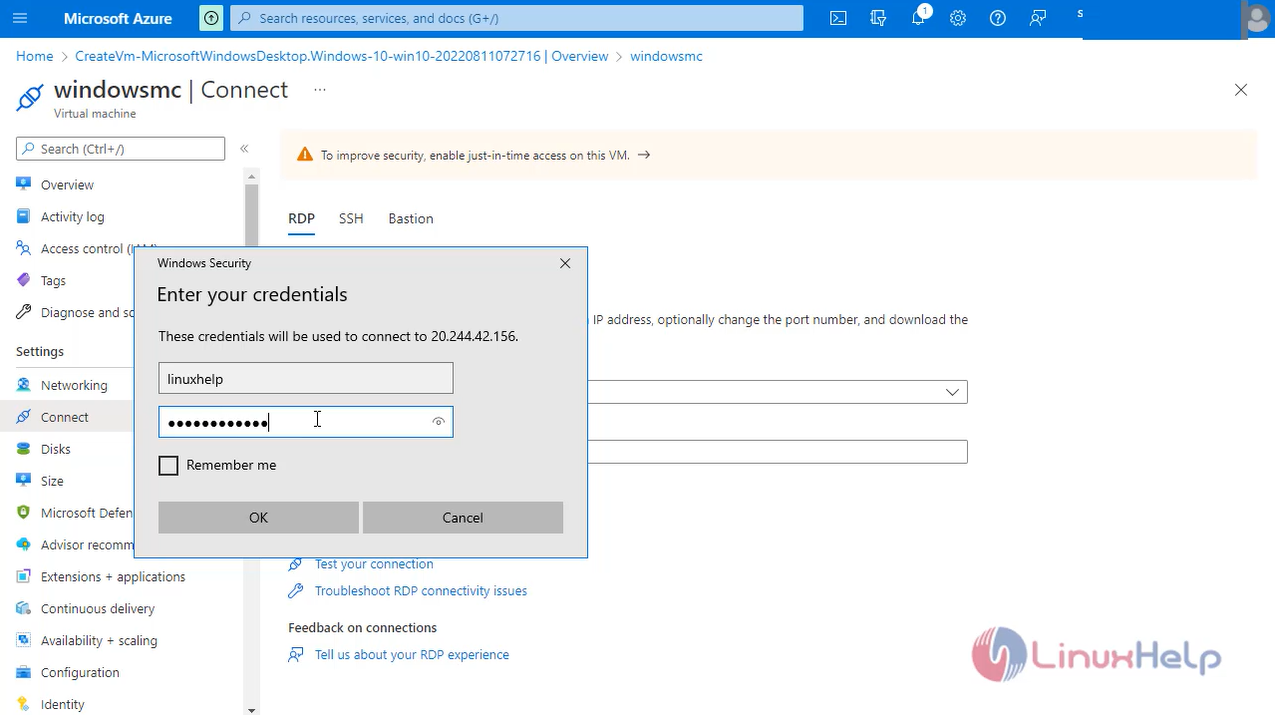
snap 11

Through RDP we can use windows virtual machine 
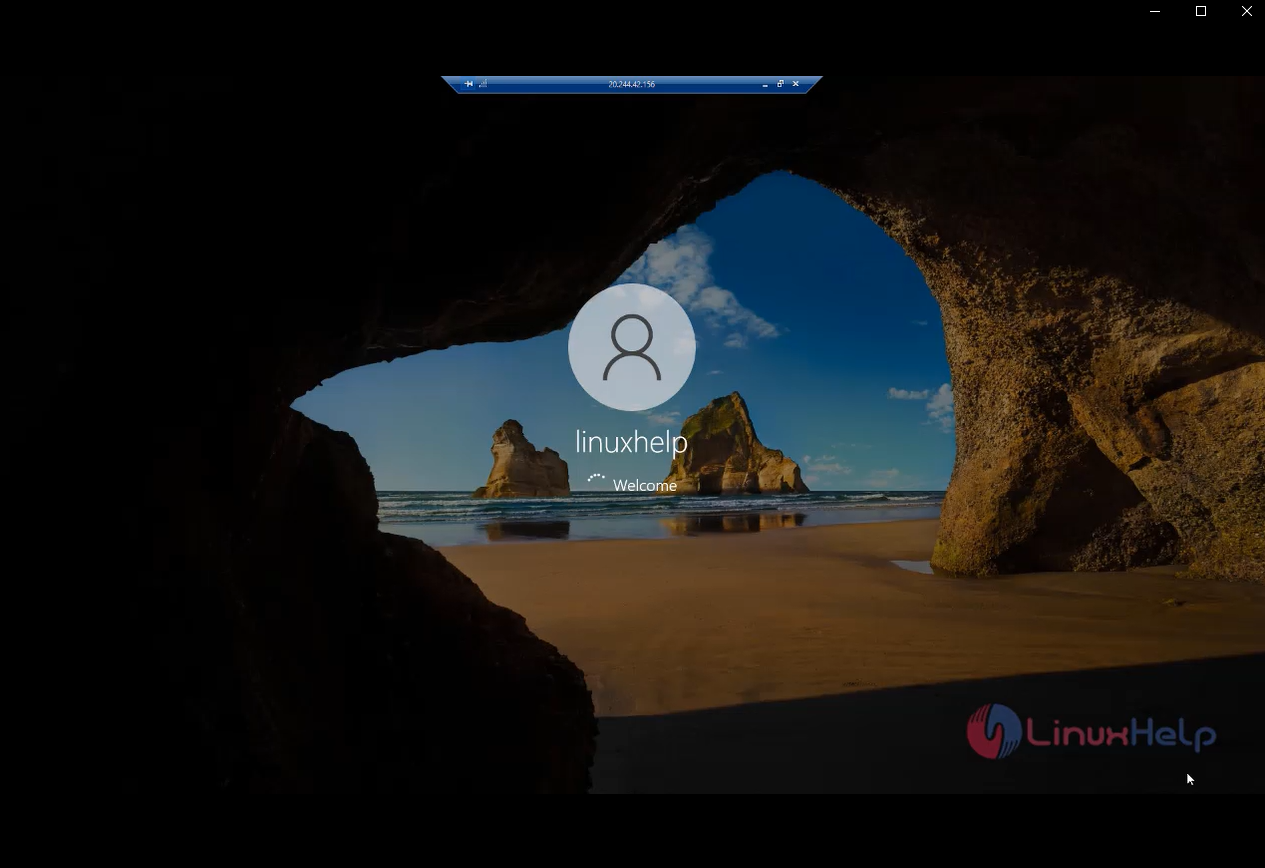
snap 12

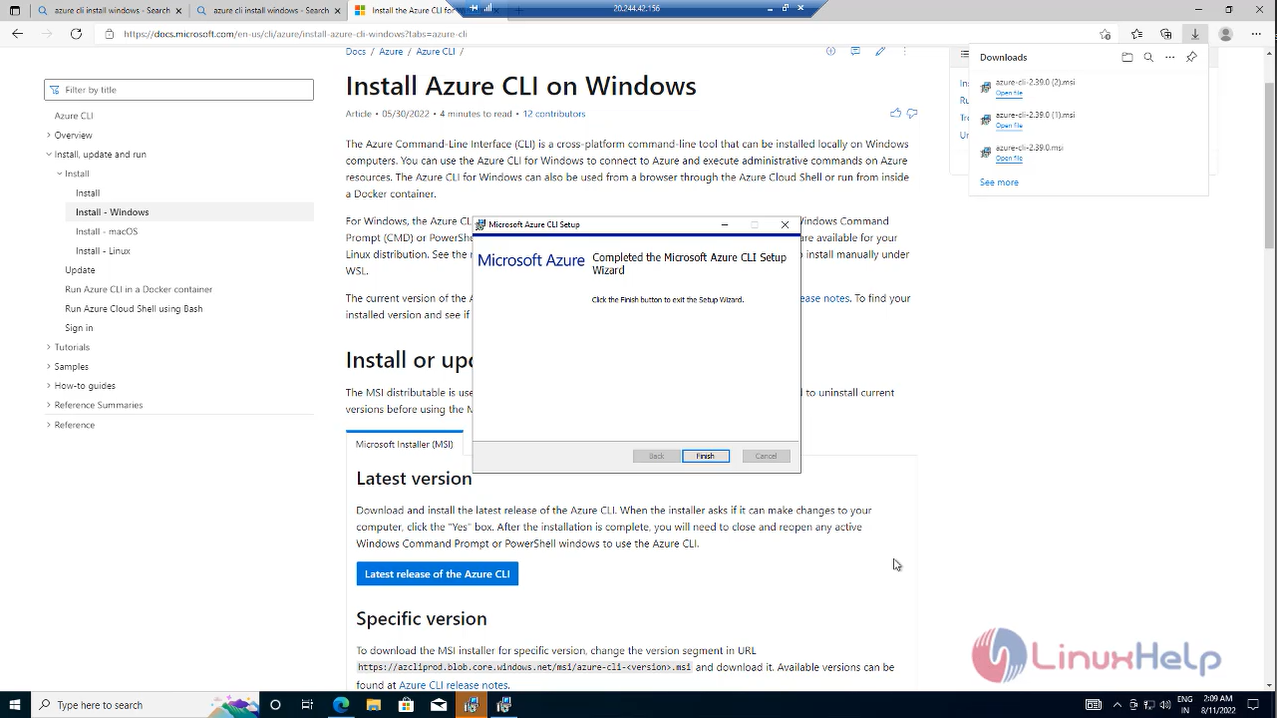
Next Go to the browser browses the azure cli installation and install package.
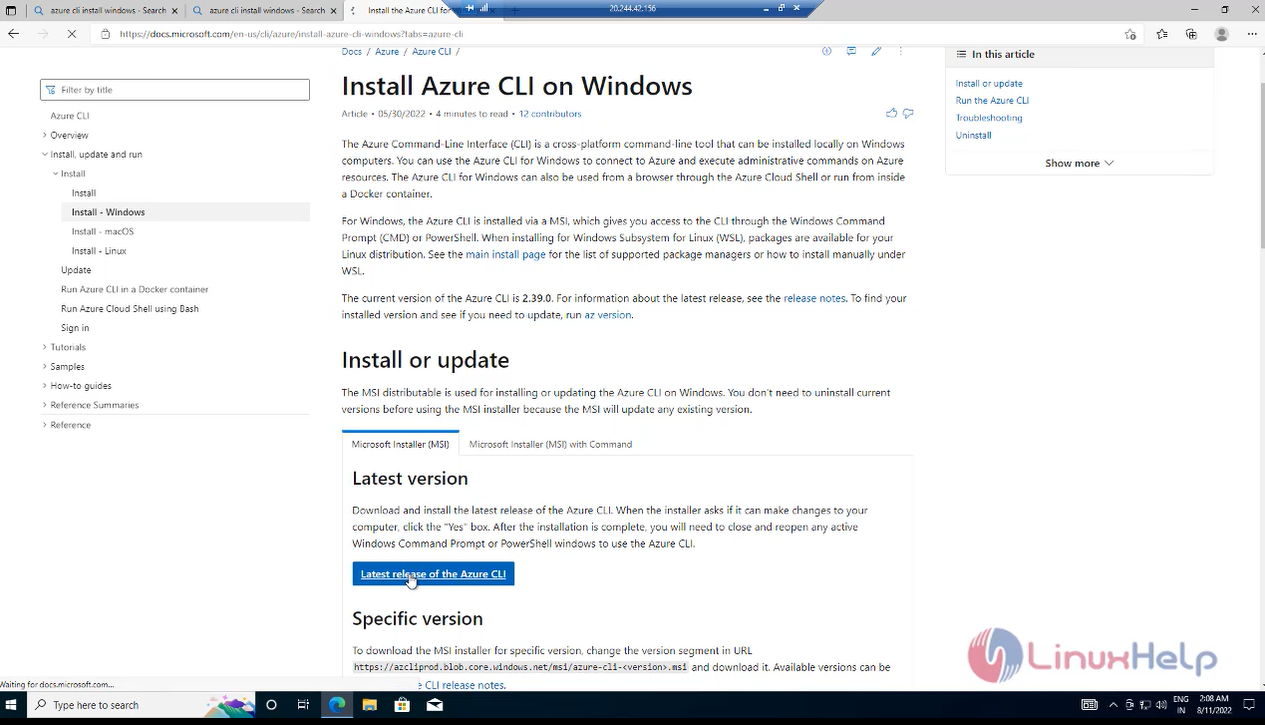
snap 13 snap 14

After install go to command prompt at run for Run as administrator.
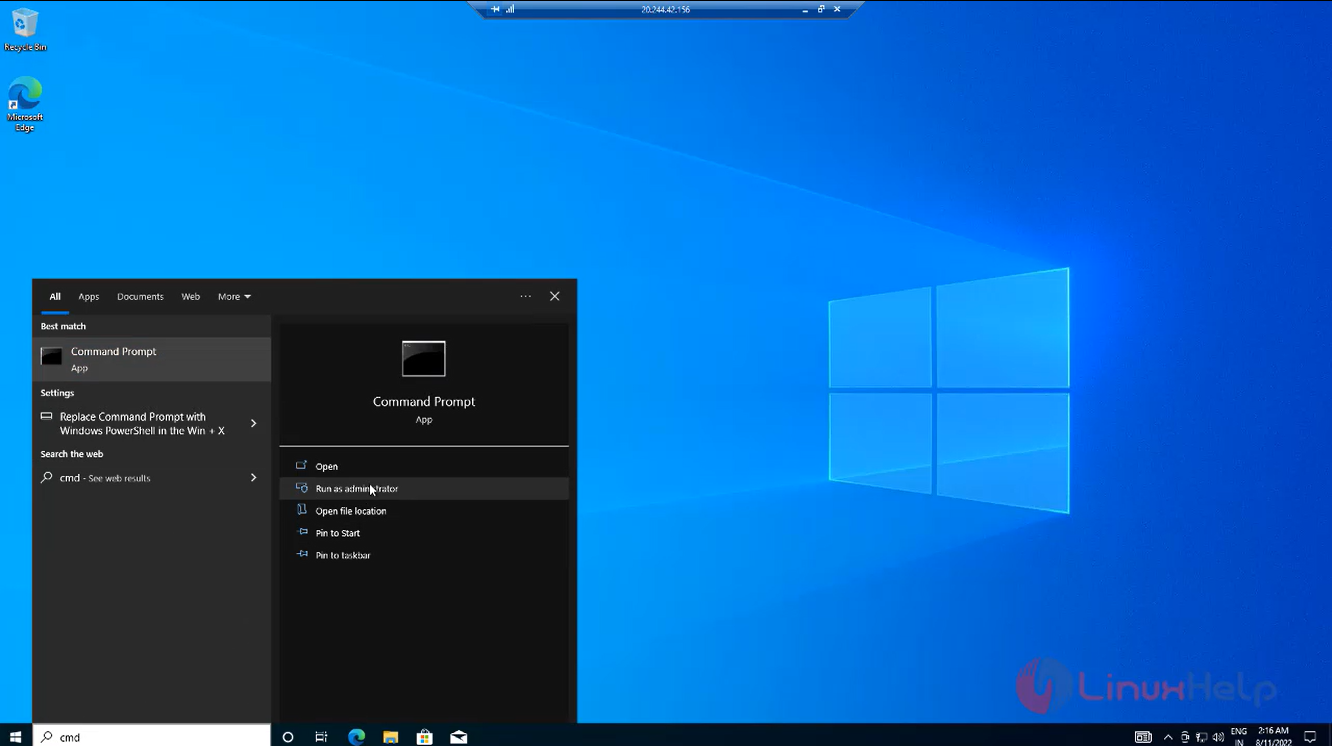
snap 15

First Run the following Command. You can see azure install or not
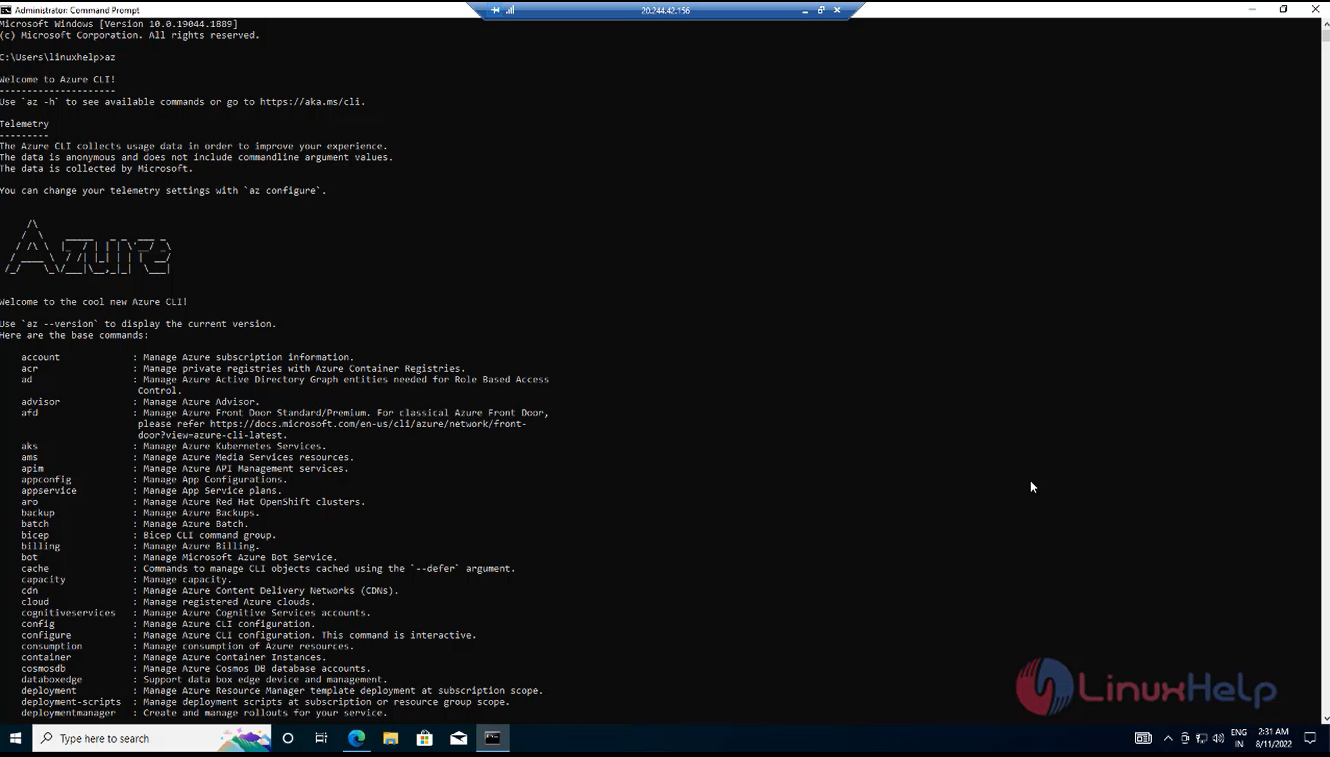
snap 16

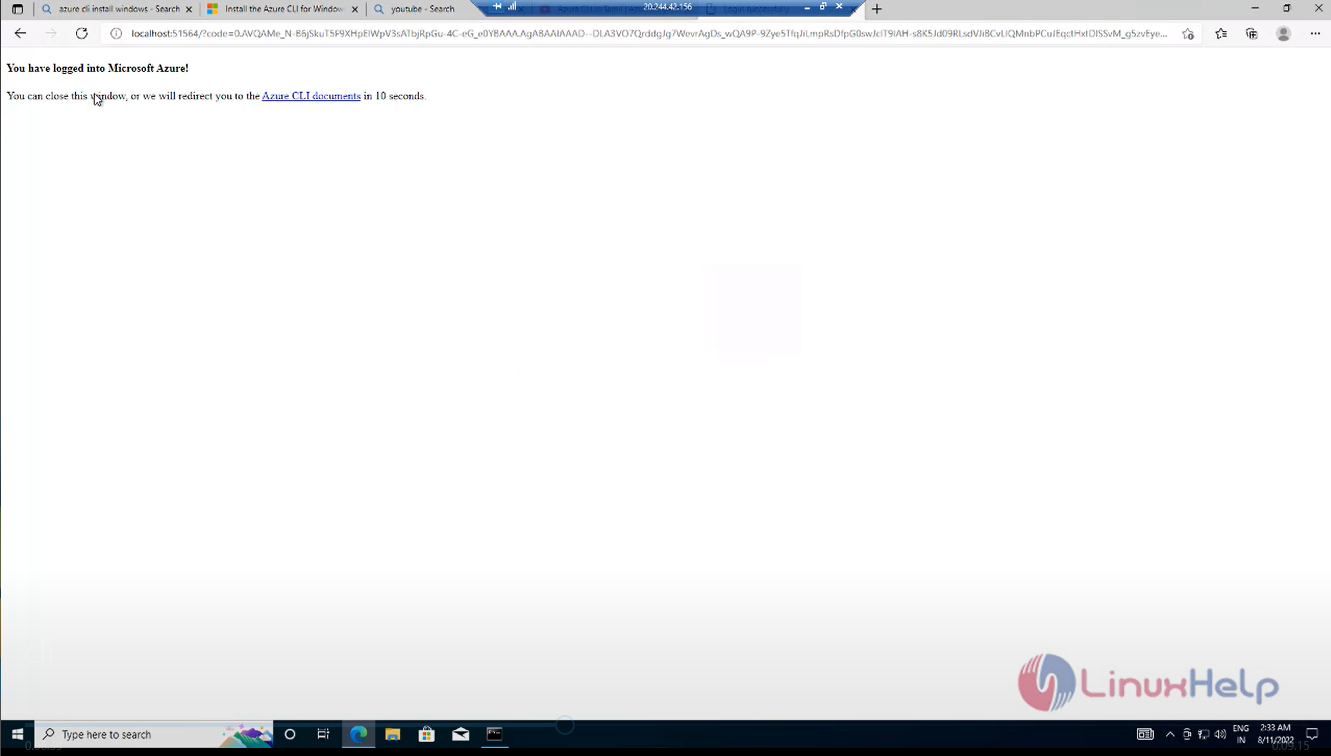
Now login to the Microsoft Azure at CLI using the following commands. Then, open prompt windows and enter the mail id and password. Finally, you can view the Azure login in CLI image.
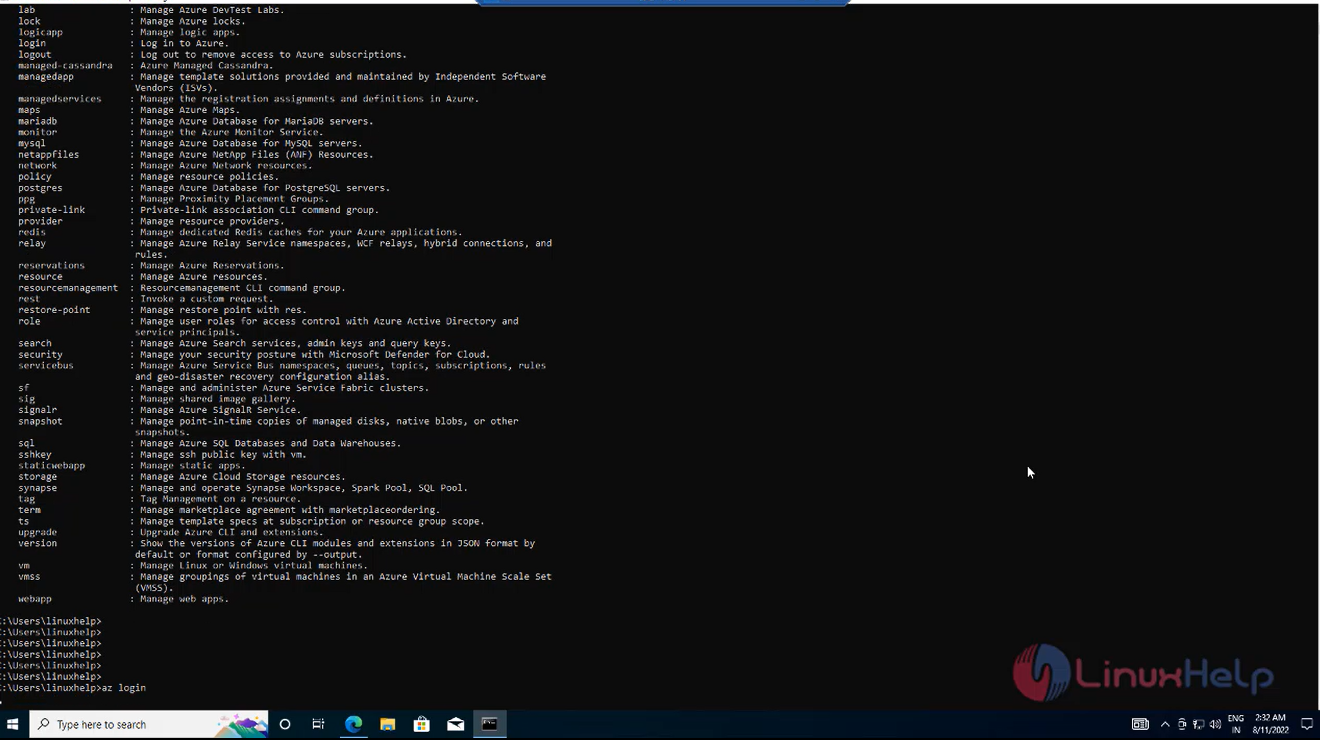
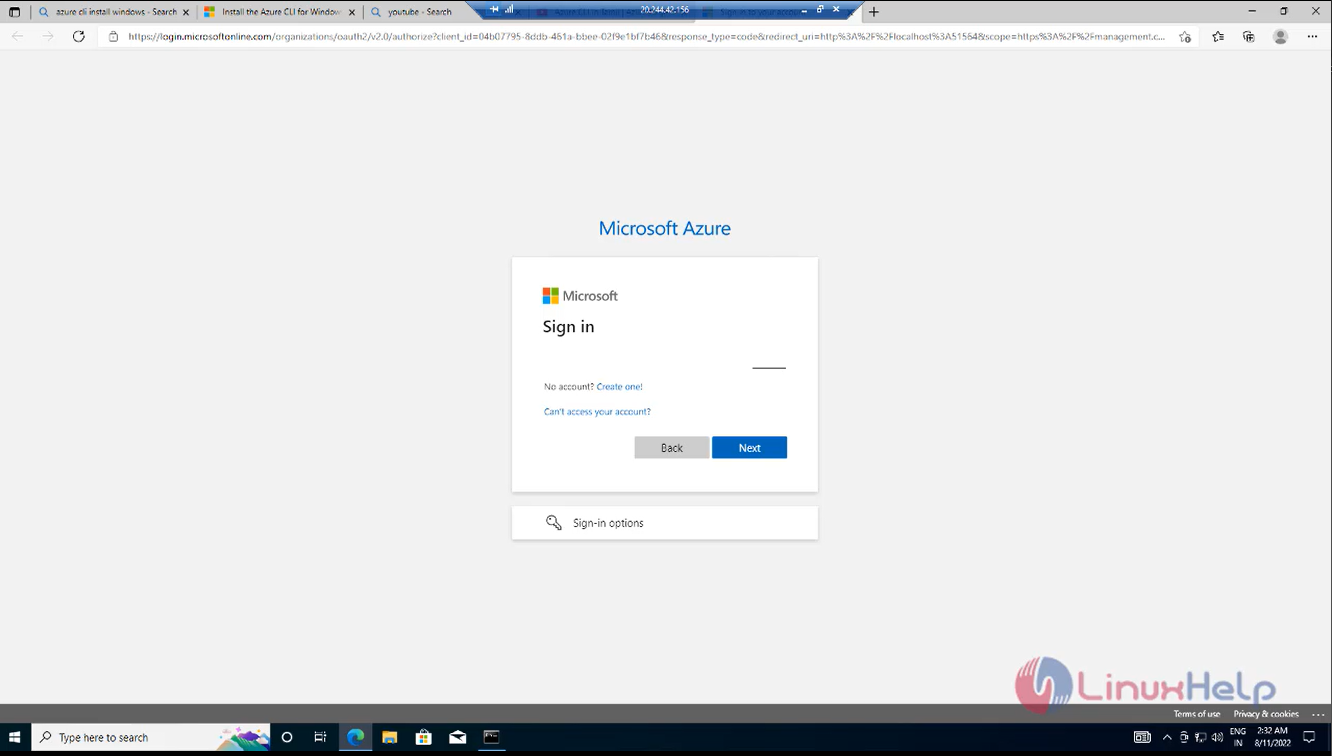
snap 17 snap 18 snap 19

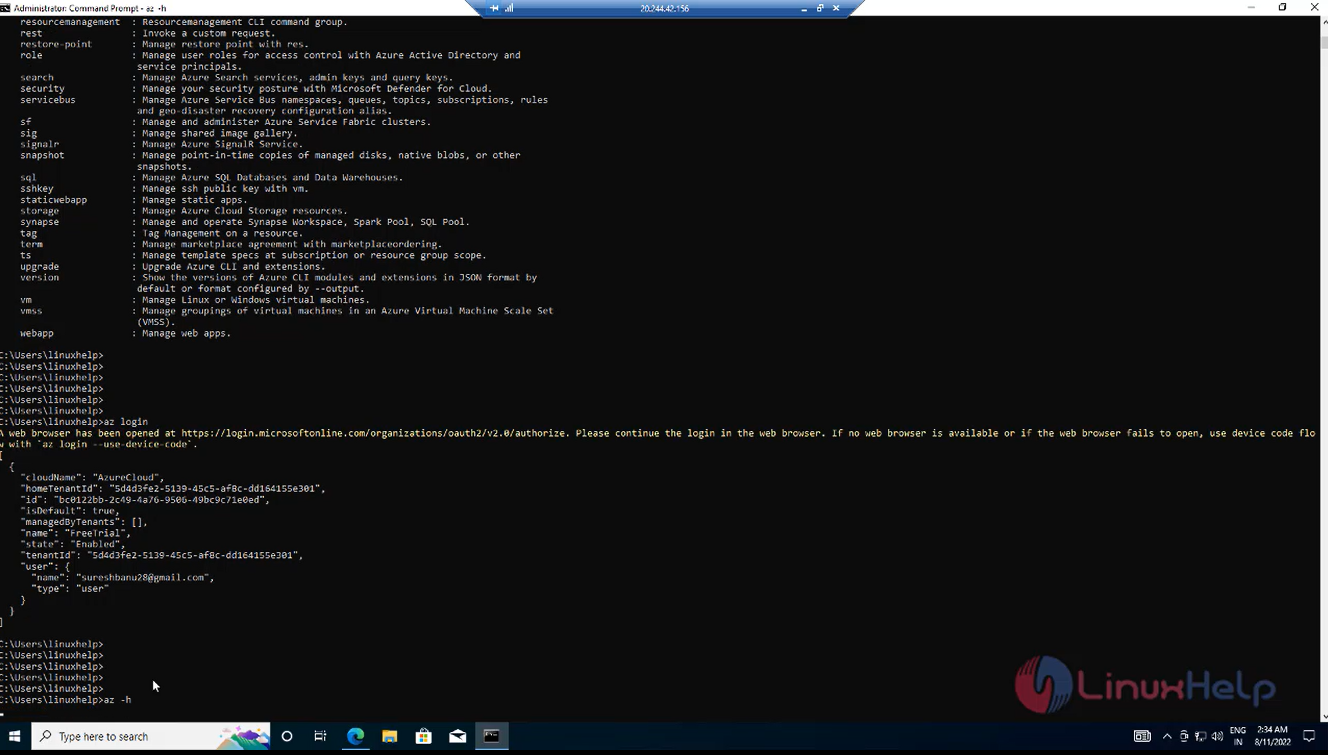
Next run the Microsoft Azure help command
snap 20

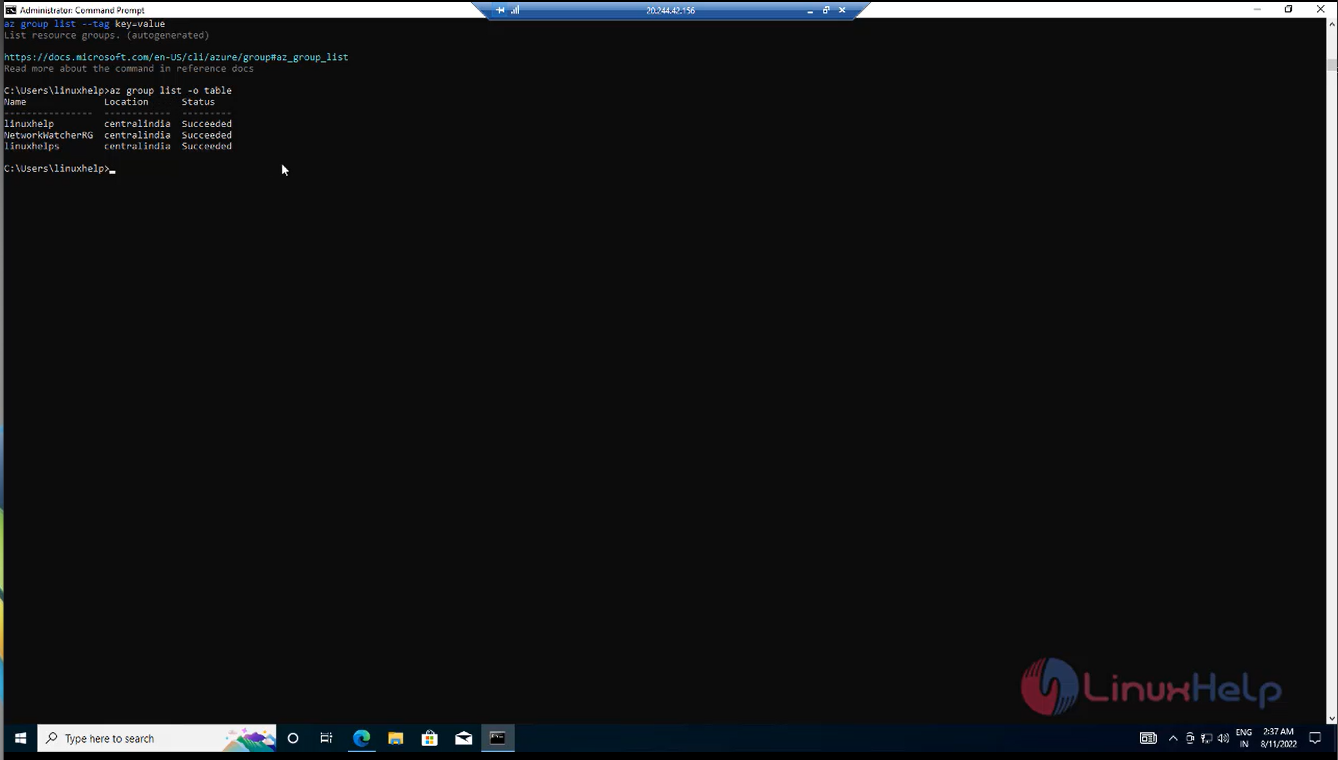
Next go to command prompt show for group list in Jason format and table format
snap 21

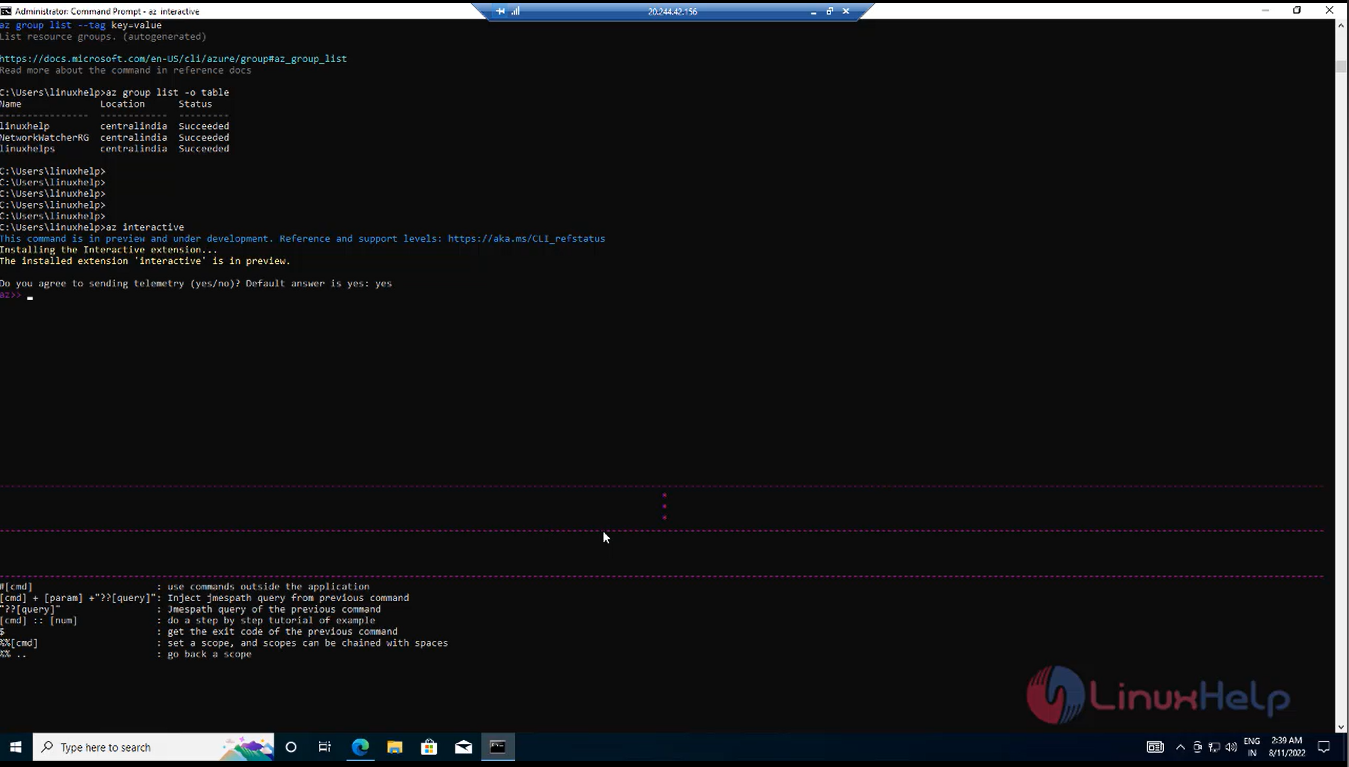
Go to interactive mode add the new resource group in command line.
snap 22

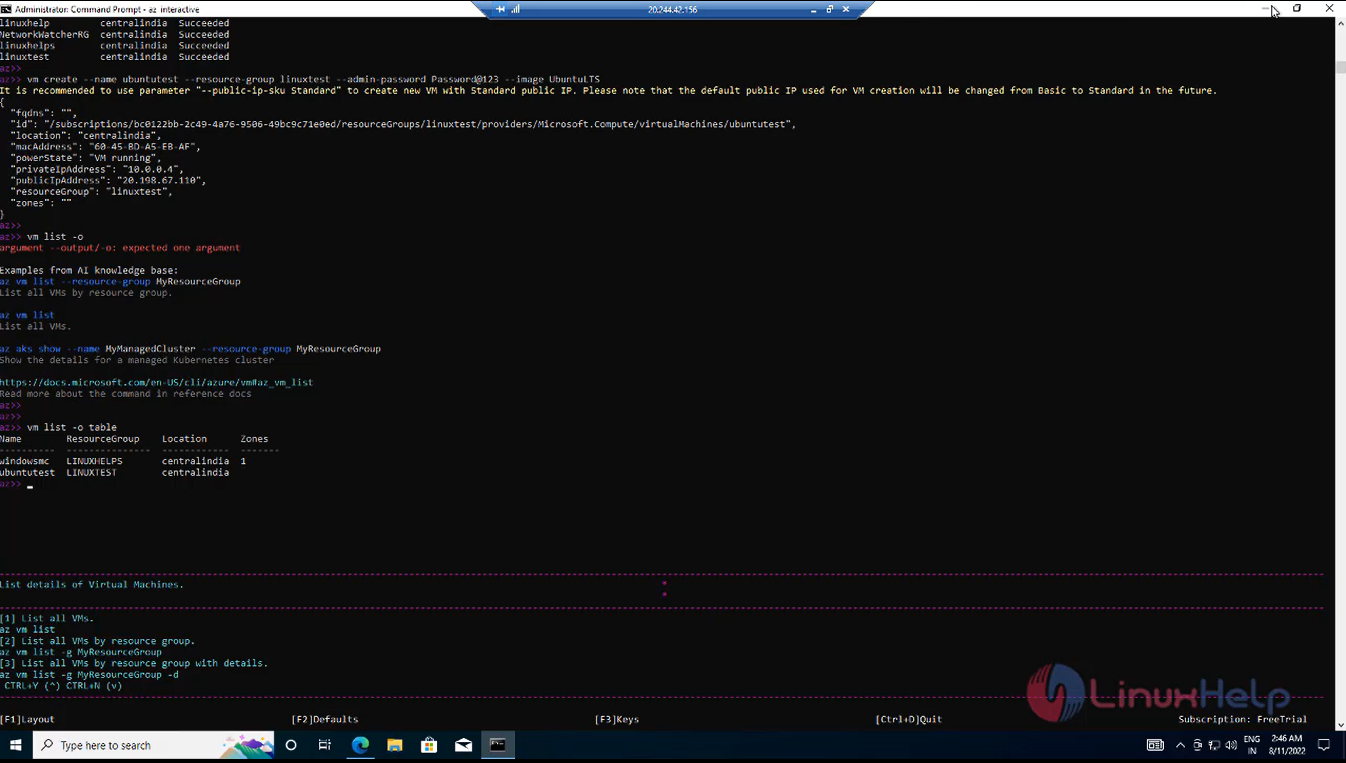
Next create Recourse Group New Linux Virtual machine in command prompt and list the virtual machine by using following commands.
snap 23

Go to Azure portal refresh the page. Here you can see the New Created Virtual machine.
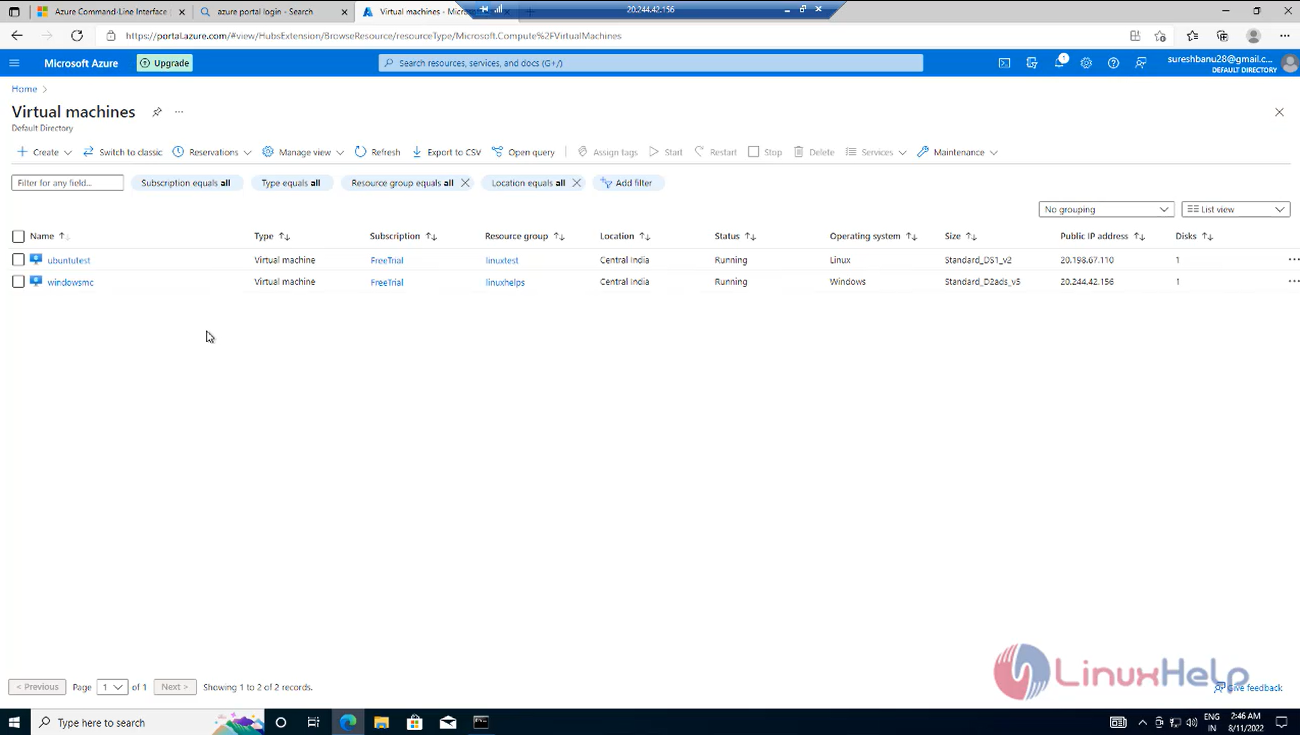
snap 24

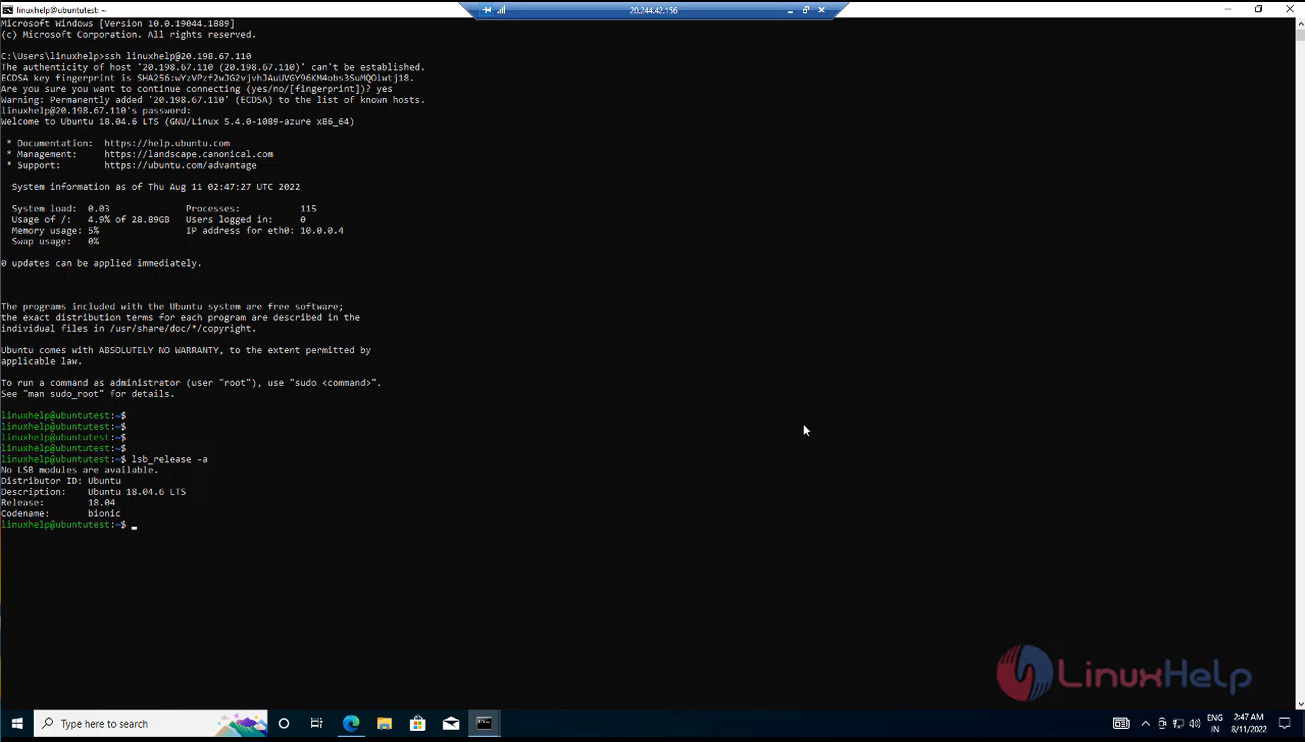
Next take SSH and Login the New virtual machine and show for virtual machine OS version.
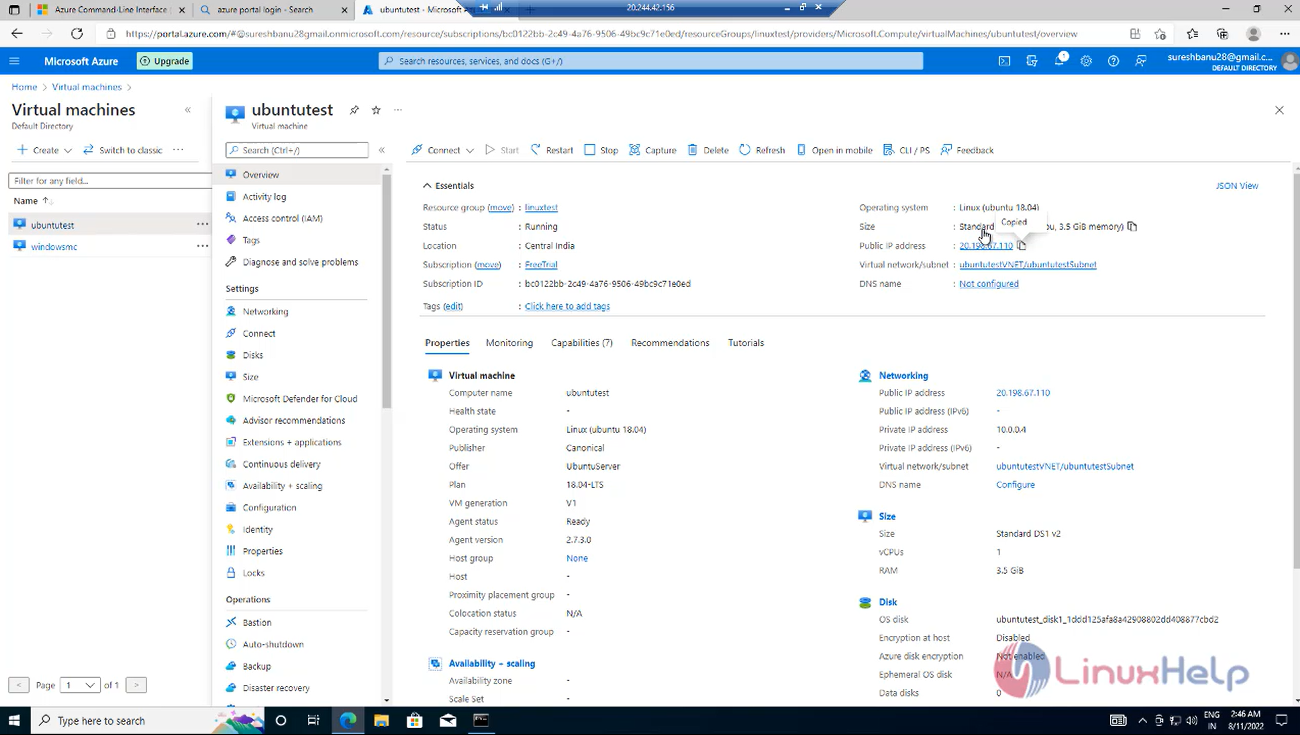
snap 25 snap 26

Finally, go to the Azure CLI and exit from the CLI mode using following commands.
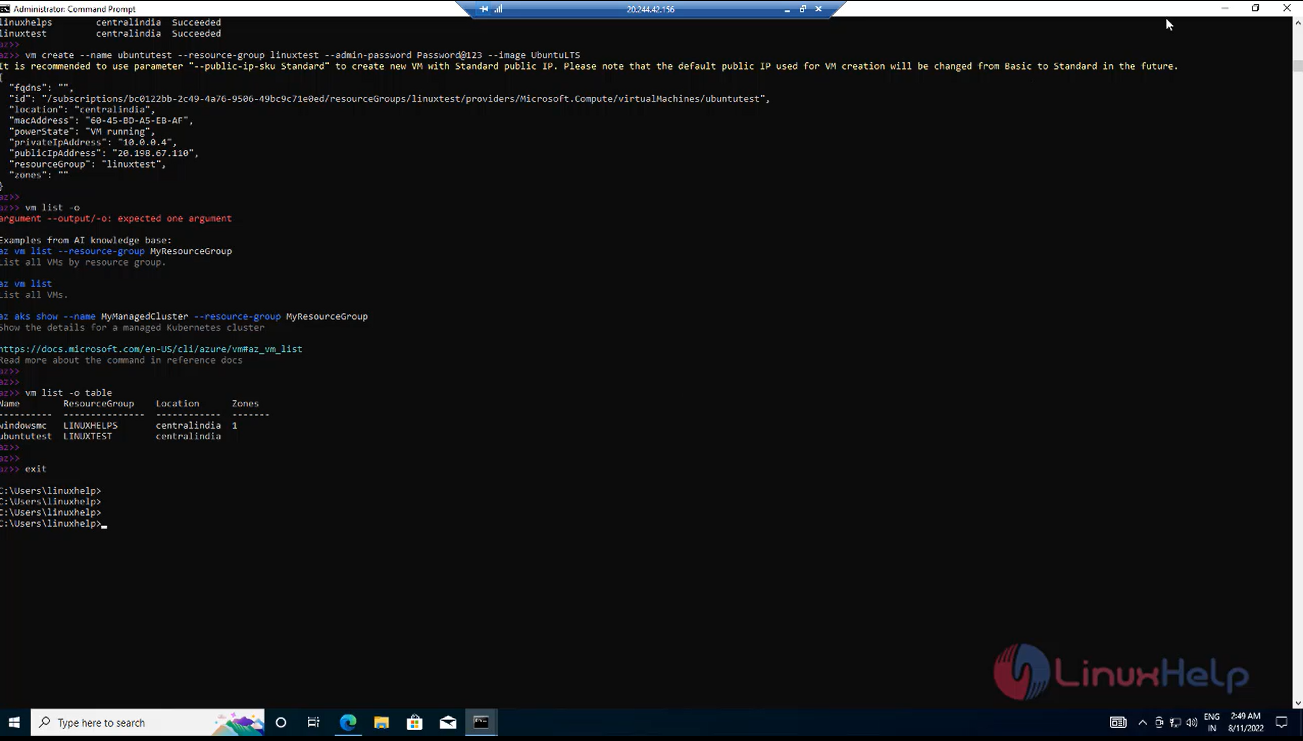
snap 27

Conclusion:

We have reached the end of this article. In this guide, we have walked you through the steps required to install Azure CLI and create a virtual machine using Azure CLI commands. Your feedback is much welcome.

Tags:
matthew
Author: 

Comments ( 0 )

No comments available

Add a comment
{{postCtrl.cmtErrMsg}}

Frequently asked questions ( 5 )

Q

What is a good reason to use the Azure CLI?

A

Because installing it on your local computer allows greater control, a better typing experience, an environment and shell you can customize to your liking, etc. You can install Azure CLI on Mac, Windows, or Linux. Or, if you prefer, you can even run it as a Docker image.

Q

What is Azure CLI vs PowerShell?

A

Azure CLI has an installer that makes its commands executable in all four shell environments.
Azure PowerShell is a set of cmdlets packaged as a PowerShell module named Az; not an executable.
Windows PowerShell or PowerShell must be used to install the Az module

Q

Is Azure CLI open source?

A

The Azure CLI, as the name suggests is a cross-platform and open-source command-line tool that we can use to create or manage resources in the Azure Portal.

Q

What language does Azure CLI use?

A

Then you will be able to run Azure CLI commands. Azure CLI can be run in both PowerShell and CMD, but PowerShell gives you more tab-completion features.

Q

How to check azure command line is installed or not?

A

Open the command prompt and run the az command.

Back To Top!
Rank
User
Points

Top Contributers

userNamenaveelansari
135850

Top Contributers

userNameayanbhatti
92510

Top Contributers

userNamehamzaahmed
32150

Top Contributers

1
userNamelinuxhelp
31040

Top Contributers

userNamemuhammadali
24500
Can you help Owen ?
How to add SSH key to my Gitlab account

I need to add the SSH key in my gitlab account. How to do so ????

Networking
  • Routing
  • trunk
  • Netmask
  • Packet Capture
  • domain
  • HTTP Proxy
Server Setup
  • NFS
  • KVM
  • Memory
  • Sendmail
  • WebDAV
  • LXC
Shell Commands
  • Cloud commander
  • Command line archive tools
  • last command
  • Shell
  • terminal
  • Throttle
Desktop Application
  • Linux app
  • Pithos
  • Retrospect
  • Scribe
  • TortoiseHg
  • 4Images
Monitoring Tool
  • Monit
  • Apache Server Monitoring
  • EtherApe 
  • Arpwatch Tool
  • Auditd
  • Barman
Web Application
  • Nutch
  • Amazon VPC
  • FarmWarDeployer
  • Rukovoditel
  • Mirror site
  • Chef
Contact Us | Terms of Use| Privacy Policy| Disclaimer
© 2025 LinuxHelp.com All rights reserved. Linux™ is the registered trademark of Linus Torvalds. This site is not affiliated with linus torvalds in any way.