How to Install Both Apache and Nginx Web Servers on CentOS 7.6
- 00:37 vim /etc/yum.repos.d/nginx.repo
- 00:50 yum install nginx -y
- 01:00 systemctl enable nginx
- 01:04 systemctl start nginx
- 01:16 netstat -tulpn | grep nginx
- 01:28 vim /etc/nginx/nginx.conf
- 01:45 vim /etc/nginx/conf.d/default.conf
- 01:58 nginx -t
- 02:07 systemctl restart nginx
- 02:12 netstat -tulpn | grep nginx
- 02:21 yum install httpd -y
- 02:47 netstat -tulpn | grep httpd
Installation of Apache And Nginx On CentOS 7.6
Check the version of both the servers to verify the installed packages on the system.
[root@linuxhelp ~]# httpd -v
bash: httpd: command not found...
[root@linuxhelp ~]# nginx -v
bash: nginx: command not found...
Nginx Installation procedure
Add the nginx repo inside the yum repository list to install the latest version of nginx
[root@linuxhelp ~]# vim /etc/yum.repos.d/nginx.repo
[nginx]
name=nginx repo
baseurl=http://nginx.org/packages/mainline/centos/7/$basearch/
gpgcheck=0
enabled=1
Install the nginx server 1.17.0 version as follows:
[root@linuxhelp ~]# yum install nginx -y
Loaded plugins: fastestmirror, langpacks
Loading mirror speeds from cached hostfile
 * base: ftp.iitm.ac.in
 * epel: kartolo.sby.datautama.net.id
 * extras: mirror.nbrc.ac.in
 * remi-php72: mirrors.neterra.net
 * remi-safe: mirrors.neterra.net
 * updates: mirror.ehost.vn
Resolving Dependencies
--> Running transaction check
---> Package nginx.x86_64 1:1.17.0-1.el7.ngx will be installed
--> Finished Dependency Resolution
.
.
.
.
| 767 kB  00:00:05
Running transaction check
Running transaction test
Transaction test succeeded
Running transaction
  Installing : 1:nginx-1.17.0-1.el7.ngx.x86_64                                                                                          1/1
----------------------------------------------------------------------

Thanks for using nginx!
Please find the official documentation for nginx here:
* http://nginx.org/en/docs/

Please subscribe to nginx-announce mailing list to get
the most important news about nginx:
* http://nginx.org/en/support.html

Commercial subscriptions for nginx are available on:
* http://nginx.com/products/

----------------------------------------------------------------------
  Verifying  : 1:nginx-1.17.0-1.el7.ngx.x86_64                                                                                          1/1

Installed:
  nginx.x86_64 1:1.17.0-1.el7.ngx

Complete!
Enable the service of nginx
[root@linuxhelp ~]# systemctl enable nginx
Created symlink from /etc/systemd/system/multi-user.target.wants/nginx.service to /usr/lib/systemd/system/nginx.service.
Start the service of Nginx
[root@linuxhelp ~]# systemctl start nginx
Check the status of nginx as follows
[root@linuxhelp ~]# systemctl status nginx
● nginx.service - nginx - high performance web server
   Loaded: loaded (/usr/lib/systemd/system/nginx.service; enabled; vendor preset: disabled)
Active: active (running) since Thu 2019-06-06 14:30:57 IST; 11s ago
     Docs: http://nginx.org/en/docs/
Check the port number that nginx is listening to.
[root@linuxhelp ~]# netstat -tulpn | grep nginx
tcp        0      0 0.0.0.0:80              0.0.0.0:*               LISTEN      32078/nginx: master
Modify the port number in the configuration file of nginx inside the server block to 8989
[root@linuxhelp ~]# vim /etc/nginx/nginx.conf
server {
	listen       8989 default_server;
	listen       [::]:8989 default_server;
	server_name   _;
	root         /usr/share/nginx/html;
}
Modify the port number of Nginx in default.conf as 8989 as follows:
[root@linuxhelp ~]# vim /etc/nginx/conf.d/default.conf
Listen 8989;
Test the configuration of nginx before restarting the service of nginx
[root@linuxhelp ~]# nginx -t
nginx: the configuration file /etc/nginx/nginx.conf syntax is ok
nginx: configuration file /etc/nginx/nginx.conf test is successful
restart the service of Nginx to update the changes in the configuration of nginx
[root@linuxhelp ~]# systemctl restart nginx
Verify Nginx listening socket using netstat
 [root@linuxhelp ~]# netstat -tulpn | grep nginx
tcp        0      0 0.0.0.0:8989            0.0.0.0:*               LISTEN      32344/nginx: master
tcp6       0      0 :::8989                 :::*                    LISTEN      32344/nginx: master
Apache Installation procedure
Install the Apache server by executing the following command.
[root@linuxhelp ~]# yum install httpd -y
Loaded plugins: fastestmirror, langpacks
Loading mirror speeds from cached hostfile
 * base: ftp.iitm.ac.in
 * epel: kartolo.sby.datautama.net.id
 * extras: mirror.nbrc.ac.in
 * remi-php72: mirrors.neterra.net
 * remi-safe: mirrors.neterra.net
 * updates: mirror.ehost.vn
Resolving Dependencies
--> Running transaction check
---> Package httpd.x86_64 0:2.4.6-89.el7.centos will be installed
--> Processing Dependency: httpd-tools = 2.4.6-89.el7.centos for package: httpd-2.4.6-89.el7.centos.x86_64
.
.
.
.
.
Installed:
  httpd.x86_64 0:2.4.6-89.el7.centos

Dependency Installed:
  httpd-tools.x86_64 0:2.4.6-89.el7.centos

Complete!
Enable the service of Apache post Installation.
[root@linuxhelp ~]# systemctl enable httpd
Created symlink from /etc/systemd/system/multi-user.target.wants/httpd.service to /usr/lib/systemd/system/httpd.service.
Start the service of Apache.
[root@linuxhelp ~]# systemctl start httpd
Check the status of Apache after starting the service of Apache.
[root@linuxhelp ~]# systemctl status httpd
● httpd.service - The Apache HTTP Server
   Loaded: loaded (/usr/lib/systemd/system/httpd.service; enabled; vendor preset: disabled)
   Active: active (running) since Thu 2019-06-06 14:36:06 IST; 10s ago
Check the listening socket of Httpd using netstat as follows.
 [root@linuxhelp ~]# netstat -tulpn | grep httpd
tcp6       0      0 :::80                   :::*                    LISTEN      32583/httpd
Open the Browser and enter the ip address of the machine followed by 80 port number to view the test page the Apache web server
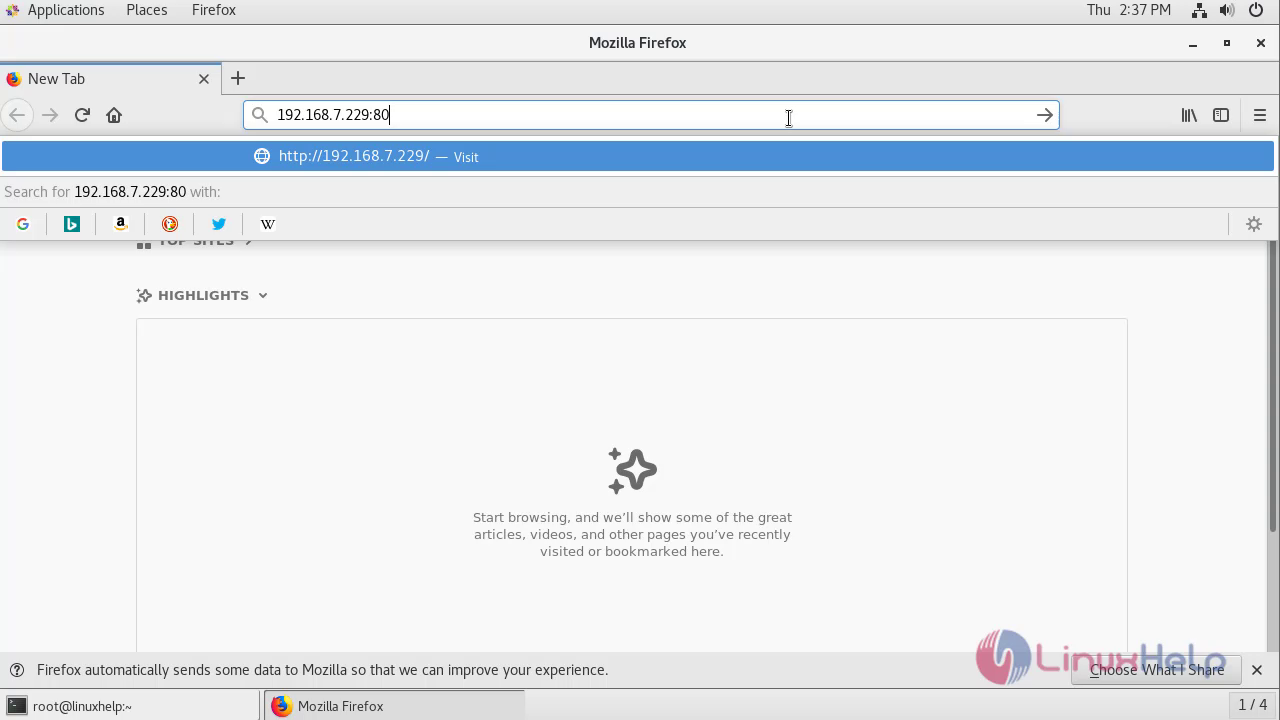
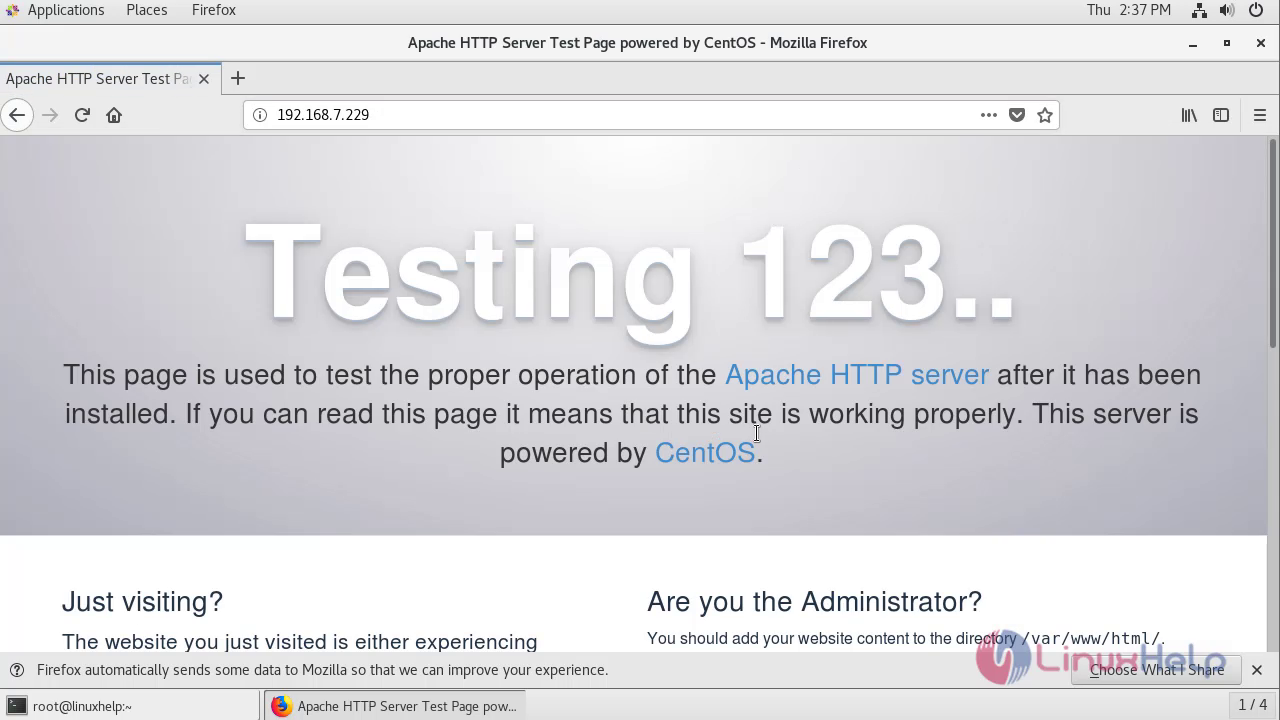
Switch to the next tab and enter the ip address of the machine followed by 8989 port number as follows to open the test page of Nginx web server.
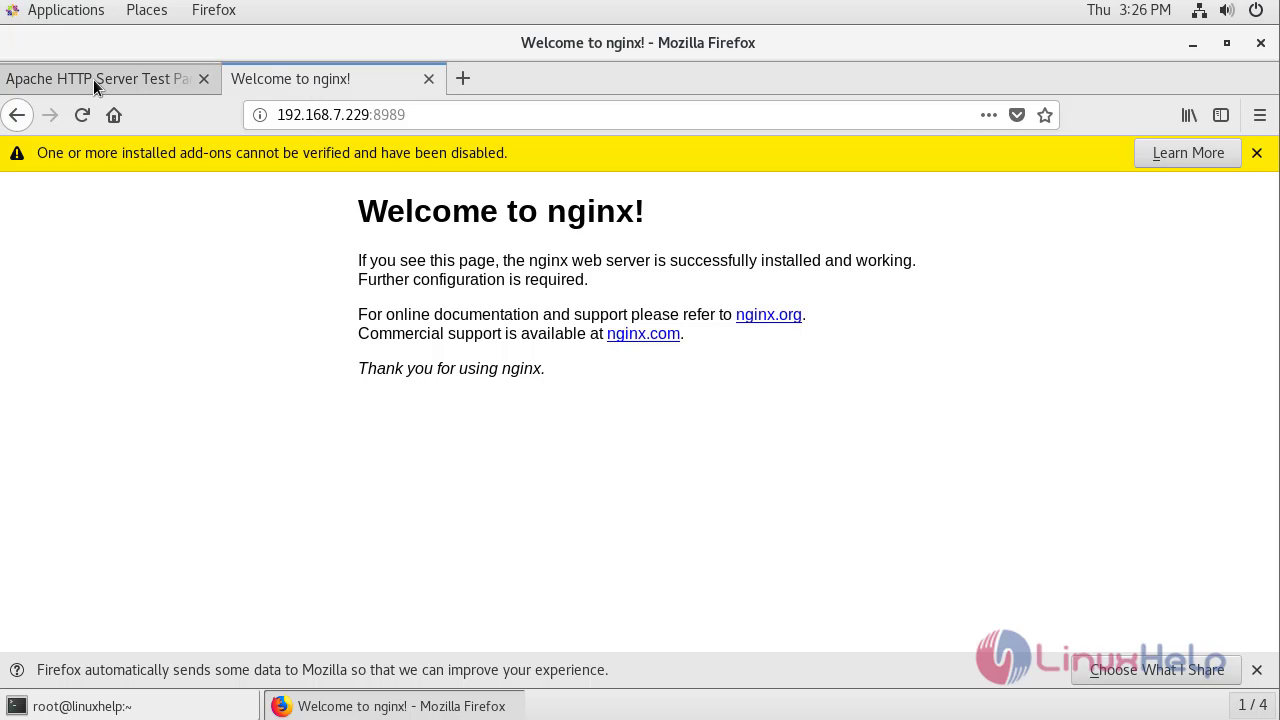
With this,Installation of Apache And Nginx web servers On CentOS 7.6 Comes to end.
Comments ( 0 )
No comments available