• Categories
    Category
    {{ postCtrl.tags }}
    • {{ category.tag_type }}

      • {{tag.tag_name}}
      • View more
  • Categories
    Category
    {{ postCtrl.tags }}
    • {{ category.tag_type }}

      • {{tag.tag_name}}
      • View more
  • News
  • Tutorials
  • Forums
  • Tags
  • Users
Tutorial News Comments FAQ Related Articles

How to install Calligra on Ubuntu 17.04

{{postValue.id}}

How to install Calligra on Ubuntu 17.04

Calligra is an office suite that comprises a free set of applications for GNU/Linux. It is built to help you perform your day to day office work with ease. It has all the major application available in an office suite such as a Word Processor, a spreadsheet, a presentation program and a database application. Apart from this, it also possess raster and vector graphics tools. Moreover, its functioning is very similar to the popular LibreOffice suite and it also provides a lot other attractive features for your daily office tasks. In this article, you' ll learn about the method to install Calligra on Ubuntu 17.04

Installing Calligra

Since Calligra is already available in the Ubuntu repository, you can just update your machine by executing the following command.

root@linuxhelp11:~# apt-get update
Hit:1 http://in.archive.ubuntu.com/ubuntu xenial InRelease
Get:2 http://in.archive.ubuntu.com/ubuntu xenial-updates InRelease [102 kB]
Get:3 http://security.ubuntu.com/ubuntu xenial-security InRelease [102 kB]
Get:4 http://in.archive.ubuntu.com/ubuntu xenial-backports InRelease [102 kB]
Fetched 306 kB in 1s (208 kB/s)
Reading package lists... Done

Once it is done, you can directly install Calligra as follows.

root@linuxhelp11:~# apt-get install calligra
Reading package lists... Done
Building dependency tree
Reading state information... Done
The following packages were automatically installed and are no longer required:
gnome-software-common libgtkspell3-3-0
.
.
.
Running hooks in /etc/ca-certificates/update.d...
done.
Done.

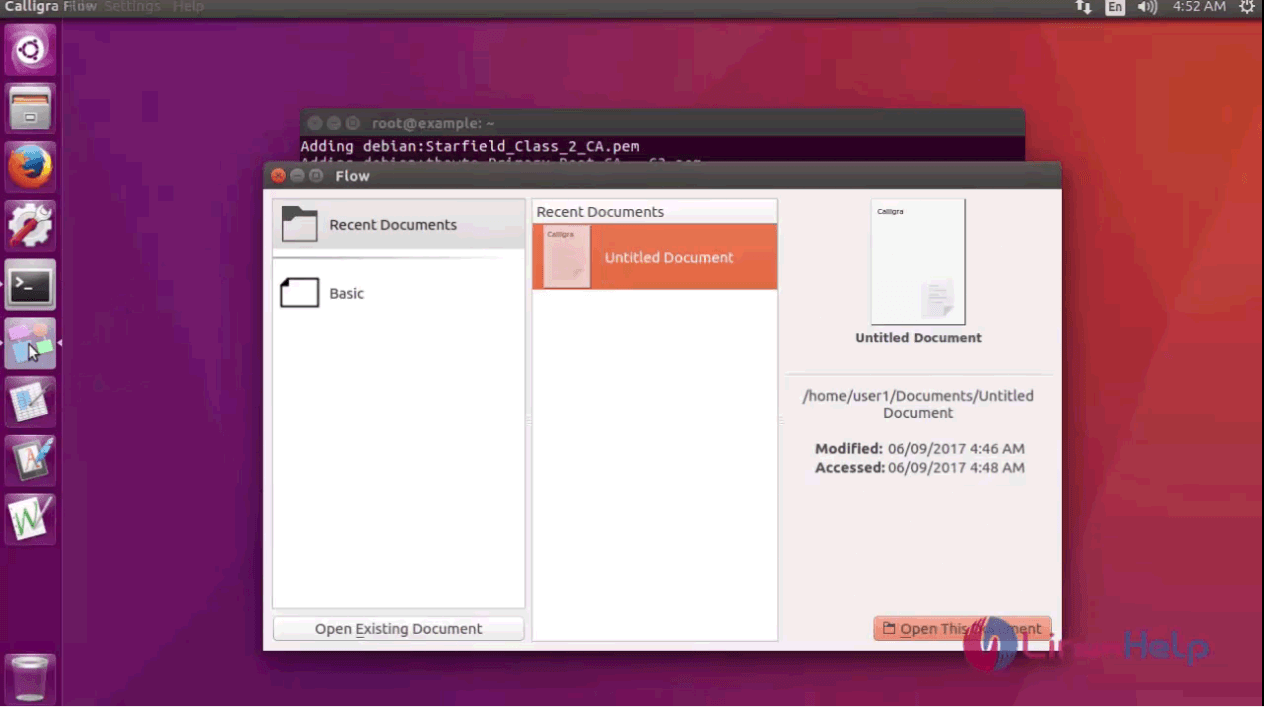
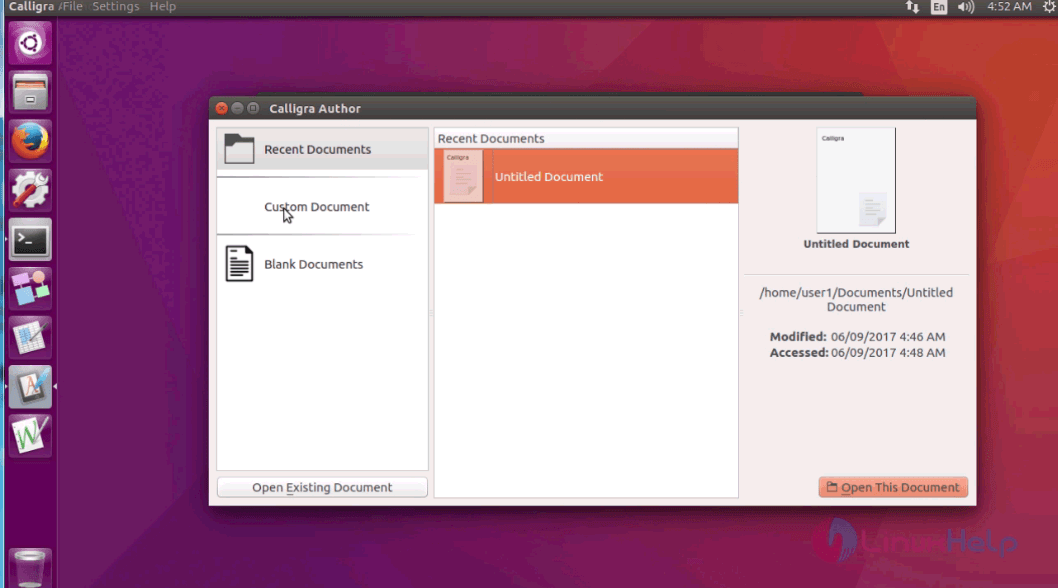
After the installation, you can launch it. Here a word document is accessed.
application

On the left pan, you can view all the options available on it.
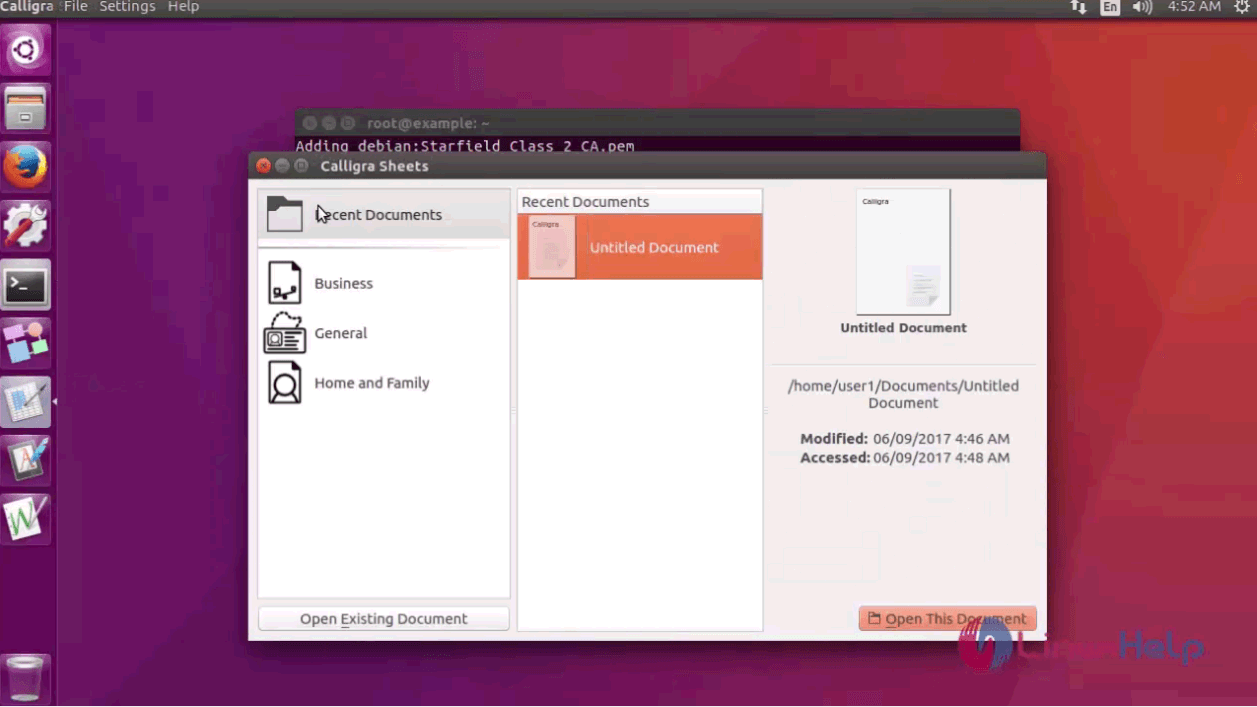
recent document

document

With this, the installation of Calligra is complete.

Tags:
michael
Author: 

Comments ( 0 )

No comments available

Add a comment
{{postCtrl.cmtErrMsg}}

Frequently asked questions ( 5 )

Q

what is the use of calligra in ubuntu?

A

Calligra is an office suite that comprises a free set of applications for GNU/Linux. It is built to help you perform your day to day office work with ease. It has all the major application available in an office suite such as a Word Processor, a spreadsheet, a presentation program and a database application.

Q

which command to install the calligra in ubuntu?

A

you can directly install Calligra as follows
# apt-get install calligra

Q

how calligra is popular in market place?

A

Apart from this, it also possess raster and vector graphics tools. Moreover, its functioning is very similar to the popular LibreOffice suite and it also provides a lot other attractive features for your daily office tasks.

Q

what is the latest version of calligra?

A

the latest version of calligra is 3.1.0

Q

where to get the documents of calligra?

A

get the documents of calligra by following link
https://www.calligra.org/

Back To Top!
Rank
User
Points

Top Contributers

userNamenaveelansari
135850

Top Contributers

userNameayanbhatti
92510

Top Contributers

userNamehamzaahmed
32150

Top Contributers

1
userNamelinuxhelp
31040

Top Contributers

userNamemuhammadali
24500
Can you help Luk Van De Looverbosch ?
How to create a root ?

Hello,
How to create root@linuxhelp in Linux Mint 20.1 64-bit ?
Thanks in advance for your reply.
Best regards.

Networking
  • Routing
  • trunk
  • Netmask
  • Packet Capture
  • domain
  • HTTP Proxy
Server Setup
  • NFS
  • KVM
  • Memory
  • Sendmail
  • WebDAV
  • LXC
Shell Commands
  • Cloud commander
  • Command line archive tools
  • last command
  • Shell
  • terminal
  • Throttle
Desktop Application
  • Linux app
  • Pithos
  • Retrospect
  • Scribe
  • TortoiseHg
  • 4Images
Monitoring Tool
  • Monit
  • Apache Server Monitoring
  • EtherApe 
  • Arpwatch Tool
  • Auditd
  • Barman
Web Application
  • Nutch
  • Amazon VPC
  • FarmWarDeployer
  • Rukovoditel
  • Mirror site
  • Chef
Contact Us | Terms of Use| Privacy Policy| Disclaimer
© 2025 LinuxHelp.com All rights reserved. Linux™ is the registered trademark of Linus Torvalds. This site is not affiliated with linus torvalds in any way.