• Categories
    Category
    {{ postCtrl.tags }}
    • {{ category.tag_type }}

      • {{tag.tag_name}}
      • View more
  • Categories
    Category
    {{ postCtrl.tags }}
    • {{ category.tag_type }}

      • {{tag.tag_name}}
      • View more
  • News
  • Tutorials
  • Forums
  • Tags
  • Users
Tutorial News Comments FAQ Related Articles

How to install CentOS 7 with screenshots

{{postValue.id}}

To install CentOS 7 with screenshots

Installation of CentOS 7 is explained step by step with screenshots.

Installation

1. Burn the image to a DVD or you can use a bootable USB stick.

2. Select the boot device from your BIOS option to boot. Once the CentOS 7 DVD or USB boots, you should select Install Centos 7.
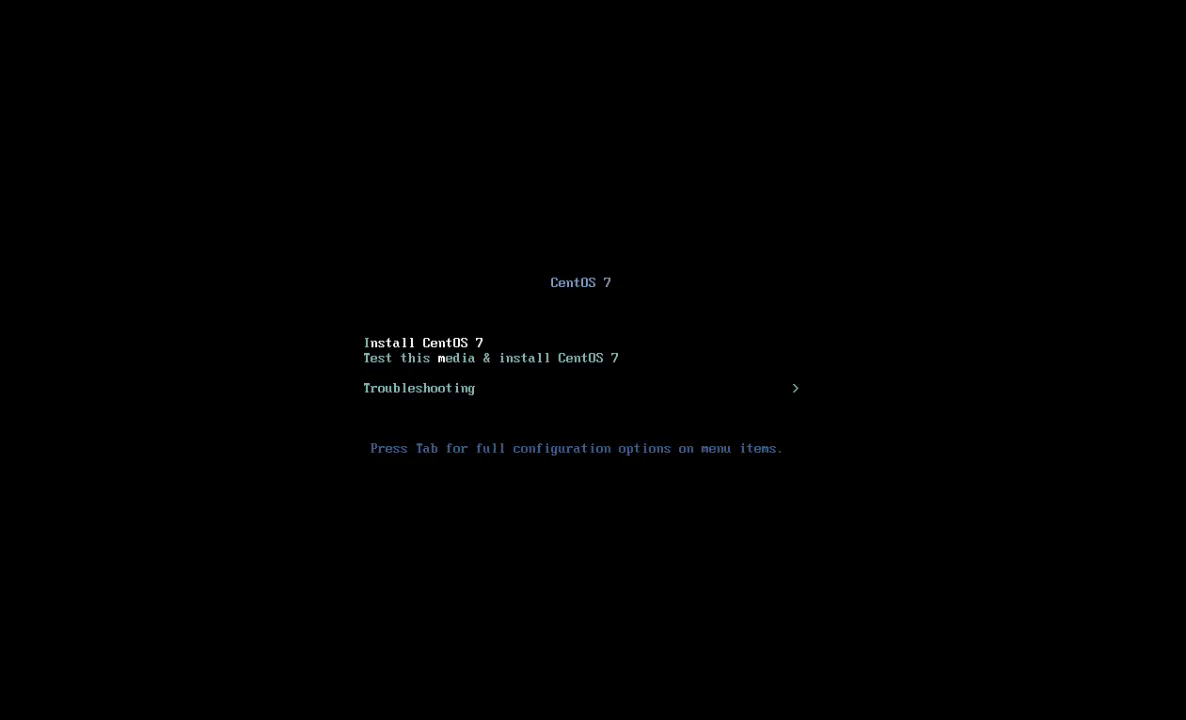
install_centos

Select the desired language.
language

3. This is the interface to configure for date & time, languages and some important functions.

installation_summary

Time and date

4. Set the desired Date and Time and click Done.

date _time

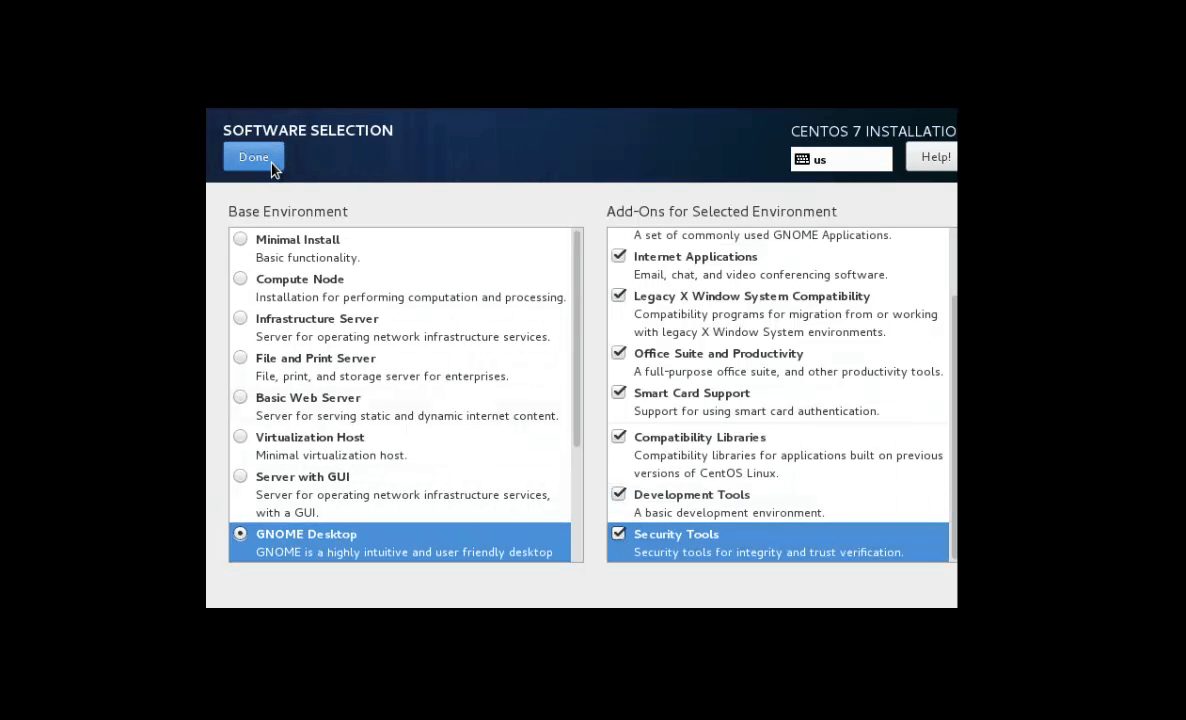
5. Next Software packages selection.

software_package

6. Now is the Installation Destination. Select and Choose I will configure Partitioning and click done.

installation_destination

Partition

7. Select Standard Partition in Partitioning Scheme.
standard_partition

To add a new mount point (/boot) click on + and select the /boot mount point, enter Desired Capacity. Then Click Add Mount Point.
xfs is the default file system for centos 7

new_mount_point
mount_point_300M

8. Click on + icon again to add another mount point (swap), enter the desired capacity then click Add Mount Point.

swap

9. Click on + icon again to add root mount point (/), enter the desired capacity then click Add Mount Point.
root_mount_point

10. Now click Accept Changes.

accept_changes

11. Now click Begin Installation.

begin_installation

12. Now set your root password and create the user
set_password

13. Enter root password then click done.
enter_password

14. Create user then click done.
create_user

Your task is done now reboot the machine.

reboot

15. This is how the boot prompt and login screen will be after installation.

boot_prompt

login_screen

16. Once the system is logged in go to terminal to get the release information.

[root@linuxhelp Desktop]# cat /etc/redhat-release
CentOS Linux release 7.2.1511 (Core)

release_information

Tags:
caden
Author: 

Comments ( 0 )

No comments available

Add a comment
{{postCtrl.cmtErrMsg}}

Frequently asked questions ( 5 )

Q

From where can I download the 32-bit version of Centos 7?

A

The 32-bit release of CentOS 7 can be downloaded from http://mirror.centos.org/altarch/7/isos/i386/

Q

I used to use the boot.iso image to do network installations. Where has it gone?

A

The network installation disk image is named netinstall.iso and can now be found only in the isos/ directory, together with all other installation images.

Q

What is CentOS Linux?

A

CentOS Linux provides a free and open source computing platform to anyone who wishes to use it. CentOS Linux releases are built from publicly available open source source code provided by Red Hat, Inc for Red Hat Enterprise Linux

Q

How do I get Updates on centos 7?

A

CentOS ships with an application called yum that serves as our recommended tool for performing updates and package installation

Q

How do I upgrade from one major release to another?

A

Upgrades in place are not supported nor recommended by CentOS or TUV. A backup followed by a fresh install is the only recommended upgrade path.

Back To Top!
Rank
User
Points

Top Contributers

userNamenaveelansari
135850

Top Contributers

userNameayanbhatti
92510

Top Contributers

userNamehamzaahmed
32150

Top Contributers

1
userNamelinuxhelp
31040

Top Contributers

userNamemuhammadali
24500
Can you help Ganesh Konka ?
Zentya 6.1 http proxy configuration

please send link for creating zentyal 6.1 for http proxy and firewall as gateway.

Networking
  • Routing
  • trunk
  • Netmask
  • Packet Capture
  • domain
  • HTTP Proxy
Server Setup
  • NFS
  • KVM
  • Memory
  • Sendmail
  • WebDAV
  • LXC
Shell Commands
  • Cloud commander
  • Command line archive tools
  • last command
  • Shell
  • terminal
  • Throttle
Desktop Application
  • Linux app
  • Pithos
  • Retrospect
  • Scribe
  • TortoiseHg
  • 4Images
Monitoring Tool
  • Monit
  • Apache Server Monitoring
  • EtherApe 
  • Arpwatch Tool
  • Auditd
  • Barman
Web Application
  • Nutch
  • Amazon VPC
  • FarmWarDeployer
  • Rukovoditel
  • Mirror site
  • Chef
Contact Us | Terms of Use| Privacy Policy| Disclaimer
© 2025 LinuxHelp.com All rights reserved. Linux™ is the registered trademark of Linus Torvalds. This site is not affiliated with linus torvalds in any way.