How to install chrome on ubuntu 22.04
To install chrome on ubuntu 22.04
Introduction
Google Chrome is a cross-platform web browser developed by Google. It is a free web browser used for accessing the internet and running web-based applications. The Google Chrome browser is based on the open source Chromium web browser project.
Step 1: Check the OS version by using the below command
root@linuxhelp:~# lsb_release -a
No LSB modules are available.
Distributor ID:	Ubuntu
Description:	Ubuntu 22.04.2 LTS
Release:	22.04
Codename:	jammy
Step 2: Download chrome by using wget command
root@linuxhelp:~#  wget https://dl.google.com/linux/direct/google-chrome-stable_current_amd64.deb
--2023-06-26 02:13:00--  https://dl.google.com/linux/direct/google-chrome-stable_current_amd64.deb
Resolving dl.google.com (dl.google.com)... 172.217.163.206, 2404:6800:4007:810::200e
Connecting to dl.google.com (dl.google.com)|172.217.163.206|:443... connected.
HTTP request sent, awaiting response... 200 OK
Length: 94355016 (90M) [application/x-debian-package]
Saving to: ‘google-chrome-stable_current_amd64.deb’

google-chrome-stable_curre 100%[======================================>]  89.98M  28.8MB/s    in 3.1s

2023-06-26 02:13:04 (28.8 MB/s) - ‘google-chrome-stable_current_amd64.deb’ saved [94355016/94355016]
Step 3: Install chrome by using the below command
root@linuxhelp:~# apt install ./google-chrome-stable_current_amd64.deb
Reading package lists... Done
Building dependency tree... Done
Reading state information... Done
Note, selecting 'google-chrome-stable' instead of './google-chrome-stable_current_amd64.deb'
The following packages were automatically installed and are no longer required:
  libflashrom1 libftdi1-2 libllvm13 linux-headers-5.15.0-43 linux-headers-5.15.0-43-generic
  linux-image-5.15.0-43-generic linux-modules-5.15.0-43-generic linux-modules-extra-5.15.0-43-generic
Use 'sudo apt autoremove' to remove them.
The following NEW packages will be installed:
  google-chrome-stable
0 upgraded, 1 newly installed, 0 to remove and 1 not upgraded.
Need to get 0 B/94.4 MB of archives.
After this operation, 322 MB of additional disk space will be used.
Get:1 /root/google-chrome-stable_current_amd64.deb google-chrome-stable amd64 114.0.5735.133-1 [94.4 MB]
Selecting previously unselected package google-chrome-stable.
(Reading database ... 238049 files and directories currently installed.)
Preparing to unpack .../google-chrome-stable_current_amd64.deb ...
Unpacking google-chrome-stable (114.0.5735.133-1) ...
Setting up google-chrome-stable (114.0.5735.133-1) ...
update-alternatives: using /usr/bin/google-chrome-stable to provide /usr/bin/x-www-browser (x-www-browser)
 in auto mode
update-alternatives: using /usr/bin/google-chrome-stable to provide /usr/bin/gnome-www-browser (gnome-www-
browser) in auto mode
update-alternatives: using /usr/bin/google-chrome-stable to provide /usr/bin/google-chrome (google-chrome)
 in auto mode
Processing triggers for gnome-menus (3.36.0-1ubuntu3) ...
Processing triggers for man-db (2.10.2-1) ...
Processing triggers for mailcap (3.70+nmu1ubuntu1) ...
Processing triggers for desktop-file-utils (0.26-1ubuntu3) ...
N: Download is performed unsandboxed as root as file '/root/google-chrome-stable_current_amd64.deb' couldn't be accessed by user '_apt'. - pkgAcquire::Run (13: Permission denied)
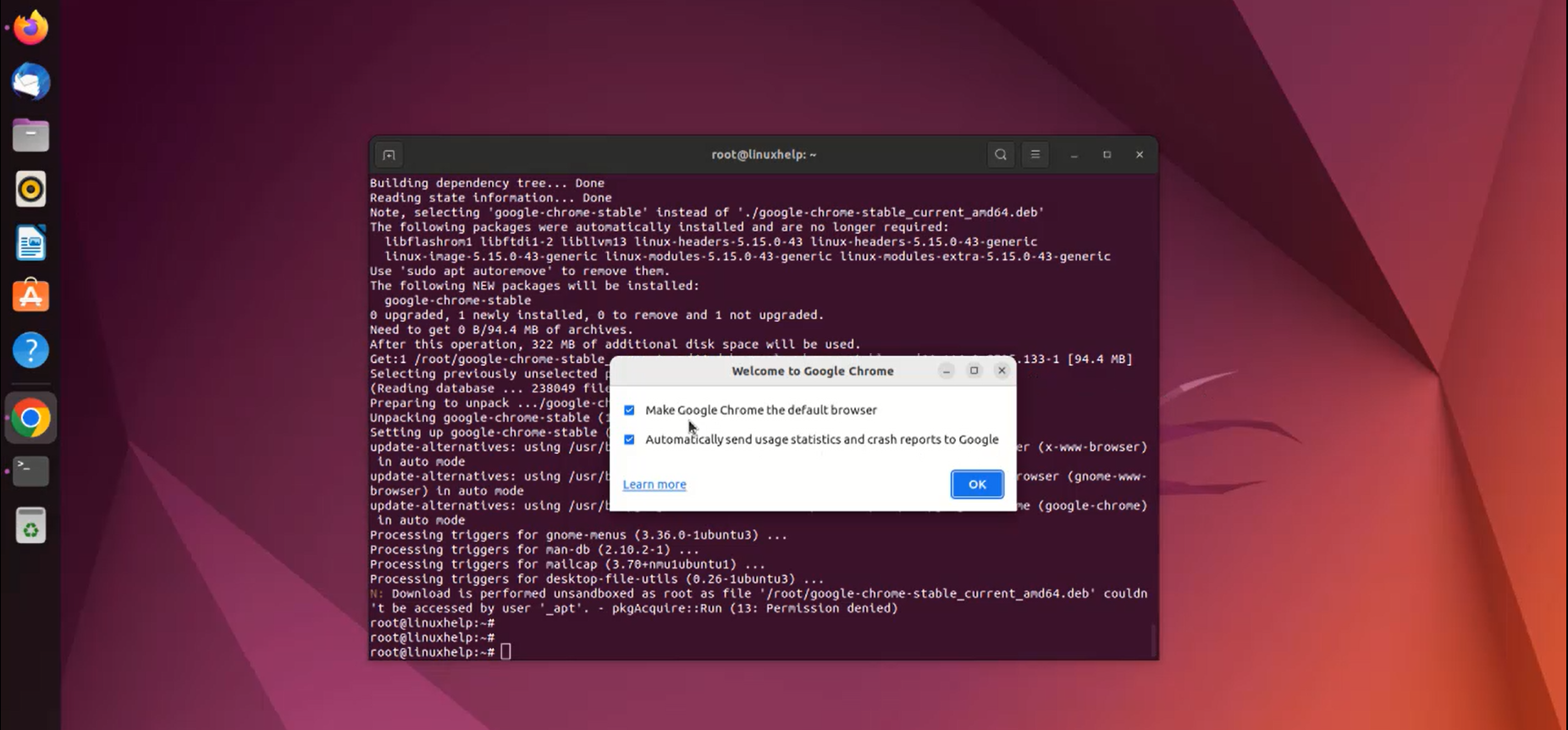
Step 4: Open chrome Browser from your applications, select the checkbox make chrome the default browser and click ok button as shown in the below image
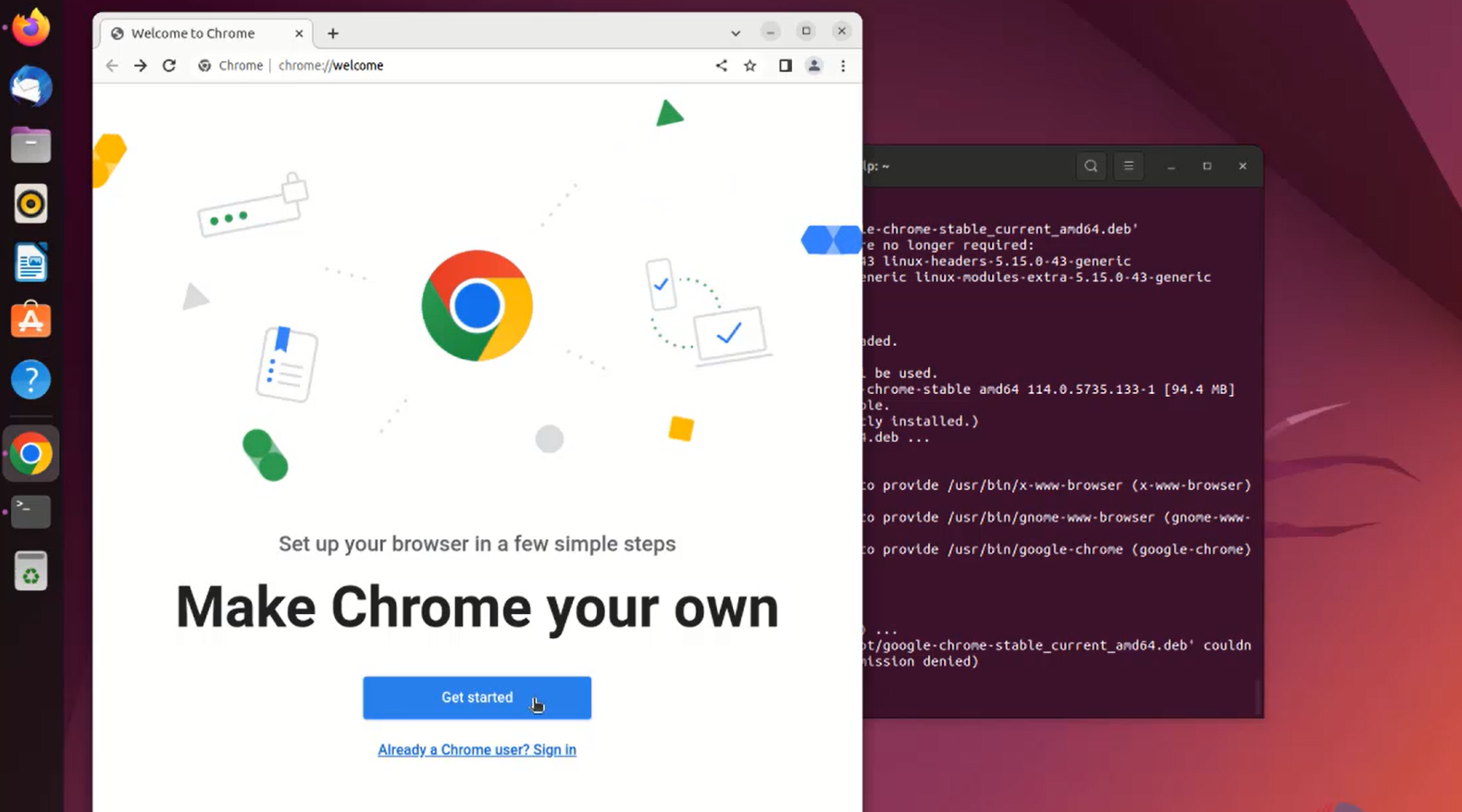
Step 5: Click get started as shown in the below image
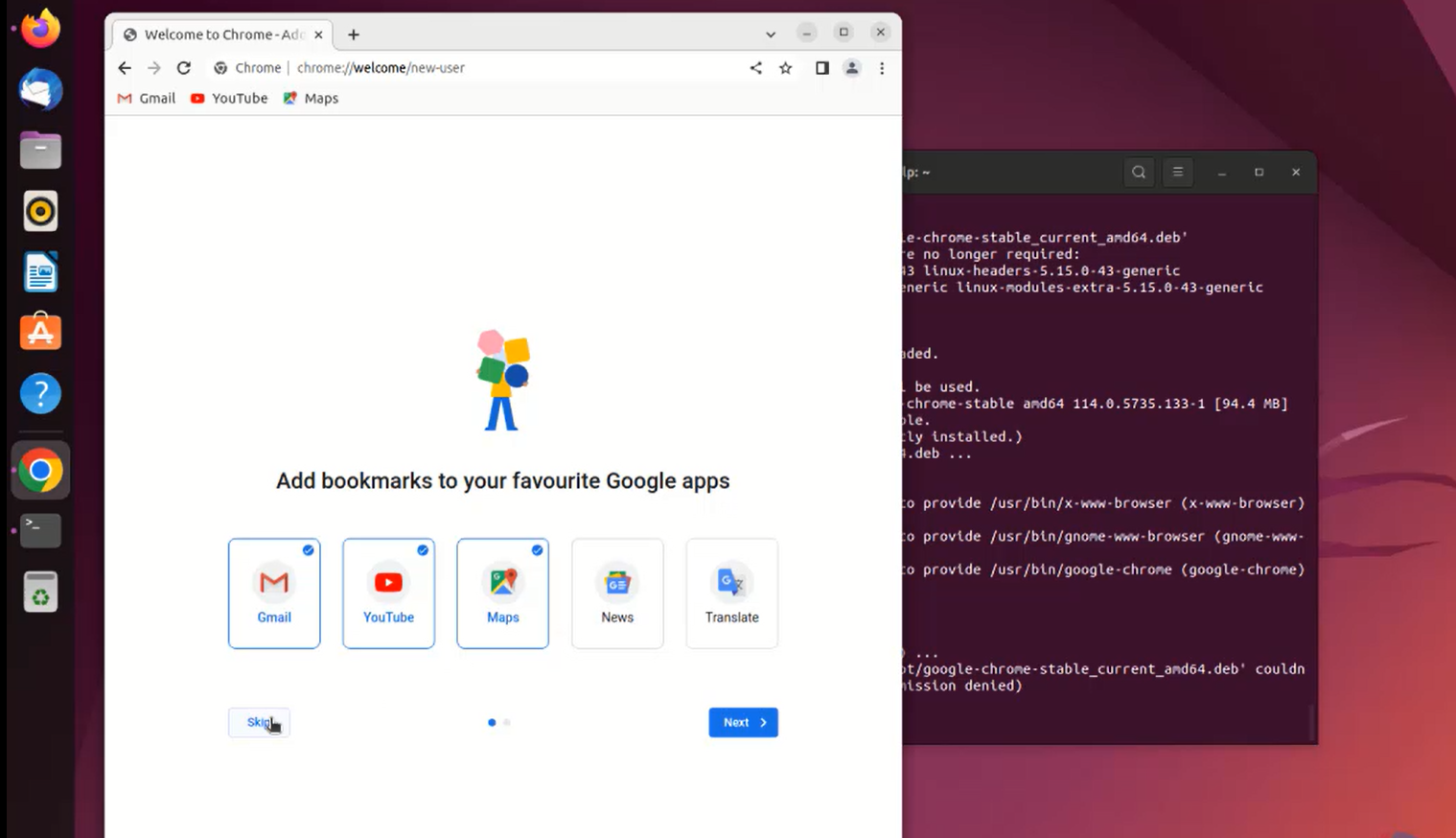
Step 6: Add bookmarks and click next button or click skip button as shown in the below image
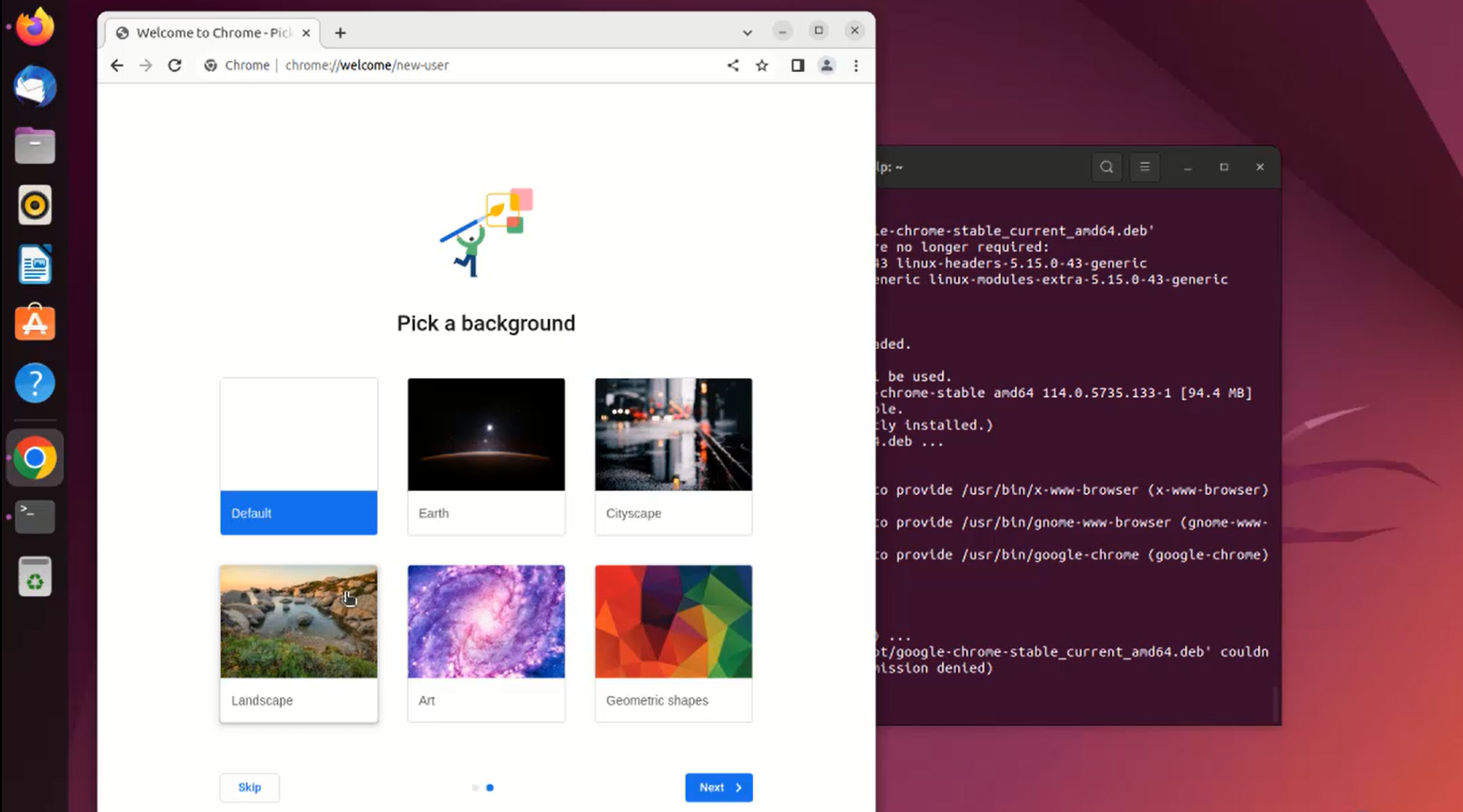
Step 7: Select background and click next button or click skip button as shown in the below image
Step 8: Click get started button to open chrome as shown in the below image
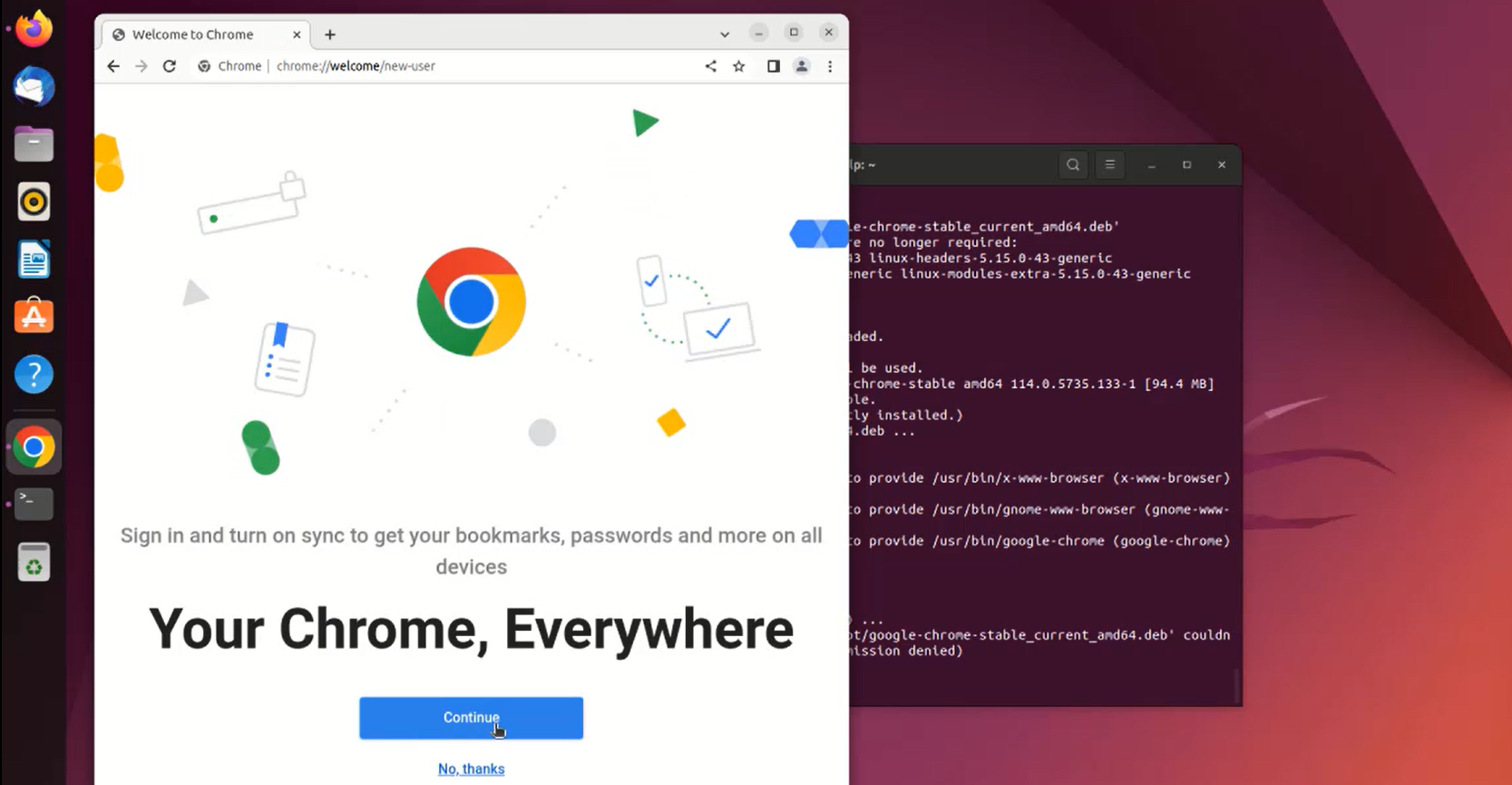
Conclusion:
By this how to install chrome on Ubuntu 22.04 has come to an end.
Comments ( 0 )
No comments available