How to install Concrete5 CMS on LinuxMint-18.3
To install Concrete5 CMS On LinuxMint-18.3
Concrete5 is a free and open source content management system that is written in PHP and uses MySQL It comes with an easy-to-use website builder through which you can easily create pages and content. It is based on Model-View-Controller architecture and object-oriented programming. It is so simple to install Concrete5 CMS on LinuxMint 18.3 and this tutorial covers the ground on the same issue.
Features:
- Easy Text editor.
- You can add pages anywhere, preview it before publishing and update anywhere Supports bulk upload and manipulate images.
- Editable toolbar with the customized the site.
Pre-requirements
Install LAMP (apache, php7.2, mariadb-server)
In MariaDB (create a database, add the user and give privilages to the user)
For PHP installation
1.add-apt-repository ppa:ondrej/php
2.apt-get update
  Modules apt-get install php7.2
 (php7.2-mysql php7.2-curl php7.2-json php7.2-cgi php7.2 libapache2-mod-php7.2 php7.2-mcrypt php7.2-xmlrpc php7.2-gd)
Installing Concrete5 CMS
You can download the concrete5 cms version 8.3.2 package from the browser, using the following this link. https://www.concrete5.org/download
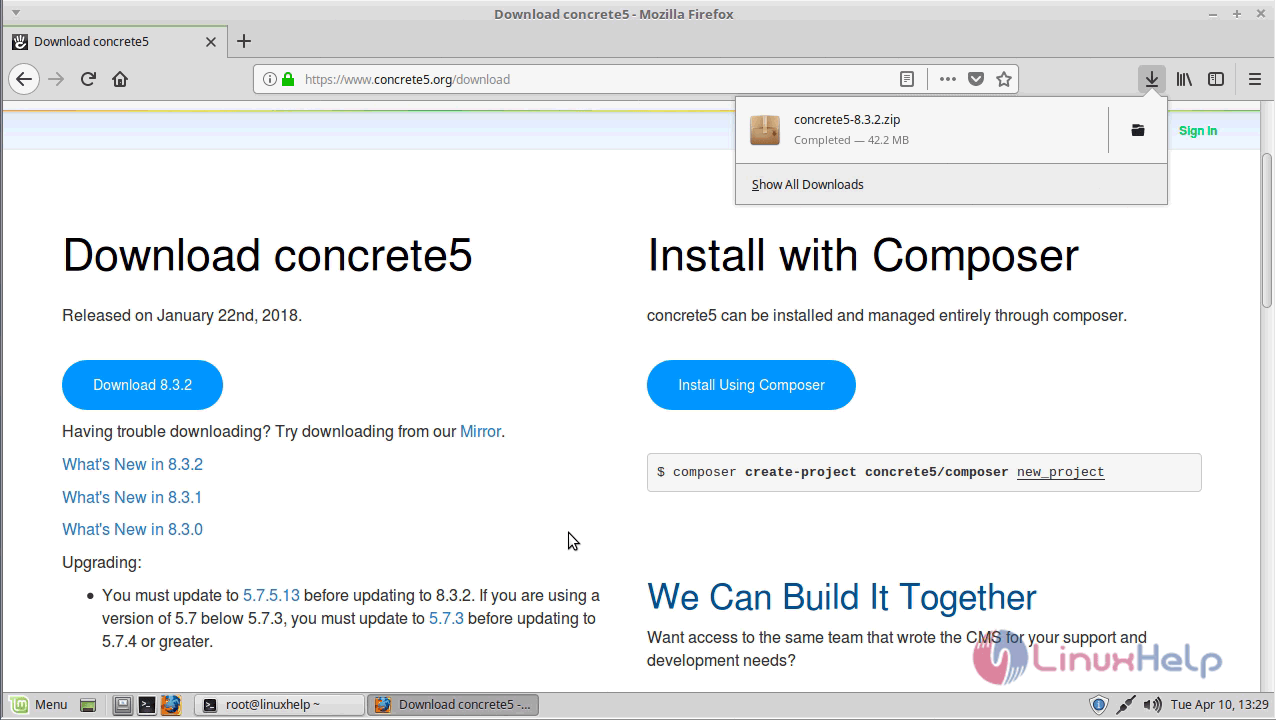
After downloading extract the downloaded file.
linuxhelp ~ # cd /home/user/
linuxhelp user # cd Downloads/
linuxhelp Downloads # ls
concrete5-8.3.2.zip
linuxhelp Downloads # unzip concrete5-8.3.2.zip
Archive:  concrete5-8.3.2.zip
   creating: concrete5-8.3.2/
  inflating: concrete5-8.3.2/composer.lock
 extracting: concrete5-8.3.2/index.php
   creating: concrete5-8.3.2/concrete/
.
.
.
   creating: concrete5-8.3.2/application/files/
 extracting: concrete5-8.3.2/application/files/index.html
   creating: concrete5-8.3.2/application/jobs/
   creating: concrete5-8.3.2/application/controllers/
   creating: concrete5-8.3.2/application/views/
   creating: concrete5-8.3.2/application/themes/
   creating: concrete5-8.3.2/application/authentication/
   creating: concrete5-8.3.2/application/src/
  inflating: concrete5-8.3.2/robots.txt
  inflating: concrete5-8.3.2/LICENSE.TXT
  inflating: concrete5-8.3.2/composer.json
Next, rename the concrete5 directory as follows.
linuxhelp Downloads # mv concrete5-8.3.2 concrete5
And then move the file into the /var/www/html directory.
linuxhelp Downloads # mv concrete5 /var/www/html/
linuxhelp Downloads # cd /var/www/html/
linuxhelp html # ls
concrete5  index.html
Change the ownership of the Concrete5 Directory.
linuxhelp html # chown -R www-data:www-data concrete5/
Next, open the php.ini file and edit the following line as shown.
linuxhelp etc # vim /etc/php/7.2/apache2/php.ini
uncomment the following line
linecgi.fix_pathinfo=1
Next, configure a virtual host for concrete5 cms. Create an empty file named concreate5.conf and configure as follows.
linuxhelp html # cd /etc/apache2/sites-available/
linuxhelp sites-available # vim concrete5.conf
< virtualhost *:80>
servername www.linuxhelp1.com
Documentroot /var/www/html/concrete5
< Directory " /var/www/html/" >
Options FollowSymLinks
AllowOverride All
Order allow,deny
allow from all
< /Directory>
ErrorLog /var/log/apache2/linuxhelp1-error_log
CustomLog /var/log/apache2/linuxhelp1-access_log common
< /VirtualHost>
Enable the concrete5.conf file using the following command.
linuxhelp sites-available # a2ensite concrete5.conf
  Enabling site concrete5.
 To activate the new configuration, you need to run
  service apache2 reload
Then, make an entry in the host file.
< give your ip address> < give your domain name>
Finally, restart apache server to make the changes effect.
linuxhelp etc # systemctl restart apache2
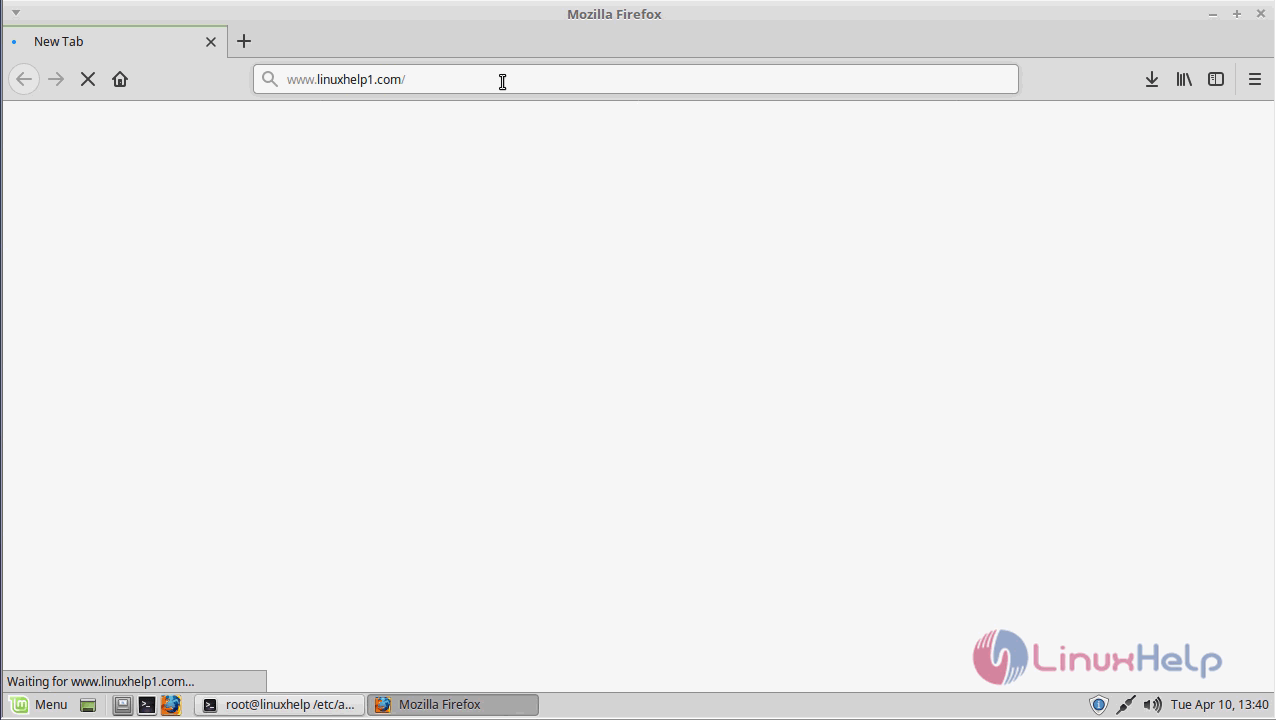
Now you can proceed the further installation and configuration from the browser by navigating to the following URL: http://< ipaddress or domain name.
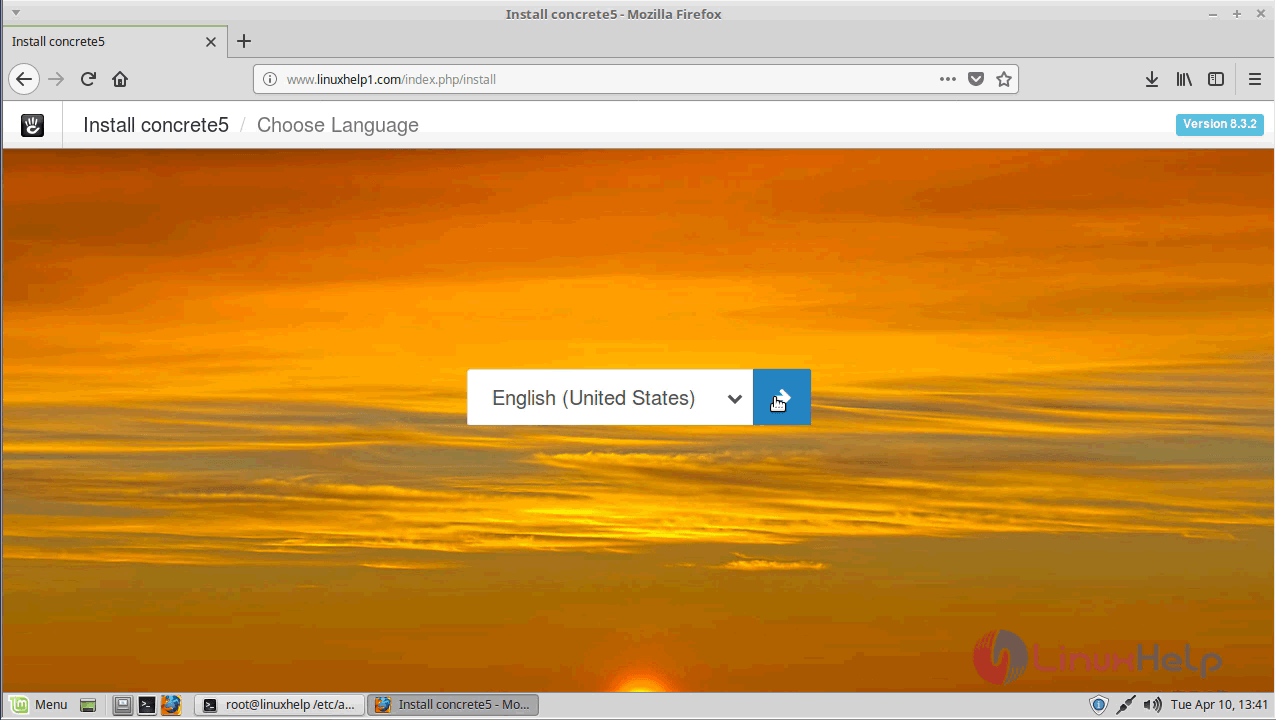
Now configure the installation setup of concrete5 as follows. You need to choose the language of your choice and proceed further.
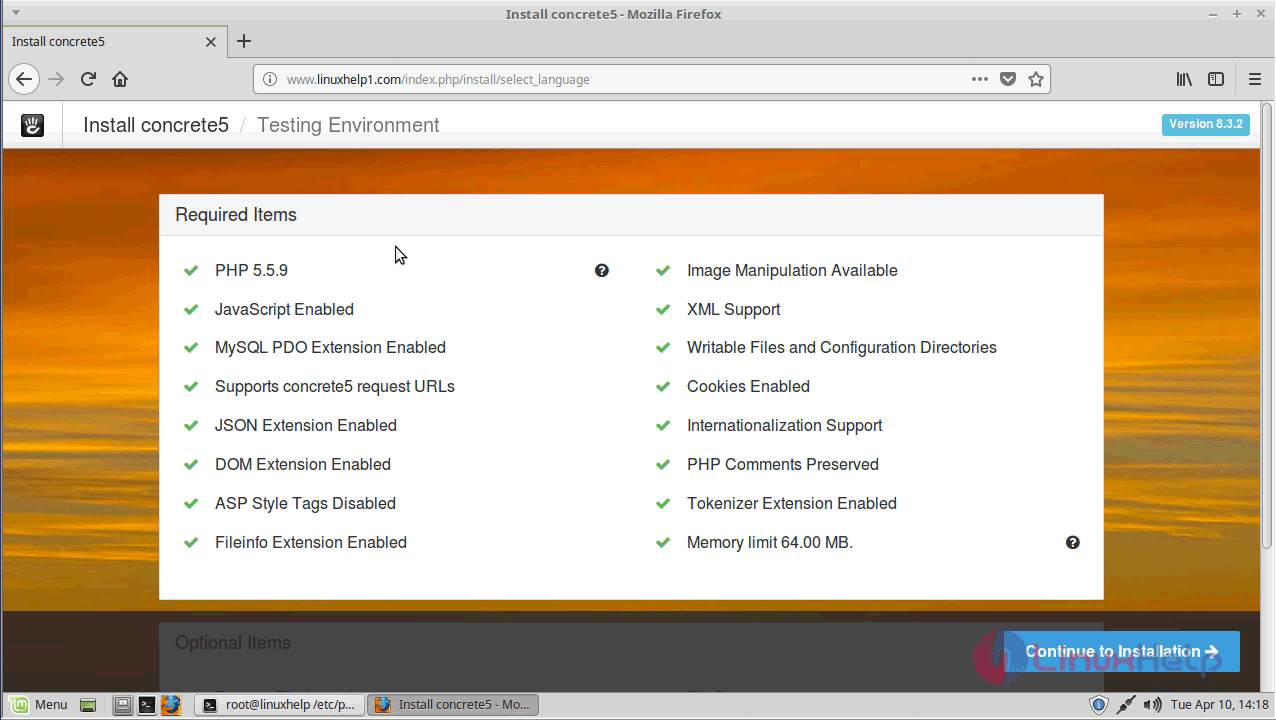
Next, verify that all the requirements are met for the installation and proceed.
Next, configure the site details and admin credentials along with database configuration and Time zone settings.
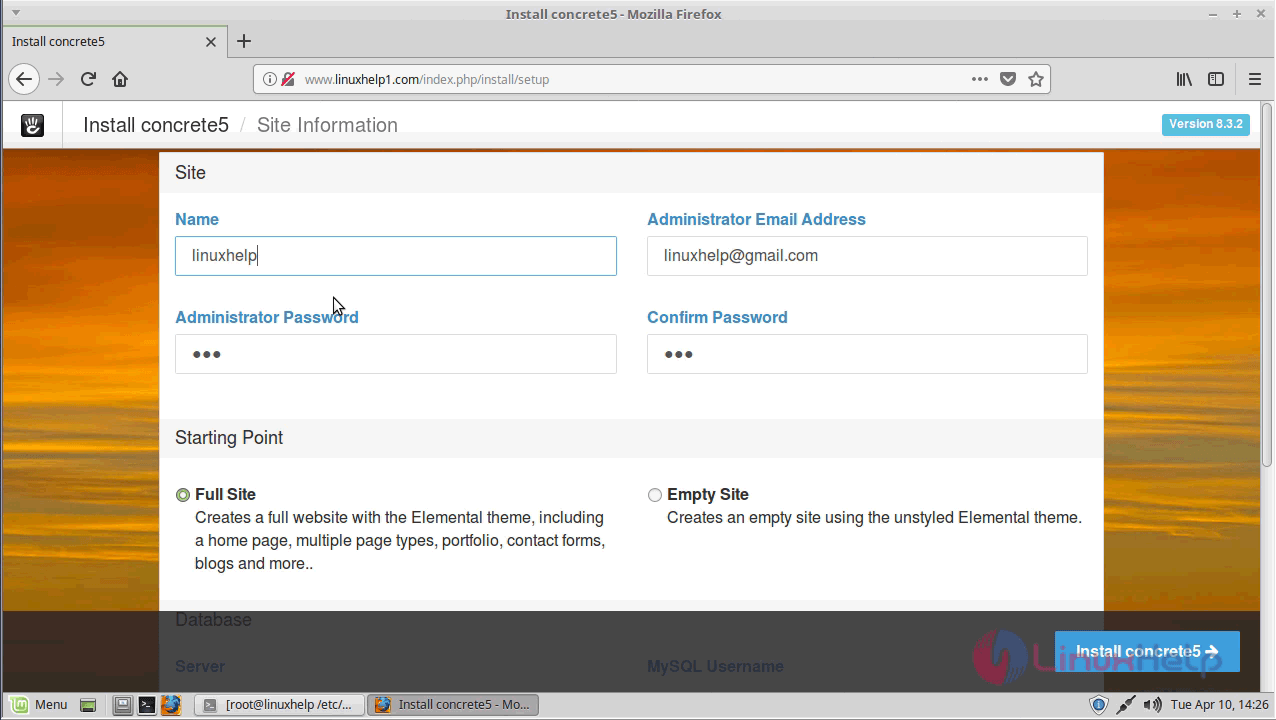
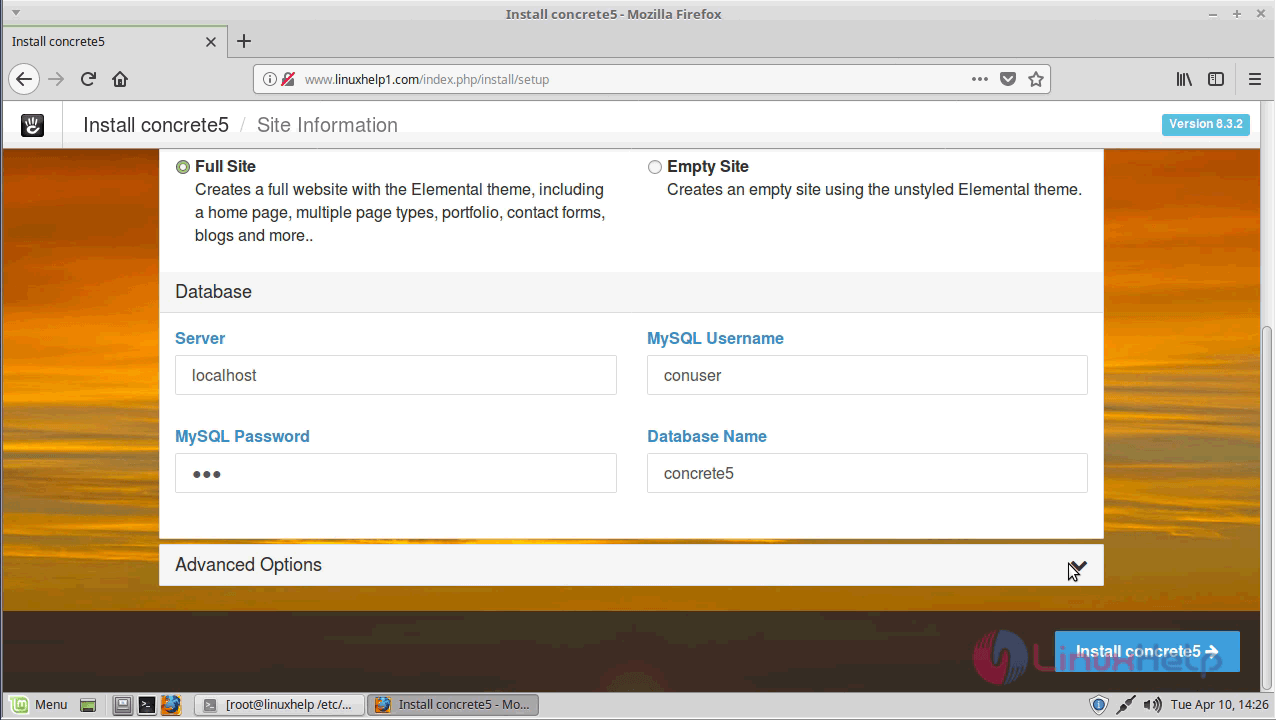
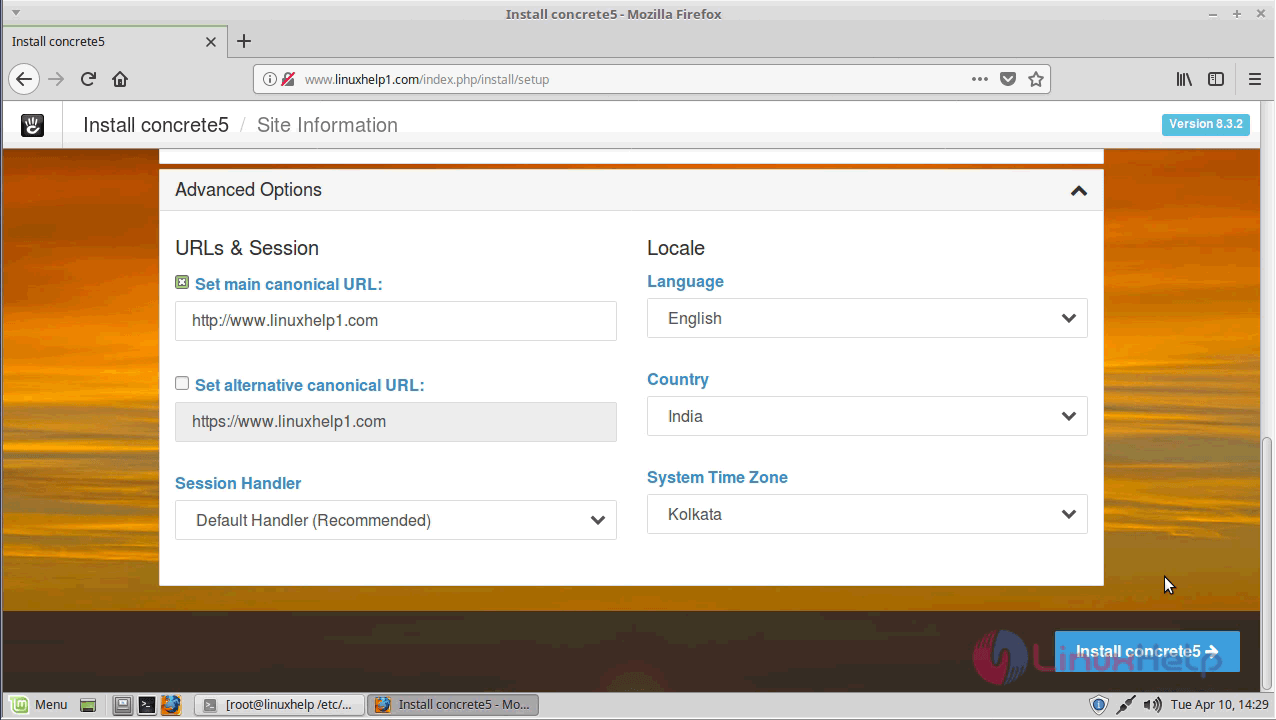
Once configured, click on install to start the installation.
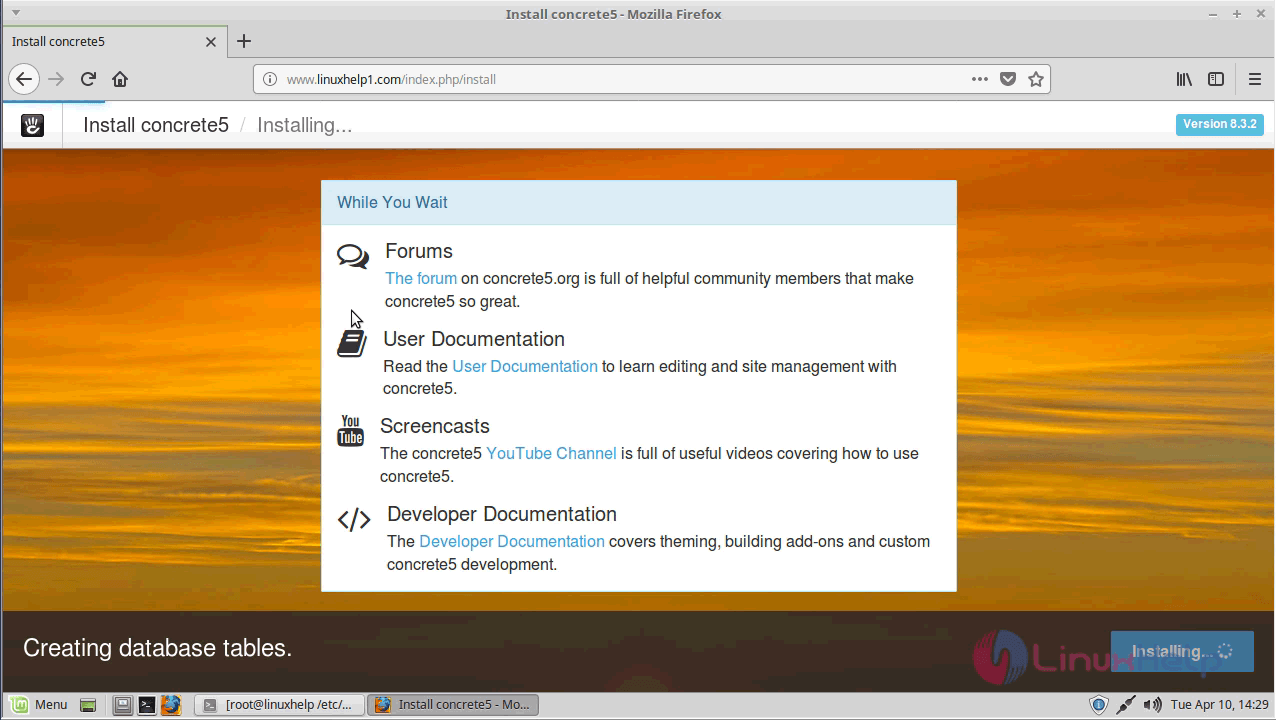
When the installation is complete you will see the following screen.
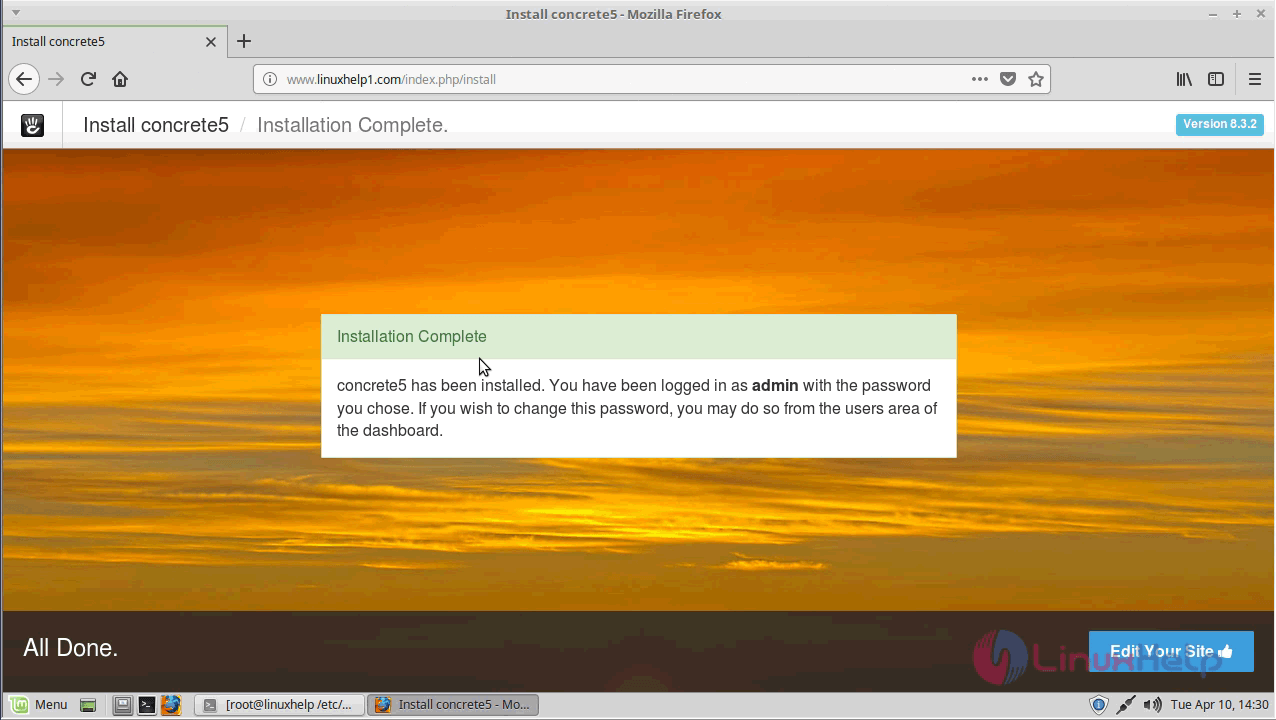
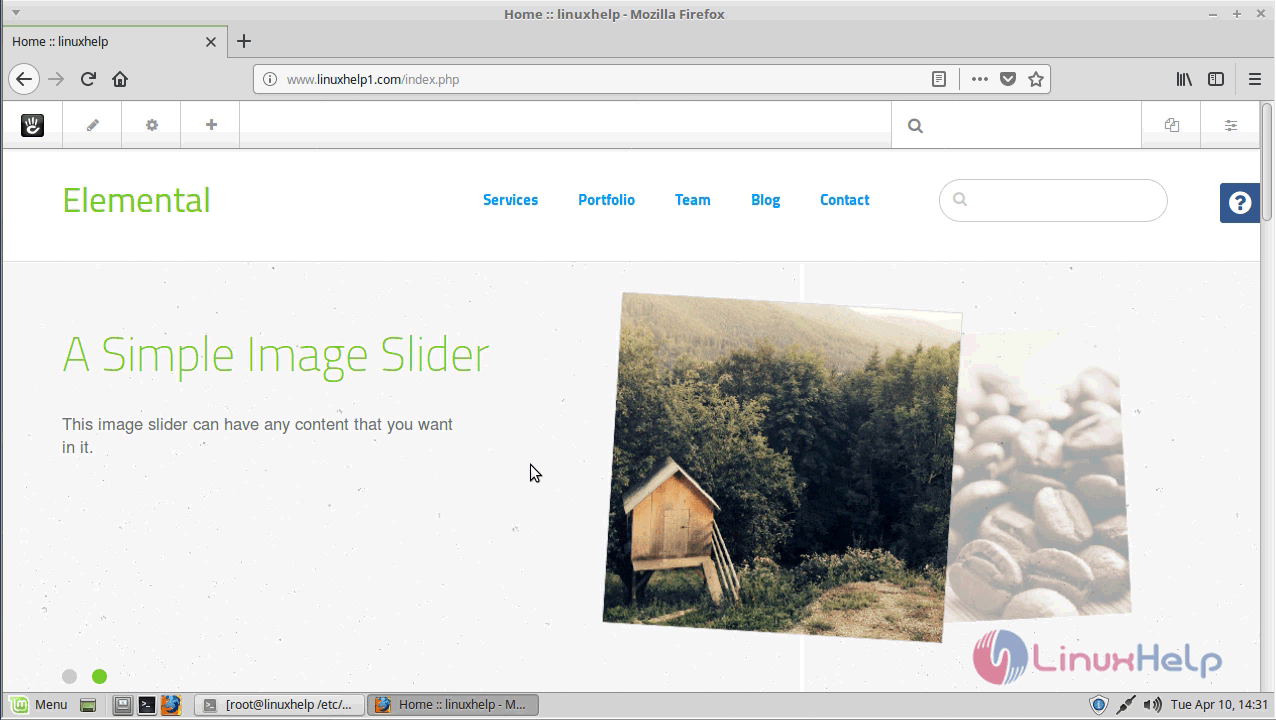
Below shown is the sample page of the created site using concrete 5.
With this, the method to install Concrete5 CMS On LinuxMint-18.3 comes to an end.
Comments ( 0 )
No comments available