How to install Concrete5 with Nginx on CentOS 6.9
To install Concrete5 with Nginx on CentOS 6.9
In our previous post we have seen about the installation of Concrete5 CMS on CentOS 6.9. For watching the mentioned tutorial, click on the https://www.linuxhelp.com/how-to-install-concrete5-on-centos-6-9/ .Now we are going to see about the installation procedure of Concrete5 CMS with Nginx on CentOS 6.9. Concrete5 is one of the most popular content management systems available on the Internet. It is written in PHP and uses MySQL to store its data. It comes with an easy to use website builder through which you can easily create pages and content. Some of its features include integrated server, caching, developer API, version tracking system, and SEO.
Installation procedure
To begin with the installation procedure, download the Concrete5 package from its official site by executing the wget command followed by the download link.
[root@linuxhelp1 ~]# wget https://core-releases.s3.amazonaws.com/9314/8193/0256/concrete5-8.0.3.zip
--2017-09-23 13:35:08--  https://core-releases.s3.amazonaws.com/9314/8193/0256/concrete5-8.0.3.zip
Resolving core-releases.s3.amazonaws.com... 54.231.169.62
Connecting to core-releases.s3.amazonaws.com|54.231.169.62|:443... connected.
HTTP request sent, awaiting response... 200 OK
Length: 45636723 (44M) [application/zip]
Saving to: “ concrete5-8.0.3.zip”

100%[======================================> ] 45,636,723   477K/s   in 2m 9s

2017-09-23 13:37:19 (345 KB/s) - “ concrete5-8.0.3.zip”  saved [45636723/45636723]
Extract the downloaded file using unzip command.
[root@linuxhelp1 ~]# unzip concrete5-8.0.3.zip -d concrete
Archive:  concrete5-8.0.3.zip
   creating: concrete/concrete5-8.0.3/
   creating: concrete/concrete5-8.0.3/application/
   creating: concrete/concrete5-8.0.3/application/attributes/
   creating: concrete/concrete5-8.0.3/application/authentication/
   creating: concrete/concrete5-8.0.3/application/blocks/
.
.
inflating: concrete/concrete5-8.0.3/robots.txt
   creating: concrete/concrete5-8.0.3/updates/
Move the extracted file to HTML location.
[root@linuxhelp1 ~]# mv concrete5-8.0.3 /usr/share/nginx/html/
Open and edit the php-fpm configuration file using vim editor and make the following changes in the file. Save and exit the file.
[root@linuxhelp1 ~]# vim /etc/php-fpm.d/www.conf

listen = /var/run/php-fpm/php-fpm.sock
listen.owner = nginx
listen.group = nginx
user = nginx
group = nginx
Edit the Nginx configuration file using vim editor and enter the following content in the file. Save and exit the file.
[root@linuxhelp1 ~]# vim /etc/nginx/conf.d/default.conf

server {
    listen       80 default_server
    listen       [::]:80 default_server
    server_name  _
    root         /usr/share/nginx/html
    # Load configuration files for the default server block.
    include /etc/nginx/default.d/*.conf
    index index.html index.php
    location ~ \.php {
    fastcgi_index index.php
    fastcgi_split_path_info ^(.+\.php)(.*)$
    include /etc/nginx/fastcgi_params
    fastcgi_pass unix:/var/run/php-fpm/php-fpm.sock
    fastcgi_param SCRIPT_FILENAME $document_root$fastcgi_script_name
    }
   error_page 404 /404.html
        location = /40x.html {
    }
    error_page 500 502 503 504 /50x.html
        location = /50x.html {
    }
}
Change the ownership of the file in HTML location.
[root@linuxhelp1 ~]# chown -R nginx:nginx /usr/share/nginx/html
Change the ownership of the file php-fpm in the Nginx directory.
[root@linuxhelp1 ~]# chown nginx:nginx /var/run/php-fpm/php-fpm.sock
Restart the php-fpm service.
[root@linuxhelp1 ~]# service php-fpm restart
Stopping php-fpm:                                          [  OK  ]
Starting php-fpm:                                          [  OK  ]
Restart the Nginx service.
[root@linuxhelp1 ~]# service nginx restart
Stopping nginx:                                            [  OK  ]
Starting nginx:                                            [  OK  ]
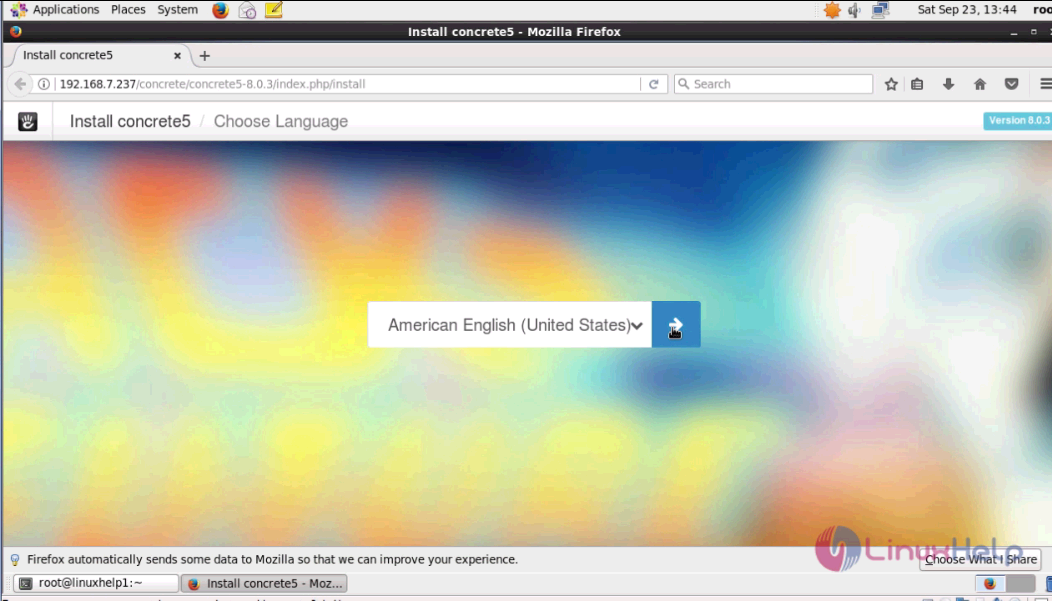
Switch over to the browser and enter the URL as https://machineip/concrete5-8.0.3. The installation wizard of Concrete5 CMS appears on the screen. Choose the required language and click next.
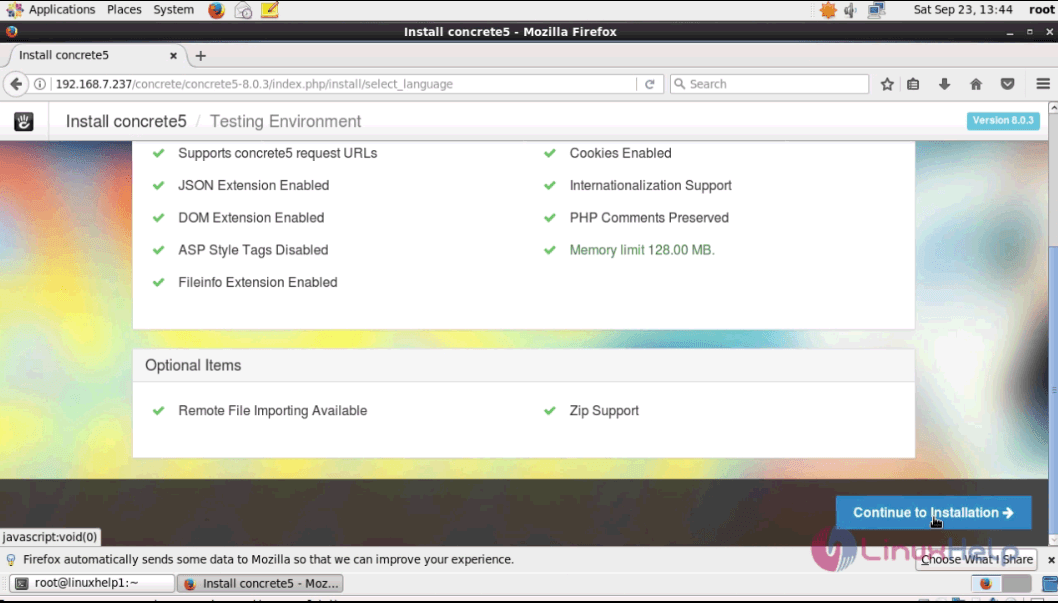
The next page shows the list of system check before starting the installation procedure. Click continue to installation option.
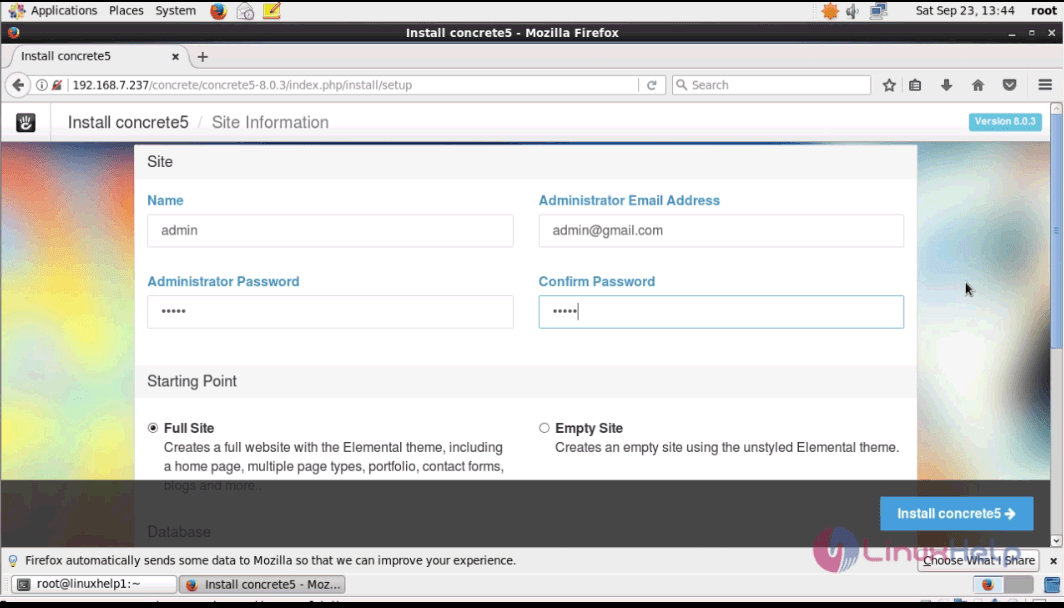
Fill the required admin details along with password and email address.
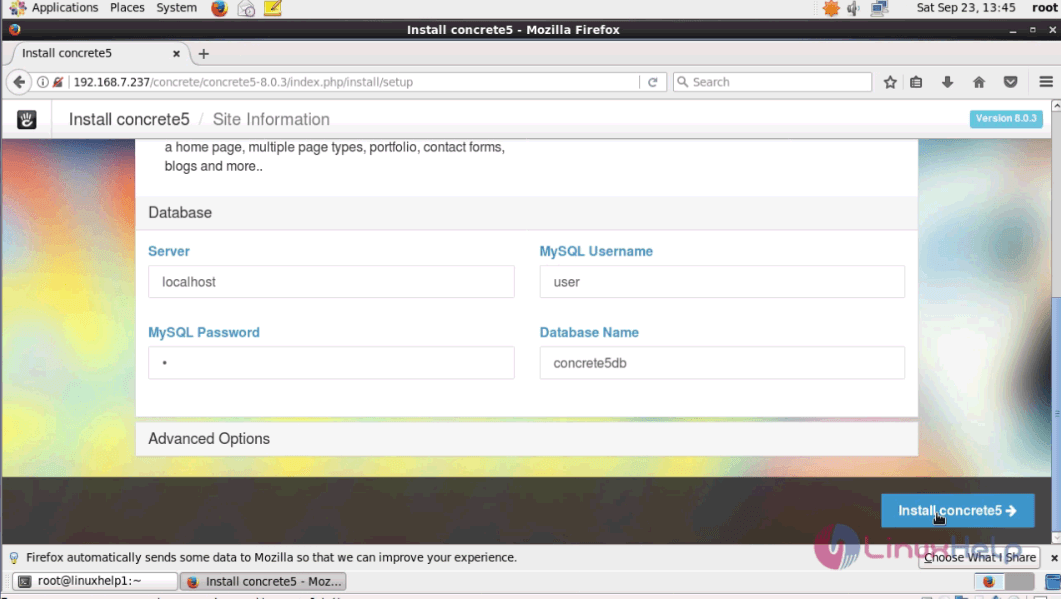
Fill the required database details and give install concrete5 option.
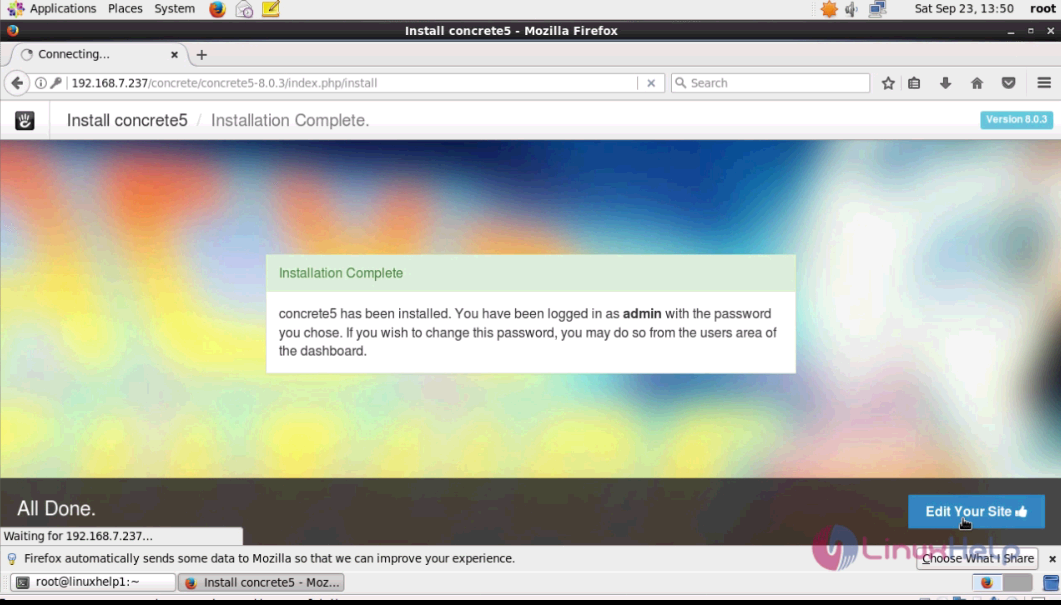
The installation is now complete. To open the admin page click edit your site option.
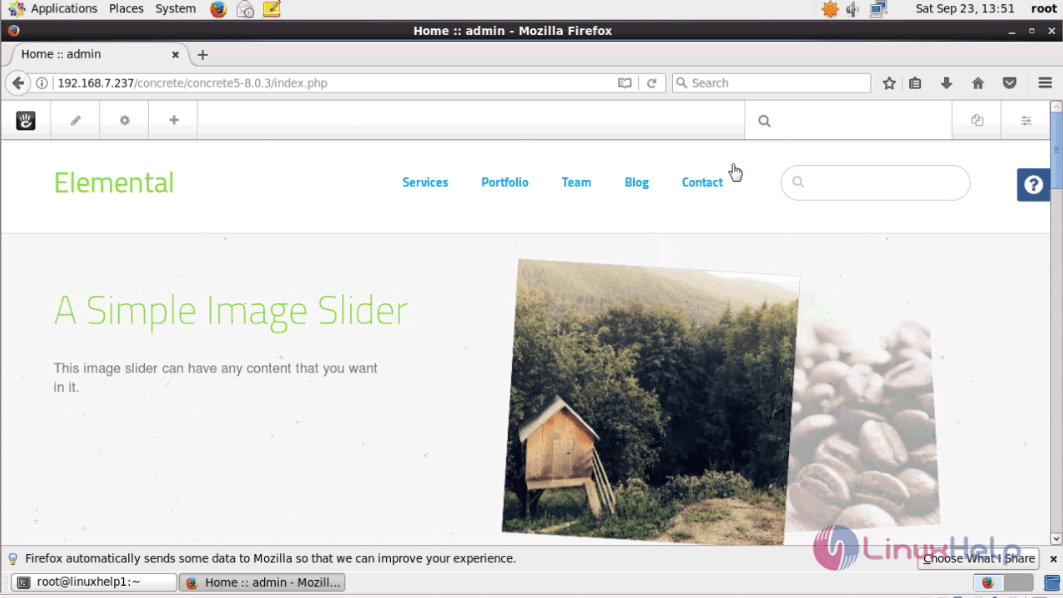
The admin home page of Concrete5 appears on the screen.
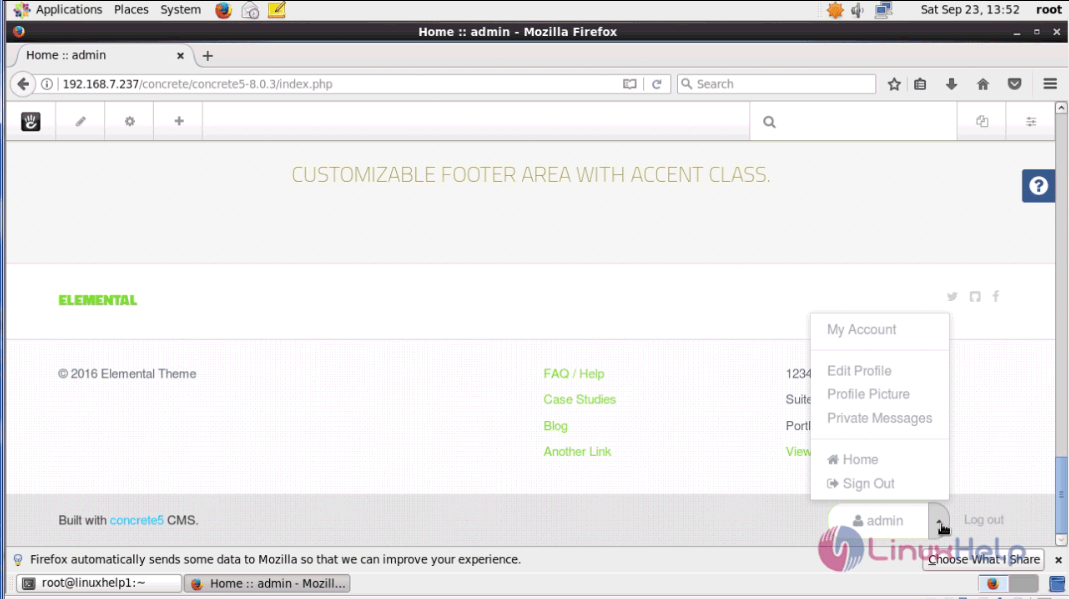
Thus the installation procedure of Concrete5 with Nginx on CentOS 6.9 is done without any glitches.
Comments ( 0 )
No comments available