How to install config server Explorer on WHM
How to install config server Explorer on WHM
WHM is a powerful program that allows administrative access to the back end of cPanel. The cPanel is a Linux based Web Hosting Control Panel that provides a graphical interface and automation tools to simplify the process of hosting a web site. In this tutorial we can see about how to install config server explorer on WHM.
Installation procedure
To start the installation process, Open the terminal and enter the cd command to move the “ /usr/src” Directory.
[root@ns4 ~]# cd /usr/src
The current working directory has been moved to src. Now enter the download link and press enter to start the download process.
[root@ns4 src]# wget https://download.configserver.com/cse.tgz
--2017-03-29 04:13:31--  https://download.configserver.com/cse.tgz
Resolving download.configserver.com... 85.10.199.177
Connecting to download.configserver.com|85.10.199.177|:443... connected.
HTTP request sent, awaiting response... 200 OK
Length: 202188 (197K) [application/x-gzip]
Saving to: “ cse.tgz”
100%[=======================================================================================================================================================> ] 202,188      280K/s   in 0.7s
2017-03-29 04:13:32 (280 KB/s) - “ cse.tgz”  saved [202188/202188]
The download is now complete. Now extract the downloaded file by entering the tar command.
[root@ns4 src]# tar -xzf cse.tgz
And enter the config server explorer directory by using the cd command.
[root@ns4 src]# cd cse
The directory is moved to the config server explorer directory now you can list the files using the ls command.
[root@ns4 cse]# ls -l
total 100
-rw-r--r-- 1 root root  2440 Mar 24 06:01 CHANGELOG.txt
drwxr-xr-x 3 root root  4096 Mar 24 06:01 cse
-rwxr-xr-x 1 root root 46804 Mar 24 06:01 cse.cgi
-rw-r--r-- 1 root root   592 Mar 24 06:01 cse.conf
-rw-r--r-- 1 root root   547 Mar 24 06:01 cse.conf.old
-rw-r--r-- 1 root root   228 Mar 24 06:01 cse.tmpl
-rw-r--r-- 1 root root     4 Mar 24 06:01 cseversion.txt
-rwxr-xr-x 1 root root  2319 Mar 24 06:01 install.sh
-rw-r--r-- 1 root root   513 Mar 24 06:01 INSTALL.txt
-rw-r--r-- 1 root root 10174 Mar 24 06:01 license.txt
-rwxr-xr-x 1 root root   709 Mar 24 06:01 uninstall.sh
-rwxr-xr-x 1 root root   478 Mar 24 06:01 upgrade.sh
The files has been listed. Next run the install.sh file to install the config server explorer file.
[root@ns4 cse]# sh install.sh
mkdir: cannot create directory `/usr/local/cpanel/whostmgr/docroot/cgi/configserver' : File exists
`cse.cgi'  ->  `/usr/local/cpanel/whostmgr/docroot/cgi/configserver/cse.cgi'
mode of `/usr/local/cpanel/whostmgr/docroot/cgi/configserver/cse.cgi'  changed to 0700 (rwx------)
`cseversion.txt'  ->  `/usr/local/cpanel/whostmgr/docroot/cgi/configserver/cse/cseversion.txt'
`cse/configserver.css'  ->  `/usr/local/cpanel/whostmgr/docroot/cgi/configserver/cse/configserver.css'
`cse/cse.png'  ->  `/usr/local/cpanel/whostmgr/docroot/cgi/configserver/cse/cse.png'
`cse/jquery.min.js'  ->  `/usr/local/cpanel/whostmgr/docroot/cgi/configserver/cse/jquery.min.js'
`cse/cse.svg'  ->  `/usr/local/cpanel/whostmgr/docroot/cgi/configserver/cse/cse.svg'
`cse/bootstrap'  ->  `/usr/local/cpanel/whostmgr/docroot/cgi/configserver/cse/bootstrap'
`cse/bootstrap/fonts'  ->  `/usr/local/cpanel/whostmgr/docroot/cgi/configserver/cse/bootstrap/fonts'
`cse/bootstrap/fonts/glyphicons-halflings-regular.ttf'  ->  `/usr/local/cpanel/whostmgr/docroot/cgi/configserver/cse/bootstrap/fonts/glyphicons-halflings-regular.ttf'
`cse/bootstrap/fonts/glyphicons-halflings-regular.eot'  ->  `/usr/local/cpanel/whostmgr/docroot/cgi/configserver/cse/bootstrap/fonts/glyphicons-halflings-regular.eot'
`cse/bootstrap/fonts/glyphicons-halflings-regular.svg'  ->  `/usr/local/cpanel/whostmgr/docroot/cgi/configserver/cse/bootstrap/fonts/glyphicons-halflings-regular.svg'
`cse/bootstrap/fonts/glyphicons-halflings-regular.woff2'  ->  `/usr/local/cpanel/whostmgr/docroot/cgi/configserver/cse/bootstrap/fonts/glyphicons-halflings-regular.woff2'
`cse/bootstrap/fonts/glyphicons-halflings-regular.woff'  ->  `/usr/local/cpanel/whostmgr/docroot/cgi/configserver/cse/bootstrap/fonts/glyphicons-halflings-regular.woff'
`cse/bootstrap/css'  ->  `/usr/local/cpanel/whostmgr/docroot/cgi/configserver/cse/bootstrap/css'
`cse/bootstrap/css/bootstrap.min.css'  ->  `/usr/local/cpanel/whostmgr/docroot/cgi/configserver/cse/bootstrap/css/bootstrap.min.css'
`cse/bootstrap/js'  ->  `/usr/local/cpanel/whostmgr/docroot/cgi/configserver/cse/bootstrap/js'
`cse/bootstrap/js/bootstrap.min.js'  ->  `/usr/local/cpanel/whostmgr/docroot/cgi/configserver/cse/bootstrap/js/bootstrap.min.js'
`cse.conf'  ->  `/usr/local/cpanel/whostmgr/docroot/cgi/configserver/cse/cse.conf'
`upgrade.sh'  ->  `/usr/local/cpanel/whostmgr/docroot/cgi/configserver/cse/upgrade.sh'
cse registered
ConfigServer Explorer has been installed.
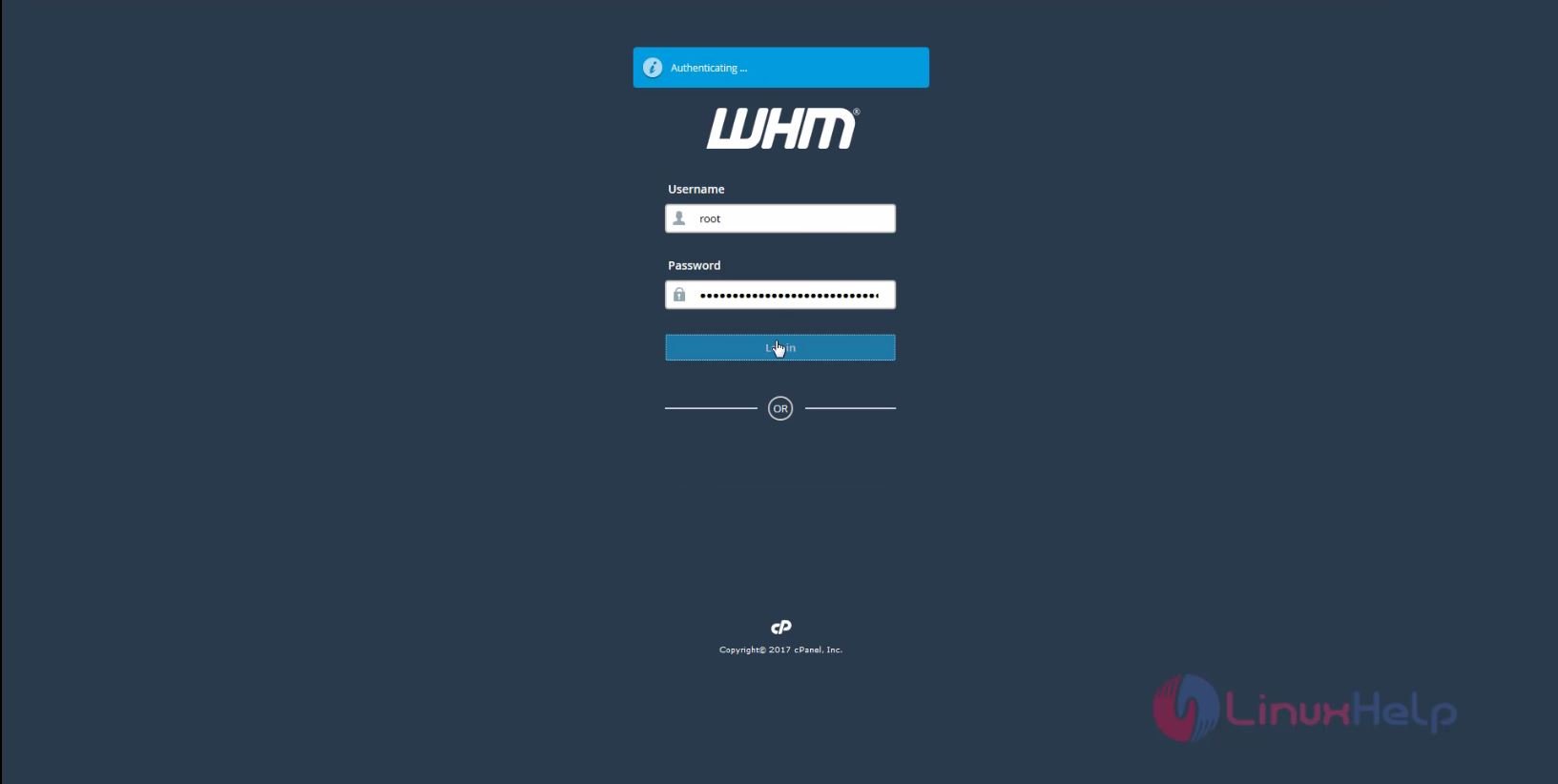
Now open the server WHM page and enter the user' s credentials and login.
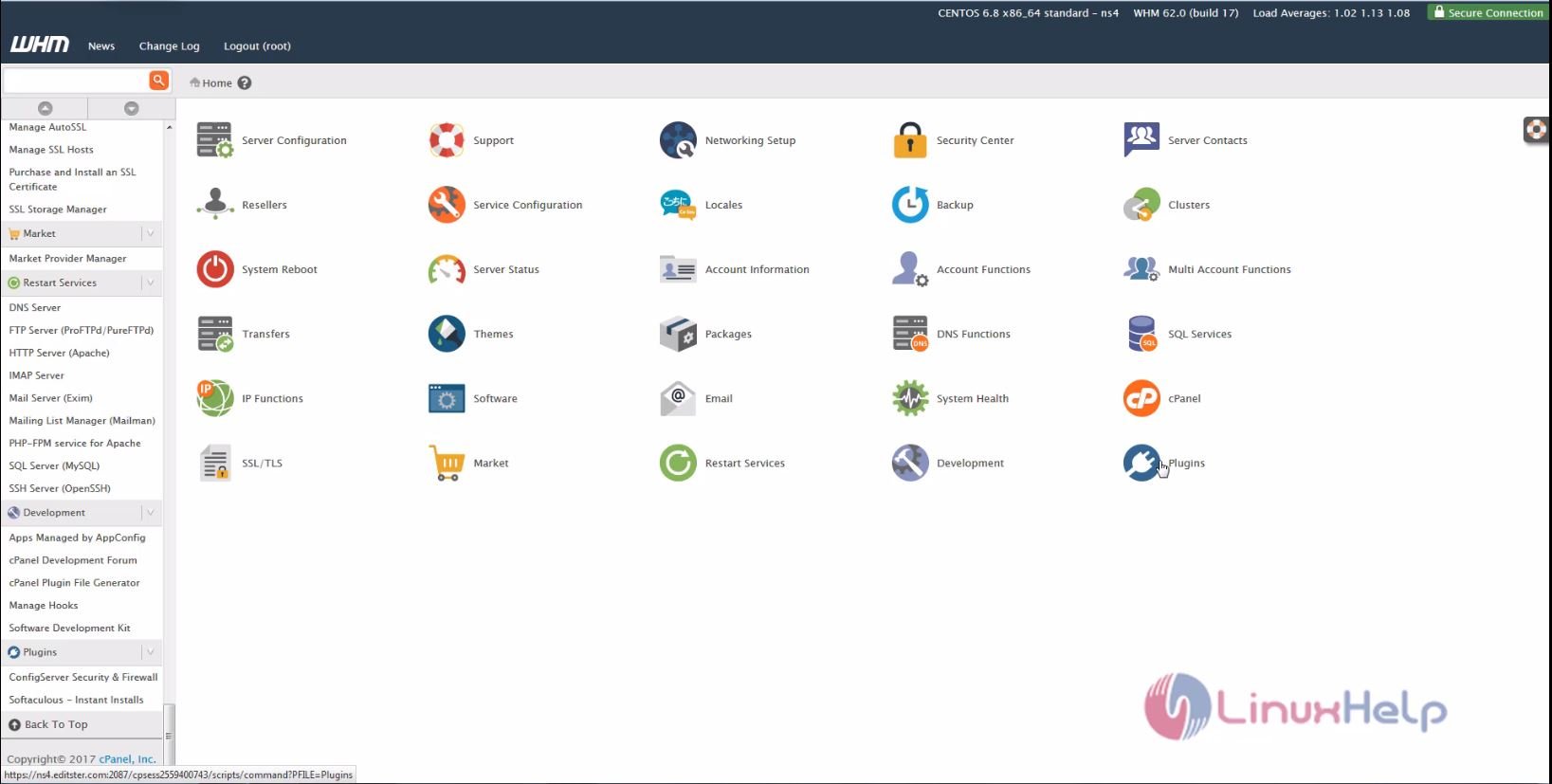
Then click plugins in the home page.
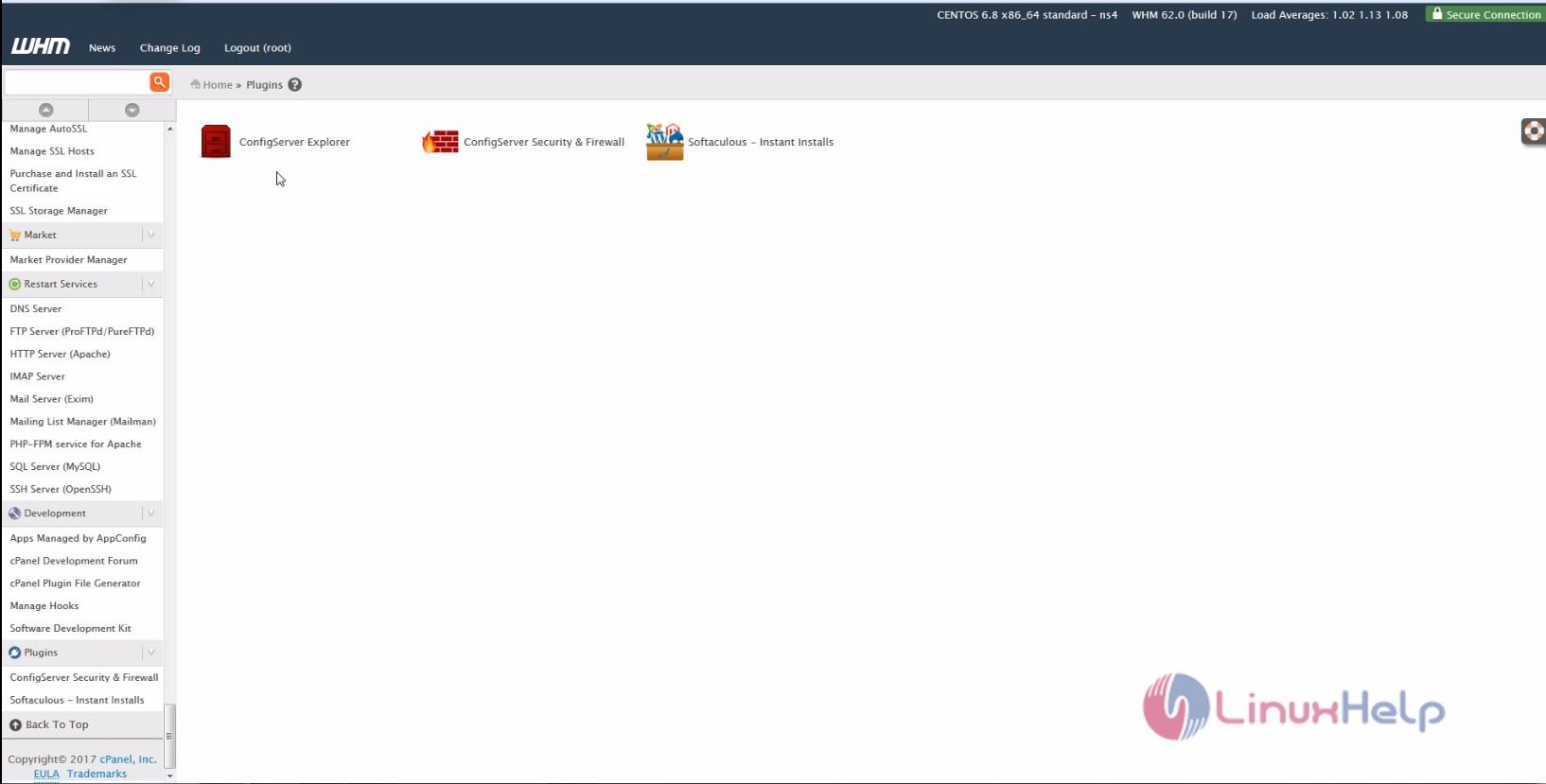
Now you can see the configserver explorer icon.
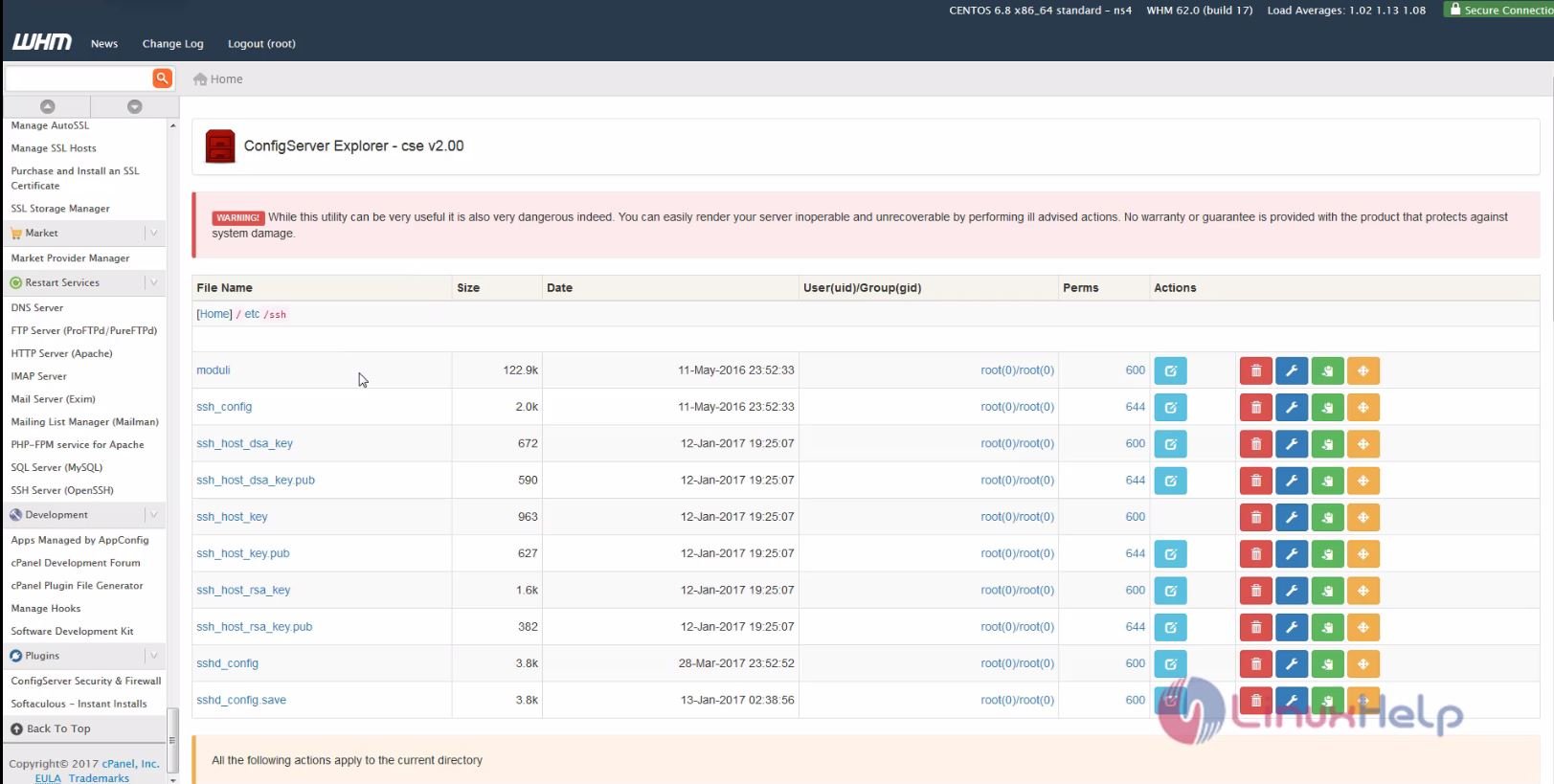
Select it to open the files and directory. A list of directories appears on the screen.
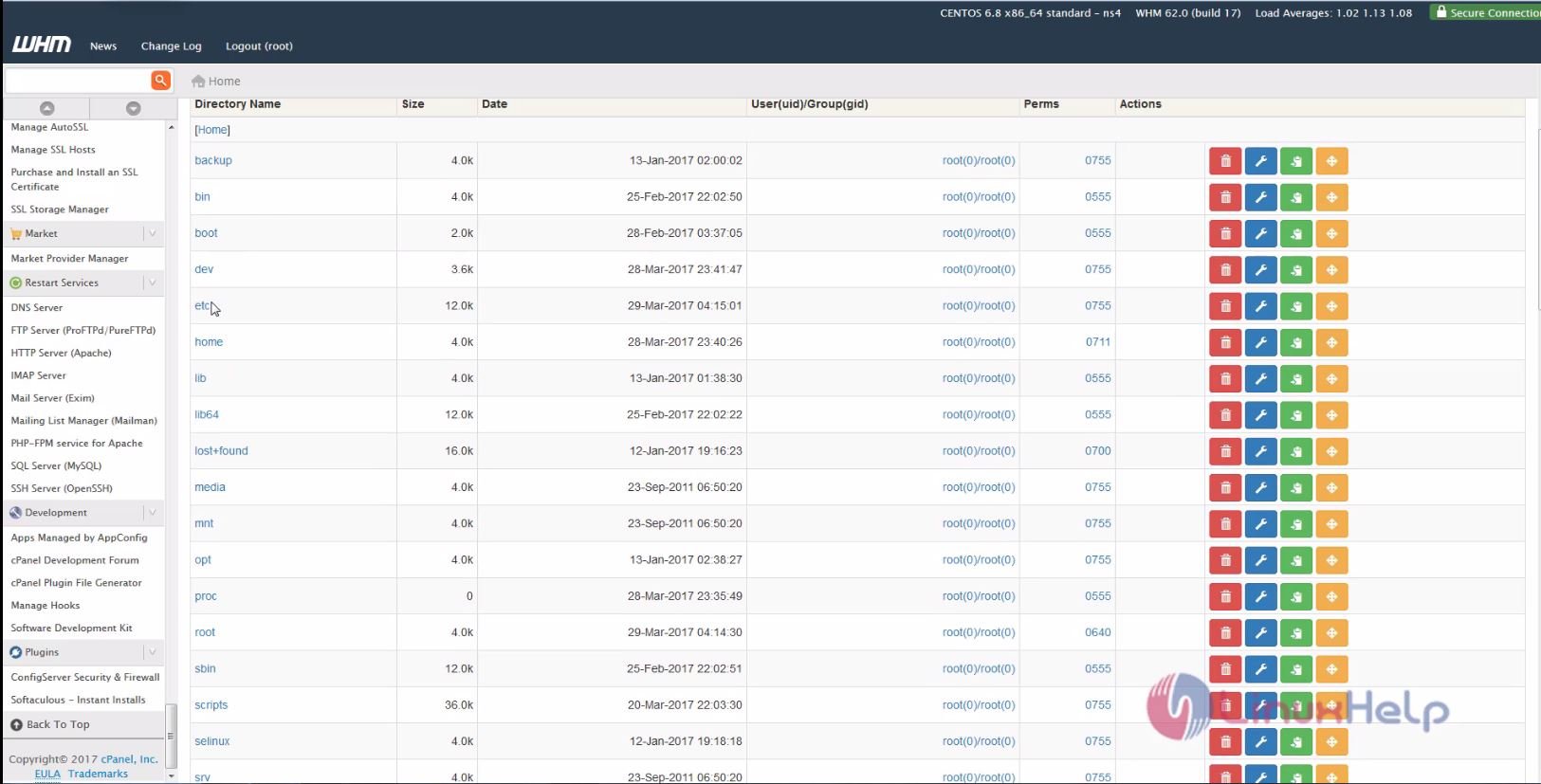
And select any directory, like “ /etc" .
” 
Just click the edit icon for editing the file and you can now edit the file . Click the save button to save the changes.
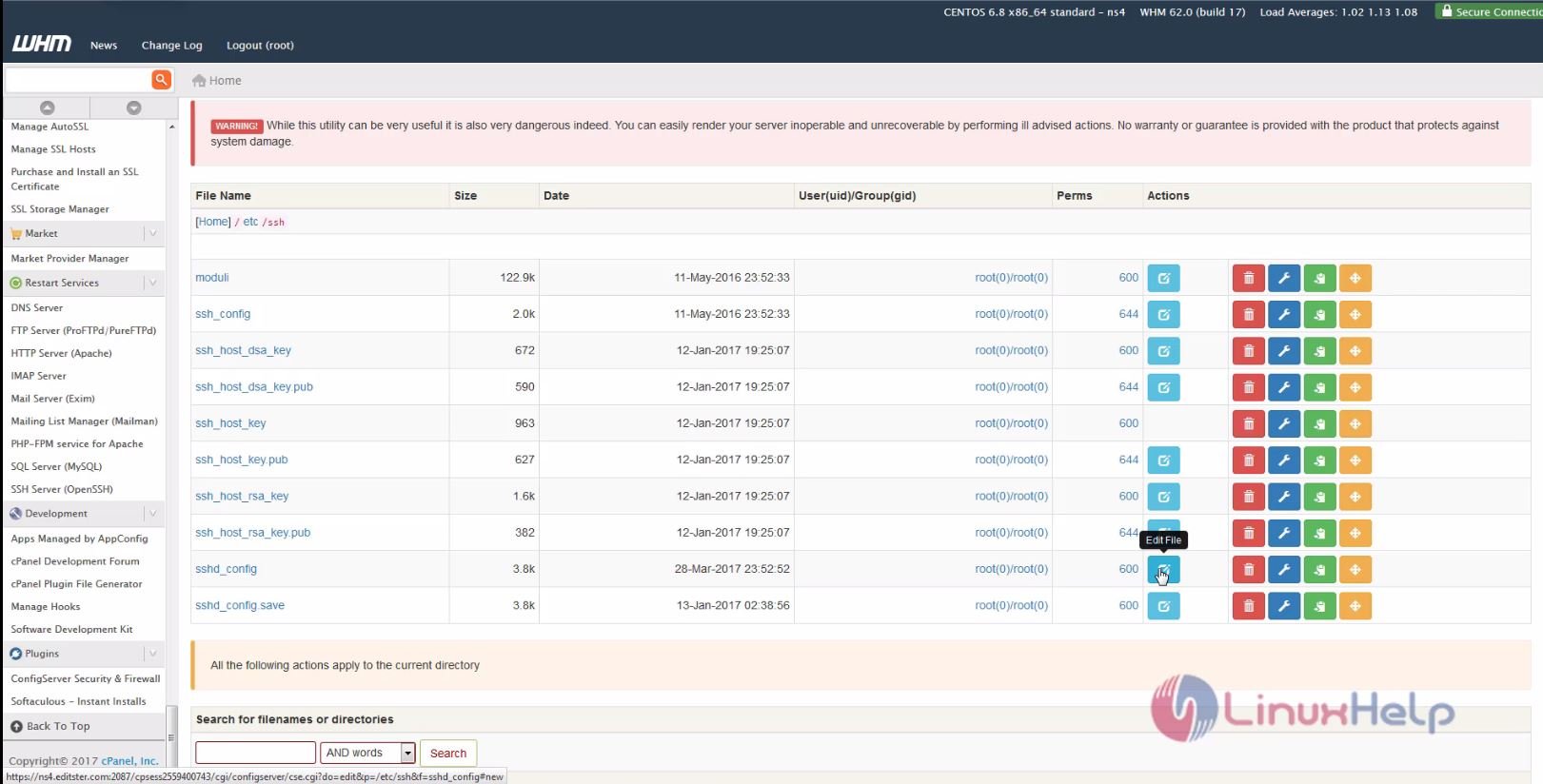
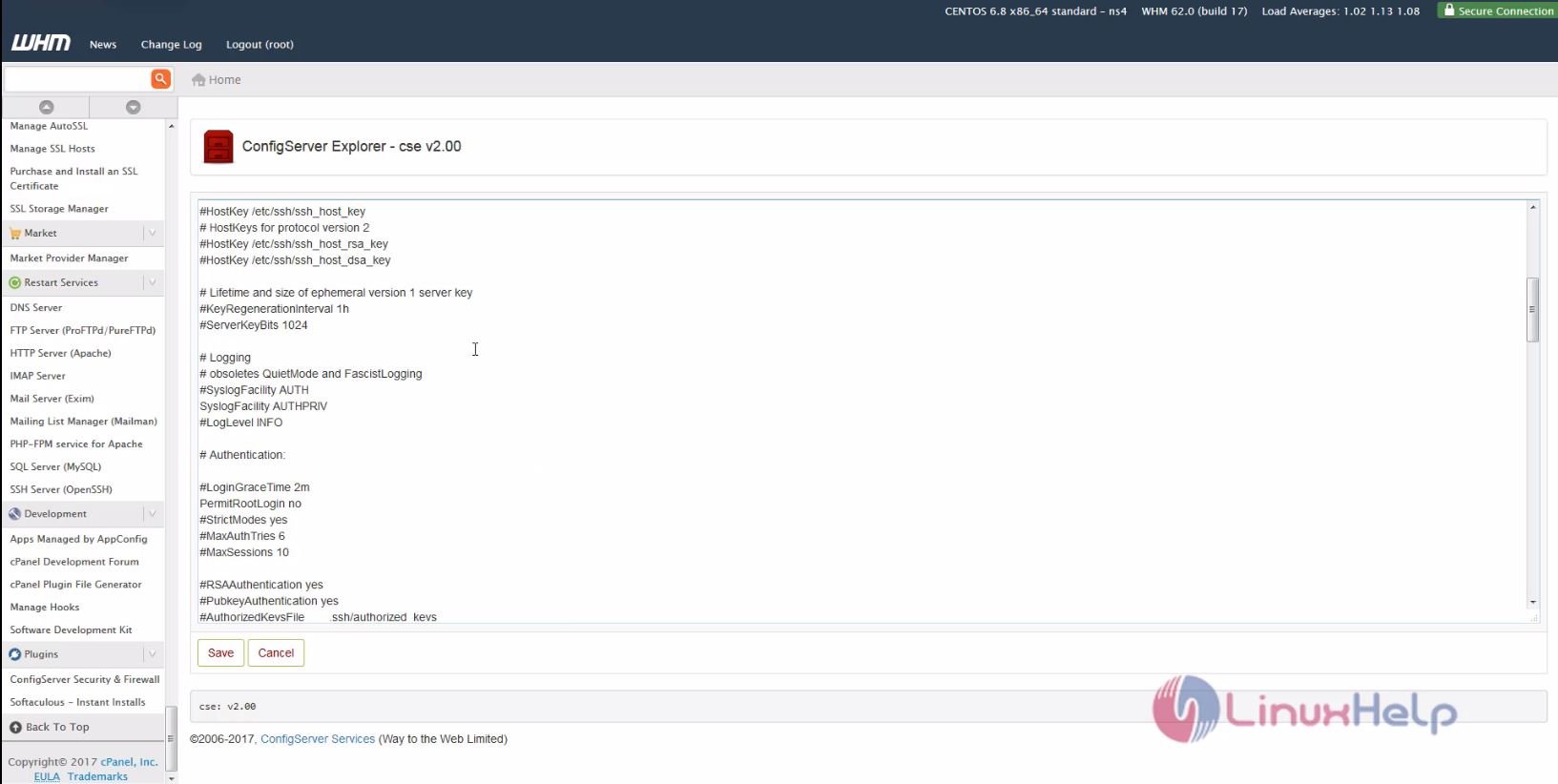
The config server explorer is installed in the WHM cPanel. Wasn' t that an easy installation process? Stay connected to know more about various other aspects of WHM from our future articles.
Comments ( 0 )
No comments available