How to Install CopyQ in PopOS
To Install CopyQ in PopOS
CopyQ is an open-source clipboard manager that converts the standard clipboard into an archive of content . CopyQ provides a searchable and editable copy history including text, photos, drawings, and command lines, in addition to plain text copied within a console session. CopyQ is built with many features and some of them are listed here.
CopyQ Features
- Support for Linux, Windows as well as OS X 10.9+
- Store text, HTML, images or any other custom formats
- Quickly browse and filter items in clipboard history
- Sort, create, edit, remove, copy/paste, drag’ n’ drop items in tabs
- Add notes or tags to items
- System-wide shortcuts with customizable commands
- Paste items with shortcut or from tray or main window
- Fully customizable appearance
- Advanced command-line interface and scripting
- Ignore clipboard copied from some windows or containing some text
- Support for simple Vim-like editor and shortcuts
It is so simple to install CopyQ in PopOS and this tutorial covers the ground on the same method.
Installing CopyQ
Before you begin with the installation, make sure you add all the necessary repositories by making use of the following command.
root@linuxhelp:~# add-apt-repository ppa:hluk/copyq
 CopyQ is advanced clipboard manager with editing and scripting features.
 More info: https://launchpad.net/~hluk/+archive/ubuntu/copyq
Press [ENTER] to continue or Ctrl-c to cancel adding it.

gpg: keybox ' /tmp/tmpc4ghq2oy/pubring.gpg'  created
gpg: /tmp/tmpc4ghq2oy/trustdb.gpg: trustdb created
gpg: key 4F0B2F06AA07D22F: public key " Launchpad PPA for Lukas Holecek"  imported
gpg: Total number processed: 1
gpg:               imported: 1
OK
Once it is done, you need to update the repository by making use of the following command.
root@linuxhelp:~# apt-get update
Get:1 http://ppa.launchpad.net/hluk/copyq/ubuntu artful InRelease [15.9 kB]
Hit:2 http://us.archive.ubuntu.com/ubuntu artful InRelease
Hit:3 http://security.ubuntu.com/ubuntu artful-security InRelease
Hit:4 http://us.archive.ubuntu.com/ubuntu artful-updates InRelease
Hit:5 http://ppa.launchpad.net/system76/pop/ubuntu artful InRelease
Hit:6 http://us.archive.ubuntu.com/ubuntu artful-backports InRelease
Get:7 http://ppa.launchpad.net/hluk/copyq/ubuntu artful/main amd64 Packages [568 B]
Get:8 http://ppa.launchpad.net/hluk/copyq/ubuntu artful/main i386 Packages [568 B]
Get:9 http://ppa.launchpad.net/hluk/copyq/ubuntu artful/main Translation-en [692 B]
Fetched 17.7 kB in 2s (8,253 B/s)
Reading package lists... Done
Now, you shall proceed with the installation of the CopyQ command.
root@linuxhelp:~# apt-get install copyq
Reading package lists... Done
Building dependency tree
Reading state information... Done
The following additional packages will be installed:
  libdouble-conversion1 libqt5core5a libqt5dbus5 libqt5gui5 libqt5network5
  libqt5script5 libqt5svg5 libqt5widgets5 libxcb-xinerama0
  qt5-gtk-platformtheme qttranslations5-l10n
Suggested packages:
  qt5-image-formats-plugins qtwayland5
The following NEW packages will be installed:
  copyq libdouble-conversion1 libqt5core5a libqt5dbus5 libqt5gui5
  libqt5network5 libqt5script5 libqt5svg5 libqt5widgets5 libxcb-xinerama0
  qt5-gtk-platformtheme qttranslations5-l10n
0 upgraded, 12 newly installed, 0 to remove and 30 not upgraded.
Need to get 11.7 MB of archives.
After this operation, 49.2 MB of additional disk space will be used.
.
.
Setting up qt5-gtk-platformtheme:amd64 (5.9.1+dfsg-10ubuntu1) ...
Setting up libqt5widgets5:amd64 (5.9.1+dfsg-10ubuntu1) ...
Setting up libqt5svg5:amd64 (5.9.1-2) ...
Setting up copyq (3.1.2~artful) ...
Processing triggers for libc-bin (2.26-0ubuntu2.1) ...
Once the installation is done, you need to go to the PopOS search field and type CopyQ, the application icon will appear on the screen. Just click the icon to open the application.

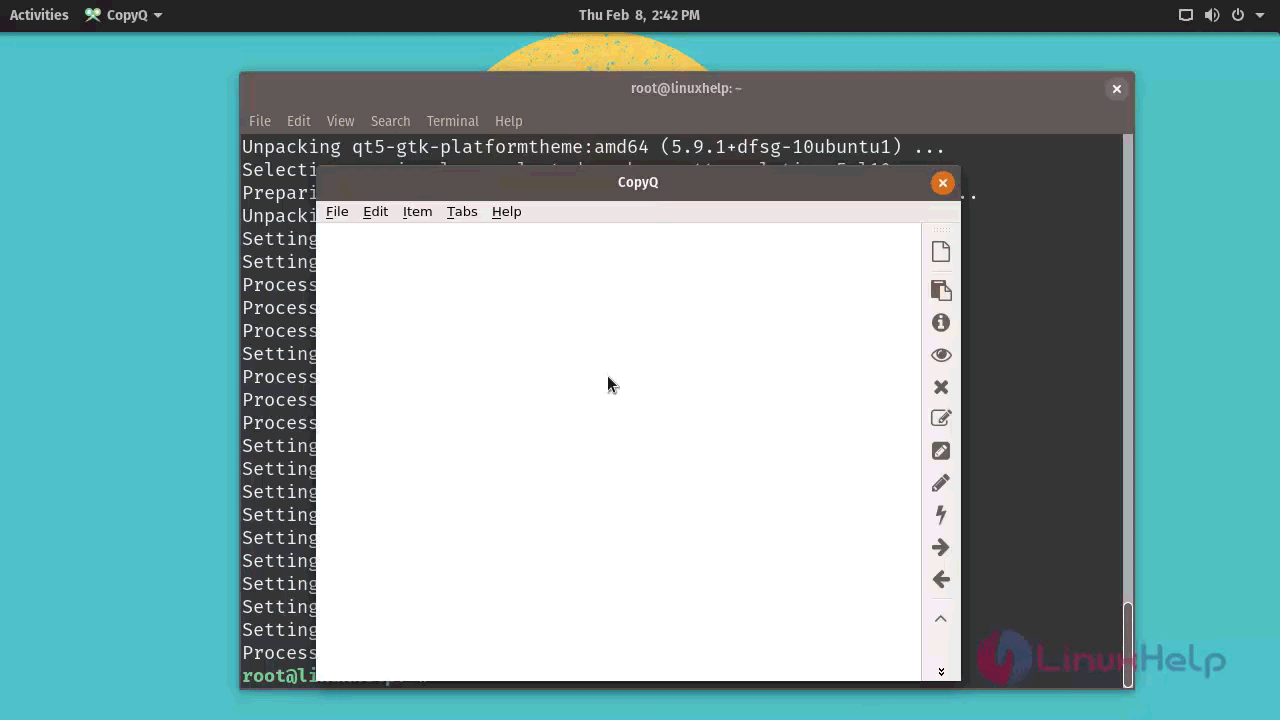
The application is now open.
With this, the installation of CopyQ in PopOS, comes to an end.
Comments ( 0 )
No comments available