How to install CopyQ in Ubuntu
How to install CopyQ in Ubuntu
CopyQ is a monitoring app that allows you to monitor system clipboard and saves its content in customized tabs. The saved clipboard can then be copied and pasted later directly into any application.It is available for Linux, Windows and Mac OS X. It also stores text, HTML, images or any other custom formats. This tutorial will explain on how to install CopyQ in Ubuntu.
Installation procedure
To start with the installation procedure, add the repository in the target system by executing the following command.
root@linuxhelp:/home/user1/Desktop# add-apt-repository ppa:hluk/copyq
 CopyQ is advanced clipboard manager with editing and scripting features.
 More info: https://launchpad.net/~hluk/+archive/ubuntu/copyq
Press [ENTER] to continue or ctrl-c to cancel adding it
gpg: keyring `/tmp/tmpfep1yi0y/secring.gpg'  created
gpg: keyring `/tmp/tmpfep1yi0y/pubring.gpg'  created
gpg: requesting key AA07D22F from hkp server keyserver.ubuntu.com
gpg: /tmp/tmpfep1yi0y/trustdb.gpg: trustdb created
gpg: key AA07D22F: public key " Launchpad PPA for Lukas Holecek"  imported
gpg: Total number processed: 1
gpg:               imported: 1  (RSA: 1)
OK
The required repository has been downloaded in the target system. Update the local repository index by running the apt-get update command.
root@linuxhelp:/home/user1/Desktop# apt-get update
Hit:1 http://in.archive.ubuntu.com/ubuntu xenial InRelease
Get:2 http://ppa.launchpad.net/hluk/copyq/ubuntu xenial InRelease [18.0 kB]
Get:3 http://security.ubuntu.com/ubuntu xenial-security InRelease [102 kB]
Get:4 http://in.archive.ubuntu.com/ubuntu xenial-updates InRelease [102 kB]
Get:5 http://ppa.launchpad.net/hluk/copyq/ubuntu xenial/main amd64 Packages [568 B]
Get:6 http://in.archive.ubuntu.com/ubuntu xenial-backports InRelease [102 kB]
Get:7 http://ppa.launchpad.net/hluk/copyq/ubuntu xenial/main i386 Packages [564 B]
Get:8 http://ppa.launchpad.net/hluk/copyq/ubuntu xenial/main Translation-en [692 B]
Fetched 326 kB in 2s (127 kB/s)
Reading package lists... Done
The target system has been updated with the required repositories. Now install CopyQ package by executing the following command.
root@linuxhelp:/home/user1/Desktop# apt-get install copyq
Reading package lists... Done
Building dependency tree
&hellip
&hellip
&hellip
Processing triggers for mime-support (3.59ubuntu1) ...
Setting up libqt5script5:amd64 (5.5.1+dfsg-2build1) ...
Setting up copyq (3.0.3~xenial) ...
Processing triggers for libc-bin (2.23-0ubuntu3) ...
The CopyQ application has been installed successfully. To open CopyQ package in the system, type the following command and run it.
root@linuxhelp:/home/user1/Desktop# copyq
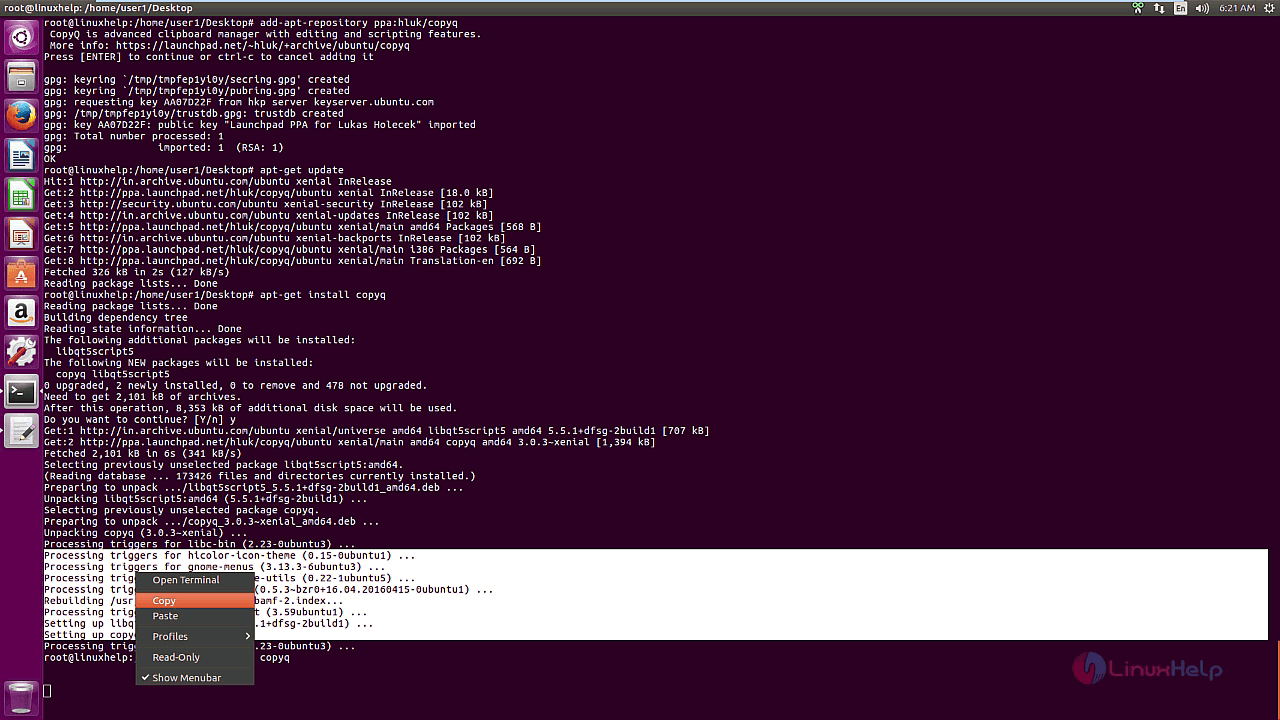
The application is running successfully. Copy some random contents to check the CopyQ application.
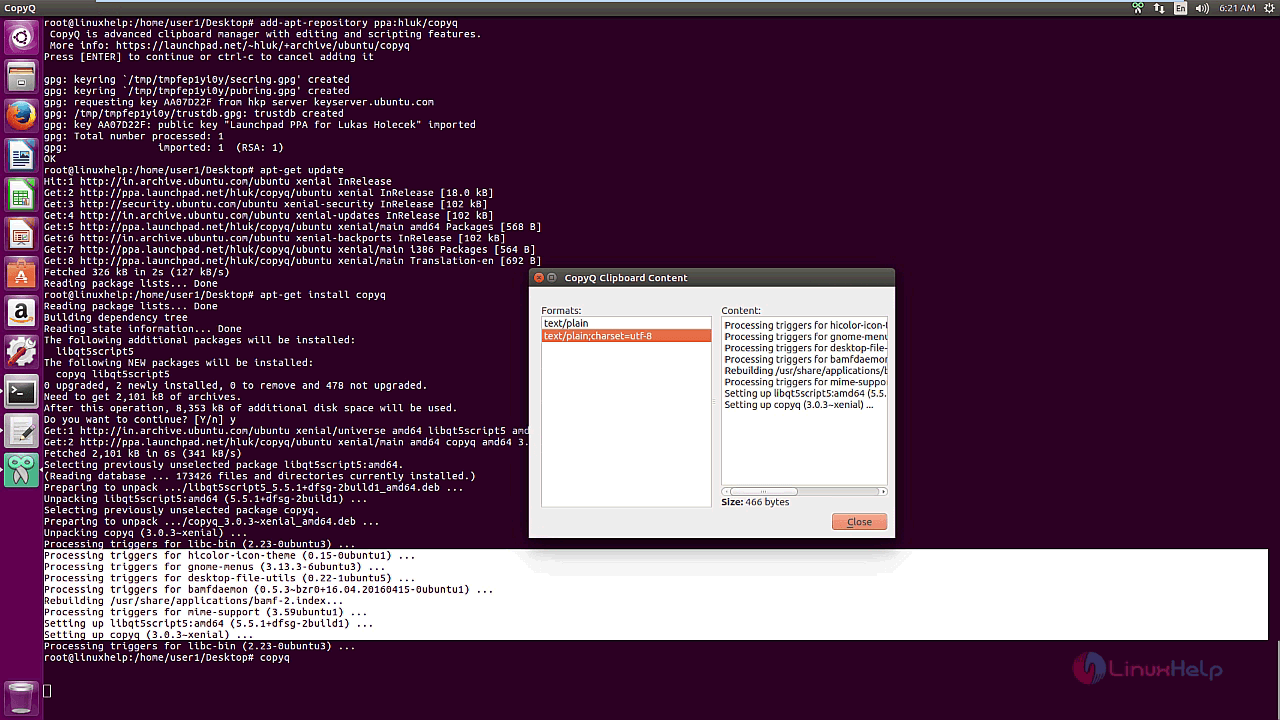
The copied contents in the CopyQ clipboard content can be shown below.
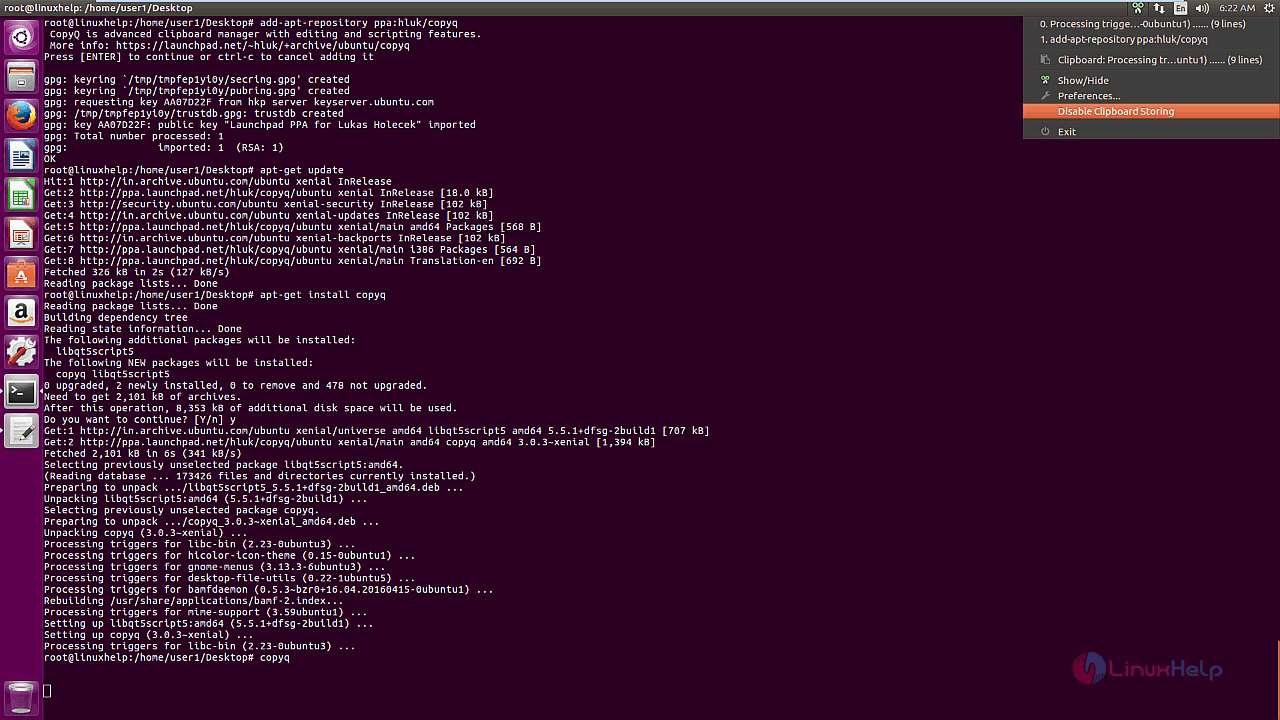
To disable clipboard storing, select the disable clipboard storing from the list of options.
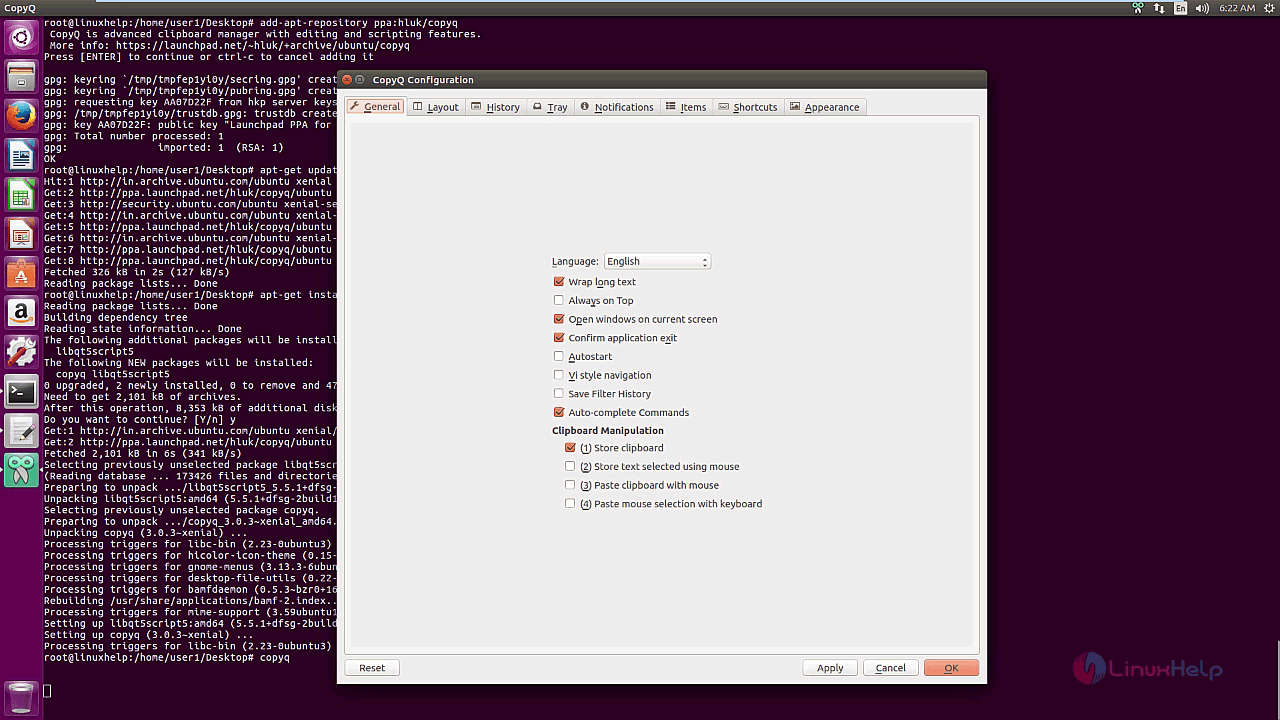
The user can also set preferences from the CopyQ configuration settings.
Wasn' t that an easy installation procedure? CopyQ allows the user to monitor system clipboard and saves its content in customized tabs.
Comments ( 0 )
No comments available