• Categories
    Category
    {{ postCtrl.tags }}
    • {{ category.tag_type }}

      • {{tag.tag_name}}
      • View more
  • Categories
    Category
    {{ postCtrl.tags }}
    • {{ category.tag_type }}

      • {{tag.tag_name}}
      • View more
  • News
  • Tutorials
  • Forums
  • Tags
  • Users
Tutorial News Comments FAQ Related Articles

How to install crunchBang linux

{{postValue.id}}

To install CrunchBang linux

Crunchbang Linux distribution that is derived from Debian. This software was designed to an Openbox window manager. In this article we will learn how to install CrunchBang Linux.

Download CrunchBang ISO file and make it bootable USB or DVD. click install to proceed further.
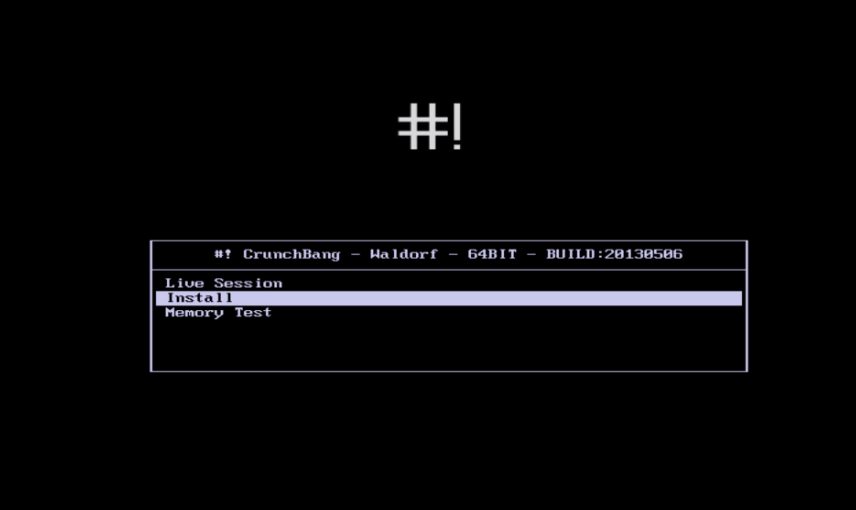
Install
Choose the language and click continue.
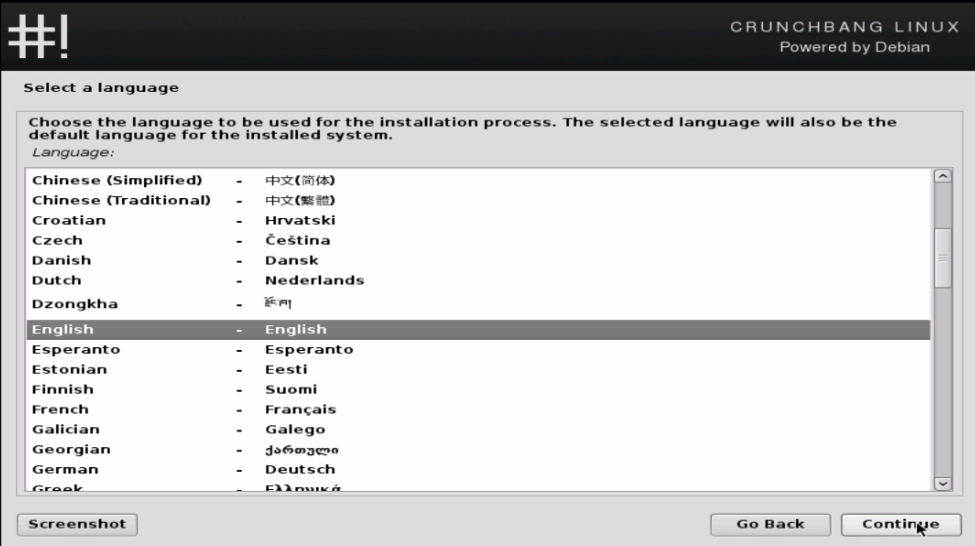
Choose_language
Choose the country and click continue.
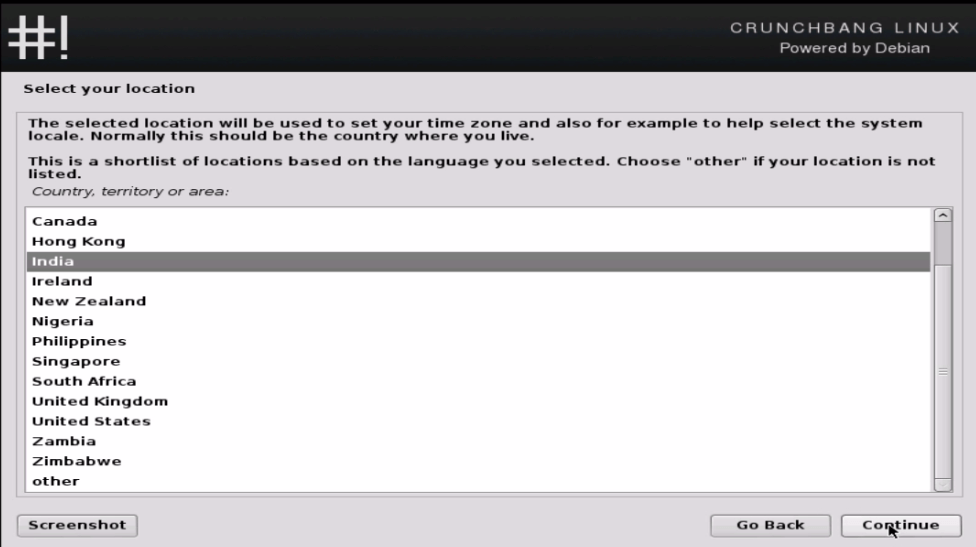
choose_country

Select your keyboard language and click continue.
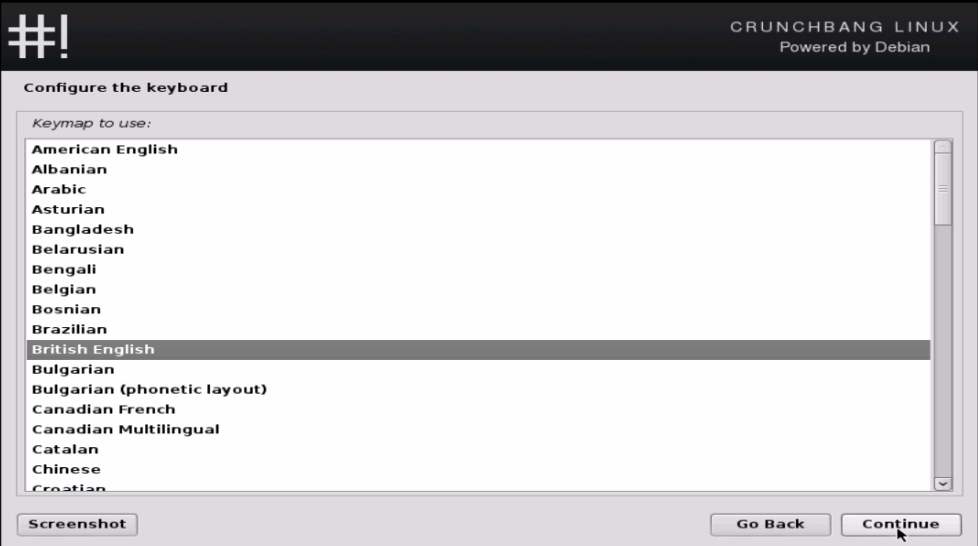
choose_keyboard_layout
Loading additional components starts.
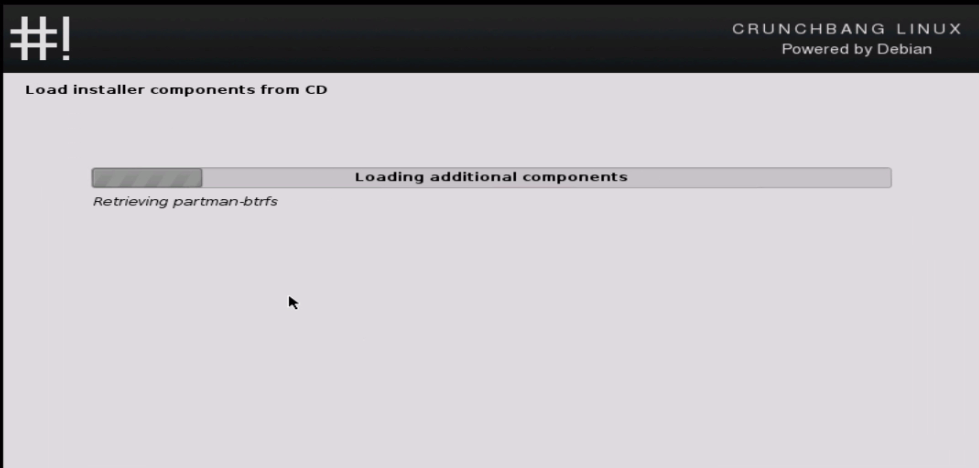
Loading_additional_components
Then set the host name and click continue.
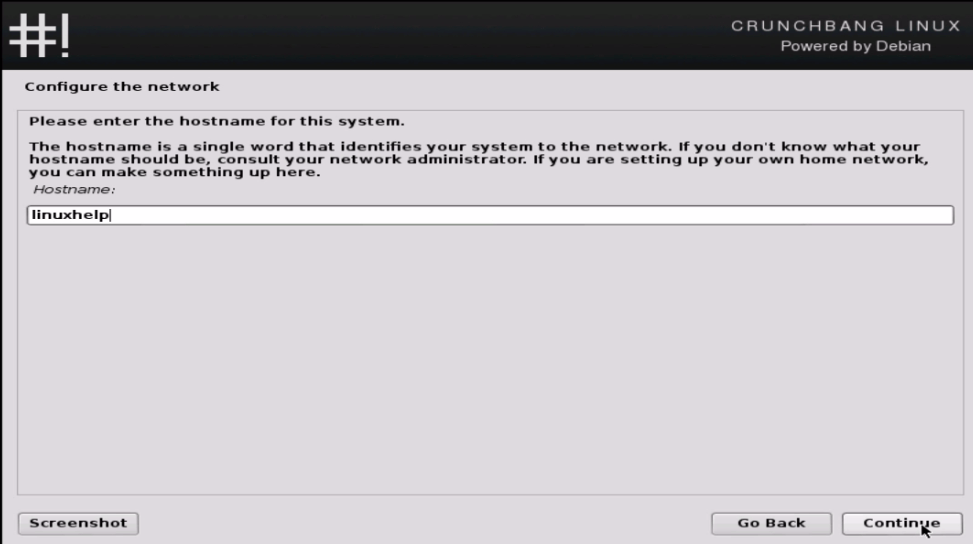
set_hostname
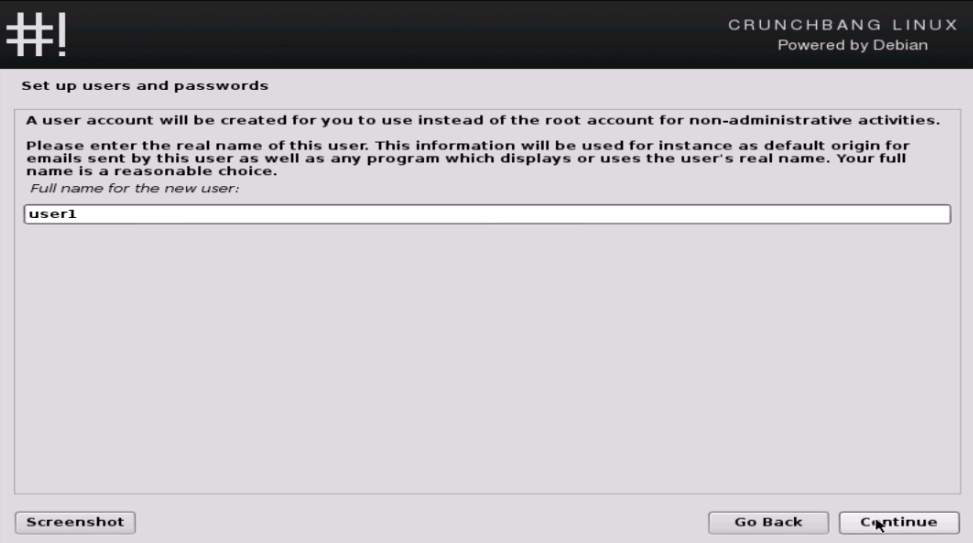
Enter the new User name and click continue.
setup_users
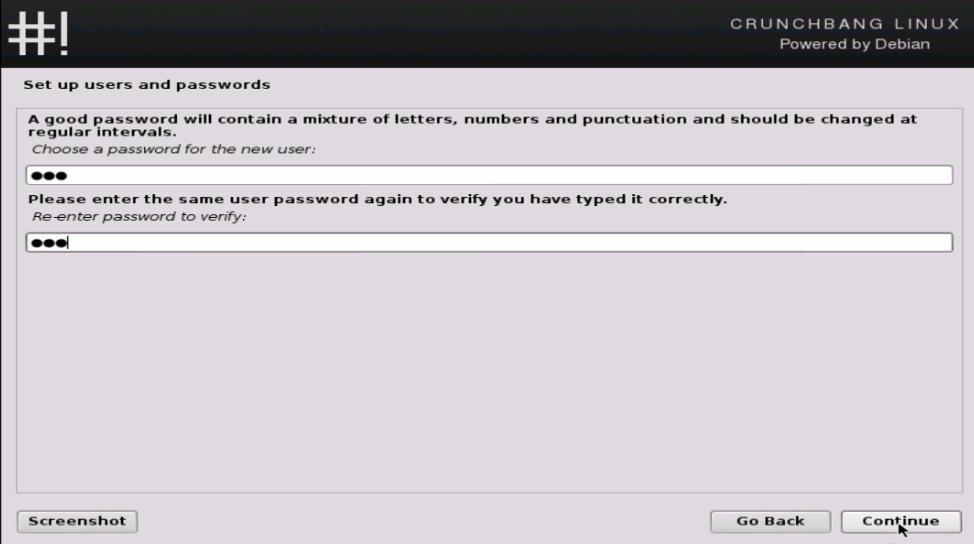
Set user password
verify_password
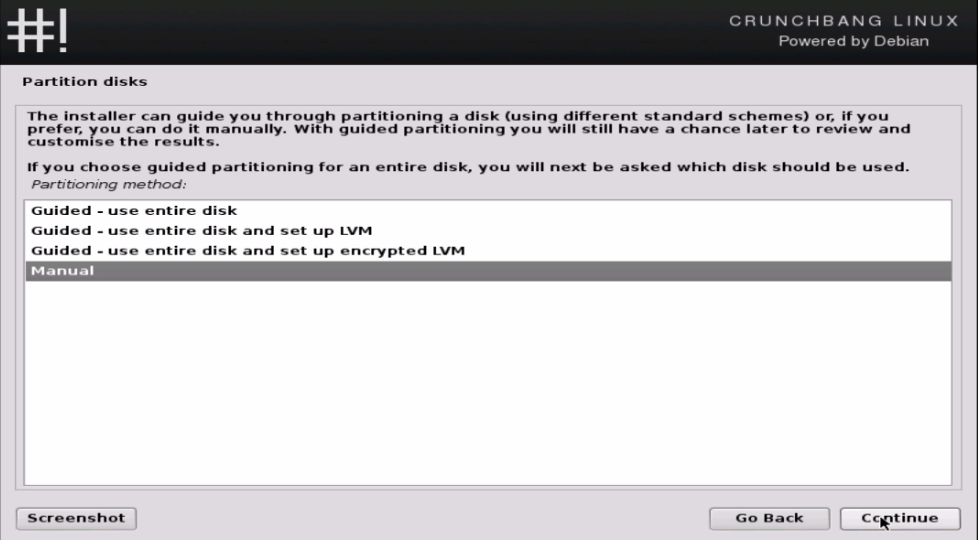
Choose Manual partitioning option and click continue.
Manual_partitioning
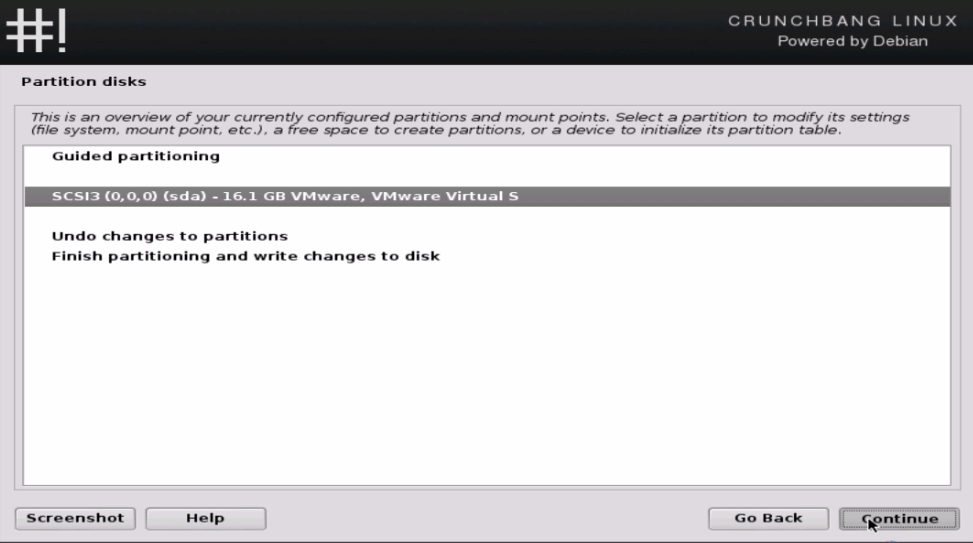
Select your hard disk and click continue
Partition_disk
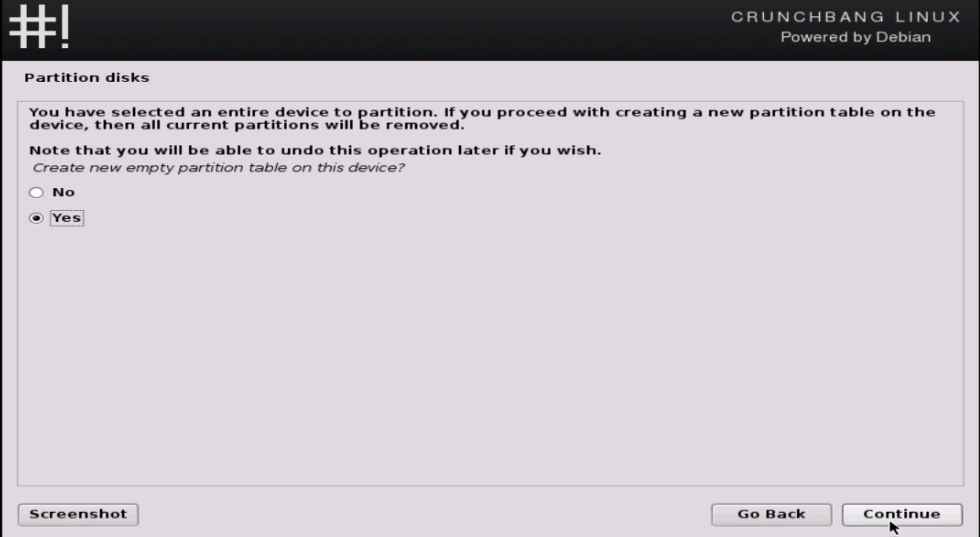
Choose confirmation to proceed further.
partition_disk
Choose the free space and click continue.
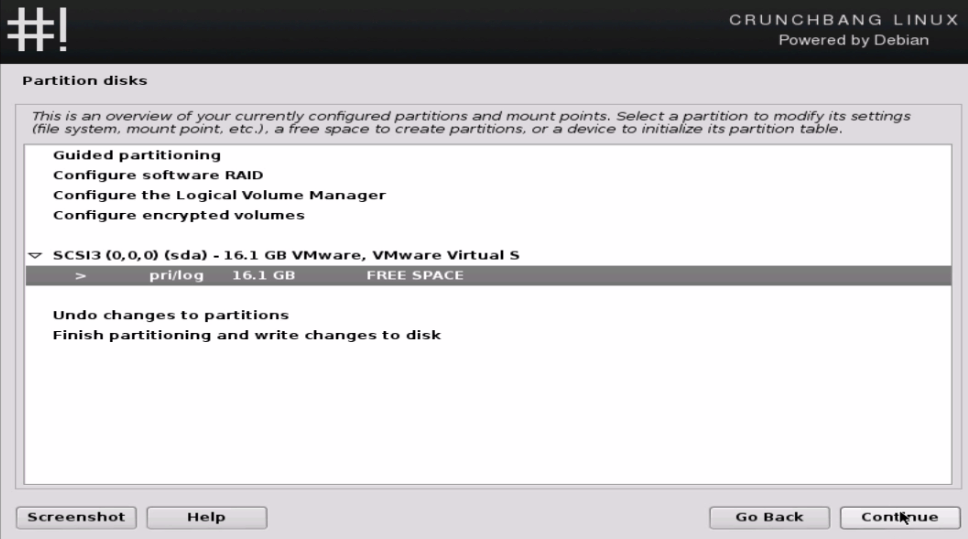
undo_changes
Choose create new partition and click continue to proceed further.
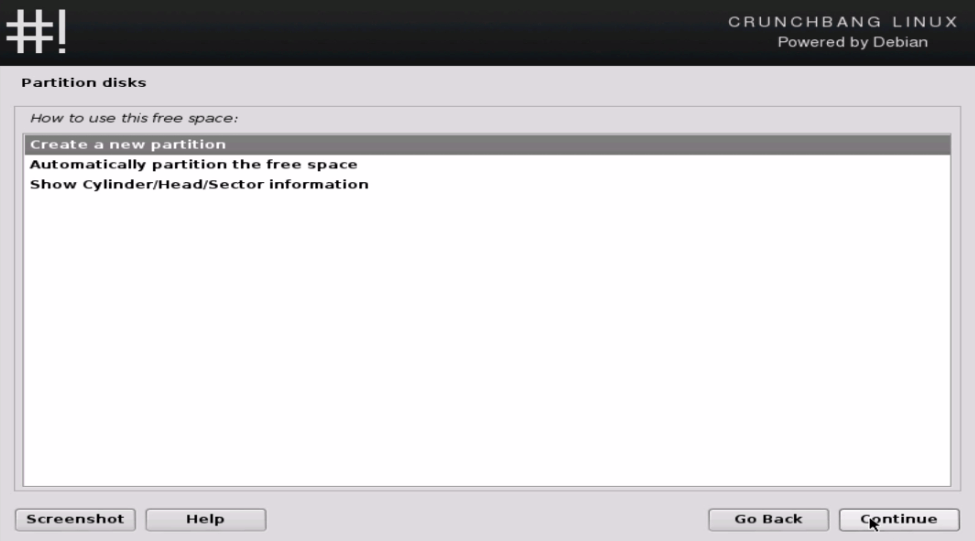
new_partition
Set the size for the first main partition.
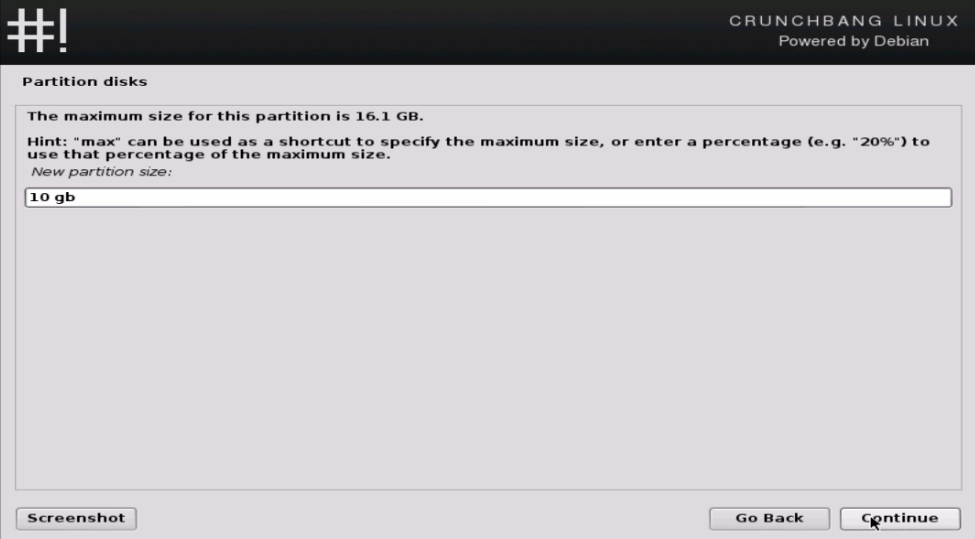
set_size
Choose the partition type as primary and click continue
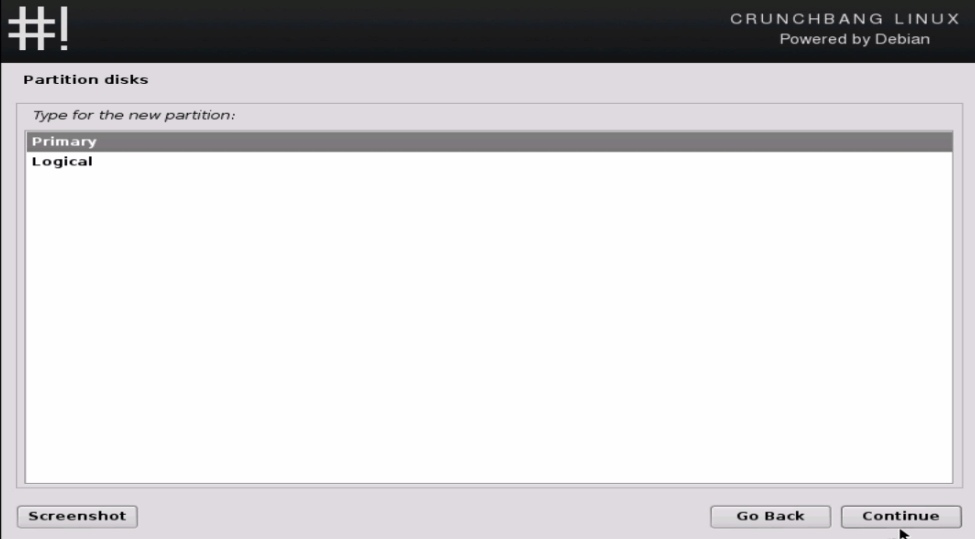
partition_type

Then choose the location for the partition.
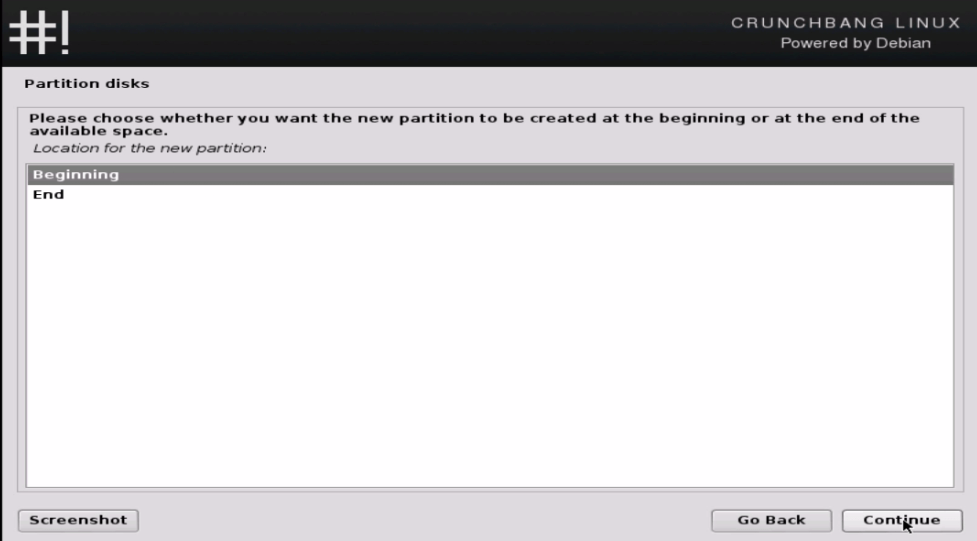
partition_location
View the summary of the partition and double click on the boot flag to change the flag mode on. Then choose done setting up the partition and click continue.
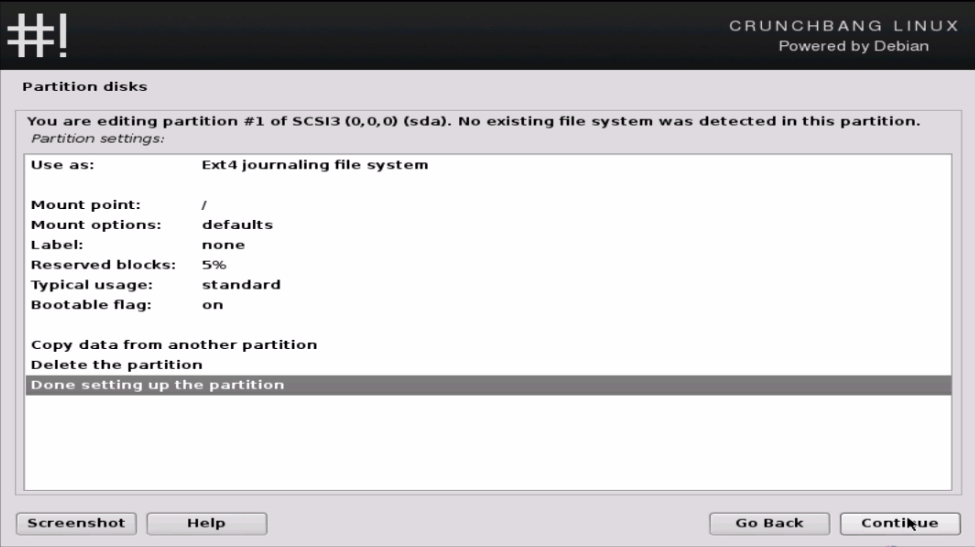
continue
Select the free space of the hard disk for creating partition for its swap memory and click continue.
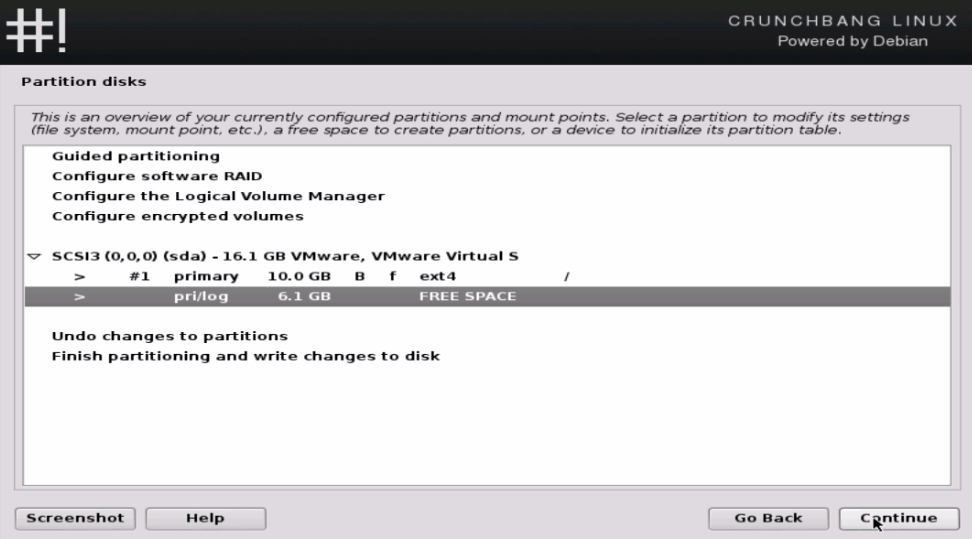
select_freespace
Click Done setting up the partition, repeat the same procedure for swap partition.
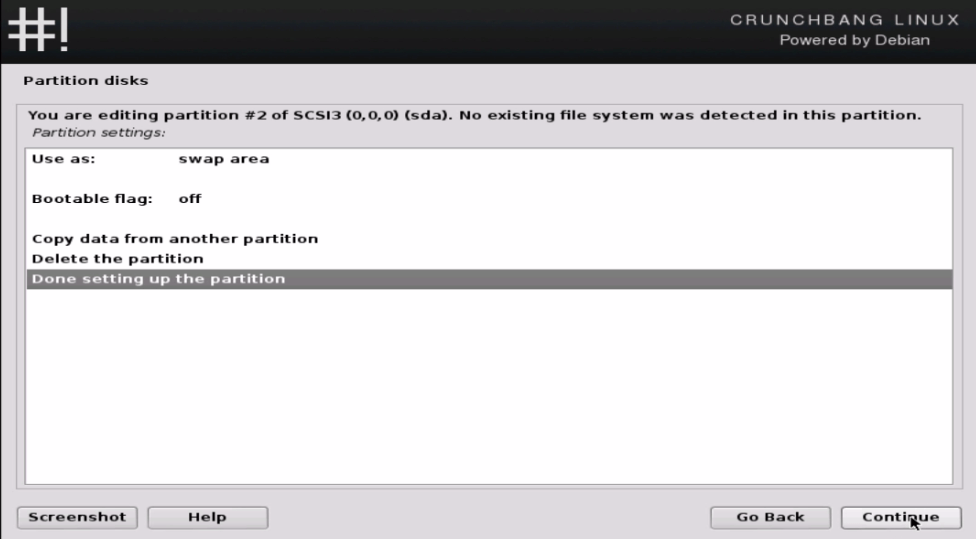
Done setting up the partition
Once the partition is done, select finish partitioning and click continue to proceed further.
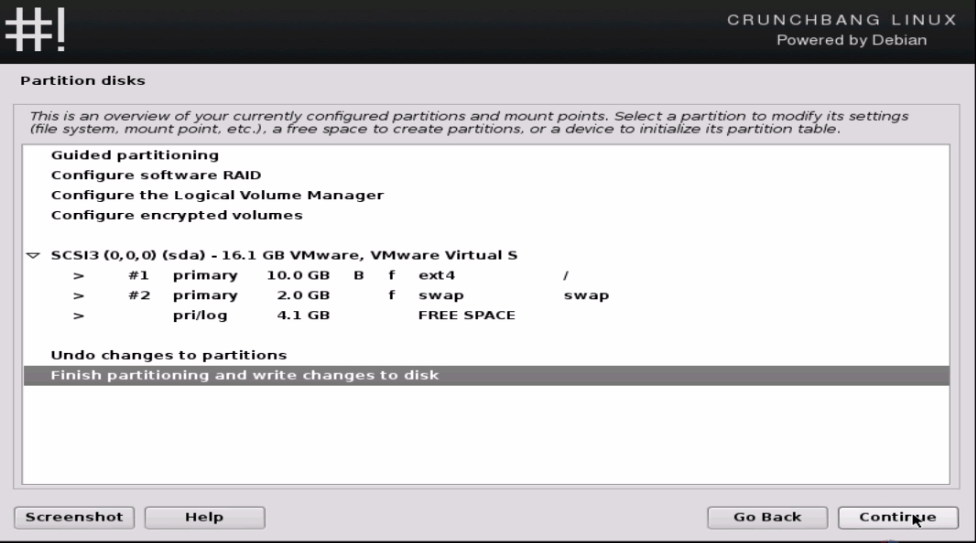
finish partitioning
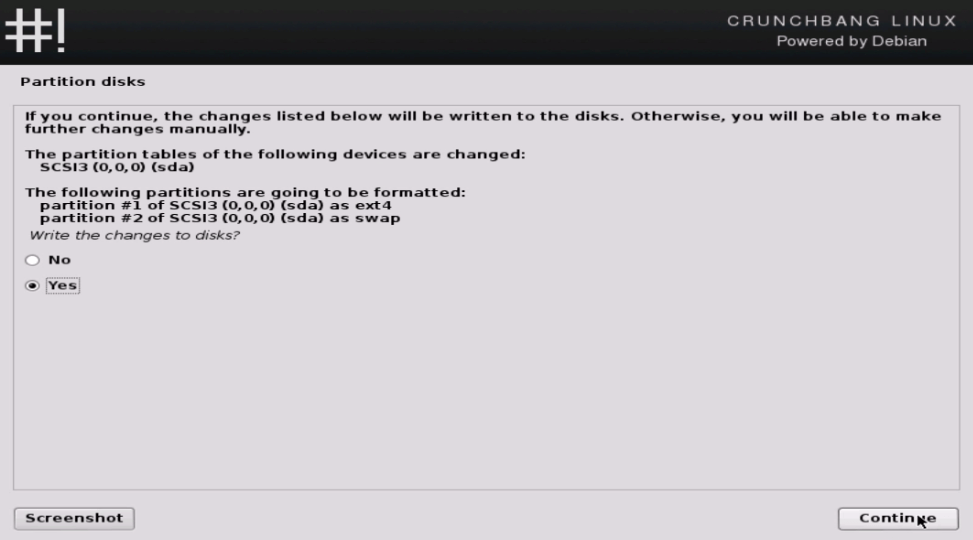
Select yes to make changes.
make_changes
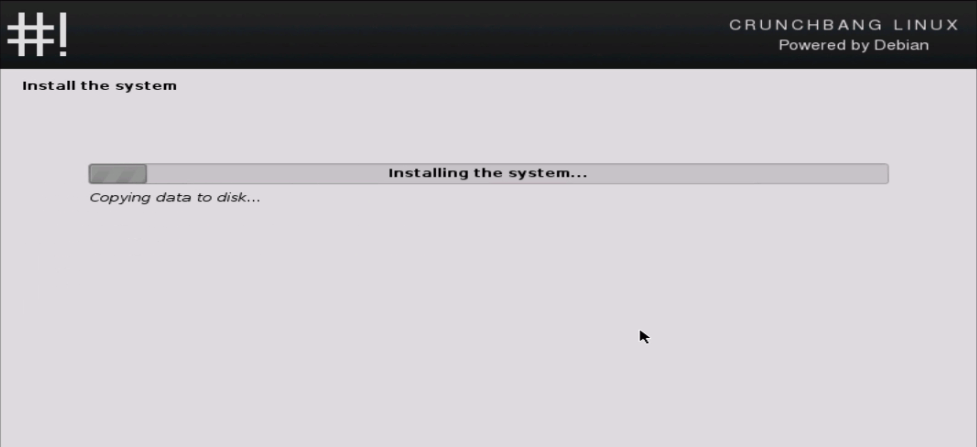
Now the installation is started.
installation_started
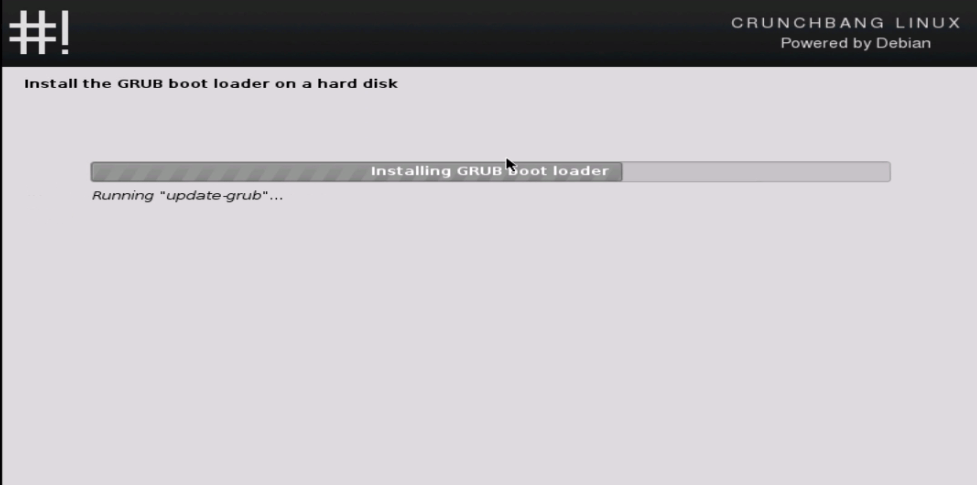
Then start installing the GRUB boot loader, select yes and click continue.
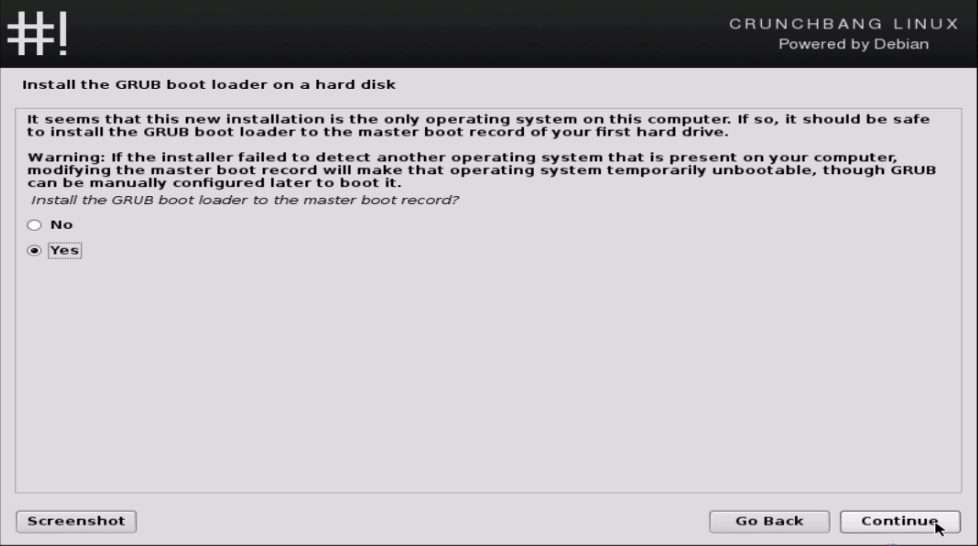
GRUB_boot_loader
running_update
installation_finished
After installation, restart it. Then login using the credentials.
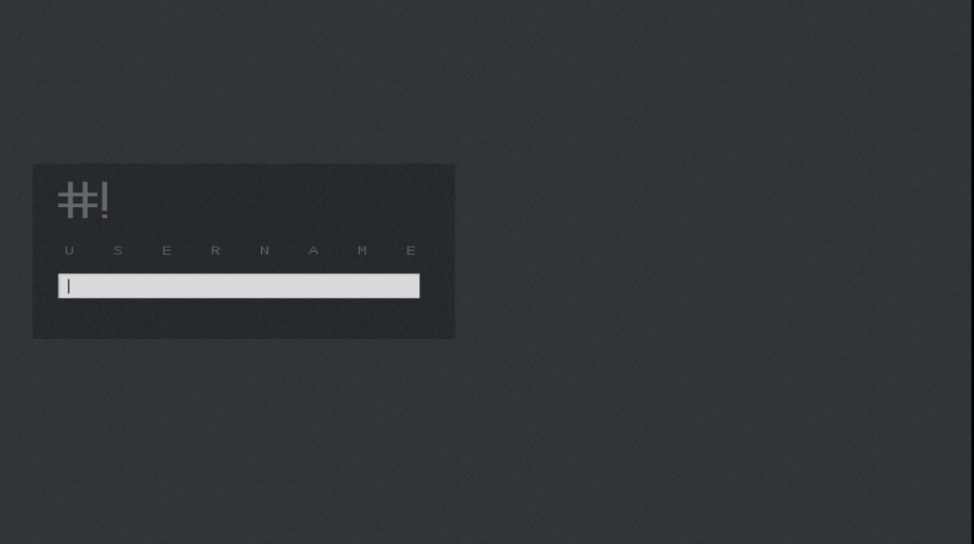
restart_system
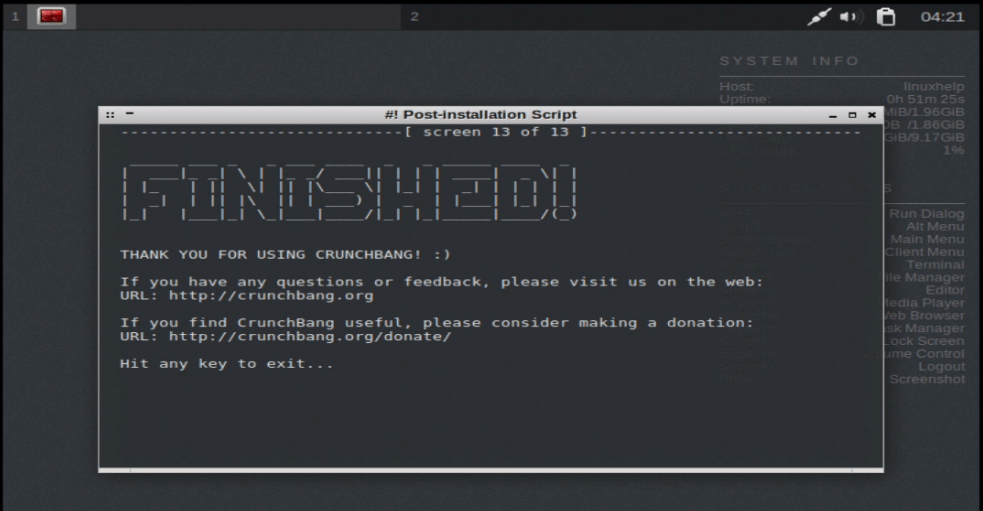
The post installation page appears as follows.
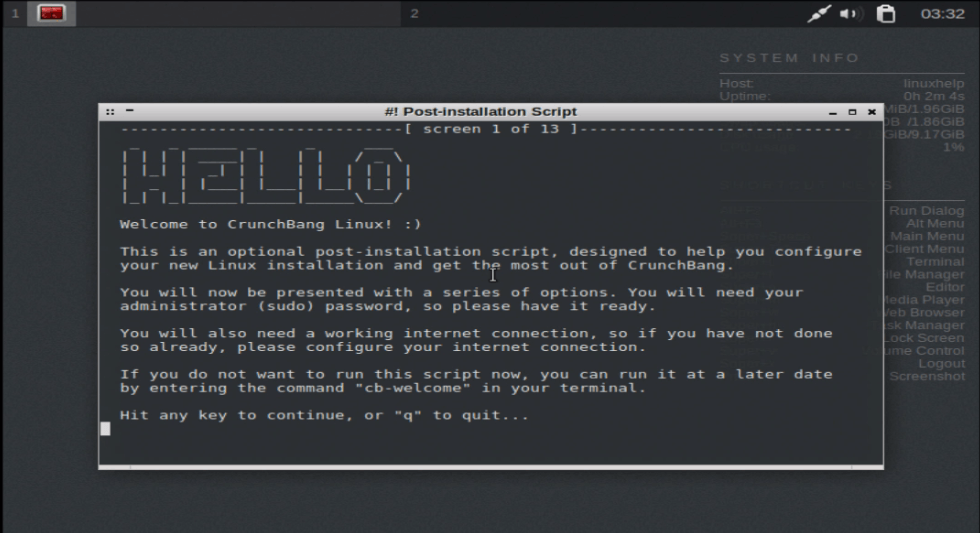
Post_installation_script
crunchbang_installed
Now the CrunchBang desktop is ready and it displays all the information about the system and basic shortcut keys.
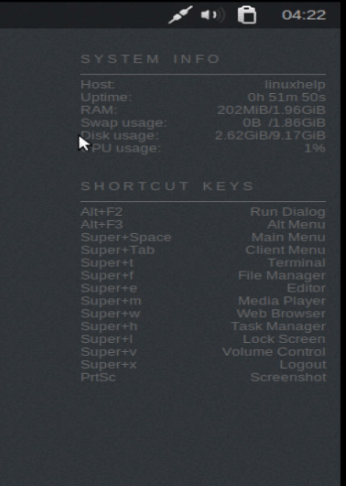
crunchbang_desktop
To view the applications, right click on the screen.
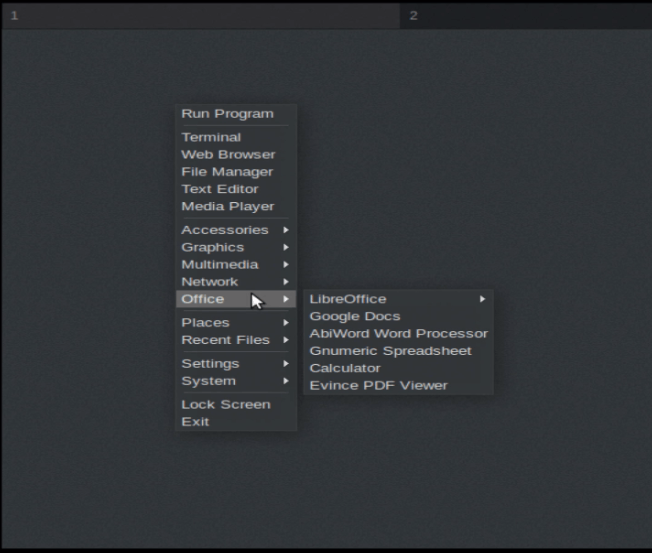
View_applications

Tags:
mason
Author: 

Comments ( 0 )

No comments available

Add a comment
{{postCtrl.cmtErrMsg}}

Frequently asked questions ( 5 )

Q

Can I install it from USB in crunchbang?

A

Yes you have to make it a bootable media before installation

Q

Does it have builtin applications?

A

Yes it has its own basic utilities that covers all basic applications

Q

Does it have a minimal installation on CrunchBang?

A

Yes almost all Linux distros contains Minimal Version

Q

Does it have the French language in CrunchBang?

A

yes it offers multiple languages

Q

Is the installer still a netinstall .iso?

A

Nope! All future builds will be based on 'live-build', which will provide a live image, as well as an installer on-disc.

Back To Top!
Rank
User
Points

Top Contributers

userNamenaveelansari
135850

Top Contributers

userNameayanbhatti
92510

Top Contributers

userNamehamzaahmed
32150

Top Contributers

1
userNamelinuxhelp
31040

Top Contributers

userNamemuhammadali
24500
Can you help Gibbson ?
How do i run both nginx and apache in same instance on centos

Hi...,

my server is based centos operating system and my webserver is already running on Apache.... i need to run both apache and nginx on same instance ... please help me to implement this concept...

Networking
  • Routing
  • trunk
  • Netmask
  • Packet Capture
  • domain
  • HTTP Proxy
Server Setup
  • NFS
  • KVM
  • Memory
  • Sendmail
  • WebDAV
  • LXC
Shell Commands
  • Cloud commander
  • Command line archive tools
  • last command
  • Shell
  • terminal
  • Throttle
Desktop Application
  • Linux app
  • Pithos
  • Retrospect
  • Scribe
  • TortoiseHg
  • 4Images
Monitoring Tool
  • Monit
  • Apache Server Monitoring
  • EtherApe 
  • Arpwatch Tool
  • Auditd
  • Barman
Web Application
  • Nutch
  • Amazon VPC
  • FarmWarDeployer
  • Rukovoditel
  • Mirror site
  • Chef
Contact Us | Terms of Use| Privacy Policy| Disclaimer
© 2025 LinuxHelp.com All rights reserved. Linux™ is the registered trademark of Linus Torvalds. This site is not affiliated with linus torvalds in any way.