How to Install CS-Cart on Ubuntu 19.04
- 00:37 lsb_release -a
- 00:51 mysql -u root -p
- 02:10 unzip cscart_v4.9.3.SP1.zip -d cscart
- 02:22 mv cscart /var/www/
- 02:31 chown -R www-data.www-data /var/www/cscart
- 02:53 chmod -R 755 /var/www/cscart
- 03:07 vim /etc/apache2/sites-available/cscart.conf
- 04:27 a2dissite 000-default.conf
- 04:41 a2ensite cscart.conf
- 04:52 a2enmod rewrite
- 05:06 systemctl restart apache2
To install CS-Cart on Ubuntu 19.04
Requirements for CS- cart:
Apache
MySQL
PHP and Its modules
php php-xml php-mysql php-mbstring php-zip php-soap php-curl php-gd php-ldap php-imap php-common php-dev libmcrypt-dev php-pear
Installation procedure
Check the Ubuntu version by using the following command.
root@linuxhelp:~# lsb_release -a
No LSB modules are available.
Distributor ID:	Ubuntu
Description:	Ubuntu 19.04
Release:	19.04
Codename:	disco
Configure the MySQL database. Log into MySQL as a root user and make the necessary settings.
root@linuxhelp:~# mysql -u root -p
Enter password:
Welcome to the MySQL monitor.  Commands end with ; or \g.
Your MySQL connection id is 4
Server version: 5.7.26-0ubuntu0.19.04.1 (Ubuntu)

Copyright (c) 2000, 2019, Oracle and/or its affiliates. All rights reserved.

Oracle is a registered trademark of Oracle Corporation and/or its
affiliates. Other names may be trademarks of their respective
owners.

Type 'help;' or '\h' for help. Type '\c' to clear the current input statement.

mysql> create database cscartdb;
Query OK, 1 row affected (0.01 sec)

mysql> create user 'csuser'@localhost identified by 'Linuxc#4';
Query OK, 0 rows affected (0.04 sec)

mysql> grant all privileges on cscartdb.* to 'csuser'@localhost;
Query OK, 0 rows affected (0.00 sec)

mysql> flush privileges;
Query OK, 0 rows affected (0.01 sec)

mysql> exit
Bye
Extract the contents of the previously downloaded the CS-Cart installation package using unzip command.
root@linuxhelp:~# unzip cscart_v4.9.3.SP1.zip -d cscart
Archive:  cscart_v4.9.3.SP1.zip
  inflating: cscart/.htaccess
  inflating: cscart/admin.php
  inflating: cscart/api.php
   creating: cscart/app/
  inflating: cscart/app/.htaccess
   creating: cscart/app/Tygh/
   creating: cscart/app/Tygh/Addons/
.
.
 creating: cscart/var/upgrade/
  inflating: cscart/var/upgrade/.htaccess
  inflating: cscart/var/upgrade/restore.php
   creating: cscart/var/snapshots/
  inflating: cscart/var/snapshots/4.9.3.sp1_ultimate_dist.php
  inflating: cscart/copyright.txt
Move the CS-Cart directory to apache root directory.
root@linuxhelp:~# mv cscart /var/www/
Set the ownership and permission for CS-Cart by using the following command.
root@linuxhelp:~# chown -R www-data.www-data /var/www/cscart
root@linuxhelp:~# chmod -R 755 /var/www/cscart
Configure the virtualhost for accessing the CS-Cart.
root@linuxhelp:~# vim /etc/apache2/sites-available/cscart.conf
<Virtualhost *:80>
        Servername www.linuxhelp1.com
        documentroot /var/www/cscart
<directory /var/www/cscart>
allowoverride all
allow from all
</directory>
</virtualhost>
Configure the virtualhost for accessing the CS-Cart.
root@linuxhelp:~# a2dissite 000-default.conf
Site 000-default disabled.
To activate the new configuration, you need to run:
  systemctl reload apache2
Enable the site access with the following command.
root@linuxhelp:~# a2ensite cscart.conf
Enabling site cscart.
To activate the new configuration, you need to run:
  systemctl reload apache2
Enable the rewrite module.
root@linuxhelp:~# a2enmod rewrite
Enabling module rewrite.
To activate the new configuration, you need to run:
  systemctl restart apache2
Restart the apache service by using the following command.
root@linuxhelp:~# systemctl restart apache2
Switch to your browser and enter your domain name.

Accept the license agreement and Click next.

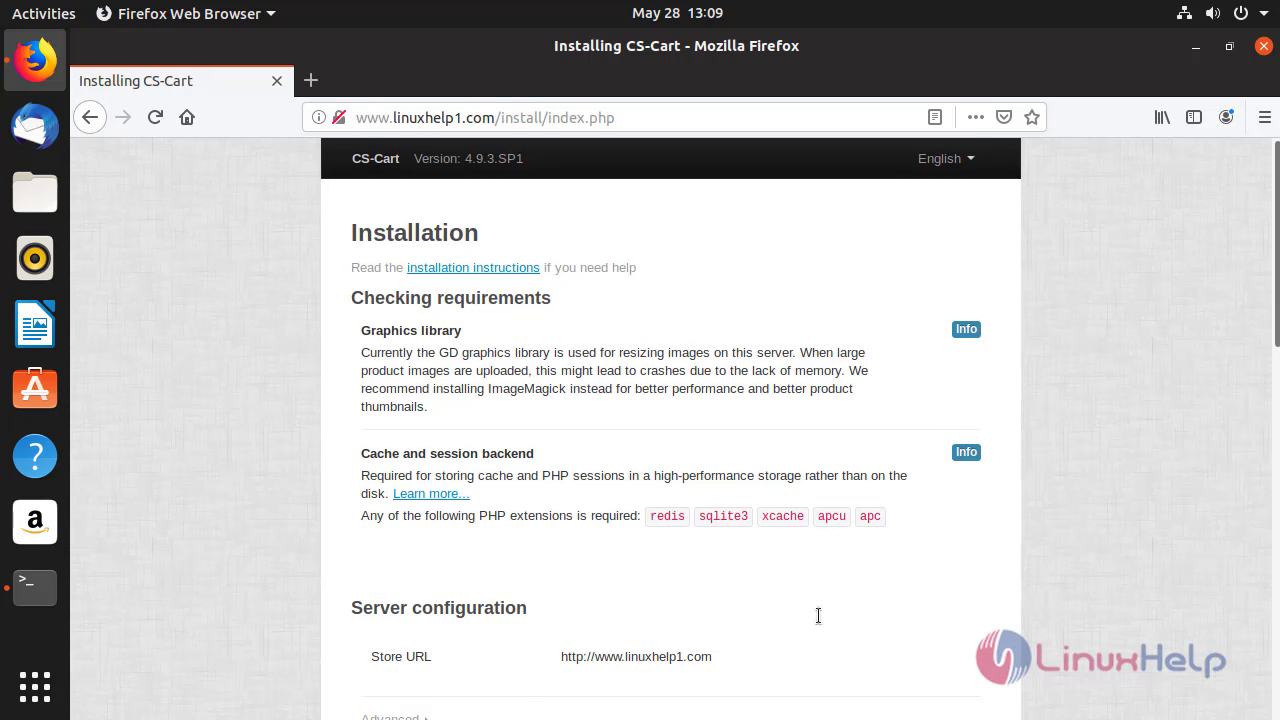
Check the configuration setup.
Configure the database details.

Configure the admin credentials.

The installation is in process.

The installation process is completed. To enter into the admin panel, click go to the administration panel.

The admin dashboard of CS-Cart is displayed on the screen.

With this, the method to install CS Cart on Ubuntu 19.04 comes to an end.
Comments ( 0 )
No comments available