• Categories
    Category
    {{ postCtrl.tags }}
    • {{ category.tag_type }}

      • {{tag.tag_name}}
      • View more
  • Categories
    Category
    {{ postCtrl.tags }}
    • {{ category.tag_type }}

      • {{tag.tag_name}}
      • View more
  • News
  • Tutorials
  • Forums
  • Tags
  • Users
Tutorial News Comments FAQ Related Articles

How to install cub linux

{{postValue.id}}

To install cub linux

Cub Linux is an operating system which is collaborated with the Chromium browser and Ubuntu Linux. It is an open source and earlier, it was called as Chromixim OS. It is developed as an independent project to provide for the Chromium opensource project combined with Ubuntu systems. Installation of Cub linux is explained in this manual.

Features

  • Kernel 4.2 and updated xorg stack
  • Improvised look and theme
  • Comes with Chromium OS-style avatars
  • Supports media player
  • Improvised window edge snapping
  • Avails Viewnior image viewer
  • Clipboard daemon
  • Improvised brightness and volume controls

To install cub linux

Use the following link to download Cub OS.
https://cublinux.com/download/
Boot it in DVD or USB and restart the system. The cub linux menu page, select Try Cub.
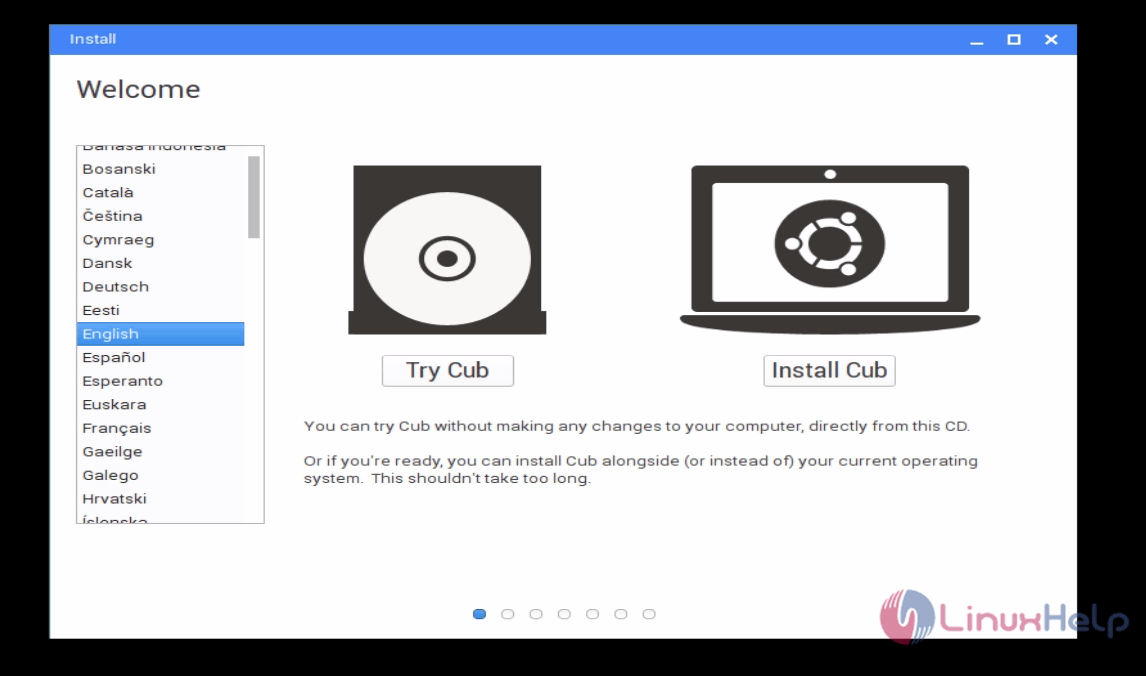
boot
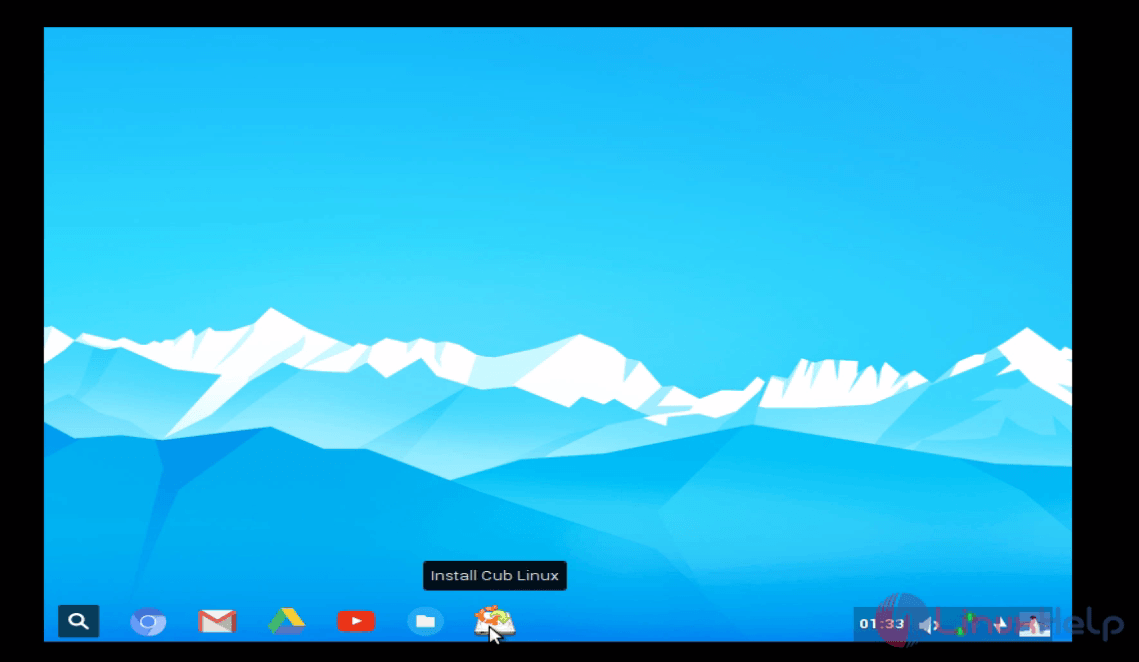
Select Install Cub Linux icon.


install_cub
Read all terms and conditions and then click I Agree.
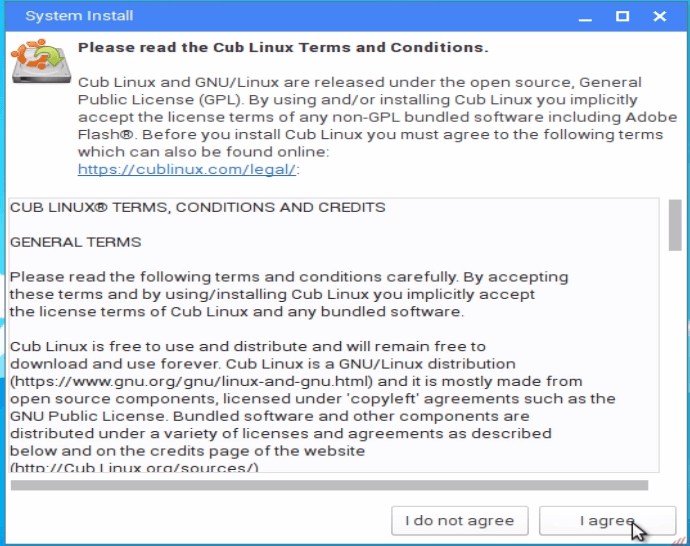
terms_and_conditions
Choose your preferred language and click Continue.
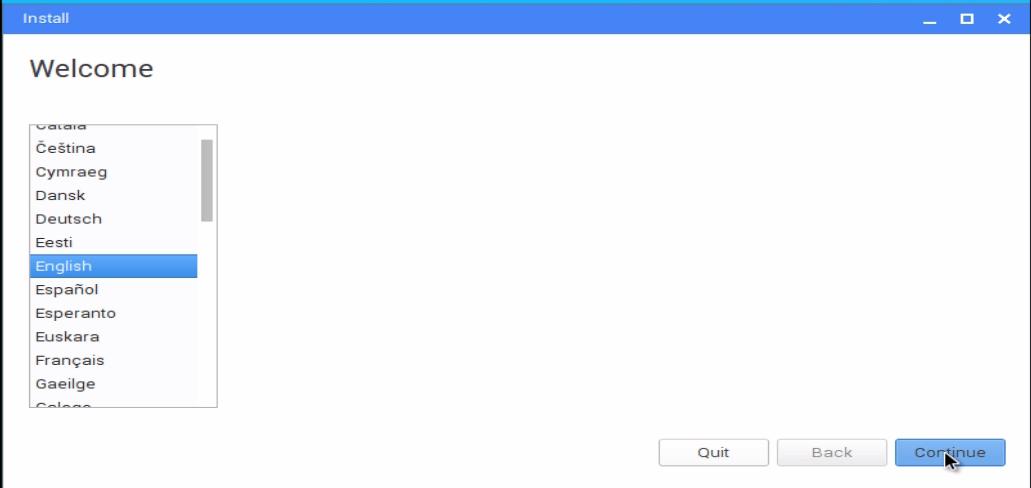
language
Select the type of installation you prefer and click Continue.
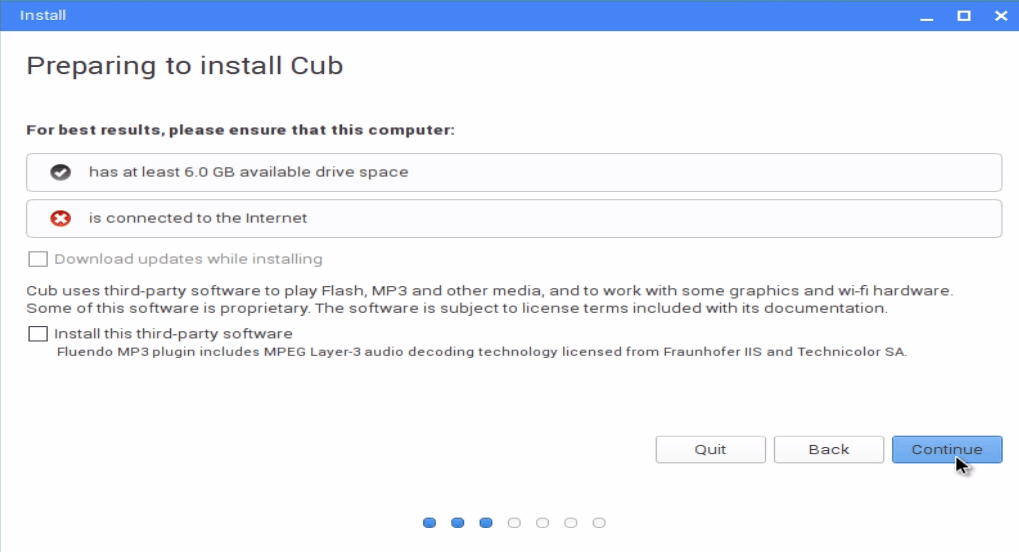
type_of_installation
Choose the type of partition. Here we are selecting Something else for manual partitioning.
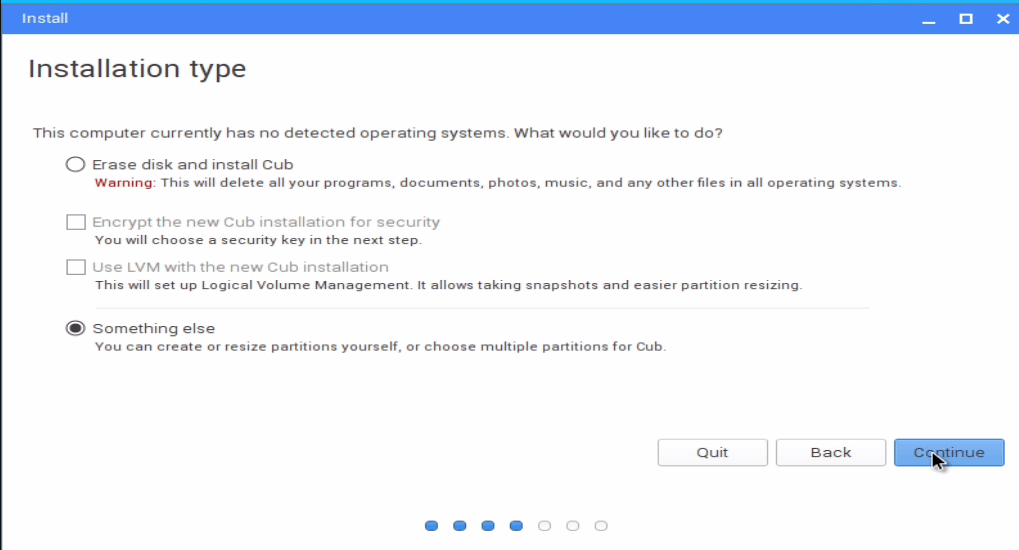
type_of_partition
Pick your hard disk and start creating partition by opting the New Partition Table button.
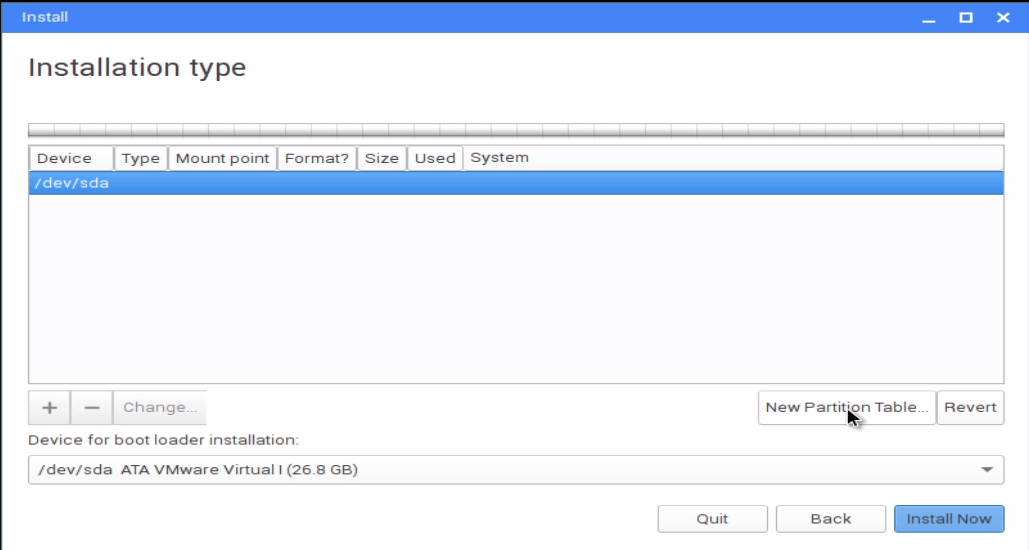
new_partition_table
Click Continue to proceed further.
create_new_empty_partition
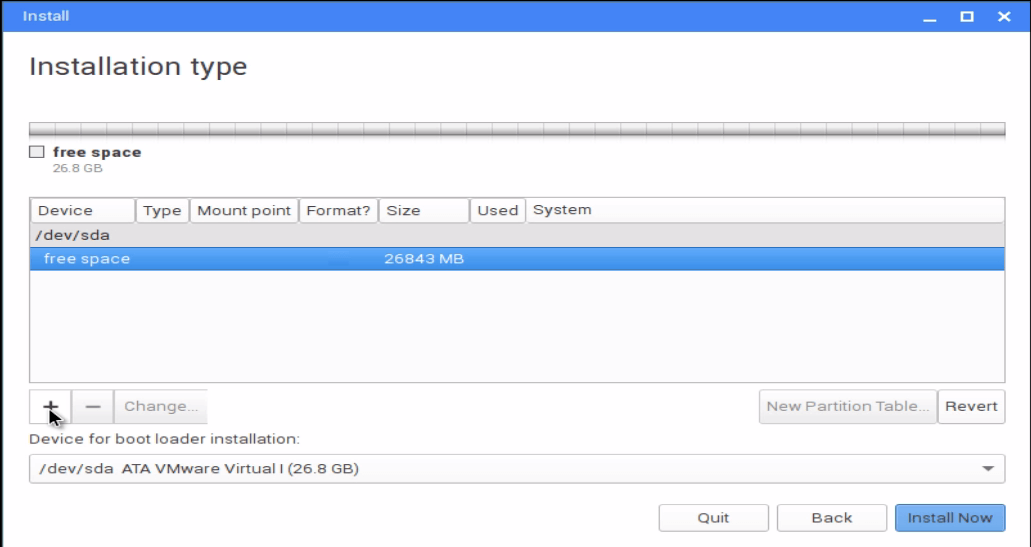
Choose the free space of the hard disk and click “ + ” (add) icon, to create new partition.
create_new_partition
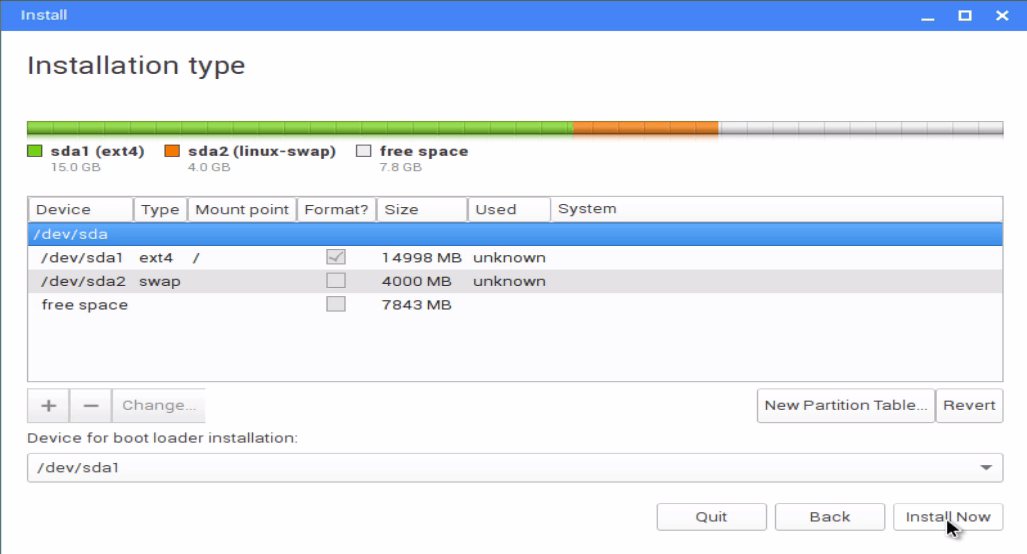
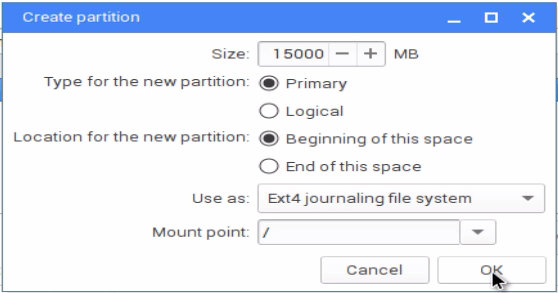
Now Create partition window opened. Set partition details and click ok for first mount point. Main mount point details
Size :15000 MB
Type of the new partition : primary
Location for the new partition : Beginning of this space.
Use as : Ext4 journaling file system
Mount point : /
primary
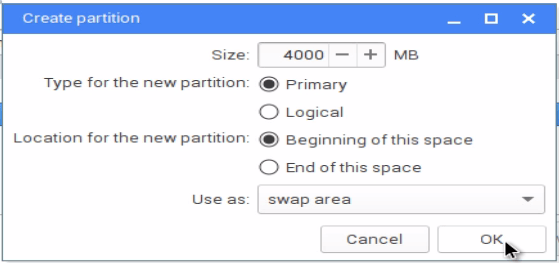
Again select hard disk free space, and create new partition like above. But now its for swap memory.
Here you must give 2* RAM size for swap size.
Size :4000 MB
Type of the new partition : primary
Location for the new partition : Beginning of this space.
Use as : Swap area
swap
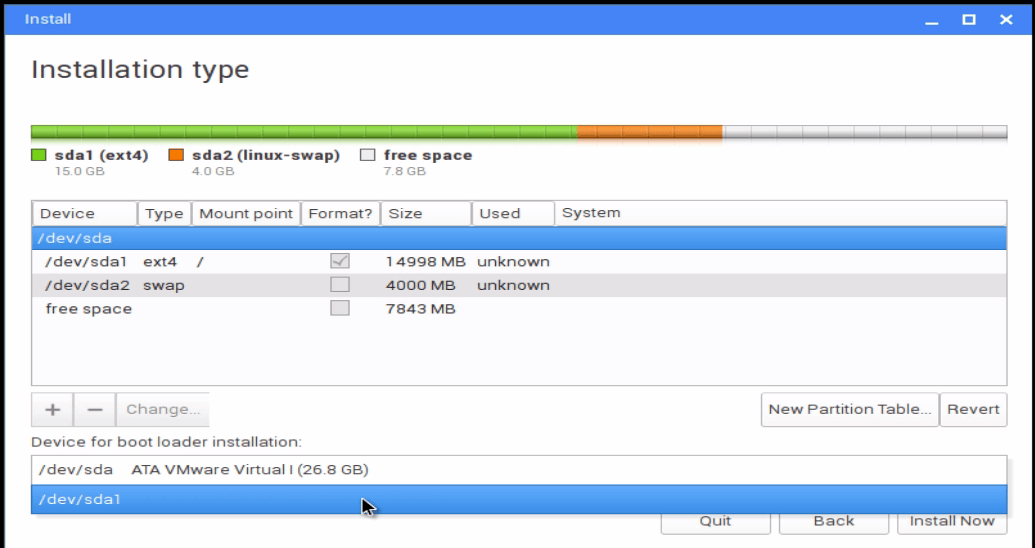
Next select installation device for boot loader installation.
boot_loader_installation
And click Install Now.
install_now
In write changes confirmation window, Check the partitions and click continue.
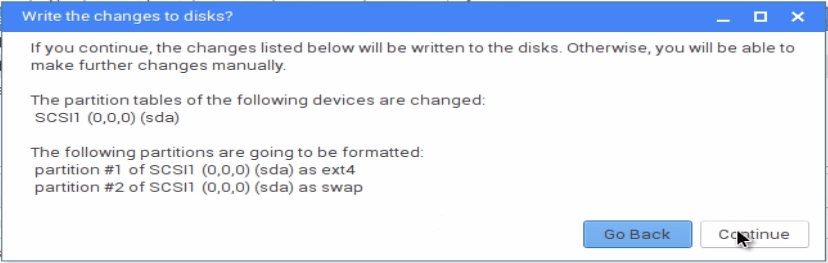
conformation_window
Select your location and click continue.
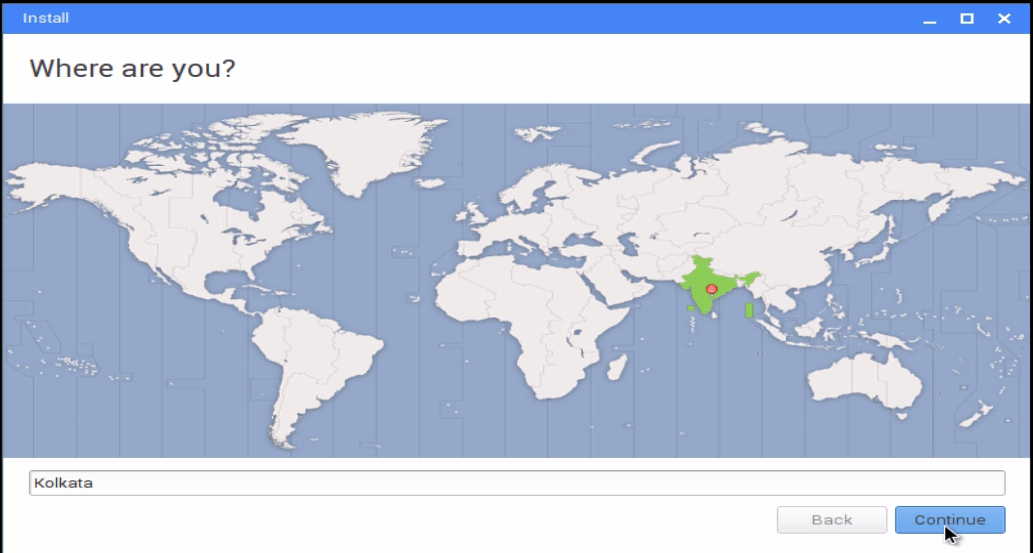
location_select
Choose your preferred keyboard and press enter to continue.
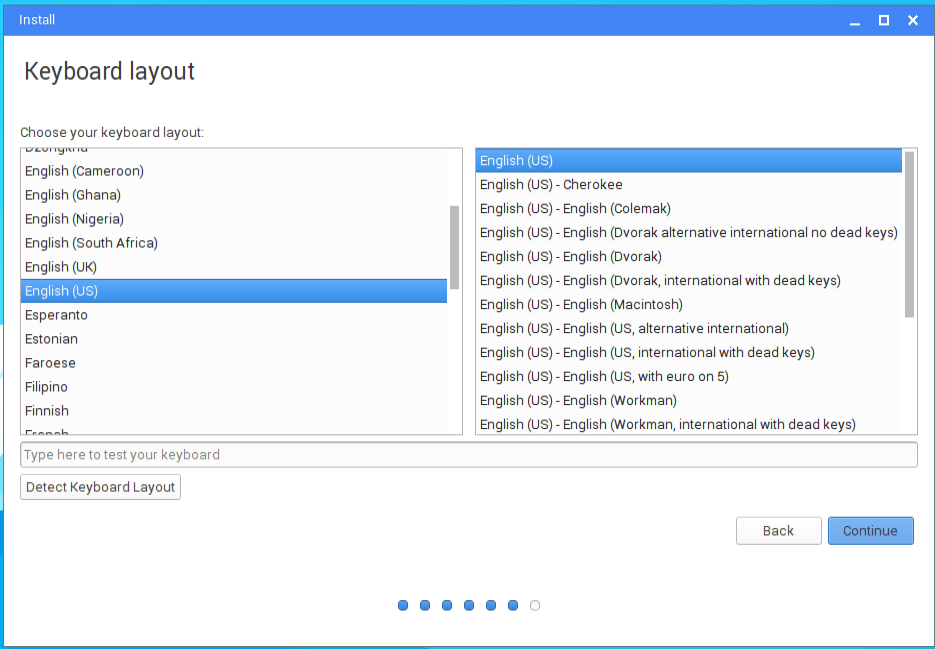
keyboard
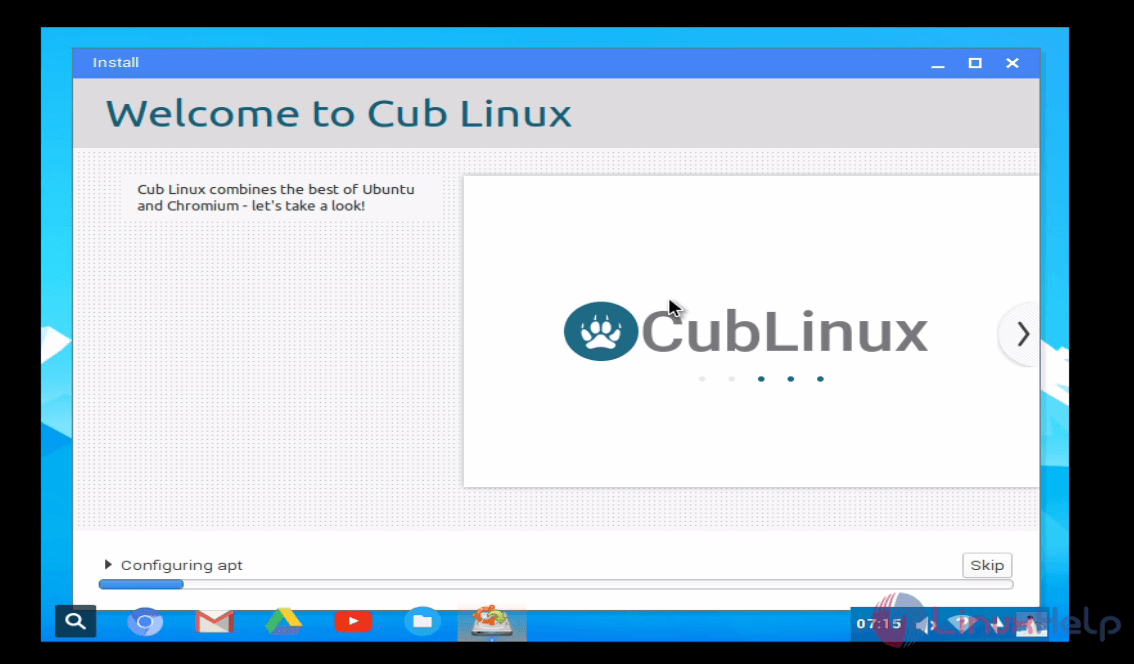
Create user and set hostname, then click continue.
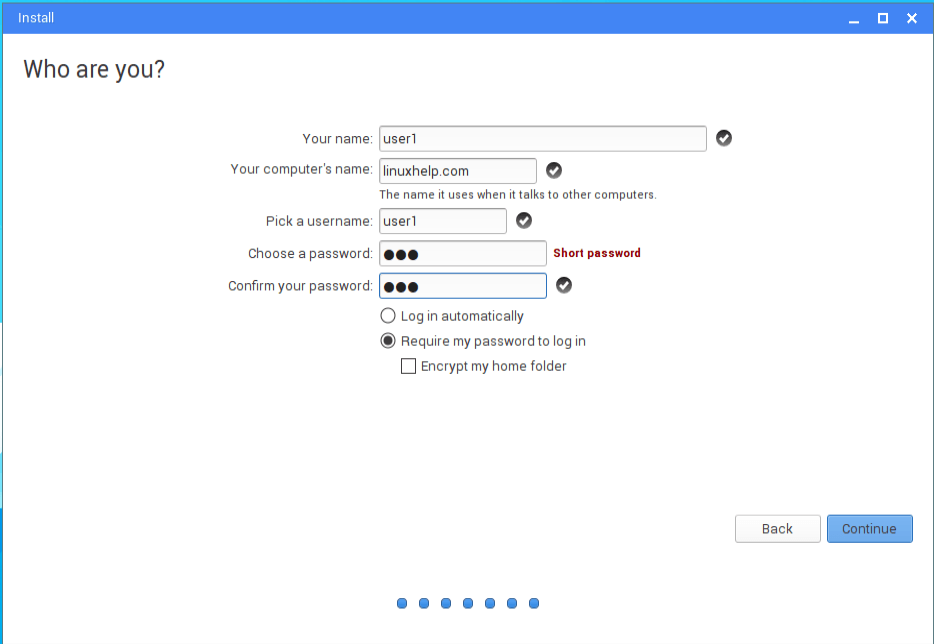
create_user

welcome_to_cub_linux
Once the installation is completed, click Restart Now.
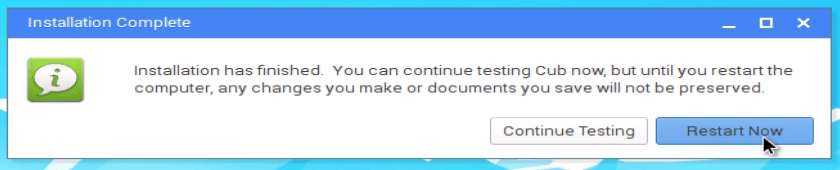
system_restart
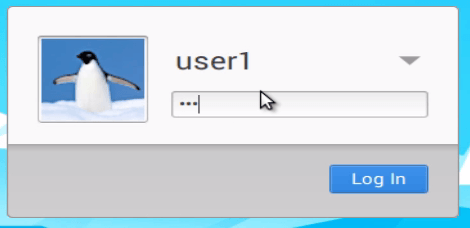
Login using the user credentials.
login_credential
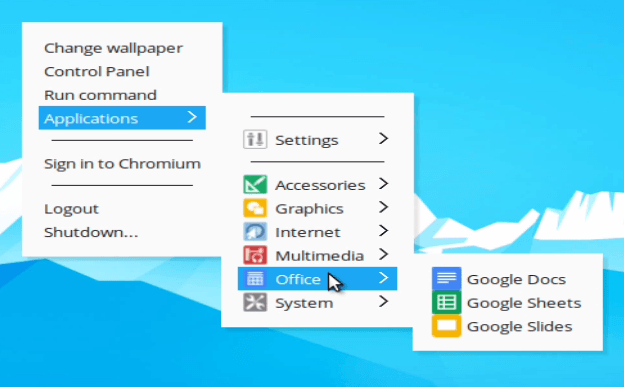
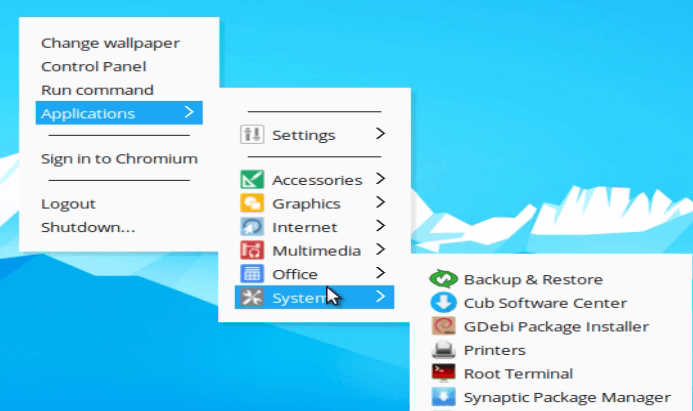
Right click on the desktop &rarr applications and select settings to view the control applications.
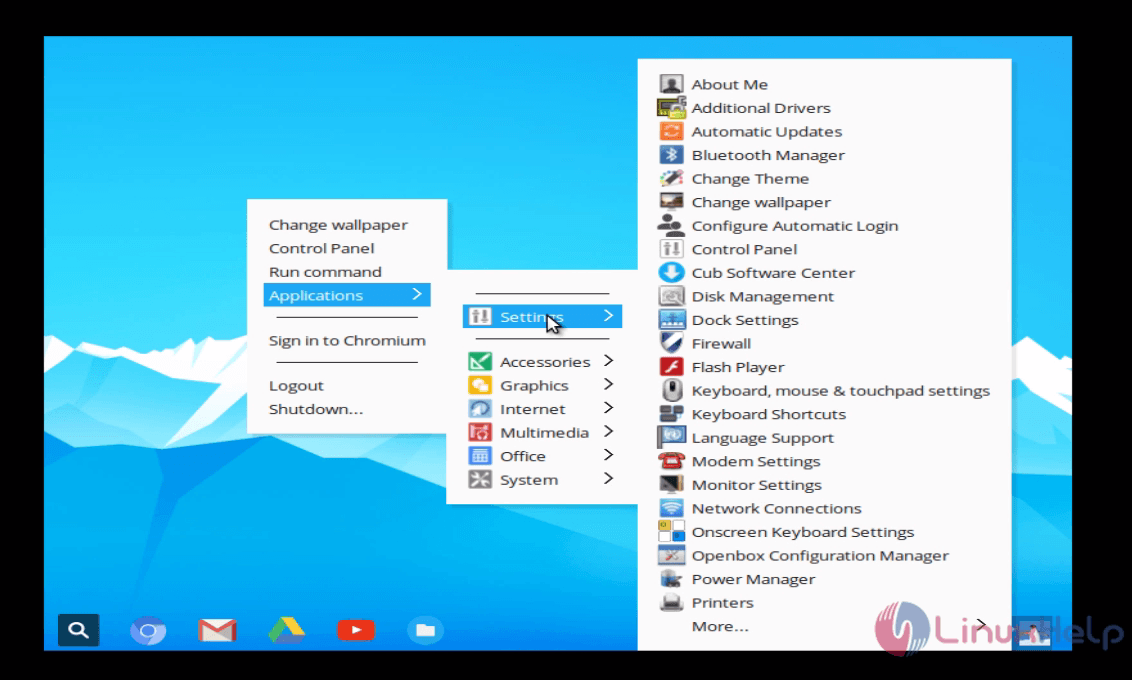
control_application
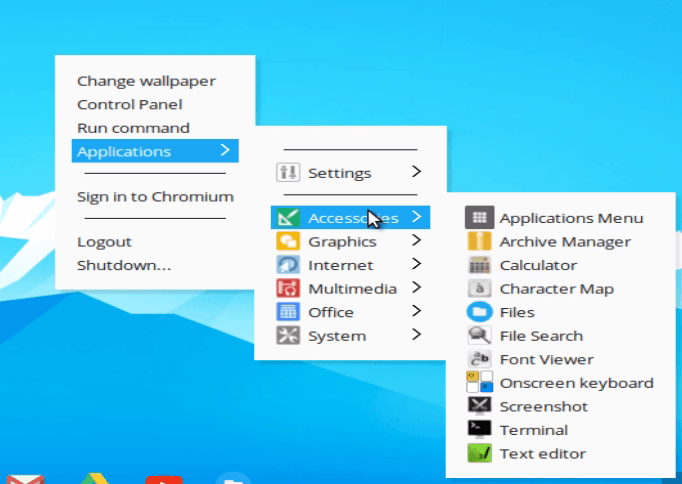
Accessories
accessories
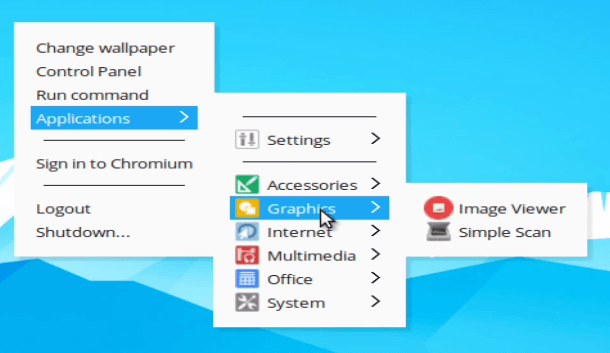
Graphics
graphics
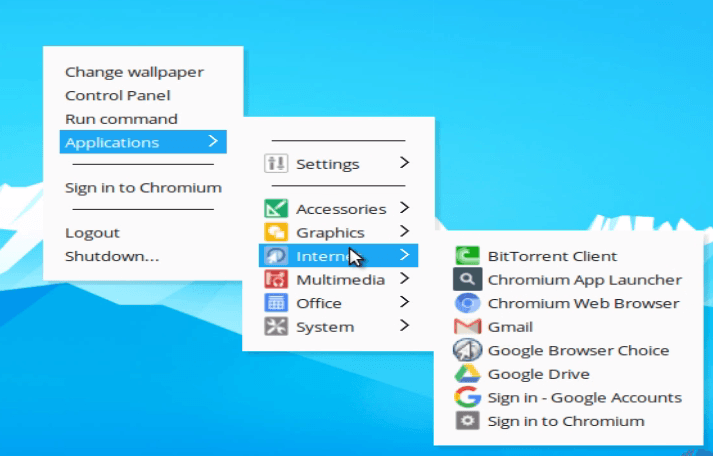
Internet


internet
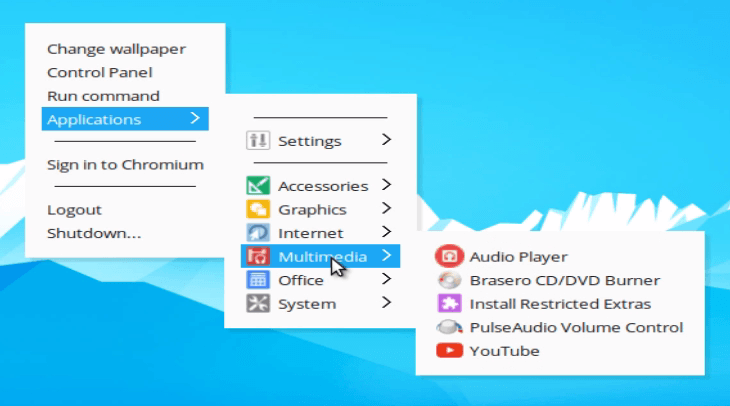
Multimedia
multimedia
Office
office
System
system

Tags:
benjamin
Author: 

Comments ( 0 )

No comments available

Add a comment
{{postCtrl.cmtErrMsg}}

Frequently asked questions ( 5 )

Q

How to remove base OS from the laptop and install cub OS?

A

Download the iso, verify the download, create a bootable USB, install using the entire hard drive after this follow the instructions given in the post

Q

what version of the kernel does CUB Linux has?

A

Cub Linux has kernal 4.2 by default

Q

Where do I find the latest releases of Cub Linux?

A

The latest releases of Cub Linux can be attained from the following link "https://cublinux.com/download/"

Q

How to do LVM Partitioning in Cub Linux?

A

While installing Cub Linux, select Use LVM with the new cub installation.

Q

What is Cub Linux?

A

Cub Linux is an operating system which is collaborated with the Chromium browser and Ubuntu Linux. It is an open source and earlier, it was called as Chromixim OS. It is developed as an independent project to provide for the Chromium opensource project combined with Ubuntu systems.

Back To Top!
Rank
User
Points

Top Contributers

userNamenaveelansari
135850

Top Contributers

userNameayanbhatti
92510

Top Contributers

userNamehamzaahmed
32150

Top Contributers

1
userNamelinuxhelp
31040

Top Contributers

userNamemuhammadali
24500
Can you help keel johnston ?
Unhide the folders on windows Explorer

Give any solutions to unhide folder using command prompt?

forum3

Networking
  • Routing
  • trunk
  • Netmask
  • Packet Capture
  • domain
  • HTTP Proxy
Server Setup
  • NFS
  • KVM
  • Memory
  • Sendmail
  • WebDAV
  • LXC
Shell Commands
  • Cloud commander
  • Command line archive tools
  • last command
  • Shell
  • terminal
  • Throttle
Desktop Application
  • Linux app
  • Pithos
  • Retrospect
  • Scribe
  • TortoiseHg
  • 4Images
Monitoring Tool
  • Monit
  • Apache Server Monitoring
  • EtherApe 
  • Arpwatch Tool
  • Auditd
  • Barman
Web Application
  • Nutch
  • Amazon VPC
  • FarmWarDeployer
  • Rukovoditel
  • Mirror site
  • Chef
Contact Us | Terms of Use| Privacy Policy| Disclaimer
© 2025 LinuxHelp.com All rights reserved. Linux™ is the registered trademark of Linus Torvalds. This site is not affiliated with linus torvalds in any way.