How to install Debian 8.3
Debian 8.3 Installation
In this article we are going to look about the installation of Debian 8.3 with the snapshot.
First make DVD or USB or your preferred device as a bootable installer media by loading Debian 8.3 and insert into your machine. Now power ON the machine, on startup of the BIOS menu choose your bootable media to boot.
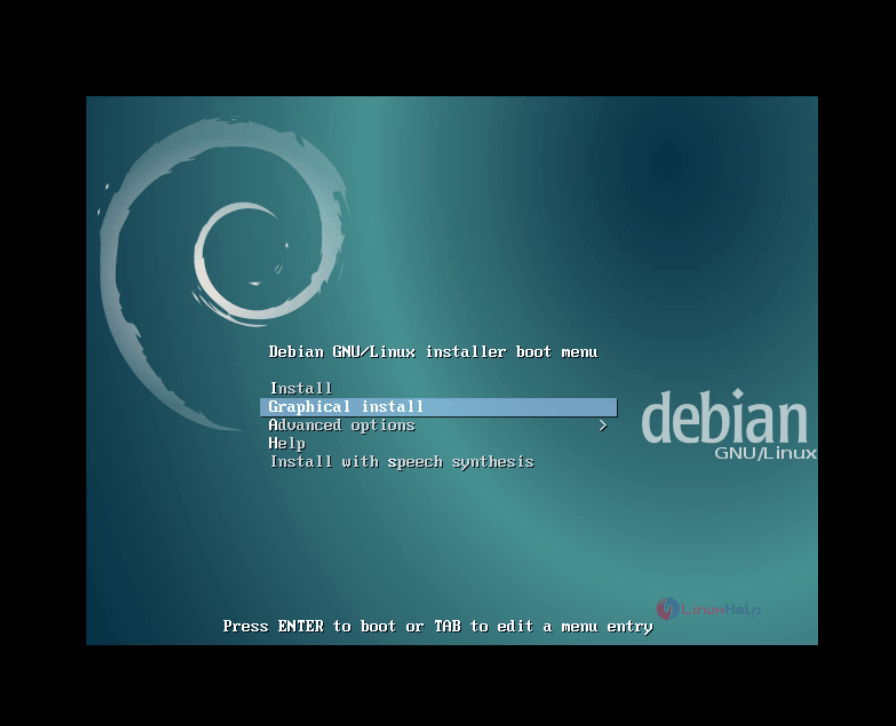
Once have chosen your device, you will get a installation window like this. In that window choose graphical install and give enter.
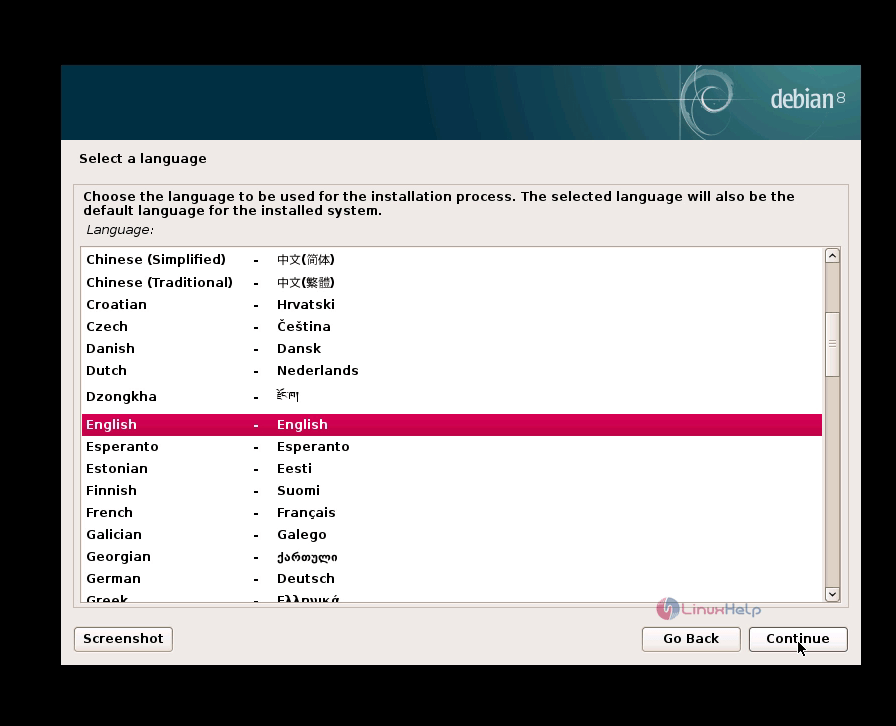
Now choose your preferred language and click continue
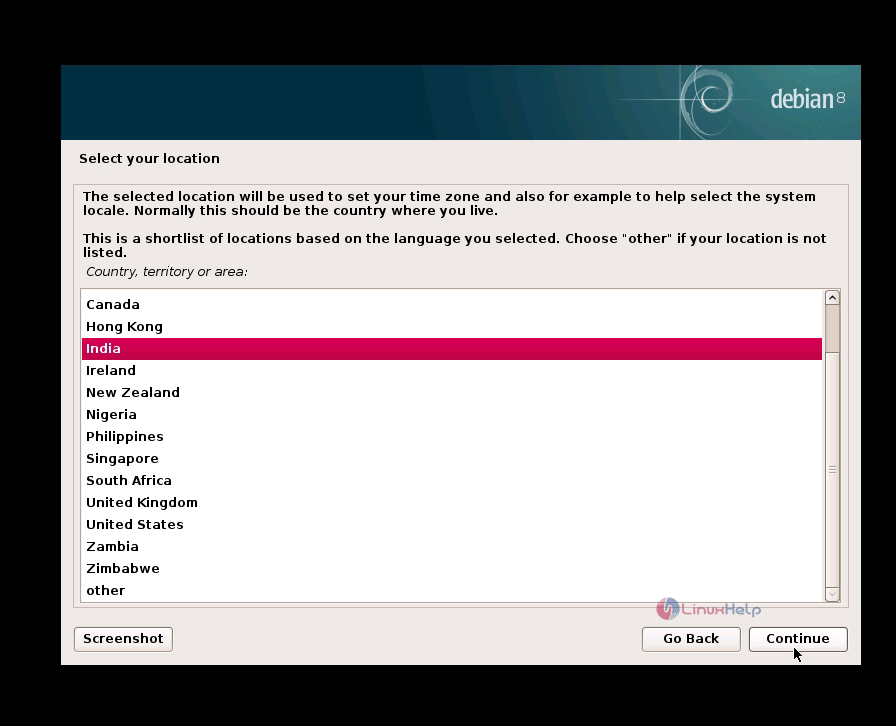
Choose your current location and click continue
Select the key map to configure the keyboard click continue

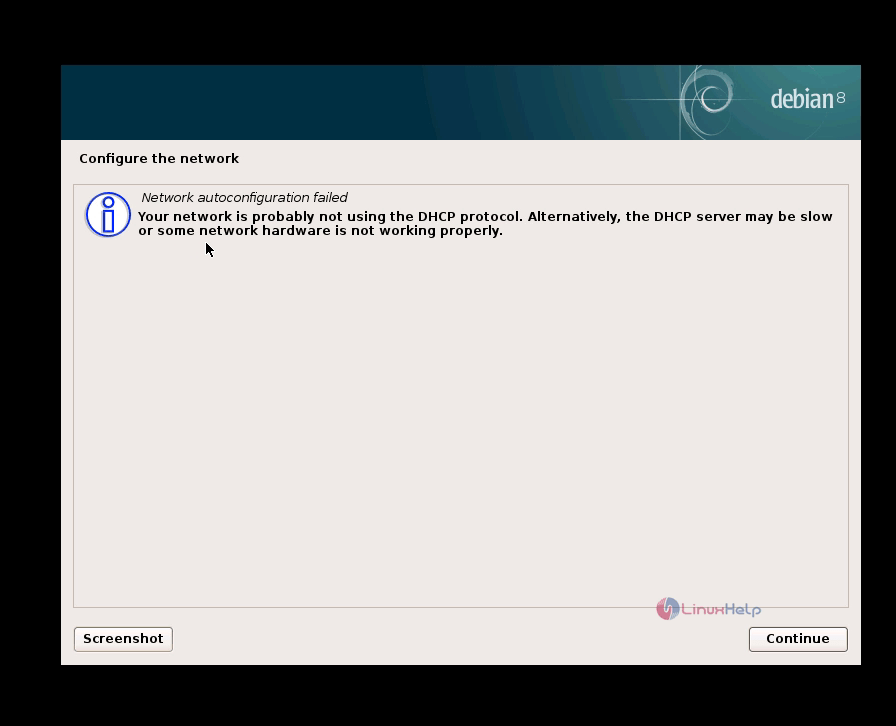
Next it will starts searching DHCP server to set DHCP address to your machine. Incase of failure it shows the failure report and just click continue
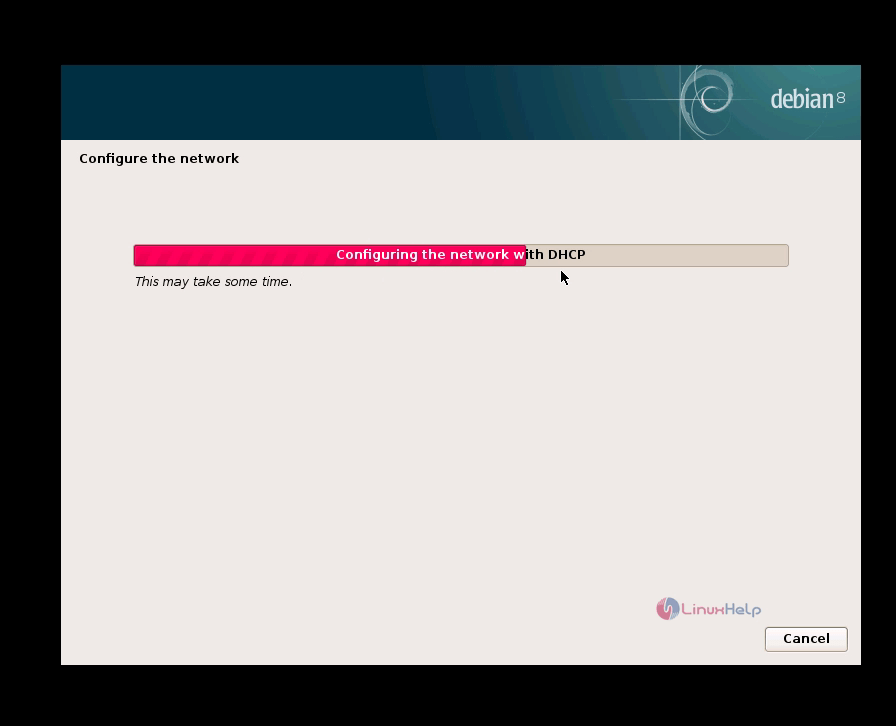
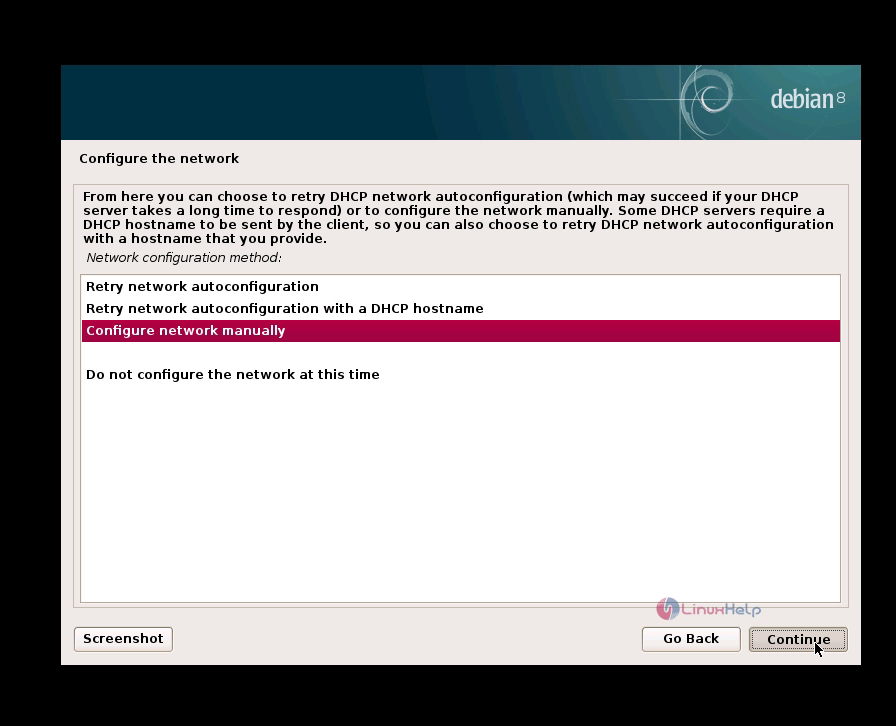
Now DHCP server is ready. Choose retry to set DHCP address or if you want to set static IP address select ‘ configure network manually’ . For instance, we have set static IP as follows,
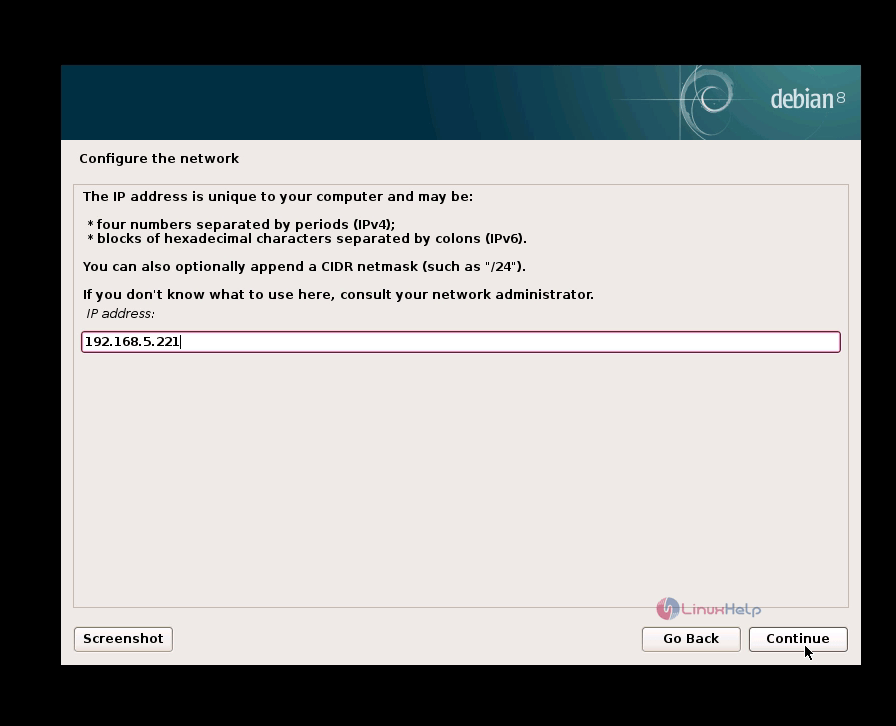
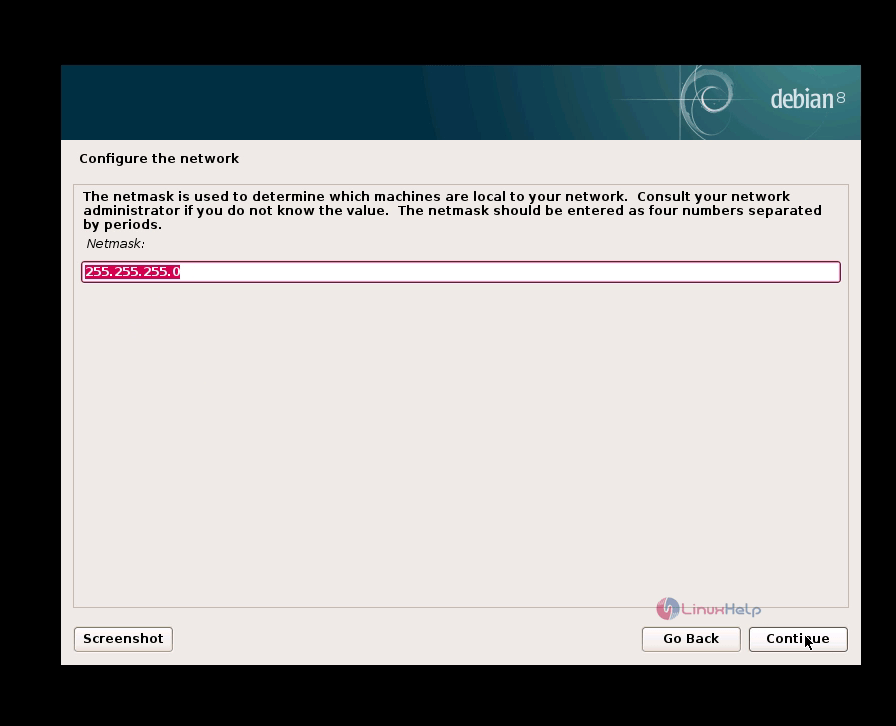
Type your IP address, give continue ,now the netmask will be created automatically and give continue to enter the gateway.
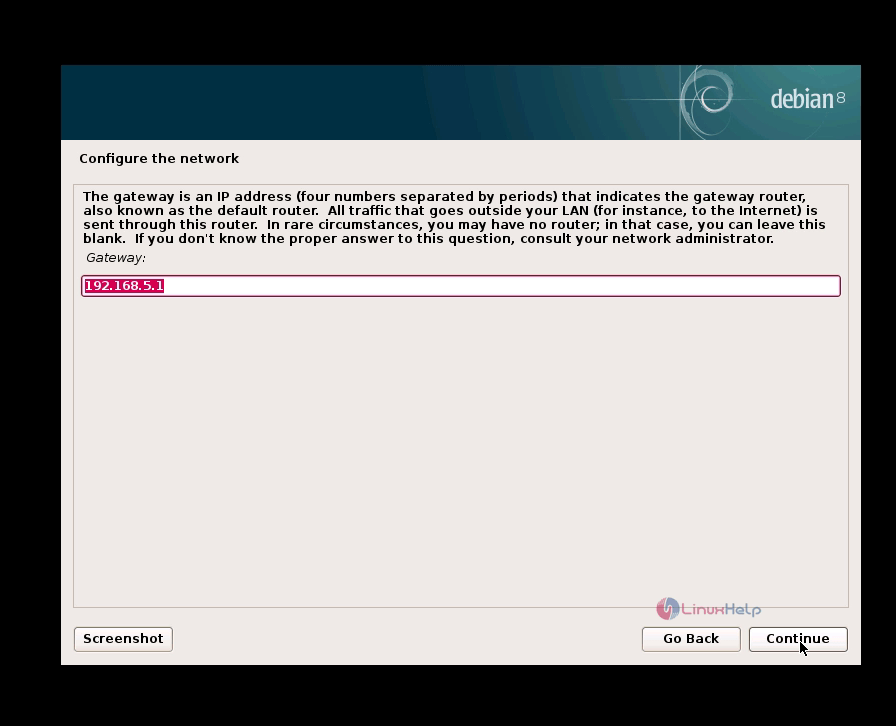
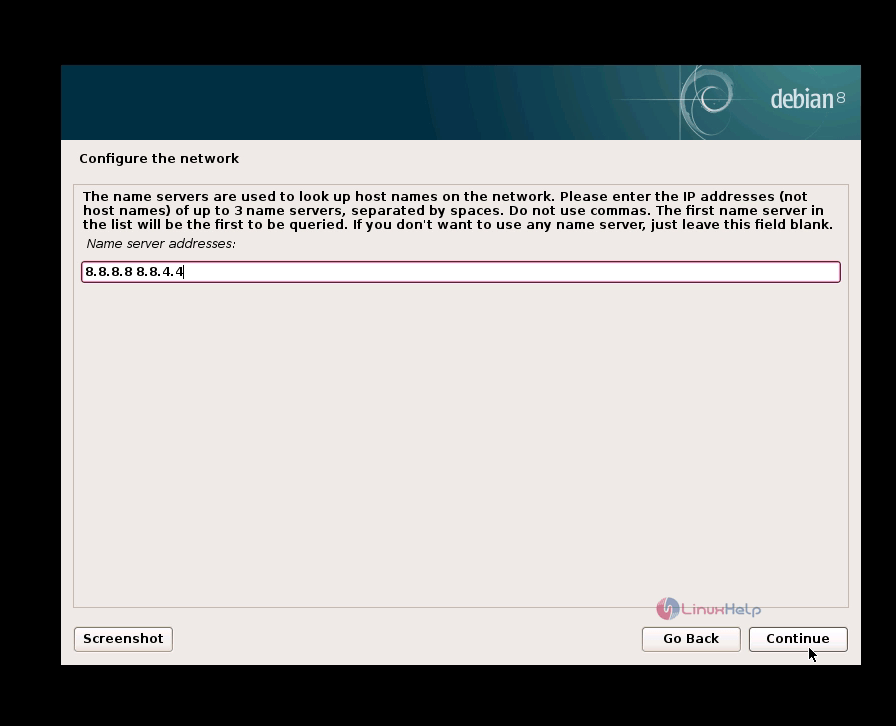
In the next window you will be asked to enter the DNS IP address. Here you can enter upto 3 valid Domain Name Server by leaving single space between each IP address and click continue
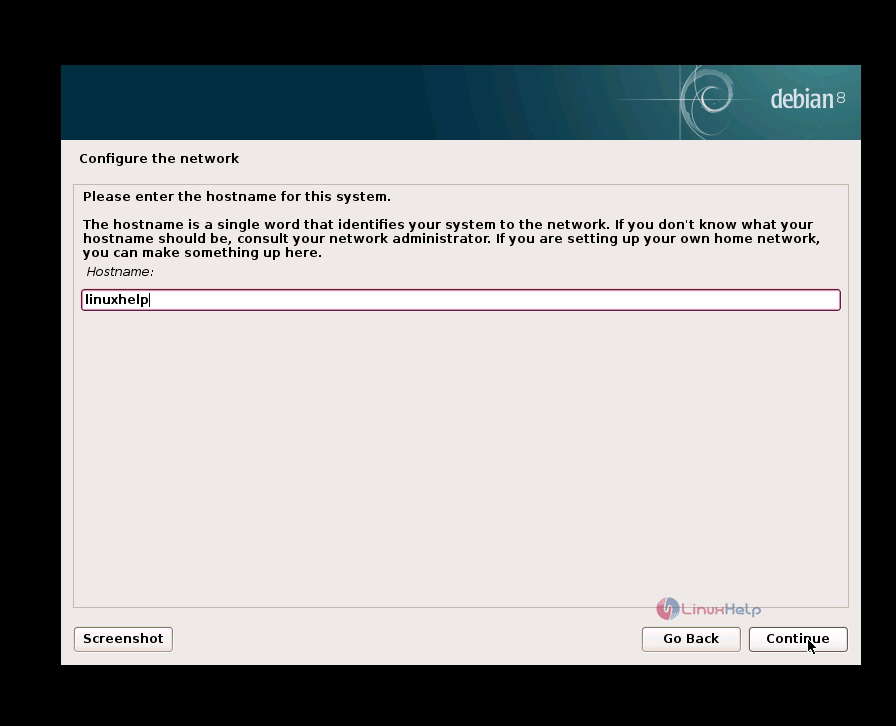
Now enter the hostname and click continue
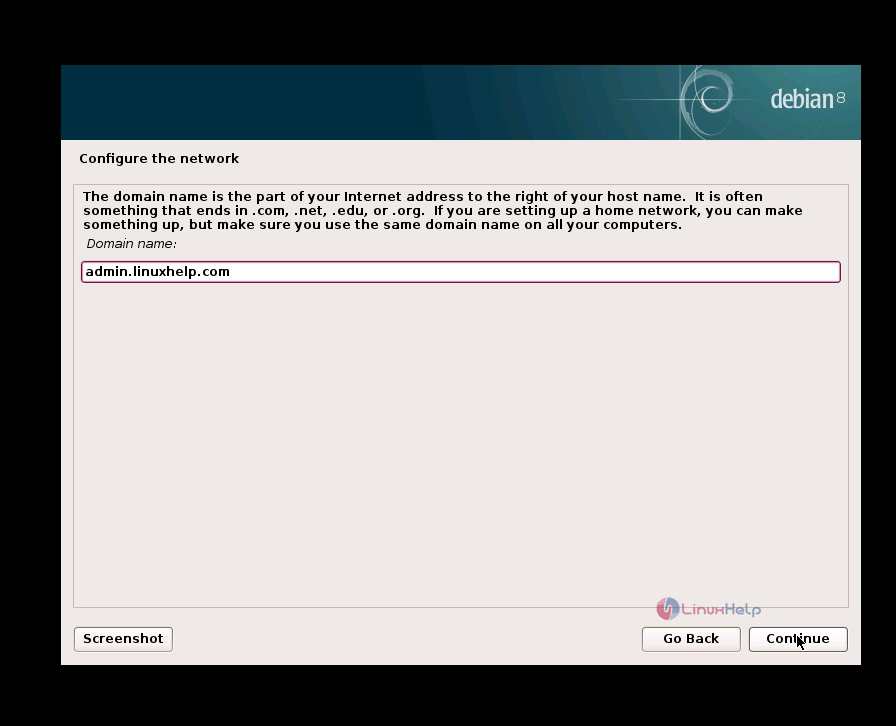
Enter the domain name as FQDN(Fully Qualified Domain Name). If you are using for home networks then you can simply enter the hostname as the domain name
Enter root password and create a username and password.
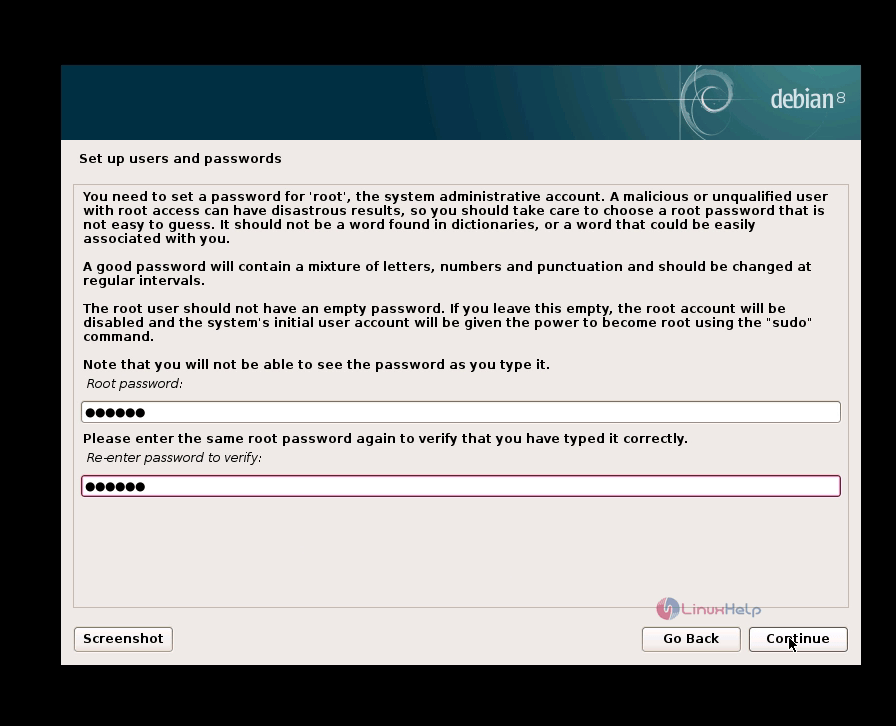
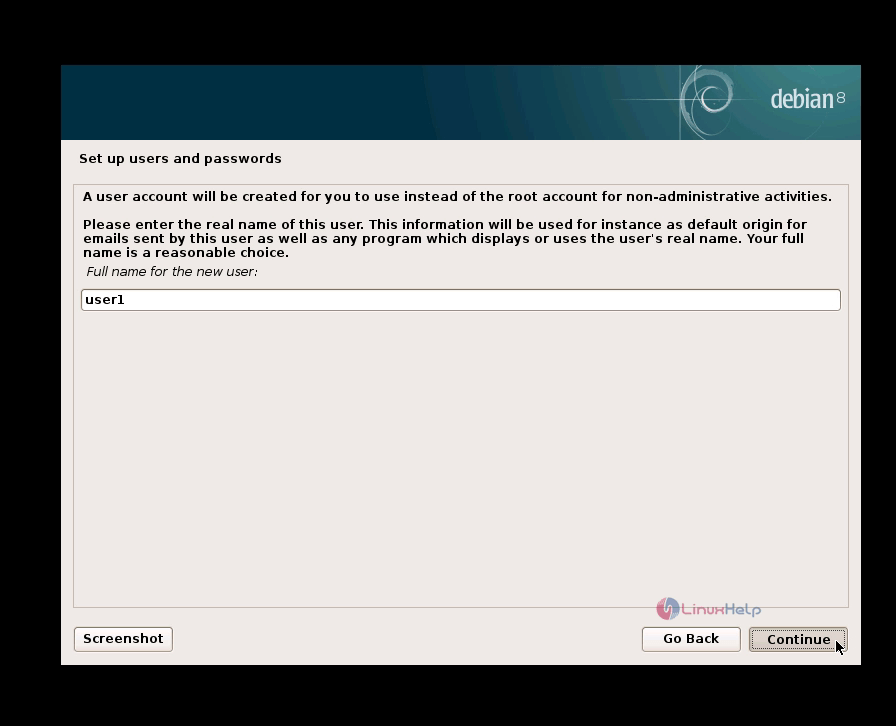
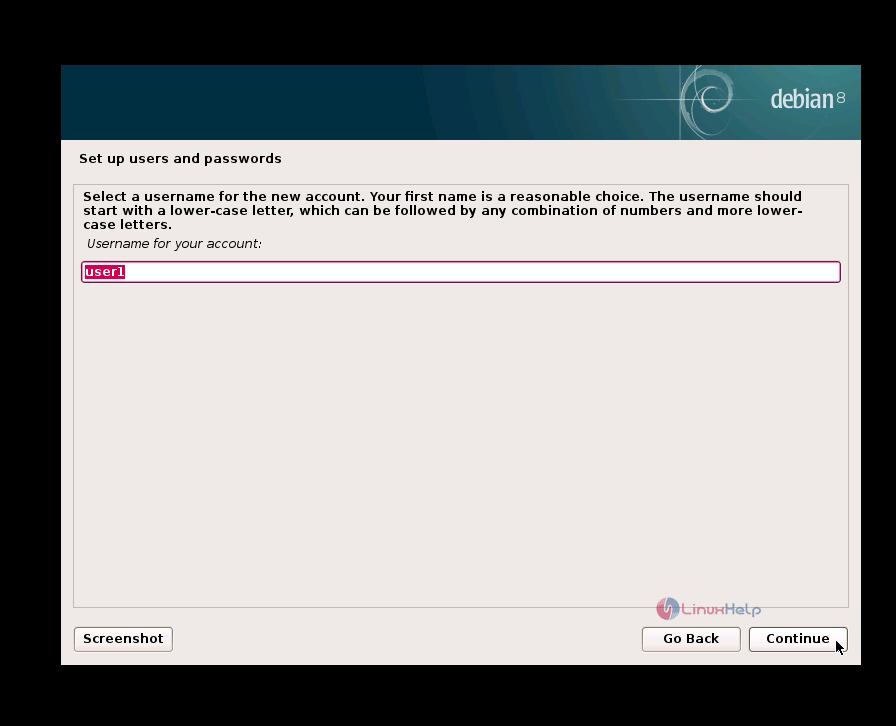
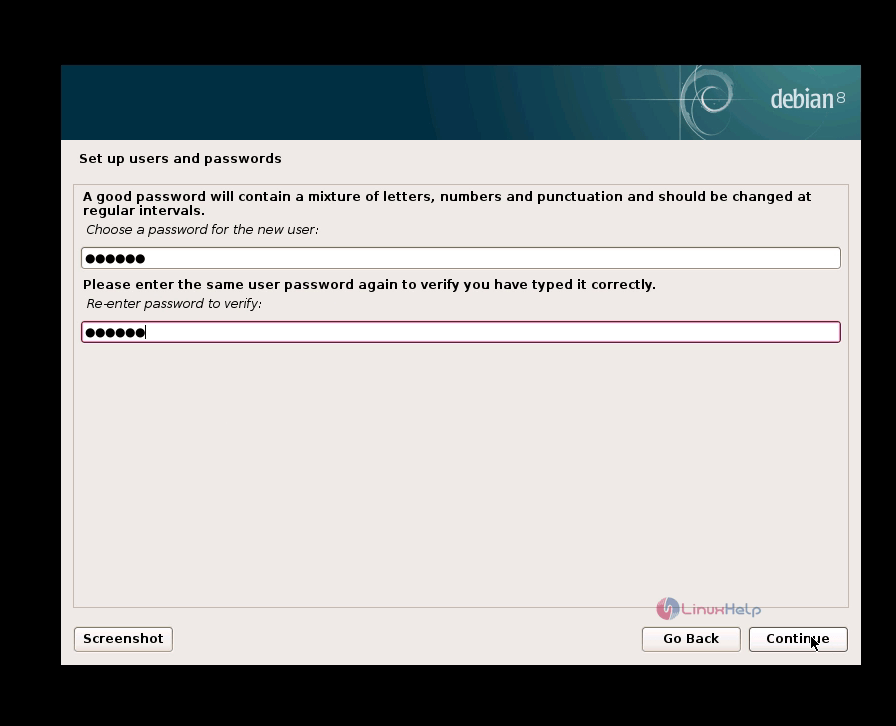
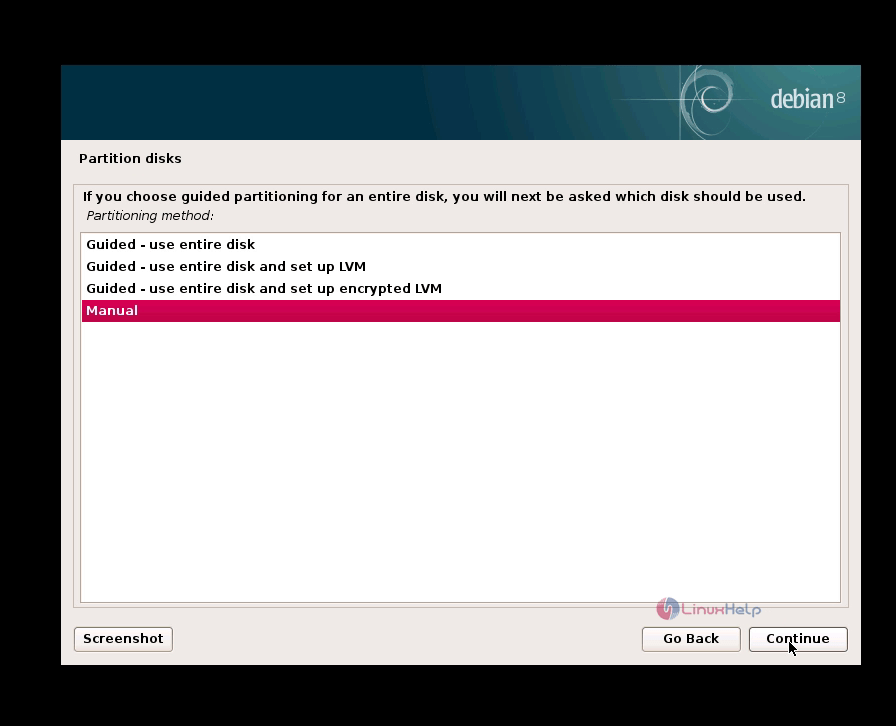
Now you will get a window with partitioning options. Choose your preferred partitioning type. For instance we have chosen “ manual” to make the partition manually.
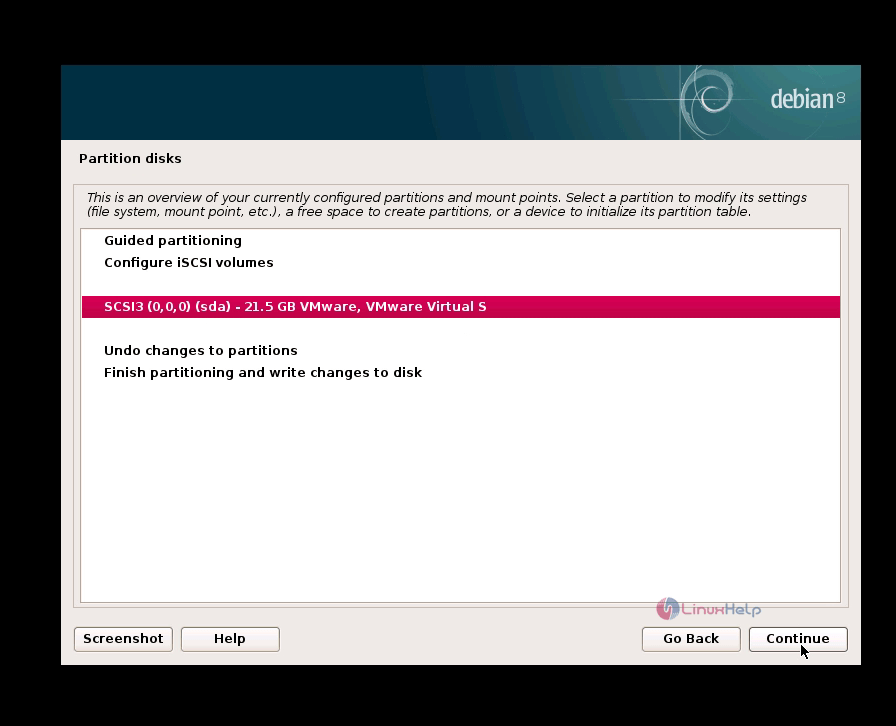
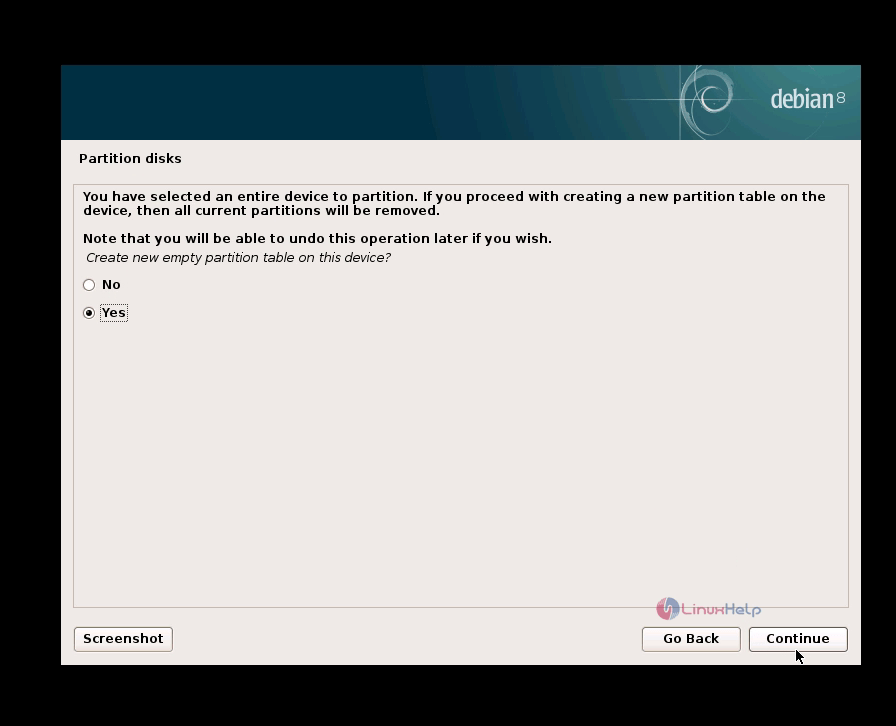
In this window you will see the hard disk drive that have been connected to the device, choose your device and give continue. It will ask yes or no to create a new empty partitioning table. Give “ yes” and continue.
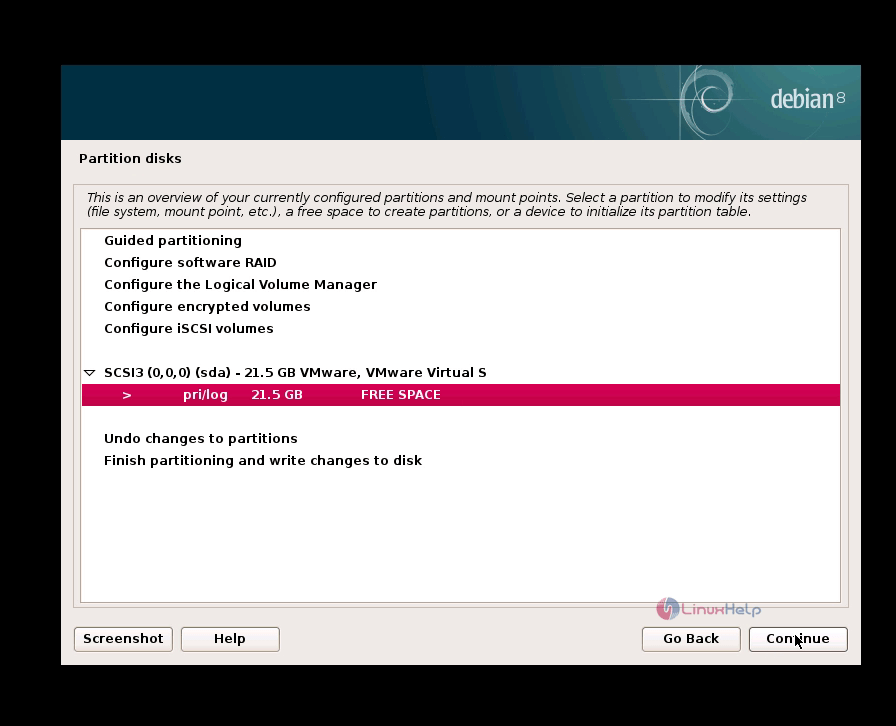
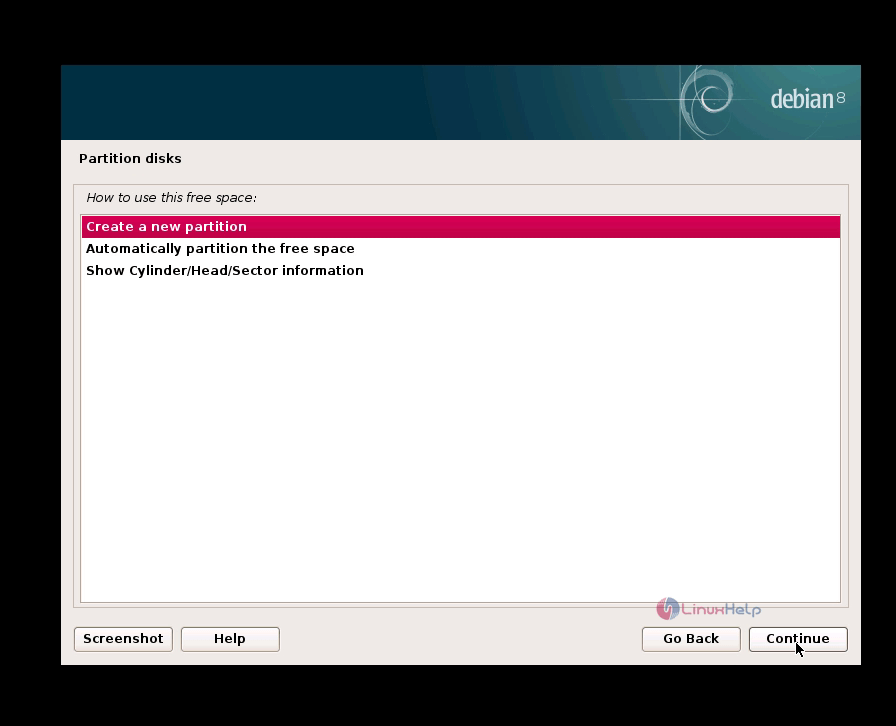
Hard disk drive is ready for partitioning. Free space capacity of the hard disk drive will be displayed. Click and continue. Choose create new partition.
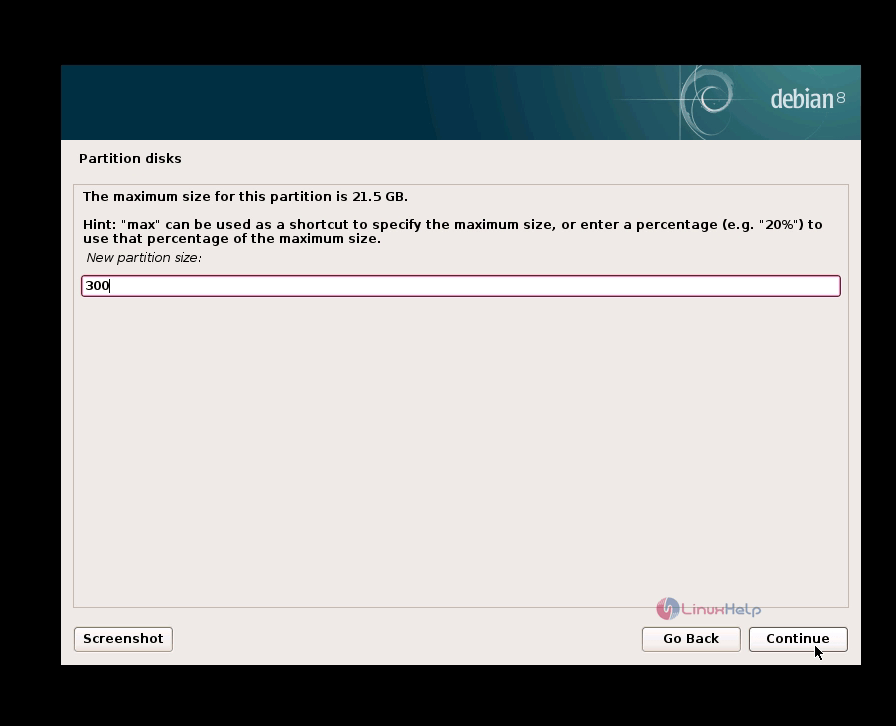
Give the size of partition which you want to create. If you simply enter the value, it will assume the value in MB (ex : 300 = 300MB). To enter the value in GB , give the numeric value and complete it with mentioning GB at the end (ex : 15GB) and click continue
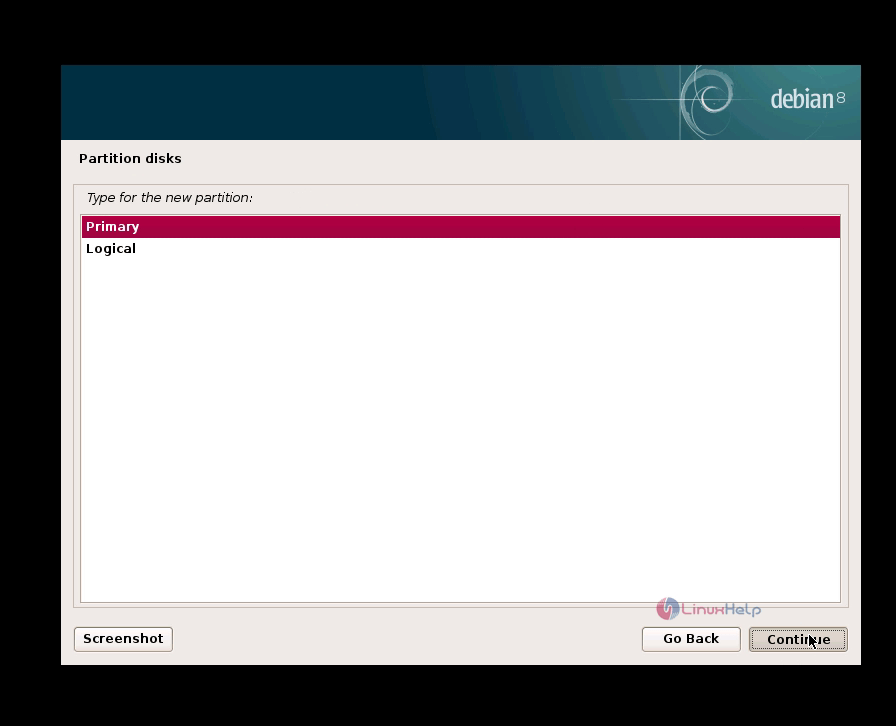
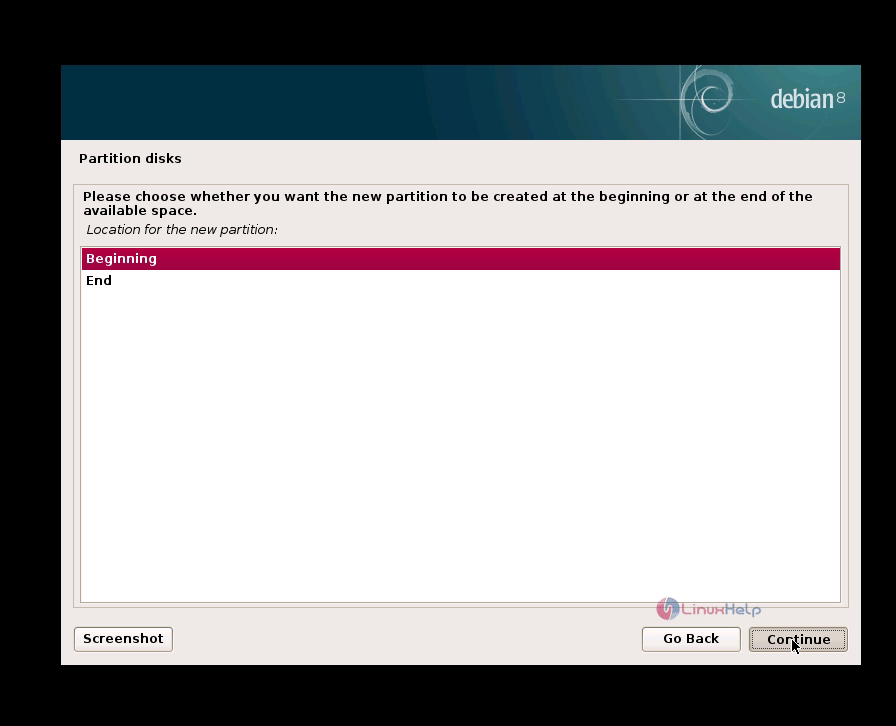
Choose the type of partition. It is preferred to choose primary partition and next select beginning option so that the space for the selected partition will be allocated from the beginning of the free space and click continue.
Now select the file system based on your requirement also select the mount point and click “ Done setting up the partition”
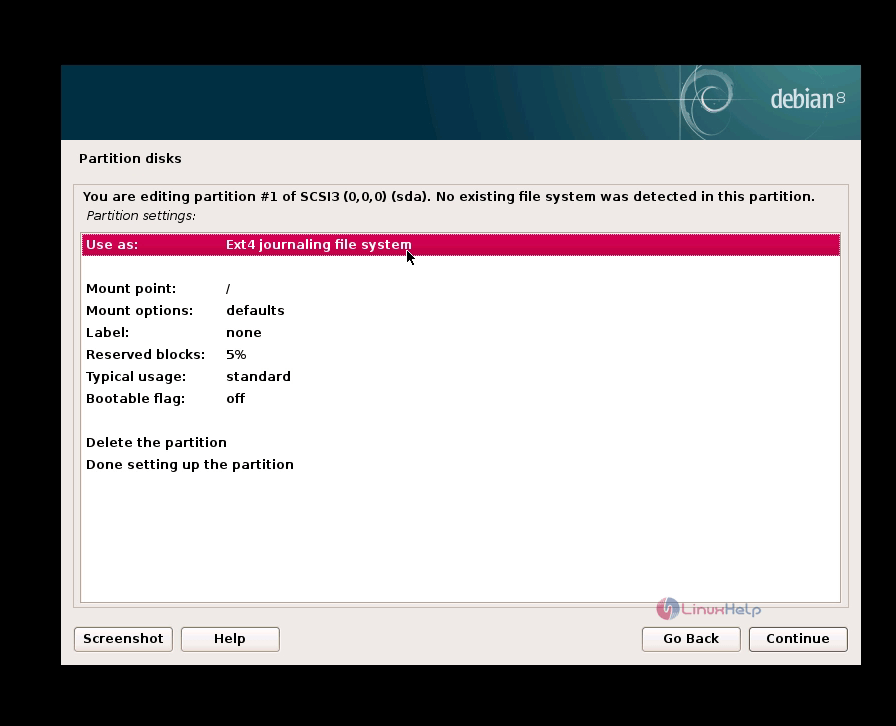
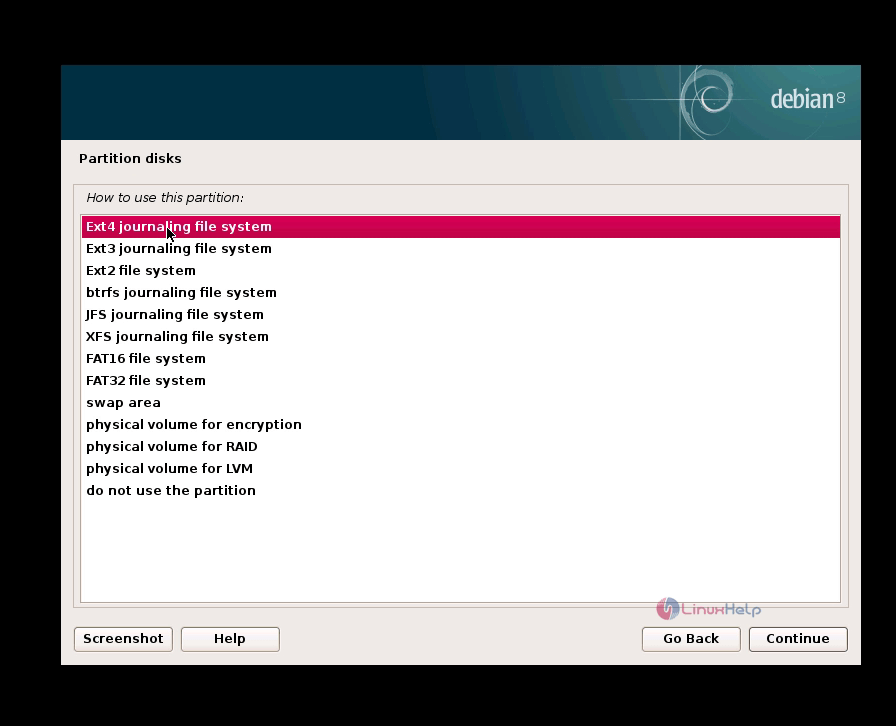
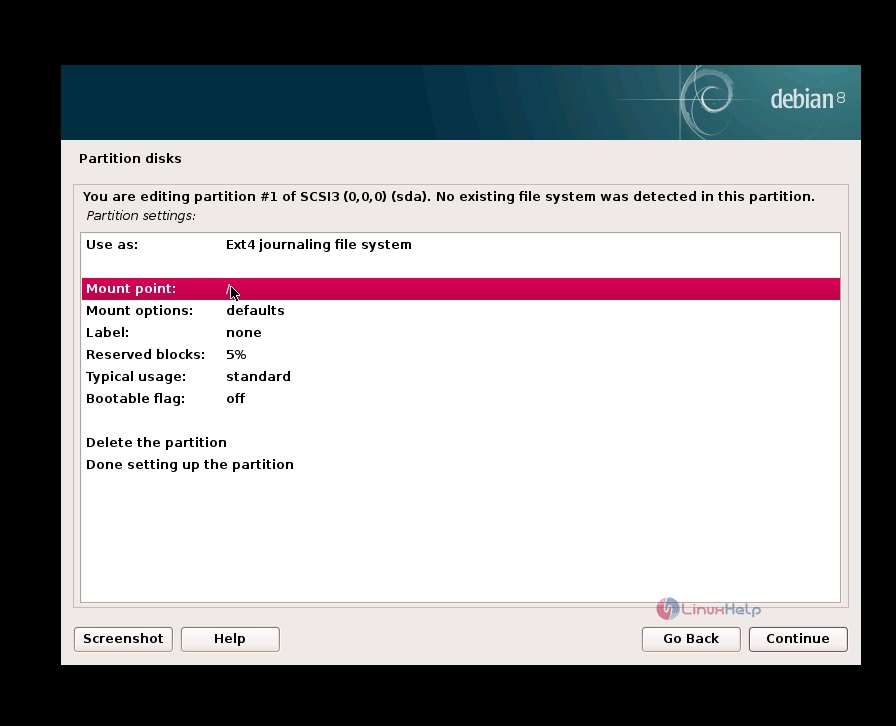
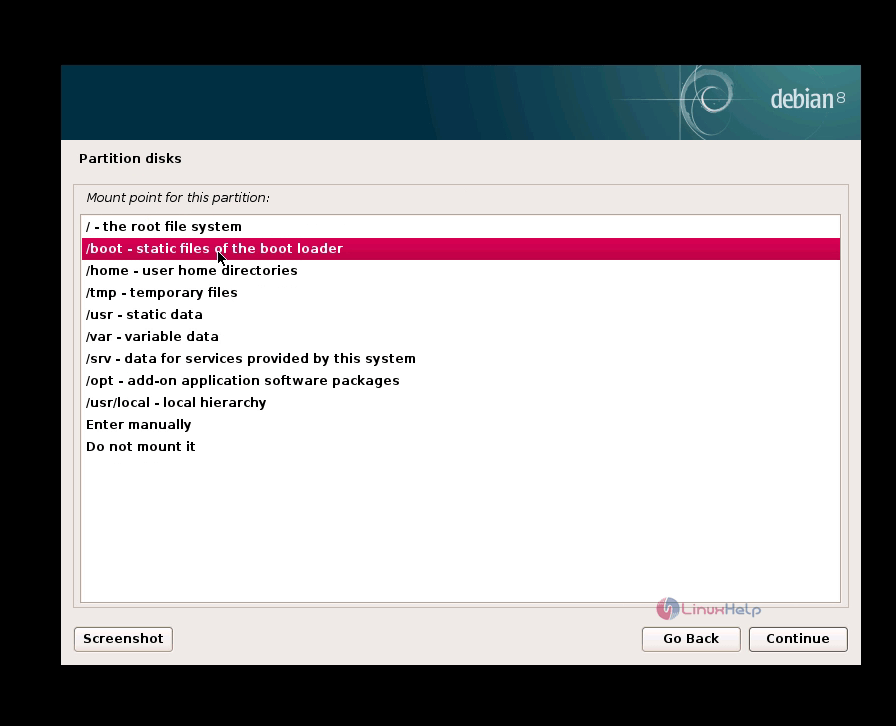
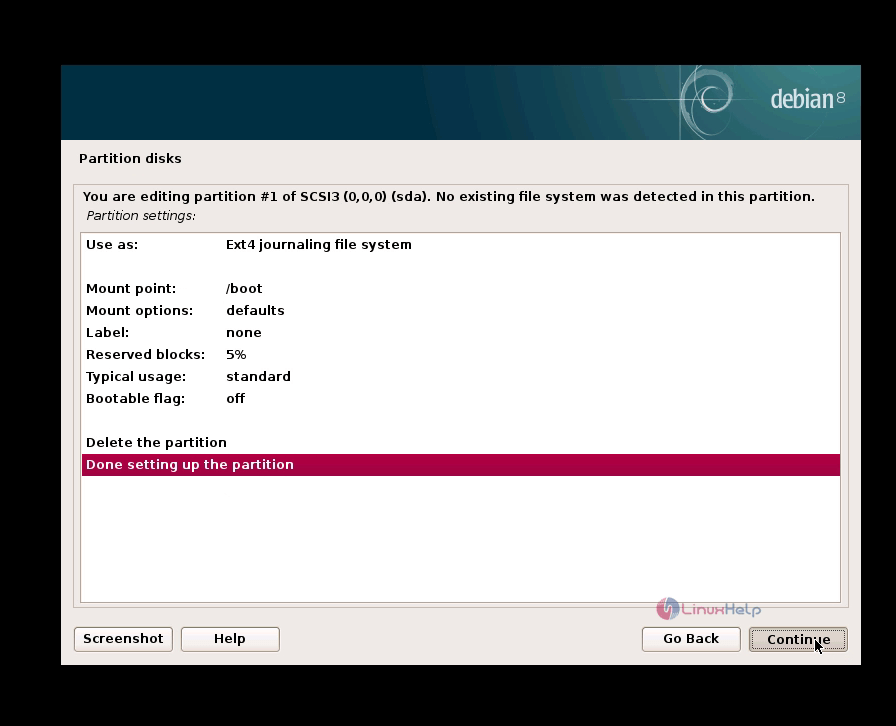
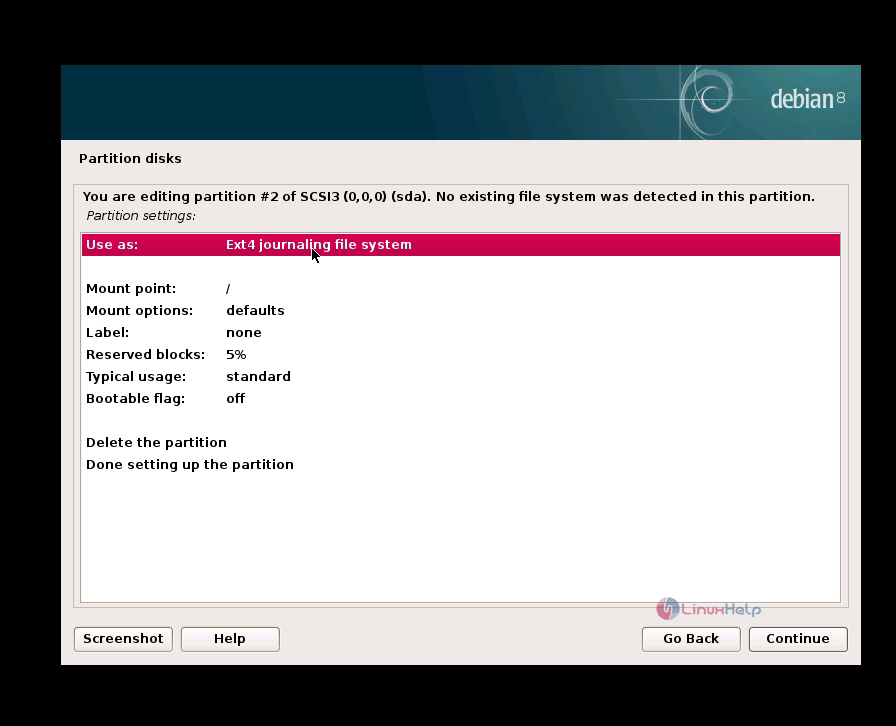
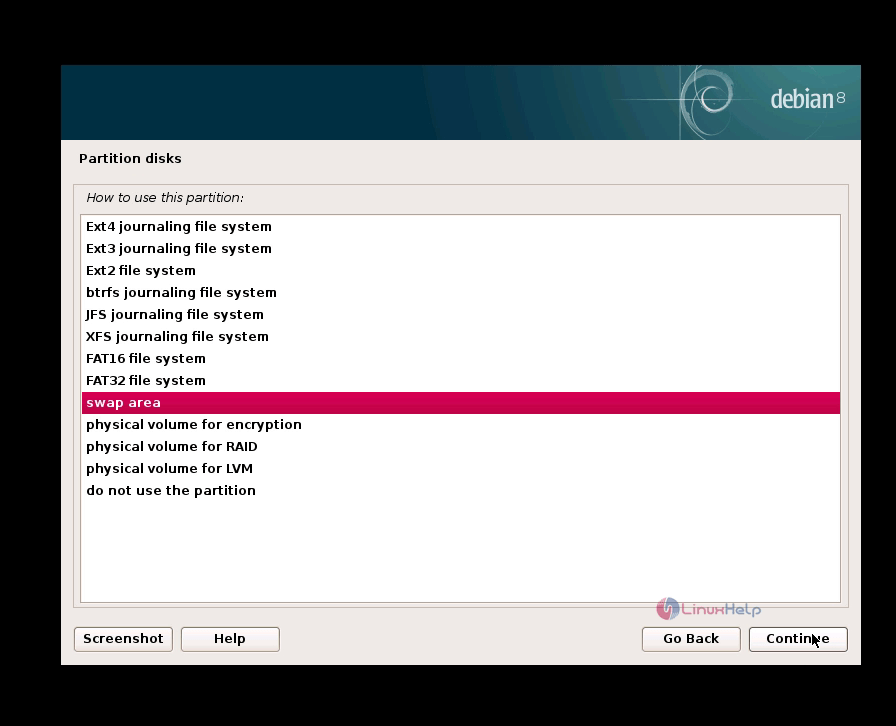
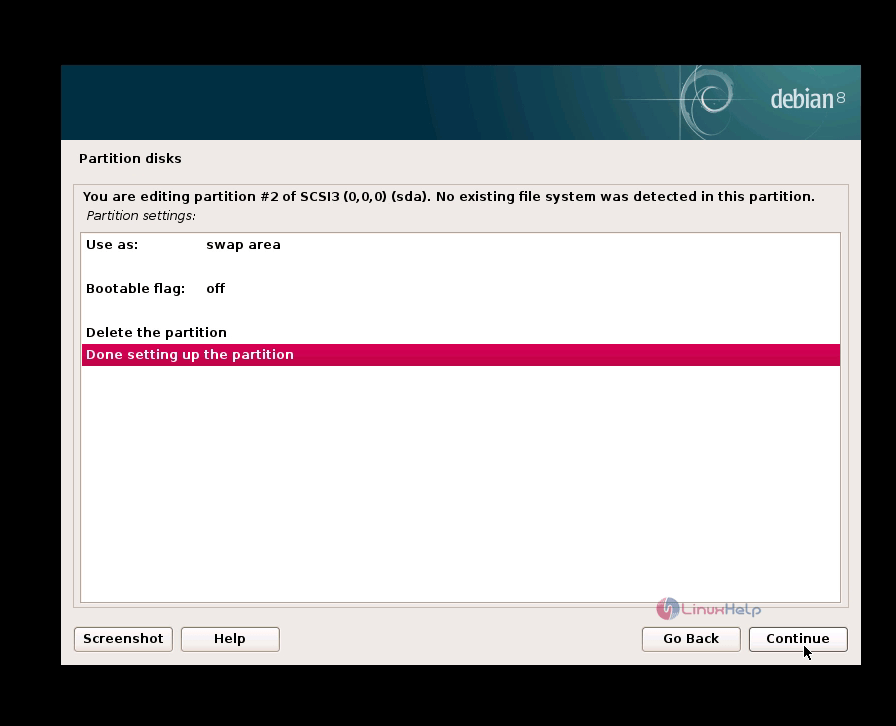
Repeat the same procedure for other partitions too and finally give finish partitioning option and click continue.
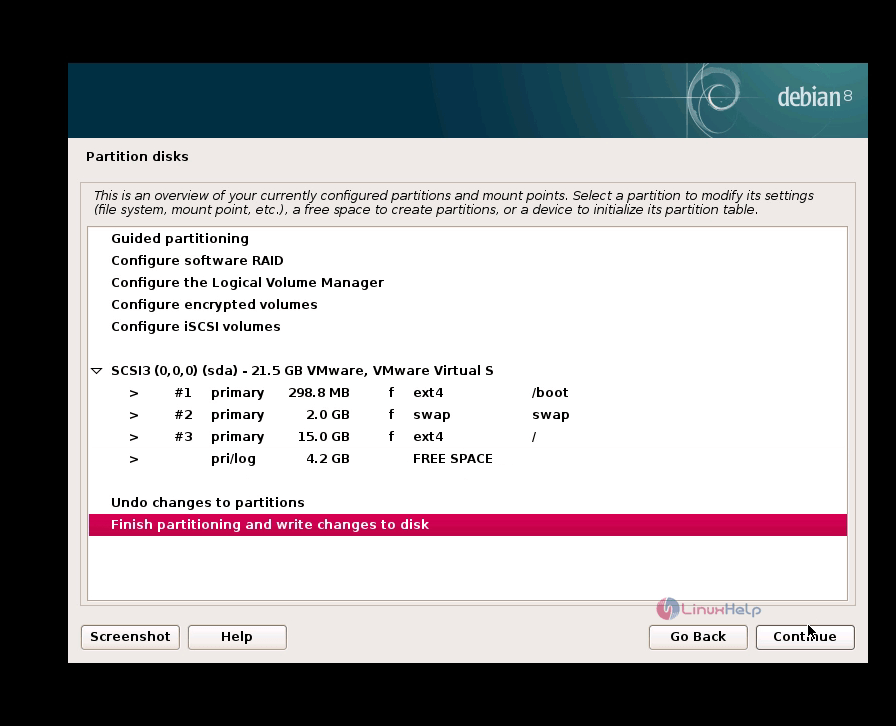
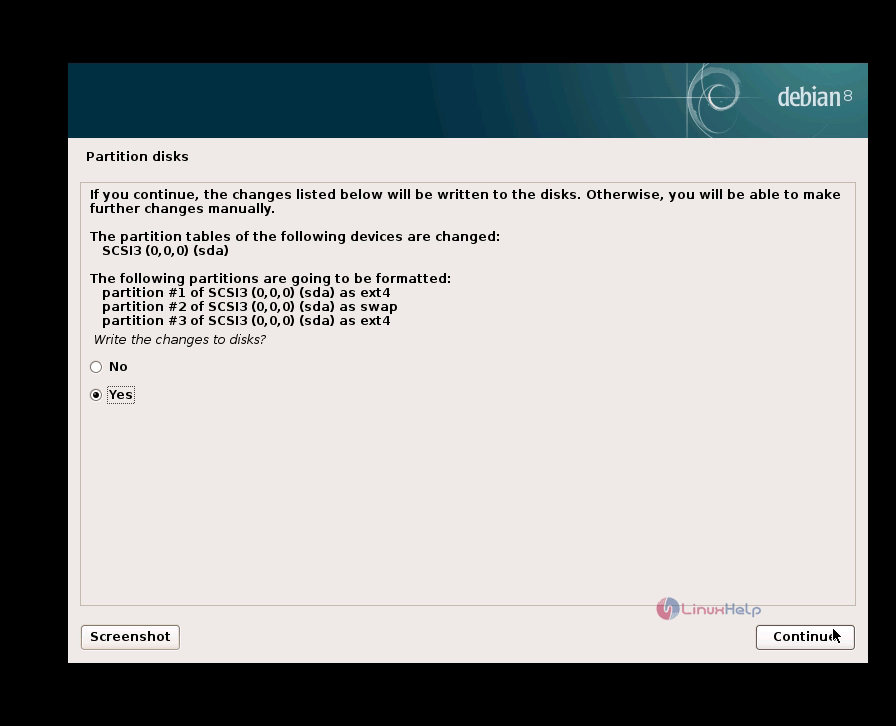
Select “ Yes” option to write the newly created partition to the hard disk drive
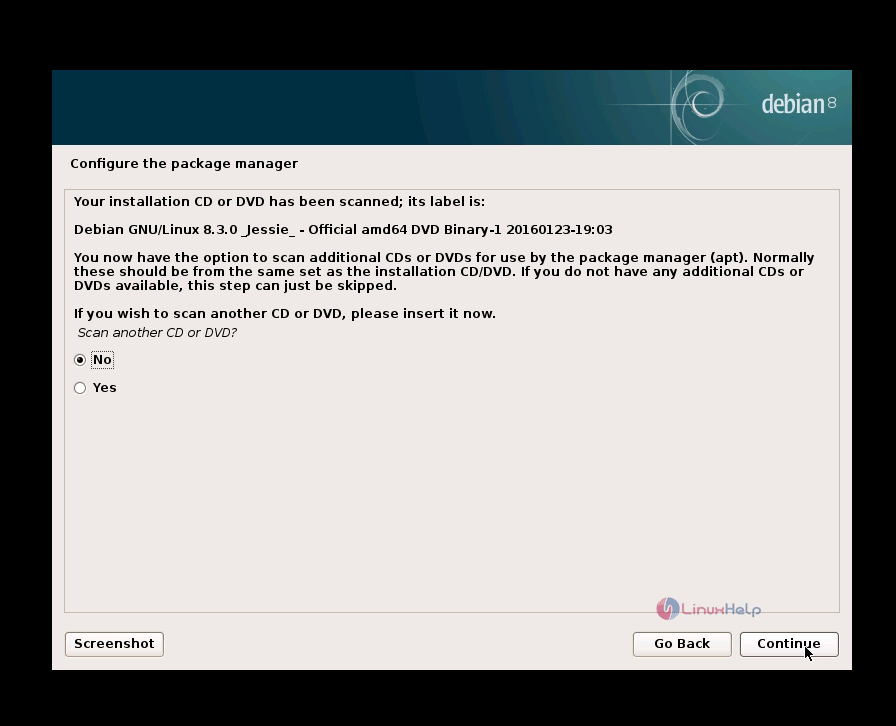
In this window if bootable image file is detected, choose “ No” and click continue
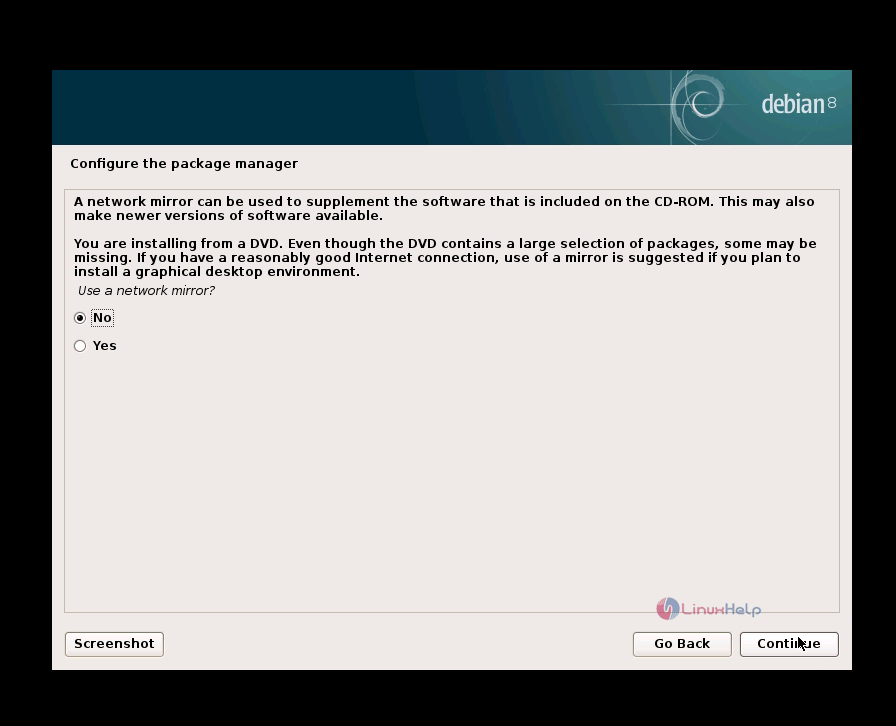
 Here it asks to use the network mirror. If you want to install the very latest versions of the packages in the DVD choose “ Yes” .
So that it will search for latest packages versions from internet. Here we have choose NO.
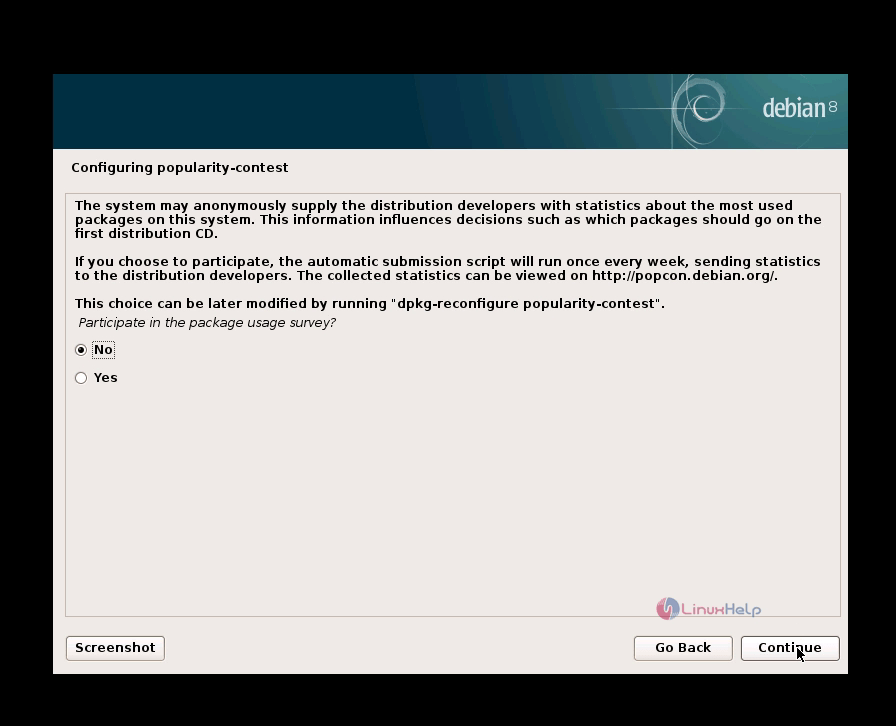
Choose to participate in popularity contest by sending the system statistic to the distribution developers. If you are not interested choose “ No” .
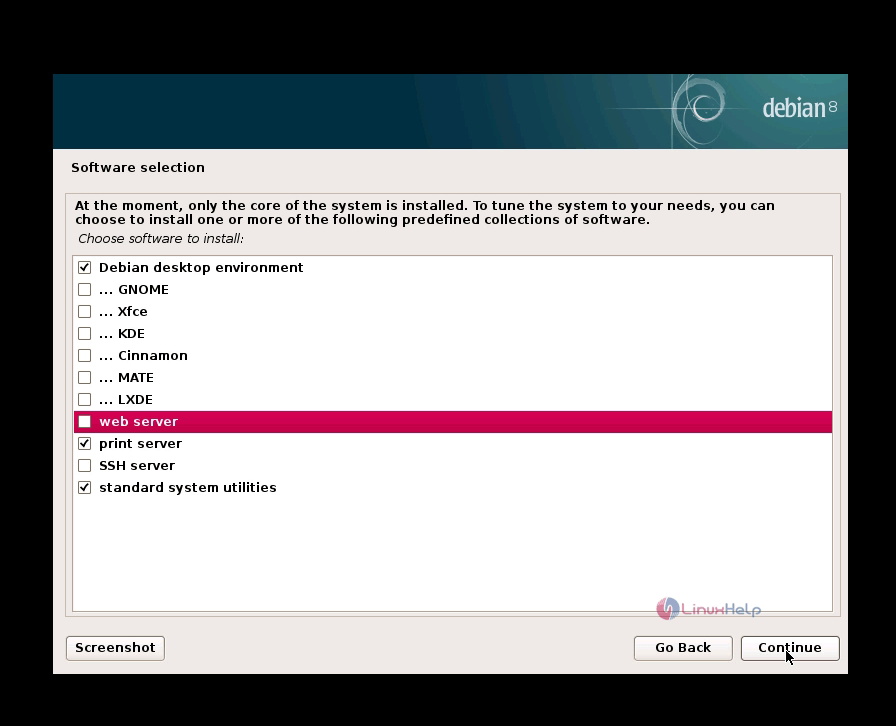
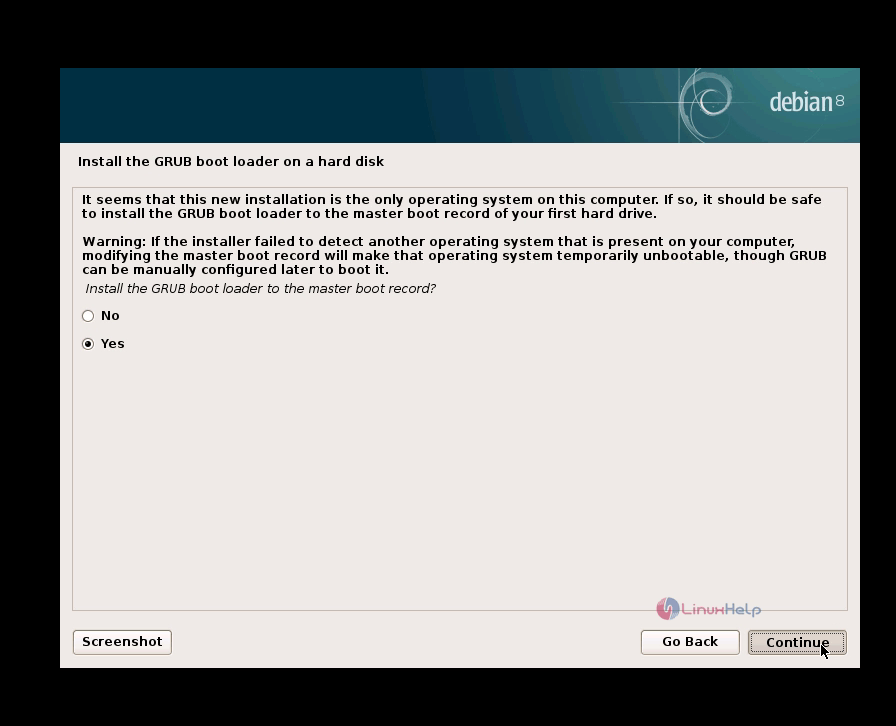
The next option is to select the required software packages. Then Choose “ yes” to install the boot loader
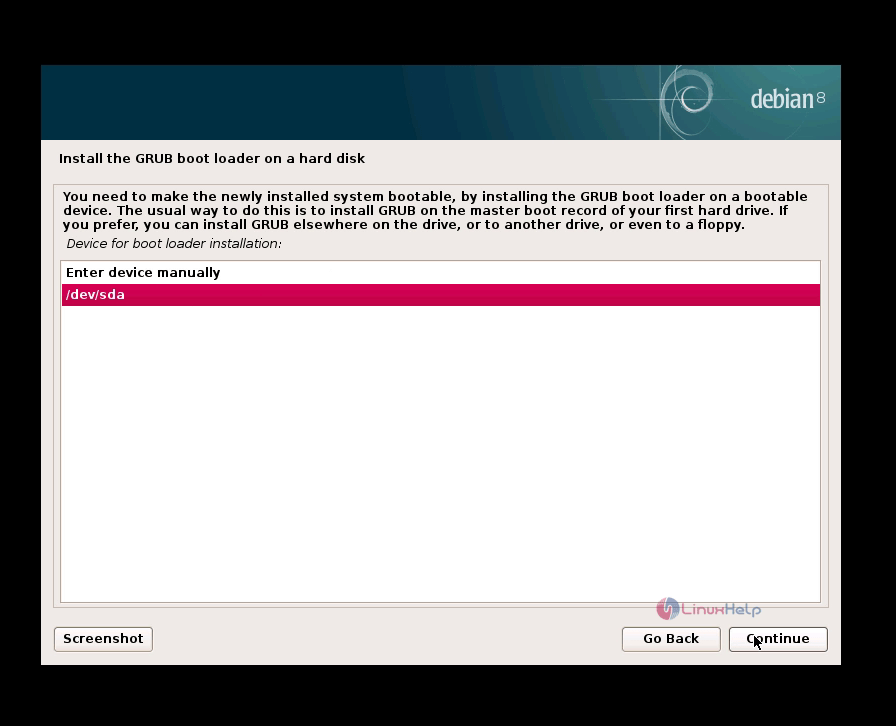
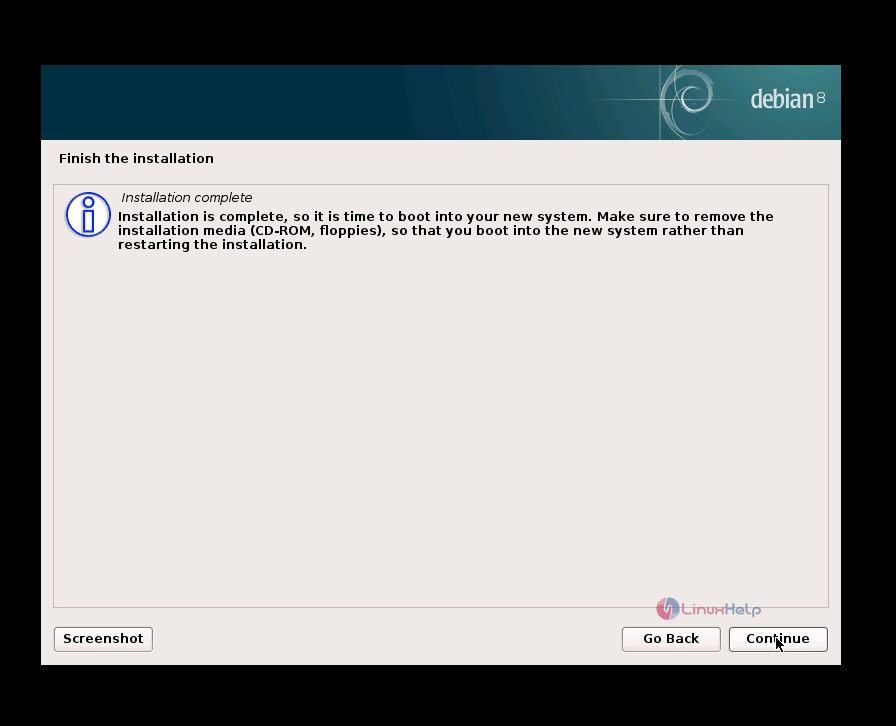
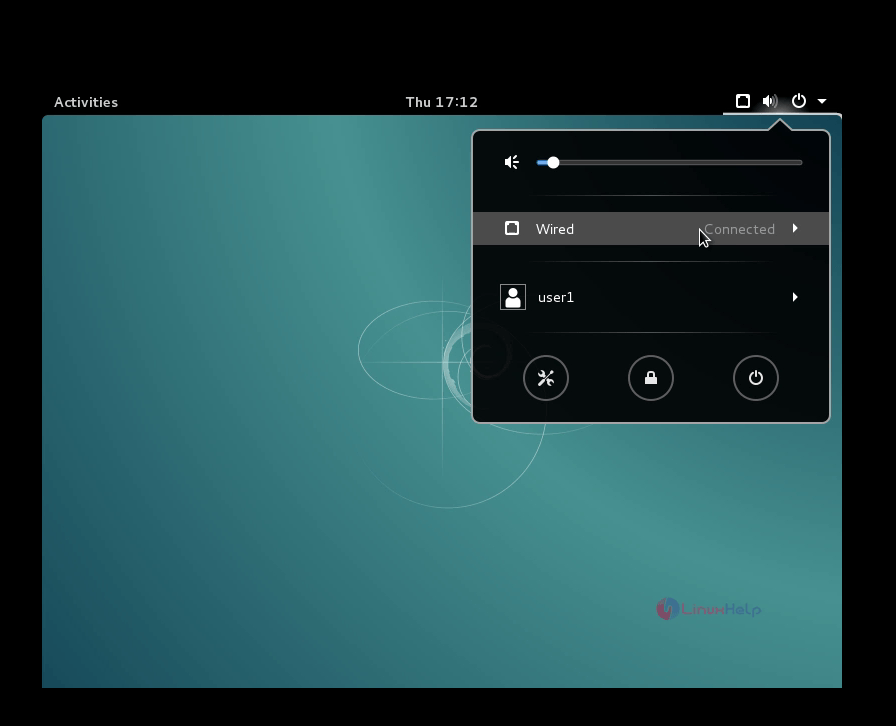
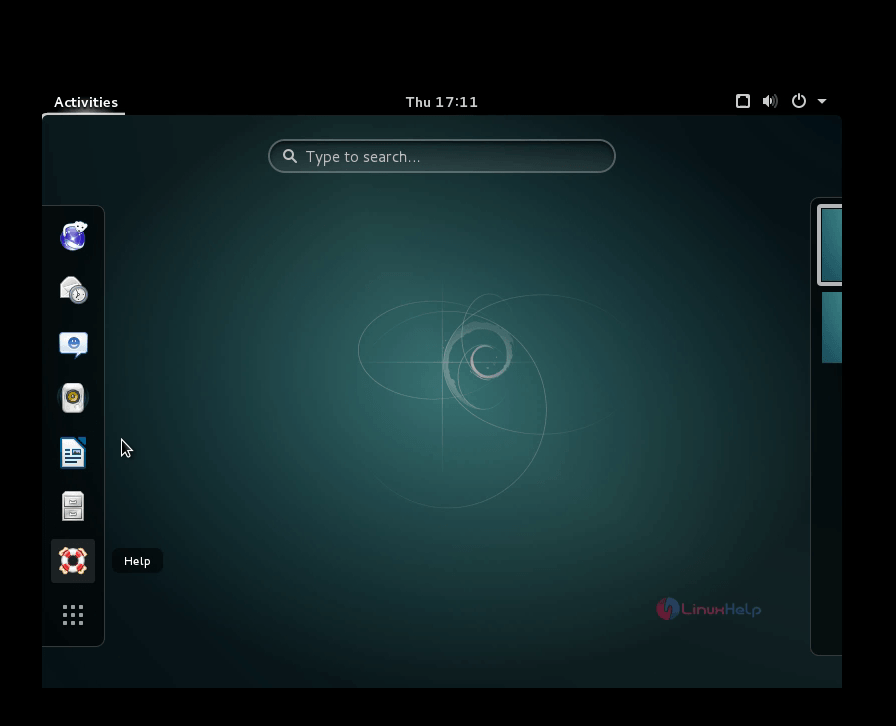
This is the final stage of installation. Select the device in which the boot loader has to be installed and click continue.Finally you will get a window with a message “ Installation complete” . Click continue to view Debian 8.3 Desktop
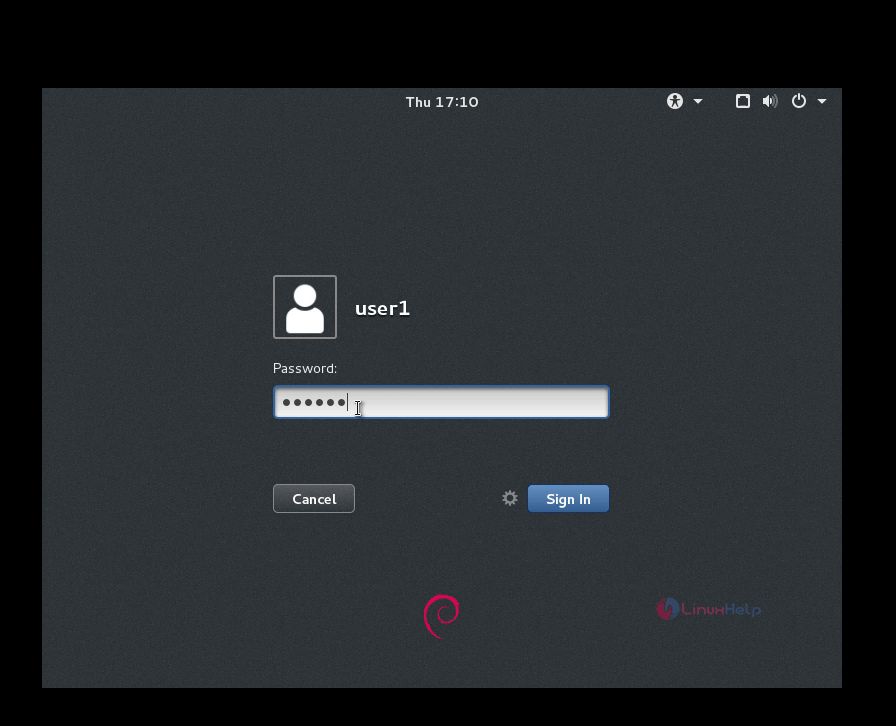
In the login page, enter user name and password to login to your desktop
Comments ( 0 )
No comments available