• Categories
    Category
    {{ postCtrl.tags }}
    • {{ category.tag_type }}

      • {{tag.tag_name}}
      • View more
  • Categories
    Category
    {{ postCtrl.tags }}
    • {{ category.tag_type }}

      • {{tag.tag_name}}
      • View more
  • News
  • Tutorials
  • Forums
  • Tags
  • Users
Tutorial News Comments FAQ Related Articles

How to install Debian 9

{{postValue.id}}

How to install Debian 9

Debian is a UNIX like Operating System that is free, open-source and contains over several software packages. This tutorial will explain the installation procedure of Debian 9.

Installation procedure

To start the installation process, first download the ISO image from Debian official site and make a bootable DVD or pendrive and boot it to the target system.

The installer boot menu appears, choose the Graphical install option.
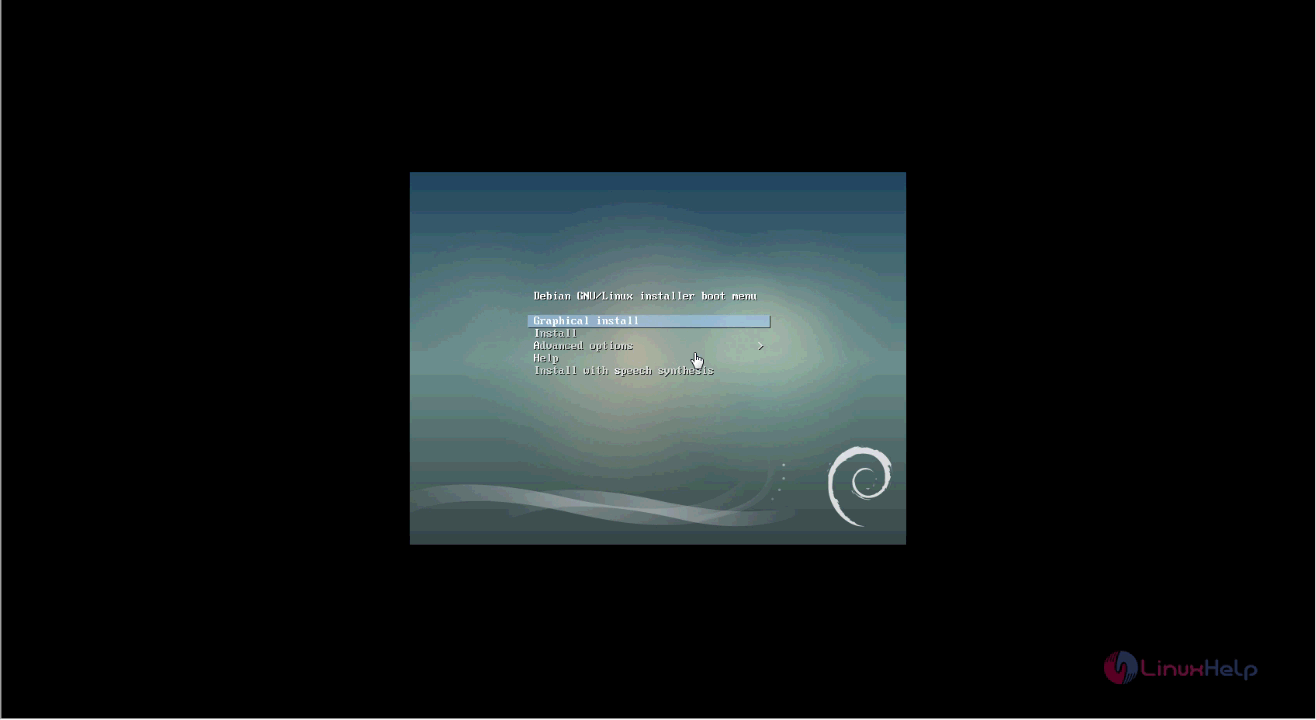
graphical install

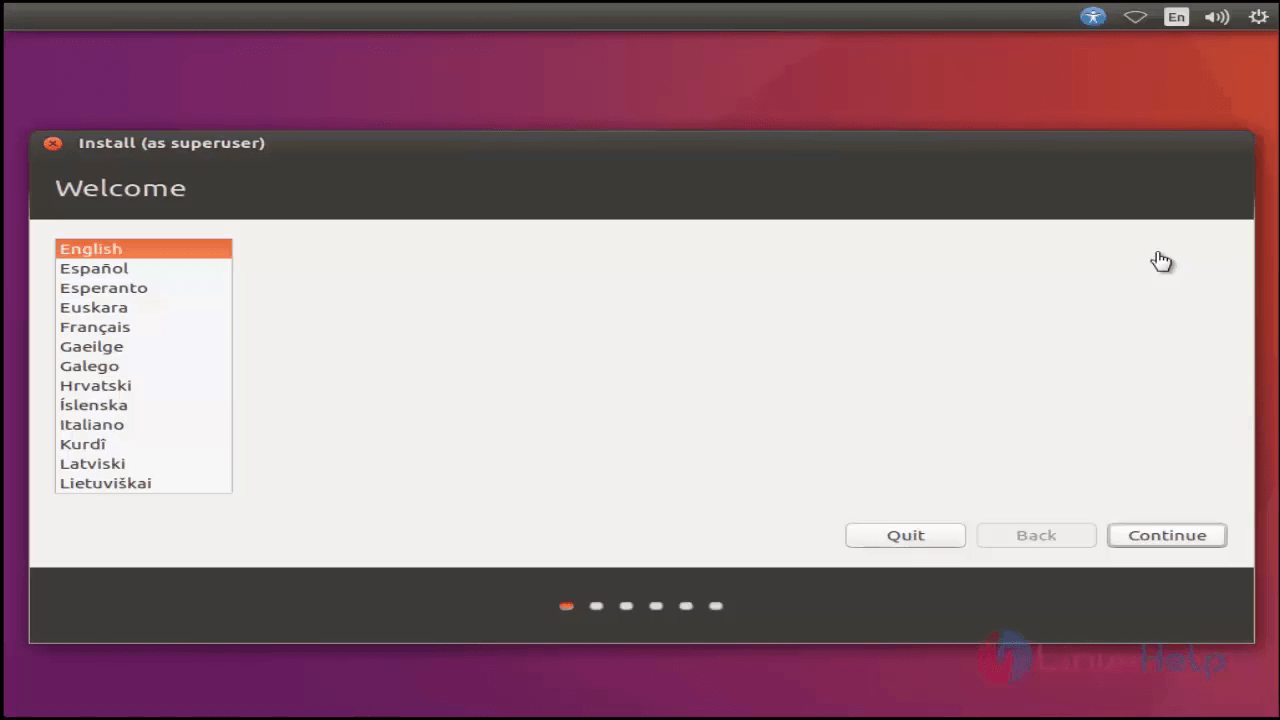
Choose the desired Language and click continue.
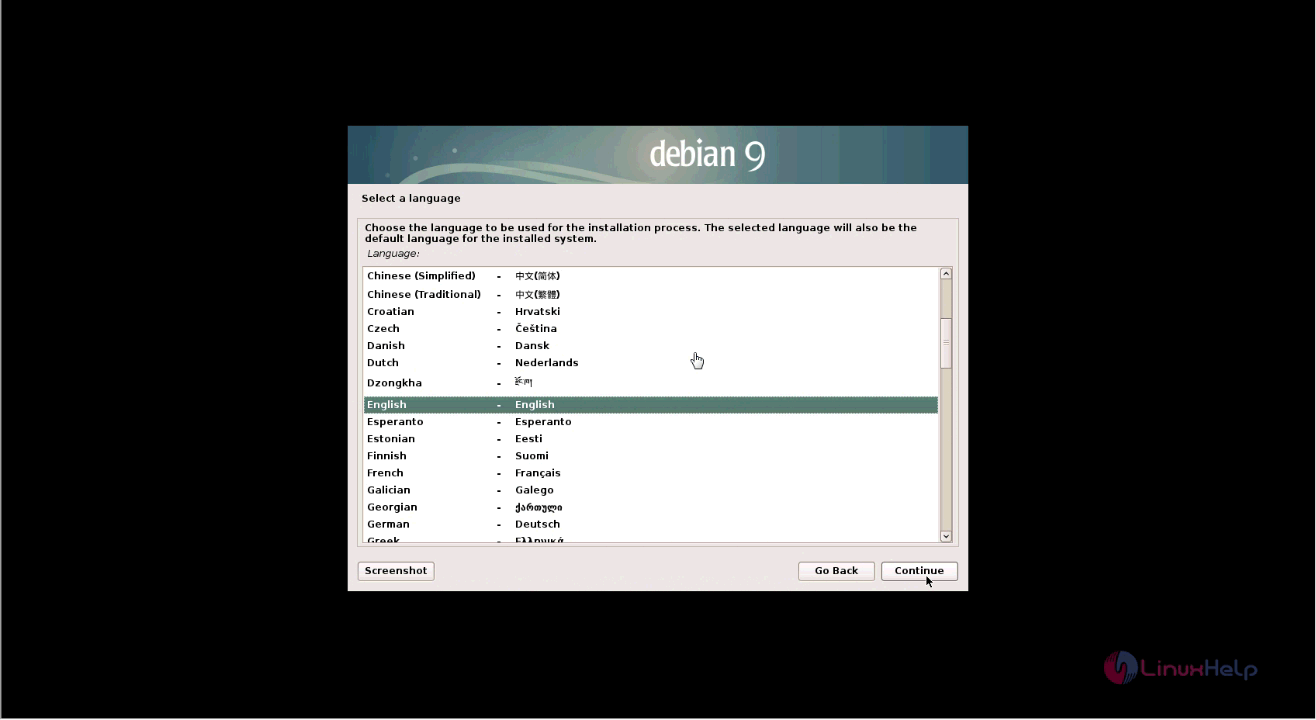
lanugage

Select the location and click continue option.
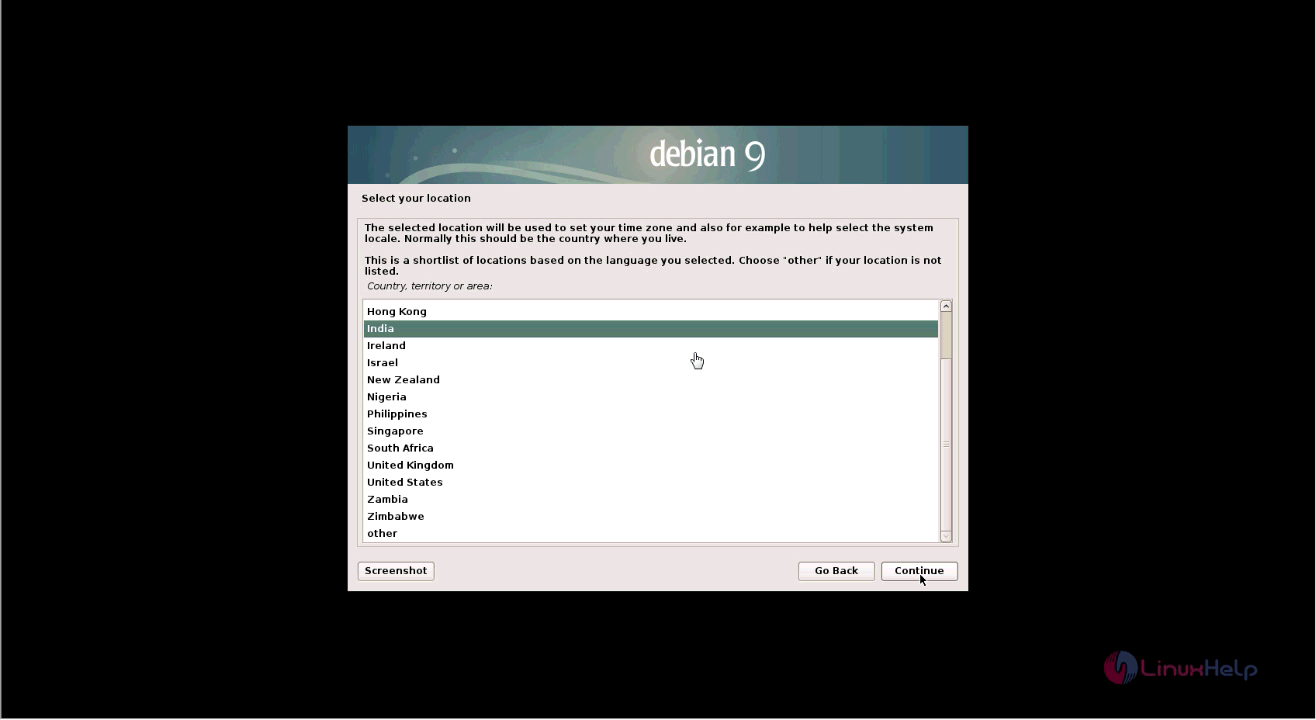
location

Configure the keyboard to American english and click continue.
keyboard

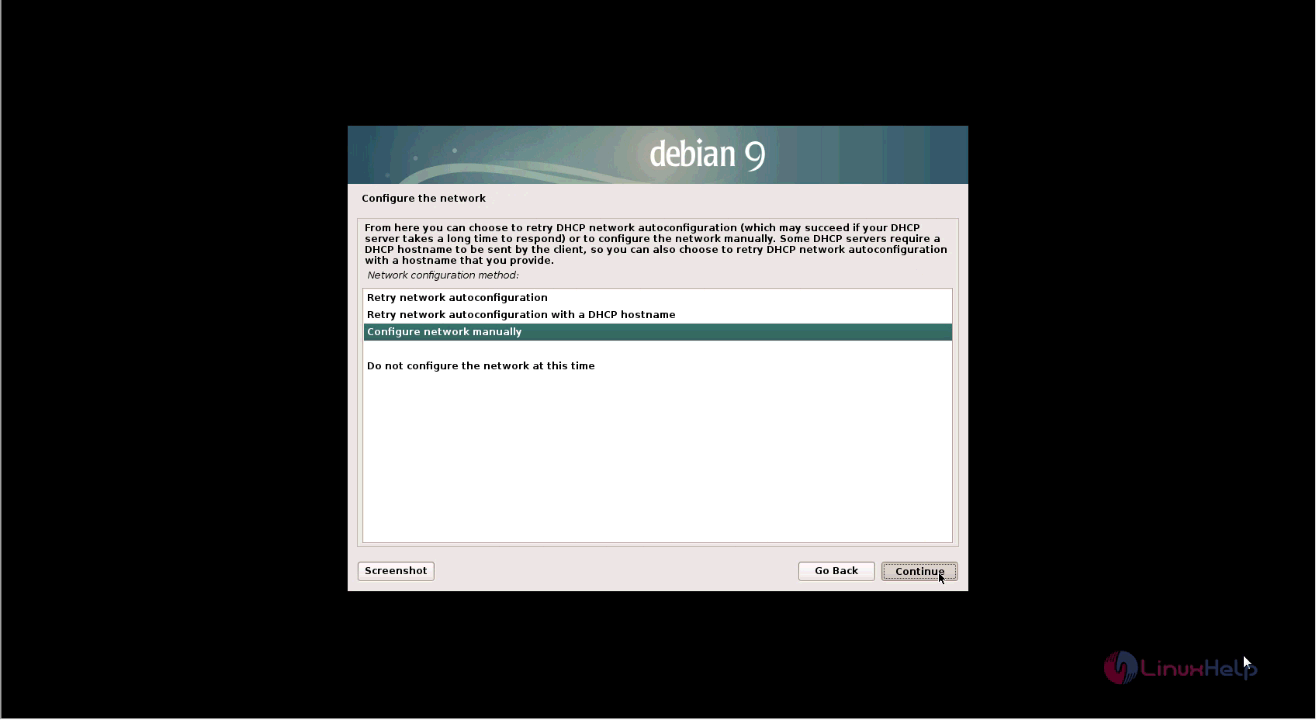
Next, configure the network manually by selecting the Configure network manually option and click continue.
network

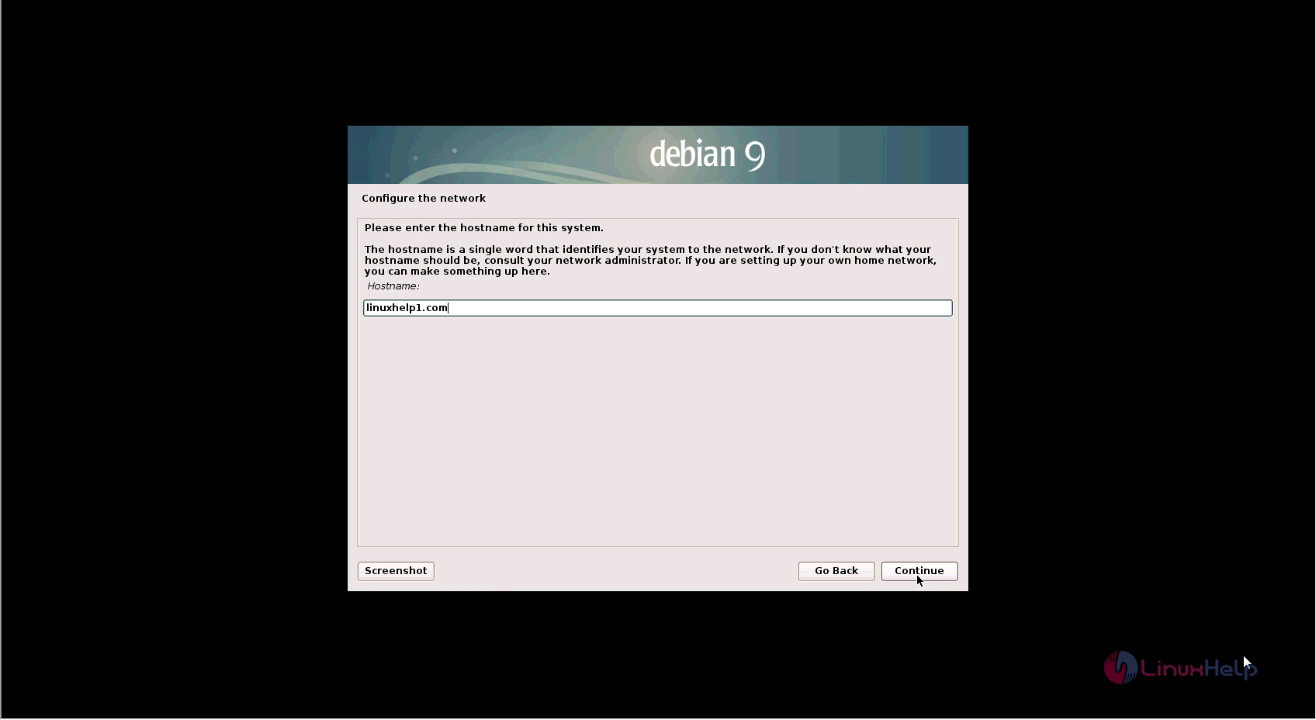
Enter the IP address, subnet mask, gateway and DNS details. Enter the hostname and click continue.
hostname

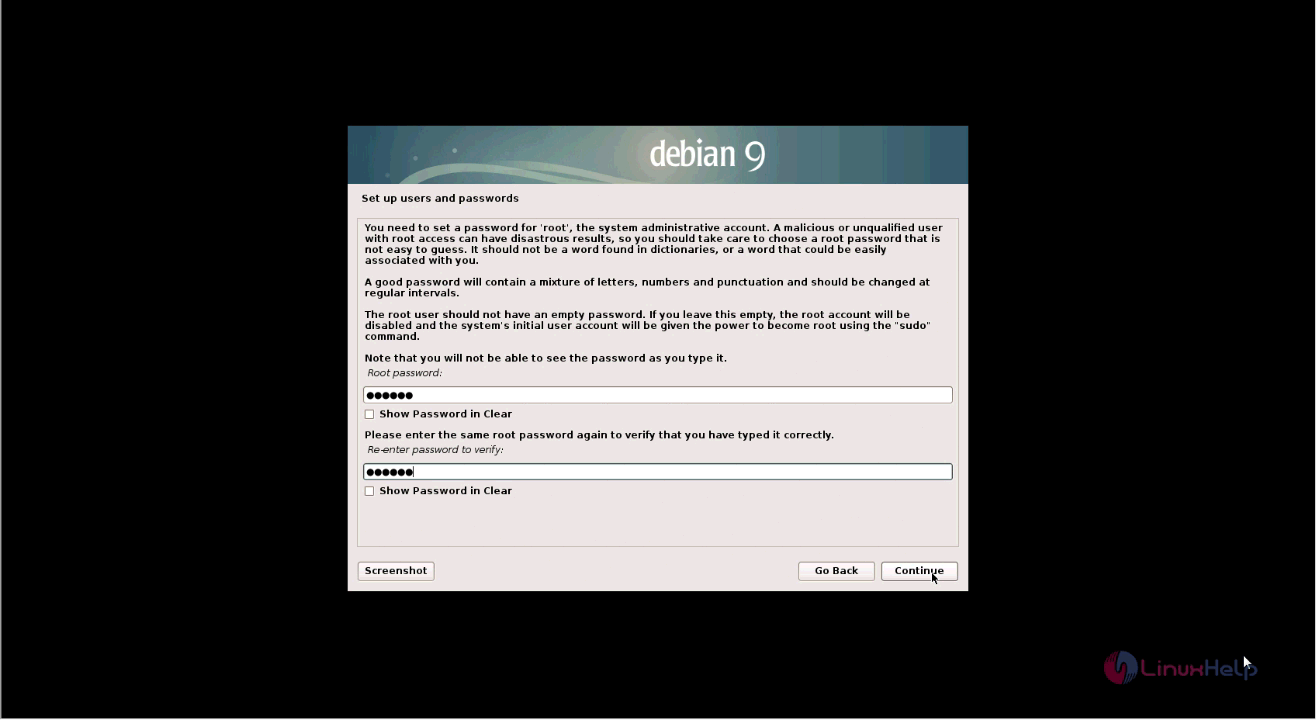
Set root password and type the password again for confirmation and click continue.
root password
Next, setup new users with password and click continue to navigate to next option.
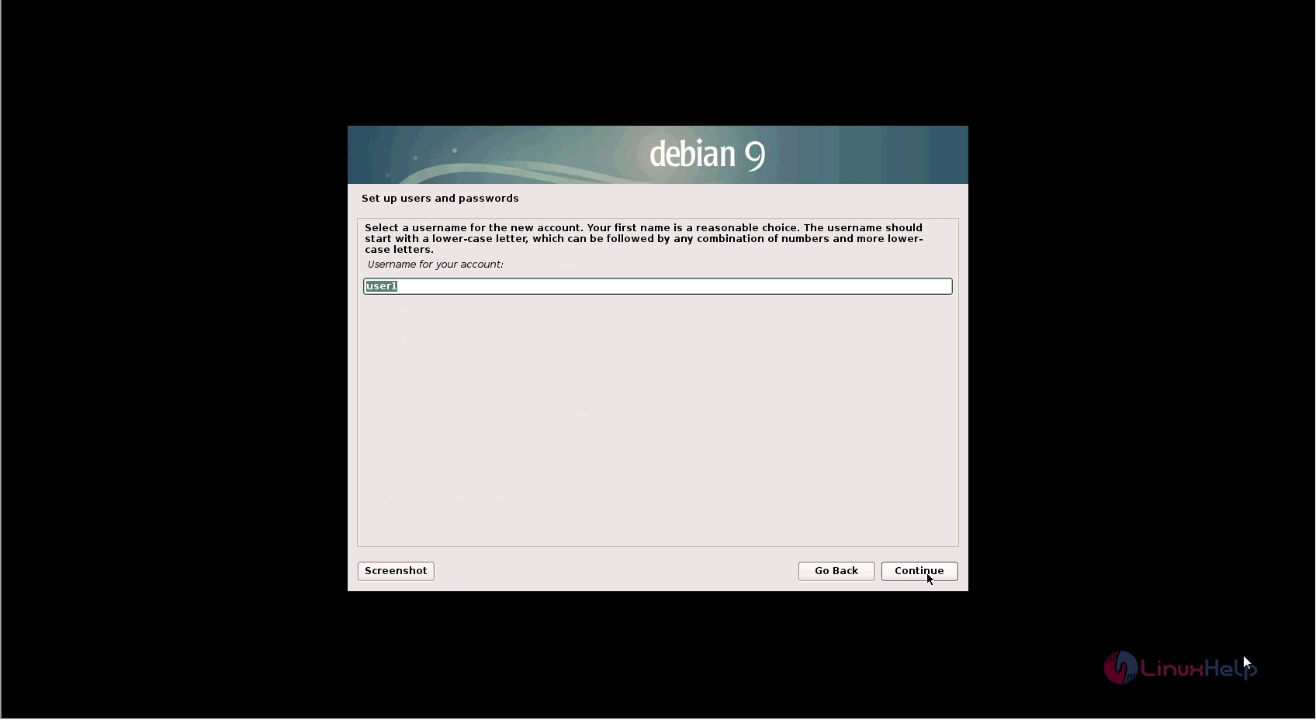
users

To manually partition the disks, select manual option and click continue.
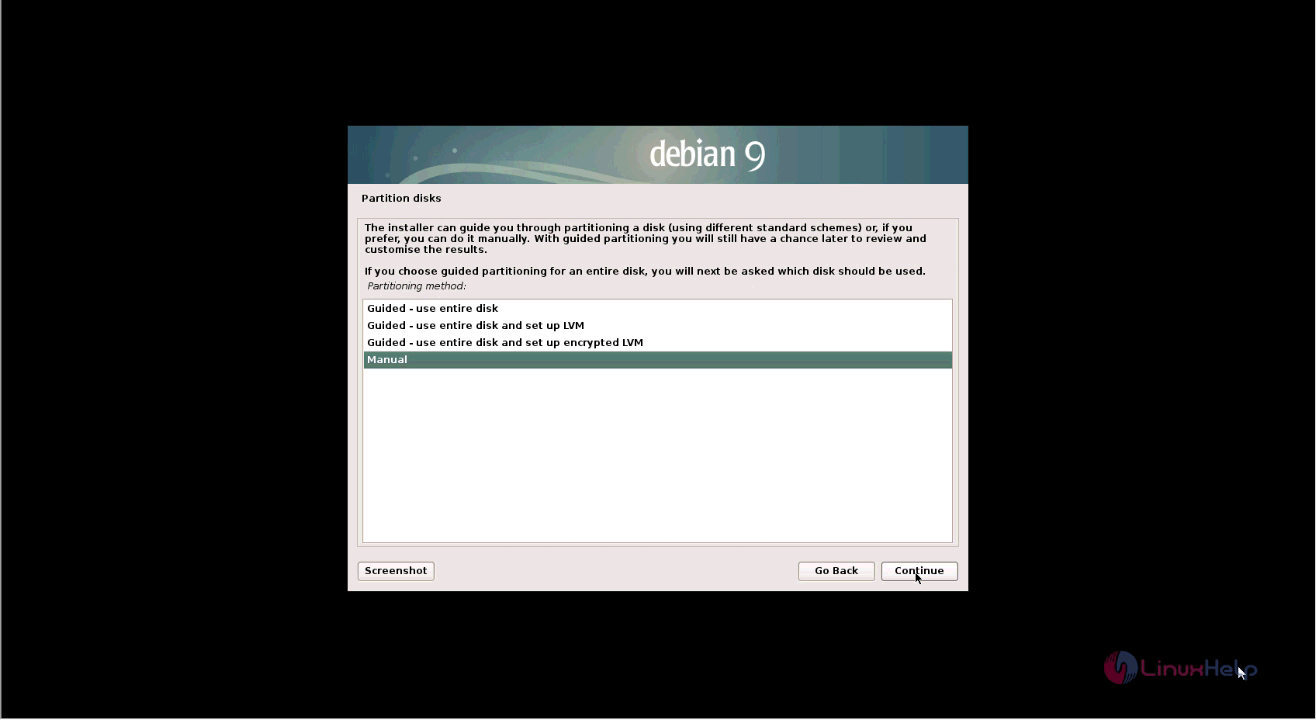
partition disks

Create a new partition table by selecting the yes option and click continue.
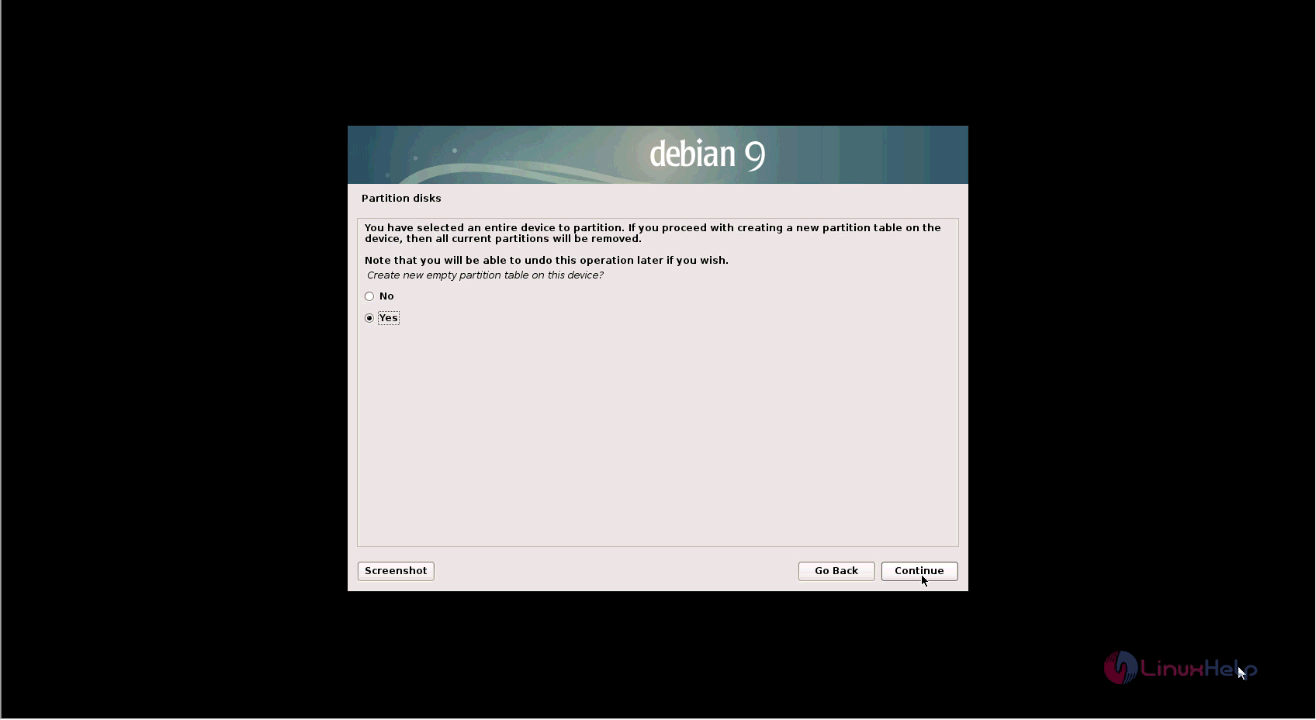
partition table

Create the Boot partition by selecting the disk to be partitioned.
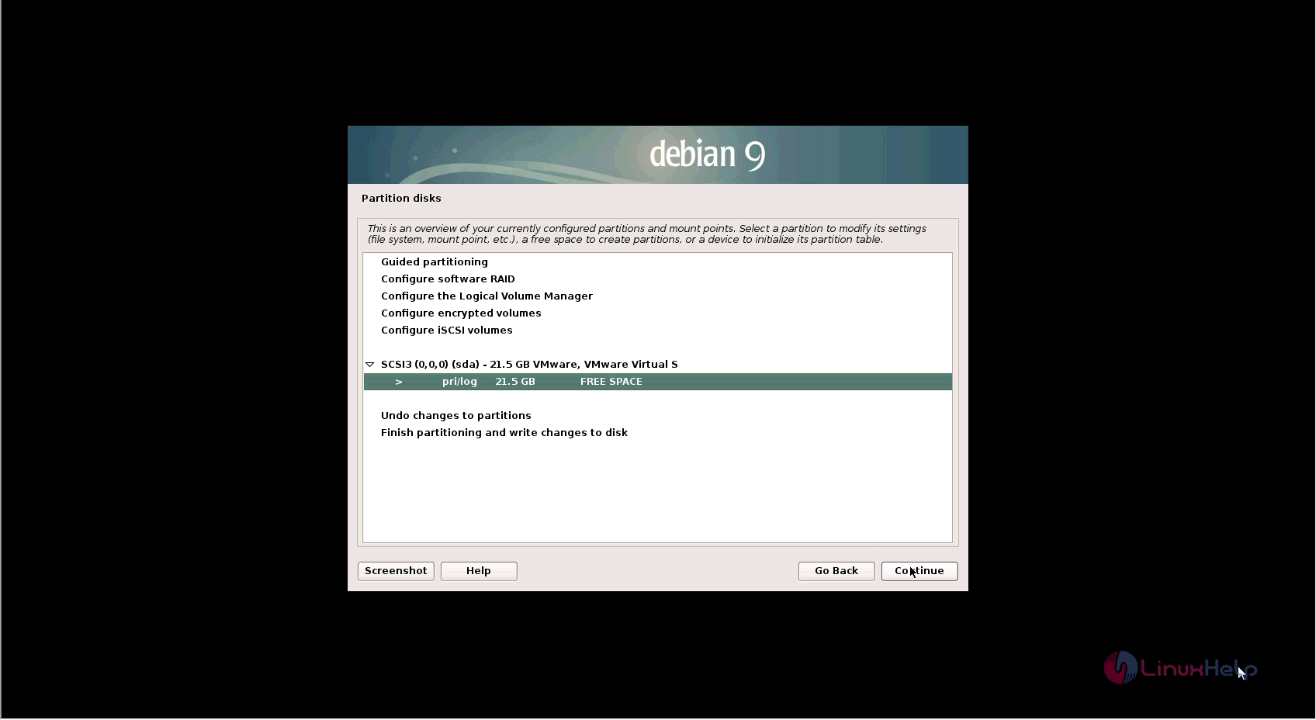
boot partition

After finishing the partition, select Done setting up the partition and click continue.
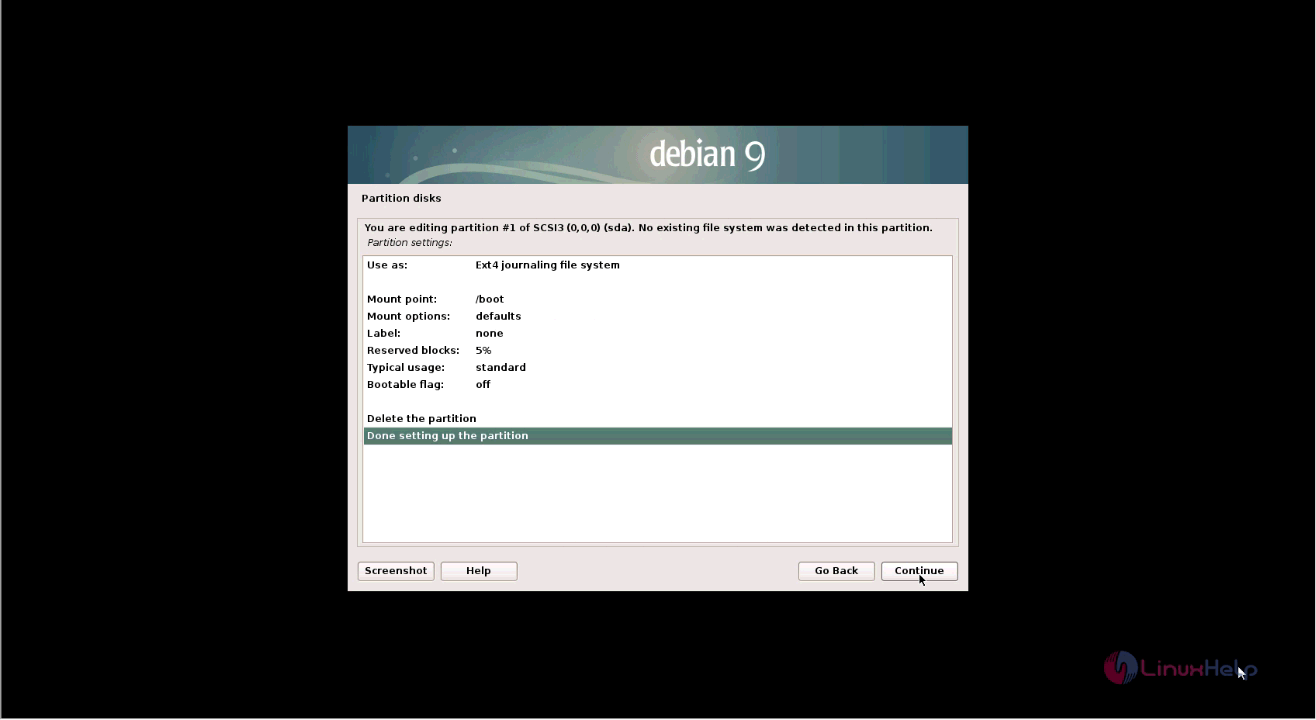
finish partition

Do the same steps as above to create the swap partition and select done setting up the partition.
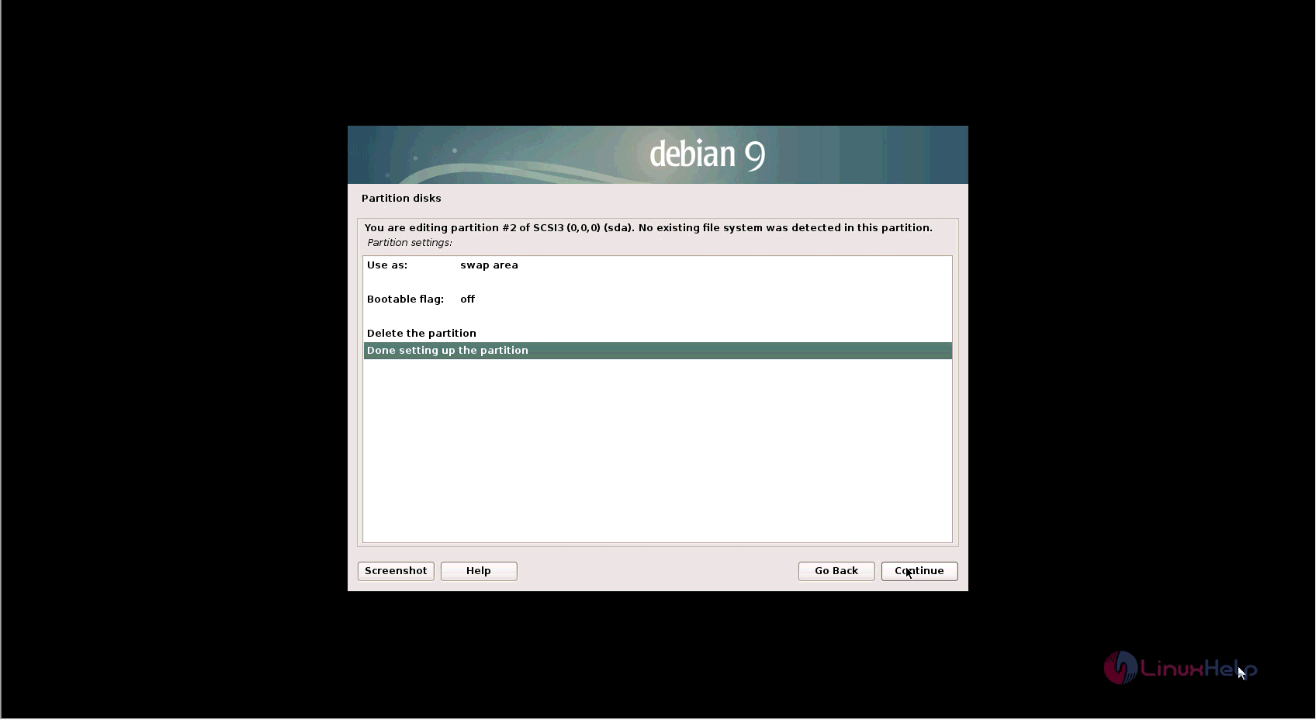
swap partition

Do the above same steps to create root partition also and select done setting up the partition.
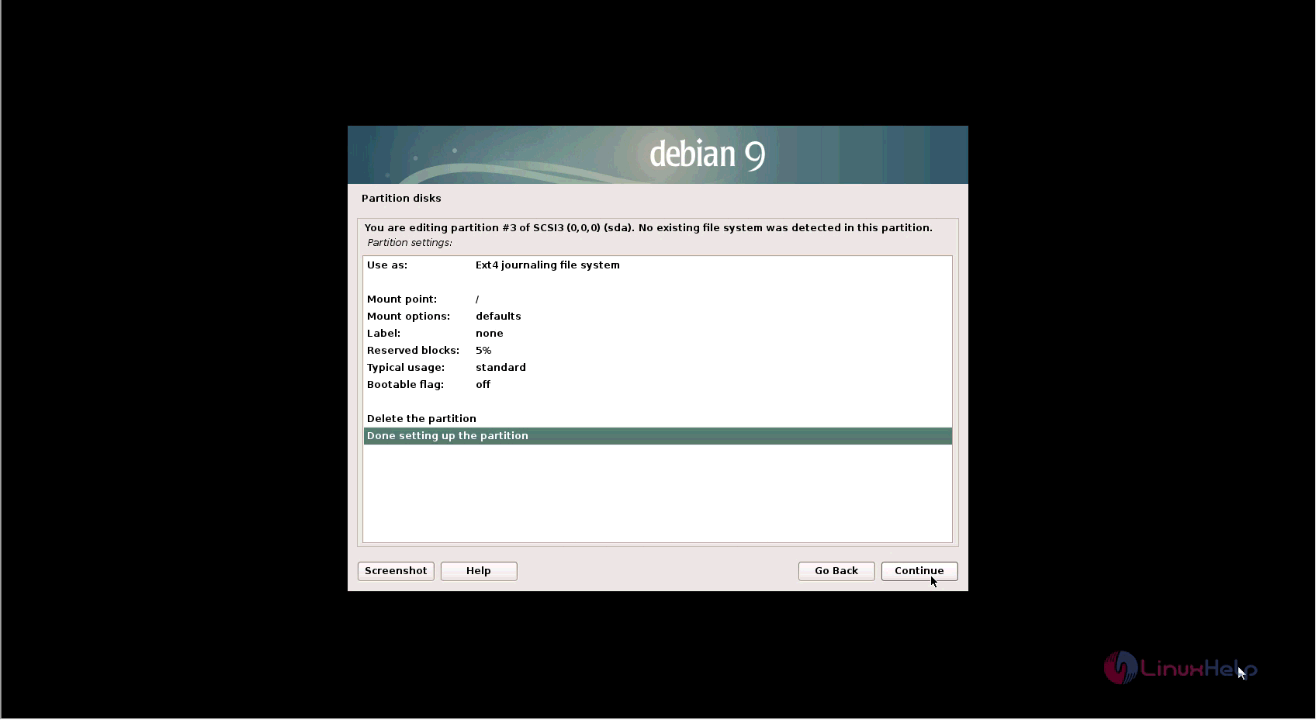
root partition

The disk has been partitioned successfully. Select Finish partitioning and write changes to disk option.
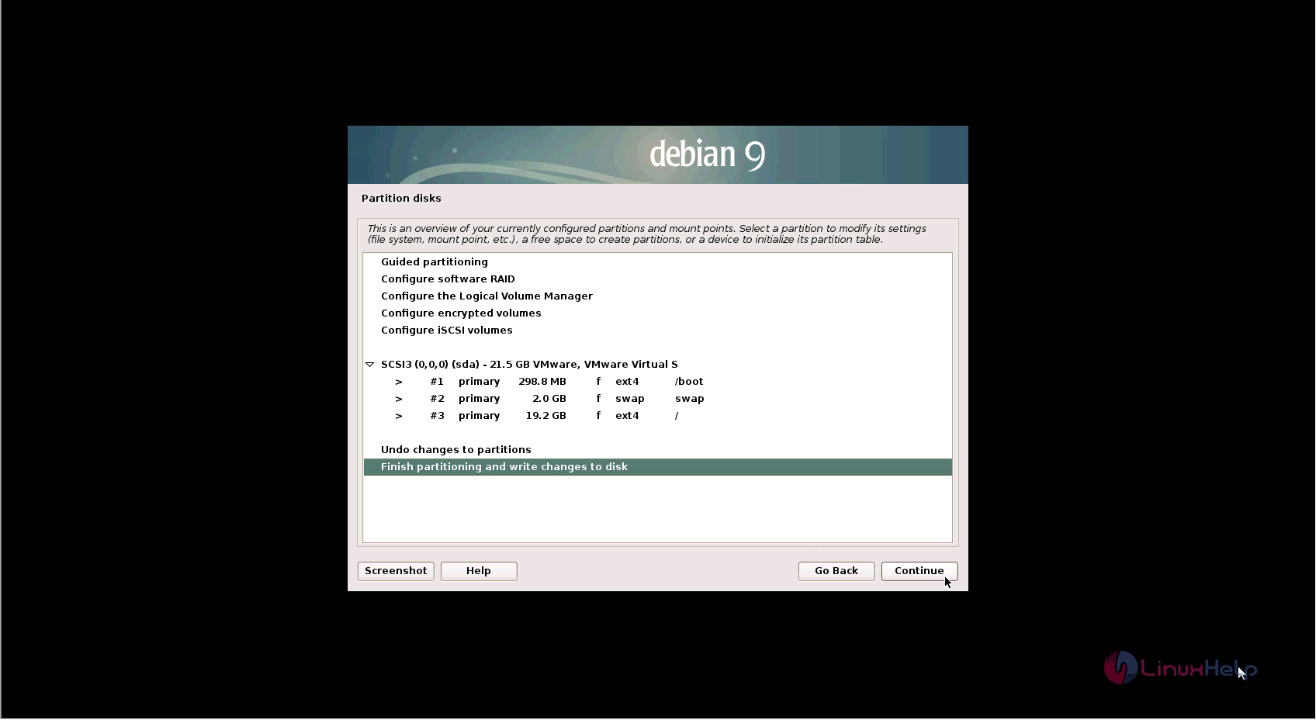
finish partioning

The installation of base system is on progress and it may take some time.
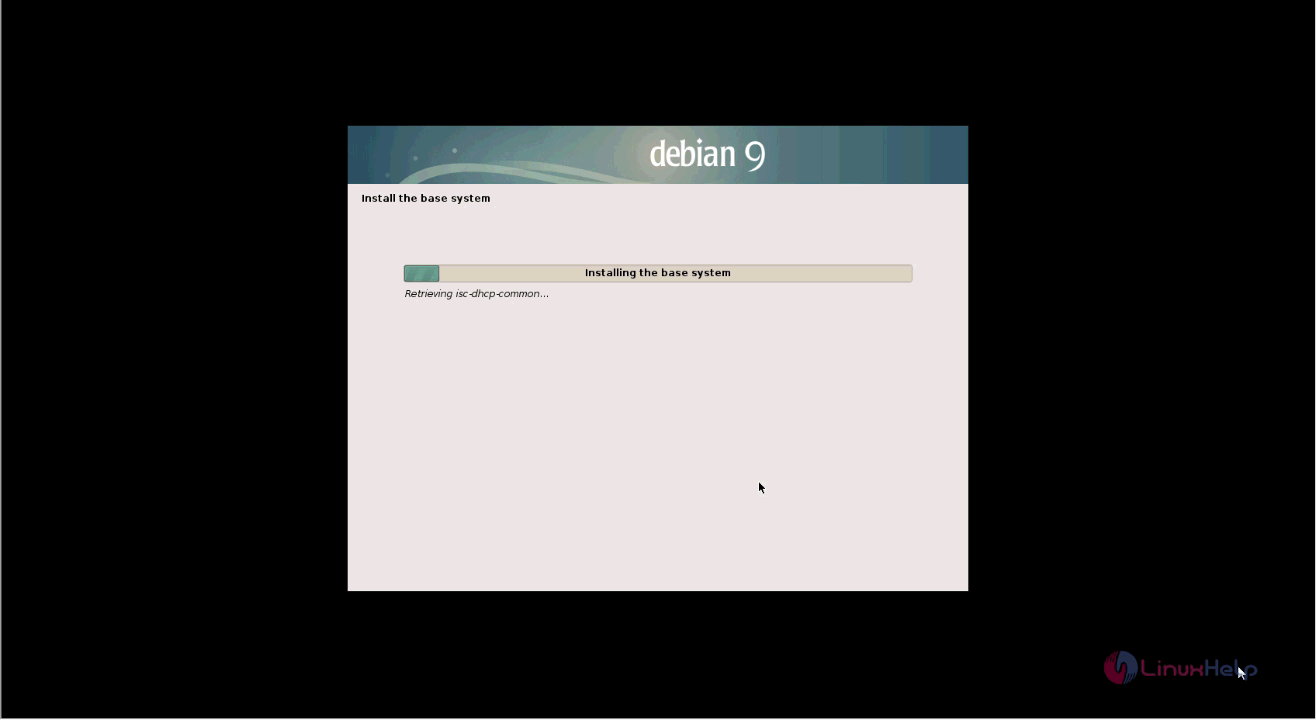
base system

Select a software to be installed by Software selection panel and click continue.
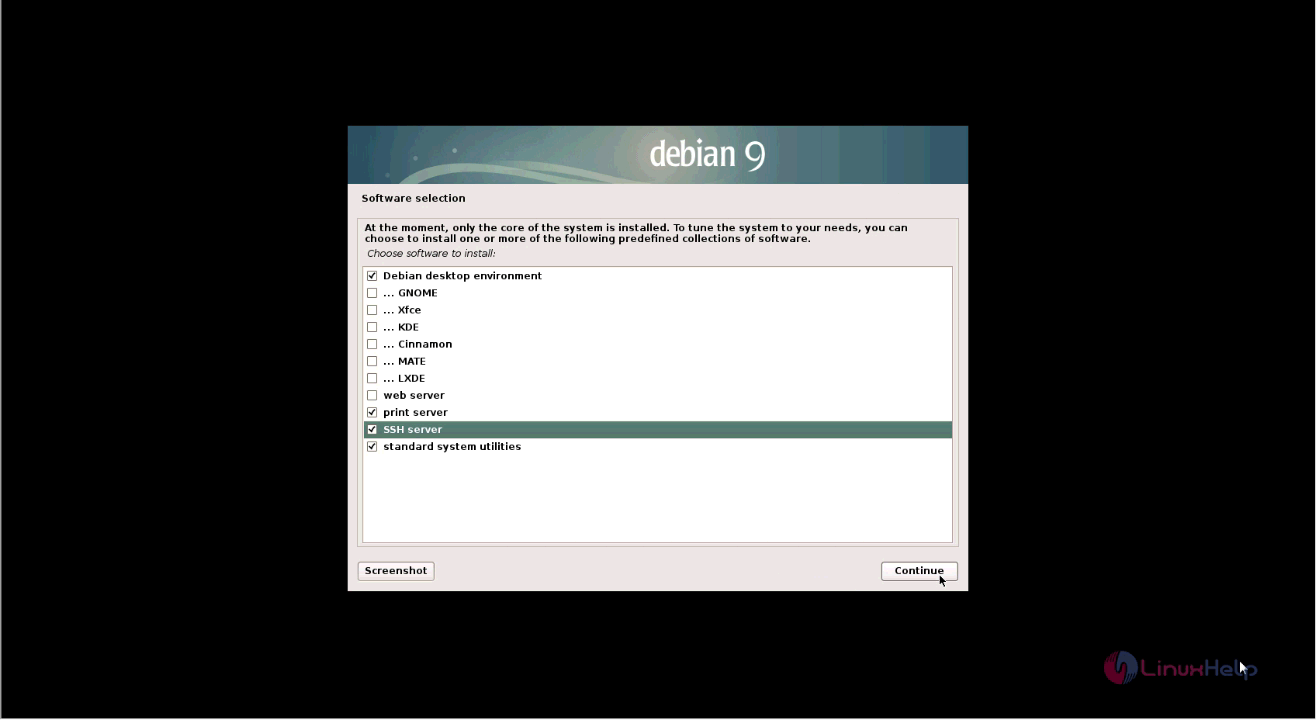
software selection

Next install GRUB bootloader and click yes to continue.
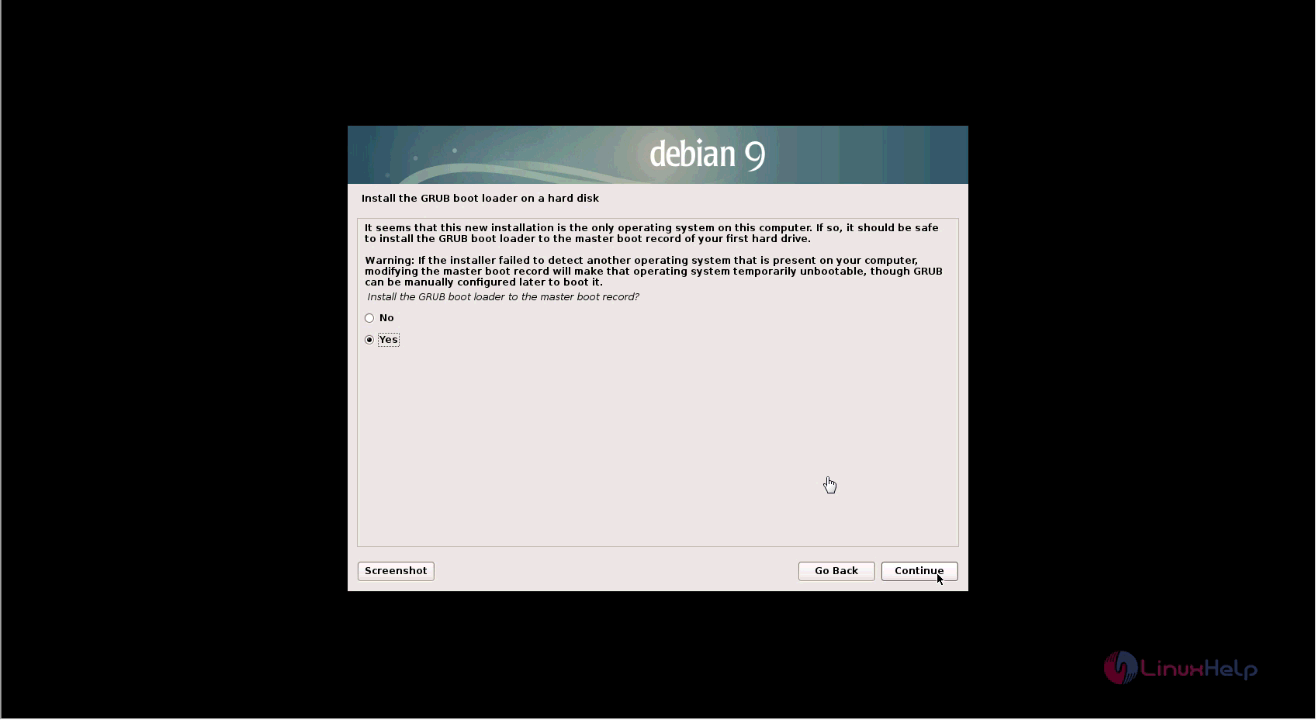
grub bootloader

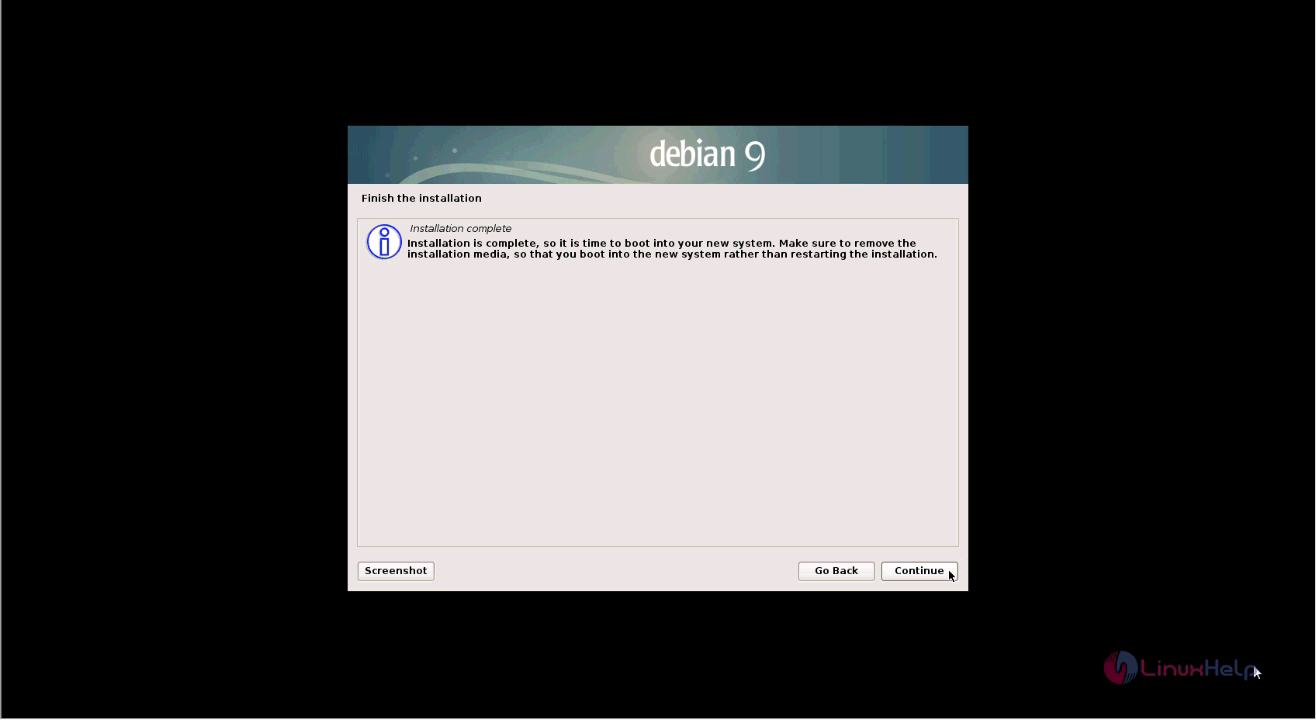
The installation is completed.

installation complete

The targeted system is installed and it is restarted. The login screen appears and sign in to use the Debian 9.
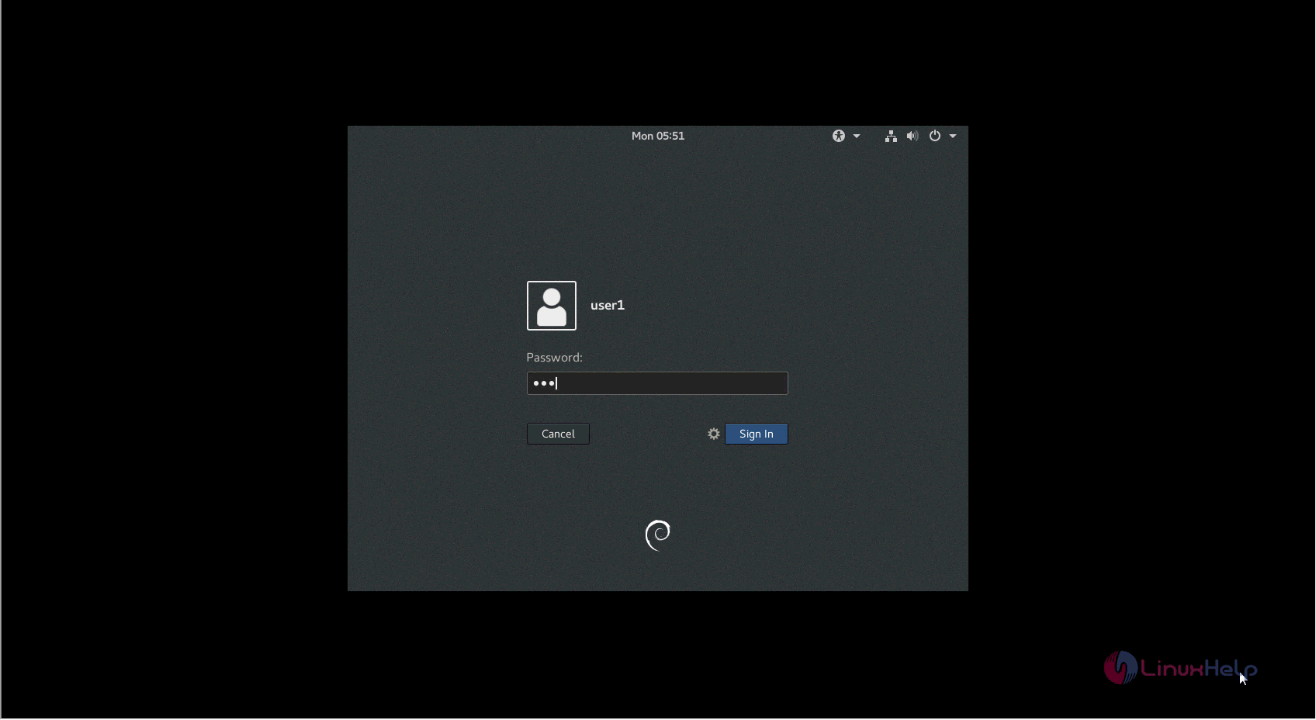
login screen

The Debian 9 is running successfully and a panel of Applications is displayed on the screen.
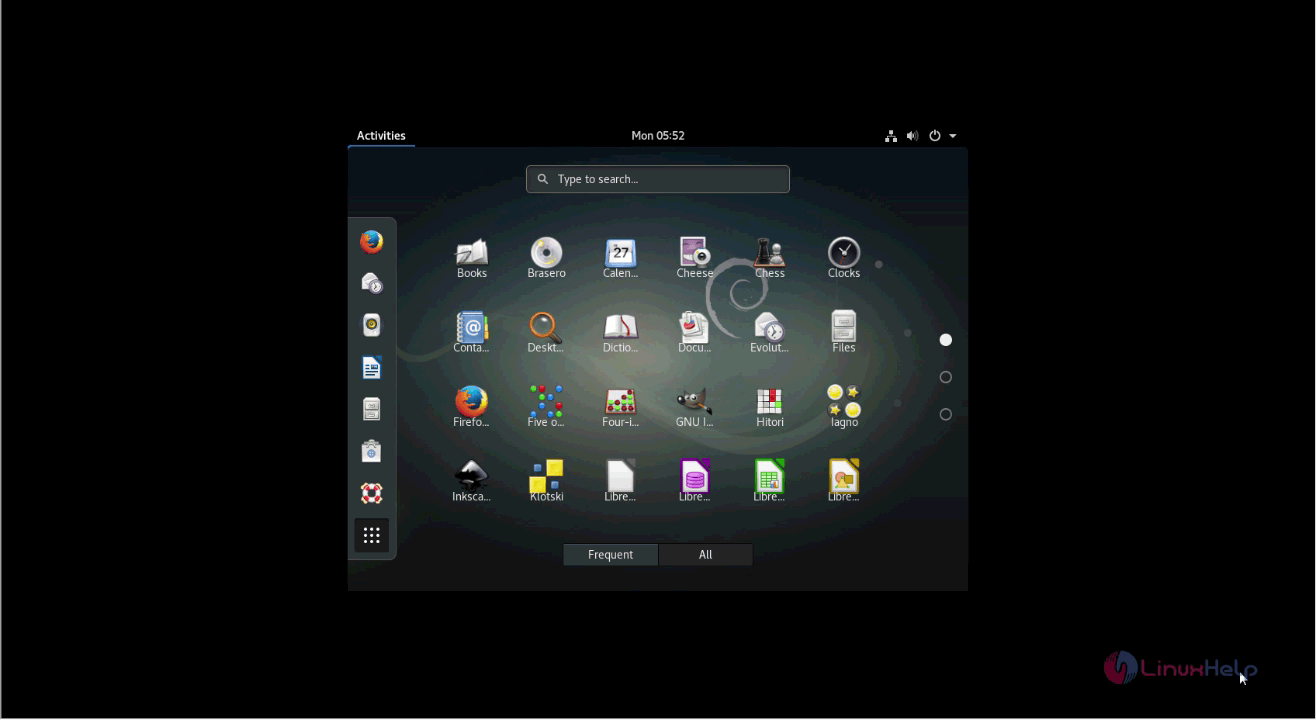
application

That was an easy installation procedure, Wasn' t it? Check into our tutorials to know more about Debian and its applications.

Tags:
isaac
Author: 

Comments ( 0 )

No comments available

Add a comment
{{postCtrl.cmtErrMsg}}

Frequently asked questions ( 5 )

Q

How can I keep my Debian system current?

A

One could simply execute an anonymous ftp call to a Debian archive, then peruse the directories until one finds the desired file, and then fetch it, and finally install it using dpkg. Note that dpkg will install upgrade files in place, even on a running system. Sometimes, a revised package will require the installation of a newly revised version of another package, in which case the installation will fail until/unless the other package is installed.

Q

Are there any on-line resources for discussing Debian?

A

Yes. In fact, the main method of support Debian provides to our users is by the way of e-mail. We'll give some details on that, and mention some other useful resources.

Q

Can I automatically update the system?

A

Yes. You can use cron-apt; this tool updates the system at regular intervals using a cron job. By default, it just updates the package list and downloads new packages, but without installing them.

Q

Do I have to keep all those .deb archive files on my disk?

A

No. If you have downloaded the files to your disk then after you have installed the packages, you can remove them from your system, e.g. by running aptitude clean.

Q

Must I go into single user mode in order to upgrade a package?

A

No. Packages can be upgraded in place, even in running systems. Debian has a start-stop-daemon program that is invoked to stop, then restart running process if necessary during a package upgrade.

Back To Top!
Rank
User
Points

Top Contributers

userNamenaveelansari
135850

Top Contributers

userNameayanbhatti
92510

Top Contributers

userNamehamzaahmed
32150

Top Contributers

1
userNamelinuxhelp
31040

Top Contributers

userNamemuhammadali
24500
Can you help Lucas ?
Various options in Top command

Am using Top command only to view the load average, what are the various options in Top command..??

Networking
  • Routing
  • trunk
  • Netmask
  • Packet Capture
  • domain
  • HTTP Proxy
Server Setup
  • NFS
  • KVM
  • Memory
  • Sendmail
  • WebDAV
  • LXC
Shell Commands
  • Cloud commander
  • Command line archive tools
  • last command
  • Shell
  • terminal
  • Throttle
Desktop Application
  • Linux app
  • Pithos
  • Retrospect
  • Scribe
  • TortoiseHg
  • 4Images
Monitoring Tool
  • Monit
  • Apache Server Monitoring
  • EtherApe 
  • Arpwatch Tool
  • Auditd
  • Barman
Web Application
  • Nutch
  • Amazon VPC
  • FarmWarDeployer
  • Rukovoditel
  • Mirror site
  • Chef
Contact Us | Terms of Use| Privacy Policy| Disclaimer
© 2025 LinuxHelp.com All rights reserved. Linux™ is the registered trademark of Linus Torvalds. This site is not affiliated with linus torvalds in any way.