How to install Desktop Dimmer on Ubuntu 17.04
To install Desktop Dimmer on Ubuntu 17.04
Desktop Dimmer is an open-source application used for reducing the desktop brightness by dimming or turning off desktop light. If you have struggle with your eye vision, it is advisable to use a tool like Desktop Dimmer, which helps you protect your eyes from too much of light rays, while working on your desktop or laptop that doesn' t have a screen shade. The installation of Desktop Dimmer is very simple and through this tutorial, you will be briefed about the installation process involved with Desktop Dimmer on Ubuntu 17.04
Installing Desktop Dimmer
It is necessary to install gdebi prior to the installation of Desktop Dimmer, so make sure that you add gdebi to your system by running the following command.
#root@linuxhelp11:~# apt install gdebi
Reading package lists... Done
Building dependency tree
Reading state information... Done
The following packages were automatically installed and are no longer required:
  linux-headers-4.10.0-19 linux-headers-4.10.0-19-generic
  linux-image-4.10.0-19-generic linux-image-extra-4.10.0-19-generic
Use ' apt autoremove'  to remove them.
The following additional packages will be installed:
  gconf-service gconf-service-backend gconf2 gconf2-common gdebi-core gksu
  gnome-icon-theme libgconf-2-4 libgksu2-0
.
.
.
update-alternatives: using /usr/share/libgksu/debian/gconf-defaults.libgksu-sudo to provide /usr/share/gconf/defaults/10_libgksu (libgksu-gconf-defaults) in auto mode
Processing triggers for gconf2 (3.2.6-3ubuntu7) ...
Setting up gksu (2.0.2-9ubuntu1) ...
Setting up gdebi (0.9.5.7+nmu1) ...
Processing triggers for libc-bin (2.24-9ubuntu2.2) ...
After that, you can download the installation package by using wget command as follows.
root@linuxhelp11:~# wget https://github.com/sidneys/desktop-dimmer/releases/download/v2.9.0/desktop-dimmer-2.9.0-i386.deb
--2017-09-06 16:42:12--  https://github.com/sidneys/desktop-dimmer/releases/download/v2.9.0/desktop-dimmer-2.9.0-i386.deb
Resolving github.com (github.com)... 192.30.255.113, 192.30.255.112
Connecting to github.com (github.com)|192.30.255.113|:443... connected.
.
.
.
Connecting to github-production-release-asset-2e65be.s3.amazonaws.com (github-production-release-asset-2e65be.s3.amazonaws.com)|54.231.120.75|:443... connected.
HTTP request sent, awaiting response... 200 OK
Length: 39417010 (38M) [application/octet-stream]
Saving to: ‘ desktop-dimmer-2.9.0-i386.deb’

desktop-dimmer-2.9. 100%[===================> ]  37.59M  1.03MB/s    in 47s

2017-09-06 16:43:02 (819 KB/s) - ‘ desktop-dimmer-2.9.0-i386.deb’  saved [39417010/39417010]
All is now set for the installation of Desktop Dimmer, trigger the installation by executing the following command.
root@linuxhelp11:~# gdebi desktop-dimmer-2.9.0-i386.deb
Reading package lists... Done
Building dependency tree
Reading state information... Done
Reading state information... Done
Requires the REMOVAL of the following packages: libnotify-bin ubuntu-desktop
.
.
.
.
Rebuilding /usr/share/applications/bamf-2.index...
Processing triggers for gnome-menus (3.13.3-6ubuntu5) ...
Processing triggers for desktop-file-utils (0.23-1ubuntu2) ...
Processing triggers for mime-support (3.60ubuntu1) ...
Processing triggers for hicolor-icon-theme (0.15-1) ...

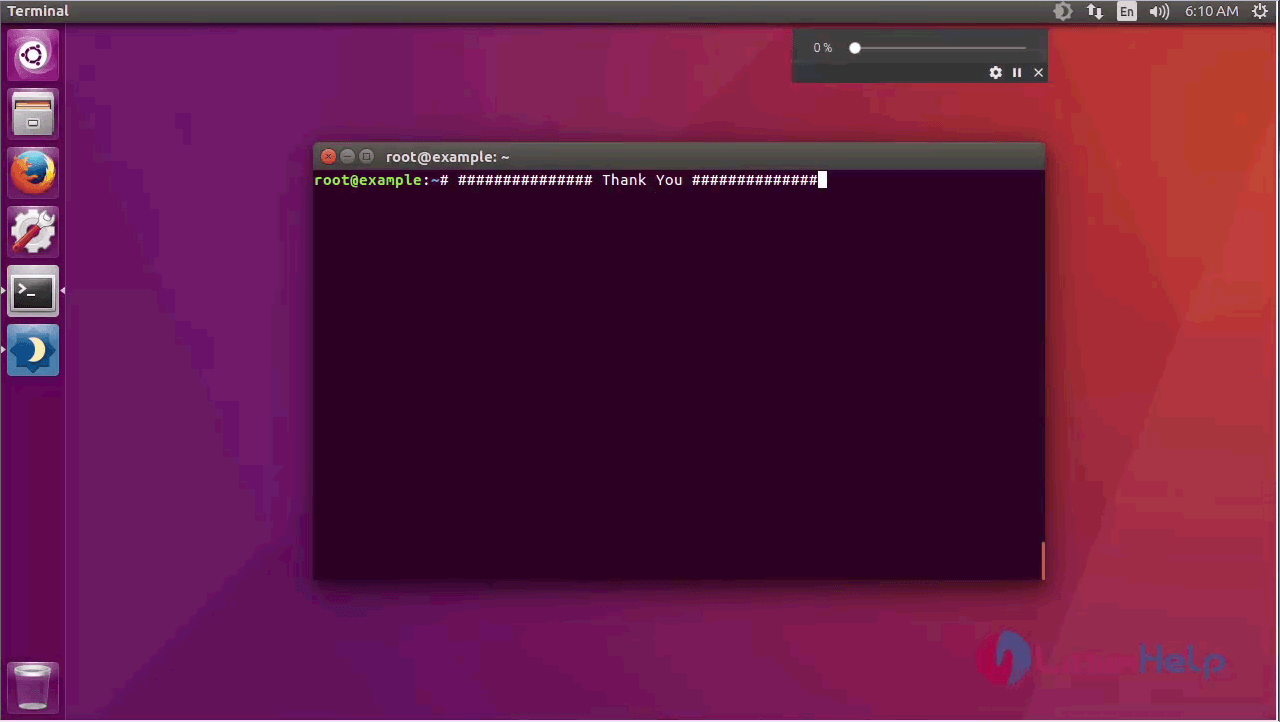
With this, the installation of Desktop Dimmer is complete. Using Desktop will be beneficial to you for dimming the desktop light as it enables you to have a darker-than-dark dimming ability for internal and external screens.
Comments ( 3 )