How to install Drupal CMS on Oracle Linux 9.3
- 00:46 cat /etc/os-release
- 01:03 php -v
- 01:30 dnf config-manager --set-enabled
- 01:37 dnf install http://rpms.remirepo.net/enterprise/remi-release-9.rpm
- 02:39 dnf update -y
- 06:05 dnf module list php
- 06:30 dnf -y install yum-utils
- 07:26 dnf module enable php:remi-8.2 -y
- 08:00 dnf install php php-cli php-common php-fpm php-gd
- 09:32 php -v
- 09:50 dnf install httpd* -y
- 10:34 systemctl enable httpd
- 10:51 systemctl start httpd
- 11:04 systemctl status httpd
- 11:23 dnf install -y mariadb-server
- 12:35 systemctl enable mariadb
- 12:45 systemctl start mariadb
- 13:05 systemctl status mariadb
- 13:39 mysql
- 13:45 CREATE DATABASE drupal;
- 13:51 CREATE USER 'drupal_user'@'localhost' IDENTIFIED BY '123456';
- 14:56 GRANT ALL PRIVILEGES ON drupal.* to drupal_user@'localhost';
- 15:43 FLUSH PRIVILEGES;
- 15:55 \q
- 16:23 vim /etc/php.ini
- 17:18 wget https://www.drupal.org/download-latest/tar.gz -O drupal.tar.gz
- 17:36 tar xvf drupal.tar.gz
- 18:10 mv drupal-*/ /var/www/html/drupal
- 18:30 chown -R apache: /var/www/html/
- 18:50 chmod -R 755 /var/www/html/
- 19:15 vim /etc/httpd/conf.d/drupal.conf
- 19:54 httpd -t
- 20:21 setenforce 0
- 20:39 systemctl restart httpd
To Install Drupal CMS On Oracle Linux 9.3
Introduction:
Drupal is a free and open-source content management system (CMS) written in PHP that provides a powerful platform for building a variety of websites, from personal blogs to enterprise applications. Drupal is well-known for its flexibility, scalability, and extensibility, making it a popular choice for developers and organizations seeking a robust web content management solution.
Installation Steps:
Step 1: Check the OS version by using the below command
[root@linuxhelp ~]# cat /etc/os-release
NAME="Oracle Linux Server"
VERSION="9.3"
ID="ol"
ID_LIKE="fedora"
VARIANT="Server"
VARIANT_ID="server"
VERSION_ID="9.3"
PLATFORM_ID="platform:el9"
PRETTY_NAME="Oracle Linux Server 9.3"
ANSI_COLOR="0;31"
CPE_NAME="cpe:/o:oracle:linux:9:3:server"
HOME_URL="https://linux.oracle.com/"
BUG_REPORT_URL="https://github.com/oracle/oracle-linux"
ORACLE_BUGZILLA_PRODUCT="Oracle Linux 9"
ORACLE_BUGZILLA_PRODUCT_VERSION=9.3
ORACLE_SUPPORT_PRODUCT="Oracle Linux"
ORACLE_SUPPORT_PRODUCT_VERSION=9.3
Step 2: Check the current PHP version because Drupal 10 currently requires either PHP 8.1 or PHP 8.2 by using the below command
[root@linuxhelp ~]# php -v
PHP 8.0.30 (cli) (built: Aug  3 2023 17:13:08) ( NTS gcc x86_64 )
Copyright (c) The PHP Group
Zend Engine v4.0.30, Copyright (c) Zend Technologies
Step 3: Current PHP version does not meet the requirements for installing the Drupal CMS So installing PHP 8.2 version by using the below commands. Enable EPEL and REMI repositories by using the below command
[root@linuxhelp ~]# dnf config-manager --set-enabled
[root@linuxhelp ~]# dnf install http://rpms.remirepo.net/enterprise/remi-release-9.rpm
Oracle Linux 9 BaseOS Latest (x86_64)                                                                                                                                         27 kB/s | 3.6 kB     00:00
Oracle Linux 9 BaseOS Latest (x86_64)                                                                                                                                         17 MB/s |  20 MB     00:01
Oracle Linux 9 Application Stream Packages (x86_64)                                                                                                                           17 kB/s | 3.9 kB     00:00
Oracle Linux 9 Application Stream Packages (x86_64)                                                                                                                           19 MB/s |  28 MB     00:01
Oracle Linux 9 UEK Release 7 (x86_64)                                                                                                                                         12 kB/s | 3.0 kB     00:00
Oracle Linux 9 UEK Release 7 (x86_64)                                                                                                                                         16 MB/s |  27 MB     00:01
Last metadata expiration check: 0:00:04 ago on Monday 19 February 2024 12:01:27 AM.
remi-release-9.rpm                                                                                                                                                            50 kB/s |  30 kB     00:00
Dependencies resolved.
=============================================================================================================================================================================================================
 Package                                                 Architecture                           Version                                              Repository                                         Size
=============================================================================================================================================================================================================
Installing:
 remi-release                                            noarch                                 9.3-3.el9.remi                                       @commandline                                       30 k
Installing dependencies:
 oracle-epel-release-el9                                 x86_64                                 1.0-1.el9                                            ol9_baseos_latest                                  14 k
 yum-utils                                               noarch                                 4.3.0-11.0.1.el9_3                                   ol9_baseos_latest                                  53 k
Transaction Summary
=============================================================================================================================================================================================================
Install  3 Packages
Total size: 97 k
Total download size: 67 k
Installed size: 71 k
Is this ok [y/N]: y
Downloading Packages:
(1/2): oracle-epel-release-el9-1.0-1.el9.x86_64.rpm                                                                                                                           44 kB/s |  14 kB     00:00
(2/2): yum-utils-4.3.0-11.0.1.el9_3.noarch.rpm                                                                                                                               118 kB/s |  53 kB     00:00
-------------------------------------------------------------------------------------------------------------------------------------------------------------------------------------------------------------
Total                                                                                                                                                                        147 kB/s |  67 kB     00:00
Running transaction check
Transaction check succeeded.
Running transaction test
Transaction test succeeded.
Running transaction
  Preparing        :                                                                                                                                                                                     1/1
  Installing       : yum-utils-4.3.0-11.0.1.el9_3.noarch                                                                                                                                                 1/3
  Installing       : oracle-epel-release-el9-1.0-1.el9.x86_64                                                                                                                                            2/3
  Installing       : remi-release-9.3-3.el9.remi.noarch                                                                                                                                                  3/3
  Running scriptlet: remi-release-9.3-3.el9.remi.noarch                                                                                                                                                  3/3
  Verifying        : oracle-epel-release-el9-1.0-1.el9.x86_64                                                                                                                                            1/3
  Verifying        : yum-utils-4.3.0-11.0.1.el9_3.noarch                                                                                                                                                 2/3
  Verifying        : remi-release-9.3-3.el9.remi.noarch                                                                                                                                                  3/3
Installed:
  oracle-epel-release-el9-1.0-1.el9.x86_64                               remi-release-9.3-3.el9.remi.noarch                               yum-utils-4.3.0-11.0.1.el9_3.noarch
Complete!
Step 4: Update the server by using the below command
[root@linuxhelp ~]# dnf update -y
Extra Packages for Enterprise Linux 9 - x86_64                                                                                                                                 98 kB/s |  20 MB     03:31
Extra Packages for Enterprise Linux 9 openh264 (From Cisco) - x86_64                                                                                                          583  B/s | 2.5 kB     00:04
Remi's Modular repository for Enterprise Linux 9 - x86_64                                                                                                                     235 kB/s | 647 kB     00:02
Safe Remi's RPM repository for Enterprise Linux 9 - x86_64                                                                                                                    329 kB/s | 975 kB     00:02
Dependencies resolved.
--------------------------------------------------------------------------------------------------------------------------------------------------------------------------------------------------------------
Total                                                                                                                                                                         5.5 MB/s | 988 MB     02:58
Running transaction check
Transaction check succeeded.
Running transaction test
Transaction test succeeded.
Running transaction
Upgraded:
  php-8.2.15-1.el9.remi.x86_64              php-cli-8.2.15-1.el9.remi.x86_64      php-common-8.2.15-1.el9.remi.x86_64      php-fpm-8.2.15-1.el9.remi.x86_64      php-mbstring-8.2.15-1.el9.remi.x86_64
  php-opcache-8.2.15-1.el9.remi.x86_64      php-pdo-8.2.15-1.el9.remi.x86_64      php-xml-8.2.15-1.el9.remi.x86_64
Installed:
  gd3php-2.3.3-9.el9.remi.x86_64        highway-1.0.7-1.el9.x86_64                  jxl-pixbuf-loader-0.7.0-1.el9.x86_64       libaom-3.8.0-1.el9.x86_64                 libavif-0.11.1-4.el9.x86_64
  libdav1d-1.2.1-1.el9.x86_64           libimagequant-2.17.0-1.el9.x86_64           libjxl-0.7.0-1.el9.x86_64                  libraqm-0.8.0-1.el9.x86_64                libsodium-1.0.18-8.el9.x86_64
  libvmaf-2.3.0-2.el9.x86_64            oniguruma5php-6.9.9-1.el9.remi.x86_64       php-gd-8.2.15-1.el9.remi.x86_64            php-sodium-8.2.15-1.el9.remi.x86_64       rav1e-libs-0.6.6-3.el9.x86_64
  svt-av1-libs-0.9.0-1.el9.x86_64

Complete!
Step 5: Once done, list the available PHP streams. You can see the remi-8.2 php module by using the below command
[root@linuxhelp ~]# dnf module list php
Last metadata expiration check: 0:08:00 ago on Monday 19 February 2024 12:02:40 AM.
Oracle Linux 9 Application Stream Packages (x86_64)
Name                                     Stream                                       Profiles                                                      Summary
php                                      8.1                                          common [d], devel, minimal                                    PHP scripting language

Remi's Modular repository for Enterprise Linux 9 - x86_64
Name                                     Stream                                       Profiles                                                      Summary
php                                      remi-7.4                                     common [d], devel, minimal                                    PHP scripting language
php                                      remi-8.0                                     common [d], devel, minimal                                    PHP scripting language
php                                      remi-8.1                                     common [d], devel, minimal                                    PHP scripting language
php                                      remi-8.2                                     common [d], devel, minimal                                    PHP scripting language
php                                      remi-8.3                                     common [d], devel, minimal                                    PHP scripting language

Hint: [d]efault, [e]nabled, [x]disabled, [i]nstalled
Step 6: Enable the module before installing PHP 8.2 by using the below command
[root@linuxhelp ~]# dnf -y install yum-utils
Last metadata expiration check: 0:08:30 ago on Monday 19 February 2024 12:02:40 AM.
Package yum-utils-4.3.0-11.0.1.el9_3.noarch is already installed.
Dependencies resolved.
Nothing to do.
Complete!
[root@linuxhelp ~]# dnf module enable php:remi-8.2 -y
Last metadata expiration check: 0:10:45 ago on Monday 19 February 2024 12:02:40 AM.
Dependencies resolved.
=============================================================================================================================================================================================================
 Package                                          Architecture                                    Version                                             Repository                                        Size
=============================================================================================================================================================================================================
Enabling module streams:
 php                                                                                              remi-8.2
Transaction Summary
=============================================================================================================================================================================================================
Complete!
Step 7: Install PHP and modules by using the below command
[root@linuxhelp ~]# dnf install php php-cli php-common php-fpm php-gd
Last metadata expiration check: 0:11:19 ago on Monday 19 February 2024 12:02:40 AM.
Package php-cli-8.0.30-1.el9_2.x86_64 is already installed.
Package php-common-8.0.30-1.el9_2.x86_64 is already installed.
Dependencies resolved.

Installed:
  apr-1.7.0-12.el9_3.x86_64             apr-util-1.6.1-23.el9.x86_64         apr-util-bdb-1.6.1-23.el9.x86_64                  apr-util-openssl-1.6.1-23.el9.x86_64    gd3php-2.3.3-9.el9.remi.x86_64
  highway-1.0.7-1.el9.x86_64            httpd-core-2.4.57-5.0.1.el9.x86_64   httpd-filesystem-2.4.57-5.0.1.el9.noarch          httpd-tools-2.4.57-5.0.1.el9.x86_64     libaom-3.8.0-1.el9.x86_64
  libavif-0.11.1-4.el9.x86_64           libdav1d-1.2.1-1.el9.x86_64          libimagequant-2.17.0-1.el9.x86_64                 libjxl-0.7.0-1.el9.x86_64               libraqm-0.8.0-1.el9.x86_64
  libsodium-1.0.18-8.el9.x86_64         libvmaf-2.3.0-2.el9.x86_64           nginx-filesystem-1:1.20.1-14.0.1.el9_2.1.noarch   oniguruma5php-6.9.9-1.el9.remi.x86_64   php-8.2.16-1.el9.remi.x86_64
  php-fpm-8.2.16-1.el9.remi.x86_64      php-gd-8.2.16-1.el9.remi.x86_64      php-mbstring-8.2.16-1.el9.remi.x86_64             php-opcache-8.2.16-1.el9.remi.x86_64    php-pdo-8.2.16-1.el9.remi.x86_64
  php-sodium-8.2.16-1.el9.remi.x86_64   php-xml-8.2.16-1.el9.remi.x86_64     rav1e-libs-0.6.6-1.el9.x86_64                     svt-av1-libs-0.9.0-1.el9.x86_64
Complete!
Step 8: Check the PHP version. You can see the PHP 8.2 version by using the below command
[root@linuxhelp ~]# php -v
PHP 8.2.16 (cli) (built: Feb 13 2024 15:22:59) (NTS gcc x86_64)
Copyright (c) The PHP Group
Zend Engine v4.2.16, Copyright (c) Zend Technologies
    with Zend OPcache v8.2.16, Copyright (c), by Zend Technologies
Step 9: Install the Apache web server by using the below command
[root@linuxhelp ~]# dnf install httpd* -y
Last metadata expiration check: 0:15:59 ago on Monday 19 February 2024 12:02:40 AM.
Package httpd-core-2.4.57-5.0.1.el9.x86_64 is already installed.
Package httpd-filesystem-2.4.57-5.0.1.el9.noarch is already installed.
Package httpd-tools-2.4.57-5.0.1.el9.x86_64 is already installed.
Dependencies resolved.

Installed:
  apr-devel-1.7.0-12.el9_3.x86_64      apr-util-devel-1.6.1-23.el9.x86_64       cyrus-sasl-2.1.27-21.el9.x86_64               cyrus-sasl-devel-2.1.27-21.el9.x86_64      expat-devel-2.5.0-1.el9.x86_64
  httpd-2.4.57-5.0.1.el9.x86_64        httpd-devel-2.4.57-5.0.1.el9.x86_64      httpd-manual-2.4.57-5.0.1.el9.noarch          libdb-devel-5.3.28-53.0.1.el9.x86_64       mod_http2-1.15.19-5.el9.x86_64
  mod_lua-2.4.57-5.0.1.el9.x86_64      openldap-devel-2.6.3-1.el9.x86_64        oracle-logos-httpd-90.2-1.0.4.el9.noarch
Complete!
Step 10: Enable and Start the Apache service by using the below command .
[root@linuxhelp ~]# systemctl enable httpd
Created symlink /etc/systemd/system/multi-user.target.wants/httpd.service → /usr/lib/systemd/system/httpd.service.
[root@linuxhelp ~]# systemctl start httpd
Step 11: Check the status of the apache service by using the below command.
[root@linuxhelp ~]# systemctl status httpd
● httpd.service - The Apache HTTP Server
     Loaded: loaded (/usr/lib/systemd/system/httpd.service; enabled; preset: disabled)
    Drop-In: /etc/systemd/system/httpd.service.d
             └─php-fpm.conf
     Active: active (running) since Mon 2024-02-19 00:21:20 IST; 37s ago
       Docs: man:httpd.service(8)
   Main PID: 142312 (httpd)
     Status: "Total requests: 0; Idle/Busy workers 100/0;Requests/sec: 0; Bytes served/sec:   0 B/sec"
      Tasks: 213 (limit: 21644)
     Memory: 25.3M
        CPU: 307ms
     CGroup: /system.slice/httpd.service
             ├─142312 /usr/sbin/httpd -DFOREGROUND
             ├─142319 /usr/sbin/httpd -DFOREGROUND
             ├─142320 /usr/sbin/httpd -DFOREGROUND
             ├─142321 /usr/sbin/httpd -DFOREGROUND
             └─142322 /usr/sbin/httpd -DFOREGROUND
Feb 19 00:21:19 linuxhelp systemd[1]: Starting The Apache HTTP Server...
Feb 19 00:21:19 linuxhelp httpd[142312]: AH00558: httpd: Could not reliably determine the server's fully qualified domain name, using fe80::20c:29ff:fe5e:e325%ens160. Set the 'ServerName' directive global>
Feb 19 00:21:20 linuxhelp httpd[142312]: Server configured, listening on: port 80
Feb 19 00:21:20 linuxhelp systemd[1]: Started The Apache HTTP Server.
Step 12: Install MariaDB server by using the below command
[root@linuxhelp ~]# dnf install -y mariadb-server
Last metadata expiration check: 0:20:03 ago on Monday 19 February 2024 12:02:40 AM.
Dependencies resolved.

Installed:
  mariadb-3:10.5.22-1.el9_2.x86_64                       mariadb-backup-3:10.5.22-1.el9_2.x86_64        mariadb-common-3:10.5.22-1.el9_2.x86_64               mariadb-connector-c-3.2.6-1.el9_0.x86_64
  mariadb-connector-c-config-3.2.6-1.el9_0.noarch        mariadb-errmsg-3:10.5.22-1.el9_2.x86_64        mariadb-gssapi-server-3:10.5.22-1.el9_2.x86_64        mariadb-server-3:10.5.22-1.el9_2.x86_64
  mariadb-server-utils-3:10.5.22-1.el9_2.x86_64          mysql-selinux-1.0.5-1.el9_0.noarch             perl-DBD-MariaDB-1.21-16.el9_0.x86_64                 perl-File-Copy-2.34-480.el9.noarch
  perl-Sys-Hostname-1.23-480.el9.x86_64
Complete!
Step 13: Enable and Start the MariaDB service by using the below command .
[root@linuxhelp ~]# systemctl enable mariadb
Created symlink /etc/systemd/system/mysql.service → /usr/lib/systemd/system/mariadb.service.
Created symlink /etc/systemd/system/mysqld.service → /usr/lib/systemd/system/mariadb.service.
Created symlink /etc/systemd/system/multi-user.target.wants/mariadb.service → /usr/lib/systemd/system/mariadb.service.
[root@linuxhelp ~]# systemctl start mariadb
Step 14: Check the status of the MariaDB service by using the below command.
[root@linuxhelp ~]# systemctl status mariadb
● mariadb.service - MariaDB 10.5 database server
     Loaded: loaded (/usr/lib/systemd/system/mariadb.service; enabled; preset: disabled)
     Active: active (running) since Mon 2024-02-19 00:25:10 IST; 35s ago
       Docs: man:mariadbd(8)
             https://mariadb.com/kb/en/library/systemd/
    Process: 144180 ExecStartPre=/usr/libexec/mariadb-check-socket (code=exited, status=0/SUCCESS)
    Process: 144202 ExecStartPre=/usr/libexec/mariadb-prepare-db-dir mariadb.service (code=exited, status=0/SUCCESS)
    Process: 144307 ExecStartPost=/usr/libexec/mariadb-check-upgrade (code=exited, status=0/SUCCESS)
   Main PID: 144289 (mariadbd)
     Status: "Taking your SQL requests now..."
      Tasks: 17 (limit: 21644)
     Memory: 73.6M
        CPU: 787ms
     CGroup: /system.slice/mariadb.service
             └─144289 /usr/libexec/mariadbd --basedir=/usr

Feb 19 00:25:09 linuxhelp mariadb-prepare-db-dir[144242]: The second is mysql@localhost, it has no password either, but
Feb 19 00:25:09 linuxhelp mariadb-prepare-db-dir[144242]: you need to be the system 'mysql' user to connect.
Feb 19 00:25:09 linuxhelp mariadb-prepare-db-dir[144242]: After connecting you can set the password, if you would need to be
Feb 19 00:25:09 linuxhelp mariadb-prepare-db-dir[144242]: able to connect as any of these users with a password and without sudo
Feb 19 00:25:09 linuxhelp mariadb-prepare-db-dir[144242]: See the MariaDB Knowledgebase at https://mariadb.com/kb
Feb 19 00:25:09 linuxhelp mariadb-prepare-db-dir[144242]: Please report any problems at https://mariadb.org/jira
Feb 19 00:25:09 linuxhelp mariadb-prepare-db-dir[144242]: The latest information about MariaDB is available at https://mariadb.org/.
Feb 19 00:25:09 linuxhelp mariadb-prepare-db-dir[144242]: Consider joining MariaDB's strong and vibrant community:
Feb 19 00:25:09 linuxhelp mariadb-prepare-db-dir[144242]: https://mariadb.org/get-involved/
Feb 19 00:25:10 linuxhelp systemd[1]: Started MariaDB 10.5 database server.
Step 15: Create a database and user for the Drupal CMS by using the below command
[root@linuxhelp ~]# mysql
Welcome to the MariaDB monitor.  Commands end with ; or \g.
Your MariaDB connection id is 3
Server version: 10.5.22-MariaDB MariaDB Server
Copyright (c) 2000, 2018, Oracle, MariaDB Corporation Ab and others.
Type 'help;' or '\h' for help. Type '\c' to clear the current input statement.
MariaDB [(none)]>
MariaDB [(none)]> CREATE DATABASE drupal;
Query OK, 1 row affected (0.001 sec)
MariaDB [(none)]> CREATE USER 'drupal_user'@'localhost' IDENTIFIED BY '123456';
Query OK, 0 rows affected (0.001 sec)
MariaDB [(none)]> GRANT ALL PRIVILEGES ON drupal.* to drupal_user@'localhost';
Query OK, 0 rows affected (0.001 sec)
MariaDB [(none)]> FLUSH PRIVILEGES;
Query OK, 0 rows affected (0.001 sec)
MariaDB [(none)]> \q
Bye
Step 16: Increase memory size in the php.ini file by using the below command
[root@Linuxhelp ~]# vim /etc/php.ini
memory_limit = 256M
Step 17: Download the Drupal CMS package by using the below command
[root@linuxhelp ~]# wget https://www.drupal.org/download-latest/tar.gz -O drupal.tar.gz
--2024-02-19 00:28:10--  https://www.drupal.org/download-latest/tar.gz
Resolving www.drupal.org (www.drupal.org)... 199.232.254.217
Connecting to www.drupal.org (www.drupal.org)|199.232.254.217|:443... connected.
HTTP request sent, awaiting response... 302 Moved Temporarily
Location: https://ftp.drupal.org/files/projects/drupal-10.2.3.tar.gz [following]
--2024-02-19 00:28:11--  https://ftp.drupal.org/files/projects/drupal-10.2.3.tar.gz
Resolving ftp.drupal.org (ftp.drupal.org)... 151.101.2.217, 151.101.66.217, 151.101.130.217, ...
Connecting to ftp.drupal.org (ftp.drupal.org)|151.101.2.217|:443... connected.
HTTP request sent, awaiting response... 200 OK
Length: 18960477 (18M) [application/octet-stream]
Saving to: ‘drupal.tar.gz’
drupal.tar.gz                                       100%[================================================================================================================>]  18.08M  34.5MB/s    in 0.5s
2024-02-19 00:28:12 (34.5 MB/s) - ‘drupal.tar.gz’ saved [18960477/18960477]
Step 18: Extract the downloaded package by using the tar command
[root@linuxhelp ~]# tar xvf drupal.tar.gz
drupal-10.2.3/
drupal-10.2.3/vendor/
drupal-10.2.3/vendor/composer/
drupal-10.2.3/vendor/composer/semver/
drupal-10.2.3/vendor/composer/semver/CHANGELOG.md
drupal-10.2.3/vendor/composer/semver/LICENSE
drupal-10.2.3/vendor/composer/semver/README.md
drupal-10.2.3/vendor/composer/semver/composer.json
drupal-10.2.3/vendor/composer/semver/phpstan-baseline.neon
drupal-10.2.3/vendor/composer/semver/src/
drupal-10.2.3/vendor/composer/semver/src/Comparator.php
drupal-10.2.3/vendor/composer/semver/src/CompilingMatcher.php
drupal-10.2.3/vendor/composer/semver/src/Constraint/
drupal-10.2.3/vendor/composer/semver/src/Constraint/Bound.php
drupal-10.2.3/vendor/composer/semver/src/Constraint/Constraint.php
drupal-10.2.3/vendor/composer/semver/src/Constraint/ConstraintInterface.php
drupal-10.2.3/vendor/composer/semver/src/Constraint/MatchAllConstraint.php
drupal-10.2.3/vendor/composer/semver/src/Constraint/MatchNoneConstraint.php
drupal-10.2.3/vendor/composer/semver/src/Constraint/MultiConstraint.php
drupal-10.2.3/vendor/composer/semver/src/Interval.php
drupal-10.2.3/vendor/composer/semver/src/Intervals.php
drupal-10.2.3/vendor/composer/semver/src/Semver.php
drupal-10.2.3/vendor/composer/semver/src/VersionParser.php
drupal-10.2.3/vendor/composer/autoload_psr4.php
drupal-10.2.3/vendor/composer/autoload_classmap.php
drupal-10.2.3/vendor/composer/include_paths.php
drupal-10.2.3/vendor/composer/autoload_files.php
drupal-10.2.3/vendor/composer/autoload_static.php
drupal-10.2.3/vendor/composer/autoload_real.php
drupal-10.2.3/vendor/composer/ClassLoader.php
drupal-10.2.3/vendor/composer/LICENSE
Step 19: Move the Extracted folder to the Apache document root directory by using the below command
[root@linuxhelp ~]# mv drupal-*/ /var/www/html/drupal
Step 20: Change the ownership and permission of the folder by using the below command
[root@linuxhelp ~]# chown -R apache: /var/www/html/
[root@linuxhelp ~]# chmod -R 755 /var/www/html/
Step 21: Create a virtual host file to access the Drupal CMS by using the below command
[root@linuxhelp ~]# vim /etc/httpd/conf.d/drupal.conf
Insert the following lines
<VirtualHost *:80>
     ServerName linuxhelp1.com
     ServerAdmin admin@linuxhelp.com
     DocumentRoot /var/www/html/drupal/

ErrorLog /etc/httpd/logs/error.log
CustomLog /etc/httpd/logs/access.log combined

     <Directory /var/www/html/drupal>
            Options Indexes FollowSymLinks
            AllowOverride All
            Require all granted
            RewriteEngine on
            RewriteBase /
            RewriteCond %{REQUEST_FILENAME} !-f
            RewriteCond %{REQUEST_FILENAME} !-d
            RewriteRule ^(.*)$ index.php?q=$1 [L,QSA]
    </Directory>
</VirtualHost>
Step 22: Check the syntax of the apache configuration file by using the below command
[root@linuxhelp ~]# httpd -t
AH00558: httpd: Could not reliably determine the server's fully qualified domain name, using fe80::20c:29ff:fe5e:e325%ens160. Set the 'ServerName' directive globally to suppress this message
Syntax OK
Step 23: Enable site configuration by disabling the SELinux by using the below command
[root@linuxhelp ~]# setenforce 0
Step 24: Restart the Apache service by using the below command
[root@linuxhelp ~]# systemctl restart httpd
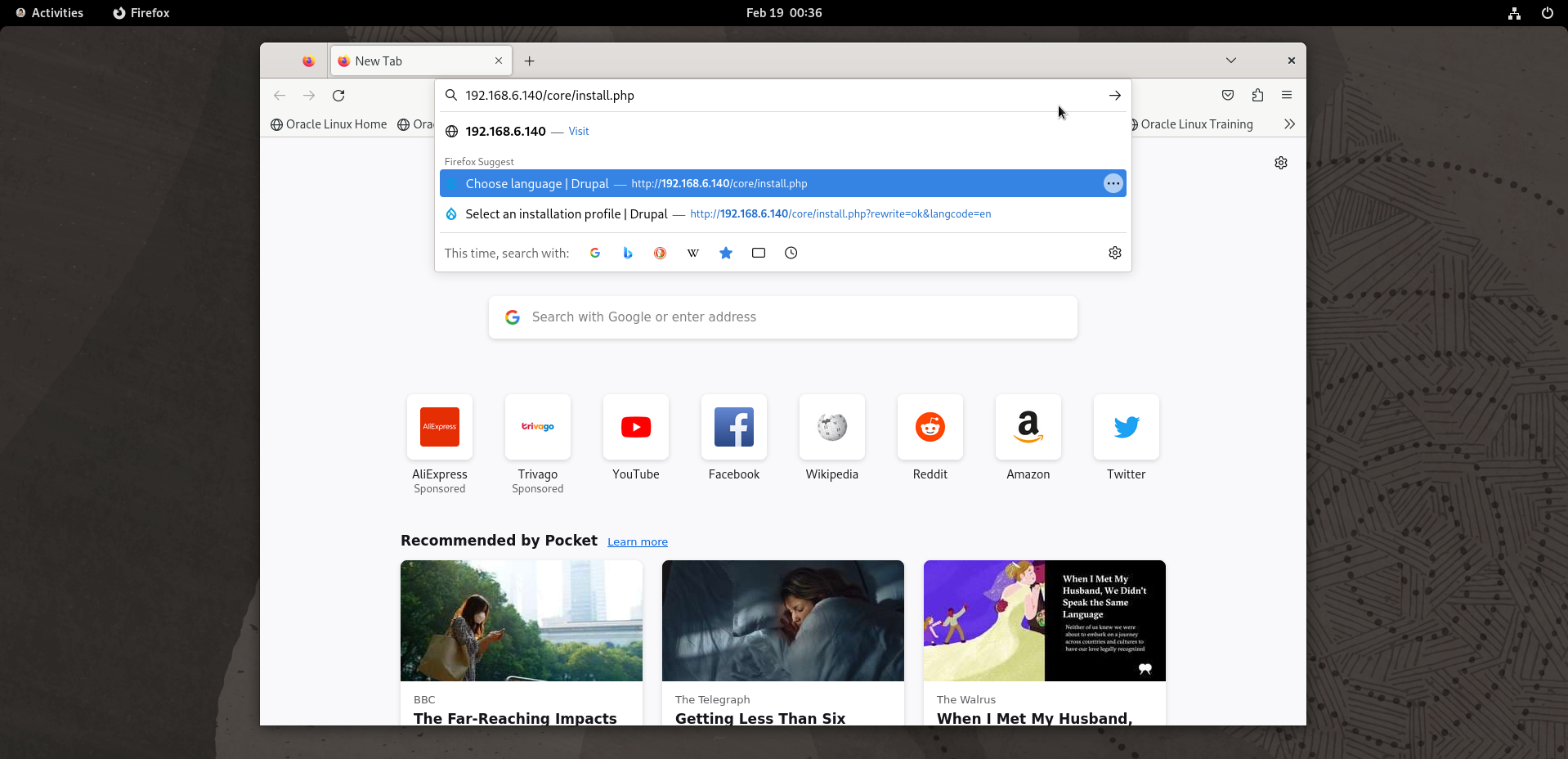
Go to the browser and search with your IP or domain as shown in the below image
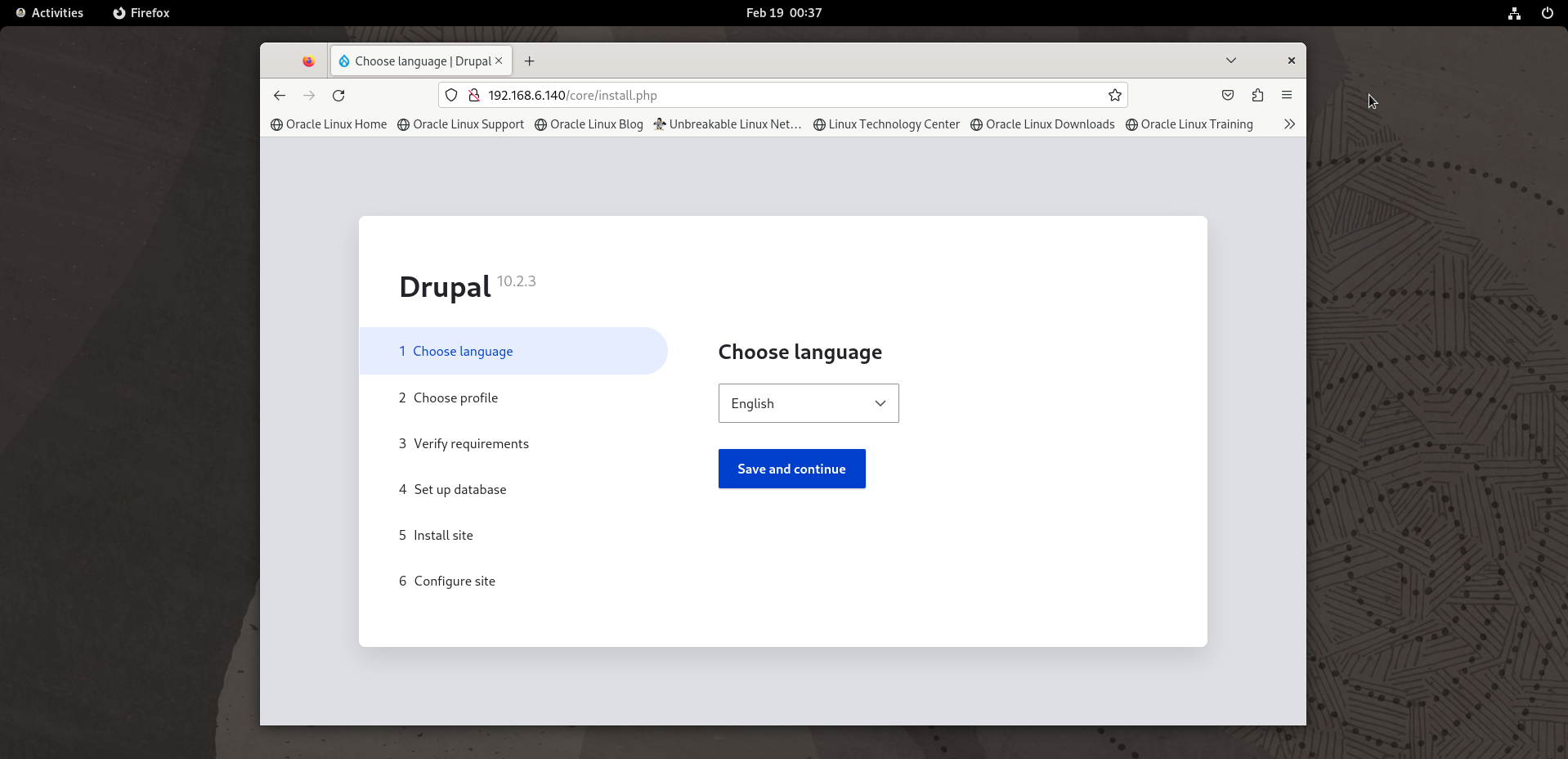
Choose the language as shown in the below image
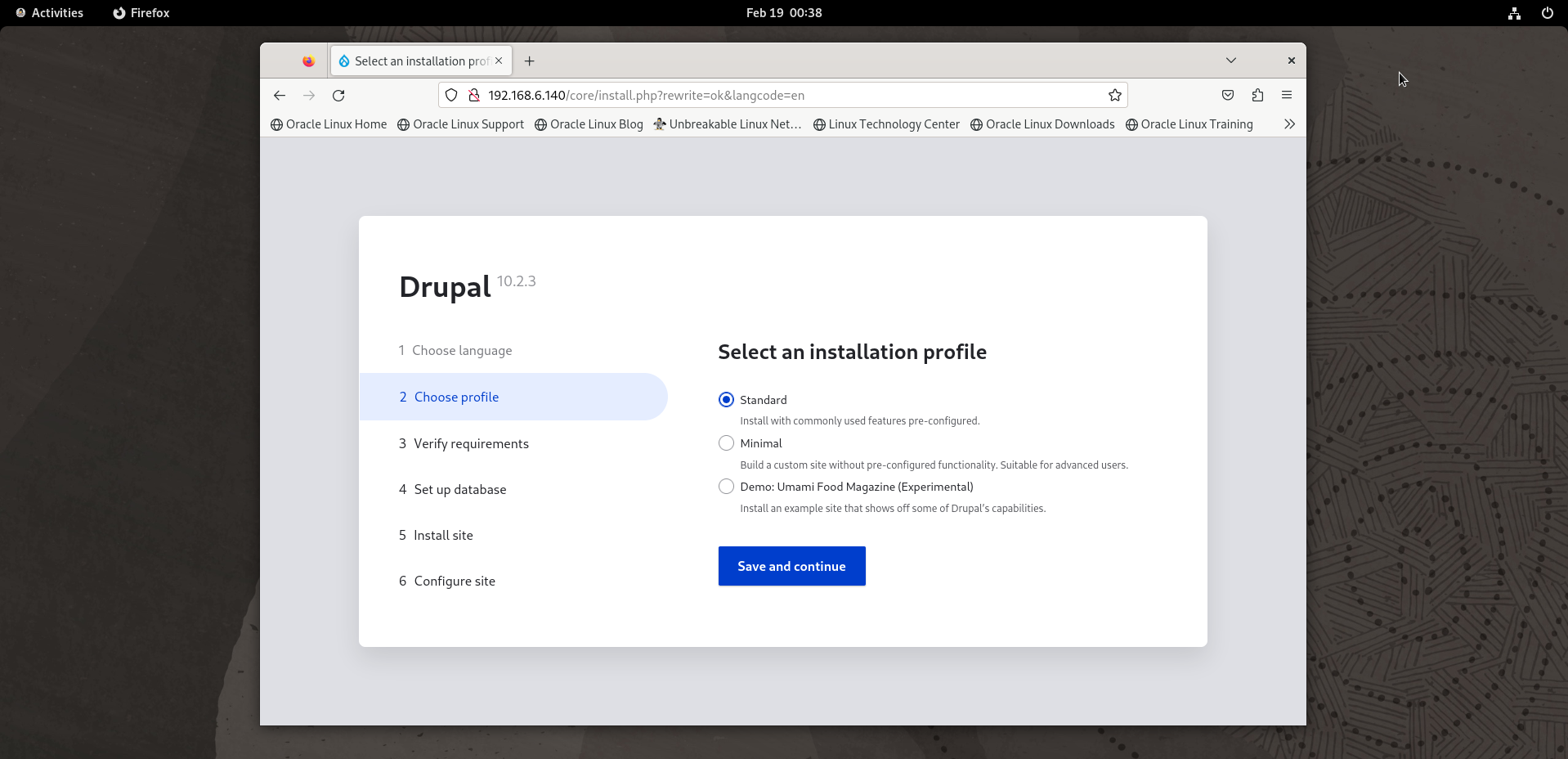
Select an installation profile as shown in the below image
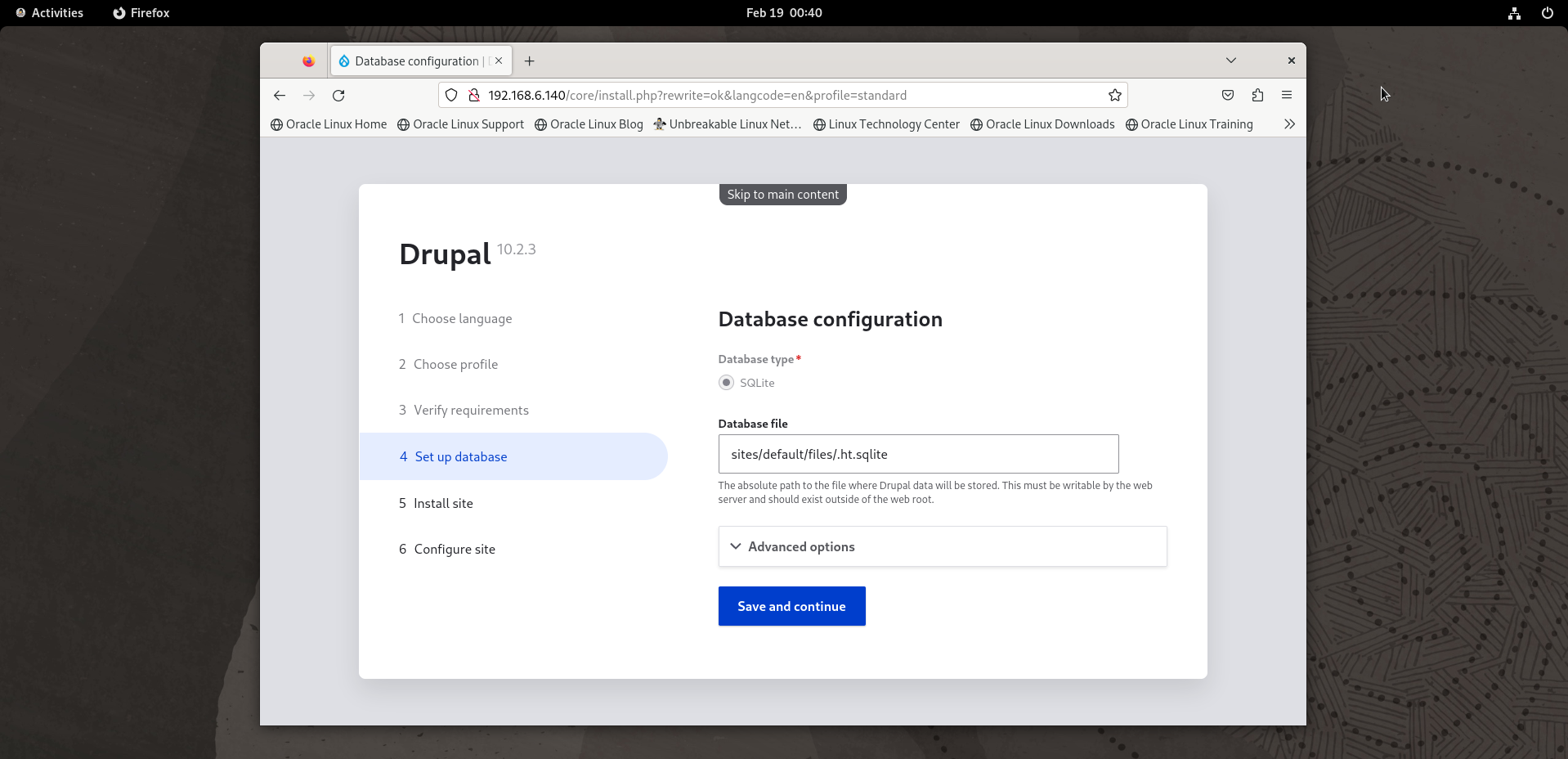
Set the database configuration and click the “Save and continue” option to start installation as shown in the below image
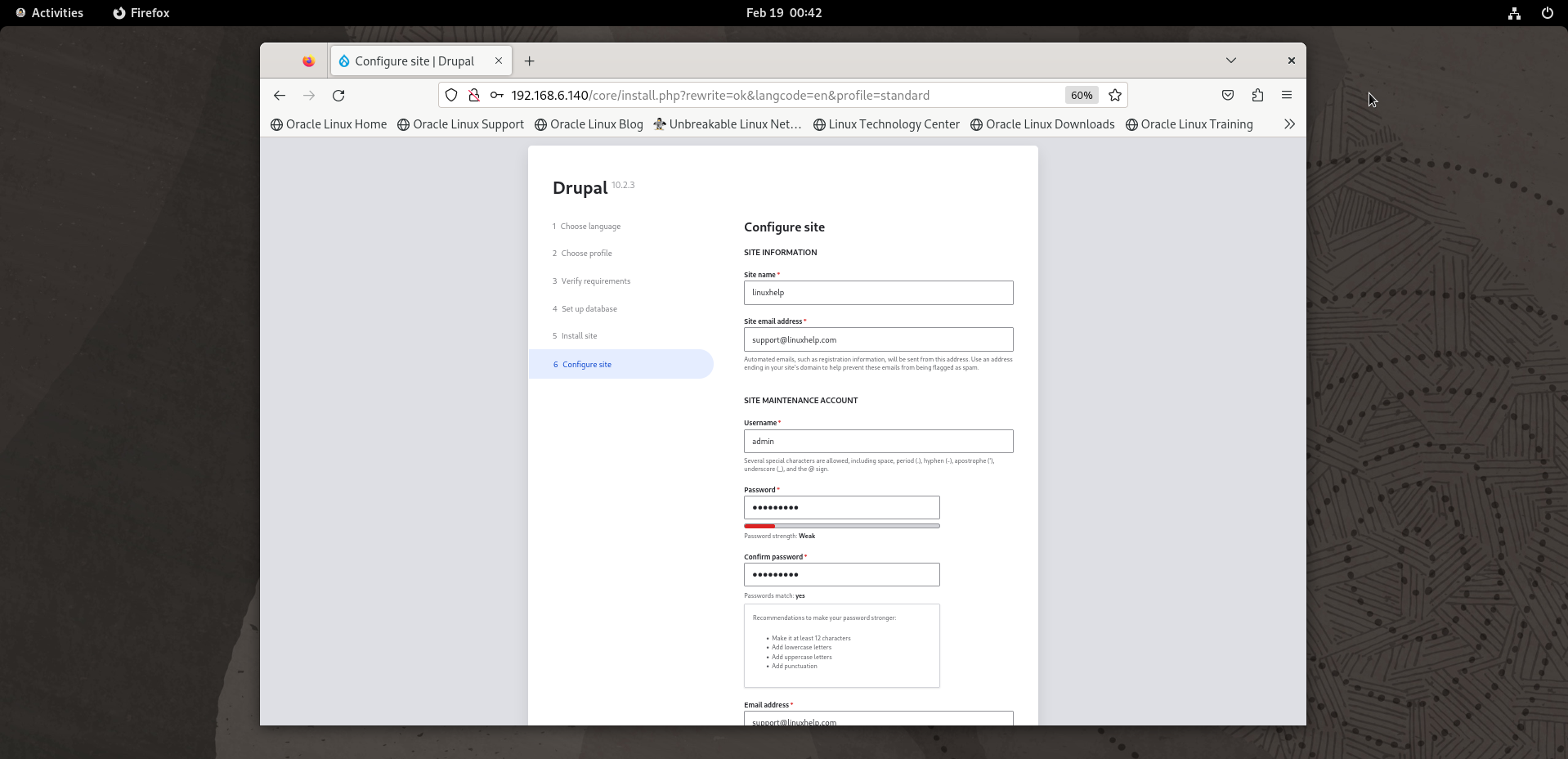
Enter the Site Details as shown in the below image and click the “Save and continue” option
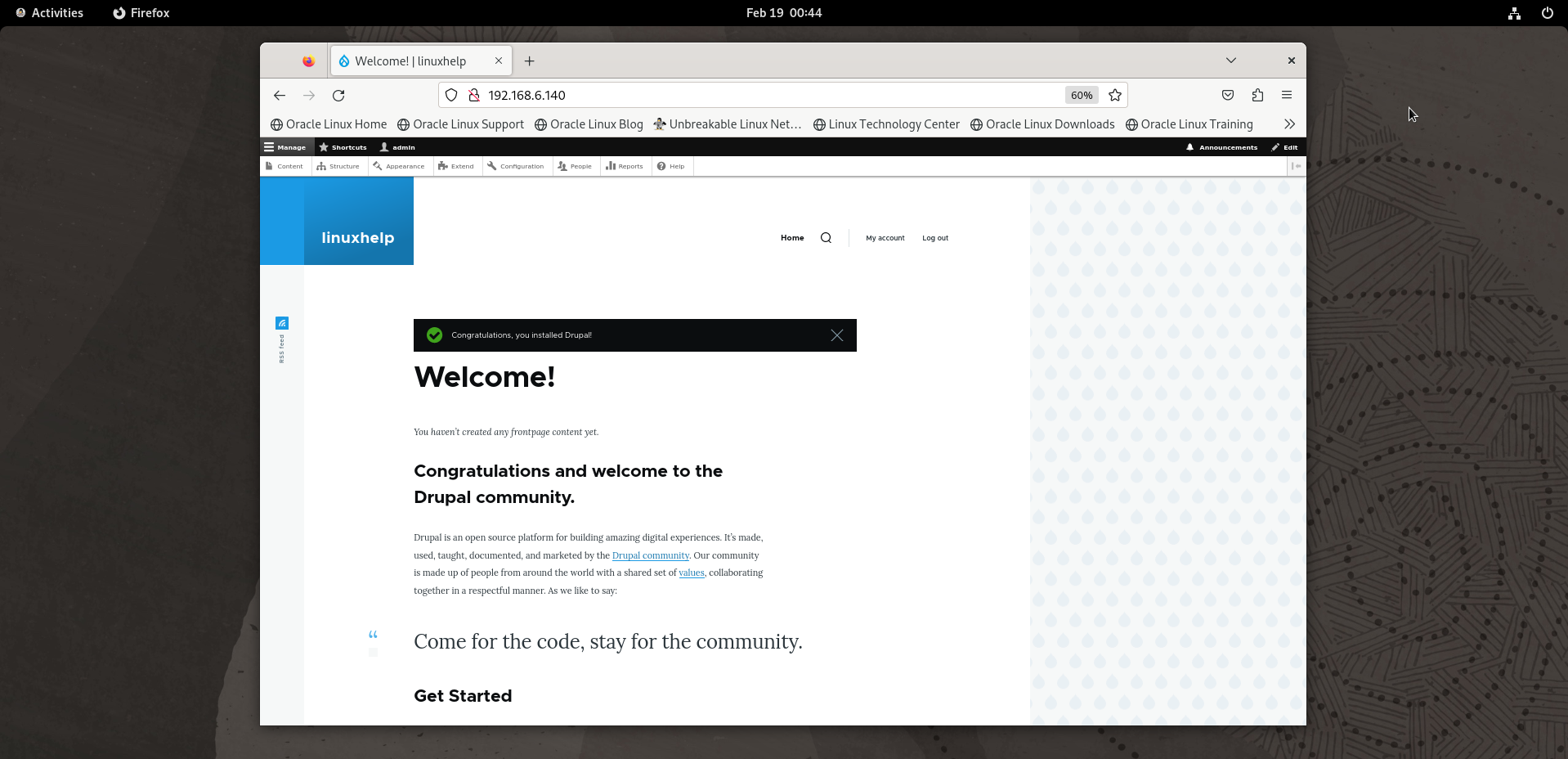
Finally you will see the Welcome page of Drupal CMS
Conclusion:
We have reached the end of this article. In this guide, we have walked you through the steps required to install Drupal CMS on Oracle Linux 9.3. Your feedback is much welcome.
Comments ( 0 )
No comments available