• Categories
    Category
    {{ postCtrl.tags }}
    • {{ category.tag_type }}

      • {{tag.tag_name}}
      • View more
  • Categories
    Category
    {{ postCtrl.tags }}
    • {{ category.tag_type }}

      • {{tag.tag_name}}
      • View more
  • News
  • Tutorials
  • Forums
  • Tags
  • Users
Tutorial News Comments FAQ Related Articles

How to install Easyimagesizer in Ubuntu

{{postValue.id}}

To install Easyimagesizer in Ubuntu

EasyImageSizer is an open source application used to resize the pictures easily. It has a plain and simple interface that allows the users to compress, resize and rename batch images. Users can edit the images that are imported from the file browser or through treeview and " drag and drop" method. Installation of Easyimagesizer in Ubuntu is explained in this article.

Installation of Easyimagesizer

Add the repo files to install Easyimagesizer by using the below command.

root@linuxhelp:/home/user1# add-apt-repository ppa:dhor/myway
 Every photographer needs some tools...
 More info: https://launchpad.net/~dhor/+archive/ubuntu/myway
Press [ENTER] to continue or ctrl-c to cancel adding it
.
.
.
gpg: Total number processed: 1
gpg:               imported: 1  (RSA: 1)
OK


Update the newly added repo files.

root@linuxhelp:/home/user1# apt-get update
Hit:1 http://security.ubuntu.com/ubuntu xenial-security InRelease
Get:2 http://ppa.launchpad.net/dhor/myway/ubuntu xenial InRelease [17.5 kB]
.
.
.
Fetched 40.7 kB in 1s (29.2 kB/s)         
Reading package lists... Done


Run the following command to install the Easyimagesizer package.

root@linuxhelp:/home/user1# apt-get install easyimagesizer
Reading package lists... Done
Building dependency tree       
Reading state information... Done
.
.
Setting up easyimagesizer (3.0.7-1dhor~xenial) ...
Processing triggers for libc-bin (2.23-0ubuntu3) ...


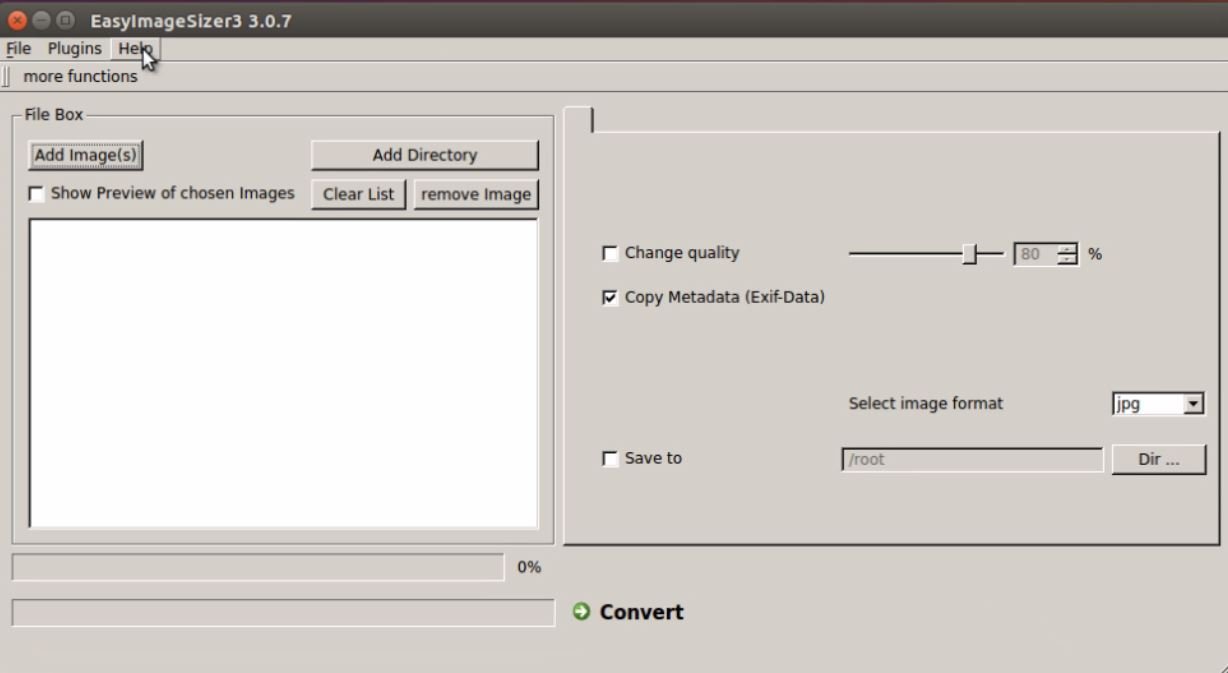
Enter Easyimagesizer in the terminal to open the software.

root@linuxhelp:/home/user1#easyimagesizer3-gui


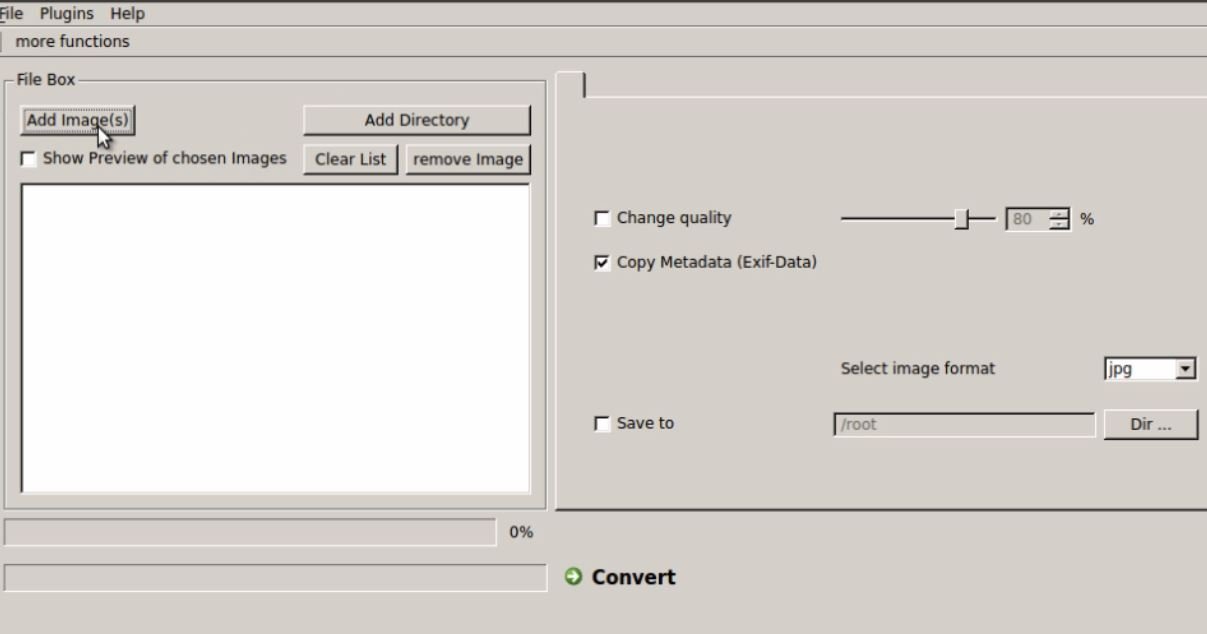
Easyimageresizer

Click on Add image option to add the image into the Easyimagesizer.

Add_image_on_Easyimagesizer

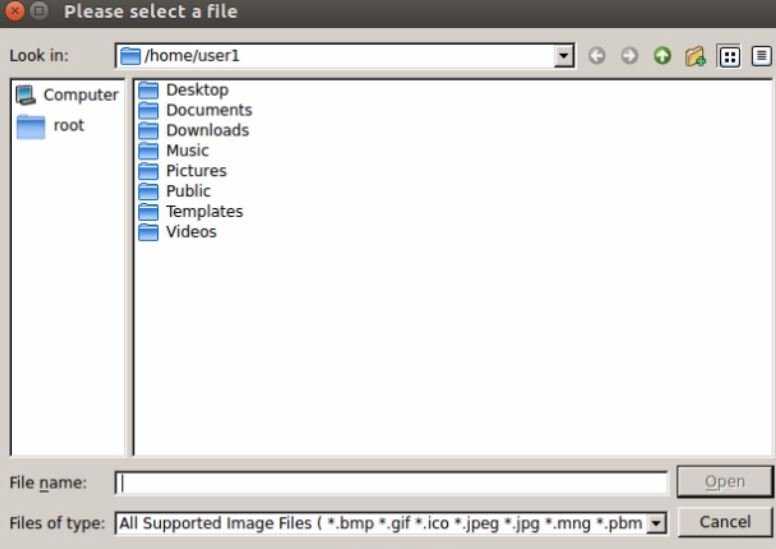
Choose the image location.

Easyimagesizer_image_location

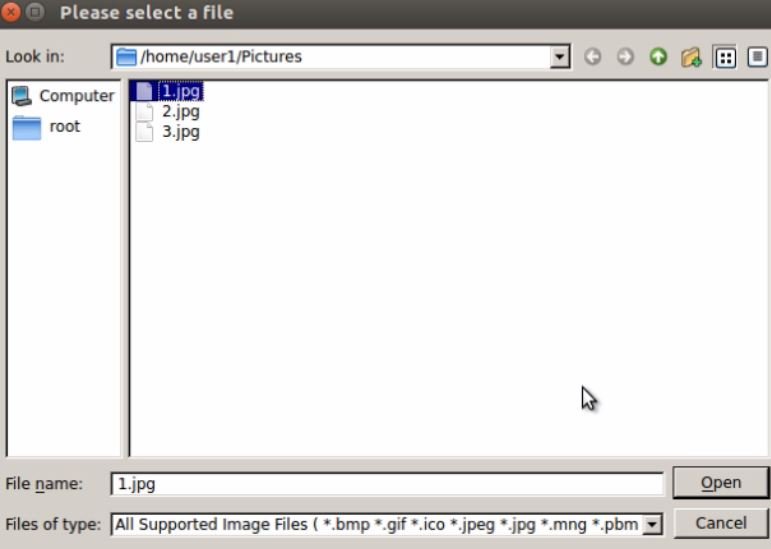
Select the image for editing.

Easyimagesizer_edit

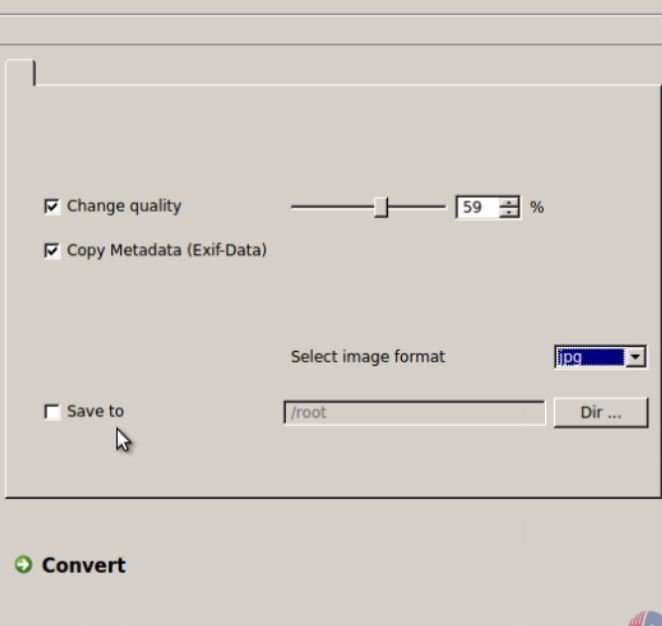
Then select the location to save the edited image. Click on covert option to convert it into own editing style.

Easyimagesizer_save

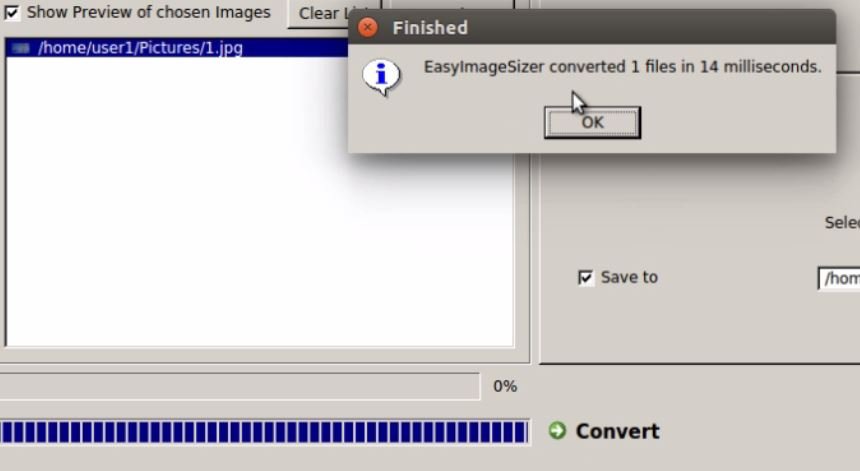
Finally click on OK option to complete the process.

Easyimagesizer_FINISHED_EDITING

To open the edited image from the saved location, use the below command.

root@linuxhelp:/home/user1/Picture/img# display 1.png

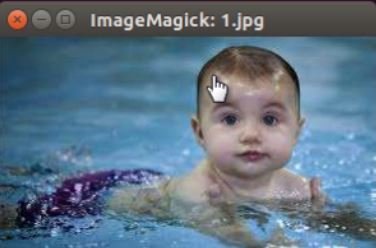
The image gets opened as follows.
EDITED_IMAGE

Tags:
caden
Author: 

Comments ( 0 )

No comments available

Add a comment
{{postCtrl.cmtErrMsg}}

Frequently asked questions ( 5 )

Q

What are the features of Easyimadesizer?

A

Add individual images or directories. Convert/save images into .bmp, .jpg, .png or .tiff formats. Add overlay images or texts.

Q

How to remove Easyimagesizer application?

A

# apt-get remove easyimagesizer

Q

how to find the Easyimagesizer version?

A

You can find the Easyimagesizer version information in the About Easyimagesizer On Linux, go to Help > About. then check your Easyimagesizer application version.

Q

What is the Easyimagesizer?

A

EasyImageSizer is an open source application used to resize the pictures easily. It has a plain and simple interface that allows the users to compress, resize and rename batch images.

Q

How to open the software?

A

Enter Easyimagesizer in the terminal to open the software.
root@linuxhelp:/home/user1#easyimagesizer3-gui
Back To Top!
Rank
User
Points

Top Contributers

userNamenaveelansari
135850

Top Contributers

userNameayanbhatti
92510

Top Contributers

userNamehamzaahmed
32150

Top Contributers

1
userNamelinuxhelp
31040

Top Contributers

userNamemuhammadali
24500
Can you help Luk Van De Looverbosch ?
How to create a root ?

Hello,
How to create root@linuxhelp in Linux Mint 20.1 64-bit ?
Thanks in advance for your reply.
Best regards.

Networking
  • Routing
  • trunk
  • Netmask
  • Packet Capture
  • domain
  • HTTP Proxy
Server Setup
  • NFS
  • KVM
  • Memory
  • Sendmail
  • WebDAV
  • LXC
Shell Commands
  • Cloud commander
  • Command line archive tools
  • last command
  • Shell
  • terminal
  • Throttle
Desktop Application
  • Linux app
  • Pithos
  • Retrospect
  • Scribe
  • TortoiseHg
  • 4Images
Monitoring Tool
  • Monit
  • Apache Server Monitoring
  • EtherApe 
  • Arpwatch Tool
  • Auditd
  • Barman
Web Application
  • Nutch
  • Amazon VPC
  • FarmWarDeployer
  • Rukovoditel
  • Mirror site
  • Chef
Contact Us | Terms of Use| Privacy Policy| Disclaimer
© 2025 LinuxHelp.com All rights reserved. Linux™ is the registered trademark of Linus Torvalds. This site is not affiliated with linus torvalds in any way.