How To Install Enpass on Pop OS
To Install Enpass on Pop OS
Enpass is a multi-platform offline password manager which can take care of all your important credentials & online accounts in a secure way. One of the most useful utility is its ability to make your login information available to you no matter where you are or what type of device you' re using.
Enpass encrypts the data by AES 256 bit Encryption method using open-source encryption engine SQLCipher to ensure maximum security. Also, all the data is secured offline on your device and not on the servers. Apart from this Enpass also has several other features and some of them are listed here.
Features
- It has sync support for Dropbox, Google Drive, OneDrive, Box or folders.
- It also supports other information, like credit card info or secure notes.
- It contains a password generator with a strength indicator.
- The app has an autolock mechanism, for locking itself automatically when the app or the system are idle.
- It can import passwords stored in txt, csv and xml, by other password managers.
Installing Enpass
First, make sure you add a repository in sourcelist file by making use of the following command.
root@linuxhelp:~#  echo " deb http://repo.sinew.in/ stable main"  | sudo tee /etc/apt/sources.list.d/enpass.list
In that file, make sure you add the following line.
deb http://repo.sinew.in/ stable main
Once it is added a key to that repository should be added.
root@linuxhelp:~# curl -s http://repo.sinew.in/keys/enpass-linux.key | sudo apt-key add -
OK
And then, update the repository by making use of the following command.
root@linuxhelp:~#  apt-get update
Hit:1 http://ppa.launchpad.net/system76/pop/ubuntu artful InRelease
Hit:2 http://security.ubuntu.com/ubuntu artful-security InRelease
Hit:3 http://us.archive.ubuntu.com/ubuntu artful InRelease
Get:4 http://repo.sinew.in stable InRelease [3,215 B]
Hit:5 http://us.archive.ubuntu.com/ubuntu artful-updates InRelease
Hit:6 http://us.archive.ubuntu.com/ubuntu artful-backports InRelease
Get:7 http://repo.sinew.in stable/main i386 Packages [2,813 B]
Get:8 http://repo.sinew.in stable/main amd64 Packages [2,957 B]
Fetched 8,985 B in 1s (5,481 B/s)
Reading package lists... Done
After that, you shall proceed with the installation of Enpass by triggering the following command.
root@linuxhelp:~# apt-get install enpass -y
Reading package lists... Done
Building dependency tree
Reading state information... Done
The following NEW packages will be installed:
  enpass
0 upgraded, 1 newly installed, 0 to remove and 176 not upgraded.
Need to get 36.1 MB of archives.
After this operation, 87.2 MB of additional disk space will be used.
Get:1 http://repo.sinew.in stable/main amd64 enpass amd64 5.6.5 [36.1 MB]
Fetched 36.1 MB in 4min 56s (122 kB/s)
Selecting previously unselected package enpass.
(Reading database ... 192922 files and directories currently installed.)
Preparing to unpack .../enpass_5.6.5_amd64.deb ...
Unpacking enpass (5.6.5) ...
Processing triggers for mime-support (3.60ubuntu1) ...
Processing triggers for desktop-file-utils (0.23-1ubuntu3) ...
Processing triggers for gnome-menus (3.13.3-6ubuntu5) ...
Processing triggers for hicolor-icon-theme (0.17-1) ...
Setting up enpass (5.6.5) ...
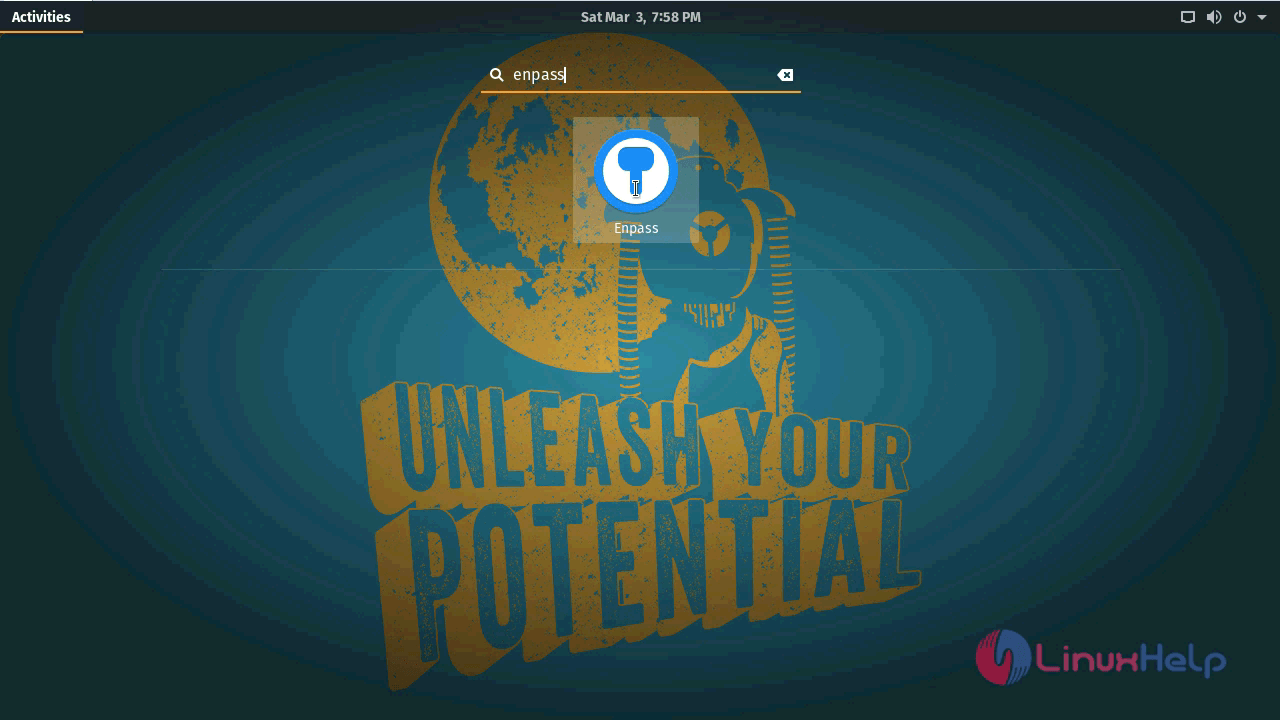
After the installation, go to activities search field and type Enpass, the application icon appears. Click on it to open the application .
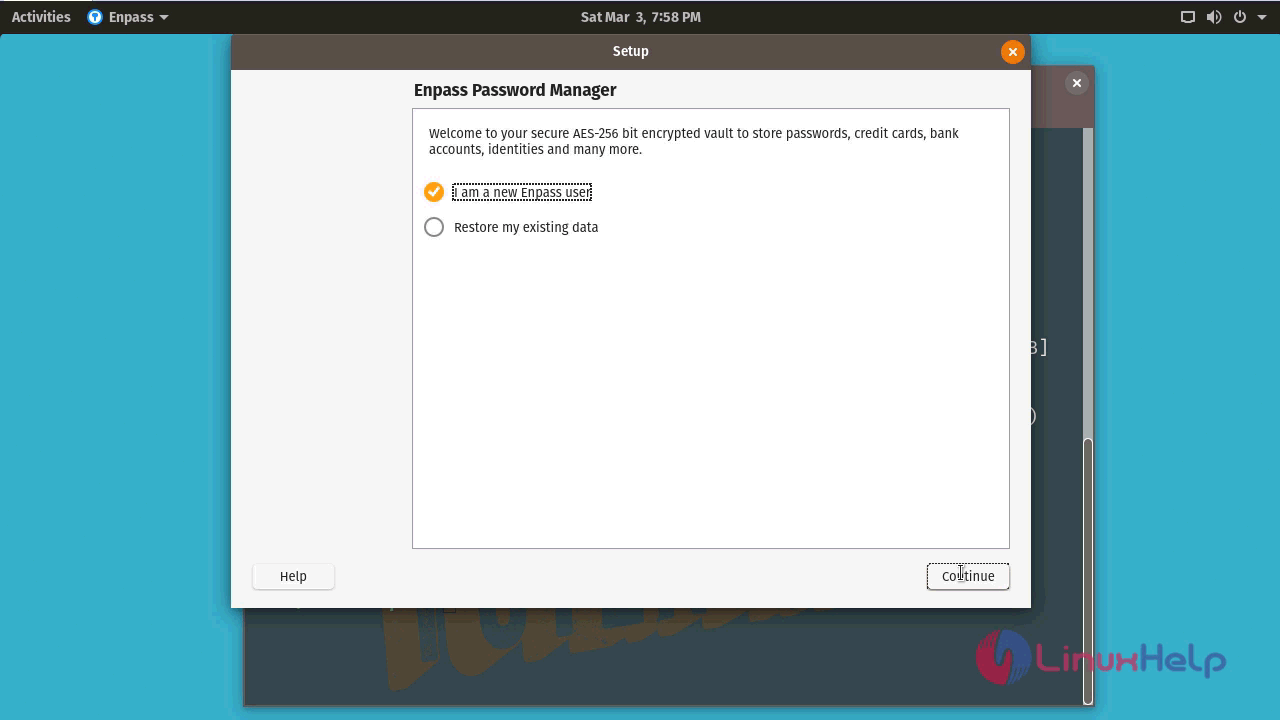
The application is now open. Once it appears, choose a user, if existing user choose existing or else choose new user.
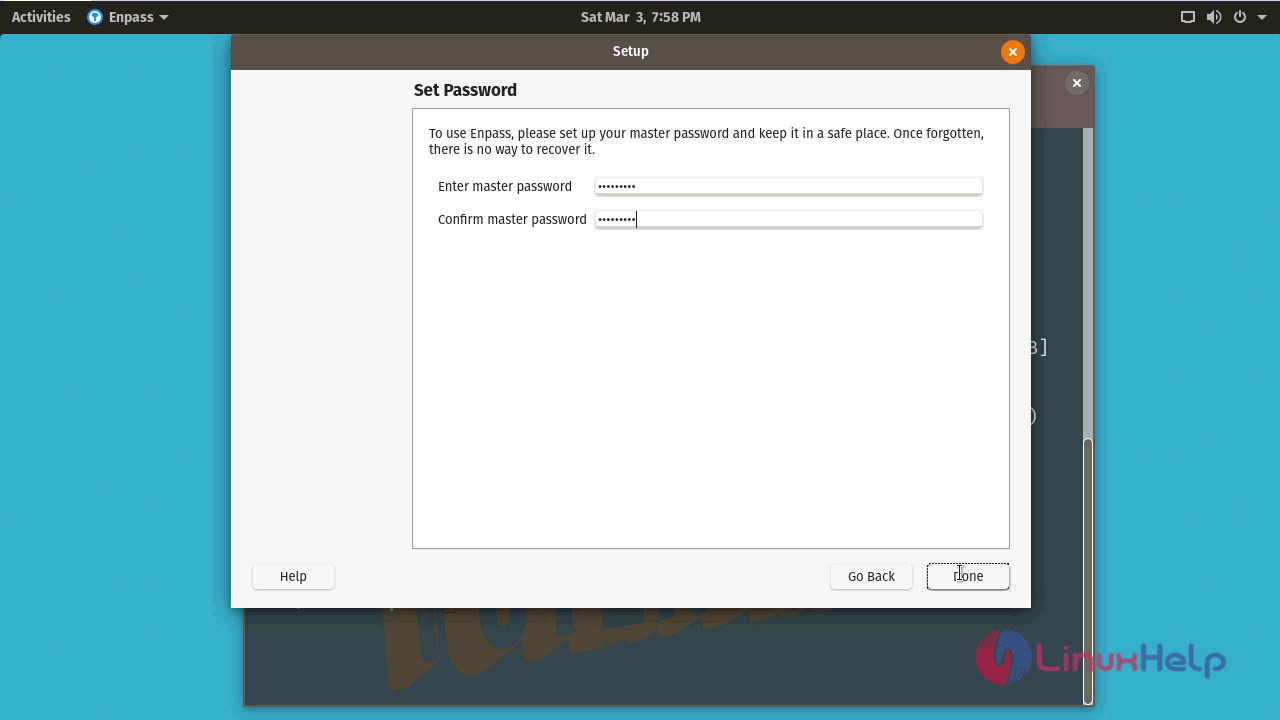
Give password and click done
You will be taken to the Enpass application.
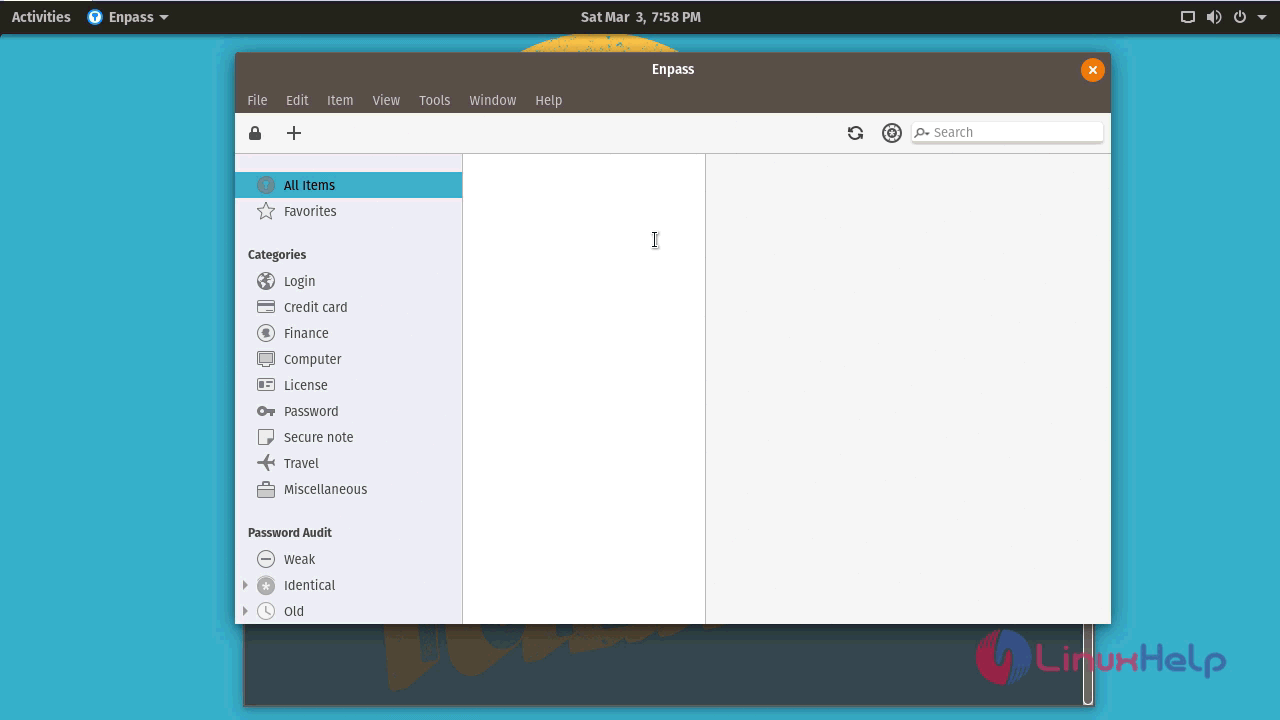
With this the installation of Enpass comes to an end.
Comments ( 0 )
No comments available