How to install FlatPress CMS using Nginx and PHP on OpenSUSE 42.1
To install FlatPress CMS using Nginx and PHP on OpenSUSE 42.1
FlatPress is an open source, multi-lingual extensible blogging engine which does not require a DBMS to work on. It stores all of its content on text files. It also contains features like support of various plugins, widget support, customizable themes. This tutorial explains the installation procedure of FlatPress CMS using Nginx and PHP on OpenSUSE 42.1.
Pre-Requisite
- Nginx
- PHP > 5.3.1 (php php-mysql apache2-mod_php5 php-ctype php-dom php-iconv php-json php-sqlite phpz-tokenizer php-xmlreader php-xmlwriter)
Installation procedure
To proceed with the installation procedure, enable the PHP service by running the following command.
linuxhelp1:~ # a2enmod php
Check the Nginx status by executing the following command.
linuxhelp1:~ # systemctl status nginx
nginx.service - The nginx HTTP and reverse proxy server
   Loaded: loaded (/usr/lib/systemd/system/nginx.service  enabled)
   Active: active (running) since Tue 2017-09-26 15:15:41 IST  1min 46s ago
 Main PID: 7456 (nginx)
   CGroup: /system.slice/nginx.service
           ??7456 nginx: master process /usr/sbin/nginx -g daemon off
           ??7463 nginx: worker process

Sep 26 15:15:41 www.linuxhelp2.com nginx[7455]: nginx: the configuration file /etc/nginx/nginx.conf syntax is ok
Sep 26 15:15:41 www.linuxhelp2.com nginx[7455]: nginx: configuration file /etc/nginx/nginx.conf test is successful
Sep 26 15:15:41 www.linuxhelp2.com systemd[1]: Started The nginx HTTP and reverse proxy server
Now download the FlatPress from its official website and get the latest stable version link. Download it using wget command followed by the download link.
linuxhelp1:/srv/www/htdocs # wget -c https://github.com/evacchi/flatpress/archive/v1.0.3.tar.gz
--2017-09-26 15:07:39--  https://github.com/evacchi/flatpress/archive/v1.0.3.tar.gz
Resolving github.com (github.com)... 192.30.255.112, 192.30.255.113
Connecting to github.com (github.com)|192.30.255.112|:443... connected.
HTTP request sent, awaiting response... 302 Found
Location: https://codeload.github.com/evacchi/flatpress/tar.gz/v1.0.3 [following]
--2017-09-26 15:07:40--  https://codeload.github.com/evacchi/flatpress/tar.gz/v1.0.3
Resolving codeload.github.com (codeload.github.com)... 192.30.255.121, 192.30.255.120
Connecting to codeload.github.com (codeload.github.com)|192.30.255.121|:443... connected.
HTTP request sent, awaiting response... 200 OK
Length: unspecified [application/x-gzip]
Saving to: ‘ v1.0.3.tar.gz’
    [                  < =>                                                                              ] 726,464      127KB/s   in 5.6s

2017-09-26 15:07:47 (127 KB/s) - ‘ v1.0.3.tar.gz’  saved [726464]
Next extract it in by executing the tar command.
linuxhelp1:/srv/www/htdocs # tar -xvf v1.0.3.tar.gz
flatpress-1.0.3/
flatpress-1.0.3/CHANGELOG
flatpress-1.0.3/COPYING
flatpress-1.0.3/LICENSE
flatpress-1.0.3/README
flatpress-1.0.3/README.md
flatpress-1.0.3/TESTING
flatpress-1.0.3/admin.php
flatpress-1.0.3/admin/
.
.
.
.
.
flatpress-1.0.3/setup/tpls/footer.tpl.php
flatpress-1.0.3/setup/tpls/header.tpl.php
flatpress-1.0.3/setup/tpls/locked.tpl.php
flatpress-1.0.3/setup/tpls/step1.tpl.php
flatpress-1.0.3/setup/tpls/step2.tpl.php
flatpress-1.0.3/setup/tpls/step3.tpl.php
flatpress-1.0.3/static.php
Rename the FlatPress directory as the user desires.
linuxhelp1:/srv/www/htdocs # mv flatpress-1.0.3/ /srv/www/htdocs/flatpress
linuxhelp1:/srv/www/htdocs # cd /srv/www/htdocs/
linuxhelp1:/srv/www/htdocs # ll
total 736
drwxrwxr-x 10 root root   4096 Jun 12  2015 flatpress
drwxrwxrwx  2 root root   4096 Oct 30  2015 gif
-rwxrwxrwx  1 root root     30 Sep 26 14:41 index.html
-rwxrwxrwx  1 root root   2356 Sep 30  2015 info2html.css
-rwxrwxrwx  1 root root     20 Sep 26 15:02 testphp.php
-rw-r--r--  1 root root     20 Sep 26 14:45 testphp.phpq!
-rw-r--r--  1 root root 726464 Sep 26 15:07 v1.0.3.tar.gz
Next provide the owner permission and file execution permission by running the set of commands.
linuxhelp1:/srv/www/htdocs/flatpress # chown -R wwwrun:www /srv/www/htdocs/flatpress/
linuxhelp1:/srv/www/htdocs/flatpress # chmod -R 777 /srv/www/htdocs/flatpress/
Go to the php-fpm configuration file and list the files in the directory.
linuxhelp1:/srv/www/htdocs # cd /etc/php5/fpm/
linuxhelp1:/etc/php5/fpm # ll
total 24
-rw-r--r-- 1 root root 22172 Mar 21  2017 php-fpm.conf.default
linuxhelp1:/etc/php5/fpm # cp php-fpm.conf.default php-fpm.conf
Open your Php-fpm configuration file and edit the changes in the file. Save and exit the file.
linuxhelp1:/etc/php5/fpm # vim php-fpm.conf
user = nginx
group = nginx
listen = /var/run/php-fpm.sock
listen.owner = nginx
listen.group = nginx
Restart the php-fpm service.
linuxhelp1:/srv/www/htdocs/flatpress # systemctl restart php-fpm.service
Once it is done, you need to open your Nginx configuration file by running the following command.
linuxhelp1:/srv/www/htdocs/flatpress # vim /etc/nginx/nginx.conf
In here, make the following modifications.
server {
.
.
 server_name 192.168.7.216
.
.
.

location ~ \.php {
    fastcgi_index index.php
    fastcgi_split_path_info ^(.+\.php)(.*)$
    include /etc/nginx/fastcgi_params
    fastcgi_pass unix:/run/php-fpm/php-fpm.sock
    fastcgi_param SCRIPT_FILENAME $document_root$fastcgi_script_name
  }
}
Restart your nginx service.
linuxhelp1:/srv/www/htdocs/flatpress # systemctl restart nginx
Set the Firewall Settings by opening the SuSEfirewall112 usuing vim editor and enter the following changes in the file. Save and exit the file.
linuxhelp1:~ #  vim /etc/sysconfig/SuSEfirewall2
FW_CONFIGURATIONS_EXT=" nginx"
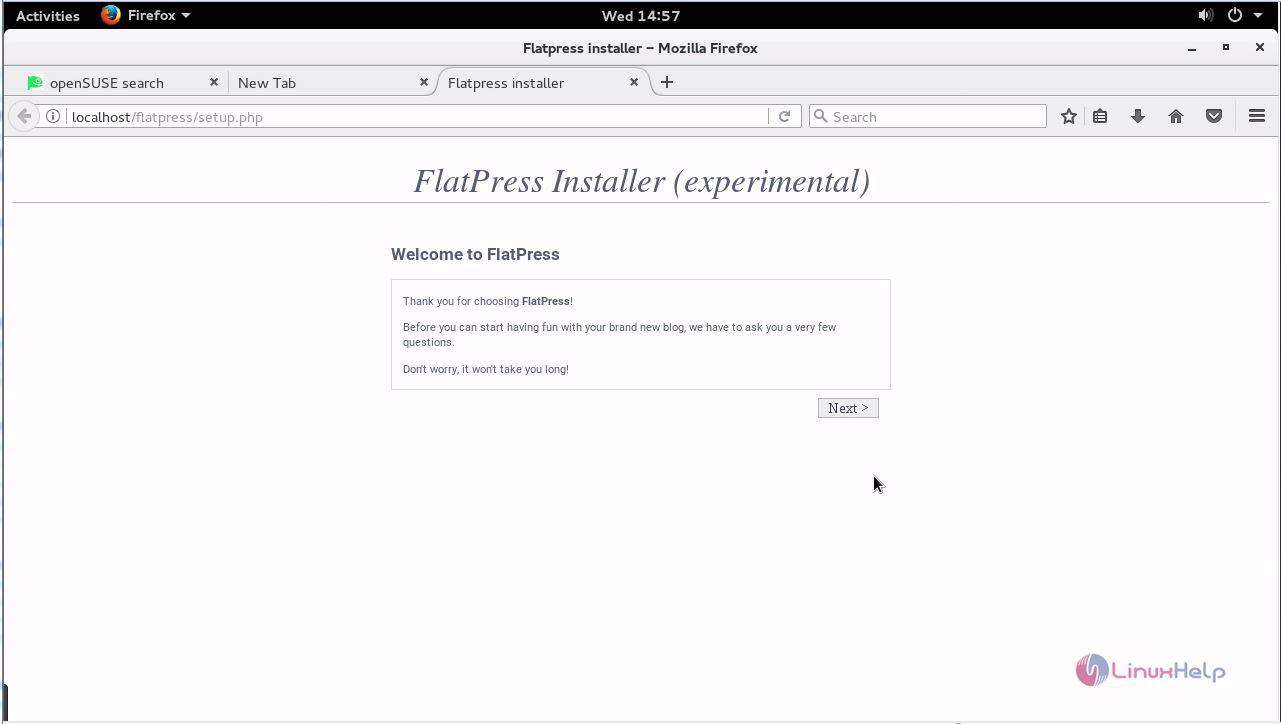
Switch to the browser and enter http://192.168.7.218/flatpress URL. The home page of FlatPress installer is shown on the screen.
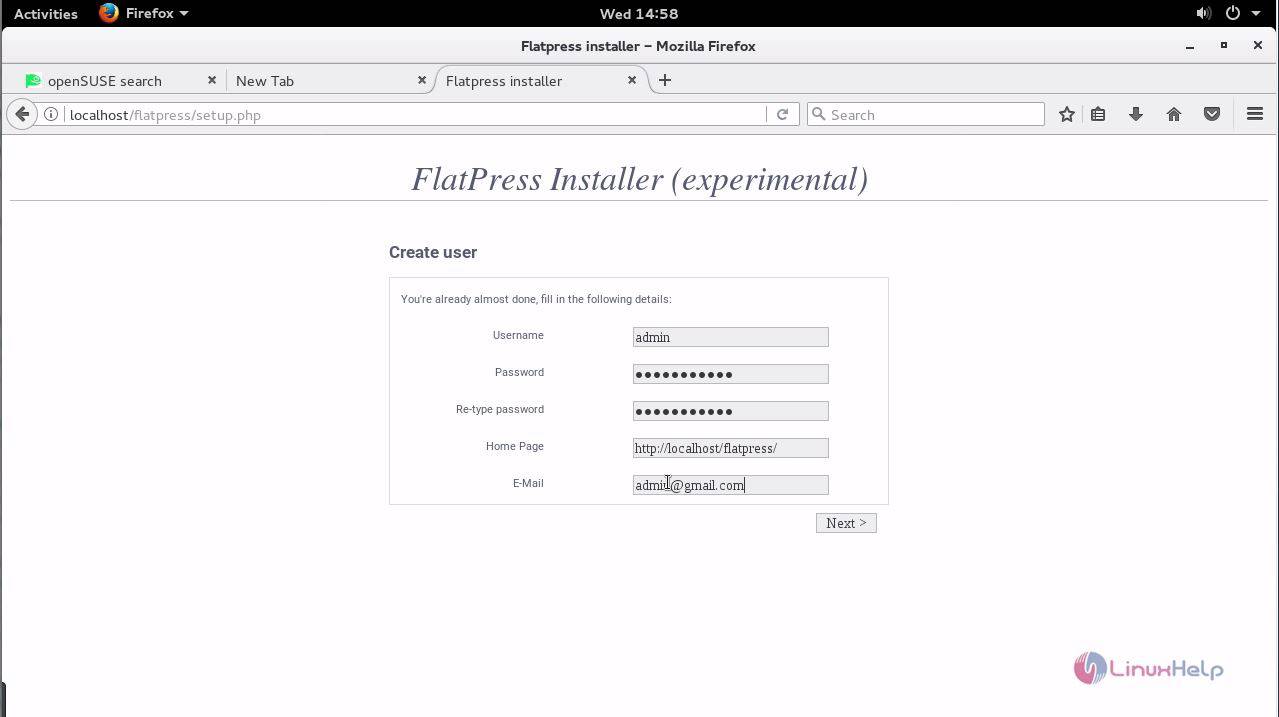
Enter the required details to create a new user and click next.
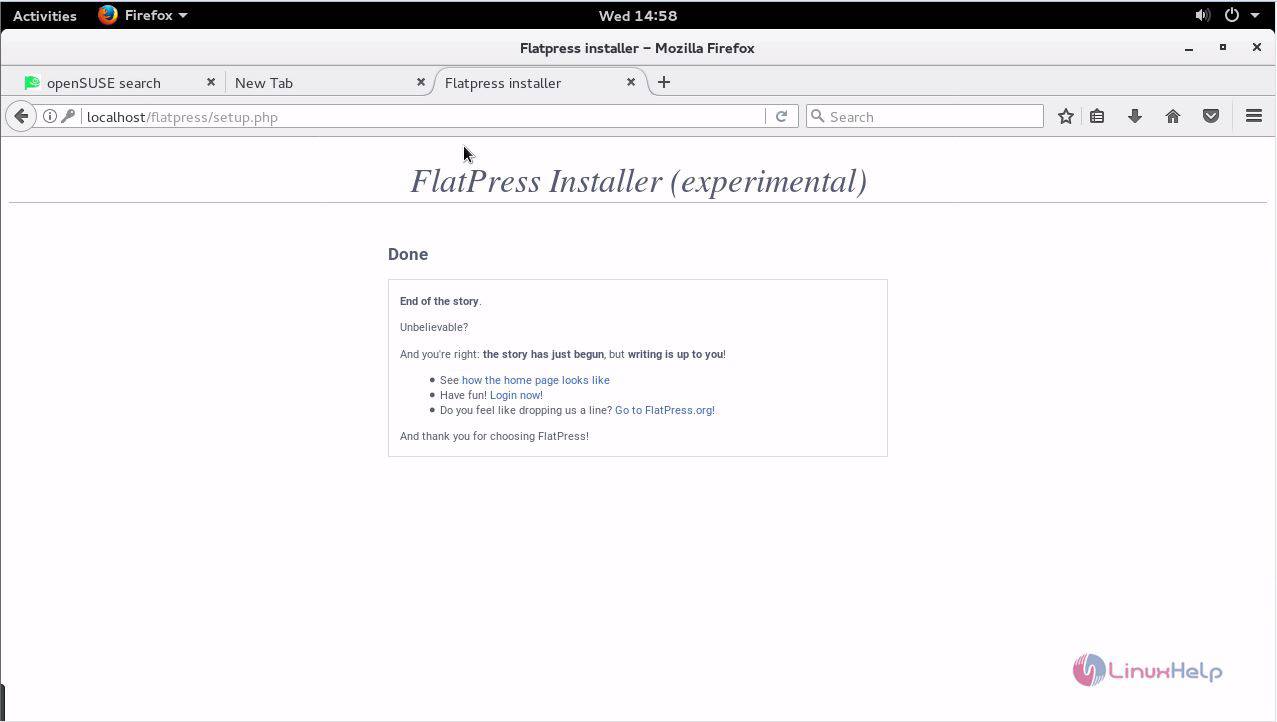
The installation process is now complete. Select Login now option.
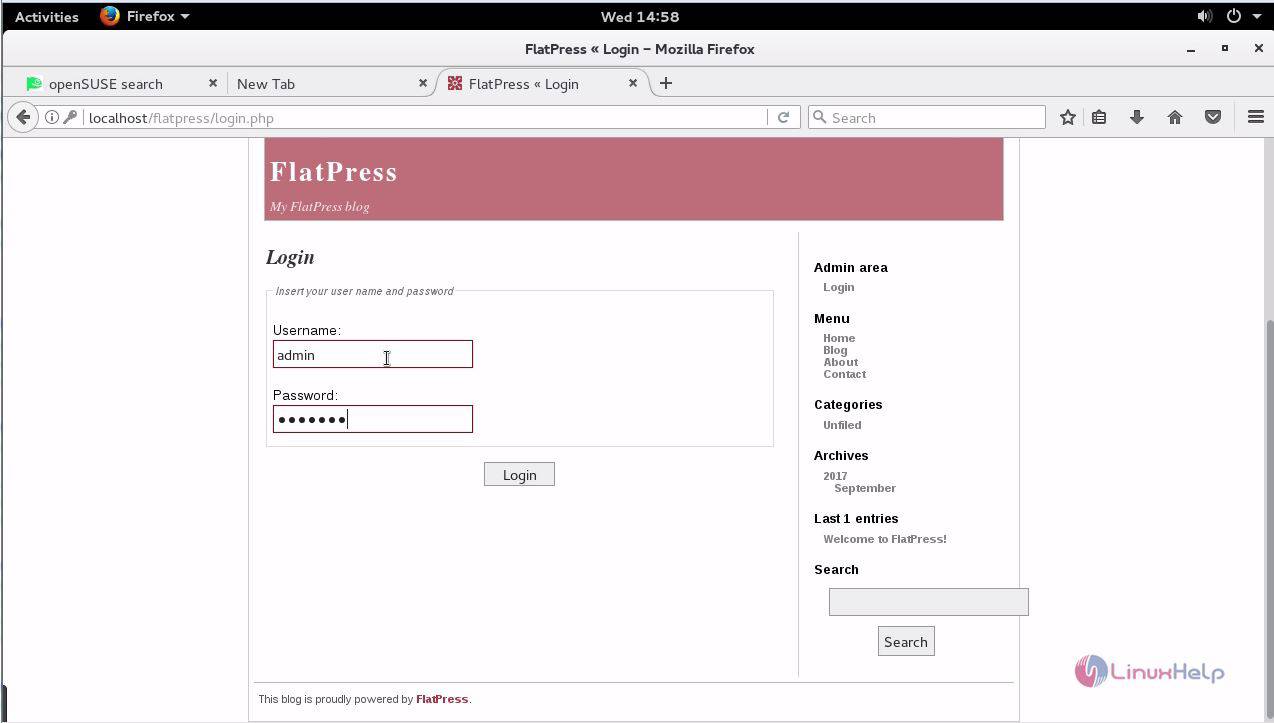
Enter the admin credentials to login.
The dashboard of Flatpress CMS is now shown below.
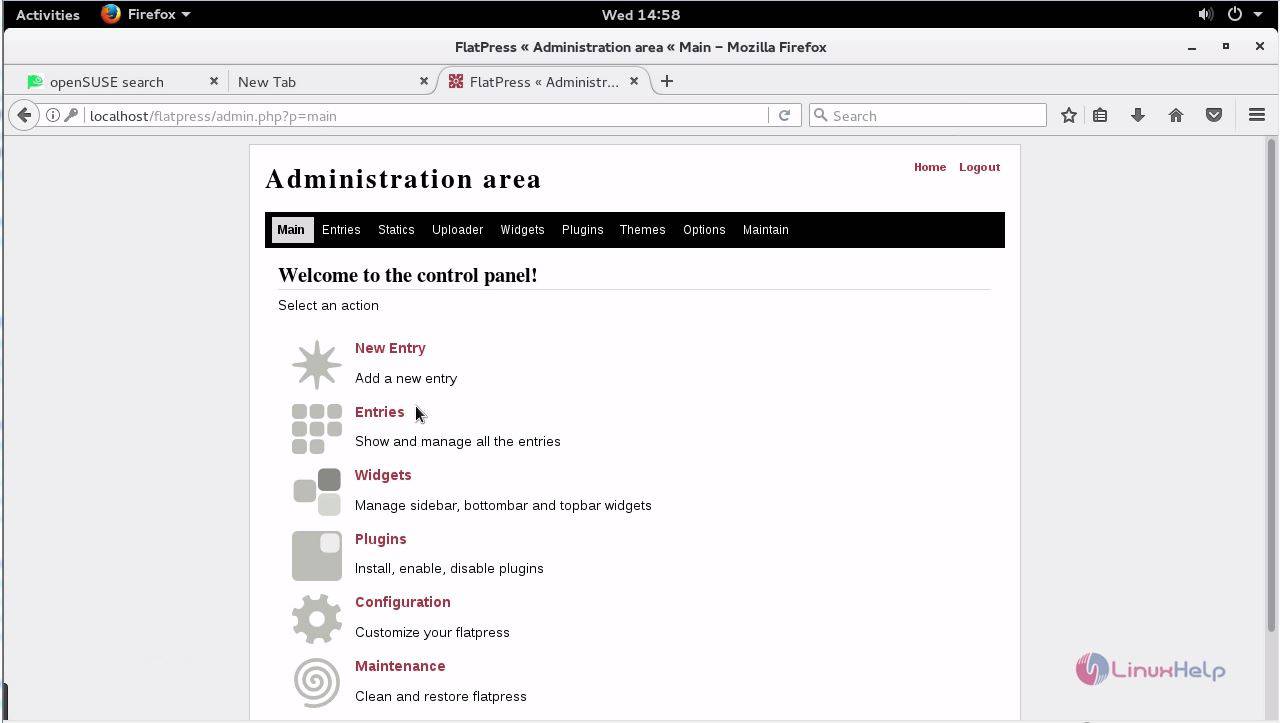
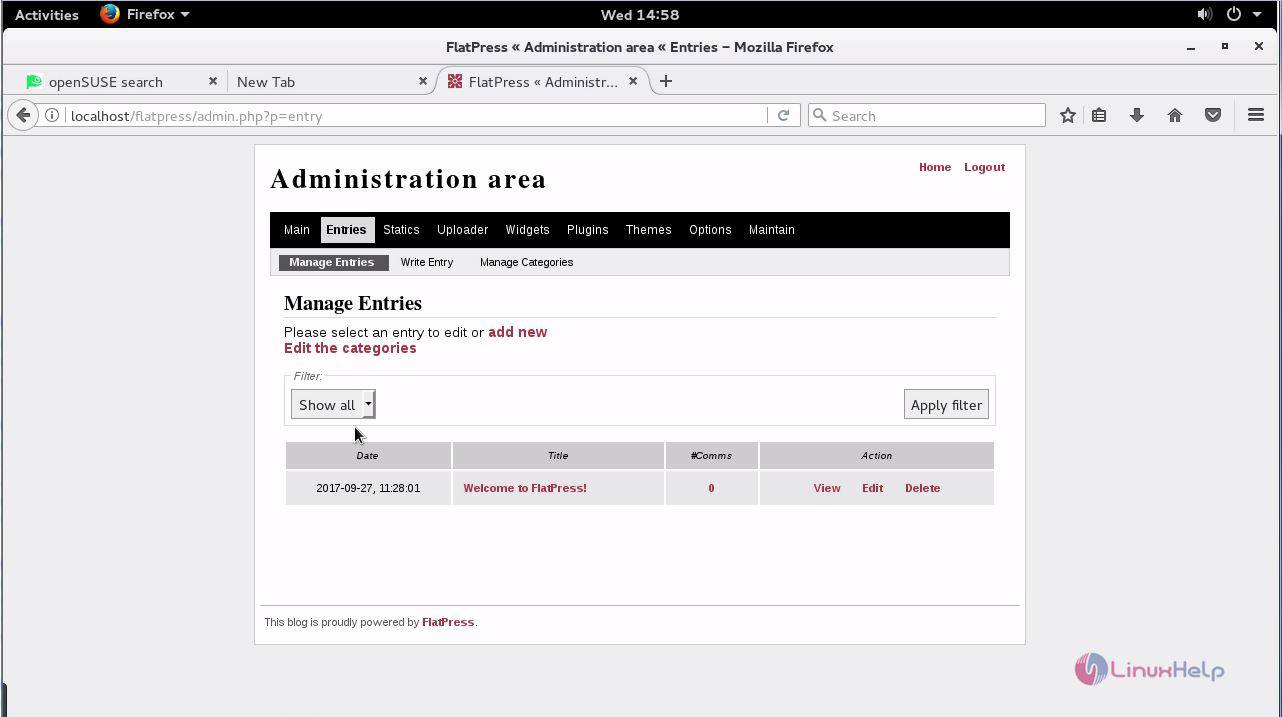
In Flatpress, the user can create a new entry and manage some entries.
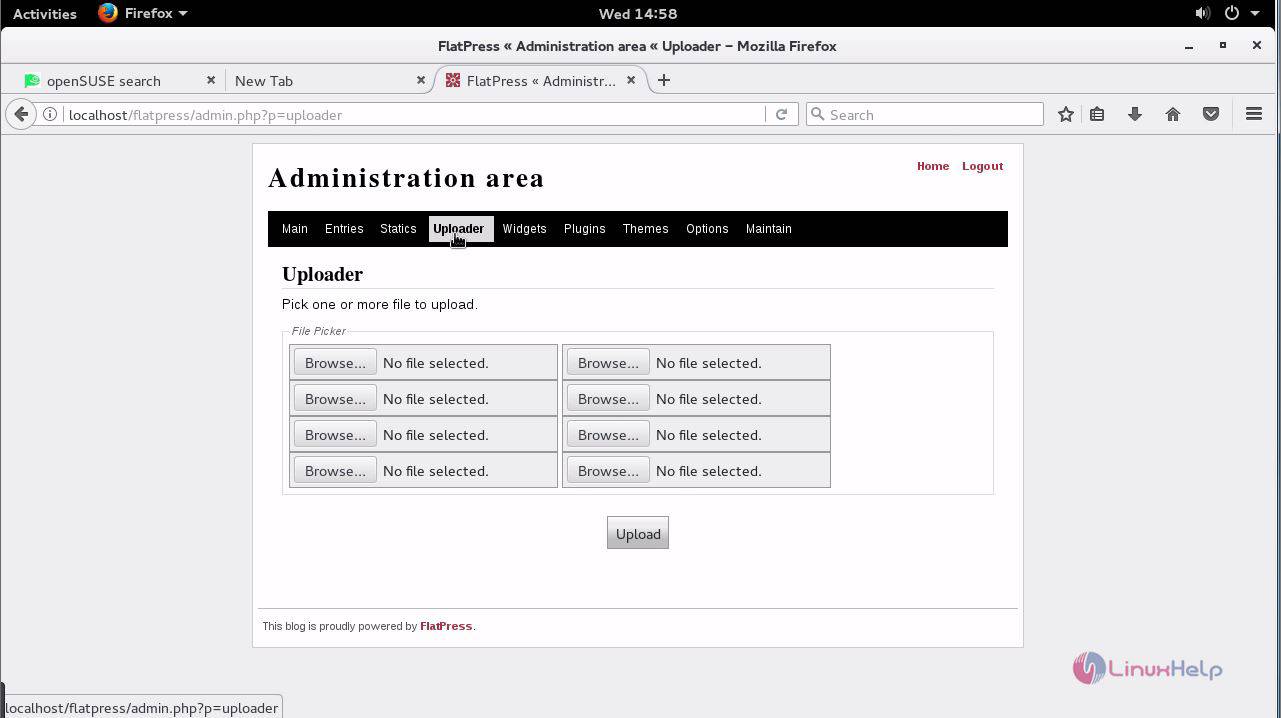
The user can also upload one or more files to the FlatPress.
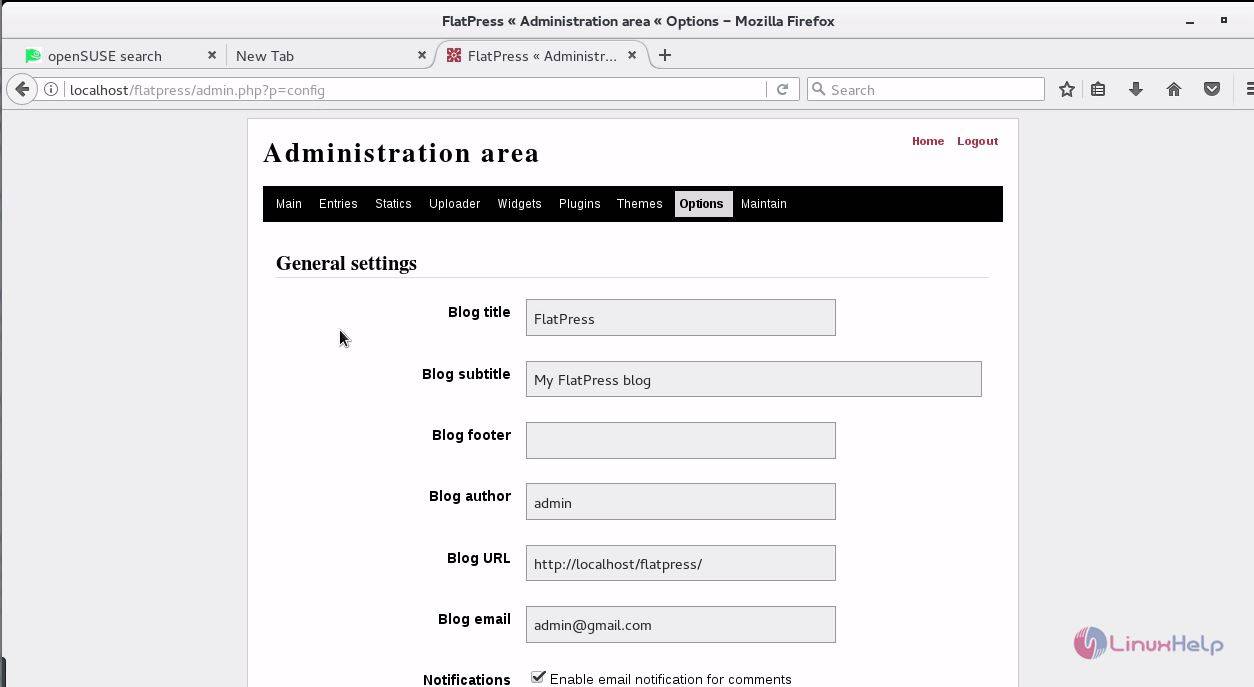
Enter the general settings such as Blog title, author, URL and much more options.
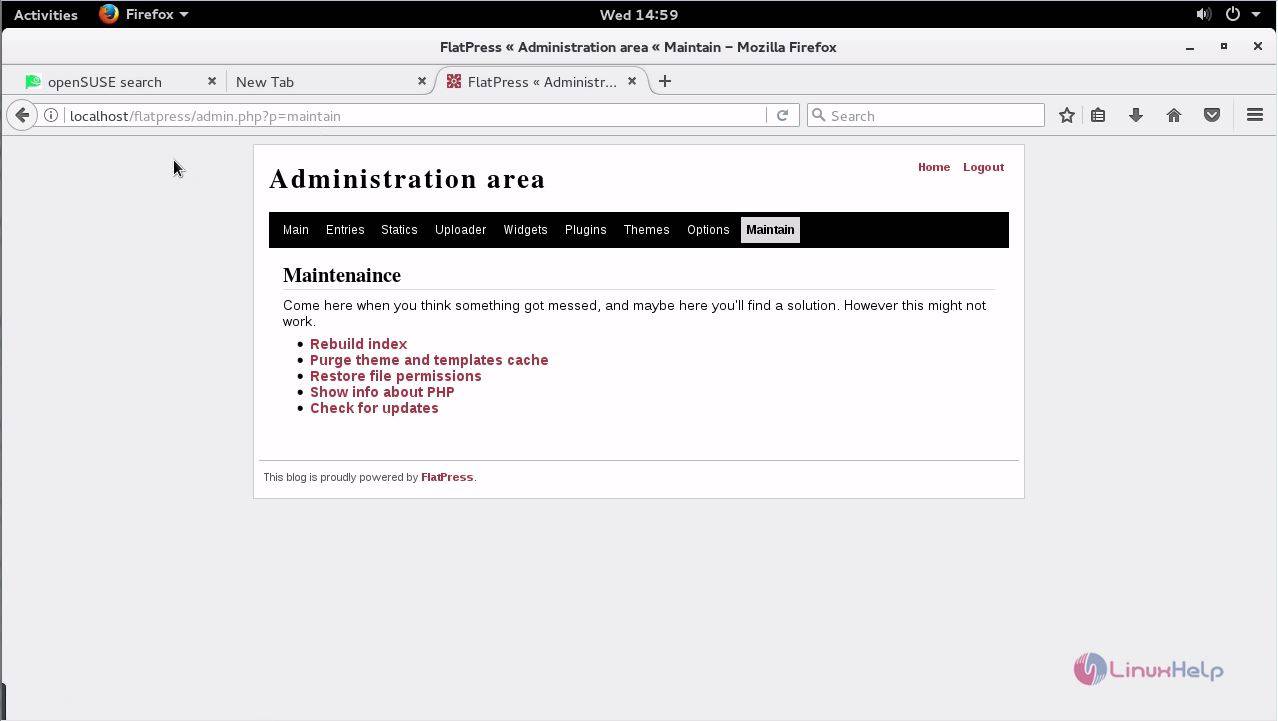
The user can overall maintain the Flatpress CMS using maintenance option in the menu bar.
Thus the installation procedure of Flatpress CMS using Nginx and PHP on OpenSUSE 42.1 is done successfully.
Comments ( 0 )
No comments available