How to install Fotoxx 17.04.3 on Linux Mint 18.1
How to install Fotoxx 17.04.3 on Linux Mint 18.1
Fotoxx is a functional photo editor software used to edit digital photos in Linux. It has several tools and also allows the users to work on artistic effects to convert a photo into a line drawing, sketch, painting and dot image. The specified free software is available in open source. The installation procedure of Fotoxx 17.04.3 in Linux Mint is explained in this article.
Features
- Thumbnail browser and navigator, variable thumbnail size or list view.
- Click on a thumbnail image to view or edit, or use a File Open dialog.
- View and edit most image formats and camera RAW formats.
- Selections can be cut out, saved, pasted, resized, rotated, edited.
- Zoom in/out with mouse clicks or mouse wheel. Edit zoomed image.
- Scroll/pan a zoomed image by dragging the mouse, also diagonally.
Installation procedure
To start the installation procedure, add the Fotoxx package into repository via ppa.
linuxhelp ~ # apt-add-repository ppa:dhor/myway
You are about to add the following PPA:
 Every photographer needs some tools...
 More info: https://launchpad.net/~dhor/+archive/ubuntu/myway
Press Enter to continue or Ctrl+C to cancel
Executing: /tmp/tmp.Q1QWiZJDIy/gpg.1.sh --keyserver
hkp://keyserver.ubuntu.com:80
--recv-keys
93330B78
gpg: requesting key 93330B78 from hkp server keyserver.ubuntu.com
gpg: key 93330B78: public key " Launchpad PPA for Dariusz Duma"  imported
gpg: Total number processed: 1
gpg:               imported: 1  (RSA: 1)
The required package is installed in the target system. Update the machine by executing the apt-get update command.
linuxhelp ~ #  apt-get update
Hit:1 http://archive.ubuntu.com/ubuntu xenial InRelease
Get:2 http://archive.canonical.com/ubuntu xenial InRelease [11.5 kB]
Ign:3 http://packages.linuxmint.com serena InRelease
Get:4 http://ppa.launchpad.net/dhor/myway/ubuntu xenial InRelease [17.5 kB]
Get:5 http://archive.canonical.com/ubuntu xenial/partner amd64 Packages [3,128 B]
Get:6 http://ppa.launchpad.net/dhor/myway/ubuntu xenial/main Sources [15.8 kB]
.
.
.
Get:52 http://archive.ubuntu.com/ubuntu xenial-backports/universe amd64 Packages [5,804 B]
Get:53 http://archive.ubuntu.com/ubuntu xenial-backports/universe i386 Packages [5,812 B]
Get:54 http://archive.ubuntu.com/ubuntu xenial-backports/universe Translation-en [3,004 B]
Fetched 4,370 kB in 19s (222kB/s)
Reading package lists... Done
The target system is updated with the required packages. Now install the Fotoxx package by running the following command.
linuxhelp ~ # apt-get install fotoxx
Reading package lists... Done
Building dependency tree
Reading state information... Done
The following additional packages will be installed:
  fotoxx-common libimage-exiftool-perl
Recommended packages:
  ufraw-batch ufraw xgd-open libtiff leafpad
.
.
.
Processing triggers for mime-support (3.59ubuntu1) ...
Setting up libimage-exiftool-perl (10.10-1) ...
Setting up fotoxx-common (17.04.3-1dhor~xenial) ...
Setting up fotoxx (17.04.3-1dhor~xenial) &hellip
The application is installed in the target system. Launch and edit any of the favorite images through Fotoxx application.
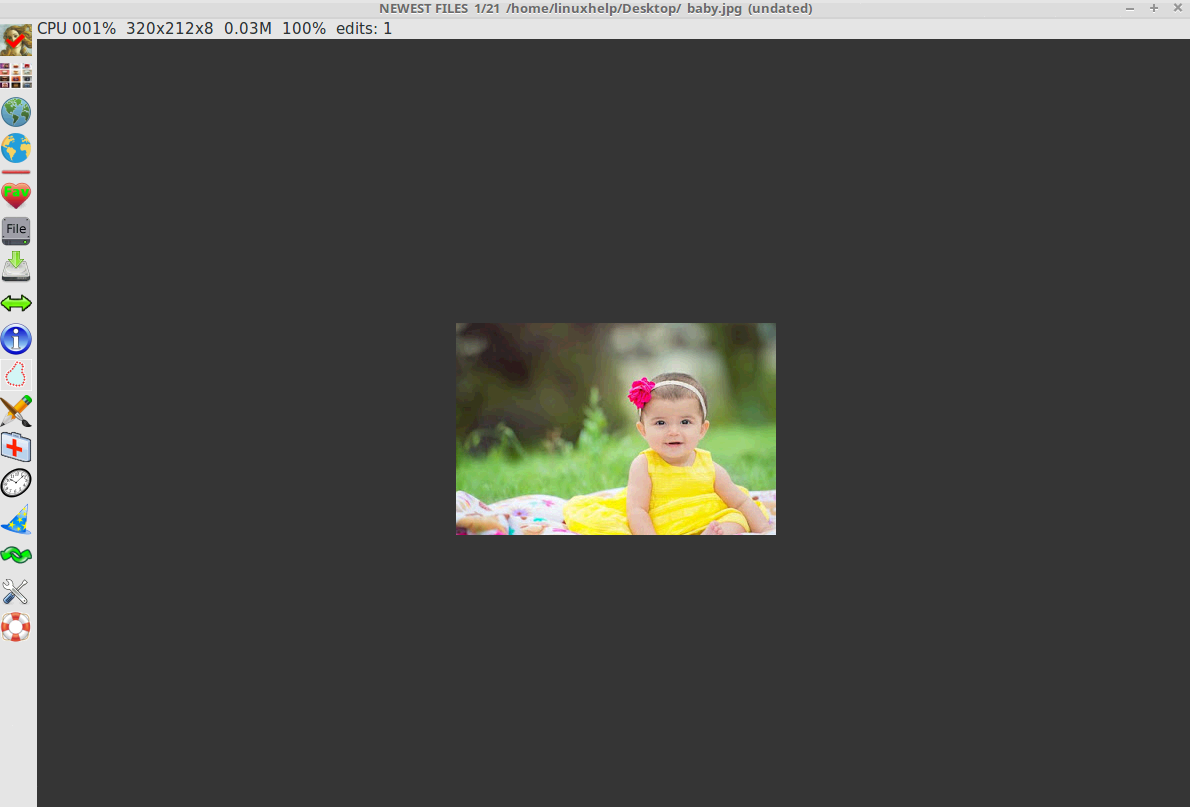
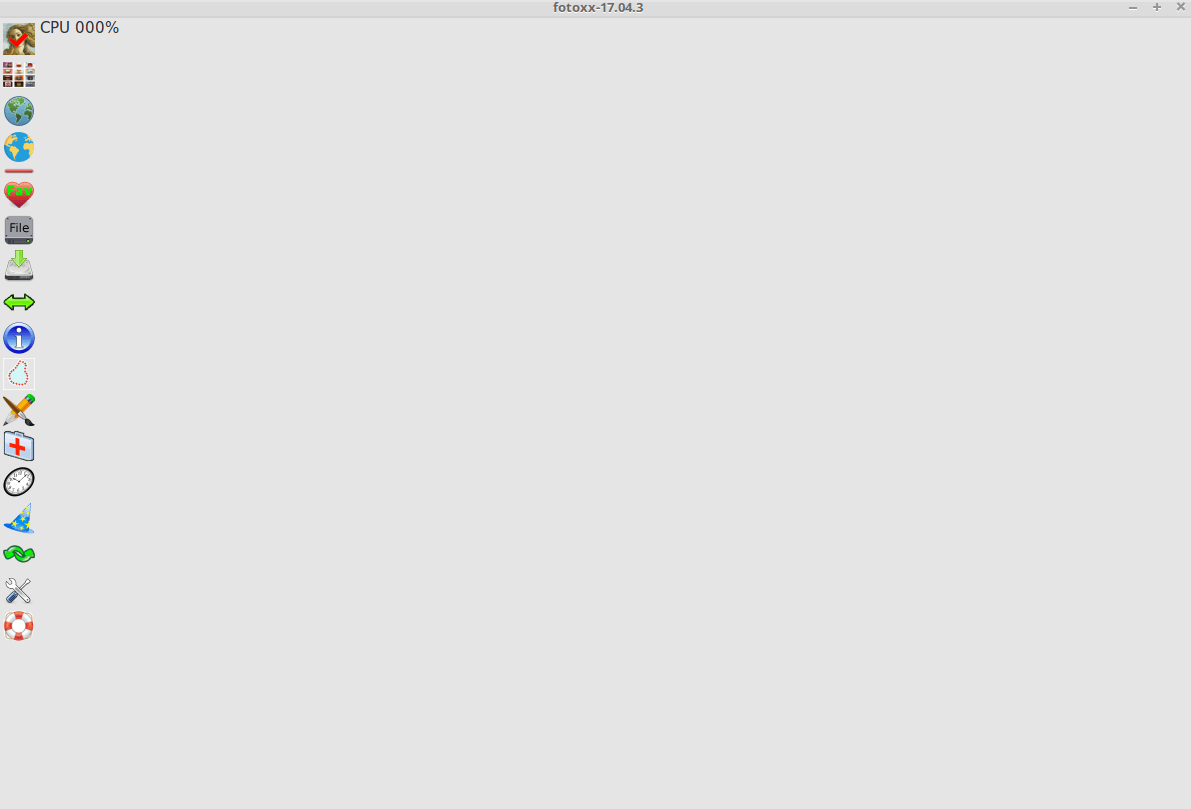
Wasn' t that an easy installation procedure? Fotoxx maintains a separate index for fast searching.
Comments ( 0 )
No comments available