How to Install Fotoxx in Ubuntu
To Install Fotoxx in Ubuntu
Fotoxx is a functional photo editor software used to edit digital photos in Linux. It has several tools and also allows the users to work on artistic effects to convert a photo into a line drawing, sketch, painting and dot image. The specified free software is available in open source. Installation of Fotoxx in Ubuntu is explained in this article.
Features
- Thumbnail browser and navigator
- Variable thumbnail size and list view
- Supports all image formats and camera RAW formats
- Live feedback
- Zoom in/out mouse wheel
- Batch edit
- Comprehensive user guide
Installation of Fotoxx
First add repository file by using the below command.
root@linuxhelp:~# add-apt-repository ppa:dhor/myway
 Every photographer needs some tools...

 More info: https://launchpad.net/~dhor/+archive/ubuntu/myway
Press [ENTER] to continue or ctrl-c to cancel adding it

gpg: keyring `/tmp/tmp6es9rd5t/secring.gpg'  created
gpg: keyring `/tmp/tmp6es9rd5t/pubring.gpg'  created
gpg: requesting key 93330B78 from hkp server keyserver.ubuntu.com
gpg: /tmp/tmp6es9rd5t/trustdb.gpg: trustdb created
gpg: key 93330B78: public key " Launchpad PPA for Dariusz Duma"  imported
gpg: Total number processed: 1
gpg:               imported: 1  (RSA: 1)
OK
Next run the below command to update the source files for further process.
root@linuxhelp:~# apt-get update
Hit:1 http://in.archive.ubuntu.com/ubuntu xenial InRelease
Get:2 http://security.ubuntu.com/ubuntu xenial-security InRelease [94.5 kB]
Get:3 http://ppa.launchpad.net/dhor/myway/ubuntu xenial InRelease [17.5 kB]
Get:4 http://in.archive.ubuntu.com/ubuntu xenial-updates InRelease [95.7 kB]
Hit:5 http://ppa.launchpad.net/enlightenment-git/ppa/ubuntu xenial InRelease
Hit:6 http://in.archive.ubuntu.com/ubuntu xenial-backports InRelease
Hit:7 http://ppa.launchpad.net/gns3/ppa/ubuntu xenial InRelease
Get:8 http://in.archive.ubuntu.com/ubuntu xenial-updates/main amd64 Packages [362 kB]
Hit:9 http://ppa.launchpad.net/me-davidsansome/clementine/ubuntu xenial InRelease
Hit:10 http://ppa.launchpad.net/mystic-mirage/komodo-edit/ubuntu xenial InRelease
Hit:11 http://ppa.launchpad.net/starws-box/deadbeef-player/ubuntu xenial InRelease
Get:12 http://in.archive.ubuntu.com/ubuntu xenial-updates/main i386 Packages [358 kB]
Hit:13 http://ppa.launchpad.net/team-xbmc/unstable/ubuntu xenial InRelease
Hit:14 http://ppa.launchpad.net/teejee2008/ppa/ubuntu xenial InRelease
Ign:15 https://www.arangodb.com/repositories/arangodb3/xUbuntu_16.04  InRelease
Hit:16 http://ppa.launchpad.net/wereturtle/ppa/ubuntu xenial InRelease
Get:17 http://ppa.launchpad.net/dhor/myway/ubuntu xenial/main amd64 Packages [8,824 B]
Hit:18 https://www.arangodb.com/repositories/arangodb3/xUbuntu_16.04  Release
Get:19 http://in.archive.ubuntu.com/ubuntu xenial-updates/universe amd64 Packages [313 kB]
Get:20 http://ppa.launchpad.net/dhor/myway/ubuntu xenial/main i386 Packages [8,640 B]
Get:22 http://ppa.launchpad.net/dhor/myway/ubuntu xenial/main Translation-en [5,336 B]
Get:23 http://in.archive.ubuntu.com/ubuntu xenial-updates/universe i386 Packages [310 kB]
Fetched 1,573 kB in 5s (300 kB/s)
Reading package lists... Done
W: https://www.arangodb.com/repositories/arangodb3/xUbuntu_16.04/Release.gpg: Signature by key 4497DA50FBD0158CCFD1996CEE611E131C42E360 uses weak digest algorithm (SHA1)
Now install fotoxx with following command.
root@linuxhelp:~# apt-get install fotoxx
Reading package lists... Done
Building dependency tree
Reading state information... Done
The following packages were automatically installed and are no longer required:
  assaultcube-data cups-browsed cups-core-drivers cups-daemon
  cups-filters-core-drivers cups-server-common ffmpeg geoip-database-extra
  gnome-video-effects gpac gpac-modules-base hplip-data imagemagick-common
  javascript-common kodi-bin lame libart-2.0-2 libavdevice-ffmpeg56
  libboost-regex1.58.0 libc-ares2 libcddb2 libcec3 libcrossguid1 libcupscgi1
  libcupsmime1 libdc1394-22 libdca0 libdirectfb-1.2-9 libebml4v5 libenca0
  libfdk-aac0 libffms2-4 libfontembed1 libfreenect0.5 libgpac4 libgutenprint2
  libhpmud0 libid3tag0 libilmbase12 libimlib2 libjansson4 libjs-jquery
.
.
.
.
.
Setting up fotoxx (16.08-1dhor~xenial) ...
Setting up libgtkimageview0 (1.6.4+dfsg-1) ...
Setting up liblensfun-data (0.2.8-3) ...
Setting up liblensfun0 (0.2.8-3) ...
Setting up ufraw-batch (0.22-2dhor~xenial) ...
Setting up ufraw (0.22-2dhor~xenial) ...
Processing triggers for libc-bin (2.23-0ubuntu3) ...
After installed successfully, run the below command in the terminal to open the fotoxx photo editor.
root@linuxhelp:~# fotoxx
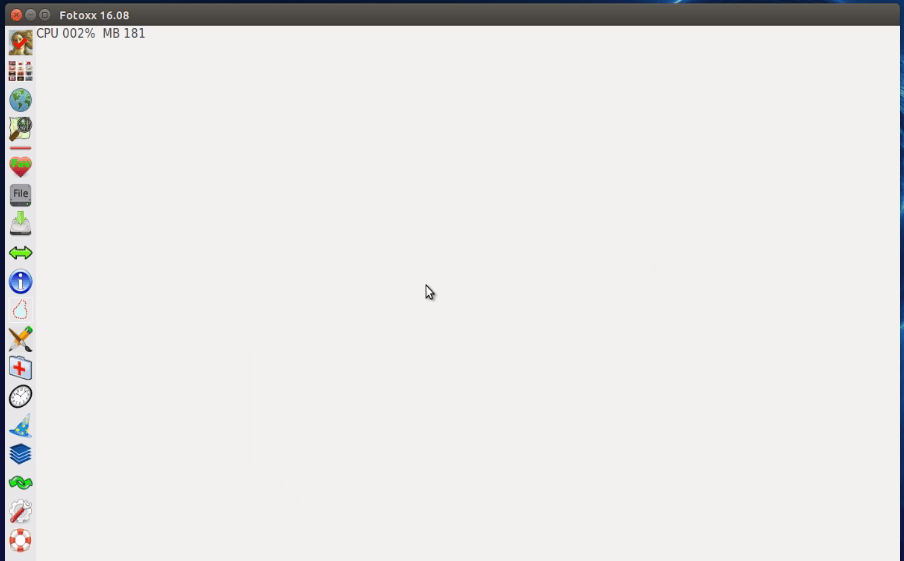
In the below given page, you can start editing your favourite images.
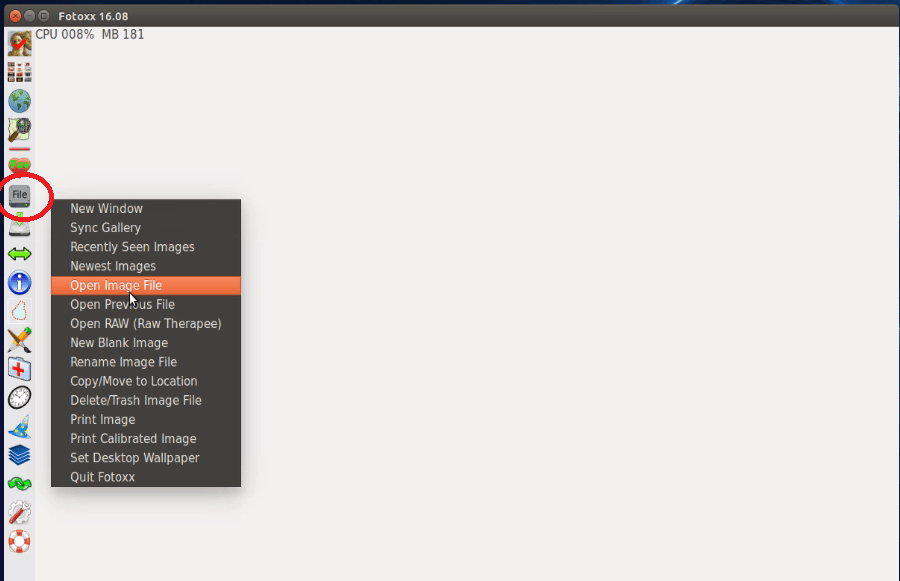
First click on file icon and select open new image file.
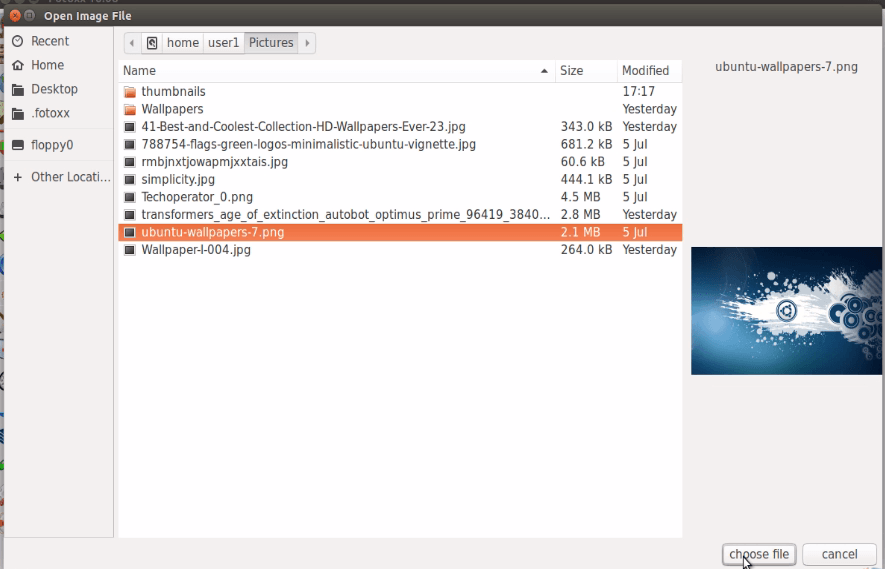
Next select the image from the list and click on choose file.
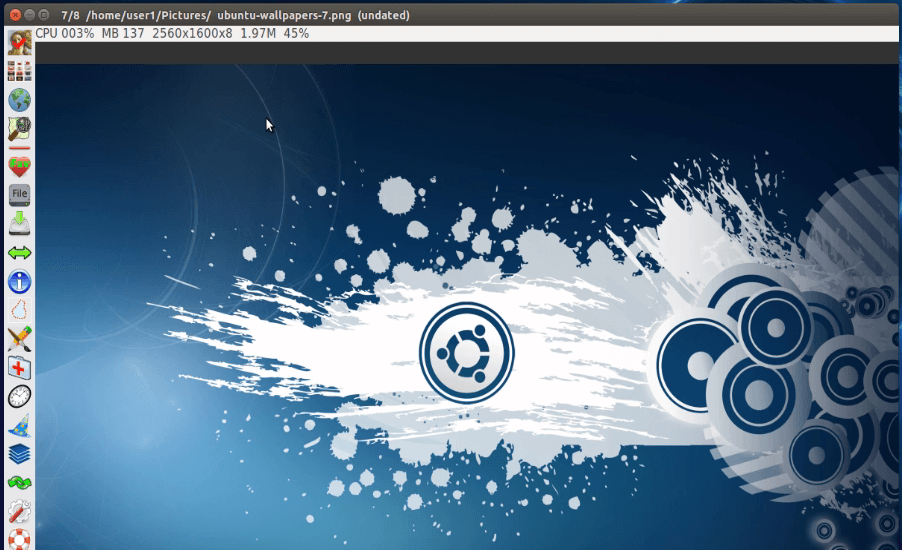
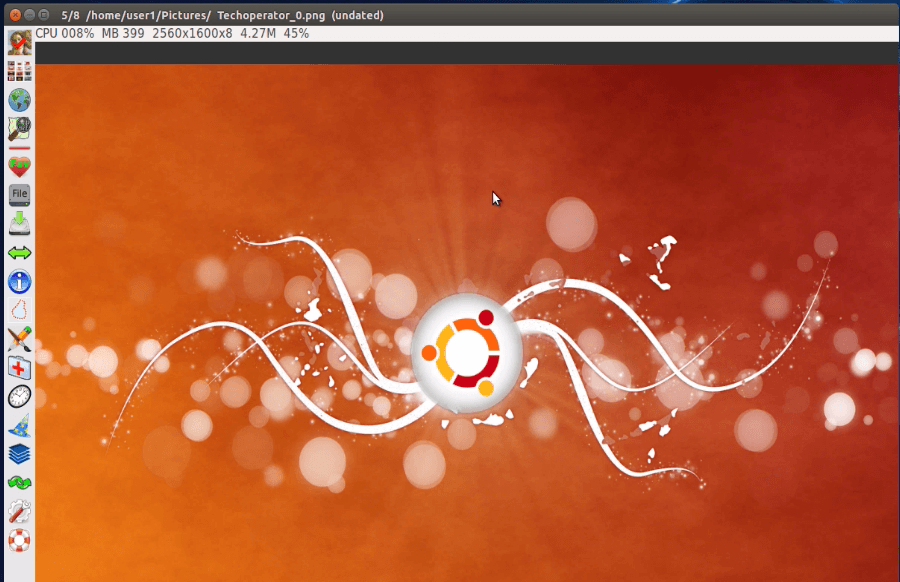
The selected image will appear on work space as given below. Here you can edit your image with tools options.
In the tools options, click on thumbnails to view image directory. Here you can select image to change your previous image.
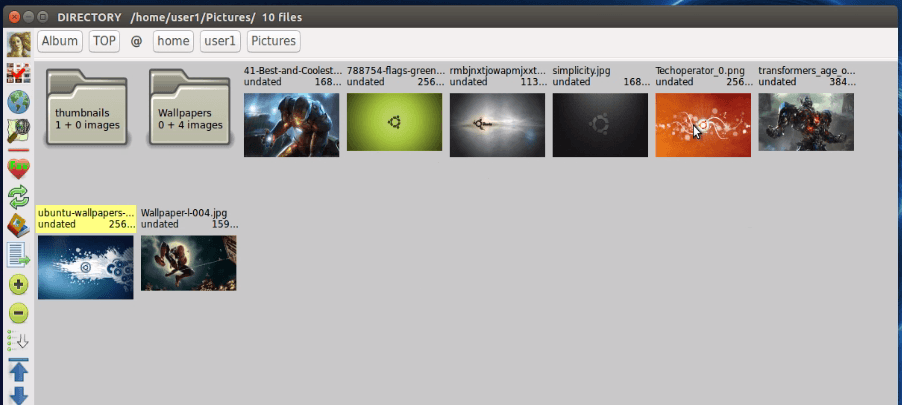
The selected image will display on work space.
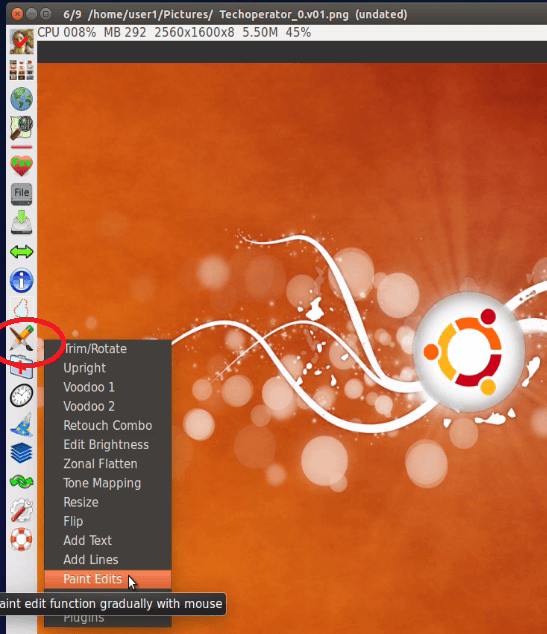
Now click on edit icon or right click on the image and start edit your image as you wish.
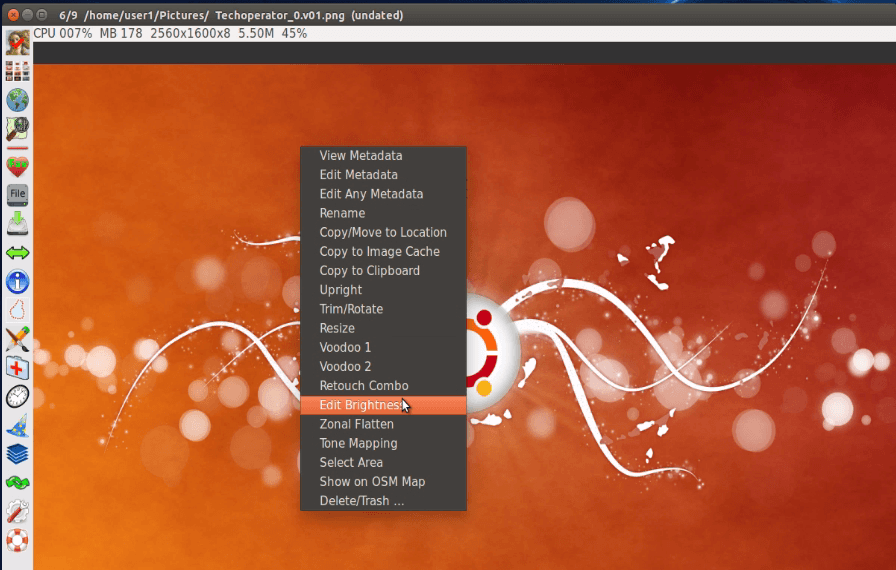
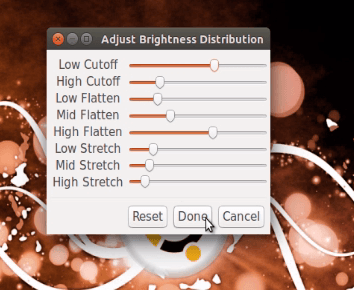
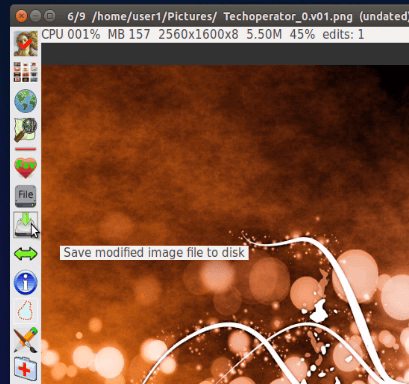
After finished editing, click on save modifies image icon to save edited image.
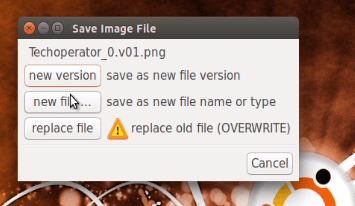
Now click on new file for save as new file or click on replace file to replace the existing file.
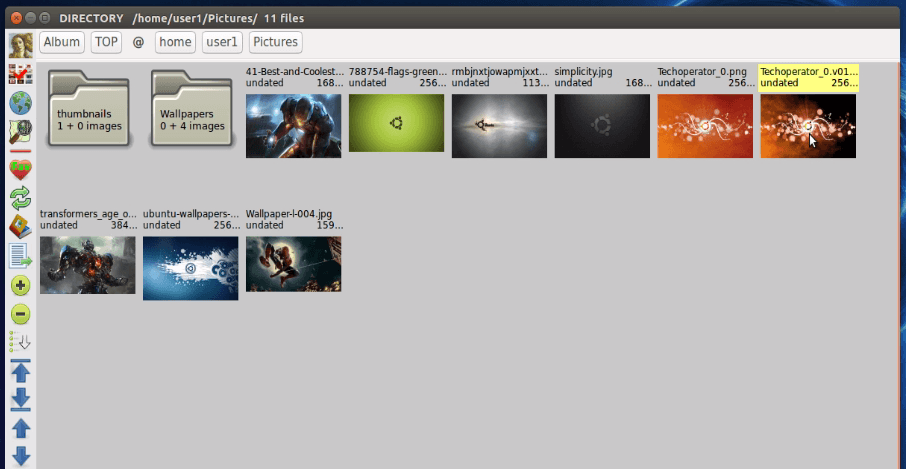
Here you can view the edited image on thumbnails.
Comments ( 0 )
No comments available