How to Install FTP Server and Map FTP Directories in Zentyal PDC
To install FTP Server and Map FTP Directories in Zentyal PDC
FTP protocol is a server-client architecture which is designed such that it runs only on TCP/IP, a FTP server. It provides the users to login using a username and a password, encrypt data flow and connect anonymously with some degree of security by using SSL/TLS and SFTP (over SSH).
Requirements
- Install Zentyal PDC and Integrate Windows Machine
- Manage Zentyal PDC from Windows Machine
To Install FTP Server
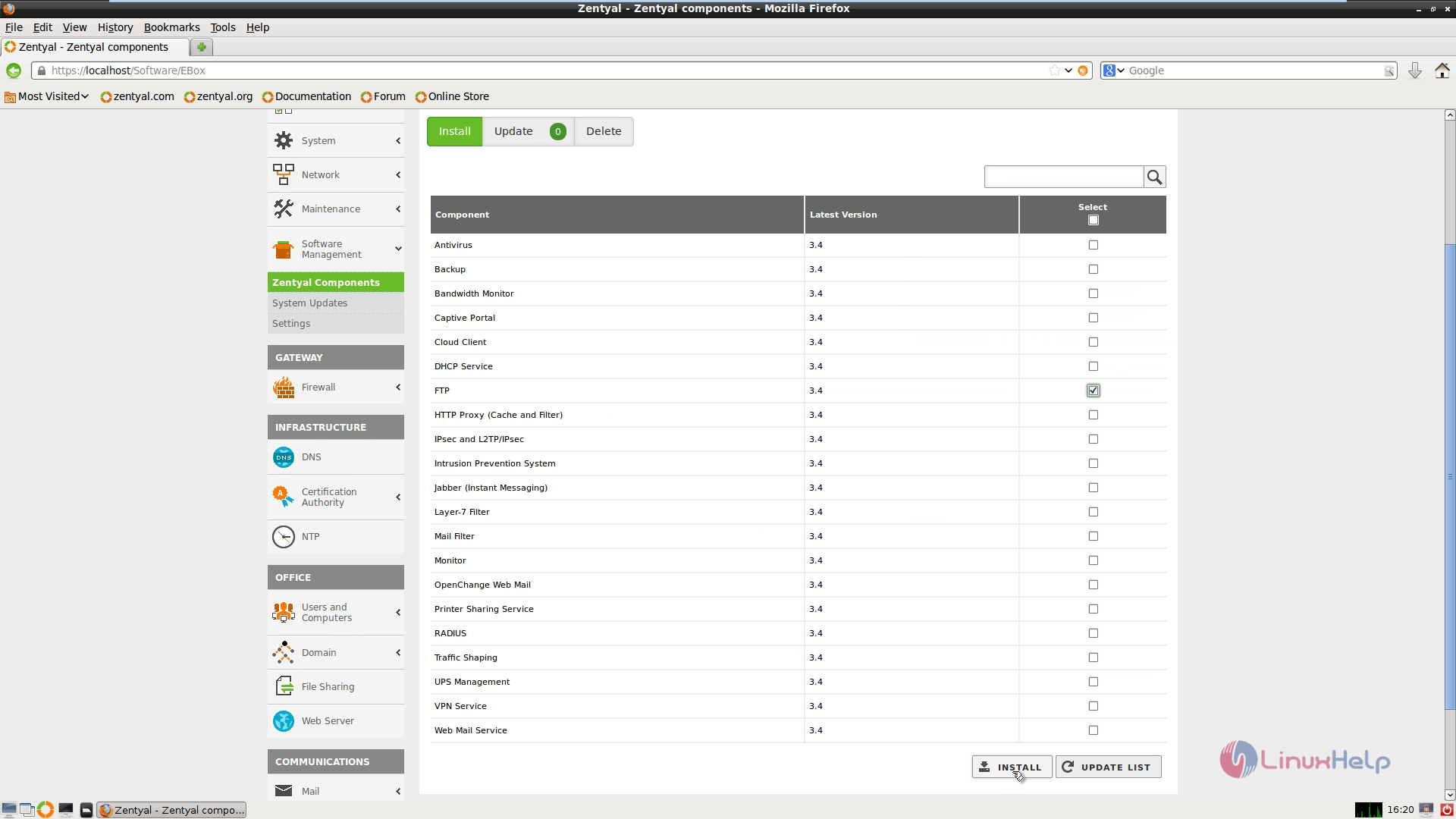
Go to software management &rarr zentyal components

Select ftp module and click install and then ok to install the ftp server.

Go to Module Status, check FTP module and hit Save Changes to Save.


To add DNS CNAME for Domain
Navigate to DNS Module and click on Hostname icon under your domain name.

In the Zentyal Host Name Record click on Alias icon.

Now, hit Add New button.

Enter “ FTP” on Alias field and click ADD button.Hit Save Changes button and confirm to apply settings.


DNS Alias has been added and you can test it with nslookup command on Remote Windows machine.
# nslookup ftp.pdc.linuxhelp.com
Run the DNS Manager installed on Remote Windows Server Tools and verify the respective Domain Zone.

To Setup FTP Configuration Server
Go to FTP Module and use the following configuration.
Anonymous access = Disabled
Select Personal Directories
Select Restrict to personal directories
SSL support = Allow SSL


Now hit Change &rarr Save Changes and confirm with Save for enabling vsftp new configuration.
To Configure Firewall for FTP
Zentyal Firewall by default will not allow incoming ftp passive connections, file transfers and directory listings required on ports above 1024.
To allow this port range
Go to Network &rarr Services and select Add New button.


Now, enter “ ftp” string in Service Name field and click on ADD button.

Hit on Configuration icon in the newly created entry.

Hit Add New and enter the following setting in the service configuration.
| Protocol | TCP |
| Source Port | Any |
| Destination Port | select Port range form 1024 to 65534 |
Now, Hit ADD button and Save Changes to apply configuration.

To open firewall for this port range service
Navigate to Firewall module &rarr Packet Filter&rarr Filtering Rules on Internal Networks to Zentyal (Local Inbound).


Now click on ADD NEW and enter the following setting on this rule.
Decision = ACCEPT
Source = Any
Service = select ftp( the service just created )
Description = a short description of this rule
Once the configuration is done, hit on ADD button followed by Save Changes button.

Now, Zentyal Firewall receive incoming connection on ports above 1024 required by ftps clients on your local network segment.
To do Folder Mapping on FTP Shares
Mapping on Windows
Navigate to browser and enter the domain name to access the ftp share.

Go to View &rarr Open FTP site in File Explorer

Enter credentials to login on FTP server in the pop-up login screen.


To access ftp shares
On Windows 7, open Explorer and go to Add a Network Location &rarr Choose a custom network location &rarr Next.


Type your Zentyal IP-address/Domain name prefixed by ftp protocol in location prompt and click Next to continue.

Enter Username and a Name for this network location for ftp share.


Finally Hit Finish, to display the Computer drives.


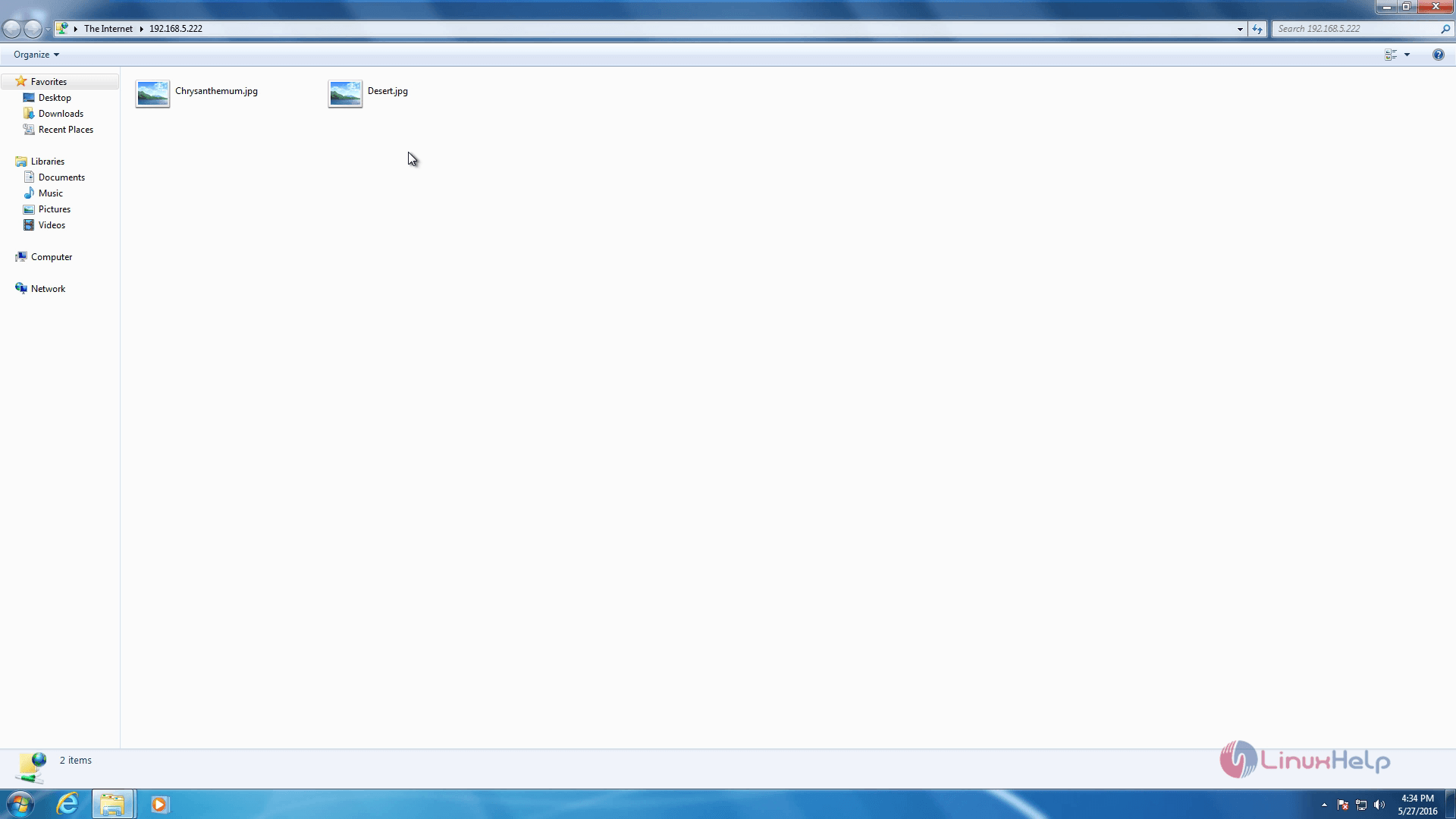
Now open the newly added ftp share to view the contents.
Comments ( 0 )
No comments available