• Categories
    Category
    {{ postCtrl.tags }}
    • {{ category.tag_type }}

      • {{tag.tag_name}}
      • View more
  • Categories
    Category
    {{ postCtrl.tags }}
    • {{ category.tag_type }}

      • {{tag.tag_name}}
      • View more
  • News
  • Tutorials
  • Forums
  • Tags
  • Users
Tutorial News Comments FAQ Related Articles

How to install GalliumOS

{{postValue.id}}

To install GalliumOS

GalliumOS is a fast and lightweight Linux distribution for ChromeOS devices that is based on Xubuntu. Gallium OS is specially optimized for performance and compatibility and provides a touch pad experience similar to Chrome OS. Boot up time in Gallium OS is much faster than any other Linux Distributions.

To Install Gallium OS

First download the iso image of GalliumOS from gallium official site
https://galliumos.org/download


Once the download is completed, boot it into DVD or Pendrive.
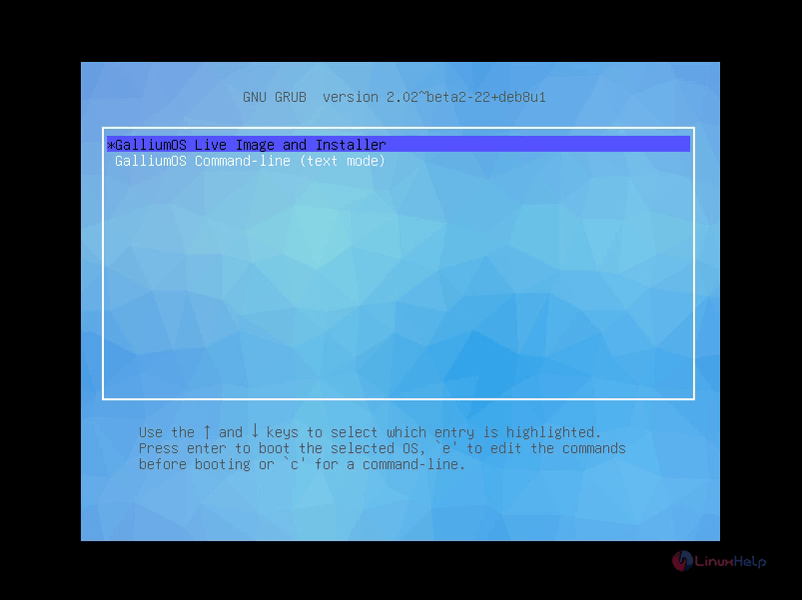
Select GalliumOS live Image and installer and click enter.
1

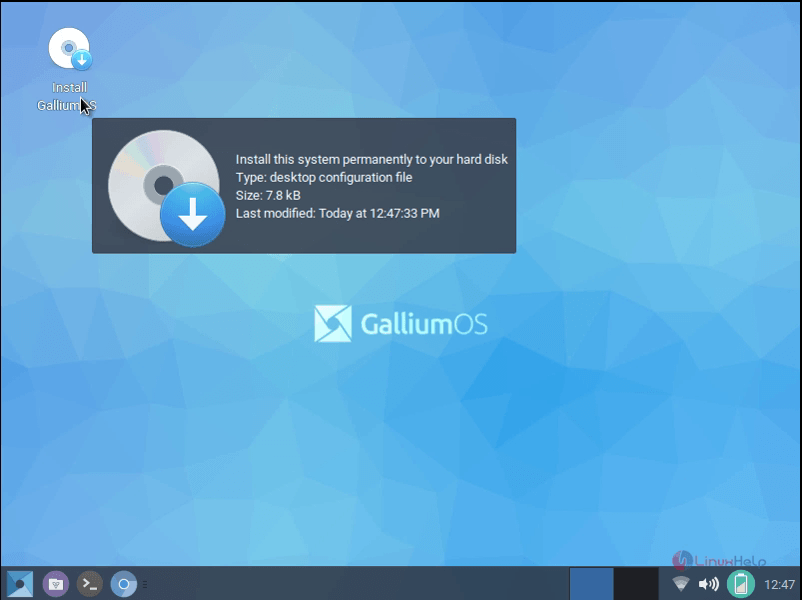
Double click the Install Gallium OS icon
2
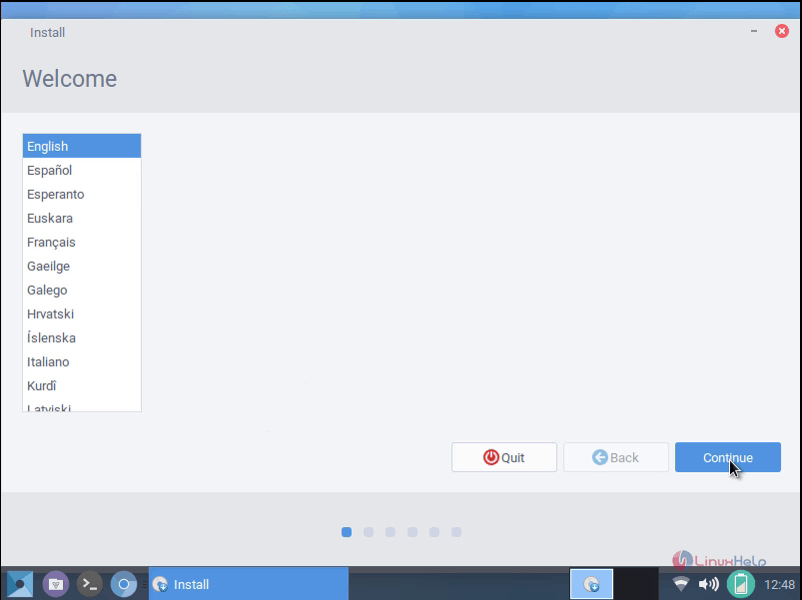
Choose your preferred language and click continue.
3
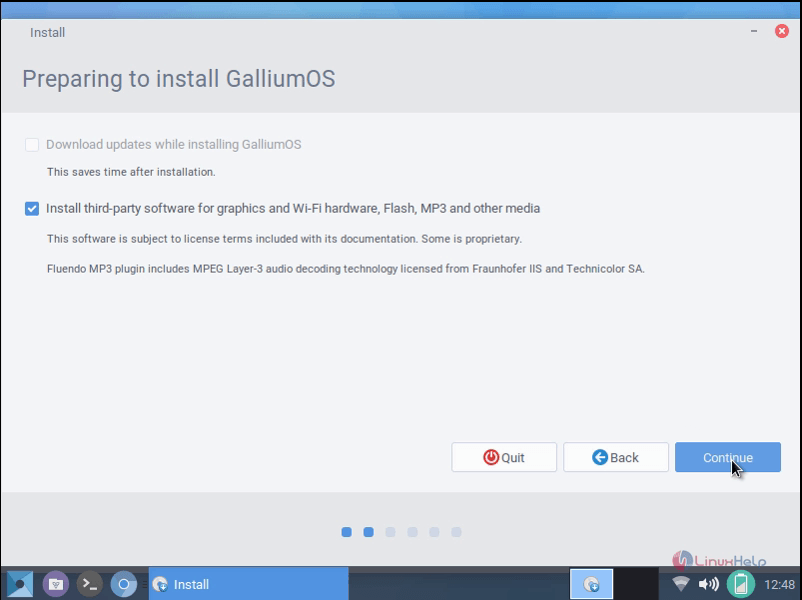
Select the desired options in the preparation window and press continue.

The first option will be greyed out, if no internet connection.
4
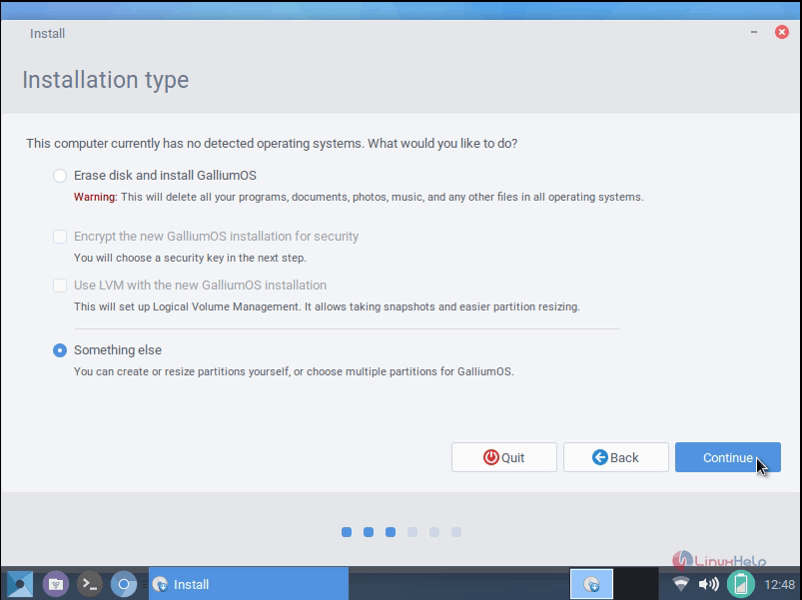
Choose the type of installation you want to perform and click continue.
5
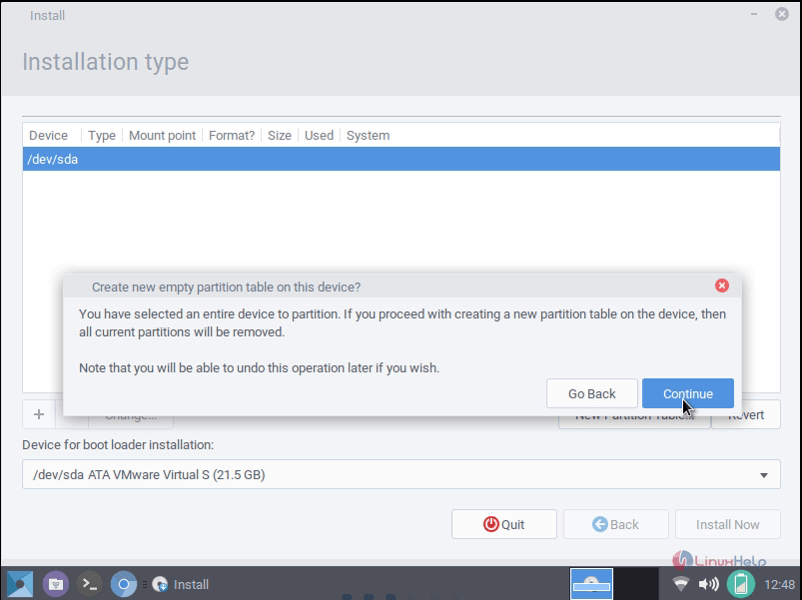
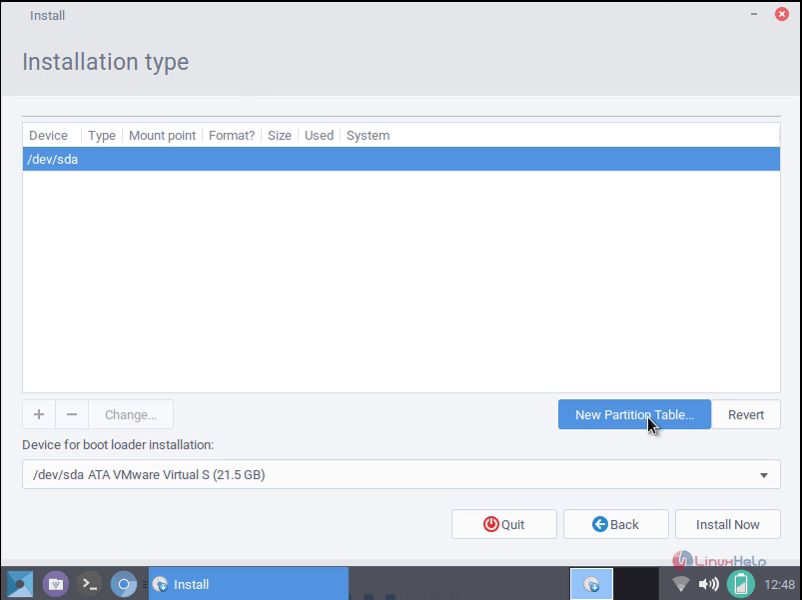
Then start creating partition by hitting New partition table.
6
990
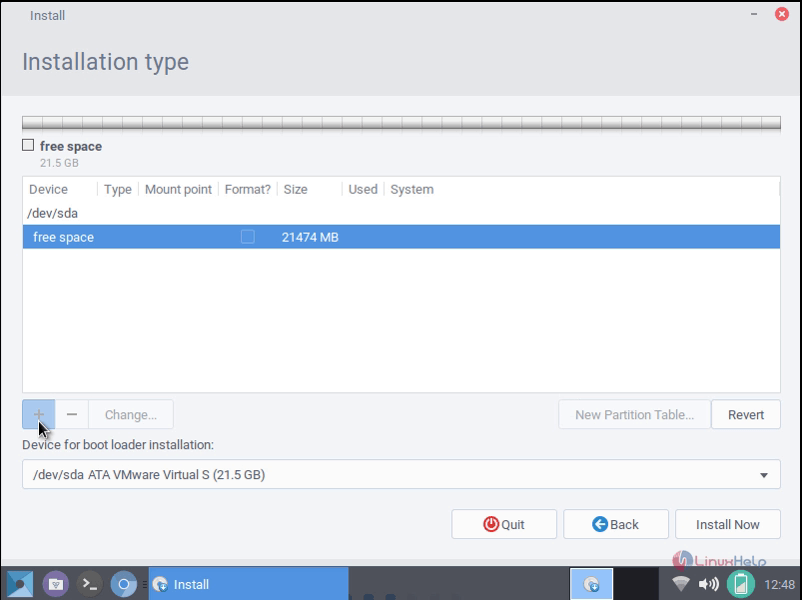
To start with the new partition, select the free space and click add button
8

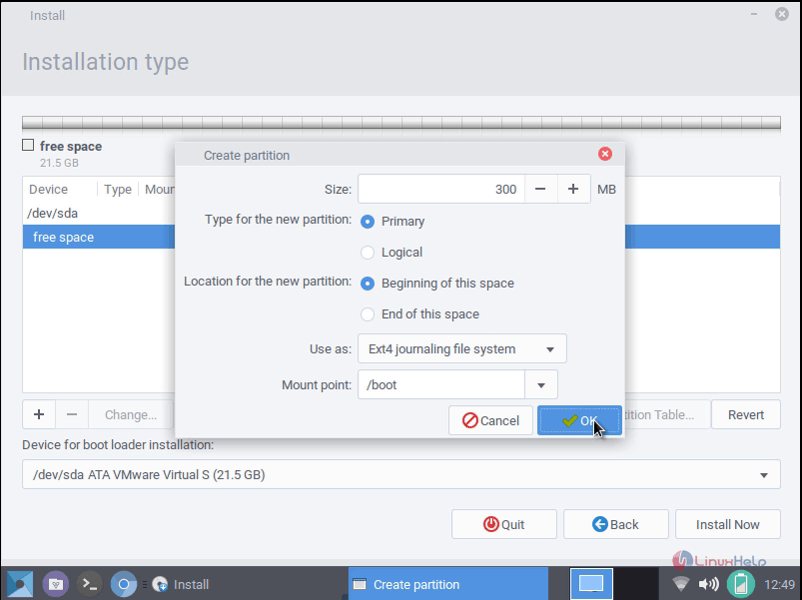
Boot partition
size -300 MB
partition type -primary
filesystem(use as) -ext4
mount point -/boot

9

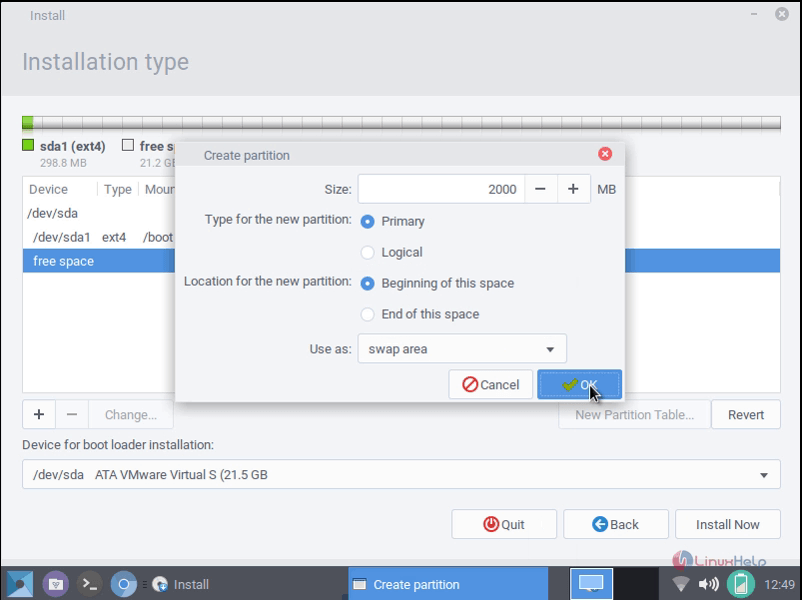
Swap partition
size -2000 MB
partition type -primary
filesystem -swap area

10

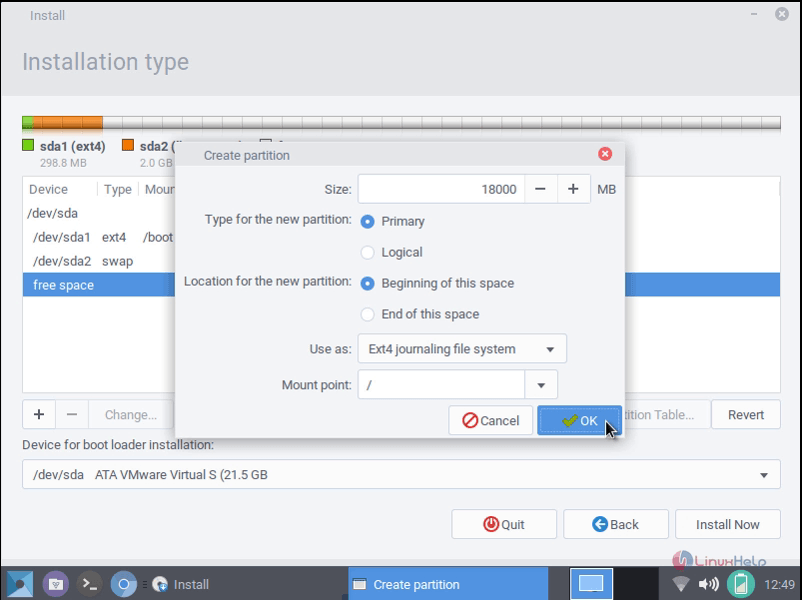
Root partition
size -18000 MB
partition type -primary
filesystem -ext4
mount point -/

11
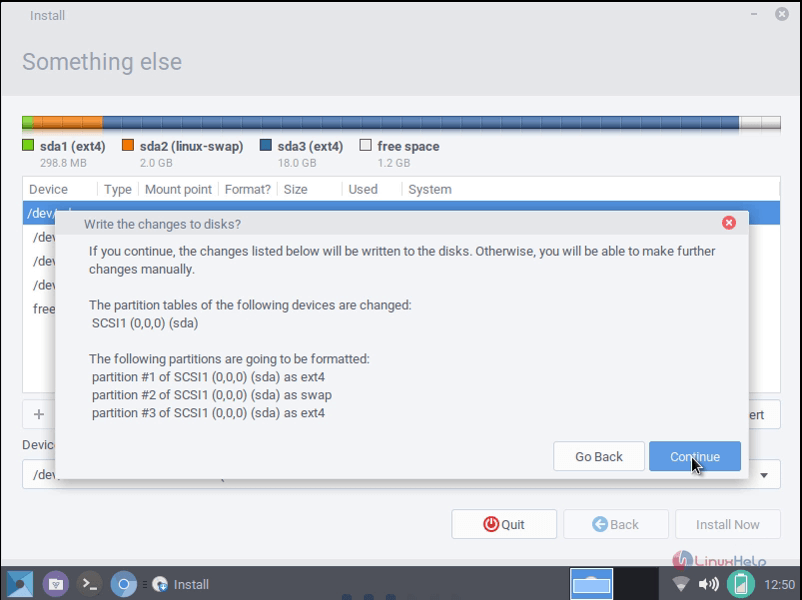
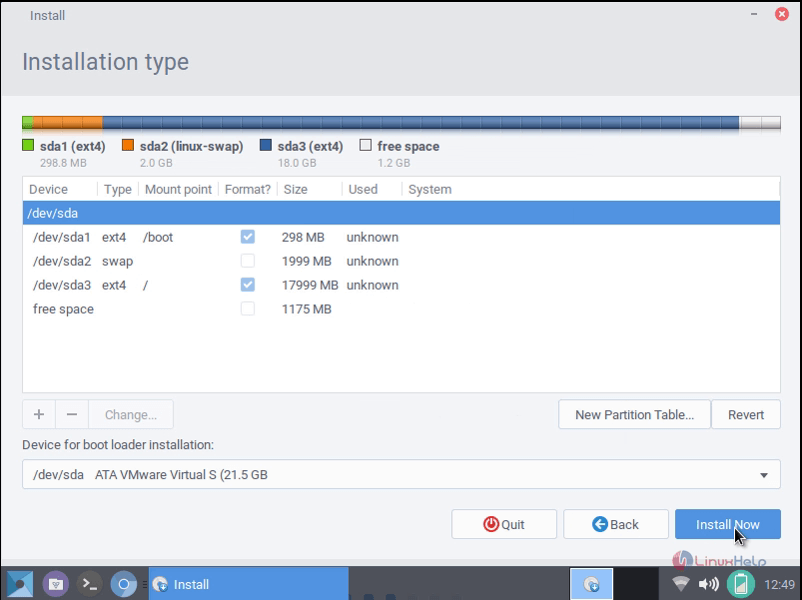
Once all the partitions are created, click install now and select continue to write changes to disk
12
13
Now, choose the current location of your system.
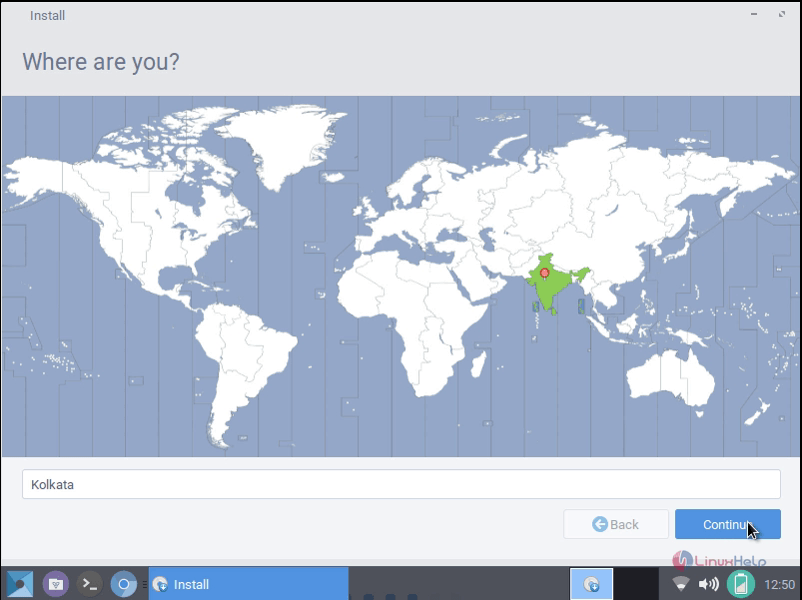
990
Choose the type of keyboard and default input language as required.
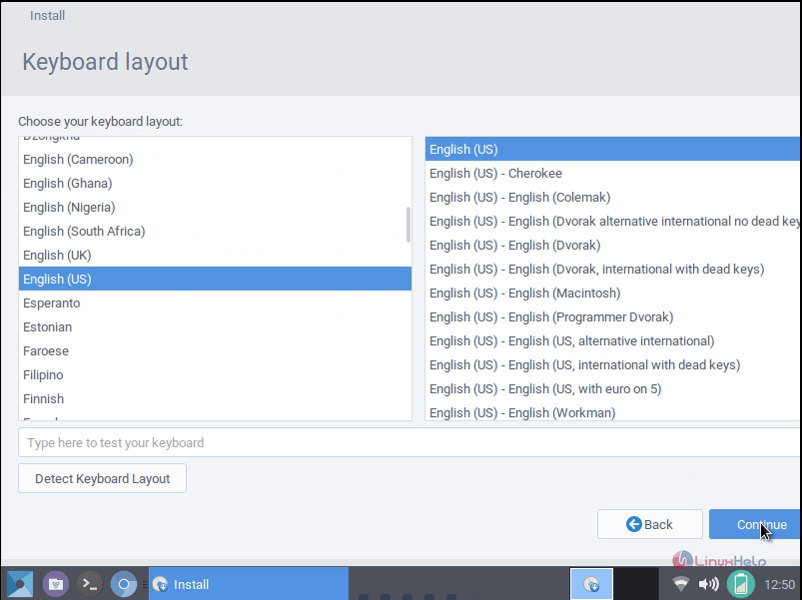
15
Enter the user details and click continue to proceed further.
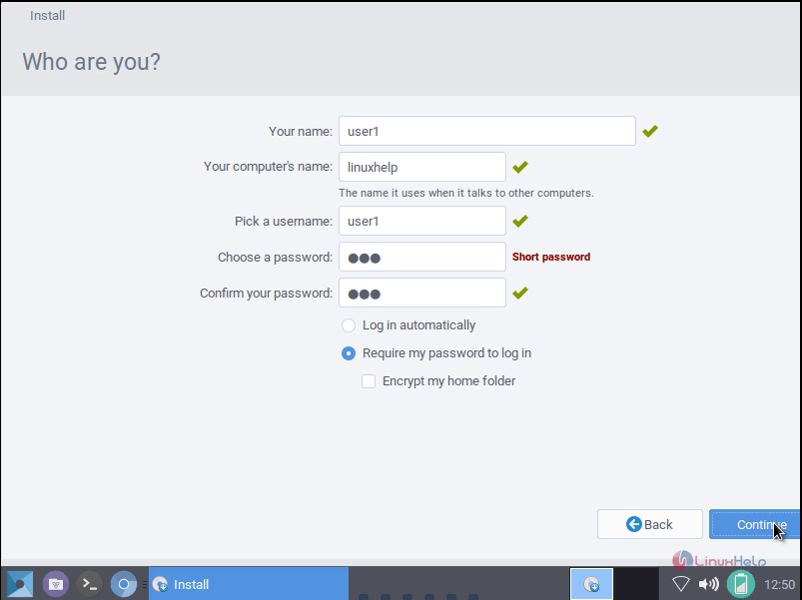
16

Installation screen appears and wait till the process completes.
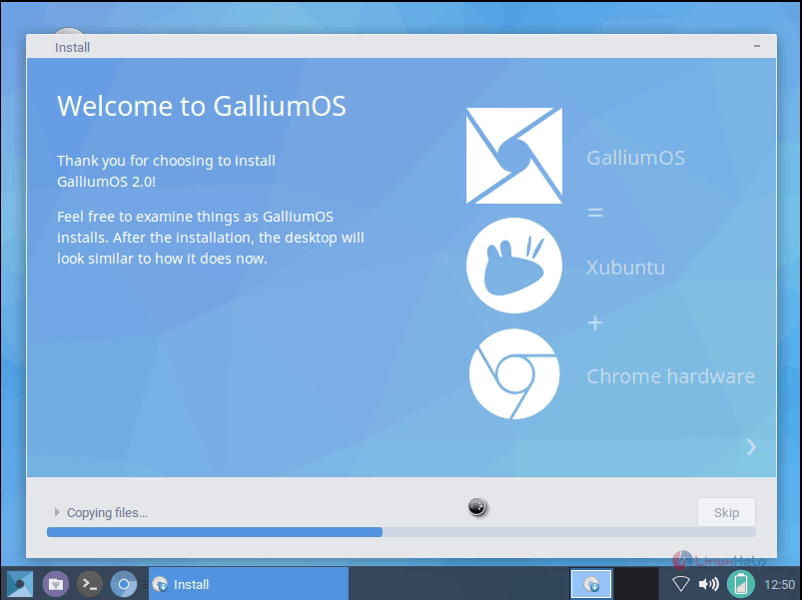
17
Restart the system once the installation completes.
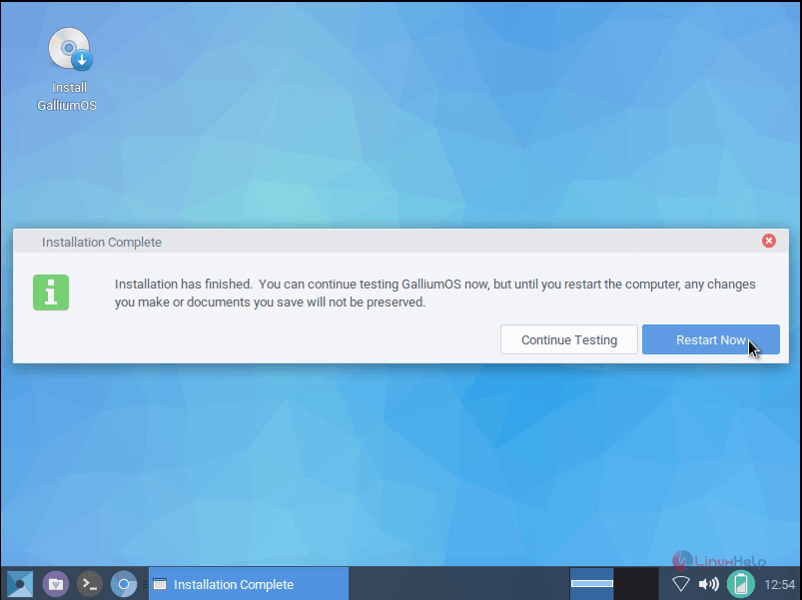
18
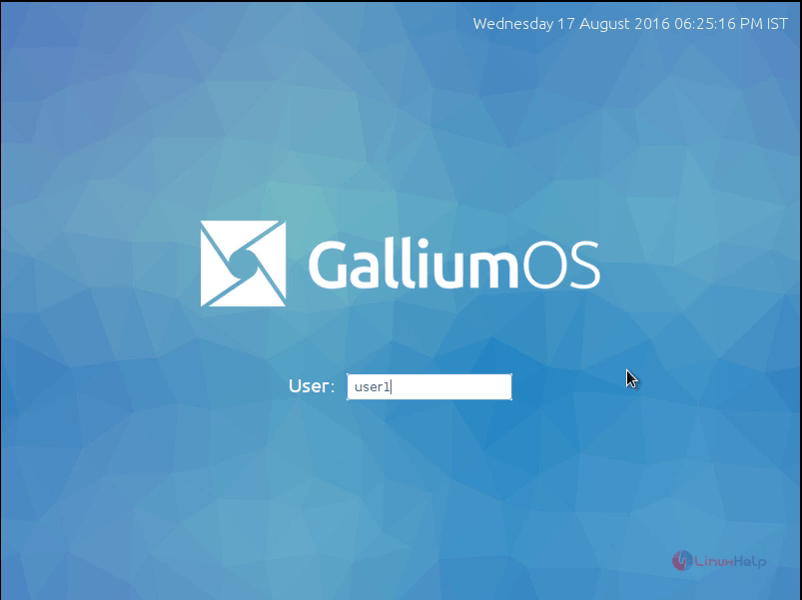
Gallium OS Login screen.
19
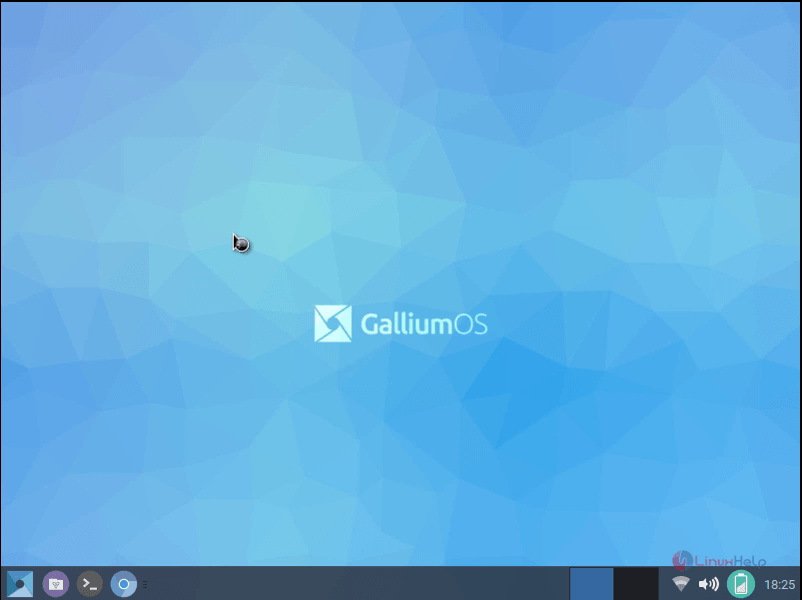
Gallium OS Desktop screen appears.
20
To change the appearance of the screen, go to main menu and click appearance.
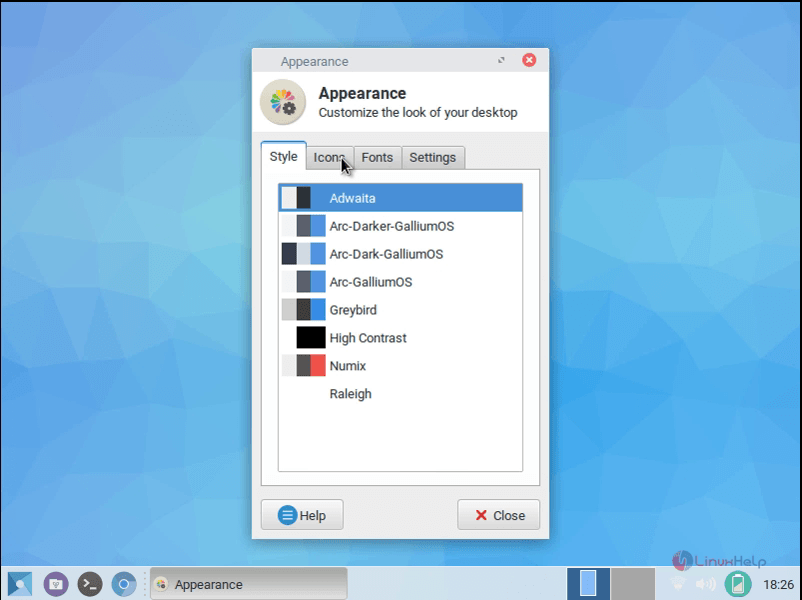
21
From menu click Task Manager interface to know about the various process running.
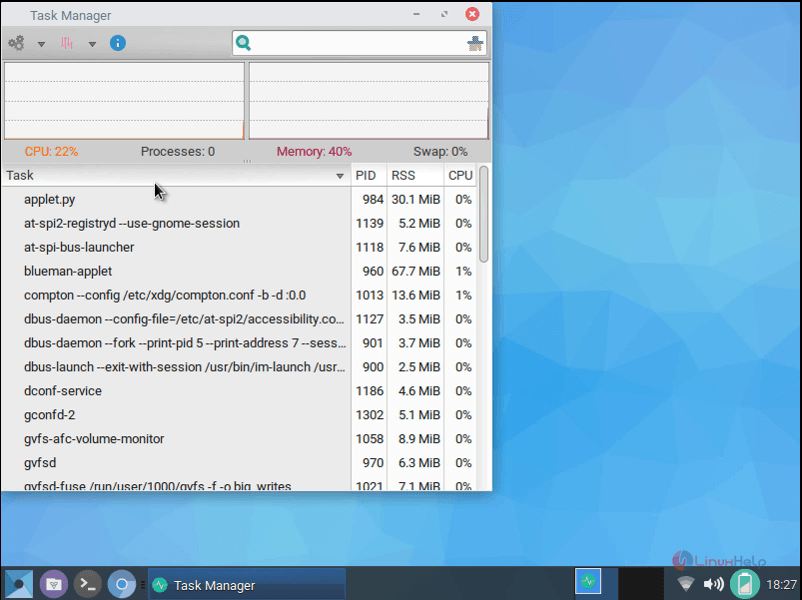
22
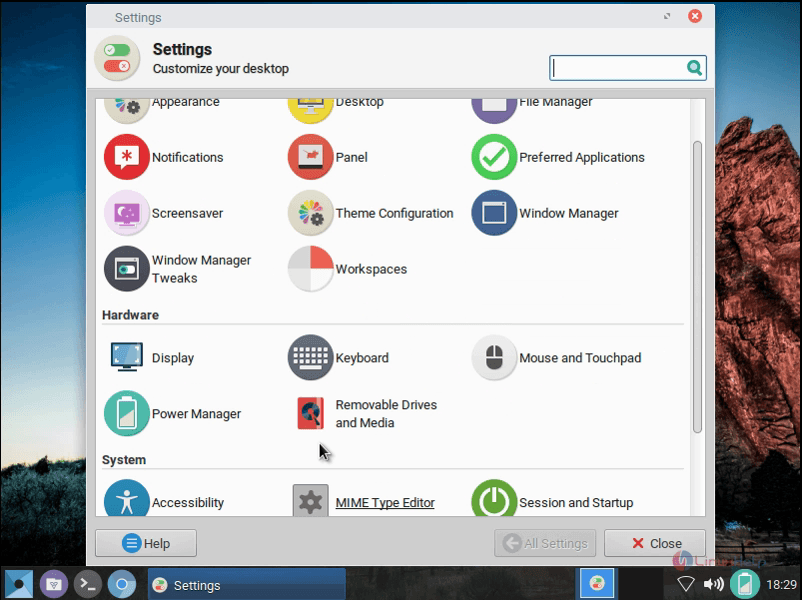
Right click on the desktop and choose Desktop Settings to change the desktop background.
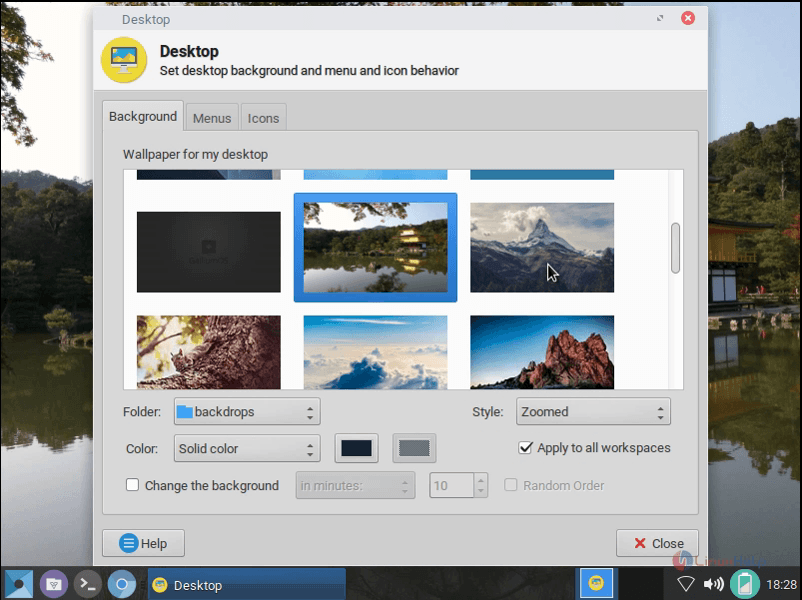
23
System Settings
24

Tags:
jackson
Author: 

Comments ( 0 )

No comments available

Add a comment
{{postCtrl.cmtErrMsg}}

Frequently asked questions ( 5 )

Q

How to check hardware compatibility for this Operating System?

A

For refer the hardware requirement for the GalliumOS, use the following link as given below "https://wiki.galliumos.org/Hardware_Compatibility"

Q

How to update the Gallium OS after install ?

A

GalliumOS includes GalliumOS Update in the Launcher menu. It is a simple wrapper around apt to update installed packages. You will be notified automatically when new software is available.

Q

Whether the GalliumOS does it support steam?

A

Yes, The GalliumOS will have been support the stream.

Q

CAn you give me the Download link for the GalliumOS?

A

Foe download the GalliumOS , use the following link as given below "https://galliumos.org/download"

Q

How much disk space will GalliumOS use?

A

A fresh installation of GalliumOS 2.1 requires 2.9GB. This will increase as you install additional software and add personal data.

Back To Top!
Rank
User
Points

Top Contributers

userNamenaveelansari
135850

Top Contributers

userNameayanbhatti
92510

Top Contributers

userNamehamzaahmed
32150

Top Contributers

1
userNamelinuxhelp
31040

Top Contributers

userNamemuhammadali
24500
Can you help Ganesh Konka ?
Zentya 6.1 http proxy configuration

please send link for creating zentyal 6.1 for http proxy and firewall as gateway.

Networking
  • Routing
  • trunk
  • Netmask
  • Packet Capture
  • domain
  • HTTP Proxy
Server Setup
  • NFS
  • KVM
  • Memory
  • Sendmail
  • WebDAV
  • LXC
Shell Commands
  • Cloud commander
  • Command line archive tools
  • last command
  • Shell
  • terminal
  • Throttle
Desktop Application
  • Linux app
  • Pithos
  • Retrospect
  • Scribe
  • TortoiseHg
  • 4Images
Monitoring Tool
  • Monit
  • Apache Server Monitoring
  • EtherApe 
  • Arpwatch Tool
  • Auditd
  • Barman
Web Application
  • Nutch
  • Amazon VPC
  • FarmWarDeployer
  • Rukovoditel
  • Mirror site
  • Chef
Contact Us | Terms of Use| Privacy Policy| Disclaimer
© 2025 LinuxHelp.com All rights reserved. Linux™ is the registered trademark of Linus Torvalds. This site is not affiliated with linus torvalds in any way.