• Categories
    Category
    {{ postCtrl.tags }}
    • {{ category.tag_type }}

      • {{tag.tag_name}}
      • View more
  • Categories
    Category
    {{ postCtrl.tags }}
    • {{ category.tag_type }}

      • {{tag.tag_name}}
      • View more
  • News
  • Tutorials
  • Forums
  • Tags
  • Users
Tutorial News Comments FAQ Related Articles

How to Install Gnome Do in Ubuntu

{{postValue.id}}

Gnome Do

Procedure to install Gnome Do in Ubuntu is explained in this article. It is an Intelligent Launch tool such as email, open, run, play and chat.

To Install Gnome Do

By using the following command, to install Gnome Do.

user1@linuxhelp:~$ sudo apt-get install gnome-do
[sudo] password for user1: 
Reading package lists... Done
Building dependency tree       
Reading state information... Done
The following extra packages will be installed:
  binfmt-support cli-common gnome-do-plugins libdbus-glib2.0-cil
...
...
Setting up gnome-do-plugins (0.8.5-3) ...
Processing triggers for libc-bin (2.21-0ubuntu4.1) ...
Processing triggers for ureadahead (0.100.0-19) ...
Processing triggers for systemd (225-1ubuntu9.1) ...


Enter Gnome Do in the search area and press Enter to launch GNOME Do.
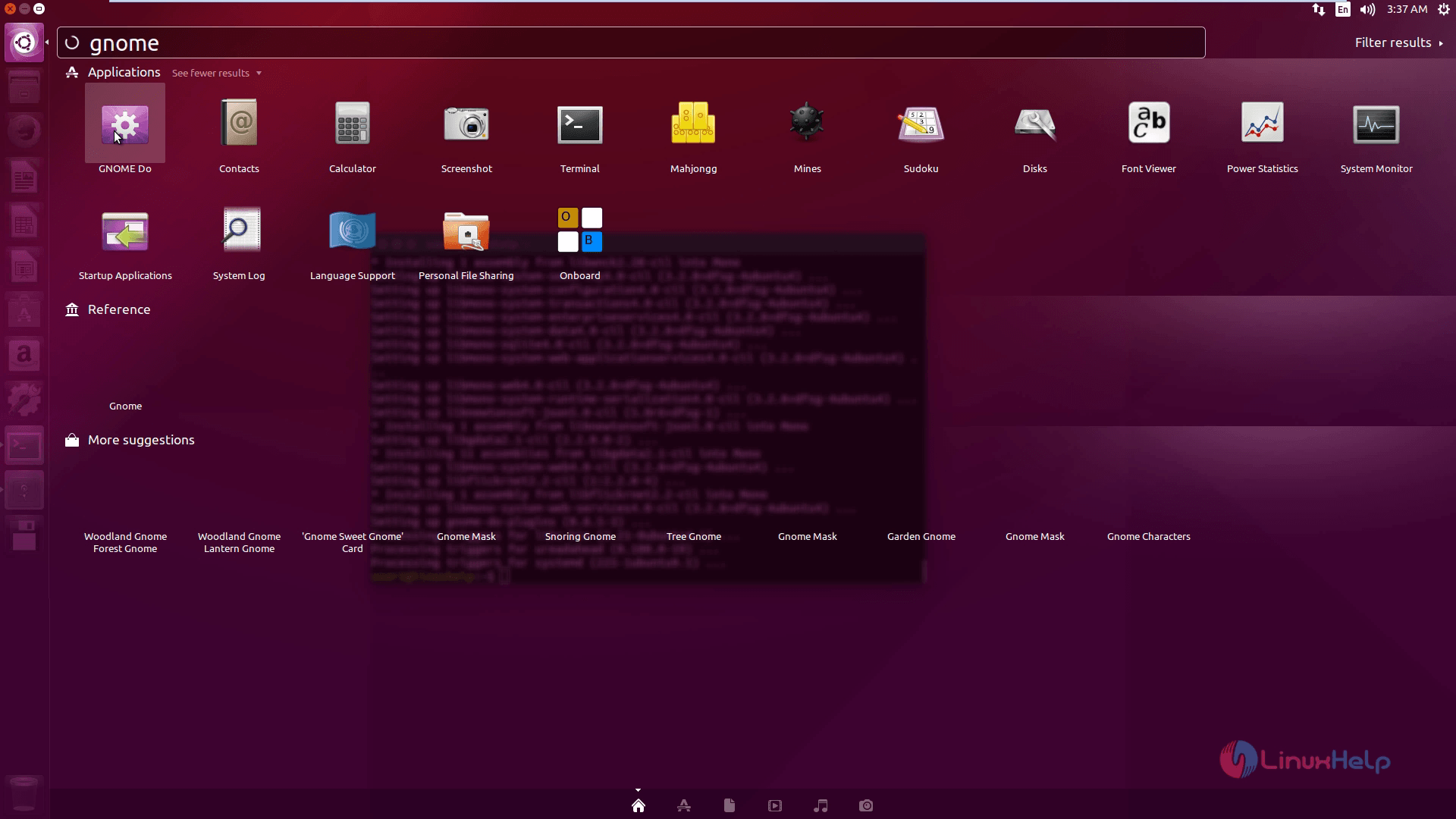
Dashboard

For instance if you want to search the folder called ‘ Downloads‘ , you just need to type ‘ Downnload‘ and Gnome-Do will display you the result.
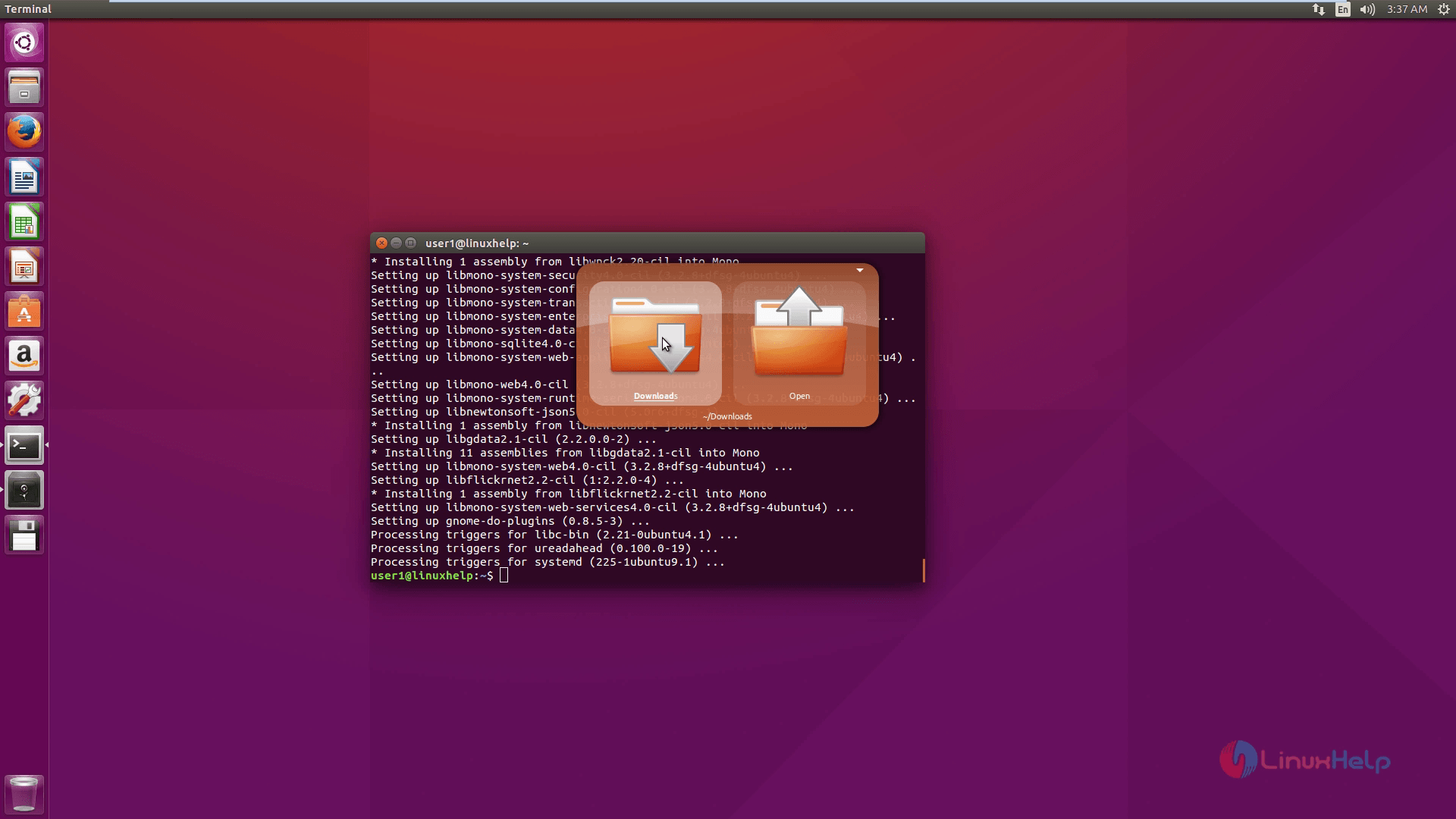
Downloads

Features of Gnome-Do

Search

When you search ‘ Downloads‘ folder, Gnome-Do will display the location of the folder that is located under ~/Downloads. On pressing the down arrow key, you will see extra results that will fulfill the search keyword you entered before.
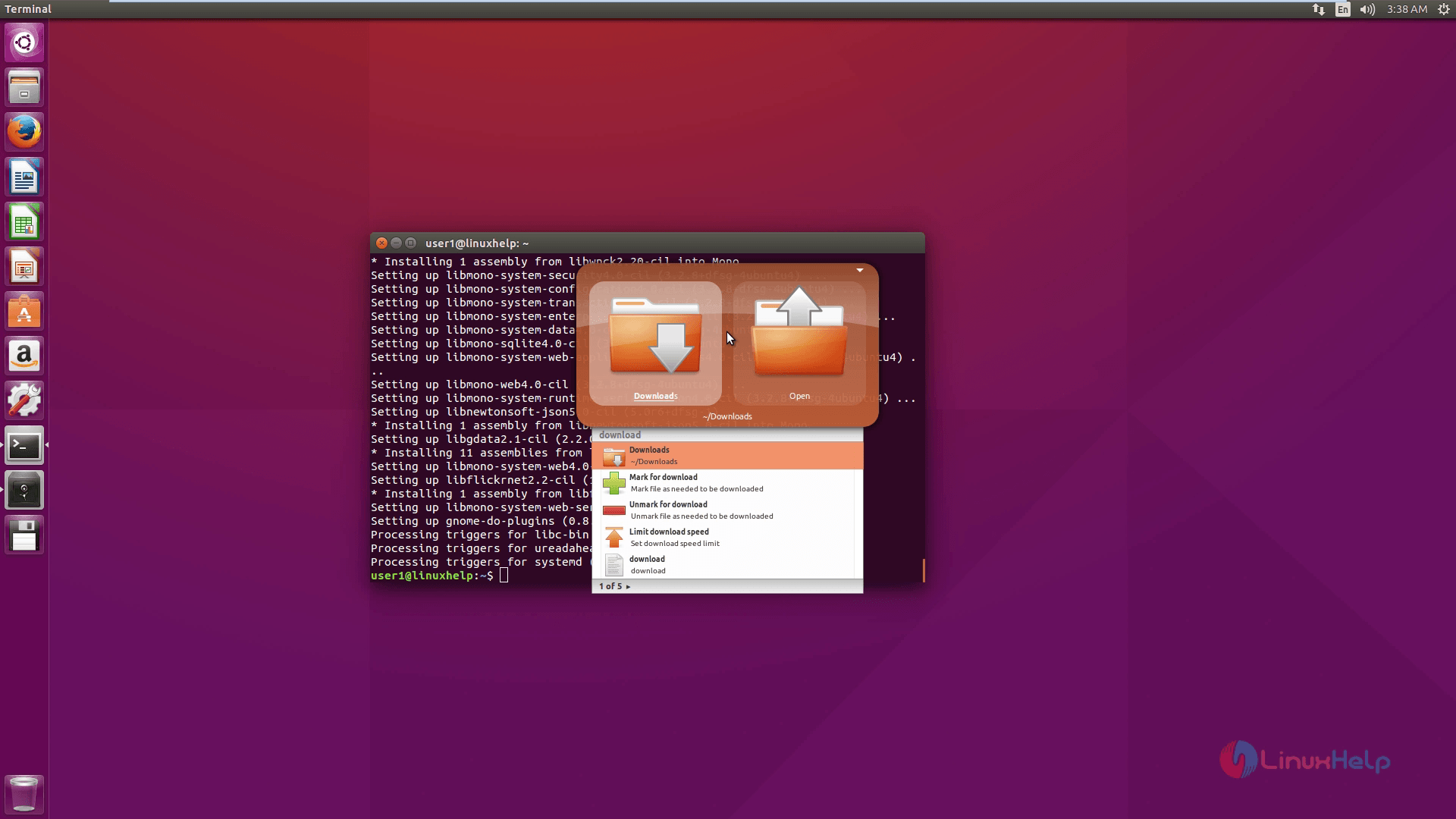
Downloads Folder

Press the right arrow key to peek, if the folder have sub folders,
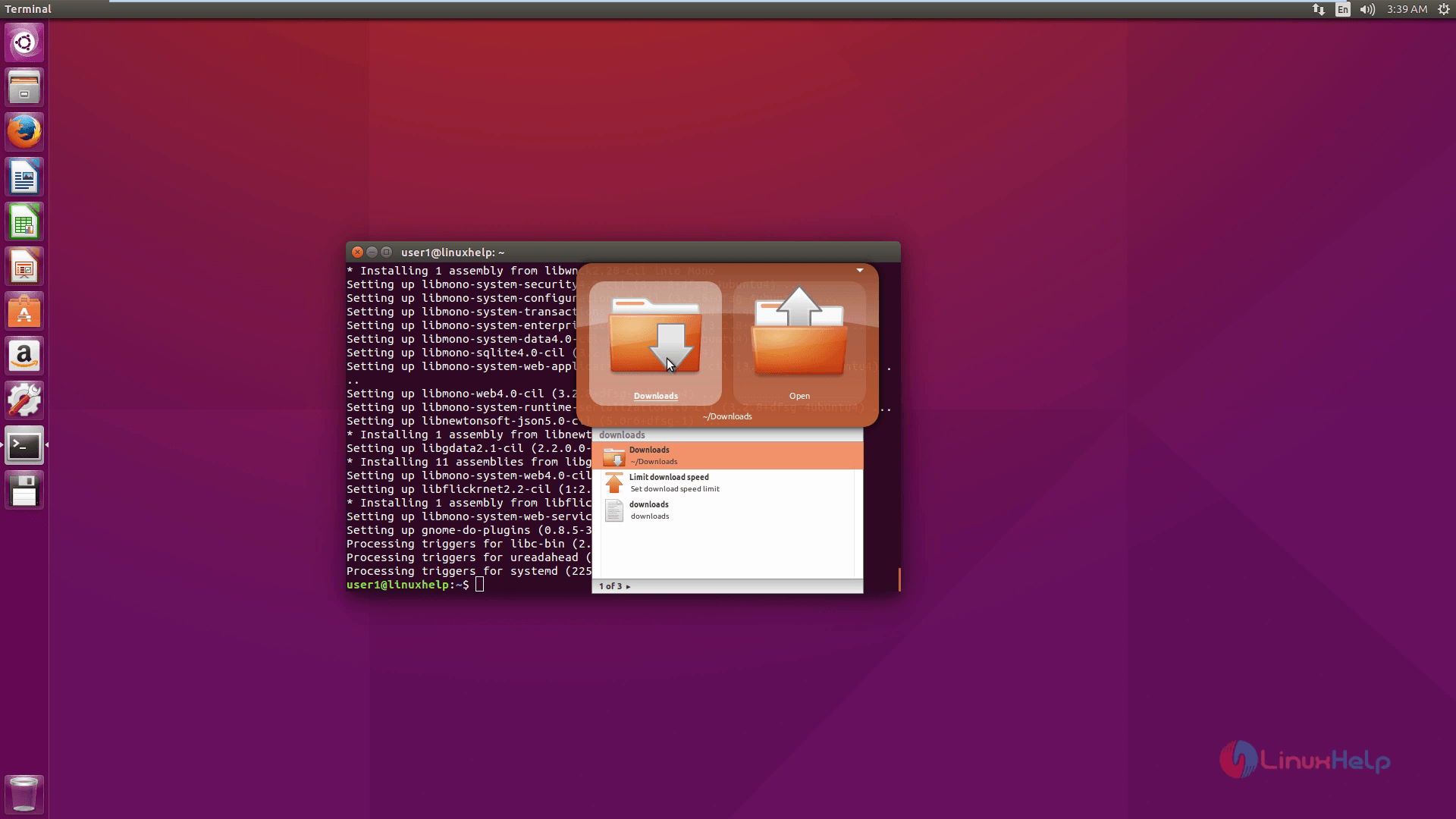
folder and sub folder

Press the left arrow key to go back

For Action:
As you see the left side of the box is the search result and the right side is the action box. Use Tab button to move between box and click the down key to see what actions are provided. If your search result is a folder, you may view several actions like Open, Move to and Reveal.

The available actions is Run when you find an applications.
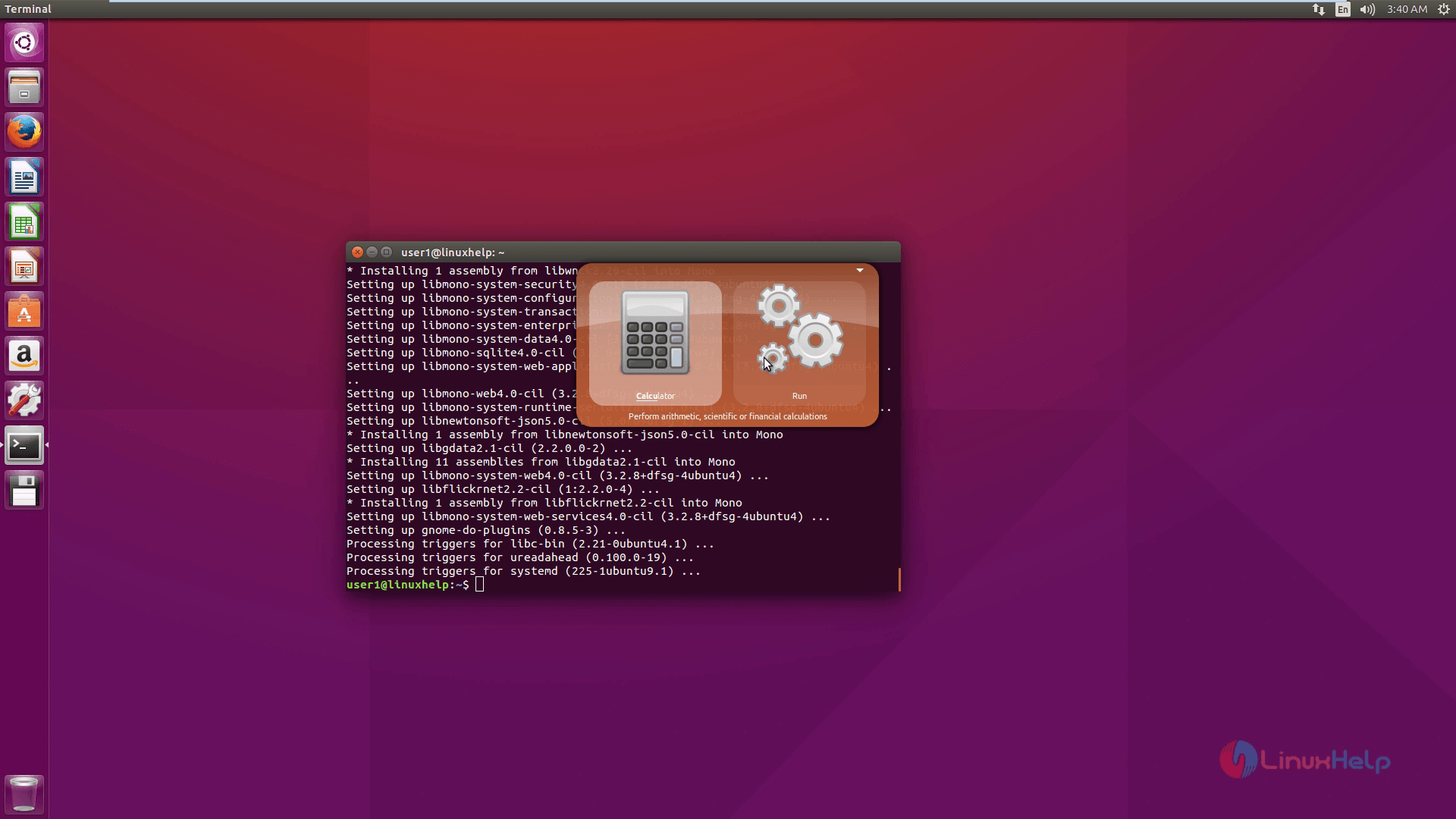
available action

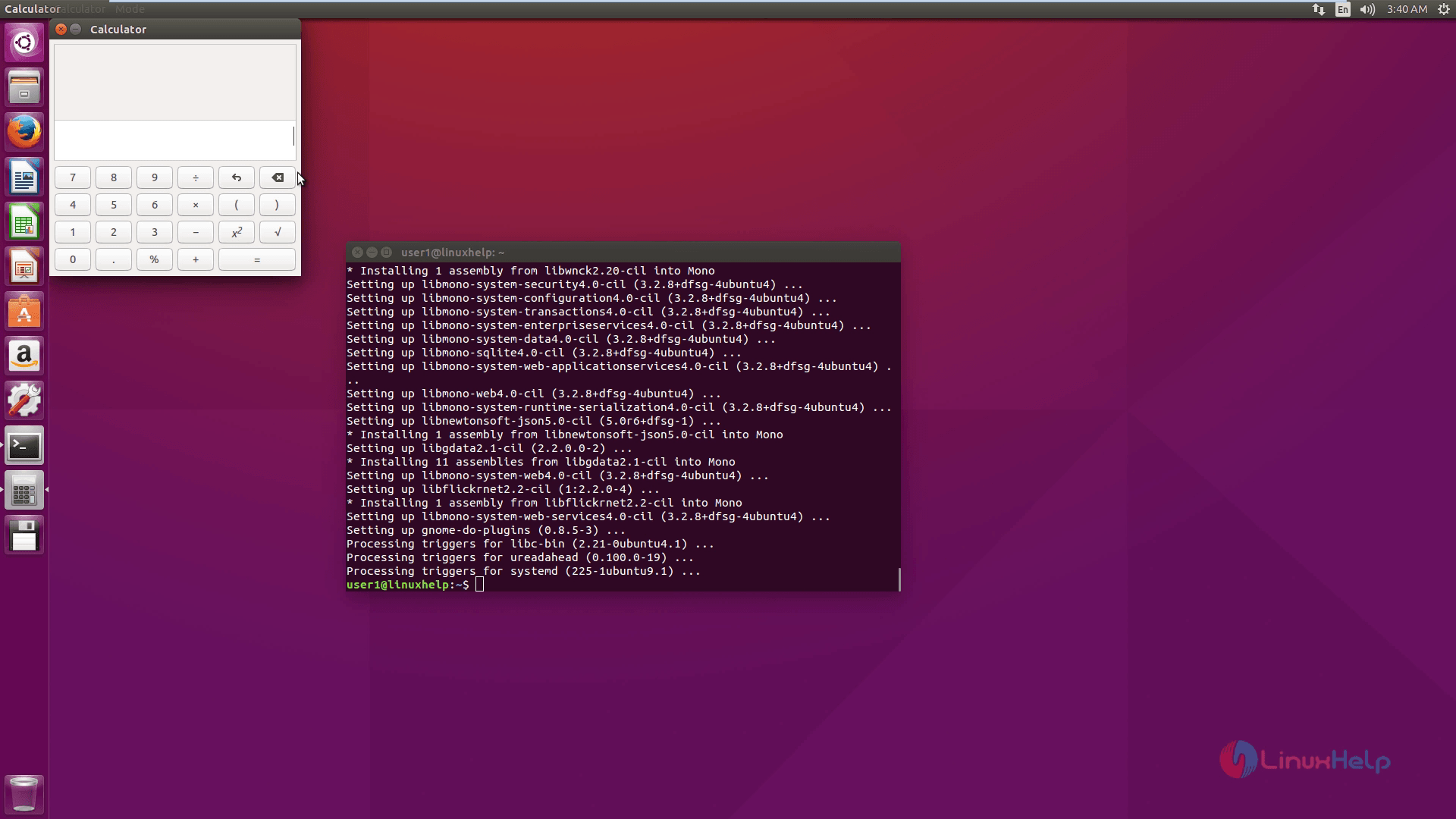
calculator

Themes

Click the arrow button at the Gnome Do top right area then select Preferences and click Appearance tab. There are four themes available such as Glass, Mini, Classic and Nouveau. Select the theme and press Close button.
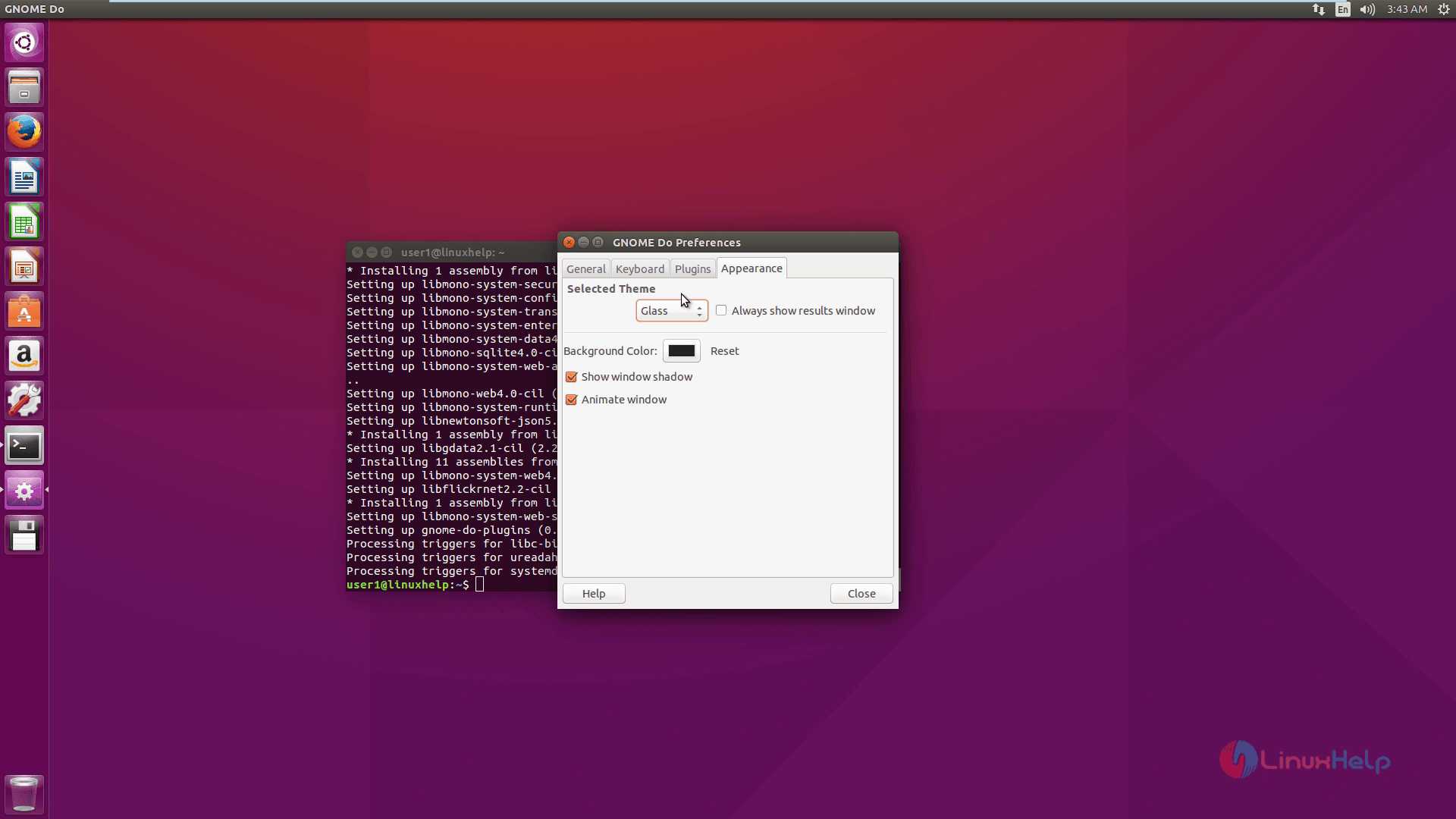
themes

Shortcut
To edit a shortcut, you simply double-click it. To restore a shortcut, double-click and click Backspace.
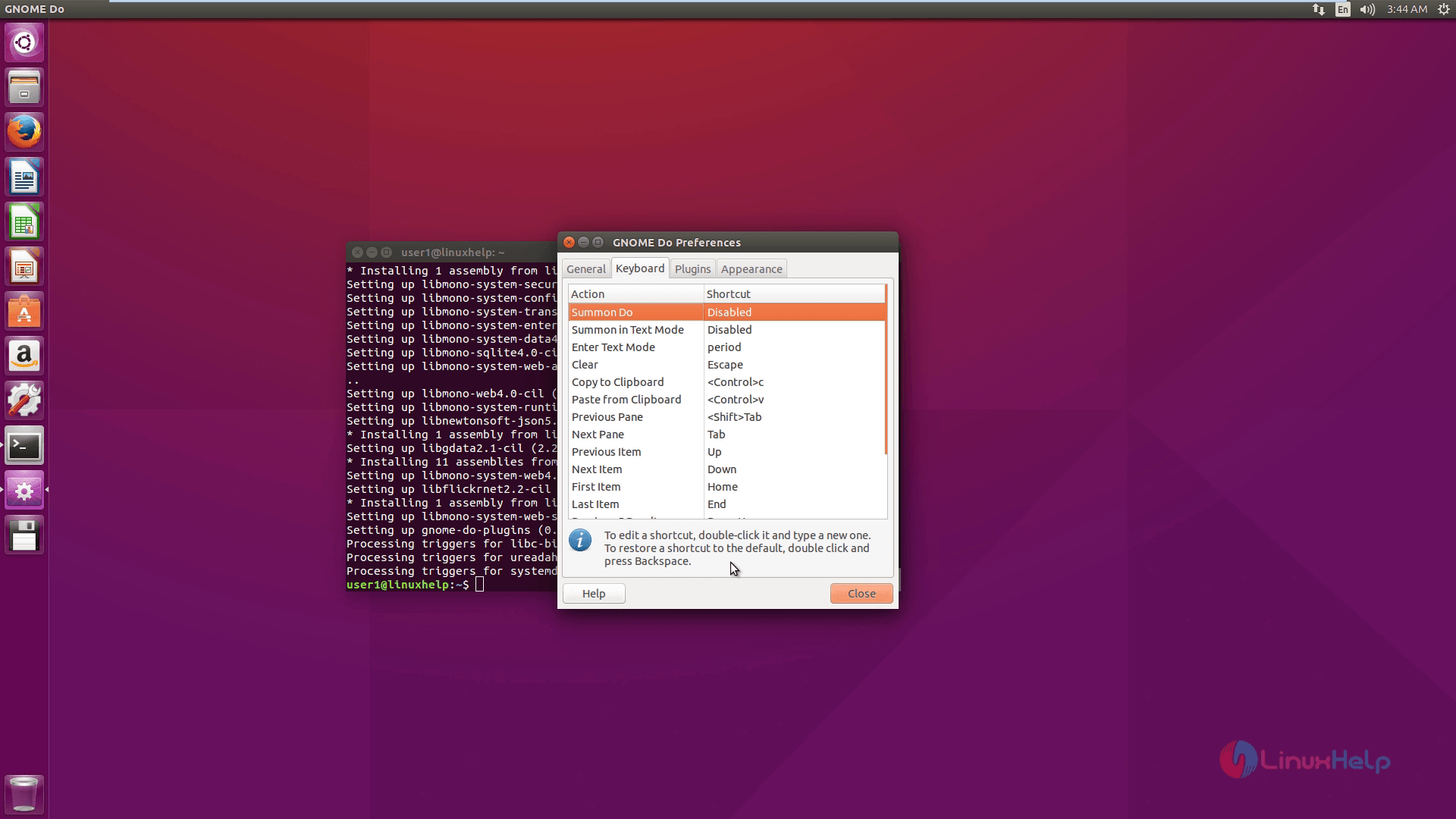
shortcut

Plugins

It has Official Plugins and Community Plugins. You search the files and folders in your machine to allow Gnome-Do to search the documents in Dropbox or Google Docs cloud. In order to Upload images to ImageShack or Flickr is also supported by Gnome-Do.
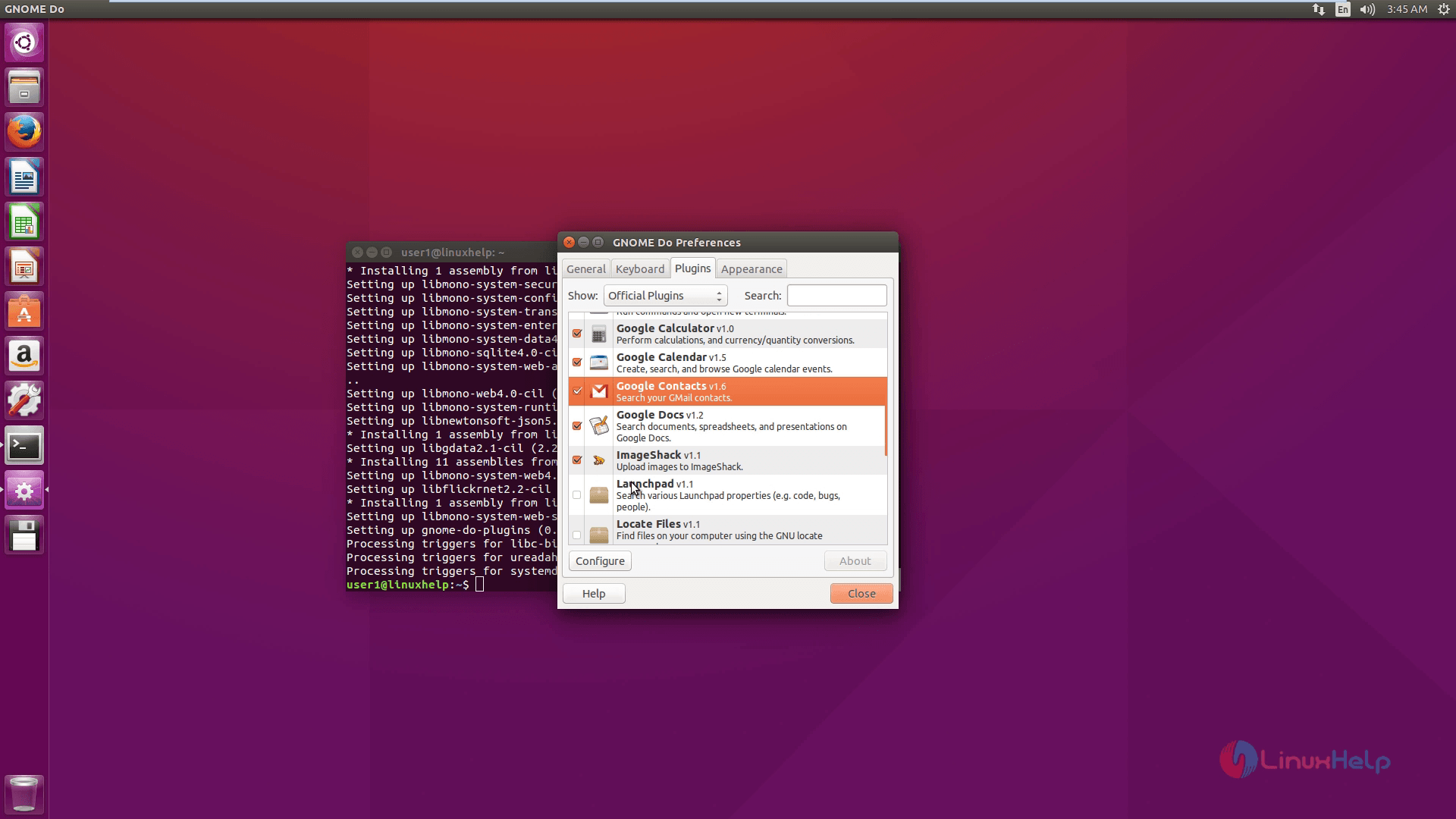
plugins

Tags:
brayden
Author: 

Comments ( 0 )

No comments available

Add a comment
{{postCtrl.cmtErrMsg}}

Frequently asked questions ( 5 )

Q

How to Install Gnome Do in Ubuntu?

A

By using the following command, to install the Gnome Do:

sudo apt-get install gnome-do

Q

what is Gnome Do?

A

Gnome Do is a free and Open source application launcher for Linux based operating systems.

Q

How To Install GNOME GUI In CentOS 7 Linux?

A

Follow this command to install GNOME GUI in Linux:

yum groupinstall "GNOME Desktop" -y

Q

what are the stable release of Gnome Do in Linux?

A

The stable release of Gnome Do in Linux is 0.95.3 It held on November 12, 2014.

Q

How to find the GNOME Desktop Version?

A

The following command is used to find the GNOME Desktop Version:

gnome-about --gnome-version

Back To Top!
Rank
User
Points

Top Contributers

userNamenaveelansari
135850

Top Contributers

userNameayanbhatti
92510

Top Contributers

userNamehamzaahmed
32150

Top Contributers

1
userNamelinuxhelp
31040

Top Contributers

userNamemuhammadali
24500
Can you help Ganesh Konka ?
Zentya 6.1 http proxy configuration

please send link for creating zentyal 6.1 for http proxy and firewall as gateway.

Networking
  • Routing
  • trunk
  • Netmask
  • Packet Capture
  • domain
  • HTTP Proxy
Server Setup
  • NFS
  • KVM
  • Memory
  • Sendmail
  • WebDAV
  • LXC
Shell Commands
  • Cloud commander
  • Command line archive tools
  • last command
  • Shell
  • terminal
  • Throttle
Desktop Application
  • Linux app
  • Pithos
  • Retrospect
  • Scribe
  • TortoiseHg
  • 4Images
Monitoring Tool
  • Monit
  • Apache Server Monitoring
  • EtherApe 
  • Arpwatch Tool
  • Auditd
  • Barman
Web Application
  • Nutch
  • Amazon VPC
  • FarmWarDeployer
  • Rukovoditel
  • Mirror site
  • Chef
Contact Us | Terms of Use| Privacy Policy| Disclaimer
© 2025 LinuxHelp.com All rights reserved. Linux™ is the registered trademark of Linus Torvalds. This site is not affiliated with linus torvalds in any way.