How to Install Google Calendar Indicator on Ubuntu 16.04
To Install Google Calendar Indicator on Ubuntu 16.04
Calendar Indicator is an Ubuntu AppIndicator for Google Calendar. It displays Google Calendar events on the top Ubuntu panel. Besides displaying the next 10 Google Calendar events in the indicator, the application lets you add new events and it comes with a fully-featured calendar that lets you access all your events, edit existing events and so on. In this tutorial, you' ll learn about the method to install Google Calendar Indicator on Ubuntu 16.04.
Installing Google Calendar Indicator
First, open up a terminal window and run the following commands to add the PPA.
root@linuxhelp:~# add-apt-repository ppa:atareao/atareao
 Applications from atareao
 More info: https://launchpad.net/~atareao/+archive/ubuntu/atareao
Press [ENTER] to continue or ctrl-c to cancel adding it

gpg: keyring `/tmp/tmp7aubhuy_/secring.gpg'  created
gpg: keyring `/tmp/tmp7aubhuy_/pubring.gpg'  created
gpg: requesting key 36FD5529 from hkp server keyserver.ubuntu.com
gpg: /tmp/tmp7aubhuy_/trustdb.gpg: trustdb created
gpg: key 36FD5529: public key " Launchpad PPA for atareao"  imported
gpg: Total number processed: 1
gpg:               imported: 1  (RSA: 1)
OK
And then, you need to update your newly added repository by making use of the following command.
root@linuxhelp:~# apt-get update
Hit:1 http://in.archive.ubuntu.com/ubuntu xenial InRelease
Hit:2 http://in.archive.ubuntu.com/ubuntu xenial-updates InRelease
Get:3 http://ppa.launchpad.net/atareao/atareao/ubuntu xenial InRelease [17.5 kB]
Hit:4 http://security.ubuntu.com/ubuntu xenial-security InRelease
Hit:5 http://in.archive.ubuntu.com/ubuntu xenial-backports InRelease
Get:6 http://ppa.launchpad.net/atareao/atareao/ubuntu xenial/main amd64 Packages [7,152 B]
Get:7 http://ppa.launchpad.net/atareao/atareao/ubuntu xenial/main i386 Packages [7,144 B]
Get:8 http://ppa.launchpad.net/atareao/atareao/ubuntu xenial/main Translation-en [4,084 B]
Fetched 35.9 kB in 1s (19.6 kB/s)
Reading package lists... Done
And once it is done, you need to install the Google Calendar indicator, by making use of the following command.
root@linuxhelp:~# apt-get install calendar-indicator
Reading package lists... Done
Building dependency tree
Reading state information... Done
The following additional packages will be installed:
  gir1.2-javascriptcoregtk-3.0 gir1.2-webkit-3.0 libjavascriptcoregtk-3.0-0 libwebkitgtk-3.0-0 libwebkitgtk-3.0-common
  python3-dateutil
The following NEW packages will be installed:
  calendar-indicator gir1.2-javascriptcoregtk-3.0 gir1.2-webkit-3.0 libjavascriptcoregtk-3.0-0 libwebkitgtk-3.0-0
  libwebkitgtk-3.0-common python3-dateutil
.
.
Setting up gir1.2-webkit-3.0:amd64 (2.4.11-0ubuntu0.1) ...
Setting up python3-dateutil (2.4.2-1) ...
Setting up calendar-indicator (0.3.4-0extras15.10.0) ...
Processing triggers for libc-bin (2.23-0ubuntu3) ...
Once Google Calendar Indicator is installed, you can start it from Unity Dash.

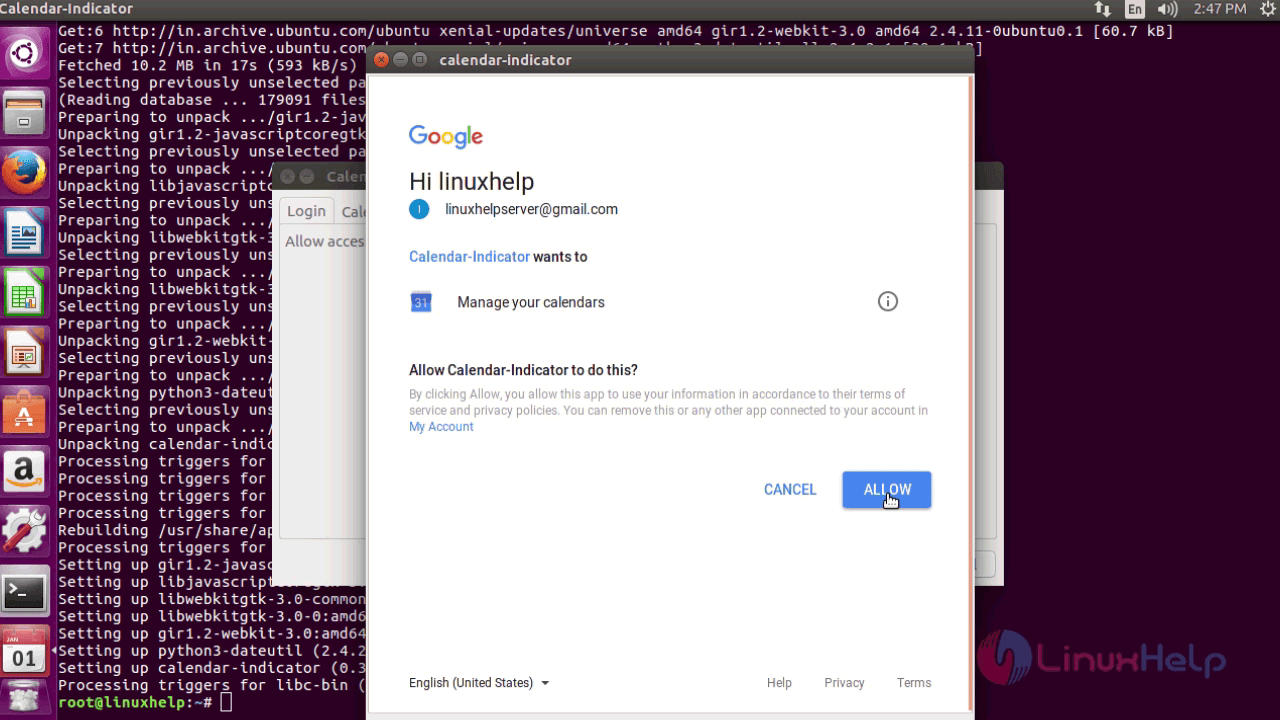
In the window that appears, you need to log in using mail id.

And click on the Allow button.
Now, you can see that the option to add an event to Google Calendar is now available at the system tray.

You can choose the date from the calendar and add your event.
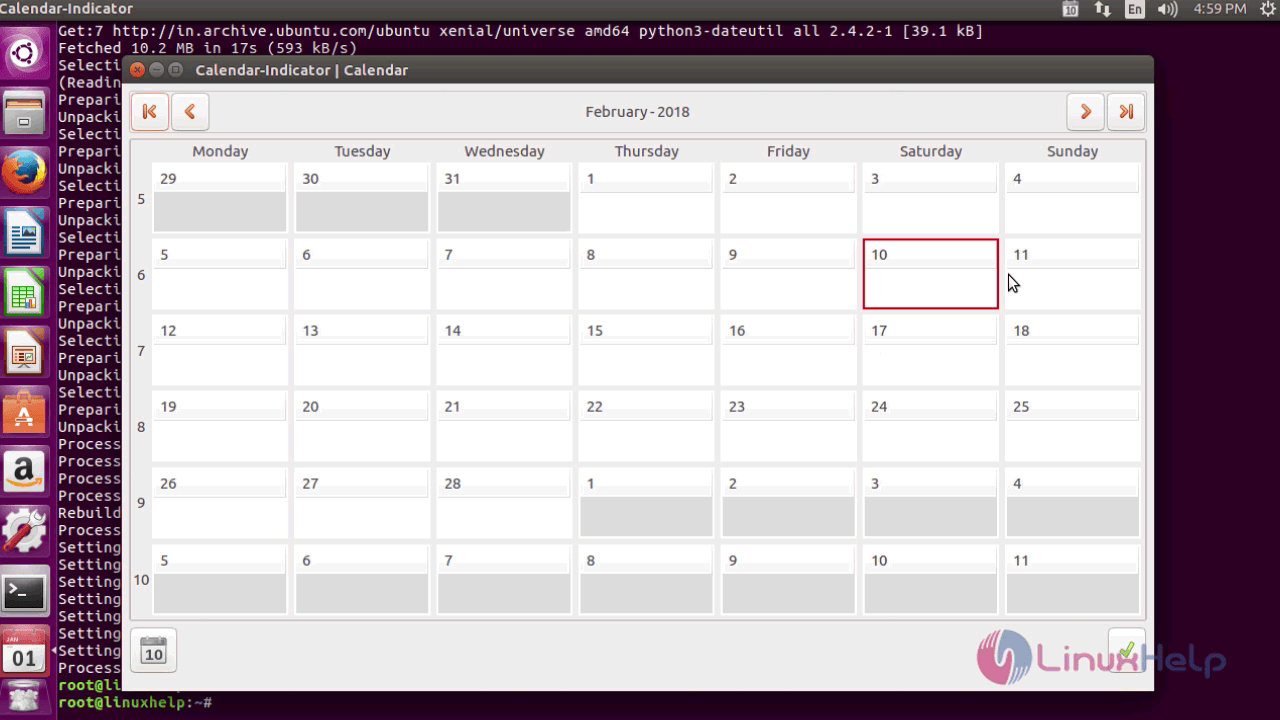
With this, the installation of Google Calendar Indicator comes to an end.
Comments ( 0 )
No comments available