• Categories
    Category
    {{ postCtrl.tags }}
    • {{ category.tag_type }}

      • {{tag.tag_name}}
      • View more
  • Categories
    Category
    {{ postCtrl.tags }}
    • {{ category.tag_type }}

      • {{tag.tag_name}}
      • View more
  • News
  • Tutorials
  • Forums
  • Tags
  • Users
Tutorial News Comments FAQ Related Articles

How to Install Google Chrome 60 on Ubuntu 16.04.

{{postValue.id}}

To Install Google Chrome 60 on Ubuntu 16.04.

Last month, Google Chrome 60 was promoted to the stable channel release for several operating systems such as Windows, Mac and Linux platforms. The stable release comes with a number of bug fixes and improvements. This tutorial covers the method on installing Google Chrome 60 on Ubuntu.

Installing Google Chrome 60

Before you begin with the installation of Google Chrome 60, and add a key for chrome as follows.

root@linuxhelp:~# wget -q -O - https://dl-ssl.google.com/linux/linux_signing_key.pub | sudo apt-key add -
OK


After that, you need to add the repository.

root@linuxhelp:~# sh -c ' echo " deb [arch=amd64] http://dl.google.com/linux/chrome/deb/ stable main"  > >  /etc/apt/sources.list.d/google-chrome.list' 


Now, update the newly added repo by invoking the following command.

root@linuxhelp:~# apt-get update
Ign:1 http://dl.google.com/linux/chrome/deb stable InRelease
Get:2 http://dl.google.com/linux/chrome/deb stable Release [1,189 B]
Get:3 http://dl.google.com/linux/chrome/deb stable Release.gpg [916 B]        
.
.
Fetched 306 kB in 17s (17.8 kB/s)  
Reading package lists... Done


You can now install the Chrome by running the following command.

root@linuxhelp:~#  apt install google-chrome-stable
Reading package lists... Done
Building dependency tree       
Reading state information... Done
.
.
update-alternatives: using /usr/bin/google-chrome-stable to provide /usr/bin/google-chrome (google-chrome) in auto mode
Processing triggers for libc-bin (2.23-0ubuntu3) ...

After installation go to Ubuntu dashboard and type chrome on search bar, you will see the application icon.
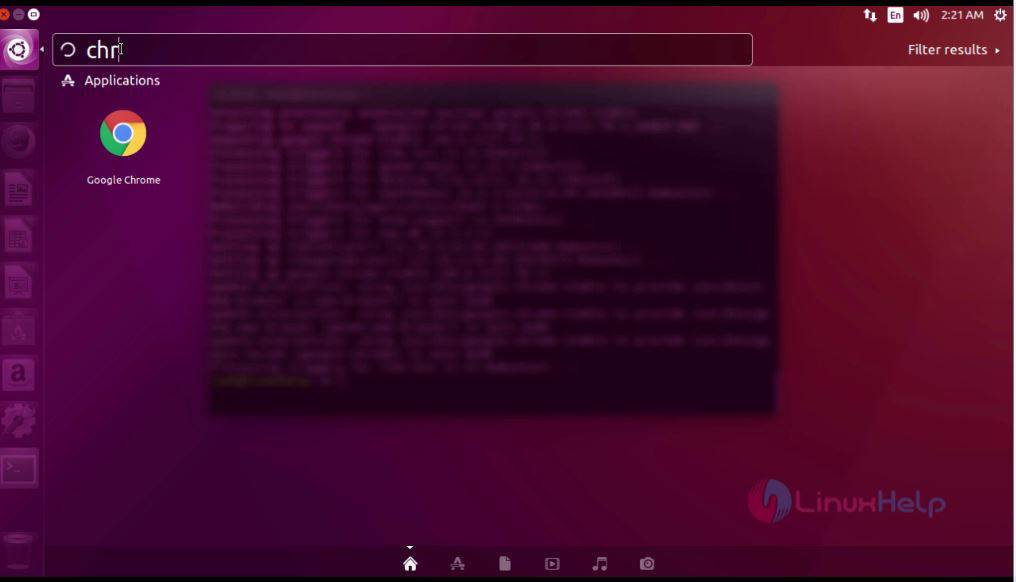
1


Click the icon to launch Chrome application.
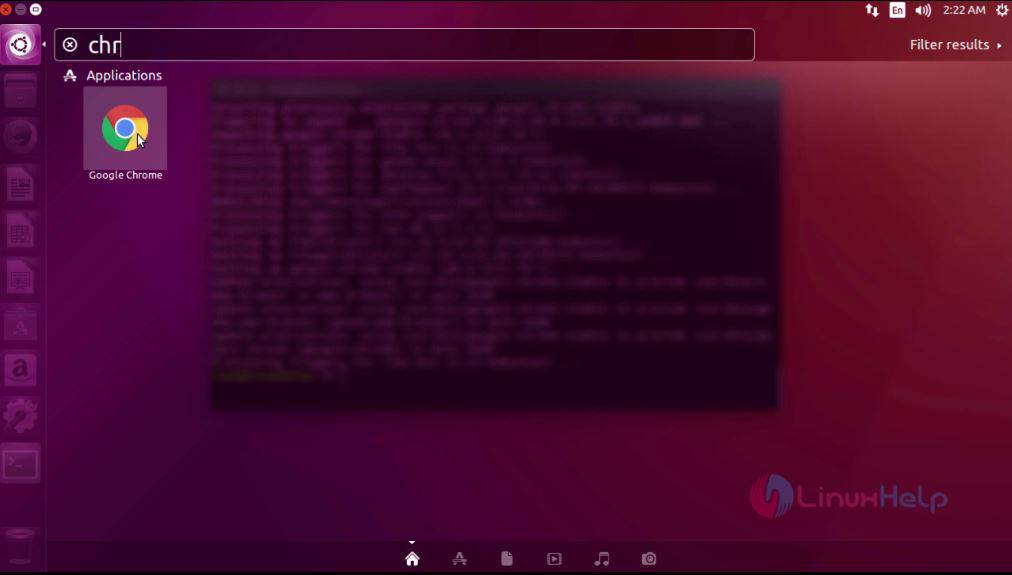
2

The chrome application appears on your screen now.
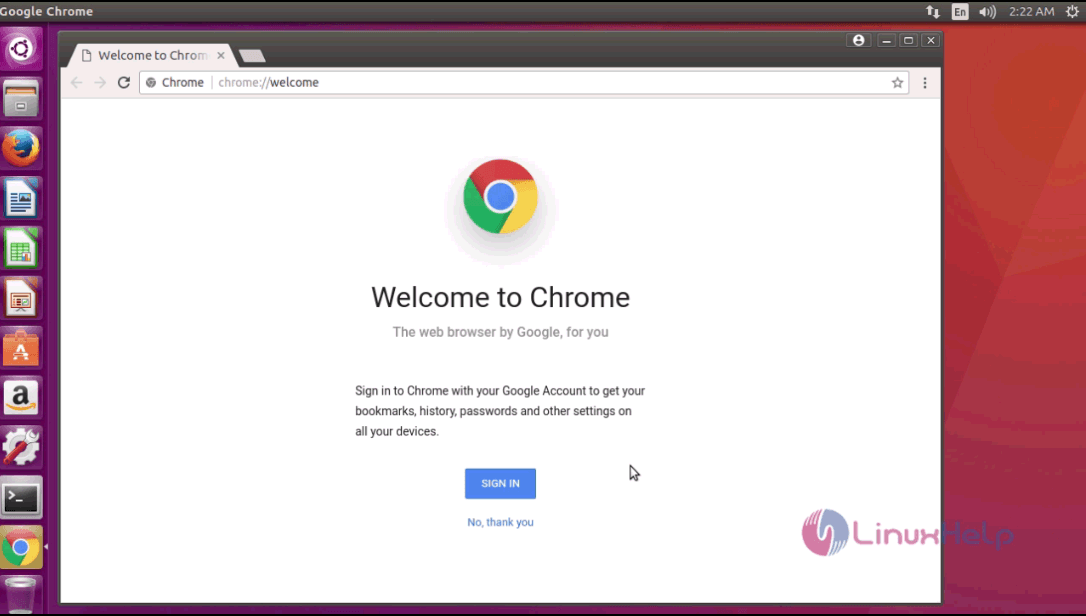
3

With this, the installation of Google Chrome 60 on Ubuntu 16.04. is complete.

Tags:
jayce
Author: 

Comments ( 0 )

No comments available

Add a comment
{{postCtrl.cmtErrMsg}}

Frequently asked questions ( 5 )

Q

What is the key used for adding?

A

Please refer the link as follow "https://dl-ssl.google.com/linux/linux_signing_key.pub"

Q

where we can get stable release of it?

A

use the link as follow "http://dl.google.com/linux/chrome/deb/".

Q

I don't want chrome I am happy with firefox but I have installed this?

A

You can remove it by "apt-get remove google-chrome-stable"

Q

What are Google Chrome Extensions?

A

Google Chrome Extensions are applications that run inside the Chrome browser and provide additional functionality, integration with third party websites or services, and customized browsing experiences.

Q

How much data can I store in localStorage in google chrome?

A

google chrome Extensions can store up to 5MB of data in localStorage.

Back To Top!
Rank
User
Points

Top Contributers

userNamenaveelansari
135850

Top Contributers

userNameayanbhatti
92510

Top Contributers

userNamehamzaahmed
32150

Top Contributers

1
userNamelinuxhelp
31040

Top Contributers

userNamemuhammadali
24500
Can you help legeek ?
Installation of the call center module

hello

I wish to install a call center in virtual with issabel, I downloaded the latest version of it , but I don' t arrive to install the call center module in issabel. please help me

thanks!

Networking
  • Routing
  • trunk
  • Netmask
  • Packet Capture
  • domain
  • HTTP Proxy
Server Setup
  • NFS
  • KVM
  • Memory
  • Sendmail
  • WebDAV
  • LXC
Shell Commands
  • Cloud commander
  • Command line archive tools
  • last command
  • Shell
  • terminal
  • Throttle
Desktop Application
  • Linux app
  • Pithos
  • Retrospect
  • Scribe
  • TortoiseHg
  • 4Images
Monitoring Tool
  • Monit
  • Apache Server Monitoring
  • EtherApe 
  • Arpwatch Tool
  • Auditd
  • Barman
Web Application
  • Nutch
  • Amazon VPC
  • FarmWarDeployer
  • Rukovoditel
  • Mirror site
  • Chef
Contact Us | Terms of Use| Privacy Policy| Disclaimer
© 2025 LinuxHelp.com All rights reserved. Linux™ is the registered trademark of Linus Torvalds. This site is not affiliated with linus torvalds in any way.