• Categories
    Category
    {{ postCtrl.tags }}
    • {{ category.tag_type }}

      • {{tag.tag_name}}
      • View more
  • Categories
    Category
    {{ postCtrl.tags }}
    • {{ category.tag_type }}

      • {{tag.tag_name}}
      • View more
  • News
  • Tutorials
  • Forums
  • Tags
  • Users
Tutorial News Comments FAQ Related Articles

How to Install I-Nex tool in Ubuntu

{{postValue.id}}

Steps To Install I-Nex in Ubuntu

I-Nex provides information about hardware devices like CPU, memory, motherboard etc., It contains seperate tabs for individual hardware and displays the system details. we can also generate an advanced report and take a screenshot directly from the application. Installation of I-Nex is explained in this manual.

Features

  • Generate Report.
  • Linux OS distro info.
  • Report generate.
  • Memory details.
  • CPU Info.
  • GPU Info.
  • Motherboard details.
  • System hostname.
  • Kernel version details.
  • Screenshot option.

To Install I-Nex

Before installing, add Gambas3 PPA. Use the following commands to install I-Nex and add PPAs in Ubuntu derivatives.

user1@linuxhelp:~$ sudo add-apt-repository ppa:i-nex-development-team/daily
user1@linuxhelp:~$ sudo add-apt-repository ppa:gambas-team/gambas3
user1@linuxhelp:~$ sudo apt-get update
user1@linuxhelp:~$ sudo apt-get install i-nex
user1@linuxhelp:~$ i-nex

If you have previously added repository ppa:nemh/gambas3. You have to remove it to add the repository ppa:gambas-team/gambas3

I-Nex Process

To launch I-Nex
Run i-nex in the terminal to launch I-Nex.
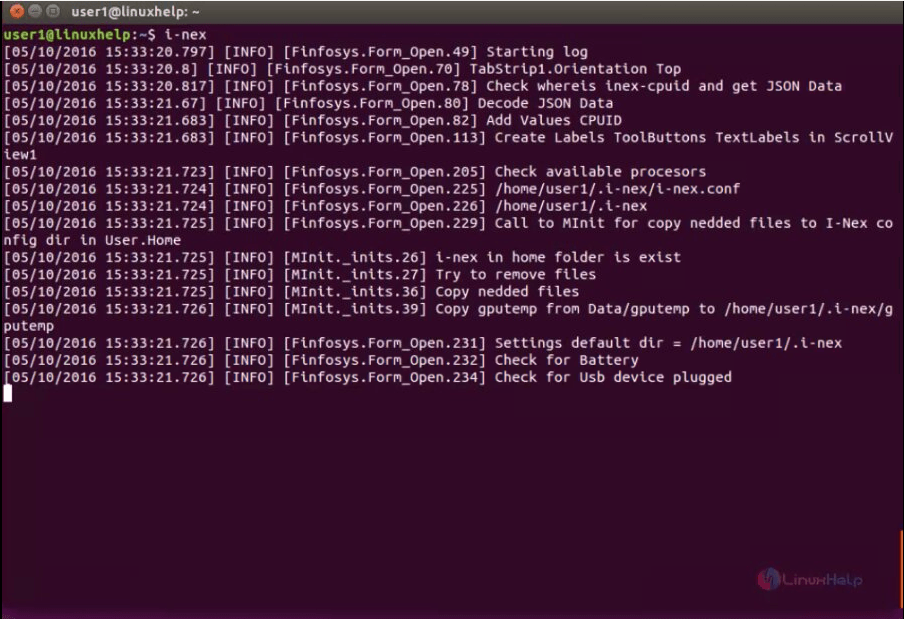

code

Information of CPU

To view the information about CPU. Click CPU tab.
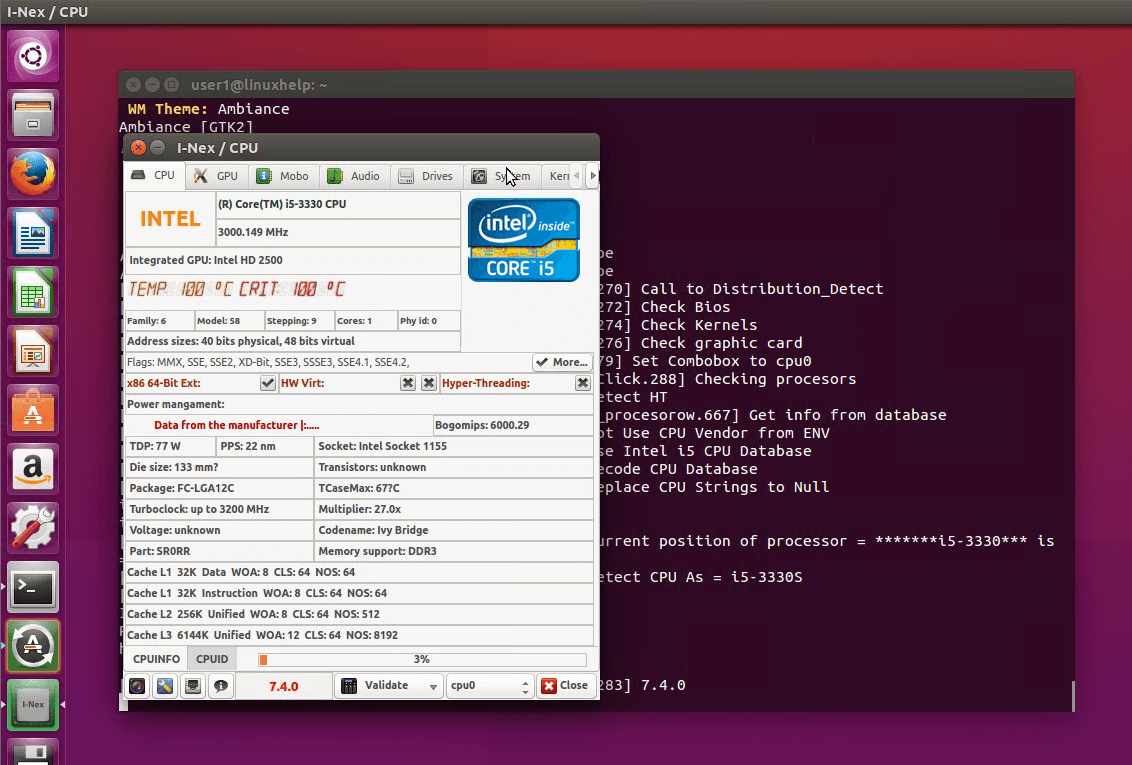

cpu tab

Information of GPU

Click GPU tab to view the graphical calculation and related information.
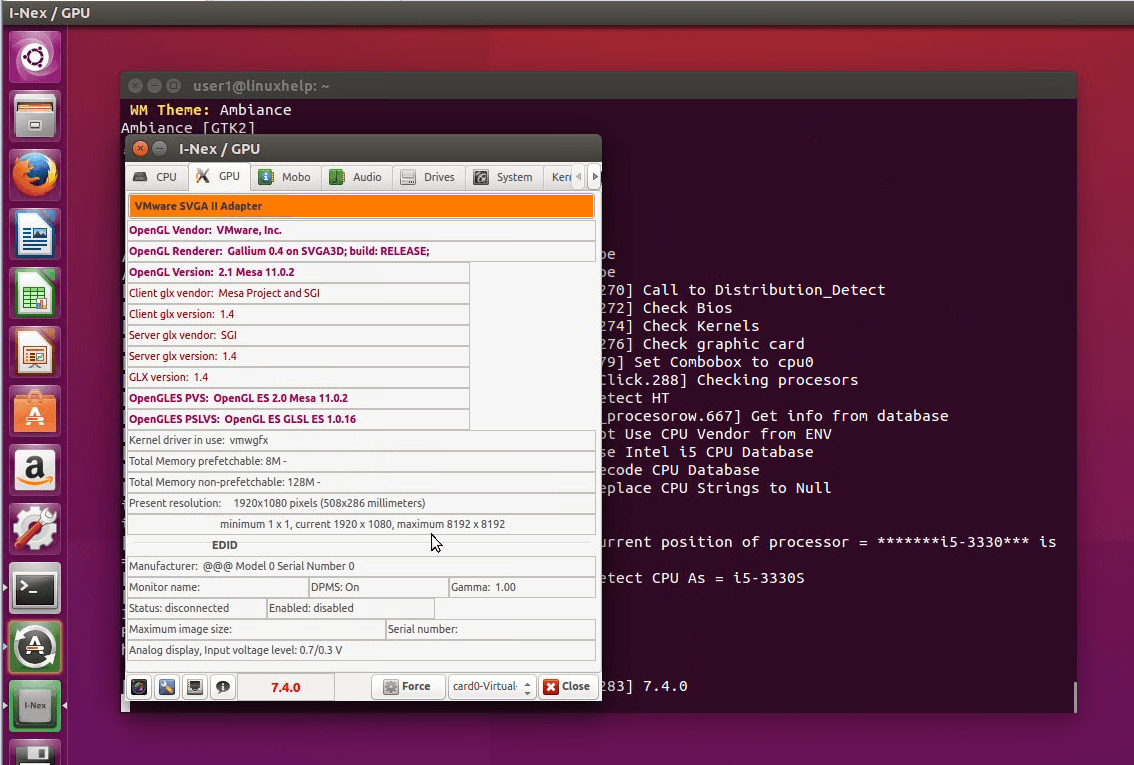

GPU

Information of Mobo

To know about motherboard details, click mobo tab.
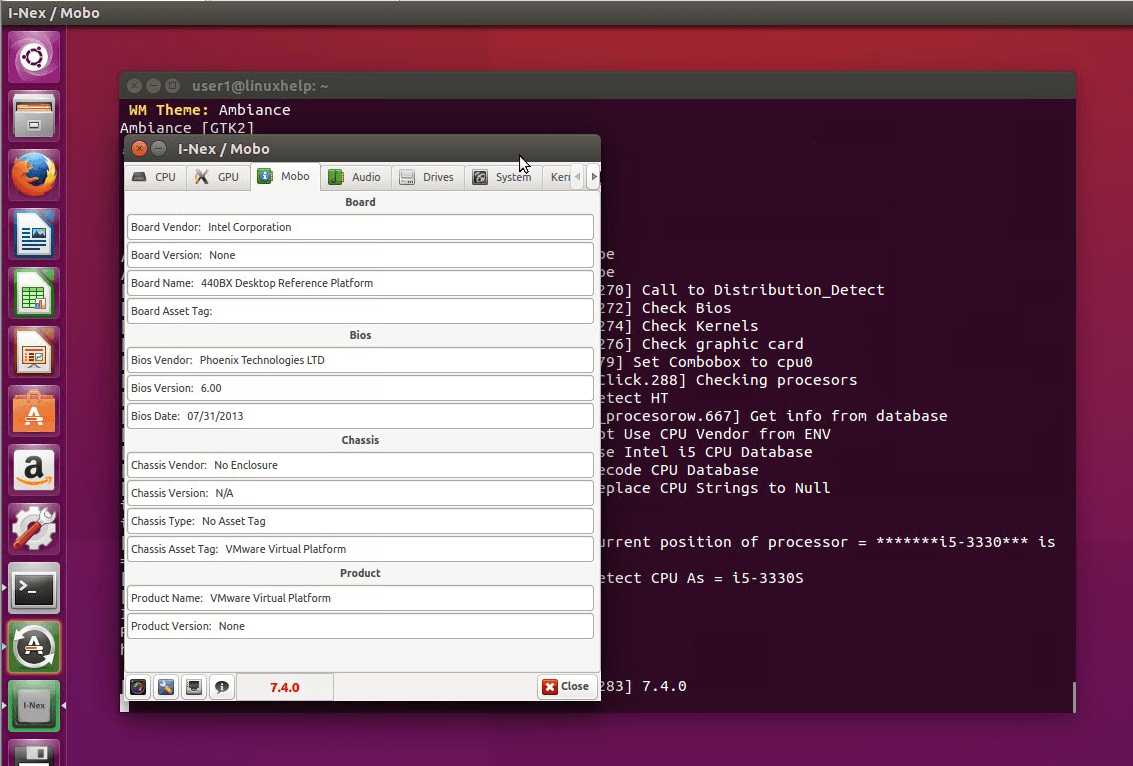

mobo

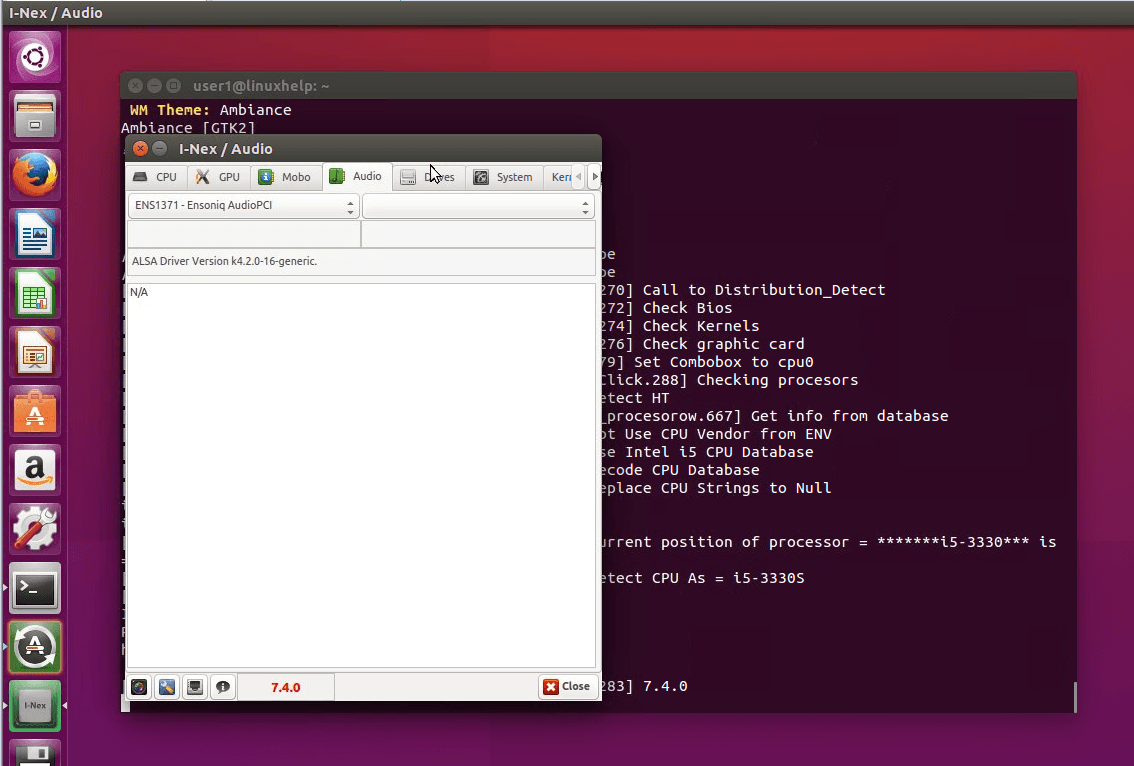
Information of Audio

To know about audio details, click audio tab.
audio

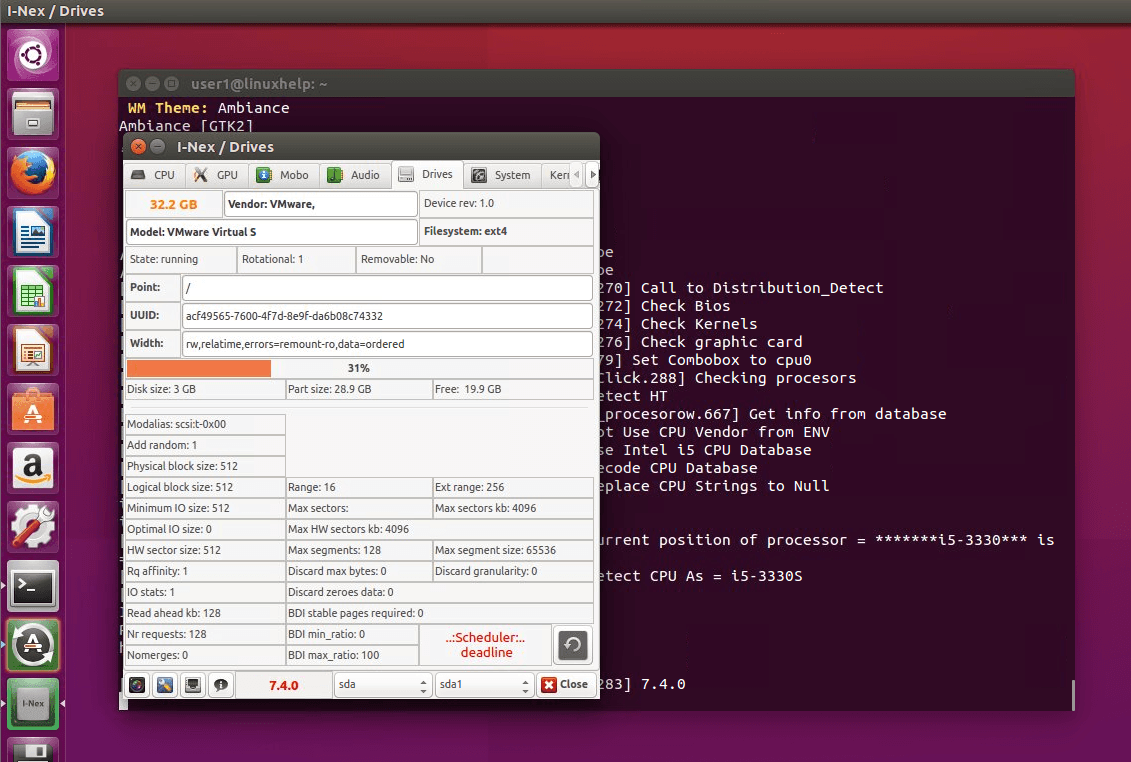
Information of Drives

Click drive tab, to view the drive details.

drive_details

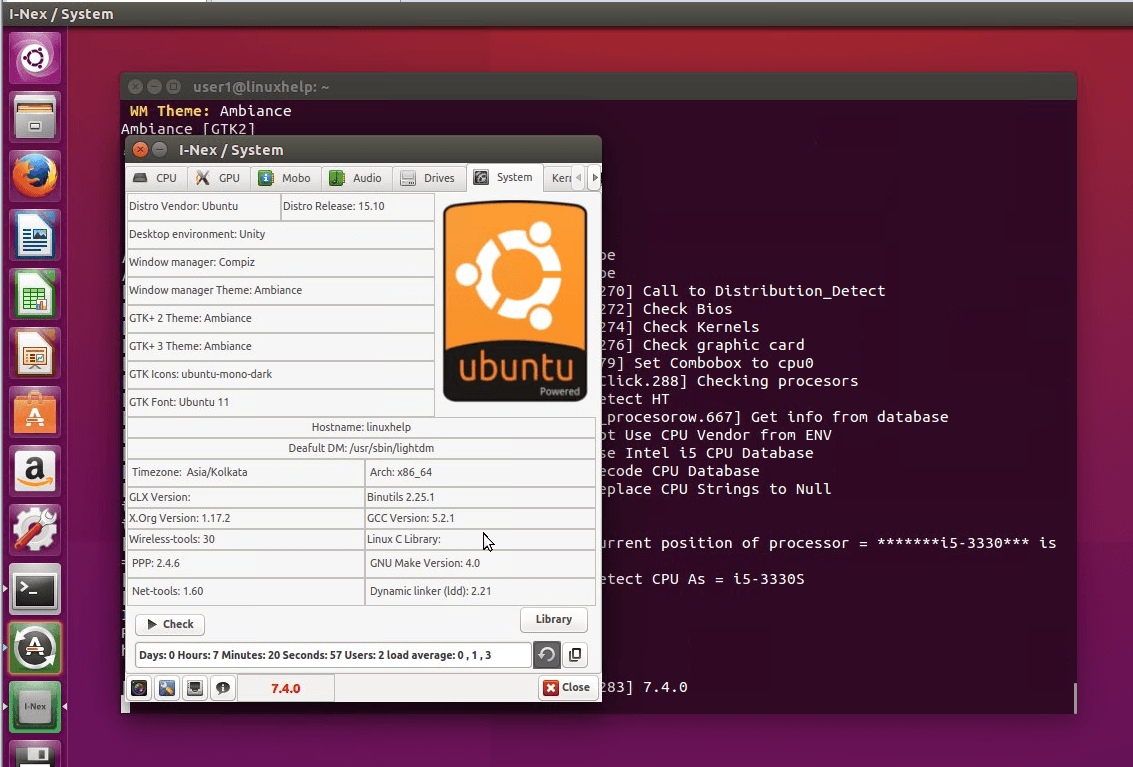
Information of System

System tab contains information about system.

system

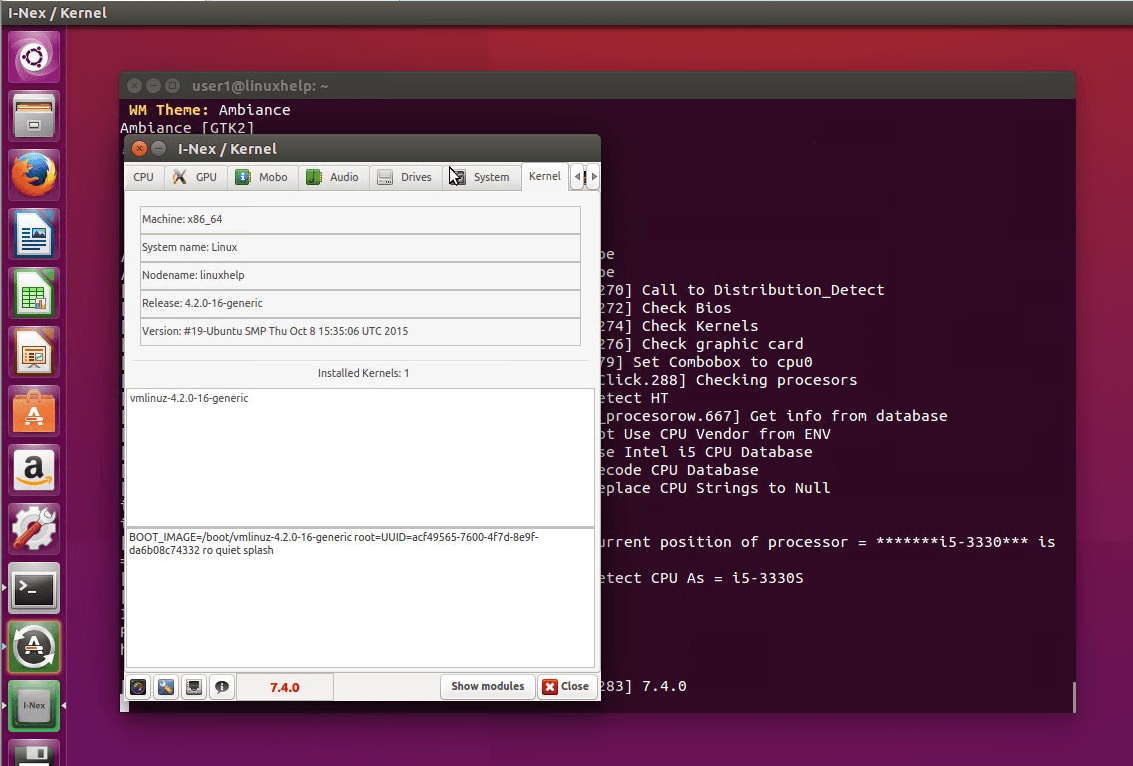
Information of Kernel

Kernal tab contains information about the kernel.

inex_kernel

Memory Information

To know about memory information, Click memory tab.
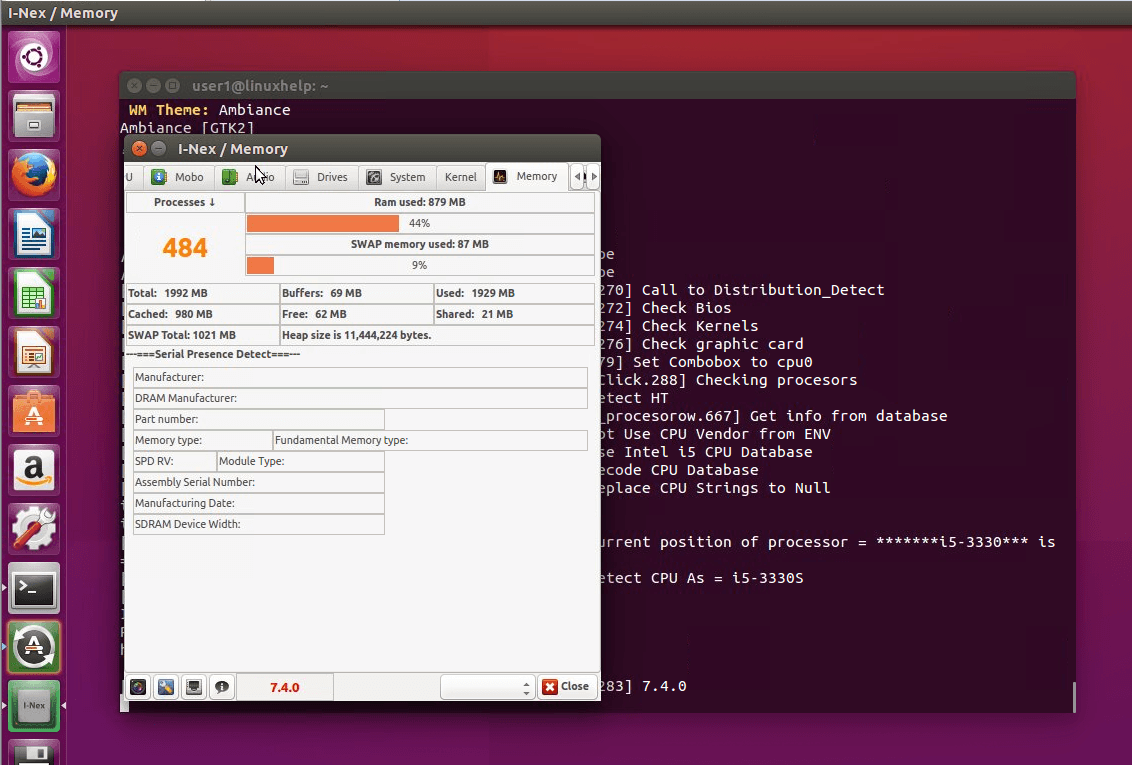

inex_memory

Network Information

To know Network details, Click Network tab.
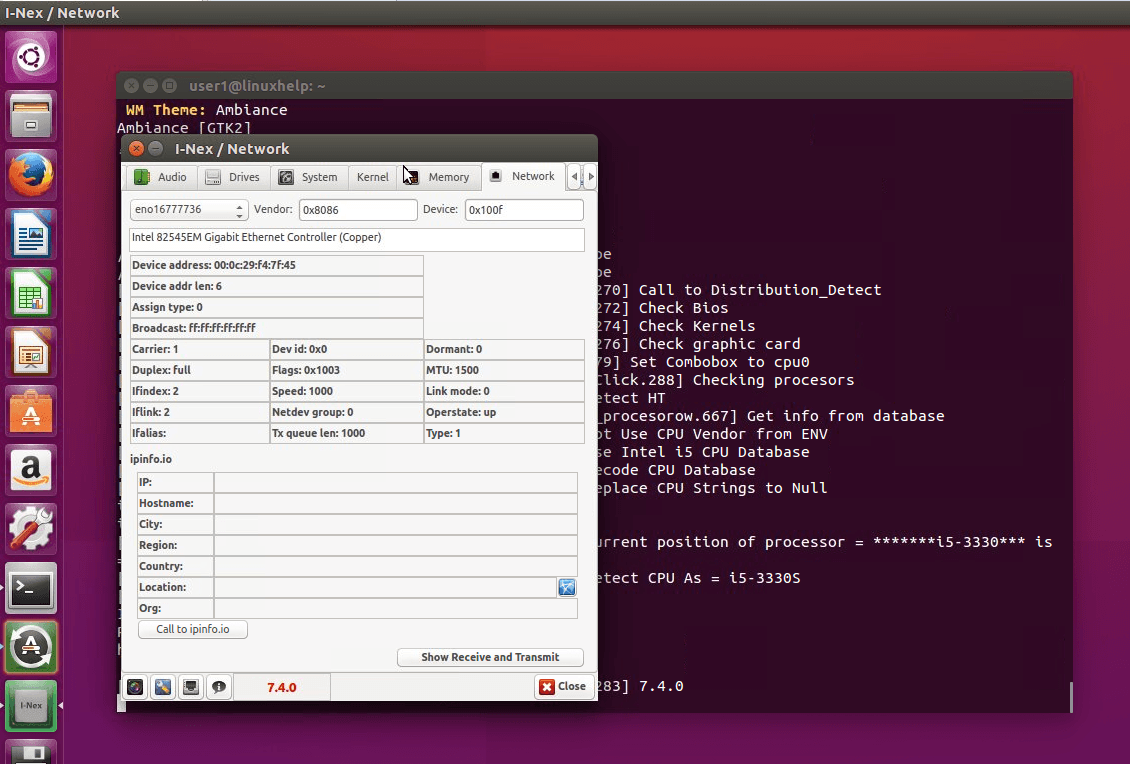

network_details

To take Screenshot

Click screenshot button at the bottom. To take screenshot of a particular information.
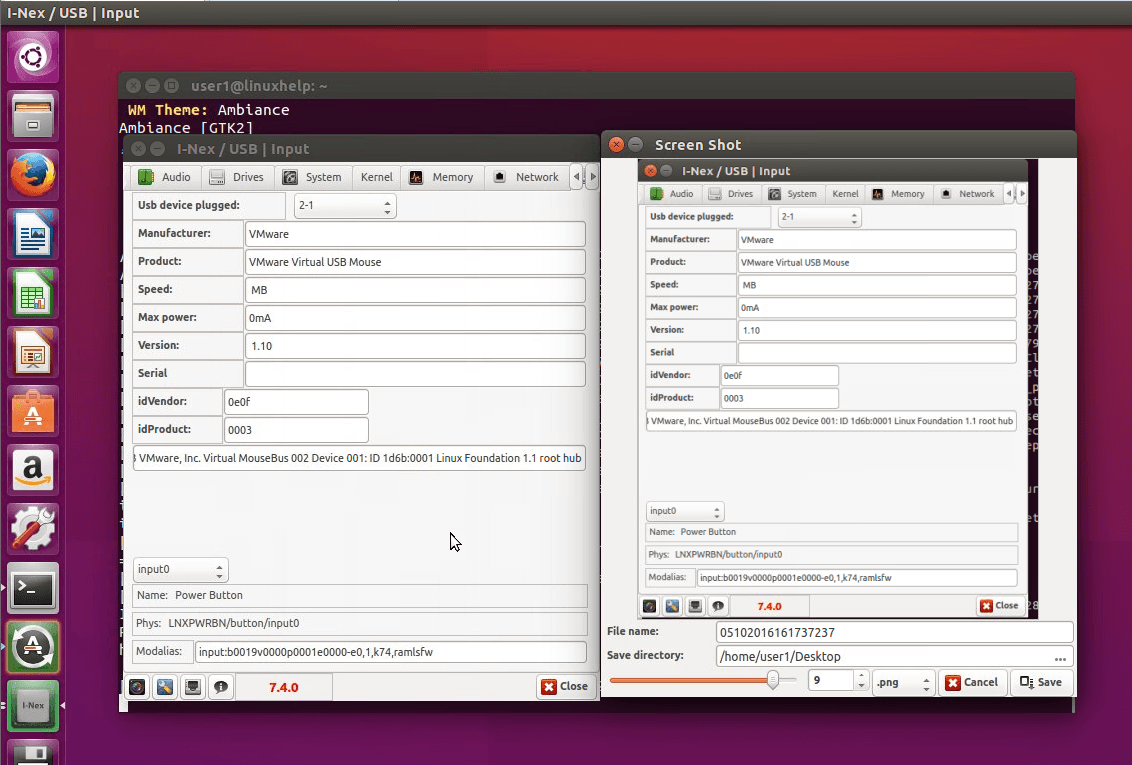

screenshot

Generate report

Click generate report button at the bottom of the page to generate reports.
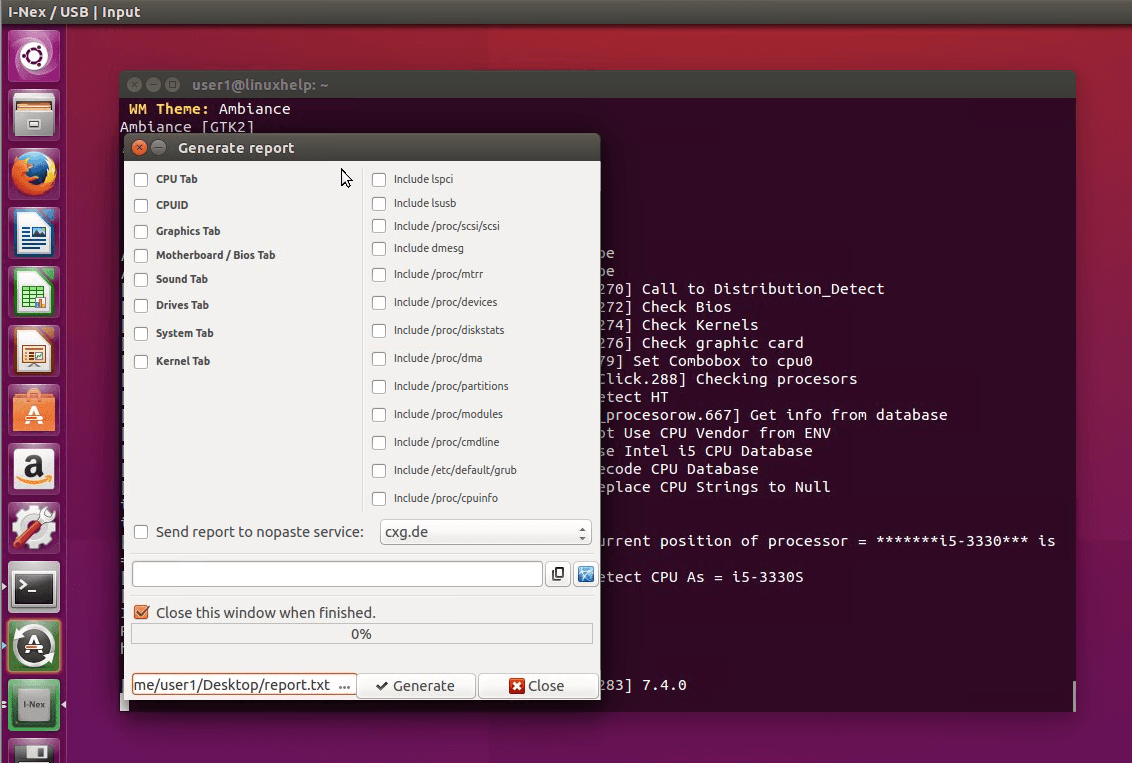

generate_report

To remove I-Nex

To uninstall the tool from the system, execute the below commands.

user1@linuxhelp:~$ sudo add-apt-repository --remove ppa:i-nex-development-team/daily
user1@linuxhelp:~$ sudo add-apt-repository --remove ppa:gambas-team/gambas3
user1@linuxhelp:~$ sudo apt-get update user1@linuxhelp:~$ sudo apt-get purge i-nex
user1@linuxhelp:~$ i-nex

Tags:
benjamin
Author: 

Comments ( 0 )

No comments available

Add a comment
{{postCtrl.cmtErrMsg}}

Frequently asked questions ( 5 )

Q

How can I fetch information drivers in I-Nex tool?

A

Yes, You can fetch that is the main features in the I-Nex tool.

Q

How to check the information of the motherboard?

A

To know about motherboard details, click mobo tab in I-Nex tool.

Q

What is a command to check the version of the I-Nex tool?

A

By using this command you can check the version
Syntax: "Nex-tool --version"

Q

Can I get the memory details of the I-Nex tool?

A

Yes, You can get the memory details using I-Nex tool.

Q

It is possible to take the screenshot in I-Nex tool?

A

It has the option to take a screenshot of each tab from the application itself.

Back To Top!
Rank
User
Points

Top Contributers

userNamenaveelansari
135850

Top Contributers

userNameayanbhatti
92510

Top Contributers

userNamehamzaahmed
32150

Top Contributers

1
userNamelinuxhelp
31040

Top Contributers

userNamemuhammadali
24500
Can you help Luke ?
workbench for debian

I am using workbench in CentOS whereas now I need to use Debian Operating system so could you please help to install and use in Debian?

Networking
  • Routing
  • trunk
  • Netmask
  • Packet Capture
  • domain
  • HTTP Proxy
Server Setup
  • NFS
  • KVM
  • Memory
  • Sendmail
  • WebDAV
  • LXC
Shell Commands
  • Cloud commander
  • Command line archive tools
  • last command
  • Shell
  • terminal
  • Throttle
Desktop Application
  • Linux app
  • Pithos
  • Retrospect
  • Scribe
  • TortoiseHg
  • 4Images
Monitoring Tool
  • Monit
  • Apache Server Monitoring
  • EtherApe 
  • Arpwatch Tool
  • Auditd
  • Barman
Web Application
  • Nutch
  • Amazon VPC
  • FarmWarDeployer
  • Rukovoditel
  • Mirror site
  • Chef
Contact Us | Terms of Use| Privacy Policy| Disclaimer
© 2025 LinuxHelp.com All rights reserved. Linux™ is the registered trademark of Linus Torvalds. This site is not affiliated with linus torvalds in any way.